Datacenter proxies setup: video guide
A 0:54 screen recording with voice and captions of a datacenter plan in the QuanticData dashboard: pick a country or keep Worldwide, choose rotating or sticky, HTTP or SOCKS5, set the output format to cURL command, generate and copy the lines, and run one command to see the datacenter IP your request left from.
Datacenter proxies in writing, with the plans and the prices: Datacenter proxies: the plans and the price per GB.
Chapters
Transcript
The captions of the video, line by line. Click a time to jump there.
- 0:00Connect a datacenter proxy, and check the IP your requests leave from.
- 0:05Open your datacenter plan from My proxies.
- 0:08In the endpoint generator, pick a country, or keep Worldwide.
- 0:12State, city and ISP can narrow it further.
- 0:16Rotating gives every request a fresh datacenter IP.
- 0:20Sticky keeps one IP for the minutes you set.
- 0:23Then choose HTTP or SOCKS5: each has its own port.
- 0:28For a first test, set the output format to cURL command.
- 0:31Click Generate.
- 0:33Then copy the lines: generating them uses none of your traffic.
- 0:37Run one command in a terminal.
- 0:40It asks for your IP through the proxy.
- 0:43So the answer is the datacenter IP your request left from, not your own.
- 0:48Plans and country guides are at quanticdata.io/datacenter-proxies.
Where to go next
Rotating or sticky, from one endpoint
Residential, mobile and datacenter proxies with country targeting, rotating or sticky sessions, HTTP or SOCKS5, built in the endpoint generator or over the API.
More video guides
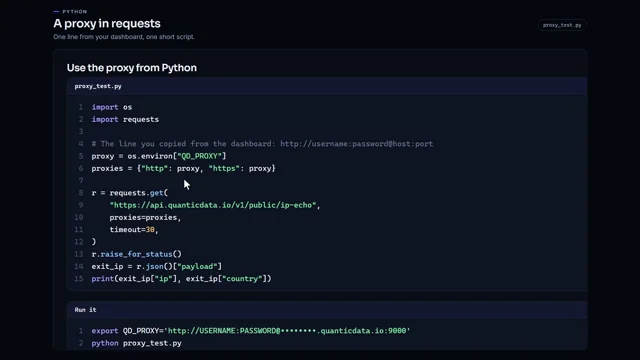 0:59Use a proxy in Python with requestsWatch the video
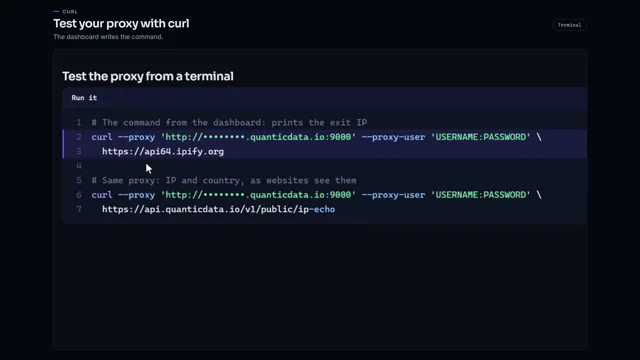 1:00Test a proxy with curlWatch the video
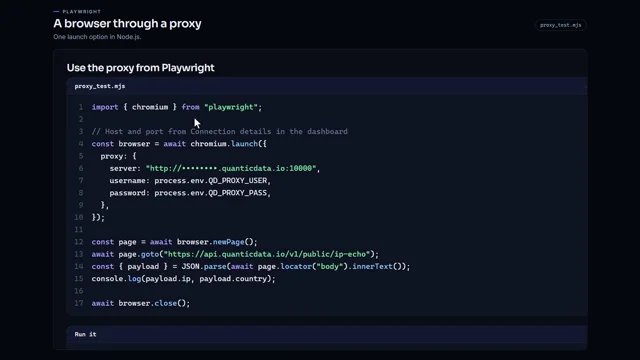 0:57Run Playwright through a proxy in Node.jsWatch the video
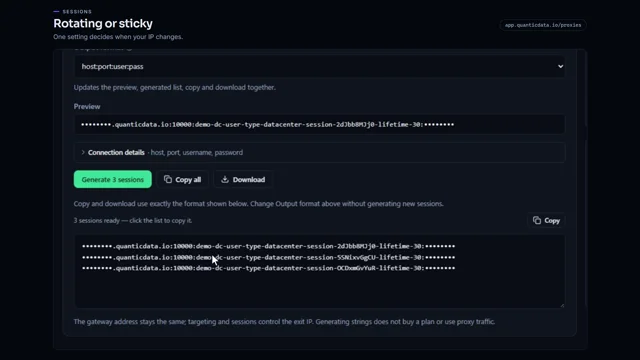 0:54Rotating vs sticky proxiesWatch the video
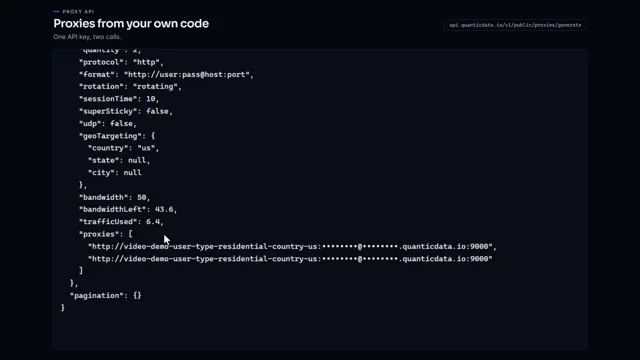 0:51Generate proxies from your code with one API keyWatch the video
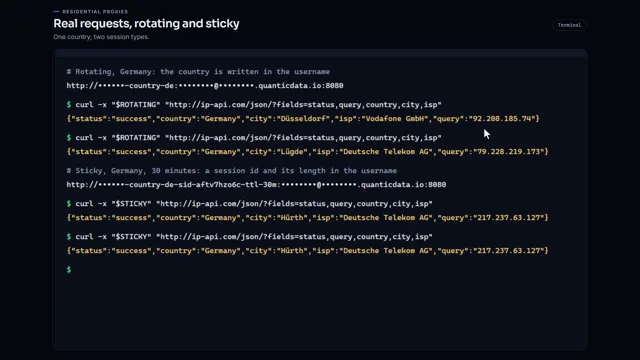 0:57Residential proxies quick startWatch the video