
To use SocksDroid on Android, add a profile, put the proxy host in Server IP and the SOCKS5 port in Server Port (1080 on QuanticData), tick Username & Password Authentication, fill in Username and Password, then turn on the switch and allow the VPN request. SocksDroid speaks SOCKS5 only, so the HTTP port does not work in it.
SocksDroid is a small open-source app (GPL-3.0) that runs a local VPN service on the phone and sends the connections of every app, or of the apps you choose, to one SOCKS5 proxy. It needs Android 5.0 or later and no root. The field names below are the app's own, taken from its source code, version 1.0.4, and the values come from the QuanticData endpoint generator.
What you need before you start
- SocksDroid 1.0.4 on the phone. On 23 October 2026 its Google Play page did not open. The current version is published in the IzzyOnDroid repository, which an F-Droid client can add, and its source is on GitHub (links at the end). The project is in maintenance mode: bug fixes and compatibility updates, no new features.
- A proxy plan. Residential Premium, ISP or Mobile: all three work in SocksDroid over SOCKS5. The table further down says which one fits which use.
- The four values, generated for SOCKS5: host, port, username and password. In the QuanticData dashboard they are under My proxies, on the plan's page, in the Endpoint generator: set Protocol to SOCKS5, then open Connection details.
If you would rather install from Google Play, or need an HTTP proxy, the same values go into Super Proxy: see how to use a proxy on Android with Super Proxy.
Every SocksDroid setting, and what to put in it
SocksDroid has a single screen per profile. This is what each field does and the value for a QuanticData proxy:
| Field | What it does | With QuanticData |
|---|---|---|
| Profile | Picks the profile; Add Profile and Delete Profile are in the menu at the top right | One profile per country, session or ISP IP |
| Server IP | The proxy server; a host name works too, a new profile shows 127.0.0.1 | residentialpremium.quantumproxies.io, the mobile gateway or the ISP IP |
| Server Port | The SOCKS5 port, 1080 in a new profile | 1080 for Residential Premium and Mobile, 50101 for ISP |
| IPv6 | Sends IPv6 traffic through the proxy | Off |
| UDP Forwarding and UDP Gateway (Remote) | Forwards UDP to a badvpn-udpgw server running next to the proxy, 127.0.0.1:7300 by default | Off; the gateway field stays grey |
| Username & Password Authentication | Sends the login; unticked, Username and Password are grey and ignored | Ticked |
| Username and Password | The login, the password shown as asterisks | The whole username from Connection details, and the password |
| Route | All (Default) sends every address through the proxy; Non-Chinese IPs sends only addresses outside China | All (Default) |
| DNS Server and DNS Port (TCP) | Where SocksDroid sends the phone's name lookups, over TCP | Keep 8.8.8.8 and 53, or another resolver's IP address |
| Connect on Boot | Starts the proxy when the phone starts | Your choice |
| Per-app Proxy, Bypass Mode, App List | Limit the proxy to some apps, or keep some apps off it | Explained step by step below |
Step by step: a Residential Premium proxy in SocksDroid
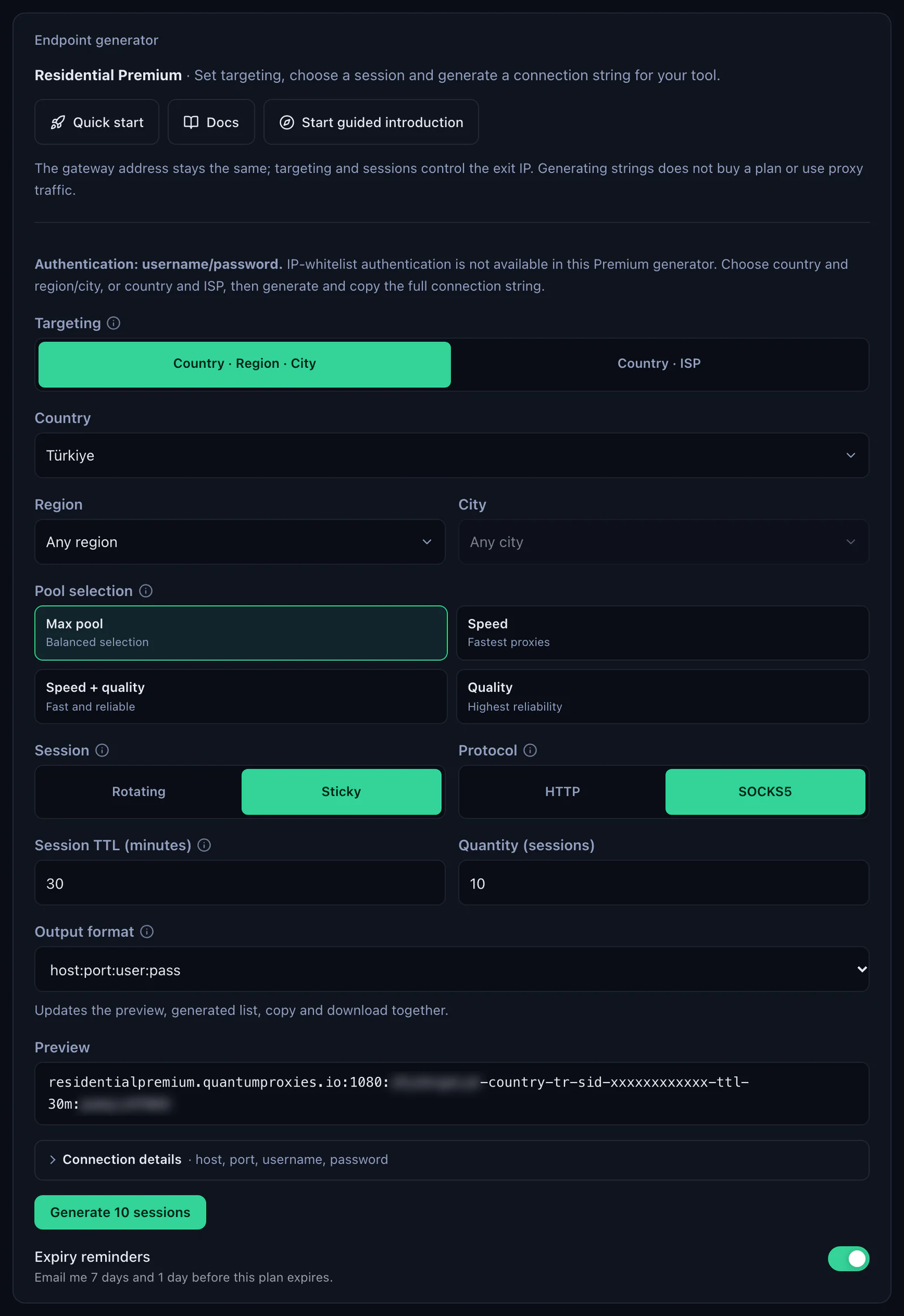
- Generate the values for SOCKS5. In the QuanticData dashboard open My proxies, then your plan. In the Endpoint generator choose the Country (Türkiye in this guide, and a Region or City if you need one), set Session to Sticky, set Session TTL (minutes) to at least the time you will use the phone and set Protocol to SOCKS5. Then open Connection details: host, port 1080, username and password, each with a copy button.
- Add a profile. Open SocksDroid, tap the menu at the top right, choose Add Profile, type a name such as Türkiye 01 and tap OK. The new profile is the one shown under Profile.
- Server IP: tap it, replace 127.0.0.1 with residentialpremium.quantumproxies.io and tap OK. Despite the field's name, SocksDroid looks the host name up itself when the proxy starts, so a name works as well as an IP address.
- Server Port: 1080. It is already the value in a new profile; keep it.
- Leave IPv6 and UDP Forwarding unticked. They are covered further down.
- Tick Username & Password Authentication. Until it is ticked, Username and Password are grey and SocksDroid sends no login at all.
- Username: tap it, paste the whole username, with everything after the first dash, and tap OK. Then Password the same way.
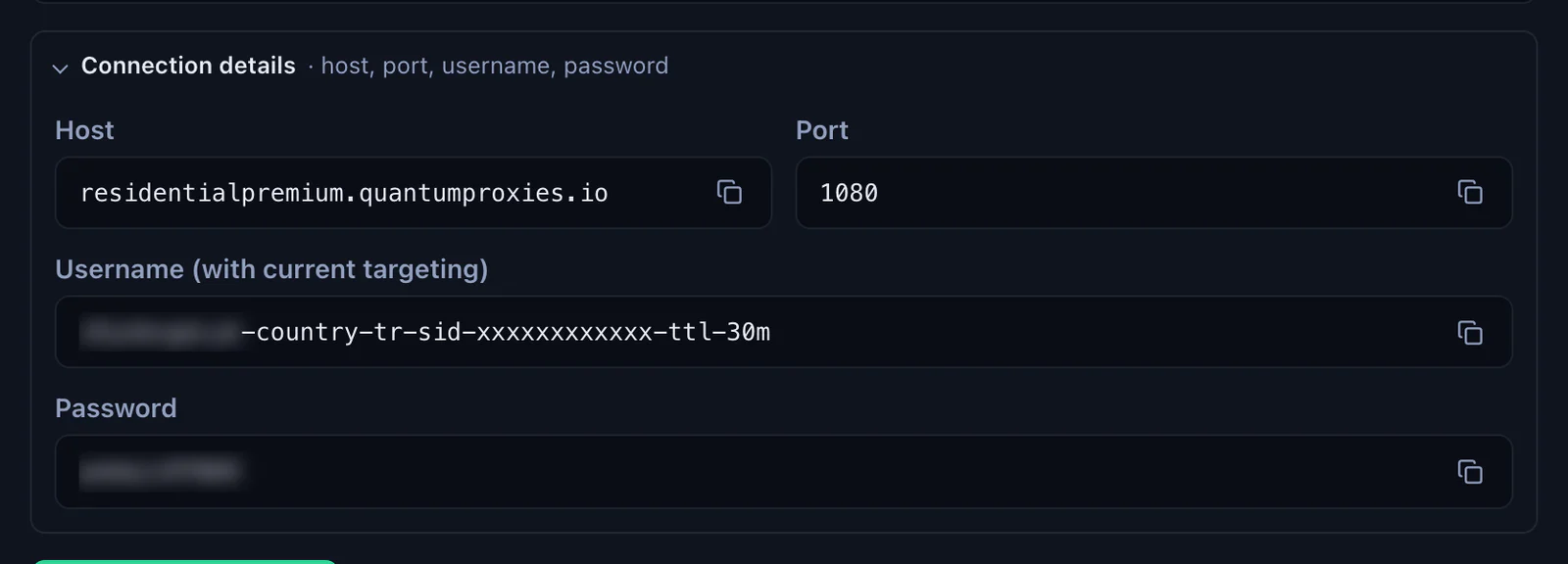
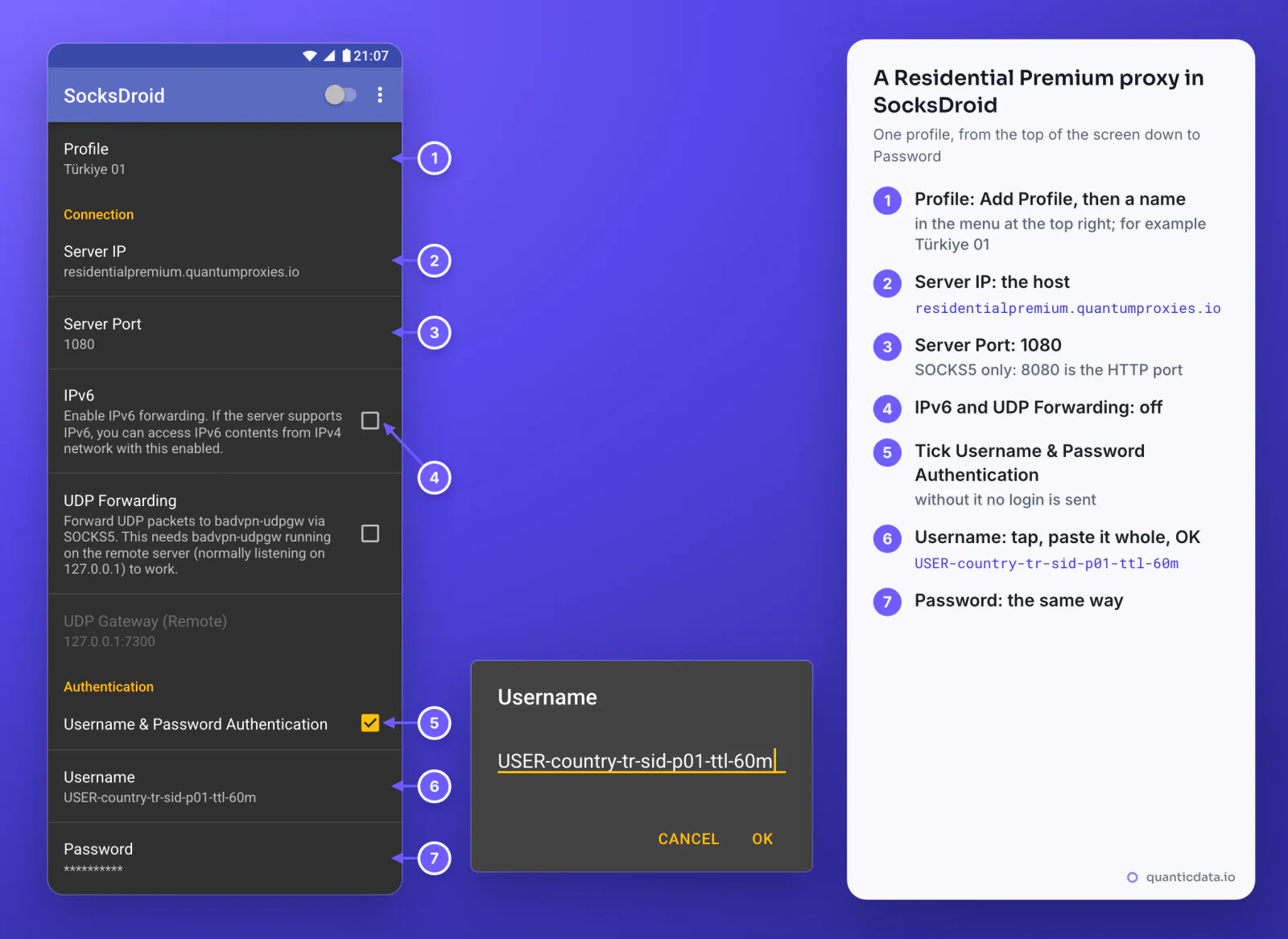
The same values as one line, for reference. The username carries the targeting: -country-tr picks the exit country, -sid-p01 names the session and -ttl-60m keeps it for 60 minutes. A username cut at the first dash still logs in, but the phone then leaves from a random country on a new IP at every connection.
# host:port:username:password, Protocol SOCKS5
residentialpremium.quantumproxies.io:1080:USER-country-tr-sid-p01-ttl-60m:PASS
Turn it on and check the exit
- Turn on the switch in SocksDroid's title bar.
- Allow the VPN connection. The first time, Android shows a Connection request: SocksDroid wants to set up a VPN connection. Tap OK. A key icon then shows at the top of the screen while the proxy is on.
- Read the notification. SocksDroid shows SOCKS5 proxy activated, Connected to Türkiye 01: the name is the profile in use.
- Open ipinfo.io/json in the phone's browser. It shows the IP address that sites see and where it is. The country has to match the
-country-in the username.
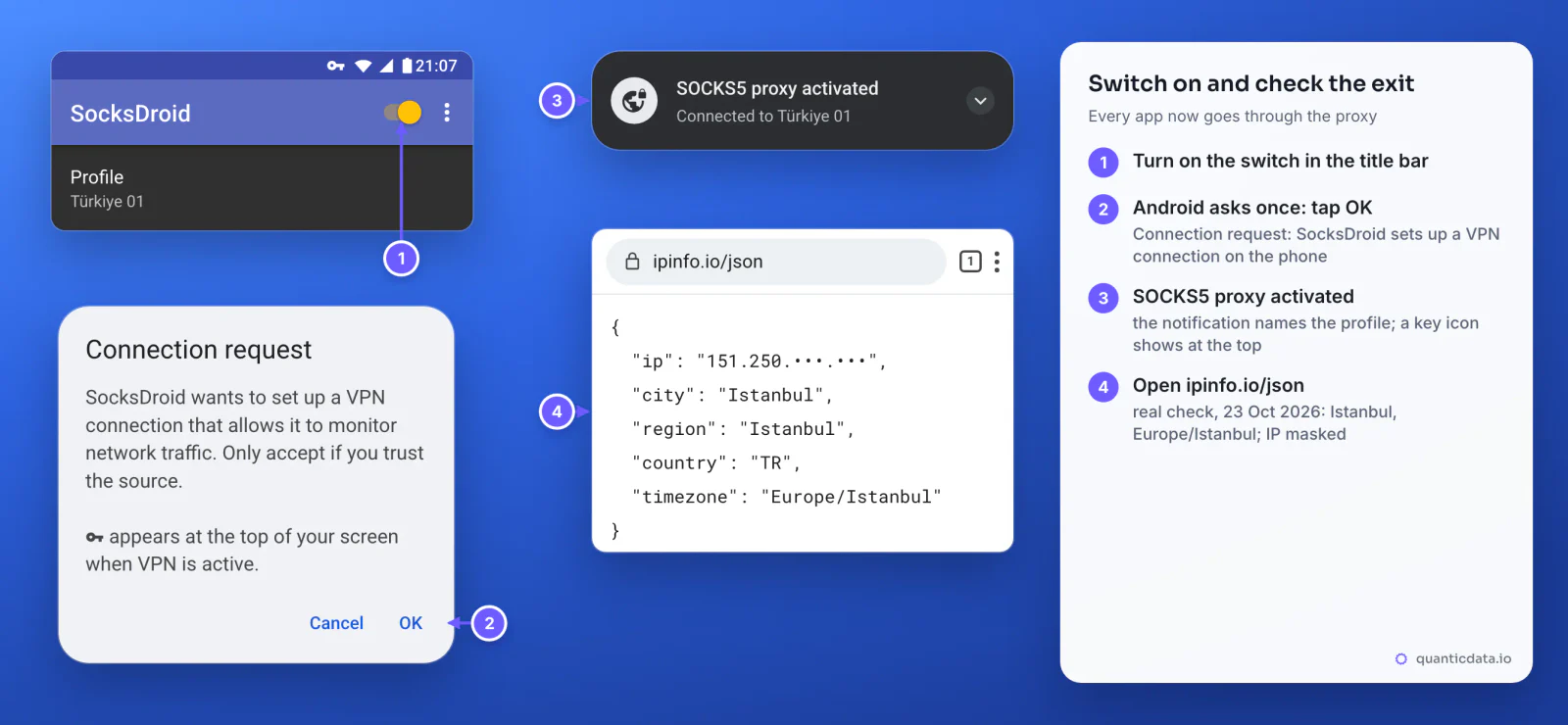
This is the answer to a real check through a QuanticData Residential Premium sticky line for Türkiye over SOCKS5 on port 1080, on 23 October 2026, with the IP masked:
{
  "ip": "151.250.x.x",
  "city": "Istanbul",
  "region": "Istanbul",
  "country": "TR",
  "timezone": "Europe/Istanbul"
}
To stop the proxy, turn the switch off. SocksDroid reads a profile's settings when the proxy starts, so after any change, to the username, the port or the app list, turn the switch off and on again.
One sticky session per phone, and a new IP when you want one
A rotating proxy changes IP on every connection, which suits scraping and breaks an app that is logged in. A sticky session keeps one IP for as long as the session lives, and the session lives in the username:
# phone 1: Türkiye, one session for a working day
residentialpremium.quantumproxies.io:1080:USER-country-tr-sid-p01-ttl-480m:PASS

# phone 2: same plan, its own session (never reuse p01)
residentialpremium.quantumproxies.io:1080:USER-country-tr-sid-p02-ttl-480m:PASS

# phone 3: open all day, the longest lifetime
residentialpremium.quantumproxies.io:1080:USER-country-tr-sid-p03-ttl-1440m:PASS- A different session ID on every phone. Two phones on the same username share one IP.
- A lifetime longer than the work. The generator accepts up to 1440 minutes, a full day. When the session ends, the next connection gets a new IP.
- A new IP on the same phone: change the session ID in Username, for example p01 to p02, then turn the switch off and on. Or keep one profile per session or per country, made with Add Profile, and pick it under Profile before you turn the switch on. With Session set to Sticky, the generator makes as many usernames as the Quantity field says, ten by default, each with its own session ID.
Residential Premium, ISP and Mobile proxies in SocksDroid
| Proxy type | Server IP and Server Port | Good for |
|---|---|---|
| Residential Premium | residentialpremium.quantumproxies.io and 1080; country, region, city or ISP and the sticky session in the username | Most uses: a home IP in the country you choose, kept for up to 1440 minutes |
| ISP | One fixed IP from Assigned IPs and 50101, the SOCKS5 port; the login from the same line | An account that should keep the same address for months |
| Mobile | The gateway host (Global, USA, EU or Asia) and 1080; the sticky session in the username | Apps built for phones and accounts tied to mobile networks |
Residential Premium
The example above: one host, the targeting and the session in the username, login by username and password, which SocksDroid sends once the box is ticked. Choose a Region or City in the generator when an app should see a specific part of the country; the username grows with -region- or -city- and nothing else changes. The plans are on the page for Türkiye residential proxies, and every country is on the page for QuanticData residential proxies.
ISP proxies
ISP plans give fixed IPs. On the plan's page, Proxy endpoints lists them under Assigned IPs. Set Protocol to SOCKS5: the port in the list becomes the SOCKS5 one, 50101, and with the output format IP:Port:Username:Password each line is one IP ready to copy. The HTTP / HTTPS setting gives port 50100, which does not work in SocksDroid.
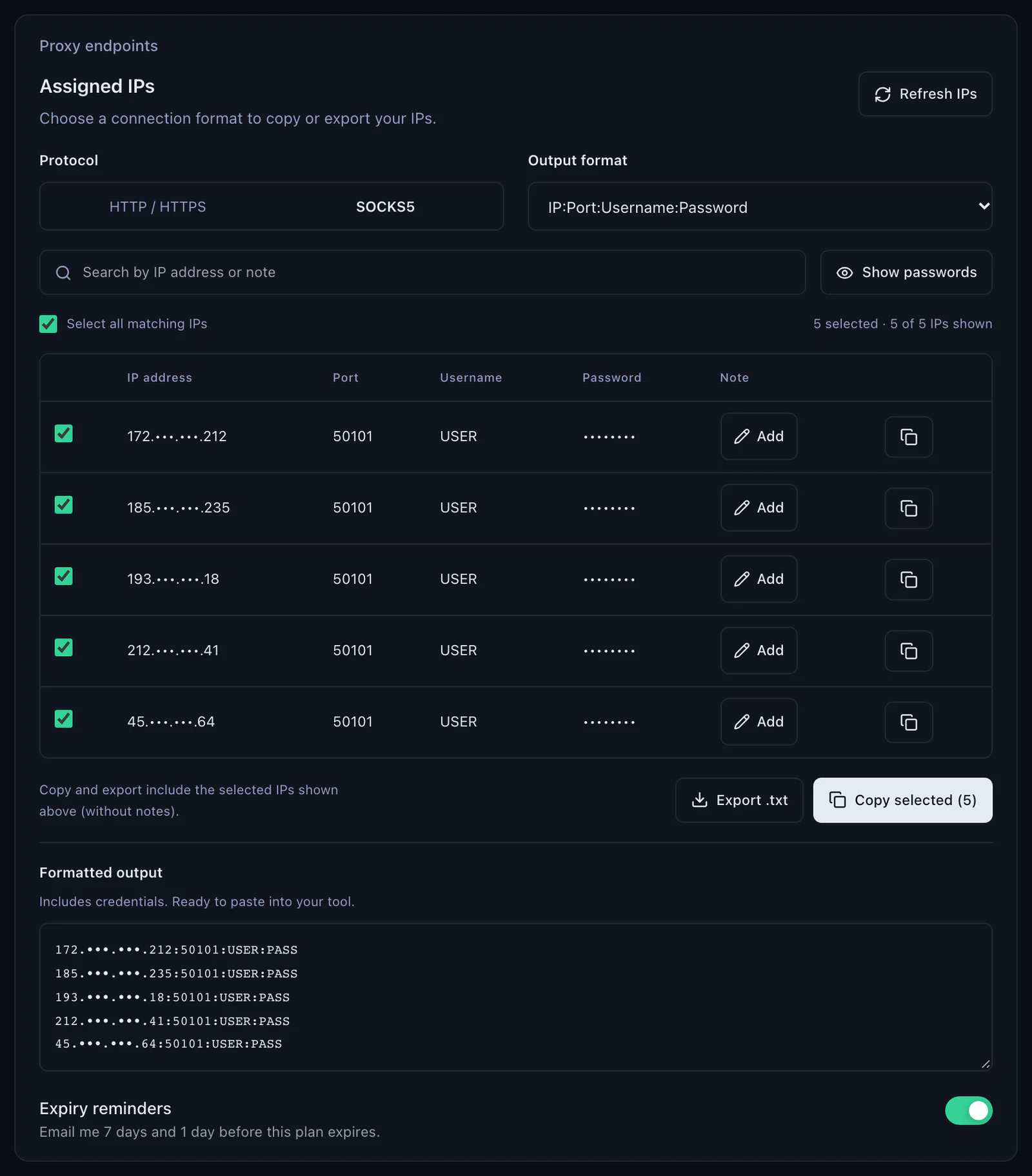
In SocksDroid, add one profile per IP, for example ISP 01: the IP goes in Server IP, 50101 in Server Port, then tick Username & Password Authentication and fill in the username and the password from the same line. Give each phone its own IP. ISP addresses are static by design: there is no session to change and the country is the one you bought, as on the page for Türkiye ISP proxies.
# IP:Port:Username:Password, one line from Assigned IPs (Protocol SOCKS5)
172.x.x.212:50101:USER:PASS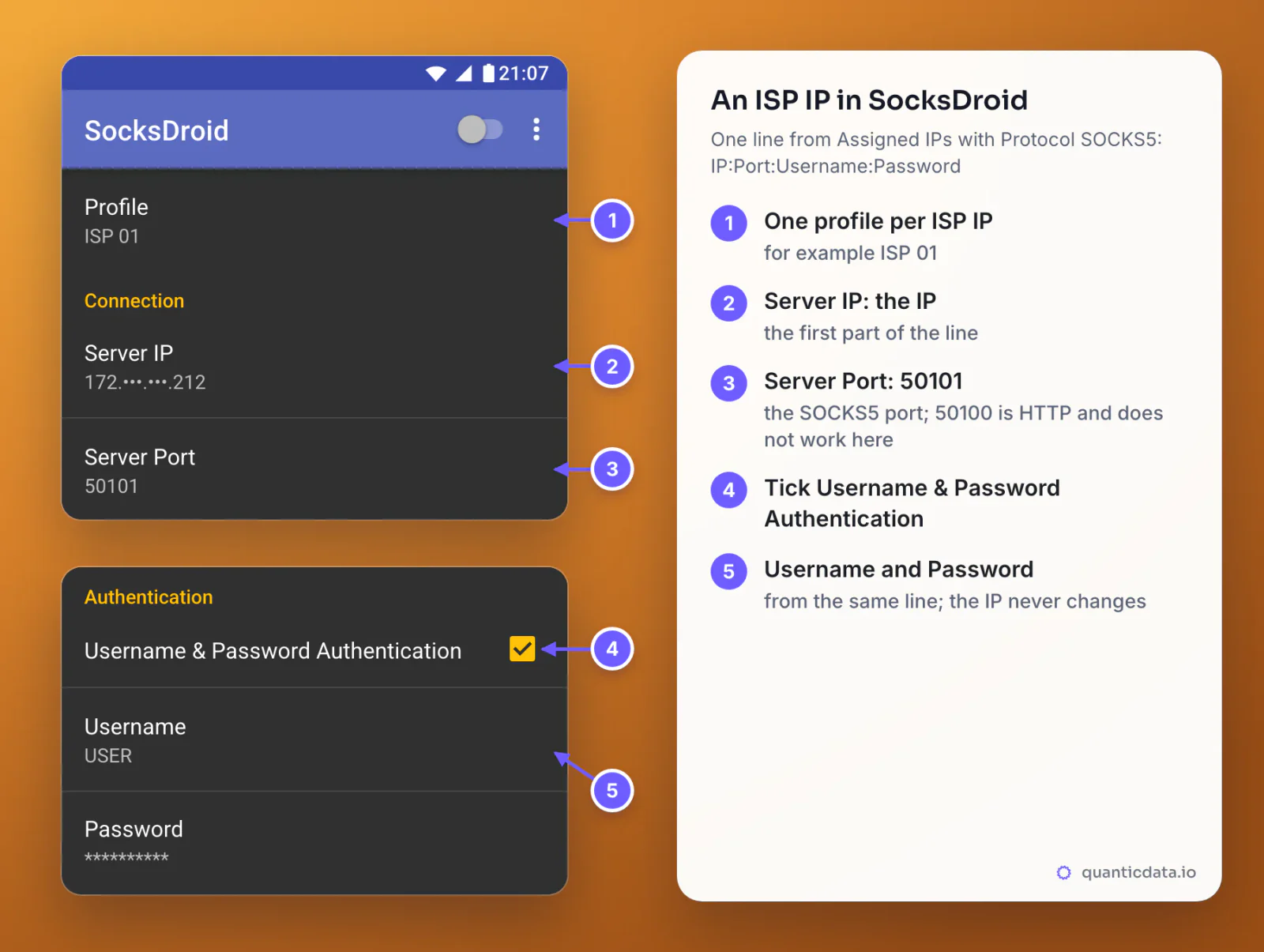
Mobile proxies
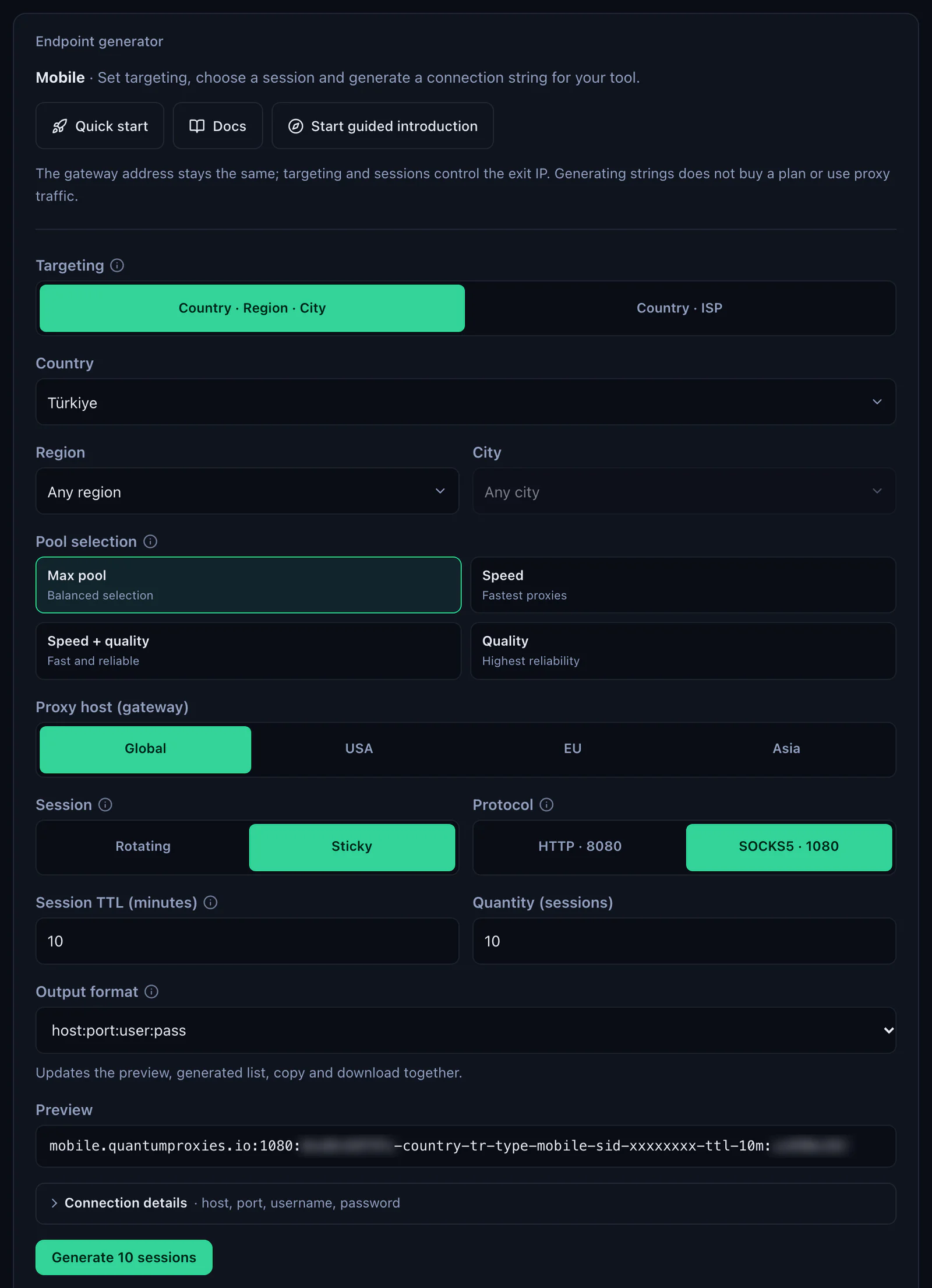
Mobile plans work the same way. Pick the gateway, Global, USA, EU or Asia (Global is mobile.quantumproxies.io), set Session to Sticky and Protocol to SOCKS5, port 1080, and copy the four values. A sticky mobile username looks like USER-country-tr-type-mobile-sid-m01-ttl-60m. Mobile plans also offer IP whitelist authentication, but on a phone keep username and password: the phone's own IP changes between Wi-Fi and mobile data, and a whitelist only recognises the addresses you added. The plans are on the page for Türkiye mobile proxies.
Per-app proxy: only some apps through the proxy
By default SocksDroid sends every app through the proxy. Three settings at the bottom of the profile, under Advanced, change that, and the app list is a text box, not a list to tick, which is where most people get stuck:
- Tick Per-app Proxy.
- Choose what the list means with Bypass Mode. Off: only the apps in the list use the proxy, every other app connects directly. On: the apps in the list skip the proxy, every other app uses it.
- Tap App List and type one package name per line, then tap OK. A package name is the app's ID, such as
com.android.chromefor Chrome ororg.telegram.messengerfor Telegram. The app's own hint points to Settings > Apps; the quickest place to read it is the address of the app's Google Play page, the part afterid=. - Turn the switch off and on again. The list applies when the proxy starts.
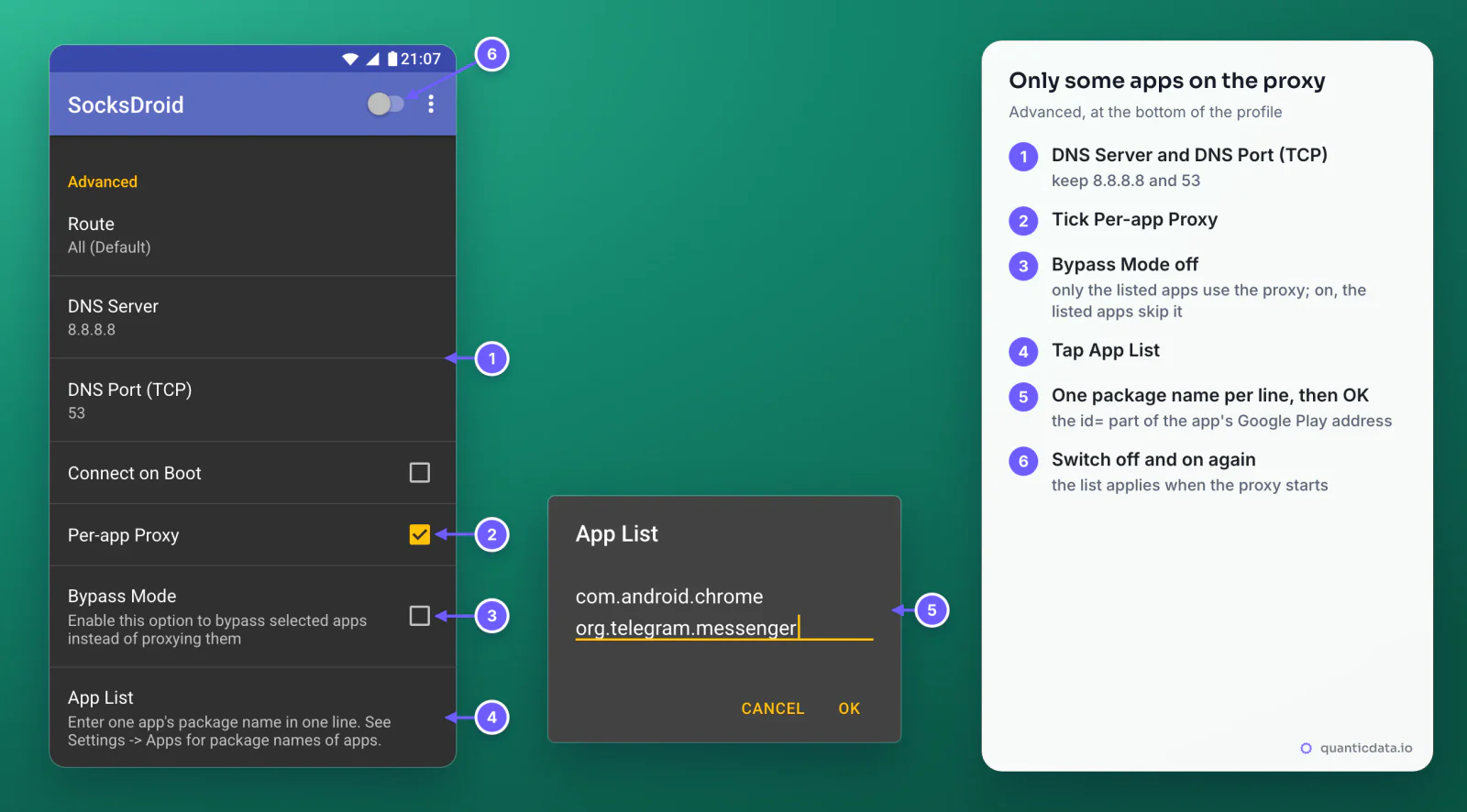
A misspelt package name is skipped without a message, so if an app in the list still shows your own IP, compare its name with the Google Play address letter by letter.
DNS, IPv6 and UDP in SocksDroid
- DNS Server and DNS Port (TCP). SocksDroid answers the phone's name lookups itself and asks the server set here, over TCP. The defaults, 8.8.8.8 and 53, work; to use another resolver, enter its IP address, not a name, and a port where it answers DNS over TCP.
- IPv6. Leave it off. With it on, SocksDroid also sends IPv6 traffic to the proxy, which only helps when the proxy server itself has IPv6.
- UDP Forwarding. Leave it off. It needs a badvpn-udpgw program running next to the proxy server, which a proxy service does not run. Without it SocksDroid carries TCP connections and DNS lookups, which is what web pages and most apps use.
SocksDroid not working: errors and fixes
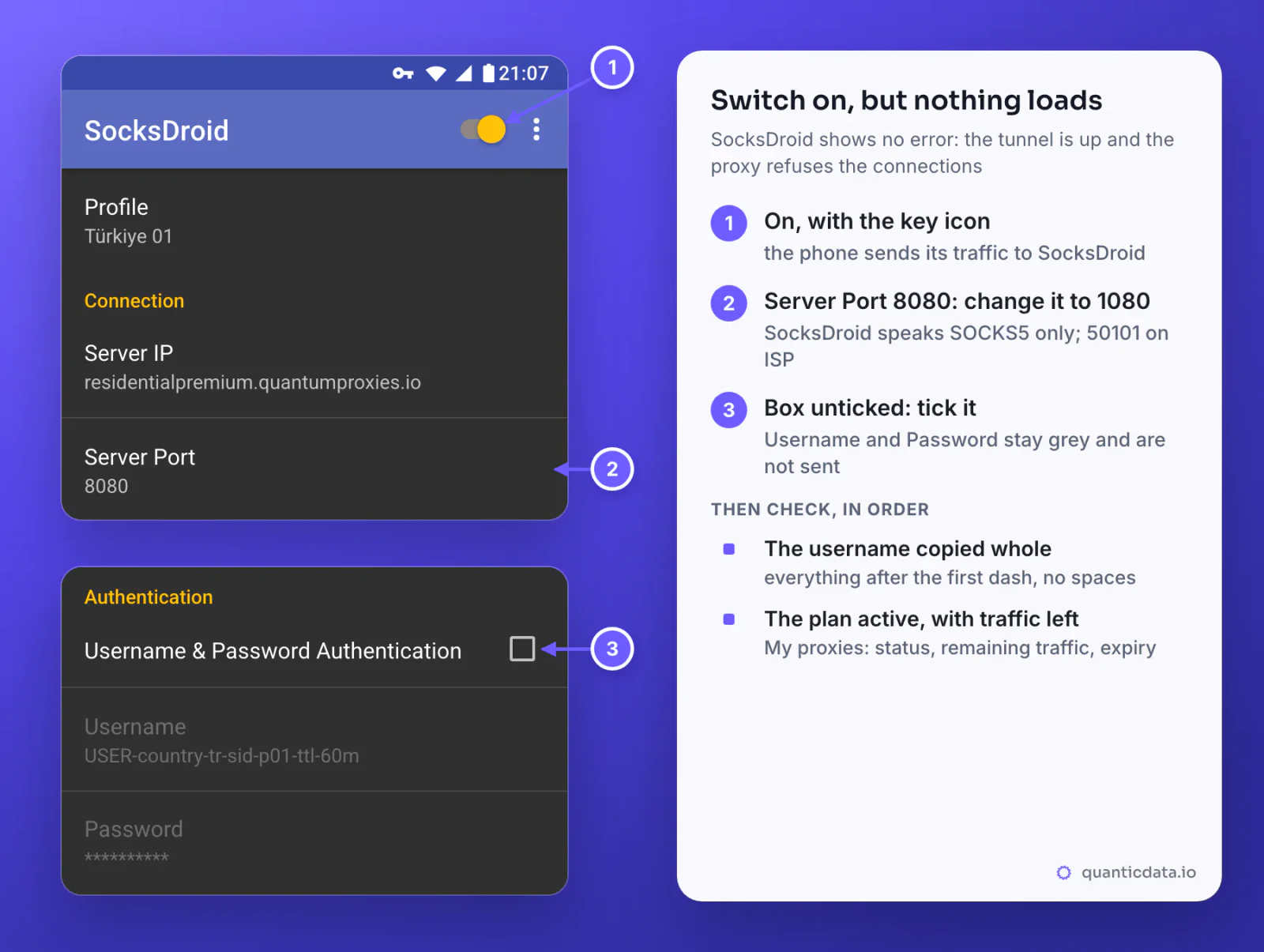
SocksDroid shows almost no error messages. The usual sign of a problem is that the switch is on, the key icon is at the top of the screen, and nothing loads: the phone sends its traffic to SocksDroid and the proxy refuses it. Check these cases in order.
| What you see | Usual cause | Fix |
|---|---|---|
| Switch on, key icon, nothing loads | Server Port is 8080, the HTTP port; SocksDroid speaks only SOCKS5 | 1080 for Residential Premium and Mobile, 50101 for ISP |
| The same, with the right port | Username & Password Authentication is unticked, so no login is sent | Tick it; Username and Password turn from grey to white |
| The same, box ticked | The username was cut, a space came with the paste, or the password is wrong | Copy the username and the password again from Connection details, one at a time |
| The switch turns itself off right after you turn it on | SocksDroid could not start the tunnel, usually a misspelt Server IP or no connection on the phone | Check the host letter by letter and that the phone is online, then try again |
| It worked yesterday and fails today | The plan expired or its traffic is used up | Open the plan in My proxies: status, remaining traffic, expiry date |
| The exit is in the wrong country | Worldwide was chosen in the generator, so there is no -country- in the username | Generate with a country and paste the new username |
| The IP changes during the day | The session lifetime ended, or two phones use the same session ID | A longer -ttl- and a different -sid- on each phone |
| Some apps ignore the proxy | Per-app Proxy is ticked: only the listed apps use it, or, with Bypass Mode, the listed apps skip it | Check App List and Bypass Mode, or untick Per-app Proxy; then switch off and on |
| Calls in one app do not connect | The app needs UDP, which SocksDroid forwards only to a badvpn-udpgw server | Keep that app off the proxy: Per-app Proxy, Bypass Mode on, the app in App List |
| Failed to add profile | A profile with that name already exists, or the name is empty | Type a different name |
One test from a computer settles most cases in a minute. If this returns an address in Türkiye, the proxy and the login work over SOCKS5, and the problem is in the fields on the phone:
curl -x socks5h://residentialpremium.quantumproxies.io:1080 \
  -U "USER-country-tr-sid-test-ttl-10m:PASS" https://ipinfo.io/json
SocksDroid alternatives on Android and iPhone
SocksDroid does one thing, SOCKS5 with a username and password, and does it without extras. If you need an HTTP proxy on the phone, an app from Google Play, or the choice of apps from a list instead of typed package names, Super Proxy takes the same four values: see our Android guide with Super Proxy. SocksDroid is Android only; on an iPhone the same values go into Shadowrocket, see residential proxies for iPhone and Shadowrocket. For what SOCKS5 carries that HTTP does not, see SOCKS5 proxies.
Before you use it
A proxy changes where the phone's traffic comes from, not what the phone is allowed to do. Keep to each app's terms and to the law where you work, and use one session per account.