
To use a proxy in Brave, add Quantum Proxies Manager, our free extension, from the Chrome Web Store with Add to Brave. Sign in with your QuanticData API key, choose the plan, the country and a sticky session, and turn it on. Brave alone leaves from the proxy, with no sign-in prompt. For private windows, also turn on Allow in Private.
Brave has no proxy field of its own. Under Settings, System, the only proxy entry is Open your computer's proxy settings, which changes the network settings of every app on the computer, not just the browser. An extension is the way to give Brave its own proxy: Brave runs the extensions of the Chrome Web Store, as the Brave Help Center explains, and an extension can set the proxy for Brave through the browser's own proxy API and answer the proxy's username and password. Quantum Proxies Manager is the extension we publish for this under our QuantumProxies.io brand; it signs in with the same API key as your QuanticData account. Labels below are the ones in Brave and in the extension, version 1.2.0.
Does Brave have a built-in proxy?
No setting in Brave lets you type a proxy address. What Brave has, and how each one relates to a proxy of your plan:
| In Brave | What it does | With your proxy |
|---|---|---|
| Settings, System, Open your computer's proxy settings | Opens the operating system's network settings | Changes every app, and has no place for the proxy's password: not used here |
| Private Window with Tor | A private window that uses Tor as its proxy | Leaves from Tor, not from your plan: use a regular or private window |
| Shields | Blocks trackers and ads, adds noise to fingerprinting | Stays on; it never changes the IP |
| Extensions from the Chrome Web Store | Run in Brave as in Chrome | Quantum Proxies Manager sets the proxy for Brave only |
What you need
- Brave on a computer (Windows, macOS or Linux), in the Brave profile you want to use with the proxy.
- A QuanticData proxy plan: Residential Premium, ISP or Mobile. The table further down says which job each one fits.
- Your API key: in the QuanticData dashboard, API Keys, Copy key. It starts with
qd_live_and has 64 characters after that. - The extension: Quantum Proxies Manager on the Chrome Web Store. It is free; the traffic comes from your plan.
Step by step: set up a proxy in Brave
- Open the store page in Brave and click Add to Brave, at the top right of the page.
- Read the prompt and click Add extension. Brave shows the same notice for every extension from the store: it does not review extensions, so install only those you trust. The prompt lists what Quantum Proxies Manager can do; each item is needed to set the proxy, answer its sign-in and keep WebRTC from showing your own IP.
- Pin it. Click the puzzle-piece icon next to the address bar and pin Quantum Proxies Manager, so its icon stays in the toolbar.
- Sign in. Click the icon, paste the API key and click Connect.
- Choose the plan and the country. Proxy plan lists the active plans on your account. For most browsing pick Residential Premium, then the Country under Geo-Targeting. State / Region and City can stay on All.
- Choose a sticky session. Under Session set Mode to Sticky and Hold for up to 60 min, so a login keeps one IP.
- Turn it on. The toggle at the top switches the proxy on; the card shows the exit IP, the city and the network.
- Run Leaks. It checks the exit IP, whether WebRTC shows another address, and whether the computer's time zone matches the exit.
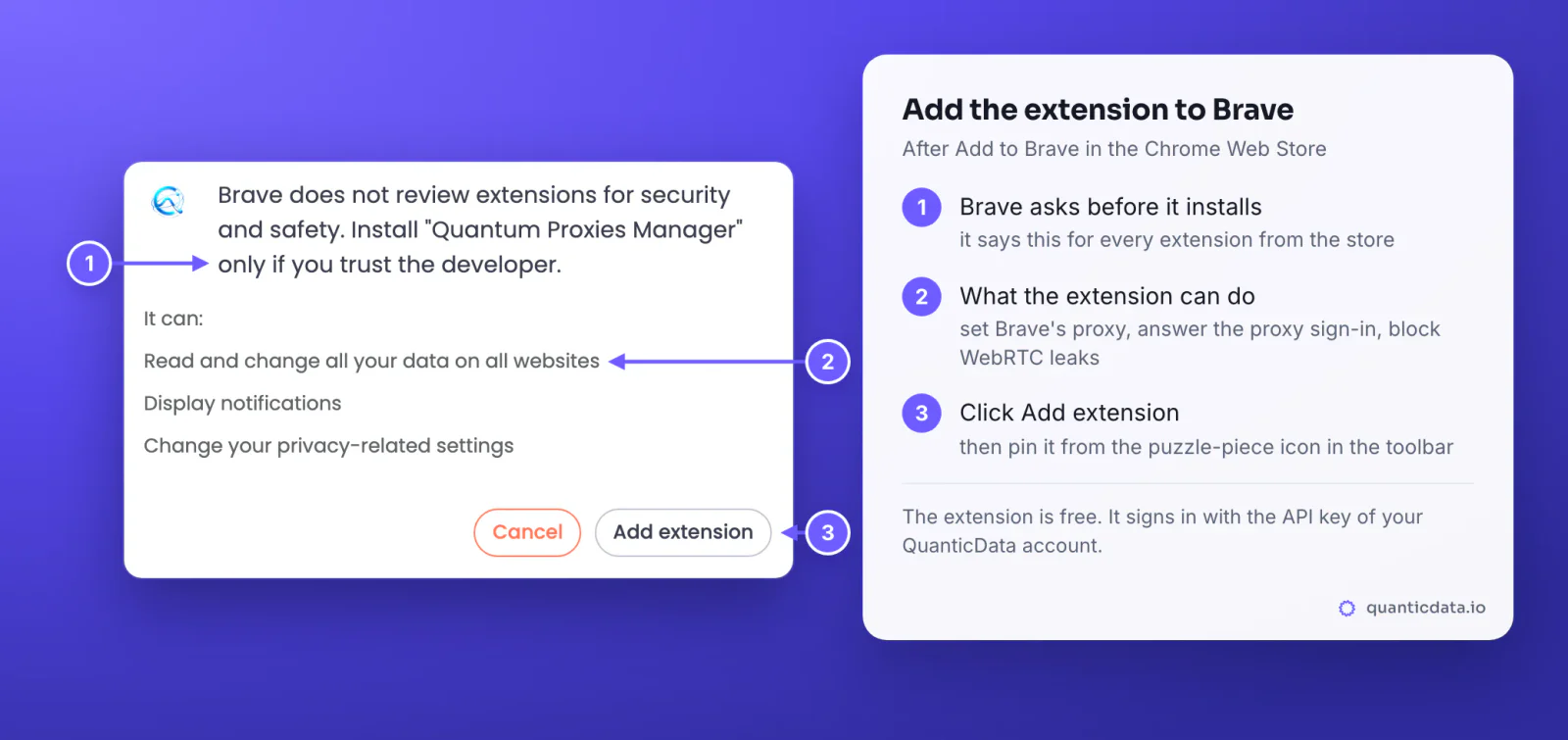
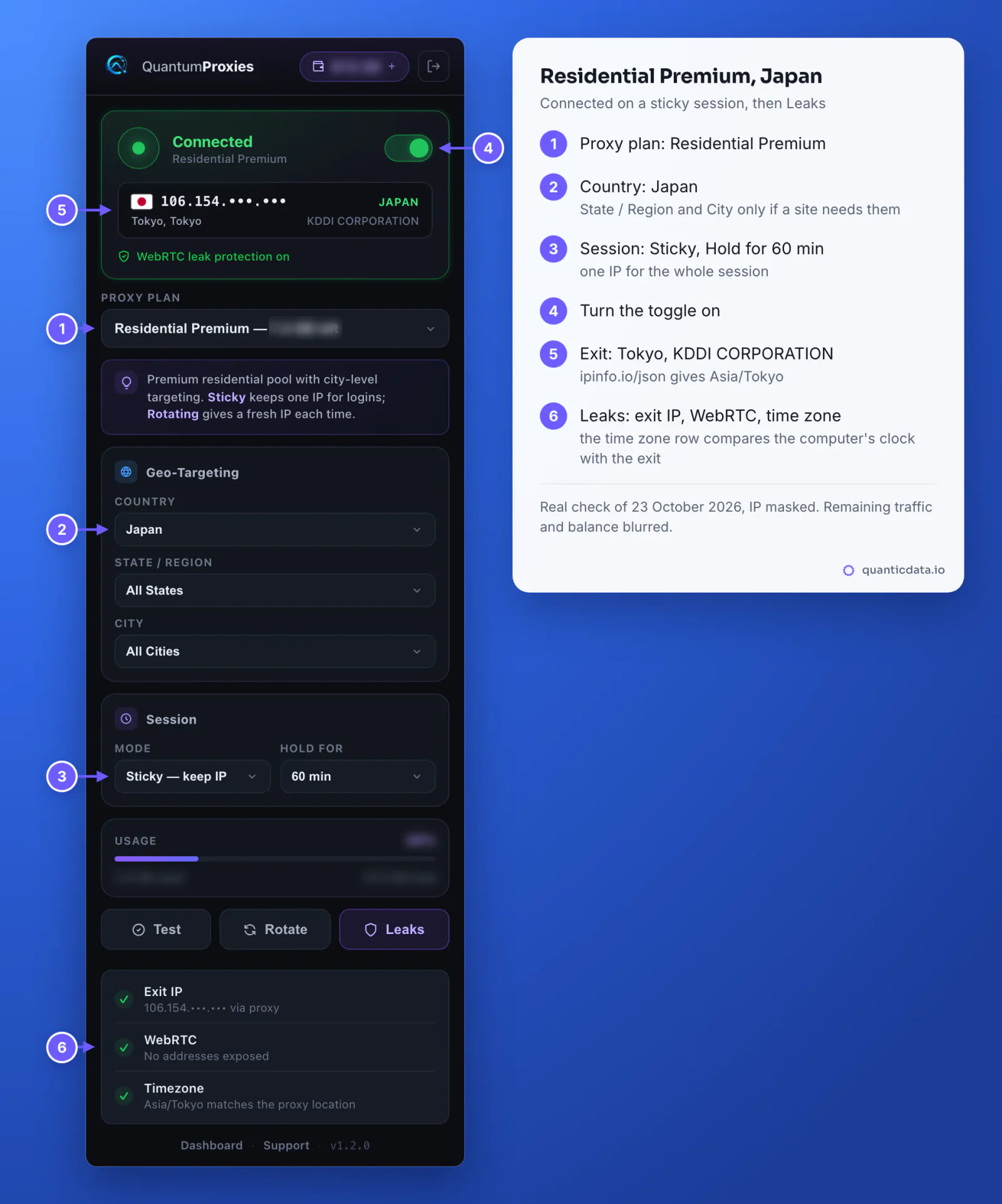
The extension connects over HTTP and answers the proxy's sign-in itself, which is why Brave never shows a username and password box. The full mechanism, the same in Brave as in Chrome, is in our Chrome guide.
Private windows and Tor windows
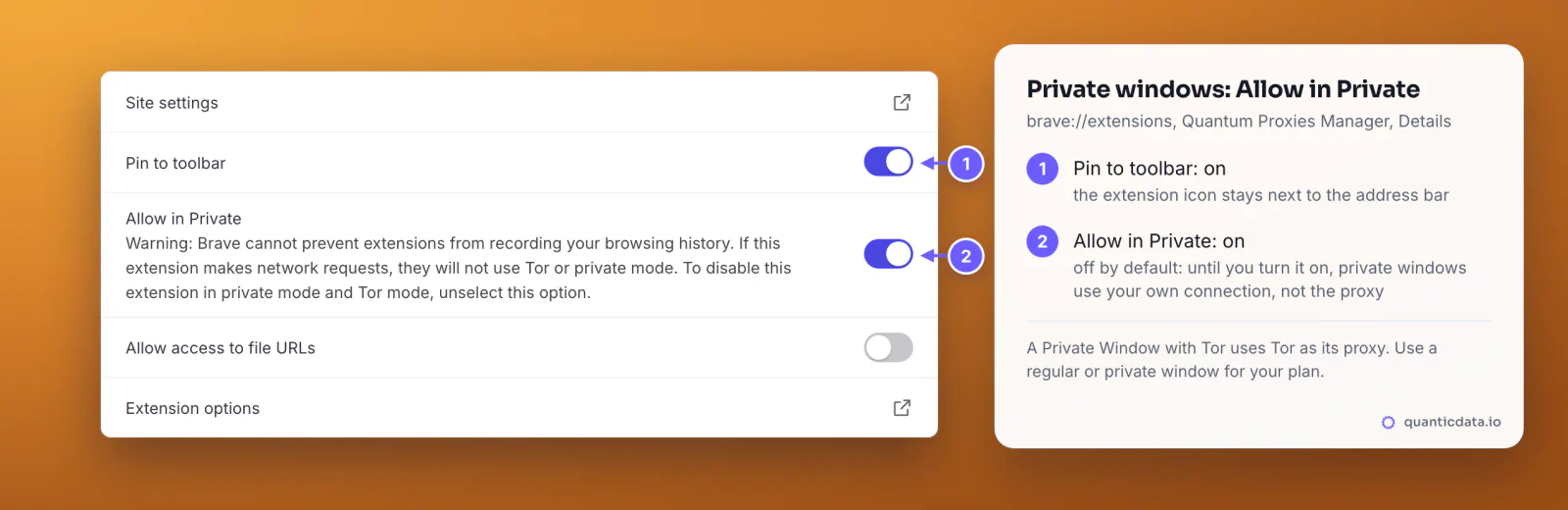
This is where Brave users get stuck. An extension's proxy reaches a private window only when the extension is allowed to run there, and Brave turns that off for every extension by default. Until you change it, a private window leaves from your own connection while the regular windows use the proxy.
- Open brave://extensions and click Details under Quantum Proxies Manager.
- Turn on Allow in Private. Brave warns that it cannot stop extensions from recording history in private mode; the extension only sets the proxy and answers its sign-in.
- Open a new private window and run Leaks, or load
ipinfo.io/json: the city should be the one of your plan's country. - Private Window with Tor: Brave sends it through Tor, which works as that window's proxy, so it never leaves from your plan. Use a regular or a private window for the proxy.
Everything else follows the toggle: every tab and window of the Brave profile goes through the plan, except localhost, 127.0.0.1 and names without a dot, which always go direct. Other apps on the computer are not touched. For a site that should skip the proxy, use a second Brave profile without the extension.
Brave Shields and the proxy
Shields and the proxy do different jobs and work together. Shields block trackers and ads and add noise to the values sites read for browser fingerprinting; the proxy decides which IP the site sees. Leave Shields up.
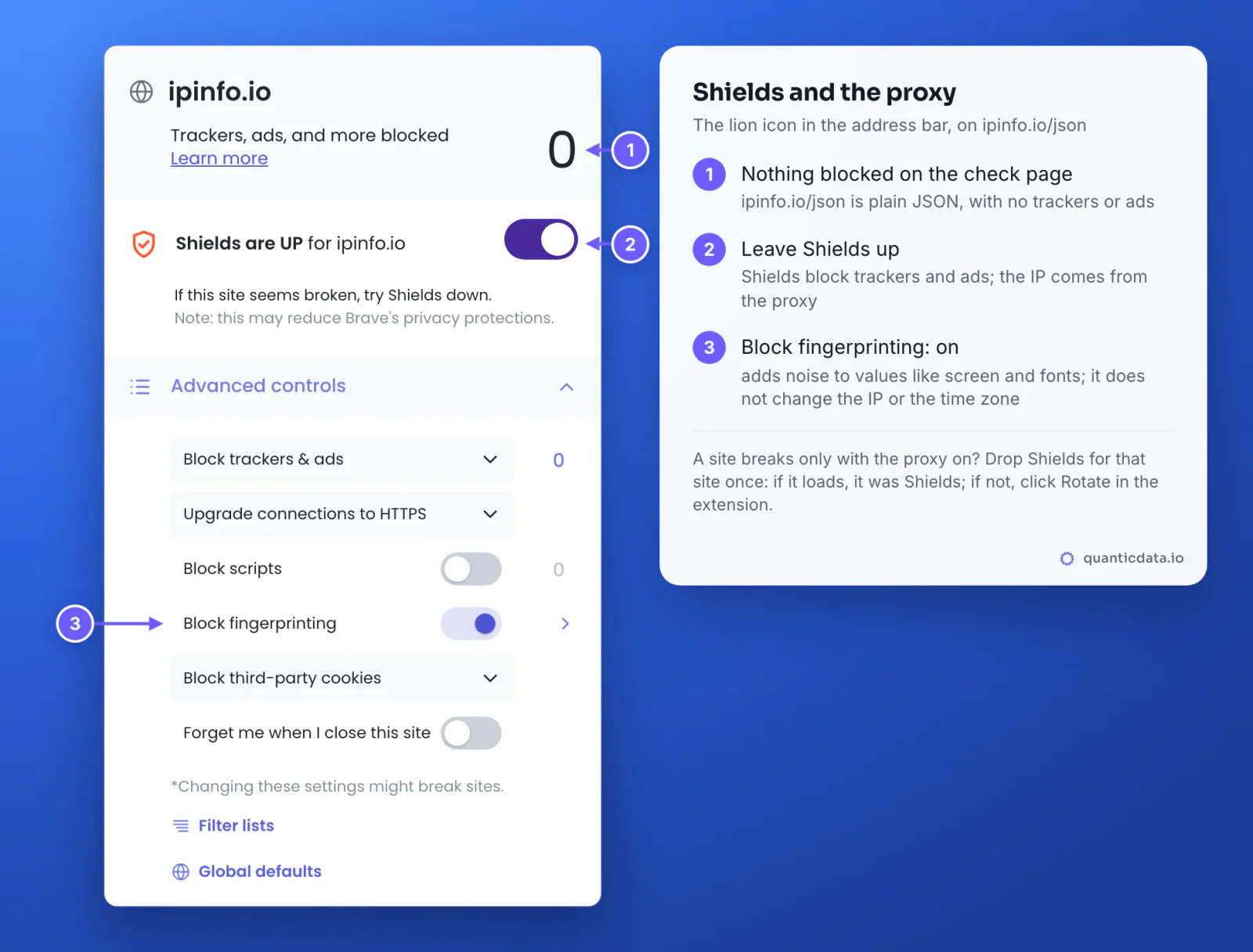
- Block fingerprinting randomises values such as the screen, fonts, hardware and user agent. The list of protections it applies does not include the time zone, so a time zone that differs from the exit still shows in Leaks.
- A site that breaks only with the proxy on: drop Shields for that site once. If it loads, Shields was the cause and the site's own setting can stay down; if it still fails, click Rotate in the extension for a fresh IP.
- The check page:
ipinfo.io/jsonis plain JSON, so Shields block nothing there and the answer is the proxy's own.
WebRTC in Brave
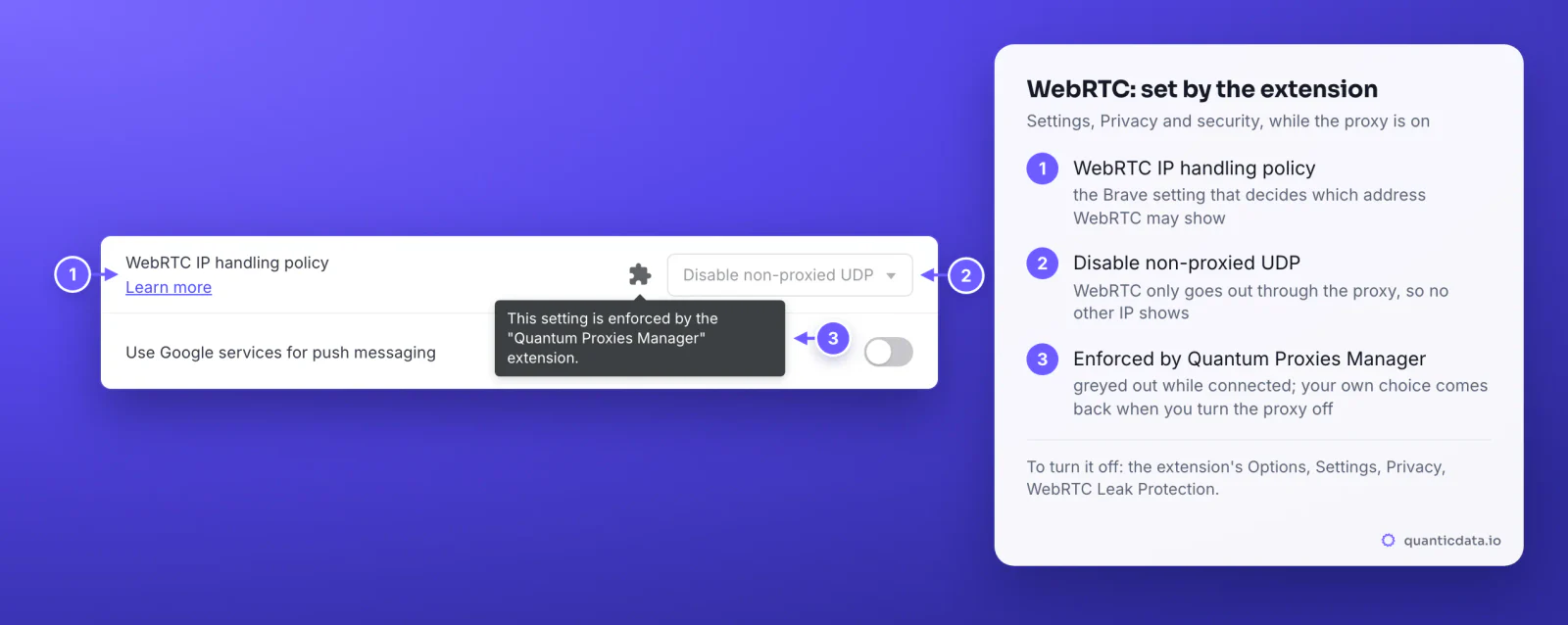
WebRTC, the part of the browser used for calls, can show an IP address that does not go through the proxy. Brave has its own setting for it under Settings, Privacy and security, WebRTC IP handling policy. While Quantum Proxies Manager is connected, it sets that policy to Disable non-proxied UDP and the dropdown turns grey, with a puzzle-piece icon that says the extension enforces it.
| WebRTC IP handling policy | What WebRTC may use | With the proxy on |
|---|---|---|
| Default | Every network interface | Can show your own IP |
| Default public and private interfaces | The default route, plus its local address | Can show your own IP |
| Default public interface only | The default route, no local address | Can show your own IP |
| Disable non-proxied UDP | Only what goes through the proxy | Shows the proxy's IP only; set by the extension |
When you turn the proxy off, the extension releases the setting and your own choice comes back. To leave WebRTC alone even while connected, open the extension's Options, Settings, Privacy, and turn off WebRTC Leak Protection.
Residential Premium in Brave
Residential Premium gives home IPs in the country you choose, with State / Region and City when a site needs them. Sticky keeps one IP for the Hold for time: 1, 5, 10, 30 or 60 min. Rotate gets a new IP on the same settings whenever you want one, and Rotating mode changes it on every connection, which suits checking many pages rather than logging in. See QuanticData residential proxies for the plans.
ISP proxies in Brave
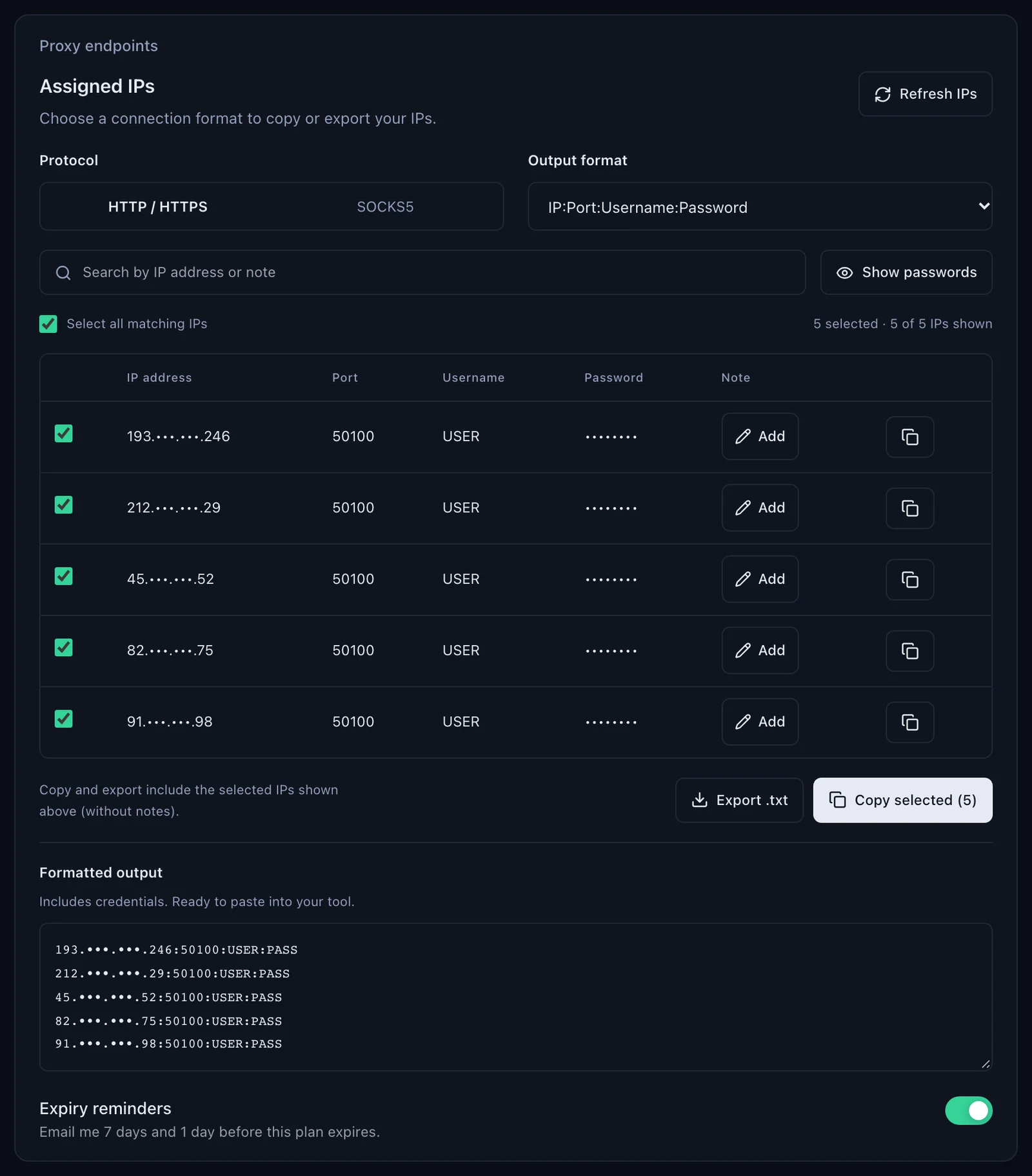
An ISP plan is a set of fixed IPs. The dashboard lists them on the plan's page under Assigned IPs, one line per IP as IP:Port:Username:Password, port 50100 for HTTP, for tools that take a pasted line.
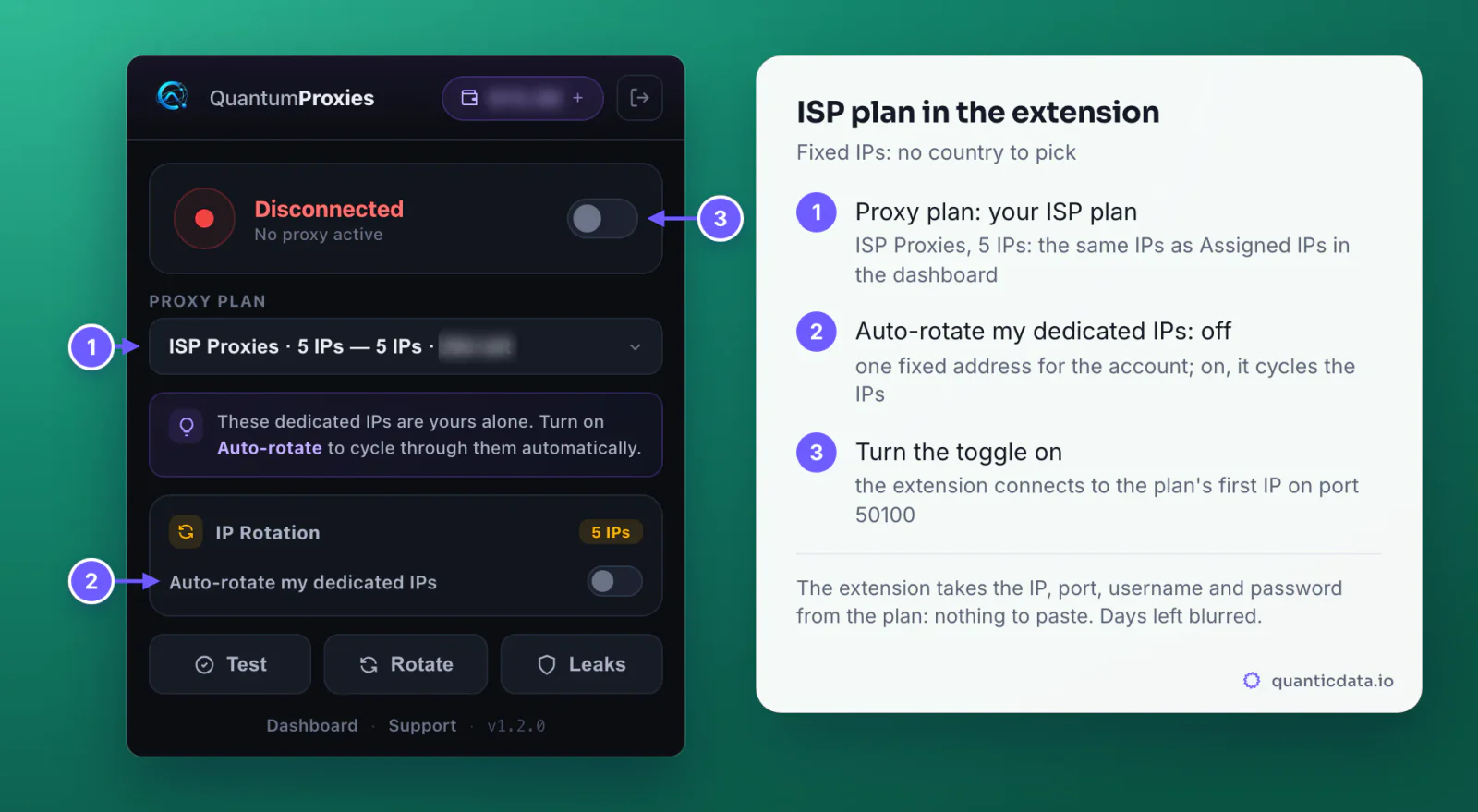
In Brave there is nothing to paste: the extension reads the plan's IPs, port and credentials from your account. Choose the ISP plan under Proxy plan and turn the toggle on; there is no country to pick, because the addresses are fixed, and the extension connects to the plan's first IP. On a plan with more than one IP, the IP Rotation card can cycle through them with Auto-rotate my dedicated IPs, every 10s up to 24 hours or on each request. Keep it off when an account should always see the same address, which is the reason to choose ISP proxies.
Mobile proxies in Brave
A mobile plan adds a Carrier / ISP field under the country, so the exit can be a given mobile network. Choose Sticky for anything with a login. Many phones share each mobile IP, which is why sites that are strict with other IP types tend to accept them; more on mobile proxies.
| Plan | In the extension | Good for |
|---|---|---|
| Residential Premium | Country, State / Region, City; Sticky up to 60 min or Rotating | Browsing and logins from a chosen country |
| ISP | Fixed IPs, no targeting; optional auto-rotate | Accounts that keep one address for months |
| Mobile | Country and Carrier / ISP; Sticky or Rotating | Phone-first platforms and strict sites |
| Datacenter | Location of the gateway | Speed where the IP type does not matter |
Check that Brave uses the proxy
- The status card shows the exit IP, the country, the city and the network once connected.
- Leaks gives three rows: the exit IP through the proxy, WebRTC, and the time zone compared with the computer's.
- A tab on
ipinfo.io/jsonanswers through the proxy; run it in a private window too after Allow in Private.
Our check for this guide, a Residential Premium sticky session with Country set to Japan on 23 October 2026:
| Field | Result |
|---|---|
| City | Tokyo |
| Region | Tokyo |
| Country | JP |
| Time zone | Asia/Tokyo |
| Network | AS2516 KDDI CORPORATION |
Errors and fixes
| What you see | Cause | Fix |
|---|---|---|
| Regular windows use the proxy, private windows show your own IP | Allow in Private is off, as it is by default | brave://extensions, Details, Allow in Private on, then open a new private window |
| A Private Window with Tor shows another country | That window goes through Tor | Use a regular or private window for the proxy |
| Invalid API key format | Part of the key, or a space, was pasted | Copy key again in API Keys: qd_live_ and 64 characters |
| Invalid API key, or API key is disabled | The key was rotated, deleted or switched off | Copy the current key from API Keys, or enable it there |
| No active proxies, or You are out of bandwidth | No active plan, or its traffic is used up | Check the plan's status and traffic under My proxies |
| Connected, but the IP does not change | Another proxy extension, or a policy on a managed computer, sets Brave's proxy | Turn off the other proxy extensions in brave://extensions; on a work computer, ask the administrator |
| A site loads without the proxy but breaks with it | Shields or that IP | Drop Shields for the site once; if it still fails, click Rotate |
| Leaks: Real IP exposed | WebRTC Leak Protection was turned off | Extension Options, Settings, Privacy, WebRTC Leak Protection on |
| Leaks warns about the time zone | The computer's time zone differs from the exit's; Shields do not change it | Pick a country in your time zone, or set the computer to the exit's |
To tell a plan problem from a Brave problem, test the plan outside the browser. Generate a sticky line in the dashboard and run it with curl: an address in the right country means the plan works and the cause is in Brave. More on using a proxy with curl.
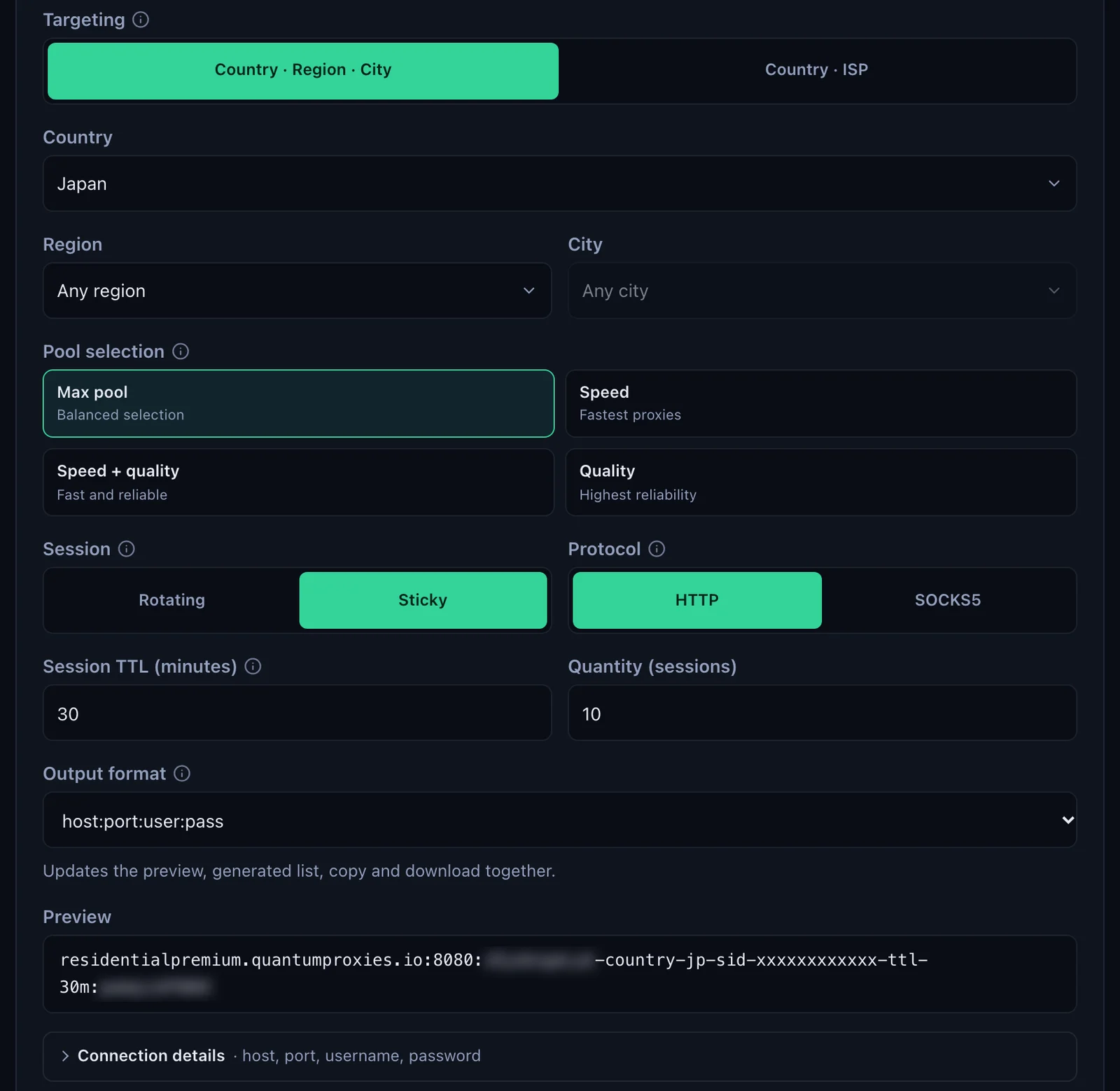
curl -x http://residentialpremium.quantumproxies.io:8080 \
  -U "USER-country-jp-sid-test-ttl-10m:PASS" https://ipinfo.io/json
The generator keeps a session for up to 1440 minutes for tools other than the extension. If curl fails too, go through the proxy not working checklist.
SOCKS5 in Brave
Brave is built on Chromium, and Chromium's documentation says no authentication methods are supported for SOCKSv5. A SOCKS5 proxy with a username and password therefore does not work in Brave, whatever the setting; that is why the extension connects over HTTP. Our plans keep SOCKS5 on port 1080 for tools that can sign in to it; see SOCKS5 proxies.
On a phone
Quantum Proxies Manager is an extension for Brave on a computer. On a phone, set the proxy in an app that handles the username and password for every app on the device: see our guides for Android and for iPhone with Shadowrocket.
Before you run accounts
A proxy changes where Brave's traffic comes from, not what a site allows. Follow each platform's terms and the law where you work, and give each account its own Brave profile and its own sticky session.
Sources & further reading
- Chrome Web Store: Quantum Proxies Manager
- Brave Help Center: How can I add extensions to Brave?
- Brave Help Center: How do I change my Privacy Settings? (WebRTC IP Handling Policy)
- Brave Help Center: How do I use Shields while browsing?
- Brave Help Center: What is a Private Window with Tor Connectivity?
- Chromium: Proxy support in Chrome
- Chrome for Developers: chrome.proxy API