
To add a proxy in DuoPlus, open the cloud phone's proxy configuration, keep Custom Proxy, pick HTTP for port 8080 or Socks5 for 1080, enter host, port, username and password, click Check, then Finish. Start with a mobile line, one sticky session per phone. Below: every step, Residential Premium and ISP lines, saved proxies and a fix for each failure.
DuoPlus runs Android phones in the cloud, and a cloud phone without a proxy has no network at all: DuoPlus's help center calls it "not initialized". The proxy decides which IP address, which country and which kind of network the apps on that phone show. DuoPlus also builds the phone's SIM, base station and GPS details from the proxy's location, so the proxy you give a phone at the start shapes the whole device. The field names below are the ones in DuoPlus's own help center and console; the values come from the QuanticData endpoint generator, with the Philippines as the example market.
What you need before you start
- A DuoPlus account with a cloud phone. Right after you buy a phone DuoPlus opens its proxy configuration; later you reach the same page from the cloud phone list.
- A proxy plan. Mobile first for cloud phones, then Residential Premium or ISP: all three work in DuoPlus. The table further down says which one fits which phone.
- The four values: host, port, username and password. In the QuanticData dashboard they are under My proxies, on the plan's page, in the Endpoint generator; Connection details lists them one by one.
- Username and password authentication. DuoPlus runs its cloud phones in Singapore and Hong Kong, so the proxy sees DuoPlus's servers, not your office or home. An IP whitelist made for your own address would not match; the login travels with the phone.
The proxy types and formats DuoPlus accepts
DuoPlus takes three proxy types: Socks5, HTTP and HTTPS. HTTP and HTTPS arrived in its update of 31 July 2026; before that the cloud phones took Socks5 only, which is why some older guides still say so. Proxies must be IPv4 or a host name: IPv6 addresses are not supported yet.
- Custom Proxy, on a cloud phone: a type menu (Socks5, HTTP, HTTPS), IP or Domain, Port, then Account with the username and the password.
- Pasting a whole line: paste it into IP or Domain and DuoPlus splits it into the fields. It recognises
host:port,host:port:username:passwordandusername:password@host:port. - Proxies, Batch Add: one proxy per line in the same layouts, the type in front when it is not Socks5 (
http://orsocks5://) and an optional name in braces at the end, for example{PH mobile 01}. DuoPlus skips lines that already exist in the proxy list.
The same QuanticData mobile proxy in each layout:
# Custom Proxy: four fields, type HTTP
IP or Domain  mobile.quantumproxies.io
Port          8080
Username      USER-country-ph-type-mobile-sid-m01-ttl-60m
Password      PASS

# pasted into IP or Domain
mobile.quantumproxies.io:8080:USER-country-ph-type-mobile-sid-m01-ttl-60m:PASS

# one line of Batch Add, with the type in front and a name at the end
http://mobile.quantumproxies.io:8080:USER-country-ph-type-mobile-sid-m01-ttl-60m:PASS{PH mobile 01}

# Socks5 on its own port
mobile.quantumproxies.io:1080:USER-country-ph-type-mobile-sid-m01-ttl-60m:PASS
The username is the whole string, with everything after the first dash: -country-ph picks the exit country, -type-mobile asks for a mobile carrier IP, -sid-m01 names the session and -ttl-60m keeps it for 60 minutes. Copy it whole. A username cut at the first dash still logs in, but the phone then leaves from a random country on a new IP at every request. The dashes are fine: DuoPlus accepts letters, numbers and the usual symbols in the account field.
Step by step: a mobile proxy on a DuoPlus cloud phone
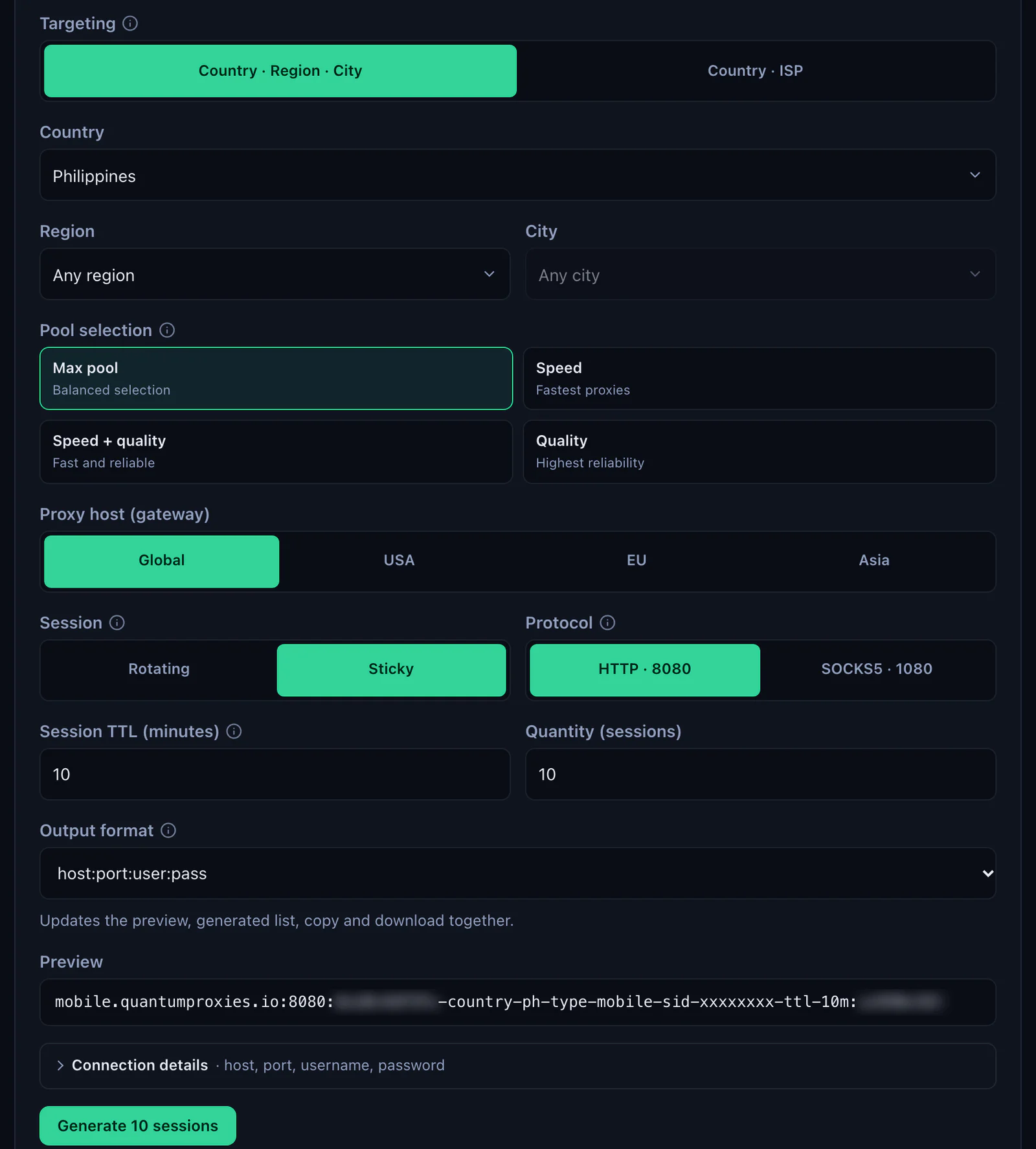
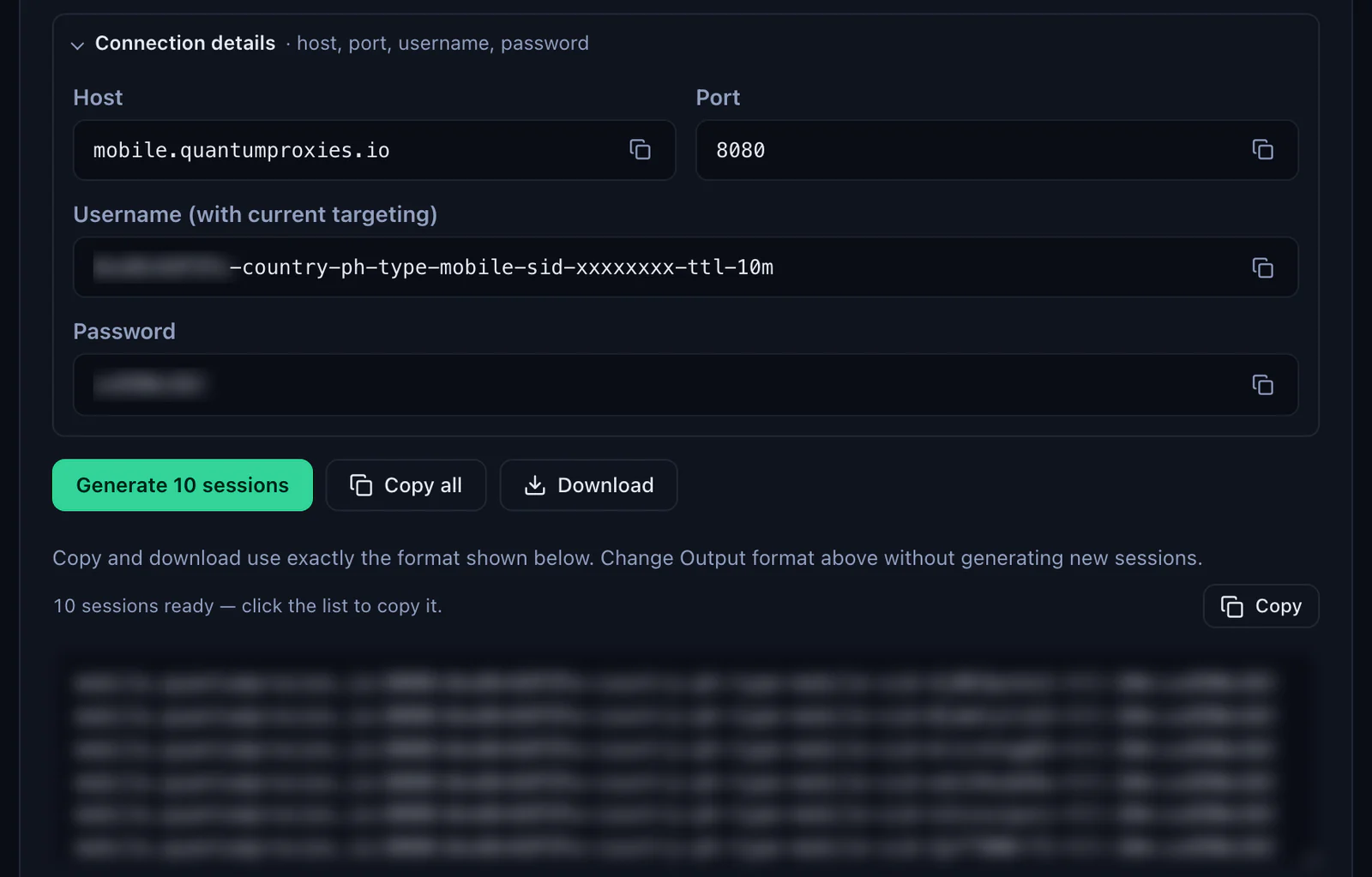
- Generate the values. In the QuanticData dashboard open My proxies, then your mobile plan. In the Endpoint generator choose the Country (and a Region or City if the phone needs one), keep a gateway (Global, USA, EU or Asia: all take the same login), set Session to Sticky, set Session TTL (minutes) to at least the time the phone stays on, up to 1440, and choose the Protocol. Open Connection details: host, port, username and password, each with a copy button.
- Open the phone's proxy configuration in DuoPlus. After a purchase DuoPlus opens it on its own; otherwise click Initialize Proxy for that phone in the cloud phone list. Name the phone and pick a group if you use them.
- Keep Custom Proxy under Network. List, the other tab for your own proxies, picks one you saved before on the Proxies page.
- Pick the type that matches the port. DuoPlus preselects Socks5. For port 8080 choose HTTP; for port 1080 keep Socks5. Leave HTTPS aside: port 8080 is an HTTP proxy that already carries HTTPS sites.
- Enter host and port, then username and password. Host
mobile.quantumproxies.ioin IP or Domain, 8080 in Port, the whole username with-country-ph-type-mobile-sid-m01-ttl-60mand the password under Account. Or paste the whole line into IP or Domain and let DuoPlus split it. - Click Check. Leave IP Checker on IP2Location; it only picks the database that places the IP on the map. A green "Proxy IP Connection Test Passed." shows the IP, the region and the time zone; the country has to match the
-country-in the username. - Leave Proxy DNS on. DuoPlus's own note says to turn it off only if the phone has no network once it is powered on.
- Finish, then power on. Under Simulation Settings the phone's location, time zone and language can follow the IP; with a mobile line, Network Mode can be set to Mobile Network instead of Wi-Fi. Click Finish at the bottom right, then start the phone from the cloud phone list.
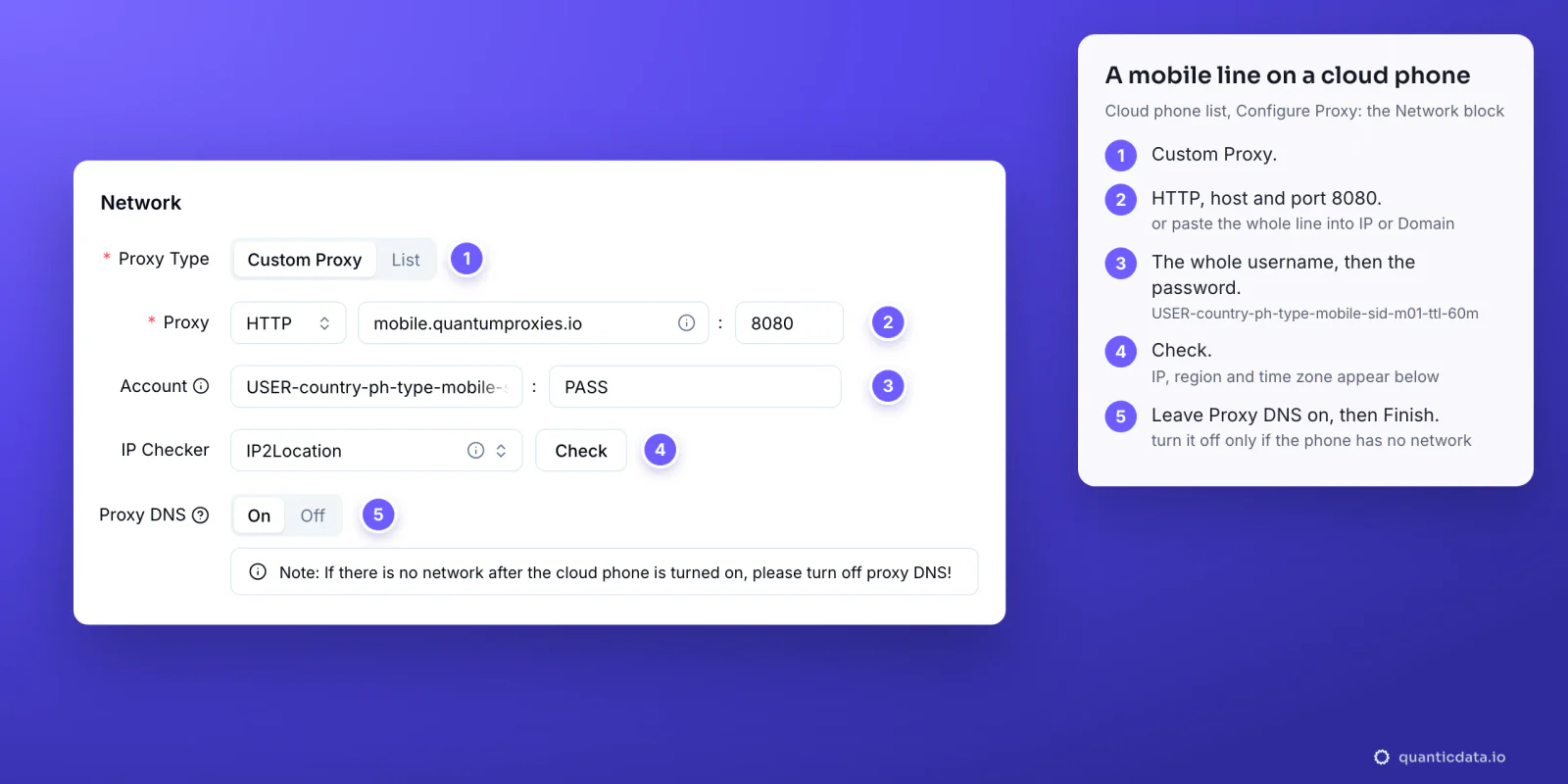
DuoPlus's help center adds one rule worth keeping: configure the proxy before anything else, because the simulated device is built from it. Run the check and look at the country before you install or sign in to any app.
One sticky session per cloud phone
A cloud phone is meant to look like one handset on one connection. A rotating proxy changes IP on every request, which suits public data collection and breaks an account that stays logged in. A sticky session keeps one IP for as long as the session lives, and the session lives in the username, so the phone's proxy never has to be edited once it is set.
# phone 1: Philippines, mobile, one session for a working day
mobile.quantumproxies.io:8080:USER-country-ph-type-mobile-sid-m01-ttl-480m:PASS

# phone 2: same plan, its own session (never reuse m01)
mobile.quantumproxies.io:8080:USER-country-ph-type-mobile-sid-m02-ttl-480m:PASS

# phone 3: Philippines, mobile, on all day
mobile.quantumproxies.io:8080:USER-country-ph-type-mobile-sid-m03-ttl-1440m:PASS- A different session ID on every phone. Two phones on the same line leave from one IP, which is what separate cloud phones are there to avoid. DuoPlus's own advice for TikTok is an IP that no other device or person shares.
- A lifetime longer than the work. The generator accepts up to 1440 minutes, a full day. When a session ends, the next request gets a new IP, and a platform can see that as a new login location.
- The country in the username. Without
-country-the exit can be anywhere, and a phone simulated from its IP takes whatever location it lands on.
With Session set to Sticky, the generator makes as many lines as the Quantity field says, ten by default, each with its own session ID; Copy all or Download takes them out in the same format, ready for Batch Add. One line per phone.
Mobile, Residential Premium and ISP proxies in DuoPlus
| Proxy type | In DuoPlus | Good for |
|---|---|---|
| Mobile | Custom Proxy or Batch Add; one sticky line per phone with -type-mobile in the username; Global, USA, EU or Asia gateway; HTTP 8080 or Socks5 1080 | Phone-first apps and accounts tied to carrier networks: the closest match to a real handset |
| Residential Premium | One sticky line per phone; country, region, city or ISP in the username; username and password only | Most cloud phones: home IPs in the country you choose |
| ISP | Fixed IPs listed under Assigned IPs as IP:Port:Username:Password; HTTP 50100 or Socks5 50101; one IP per phone | Long-lived accounts that should keep the same address for months |
Mobile proxies
The line from the steps above. The gateway is only the entry point: Global, USA, EU and Asia all take the same username and password, and the exit country comes from -country-. Mobile plans also offer an IP whitelist, but on DuoPlus keep username and password, for the reason above: the phone connects from DuoPlus's servers. For the platforms most cloud phones run, see mobile proxies for TikTok and for Instagram, or Philippines mobile proxies for the market in this guide.
Residential Premium
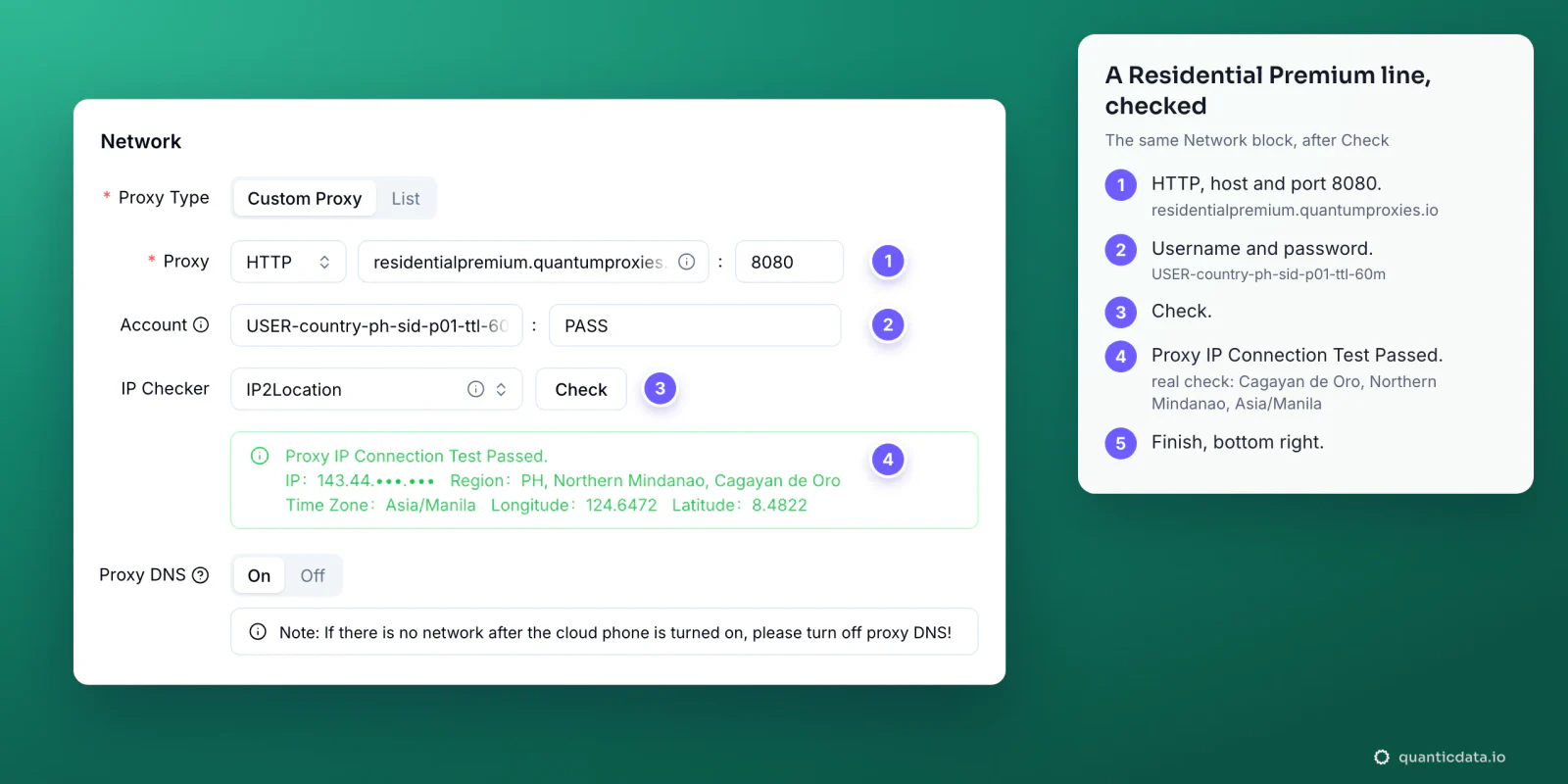
The same fields, another host: residentialpremium.quantumproxies.io, HTTP on 8080 or Socks5 on 1080, and a username without -type-mobile. Targeting goes in the username: Country, then Region and City, or Country and ISP, all chosen in the generator.
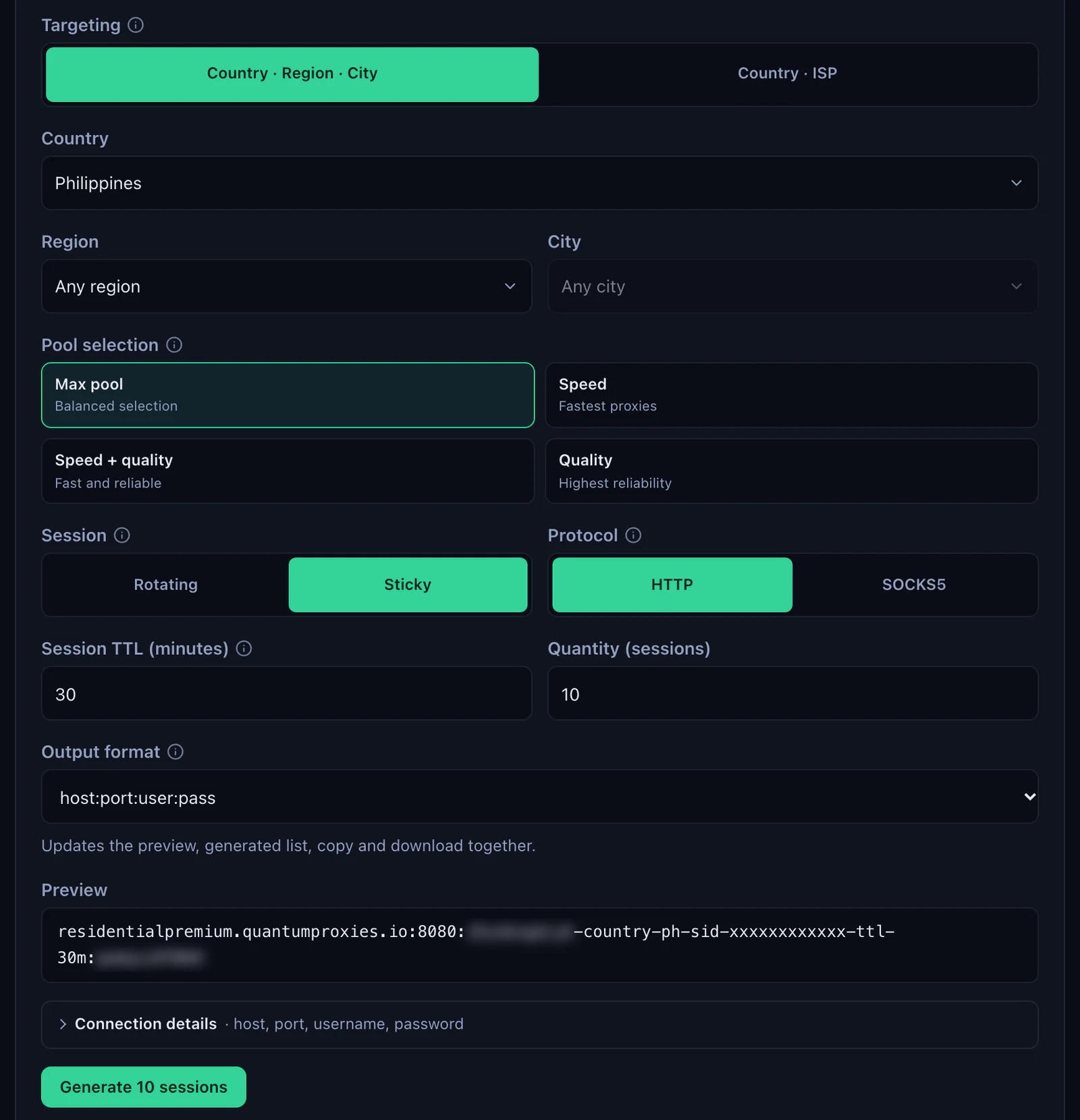
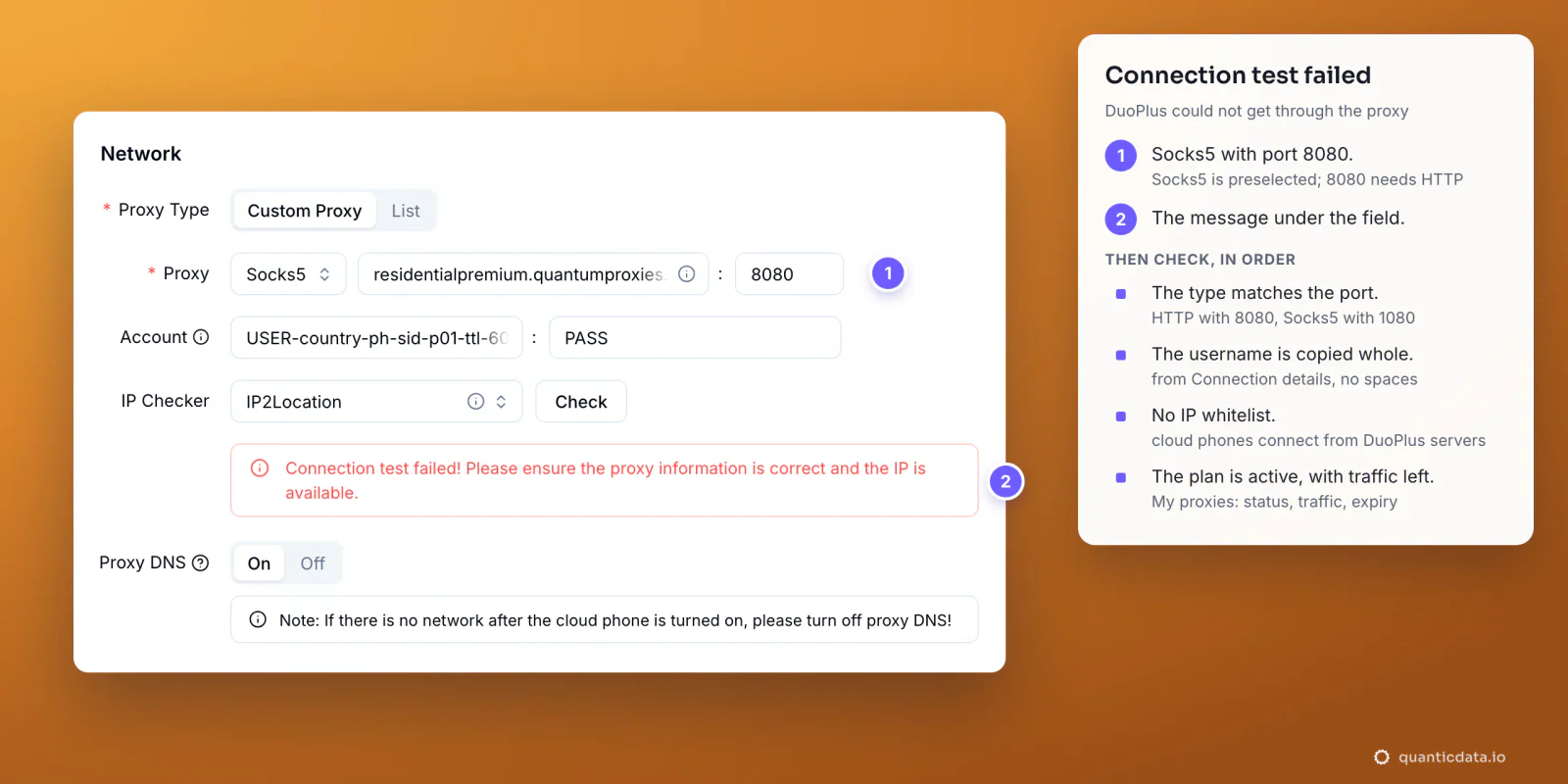
residentialpremium.quantumproxies.io:8080:USER-country-ph-sid-p01-ttl-60m:PASSWe checked a line like this one on 23 October 2026, with the curl test further down: the exit came back from Cagayan de Oro, in Northern Mindanao, with the time zone Asia/Manila, and that is the result drawn in DuoPlus's box below. Coverage by country is on the pages for Philippines residential proxies and residential proxies.
ISP proxies
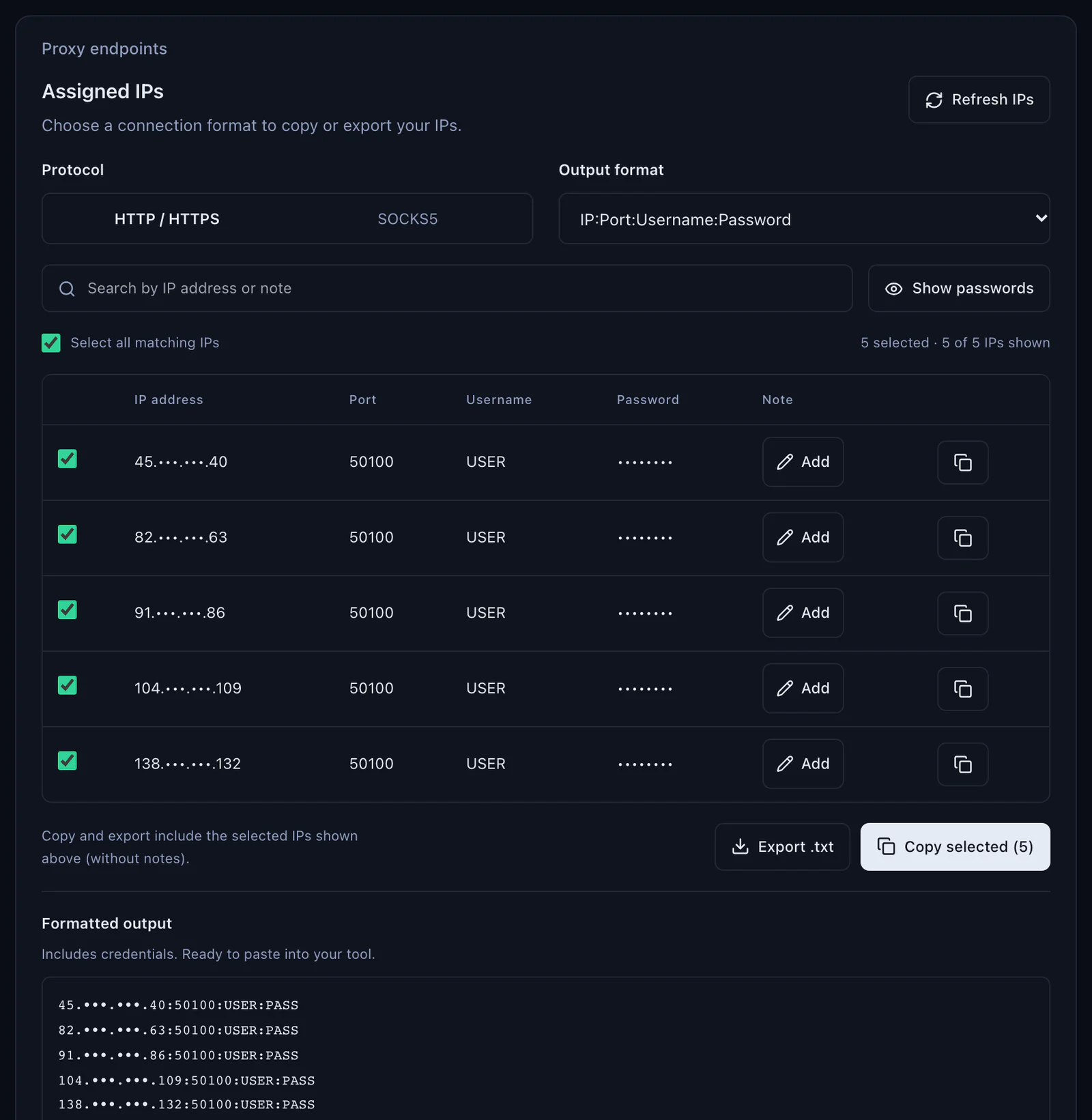
An ISP plan gives fixed addresses instead of sessions. Open the plan in My proxies: under Proxy endpoints, Assigned IPs lists every IP with its port, username and password. Choose the Protocol (HTTP / HTTPS uses port 50100, SOCKS5 uses port 50101) and the Output format IP:Port:Username:Password, then copy one line per phone. DuoPlus's help center recommends static ISP IPs, not shared with other devices, for TikTok accounts; this is that product.
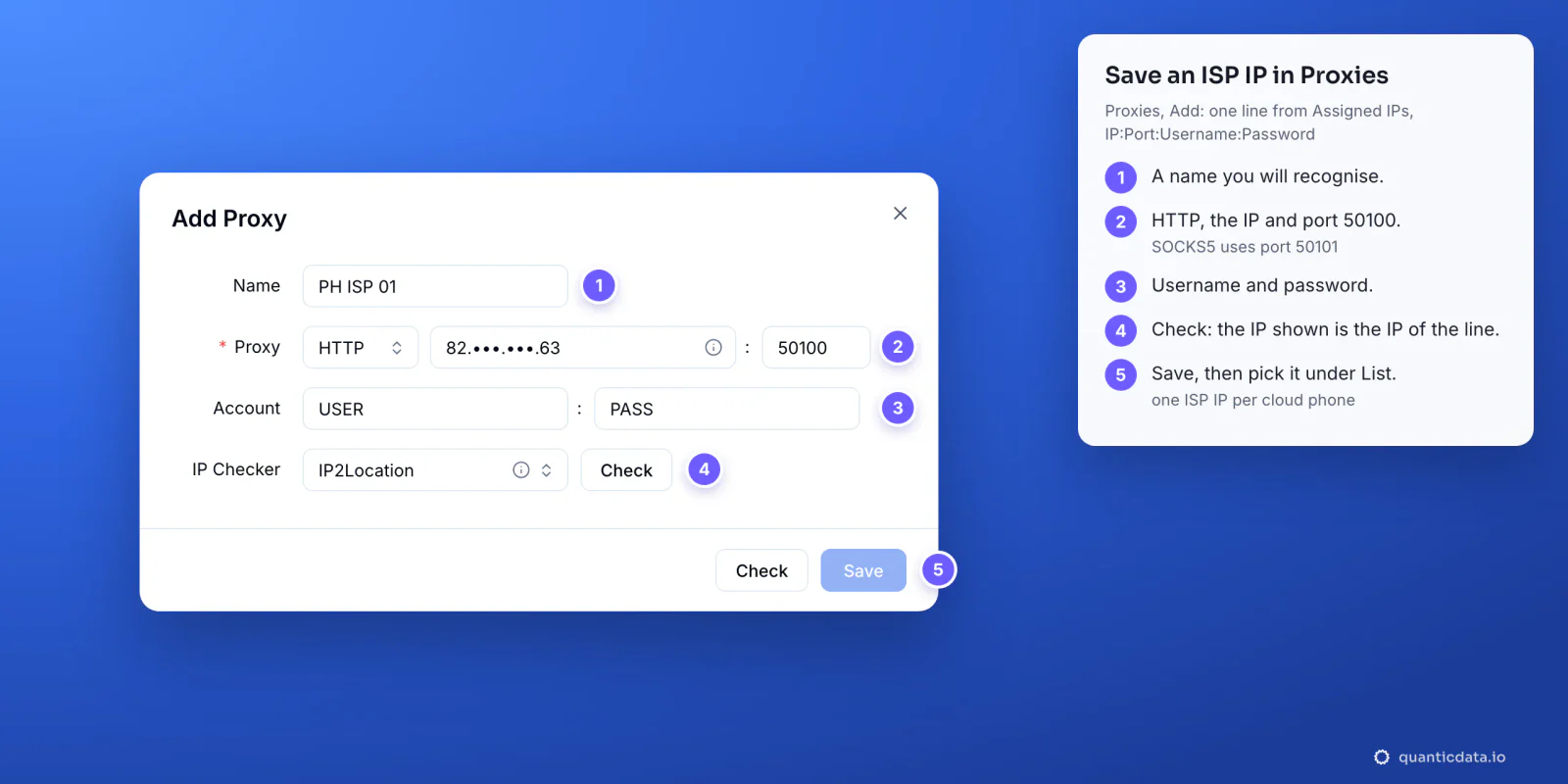
In DuoPlus an ISP IP is best saved first. Open Proxies, click Add, give it a name, choose HTTP, enter the IP in IP or Domain and 50100 in Port (or Socks5 with 50101), then the username and the password. Click Check: the IP shown is the IP of the line itself, because it never changes. Save it, then pick it on the phone under List. For many IPs, paste the whole Assigned IPs list into Batch Add. More on the product: Philippines ISP proxies and ISP proxies.
Saved proxies for many cloud phones
- Make the lines. In the generator set Session to Sticky and the quantity you need, generate, then Copy all or Download. For ISP, copy the Assigned IPs list.
- Save them in DuoPlus. Open Proxies and use Batch Add: one proxy per line, a name in braces if you want one, Check, then Save. DuoPlus also takes an Excel template for large imports.
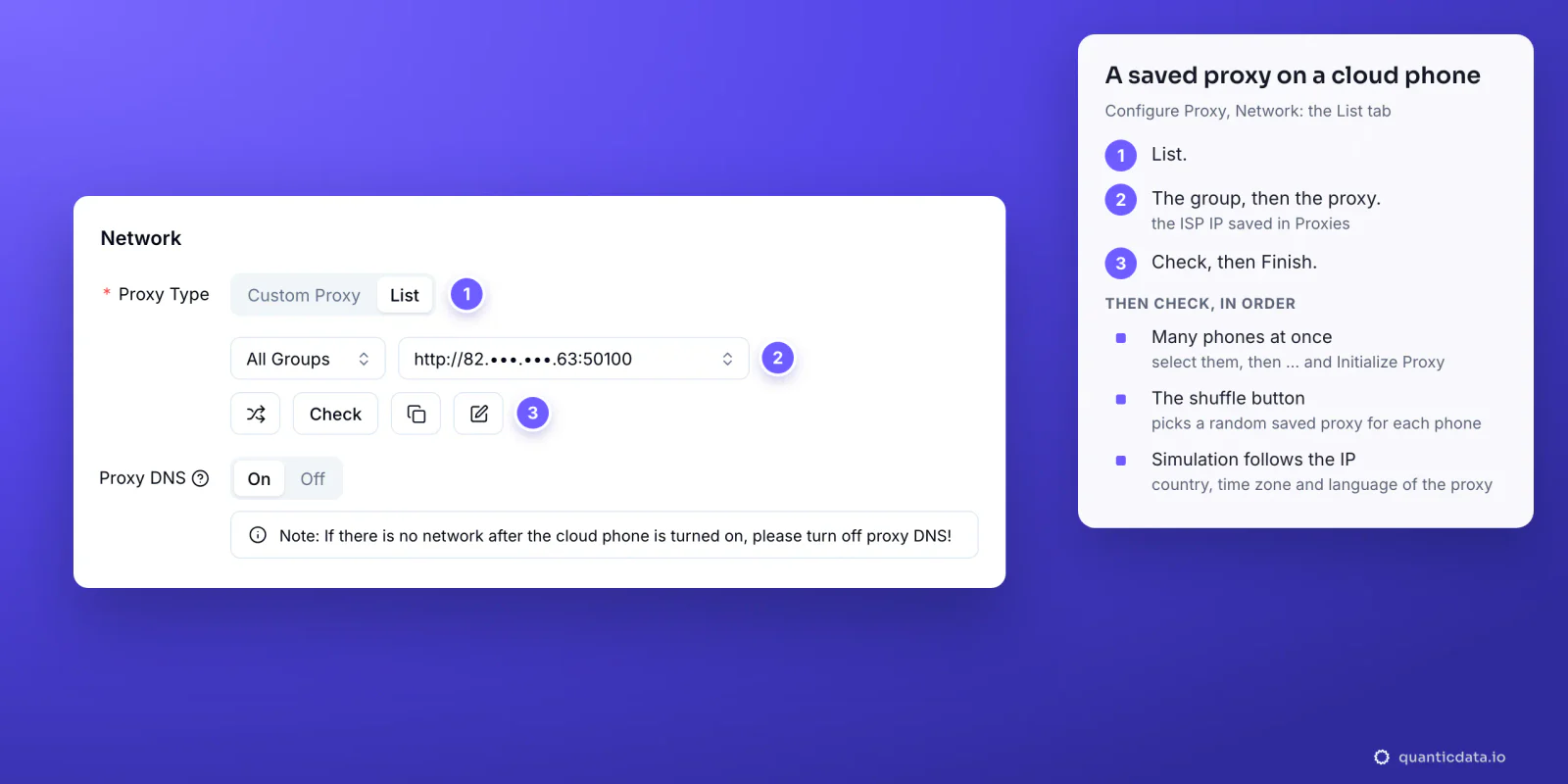
- Initialize the phones. In the cloud phone list select the phones, click the "..." in the floating toolbar and choose Initialize Proxy; DuoPlus handles up to 1000 phones in one operation. On each phone choose List, then the group and the proxy, and click Check.
- Or let DuoPlus pick. The shuffle button next to Check picks a random saved proxy from the list, which saves choosing them one by one; Batch Configuration fills the phones from an import template instead. Afterwards, the Related Cloud Phone column on the Proxies page shows which phones use each proxy: one phone per line.
A team setting, Proxy Check, makes DuoPlus test every phone's proxy before it starts and stop the boot when the test fails, which keeps a phone from ever opening an app on a broken connection.
A new IP without starting over
DuoPlus has a Change IP URL field for providers that change the IP through a link. With QuanticData mobile and Residential Premium leave it empty: the IP is tied to the session ID in the username, so a new session ID, for example -sid-m02 instead of -sid-m01, is a new IP, and the old line keeps working until its lifetime ends. Open the phone's proxy configuration, enter the new line or pick another saved proxy, run Check and save. On the Proxies page the switch icon in the Related Cloud Phone column moves the phones of one proxy to another in the same way.
When a proxy changes, DuoPlus asks whether to synchronize the simulated device parameters; they do not follow the new IP on their own. Keep the new IP in the same country, ideally the same region, so the phone's location, time zone and language stay true. ISP proxies are static addresses: one IP per phone, for months.
DuoPlus proxy not working: errors and fixes
When Check does not get through, DuoPlus shows no IP, no region and no time zone, and its API documentation words the failure as "Connection test failed! Please ensure the proxy information is correct and the IP is available." These are the cases behind it, in the order to check.
| What you see | Usual cause | Fix |
|---|---|---|
| Connection test failed | The preselected Socks5 left on port 8080, or HTTP on port 1080 | HTTP with 8080, Socks5 with 1080 |
| The same failure, with the right type | The username was cut, the whole line went into Account, or a space came with the paste | Copy the four values again from Connection details, or paste the whole line into IP or Domain |
| The check fails with IP whitelist authentication | The phone connects from DuoPlus's servers in Singapore or Hong Kong, not from your IP | Use username and password |
| Check passes, the phone has no network once on | Proxy DNS | Turn Proxy DNS off, as DuoPlus's own note says |
| The check worked yesterday, fails today | The plan expired or its traffic is used up | Check the plan in My proxies: status, remaining traffic, expiry date |
| Wrong country, or the phone's time zone does not match | No -country- in the username, or simulation parameters left from an older proxy | Generate the line with a country; synchronize the simulation when DuoPlus asks |
| The IP changes while the phone is running | The session lifetime ended, or two phones share one session ID | A longer -ttl- and a different -sid- on every phone |
One test outside DuoPlus settles most cases in a minute. If this returns an address in the Philippines, the proxy works and the problem is in the phone's fields:
curl -x http://residentialpremium.quantumproxies.io:8080 \
  -U "USER-country-ph-sid-test-ttl-10m:PASS" https://ipinfo.io/json
DuoPlus's help center suggests the same kind of test from a server in Singapore, where its phones run. Our own run on 23 October 2026 came back from Cagayan de Oro with the time zone Asia/Manila. A check can also fail once on a passing network hiccup: DuoPlus advises simply trying again before changing anything.
HTTP or SOCKS5 in DuoPlus
Both work on a cloud phone, and every QuanticData network offers both. HTTP on port 8080 is the simpler choice and the one to start with; it carries HTTPS sites through the CONNECT method, so DuoPlus's HTTPS type is not needed. Socks5 on port 1080 passes any kind of connection, not only web traffic, which matters for apps that do not speak HTTP; the details are on the page for SOCKS5 proxies. What breaks a phone is never the choice itself, only a type that does not match its port.
Why every phone or browser profile needs its own address is explained in residential proxies for antidetect browsers; the mobile plans are on the page for QuanticData mobile proxies.
Before you run accounts
A proxy changes where a phone's traffic comes from, not what the account is allowed to do. Keep to each platform's terms and to the law where you work, and use one phone, one session and one identity per account.
Sources & further reading
- DuoPlus help center: Initialize Proxy (single and batch proxy configuration)
- DuoPlus help center: Proxy Introduction and Common Issues with Proxy Configuration
- DuoPlus help center: Proxy Detection Failing?
- DuoPlus help center: Account Registration and Cloud Phone Creation (proxy formats, automatic recognition)
- DuoPlus help center: Update Log of 31 July 2026 (HTTP and HTTPS proxies)
- DuoPlus help center: Update Log of 30 September 2026 (random proxy selection, simulation sync on proxy change)
- DuoPlus API documentation: Check Proxy
- RFC 1928: SOCKS Protocol Version 5
- RFC 9110: HTTP Semantics, the CONNECT method