
To use a proxy on Android with a username and password, install the free Super Proxy app, tap Add proxy, choose HTTP for port 8080 or SOCKS5 for port 1080, fill in server, port, username and password, then tap Start and allow the VPN request. From then on every app on the phone goes through the proxy.
On a phone, a proxy with a username and password works through an app. Super Proxy, by SCHELER Software on Google Play, runs a local VPN service on the phone that sends the connections of all apps through one HTTP or SOCKS5 proxy, with no root access. The field names below are the app's own, and the values come from the QuanticData endpoint generator.
What you need before you start
- Super Proxy from Google Play. The app is free; a Pro upgrade inside the app adds extras such as a quick settings tile and a per-app bypass, and none of them is needed here.
- A proxy plan. Residential Premium, ISP or Mobile: all three work in Super Proxy. The table further down says which one fits which use.
- The four values: server, port, username and password. In the QuanticData dashboard they are under My proxies, on the plan's page, in the Endpoint generator, under Connection details.
Step by step: add the proxy in Super Proxy
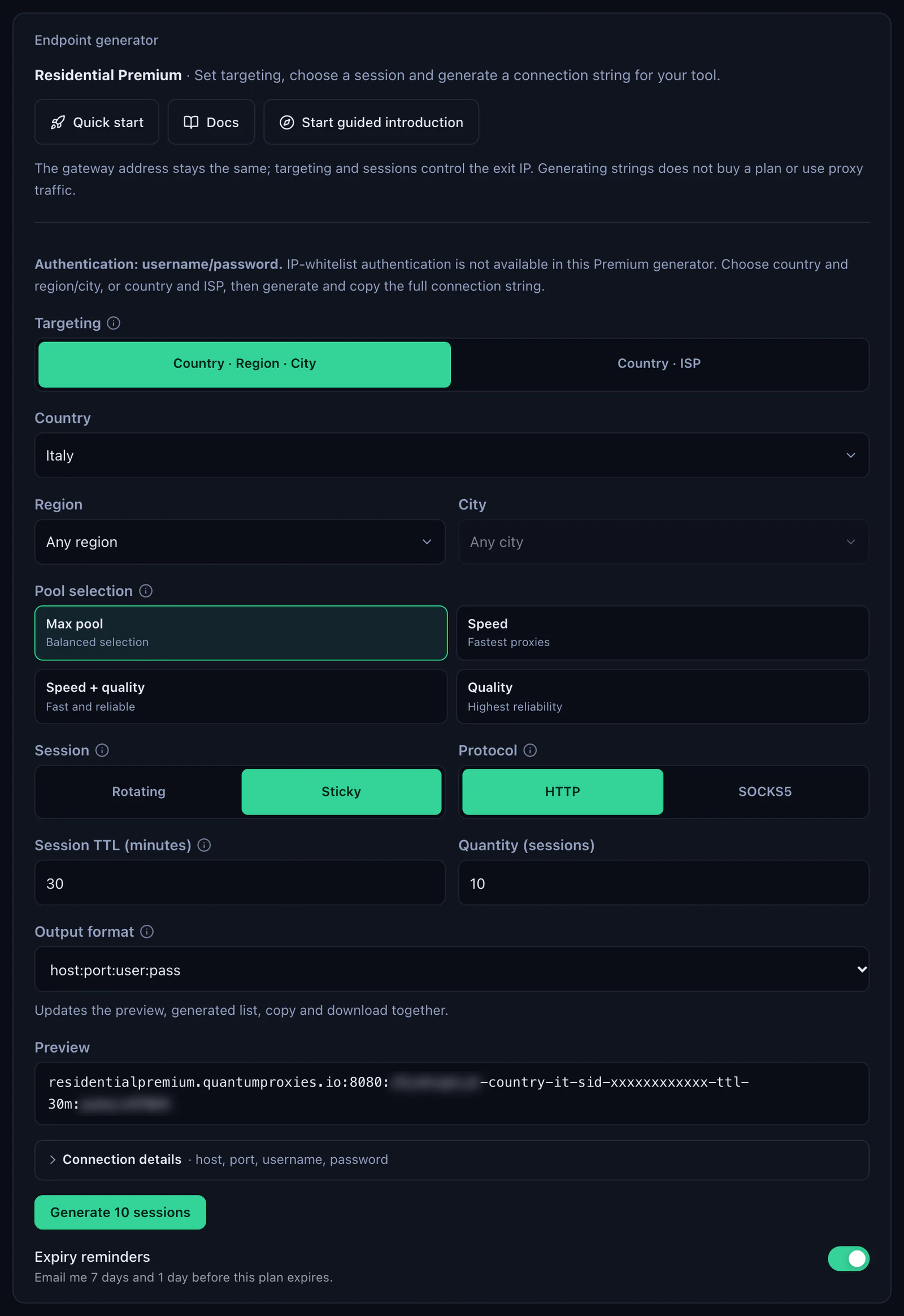
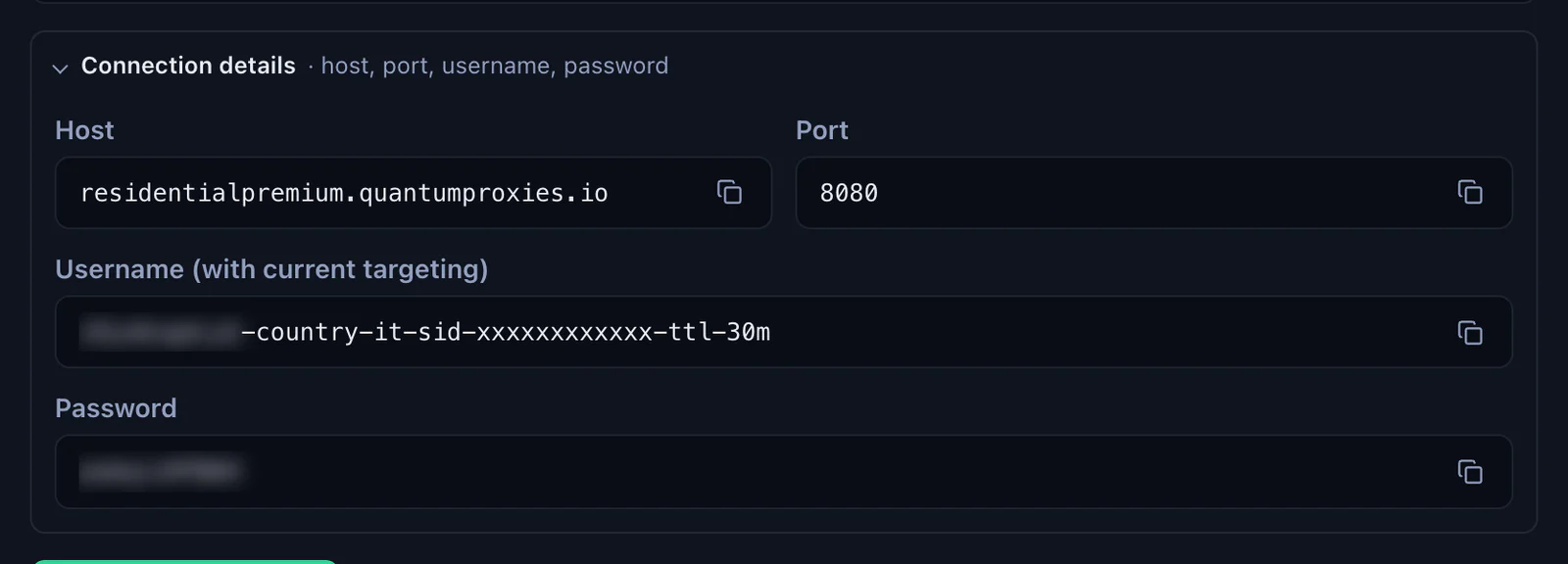
- Generate the values. In the QuanticData dashboard open My proxies, then your plan. In the Endpoint generator choose the Country (Italy in this guide, and a Region or City if you need one), set Session to Sticky, set Session TTL (minutes) to at least the time you will use the phone and choose the Protocol. Then open Connection details: Super Proxy asks for the four values one by one, not for the whole line.
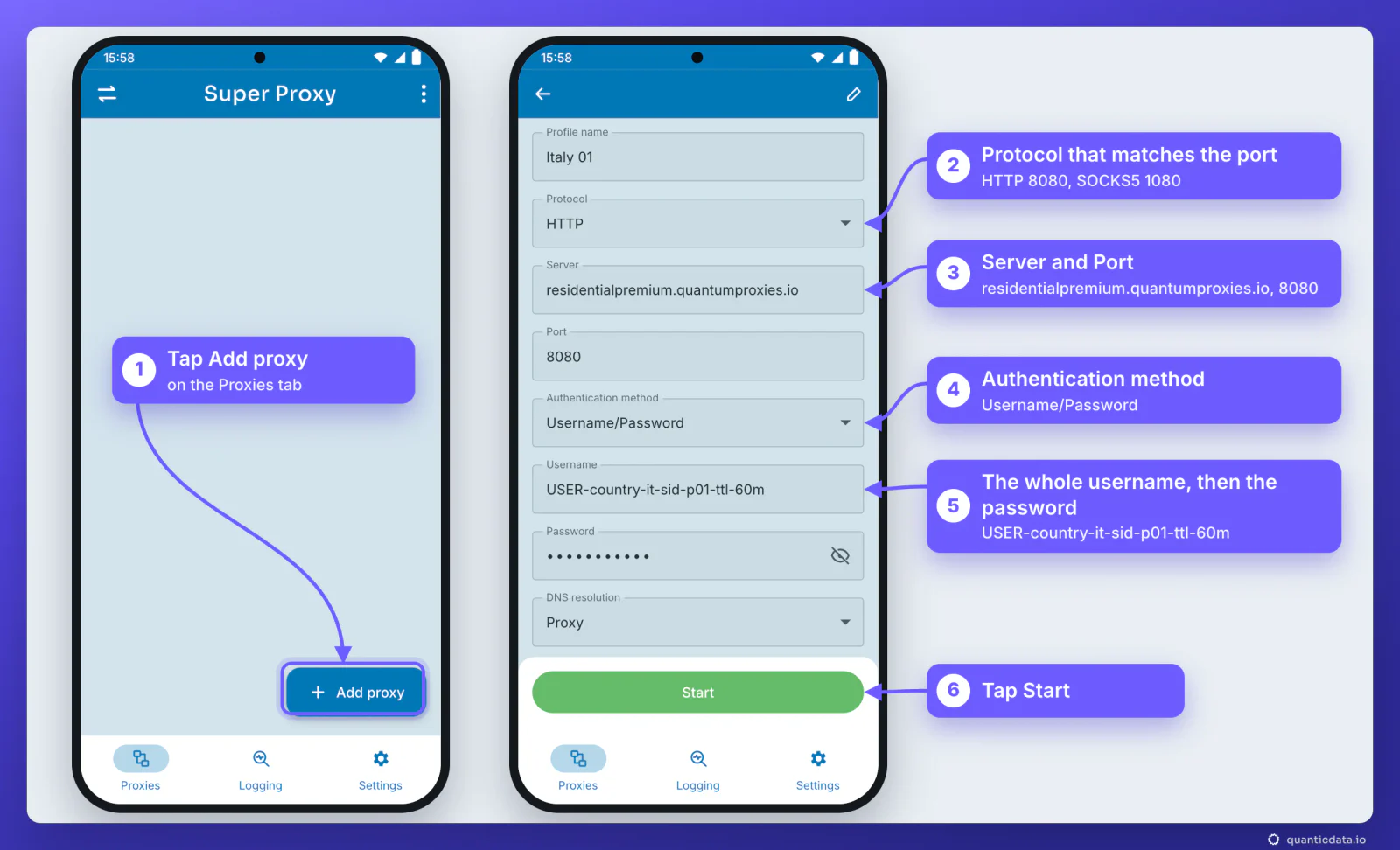
- Open Super Proxy and tap Add proxy on the Proxies tab.
- Profile name: any label, for example Italy 01. It is how the profile shows in the list.
- Protocol: HTTP for port 8080, SOCKS5 for port 1080. The protocol has to match the port.
- Server and Port: residentialpremium.quantumproxies.io and 8080 for a Residential Premium plan over HTTP.
- Authentication method: Username/Password. Paste the whole username into Username, with everything after the first dash, and the password into Password.
- DNS resolution: leave it on Proxy, so site names are looked up through the proxy as well.
- Tap Start. The first time, Android shows a Connection request: Super Proxy wants to set up a VPN connection. Tap OK. A key icon at the top of the screen shows the tunnel is on, the app's title bar shows a timer and Start becomes Stop.
The same values as one line, for reference. The username carries the targeting: -country-it picks the exit country, -sid-p01 names the session and -ttl-60m keeps it for 60 minutes. Copy it whole. A username cut at the first dash still logs in, but the phone then leaves from a random country on a new IP at every connection.
# server:port:username:password
residentialpremium.quantumproxies.io:8080:USER-country-it-sid-p01-ttl-60m:PASS
Check that the phone exits where you chose
With Super Proxy started, open ipinfo.io/json in the phone's browser. It shows the IP address that sites see and where that address is. This is the answer to a real check through a QuanticData Residential Premium sticky line for Italy, on 23 October 2026, with the IP masked:
{
  "ip": "195.32.x.x",
  "city": "Barrafranca",
  "region": "Sicily",
  "country": "IT",
  "timezone": "Europe/Rome"
}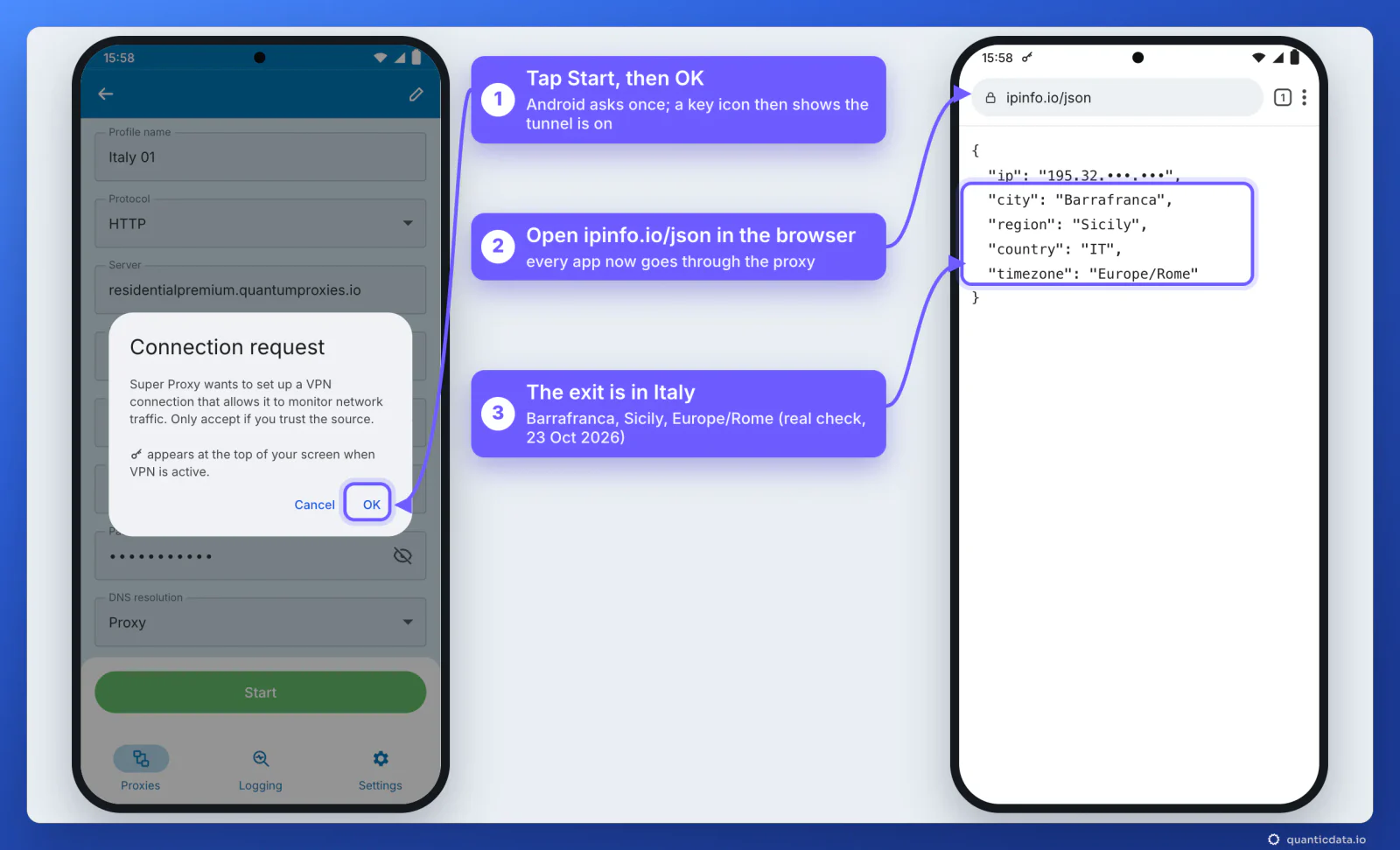
The country has to match the -country- in the username. Super Proxy's Logging tab shows the same thing from the app's side: SERVICE_STARTED and PROXY_READY when the tunnel opens, then one line per connection, such as CONNECT ipinfo.io:443 with the code the proxy answered. A 200 means the proxy accepted the connection.
One sticky session per phone
A rotating proxy changes IP on every connection, which suits scraping and breaks an app that is logged in. A sticky session keeps one IP for as long as the session lives, and the session lives in the username, so the profile in Super Proxy never has to change while you work.
# phone 1: Italy, one session for a working day
residentialpremium.quantumproxies.io:8080:USER-country-it-sid-p01-ttl-480m:PASS

# phone 2: same plan, its own session (never reuse p01)
residentialpremium.quantumproxies.io:8080:USER-country-it-sid-p02-ttl-480m:PASS

# phone 3: open all day, the longest lifetime
residentialpremium.quantumproxies.io:8080:USER-country-it-sid-p03-ttl-1440m:PASS- A different session ID on every phone. Two phones on the same username share one IP.
- A lifetime longer than the work. The generator accepts up to 1440 minutes, a full day. When the session ends, the next connection gets a new IP.
- A new IP when you want one: edit the profile, change the session ID (p01 to p02), then tap Stop and Start. Super Proxy keeps as many profiles as you add, so one profile per country or per session is a tap away.
Residential Premium, ISP and Mobile proxies on Android
| Proxy type | In Super Proxy | Good for |
|---|---|---|
| Residential Premium | Server residentialpremium.quantumproxies.io, HTTP 8080 or SOCKS5 1080; country, region, city or ISP and the sticky session in the username | Most uses: a home IP in the country you choose, kept for up to 1440 minutes |
| ISP | One fixed IP from Assigned IPs, listed as IP:Port:Username:Password; the HTTP and SOCKS5 ports differ | An account that should keep the same address for months |
| Mobile | The gateway host (Global, USA, EU or Asia), HTTP 8080 or SOCKS5 1080, the sticky session in the username | Apps built for phones and accounts tied to mobile networks |
| Datacenter | The same four fields, from the plan's page | Testing, where speed matters more than the type of IP |
Residential Premium
The example above: one host, the targeting and the session in the username, login by username and password, which is exactly what Super Proxy sends. Choose a Region or City in the generator when an app should see a specific part of the country; the username grows with -region- or -city- and nothing else changes. The plans are on the page for Italy residential proxies, and every country is on the page for QuanticData residential proxies.
ISP proxies
ISP plans give fixed IPs, listed under Assigned IPs on the plan's page as IP:Port:Username:Password. In Super Proxy the IP goes in Server, then the port, the username and the password. The HTTP port and the SOCKS5 port of an ISP plan are different numbers for the same IPs and login, so take the one that matches the Protocol you pick. Give each phone its own IP. ISP addresses are static by design: there is no session to change and the country is the one you bought, as on the page for Italy ISP proxies.
Mobile proxies
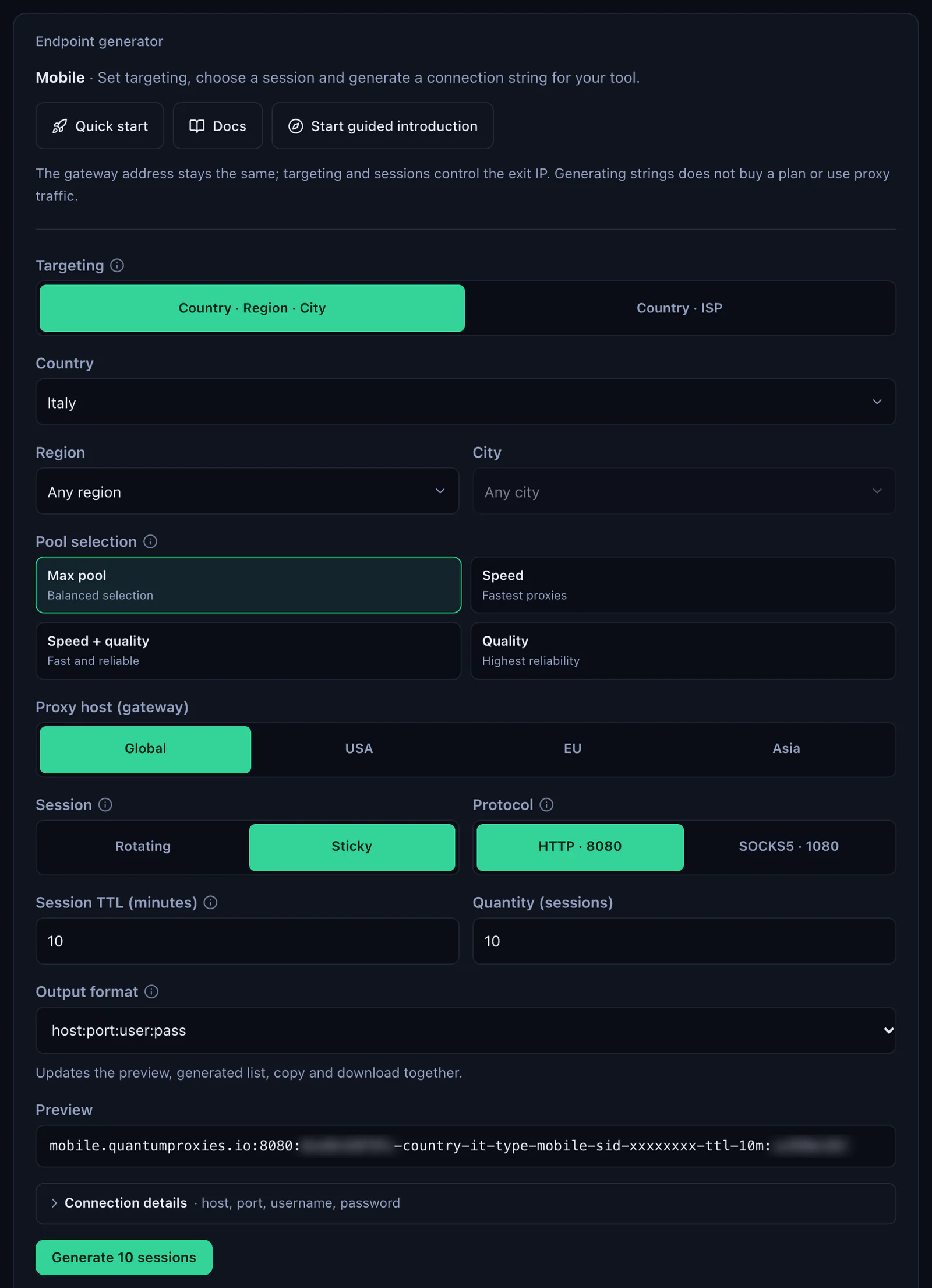
Mobile plans work the same way. Pick the gateway, Global, USA, EU or Asia (Global is mobile.quantumproxies.io), set Session to Sticky and copy the four values. A sticky mobile username looks like USER-country-it-type-mobile-sid-m01-ttl-60m. Mobile plans also offer IP whitelist authentication, but on a phone keep username and password: the phone's own IP changes between Wi-Fi and mobile data, and a whitelist only recognises the addresses you added. The plans are on the page for Italy mobile proxies.
HTTP or SOCKS5 in Super Proxy
Super Proxy speaks both: SOCKS5, and HTTP proxies through the HTTP CONNECT method. Every QuanticData network offers both, HTTP on port 8080 and SOCKS5 on port 1080, and because the app works as a VPN on the phone either one carries every app, not only the browser. HTTP is the simpler start; SOCKS5 is the usual choice when an app inside the tunnel is not a web app, see SOCKS5 proxies. Pick plain HTTP or SOCKS5, not an HTTPS or SSL variant: that means an encrypted connection to the proxy itself, which these ports do not use. The app also looks up site names through the proxy and blocks UDP, so no connection leaves the phone outside the tunnel.
Super Proxy not working: errors and fixes
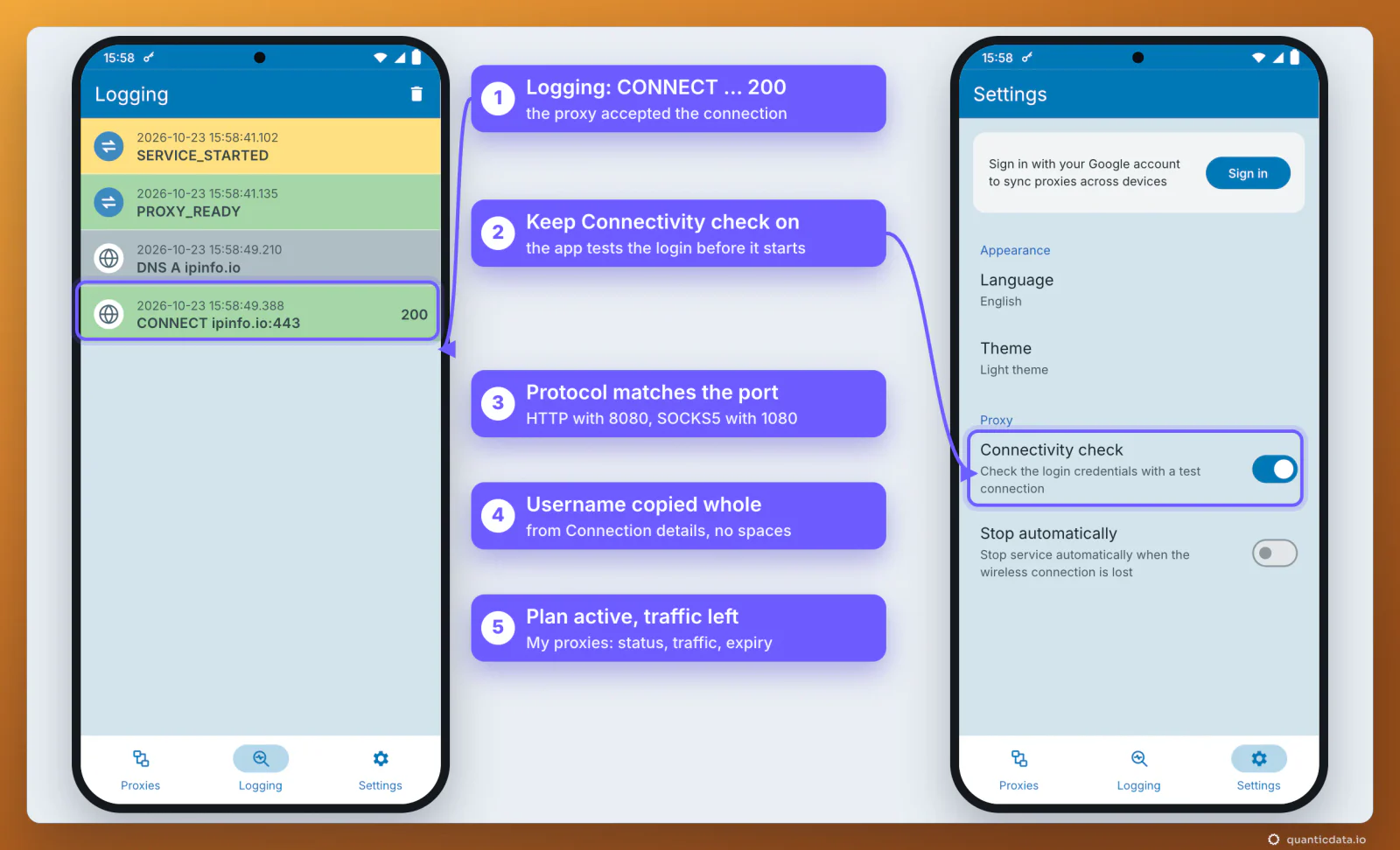
In Super Proxy's Settings, keep Connectivity check on: the app checks the login credentials with a test connection before it starts, so a wrong username or password shows up at Start instead of as pages that never load. Then go through these cases, in this order.
| What you see | Usual cause | Fix |
|---|---|---|
| Start fails, or pages stop loading once it starts | The username was cut, a space came with the paste, or the password is wrong | Copy the username and the password again from Connection details, one at a time |
| Nothing loads and Logging shows no CONNECT line with 200 | The protocol does not match the port: HTTP on 1080 or SOCKS5 on 8080 | HTTP with 8080, SOCKS5 with 1080 |
| It worked yesterday and fails today | The plan expired or its traffic is used up | Open the plan in My proxies: status, remaining traffic, expiry date |
| The exit is in the wrong country | Worldwide was chosen in the generator, so there is no -country- in the username | Generate with a country and paste the new username |
| The IP changes during the day | The session lifetime ended, or two phones use the same session ID | A longer -ttl- and a different -sid- on each phone |
| The proxy turns off when Wi-Fi drops | Stop automatically is on in Super Proxy's Settings | Turn it off to stay on the proxy over mobile data |
One test from a computer settles most cases in a minute. If this returns an address in Italy, the proxy and the login work, and the problem is in the fields on the phone:
curl -x http://residentialpremium.quantumproxies.io:8080 \
  -U "USER-country-it-sid-test-ttl-10m:PASS" https://ipinfo.io/json
On an iPhone the same four values go into Shadowrocket instead: see residential proxies for iPhone and Shadowrocket.
Before you use it
A proxy changes where the phone's traffic comes from, not what the phone is allowed to do. Keep to each app's terms and to the law where you work, and use one session per account.