How to set up a proxy on Android: video guide
A 1:33 screen recording with captions: take the host, port, username and password from the QuanticData Endpoint generator, add them in the Super Proxy app on Android, accept the VPN request, check the exit on ipinfo.io, set up an ISP IP on port 50100 and keep chosen apps off the proxy.
The same steps in writing, with every field and error: Android proxy setup guide, written step by step.
Chapters
Transcript
The captions of the video, line by line. Click a time to jump there.
- 0:00Open My proxies, then click your plan.
- 0:03In the Endpoint generator, choose the Country.
- 0:08Set Session to Sticky, with a TTL as long as you will use the phone.
- 0:12Protocol: HTTP uses port 8080, SOCKS5 uses port 1080.
- 0:16Open Connection details: Super Proxy asks for the four values one by one.
- 0:21Copy the username whole: after the first dash come the targeting and the session.
- 0:27In Super Proxy: the Proxies tab, Add proxy.
- 0:30Proxies tab: tap Add proxy.
- 0:31Protocol: HTTP with port 8080, SOCKS5 with 1080.
- 0:34Server and Port from Connection details.
- 0:36Authentication method: Username/Password.
- 0:38Username, then Password: the whole username.
- 0:40DNS resolution: Proxy.
- 0:42Tap Start.
- 0:44The first time, Android asks to set up a VPN.
- 0:46Connection request: tap OK.
- 0:48Running: the timer counts, every app goes through the proxy.
- 0:51Stop ends it; tap Start again for the next session.
- 0:54Check the exit.
- 0:56Logging tab: CONNECT with 200, the proxy let it through.
- 0:59Open ipinfo.io/json in the browser.
- 1:01The exit is in Italy: Barrafranca, Sicily.
- 1:03ISP plans: one profile per ISP IP.
- 1:05Profile name, for example ISP 01.
- 1:07Server: the IP from Assigned IPs.
- 1:09Port: 50100 with Protocol HTTP.
- 1:11Username and Password from the same line.
- 1:13Tap Start: the IP stays the same.
- 1:15Settings, and the apps that skip the proxy.
- 1:18Keep Connectivity check on.
- 1:20Stop automatically off: the proxy stays on over mobile data.
- 1:22Disallowed apps (Pro), from Settings.
- 1:24Search app to find one.
- 1:26Tick the apps to keep off the proxy.
Where to go next
A sticky IP for every profile
Residential Premium, ISP and mobile proxies with country targeting and sticky sessions, over HTTP or SOCKS5, copied from the Endpoint generator into the app you use.
More video guides
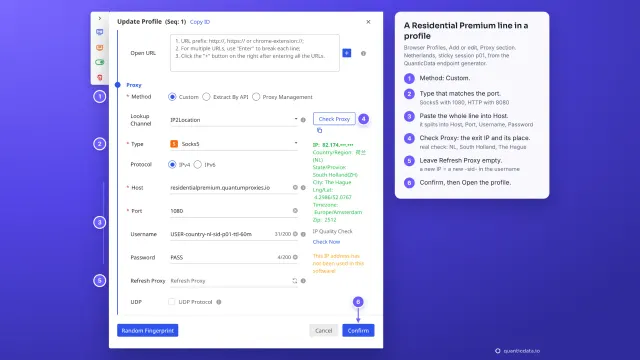 1:35How to add a proxy to BitBrowserWatch the video
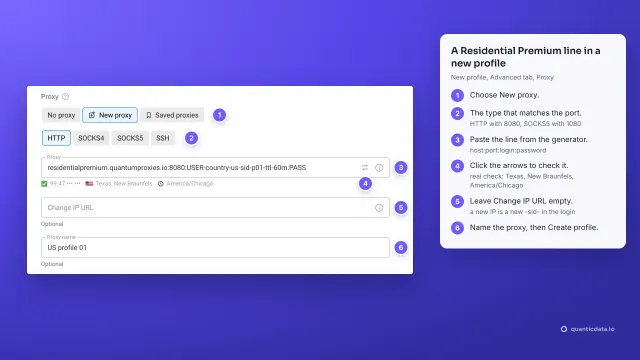 1:37How to add a proxy to Dolphin AntyWatch the video
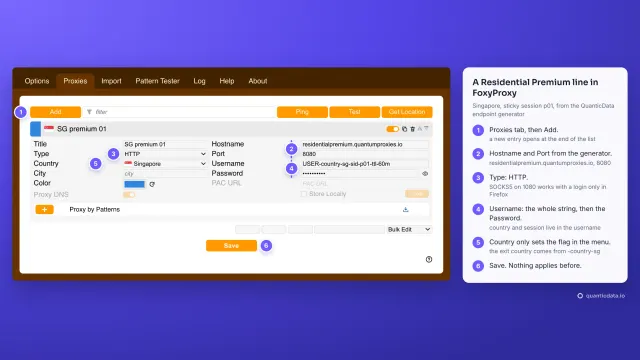 1:40How to add a proxy to FoxyProxyWatch the video
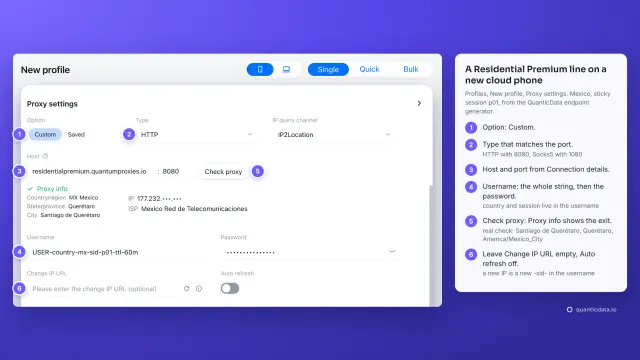 1:34How to add a proxy to GeeLarkWatch the video
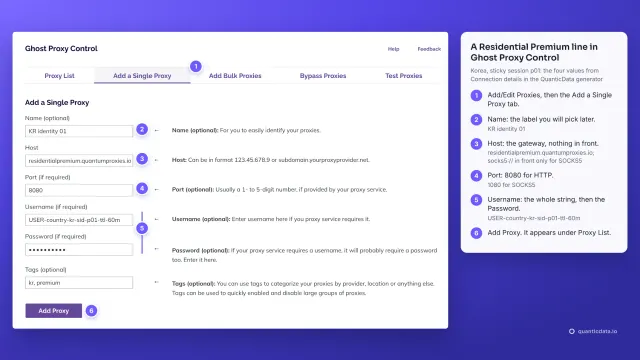 1:39How to add a proxy to Ghost BrowserWatch the video
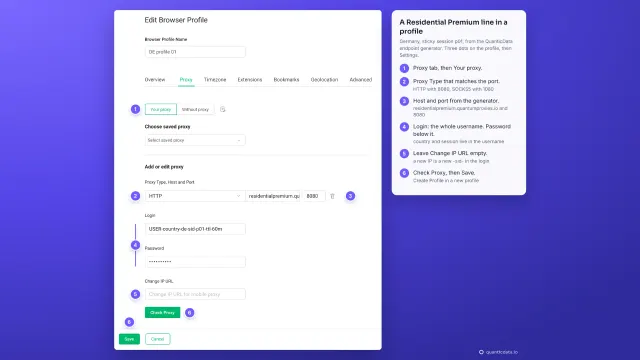 1:39How to add a proxy to GoLoginWatch the video