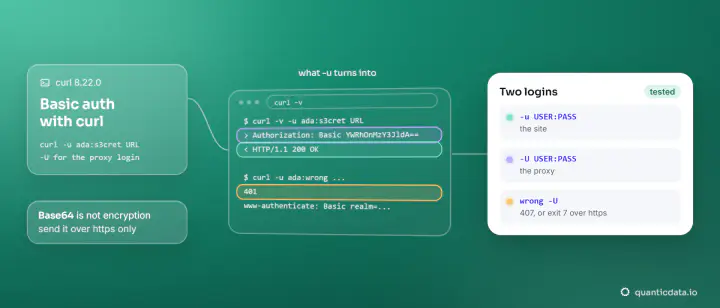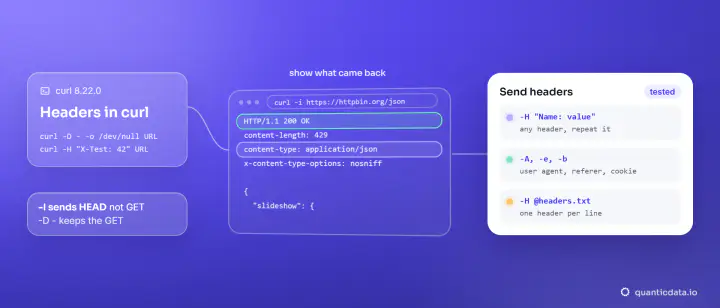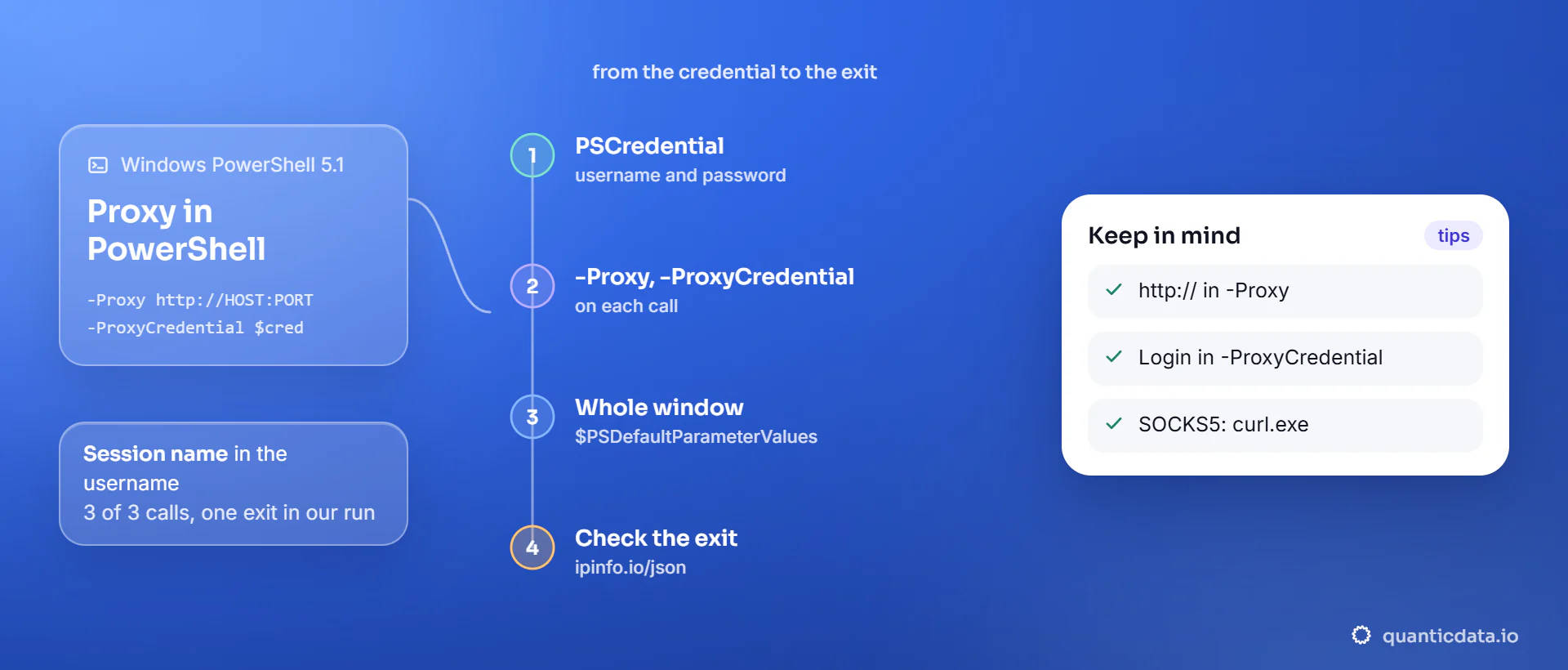
To use a proxy in PowerShell, put the username and password in a PSCredential and pass it with -ProxyCredential, next to -Proxy with the gateway's http:// address, to Invoke-WebRequest or Invoke-RestMethod. For every call in a window, set both once in $PSDefaultParameterValues. For SOCKS5, use curl.exe.
Every command and every line of output below is real: we ran them in Windows PowerShell 5.1 on a Windows 11 PC on 20 November 2026, through QuanticData proxies. The exit IPs are masked, and USER and PASS stand for your credentials. The four console screenshots come from one session, in the order shown, redrawn with its real output.
What you need
- Windows PowerShell.
$PSVersionTable.PSVersionshows the version: our test PC printed 5.1.26100.9818. - A sticky proxy line. It has the form
http://USER:PASS@HOST:PORT, as in the table below; the username carries the country and the session. We generated ours with the generate_proxies tool of our MCP server. The examples use Residential Basic; the curl.exe section shows a Residential Premium and a mobile line. - The three parts of the line: the gateway with its port, the username and the password. PowerShell takes them in two places, as the table shows.
| Part of the line | Where it goes in PowerShell |
|---|---|
| Gateway and port | -Proxy, with http:// in front |
| Username | The PSCredential for -ProxyCredential |
| Password | The same PSCredential, as a SecureString |
Gateway:  http://residentialboson.quanticdata.io:10000
Username: USER-type-residential-country-us-session-ps41-lifetime-30
Password: PASS
Step by step: Invoke-RestMethod through a proxy
- Set the gateway. Put it in
$proxy, as in the first line below. It ishttp://for https:// pages too: our checks loaded https://ipinfo.io this way. - Build the credential. Turn the password into a SecureString, then make a PSCredential with the whole username.
- Call with both parameters.
-Proxy $proxy -ProxyCredential $cred, on Invoke-RestMethod or Invoke-WebRequest. - Read the exit. ipinfo.io/json answers with the address the site sees and its location.
$proxy = "http://residentialboson.quanticdata.io:10000"
$pass = ConvertTo-SecureString "PASS" -AsPlainText -Force
$cred = New-Object System.Management.Automation.PSCredential("USER-type-residential-country-us-session-ps41-lifetime-30", $pass)
Invoke-RestMethod -Uri "https://ipinfo.io/json" -Proxy $proxy -ProxyCredential $cred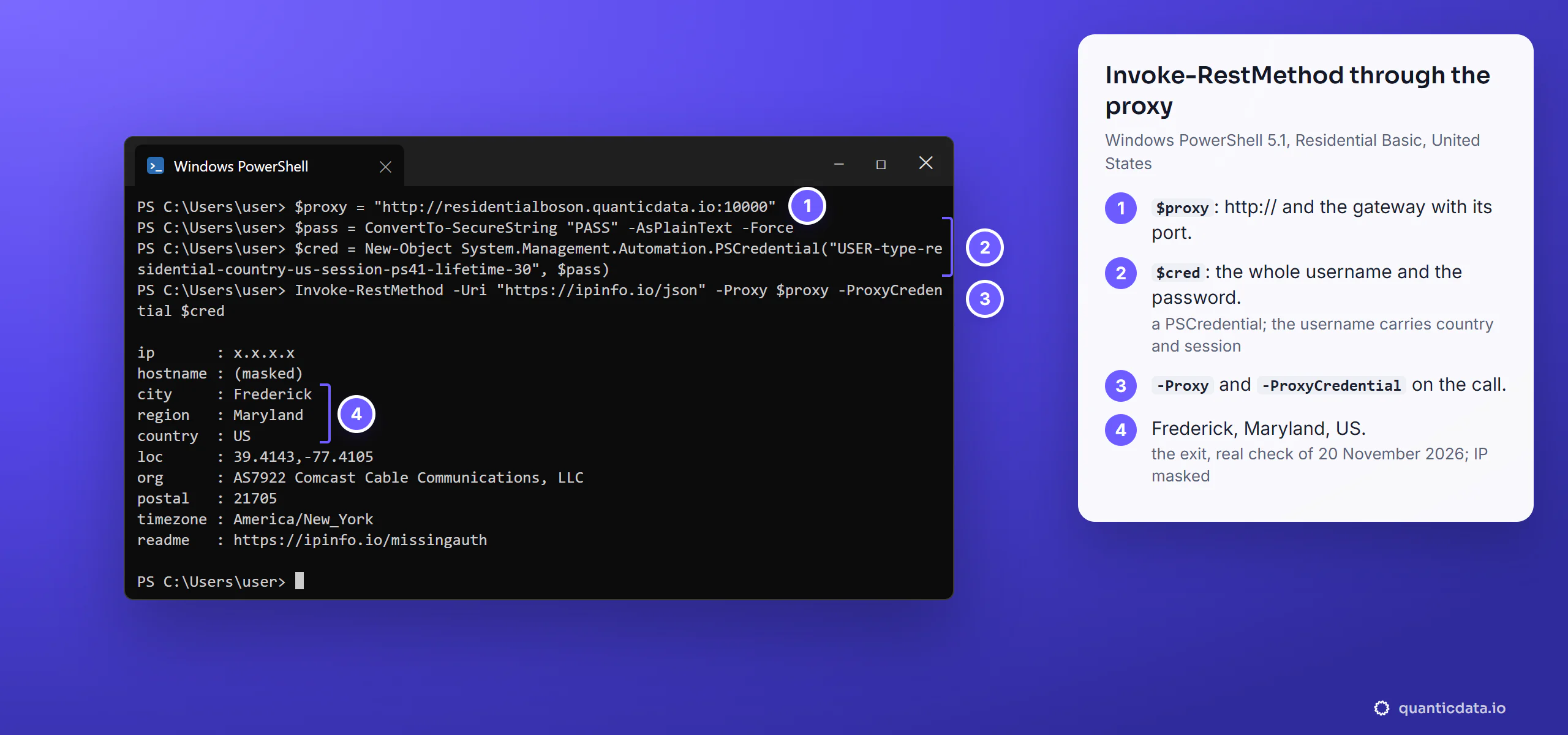
Invoke-RestMethod turns the JSON into an object, which PowerShell prints as a list: (Invoke-RestMethod ...).country gives the country alone. Keep the username and password in -ProxyCredential: in our test, Windows PowerShell 5.1 did not use a username and password written inside the -Proxy URL, so the line from the generator has to be split in two.
Invoke-WebRequest and one session
Invoke-WebRequest takes the same two parameters and returns the whole response, with the status code. We ran it with -UseBasicParsing, the plain parser of Windows PowerShell 5.1.
Invoke-WebRequest -Uri "https://ipinfo.io/json" -Proxy $proxy -ProxyCredential $cred -UseBasicParsing | Select-Object StatusCode, StatusDescription

1..3 | ForEach-Object { Invoke-RestMethod -Uri "https://ipinfo.io/json" -Proxy $proxy -ProxyCredential $cred | Select-Object ip, city, region, country }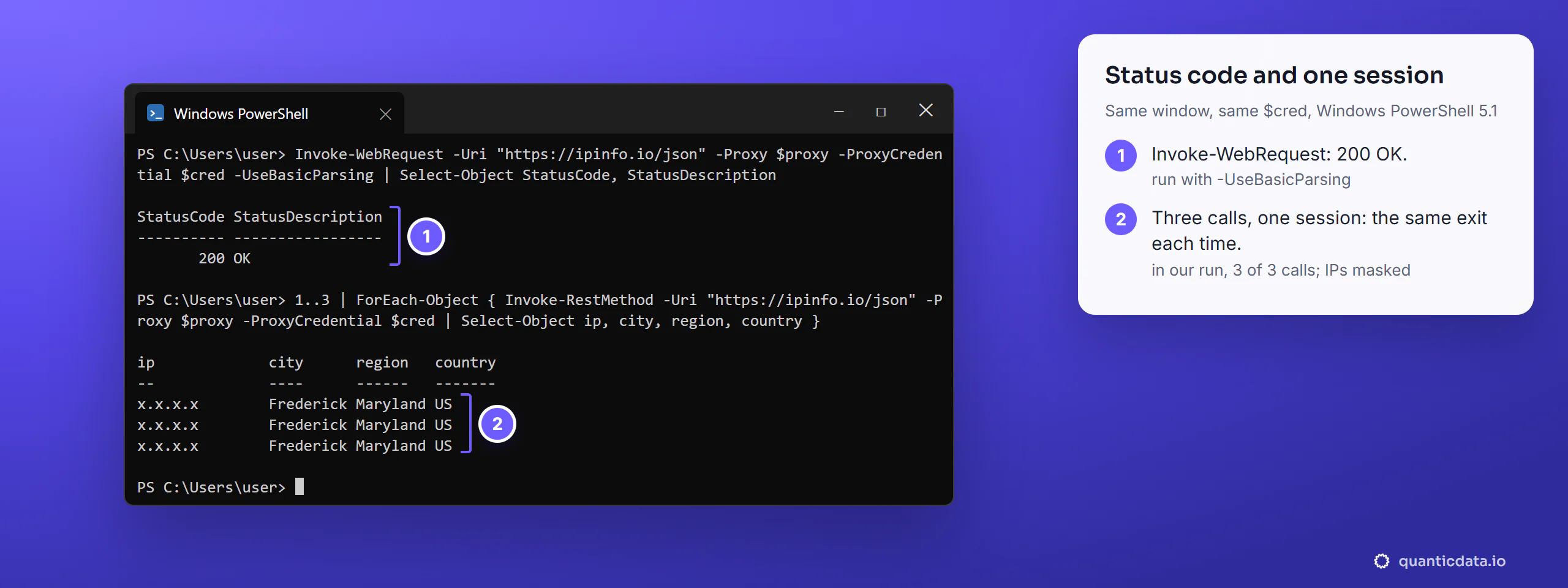
The username carries the settings. -country-us picks the country, -session-ps41 names the session and -lifetime-30 sets the session time to 30 minutes; in our run, three calls on that session left from the same exit.
A new IP, or a state, from the same window
Change the session ID for a new session, and add -DisableKeepAlive so each session ID opens its own connection to the gateway. Run in a new window, this gave three sessions and three exits:
$proxy = "http://residentialboson.quanticdata.io:10000"
$pass = ConvertTo-SecureString "PASS" -AsPlainText -Force
foreach ($sid in "ps51", "ps52", "ps53") {
  $c = New-Object System.Management.Automation.PSCredential("USER-type-residential-country-us-session-$sid-lifetime-30", $pass)
  Invoke-RestMethod -Uri "https://ipinfo.io/json" -Proxy $proxy -ProxyCredential $c -DisableKeepAlive | Select-Object ip, city, region, country
}

ip      city         region     country
--      ----         ------     -------
x.x.x.x Los Angeles  California US
x.x.x.x Independence Kansas     US
x.x.x.x New Castle   Delaware   US
The username also takes a state: with -state-texas the exit was in Houston.
$tx = New-Object System.Management.Automation.PSCredential("USER-type-residential-country-us-state-texas-session-ps45-lifetime-30", $pass)
Invoke-RestMethod -Uri "https://ipinfo.io/json" -Proxy $proxy -ProxyCredential $tx -DisableKeepAlive | Select-Object city, region, country, timezone

city    region country timezone
----    ------ ------- --------
Houston Texas US America/ChicagoA proxy for every call in the window
When a script calls Invoke-RestMethod many times, setting -Proxy on each call is easy to forget. $PSDefaultParameterValues gives a cmdlet's parameter a default value for the rest of the session:
$PSDefaultParameterValues["Invoke-RestMethod:Proxy"] = $proxy
$PSDefaultParameterValues["Invoke-RestMethod:ProxyCredential"] = $cred
$PSDefaultParameterValues["Invoke-WebRequest:Proxy"] = $proxy
$PSDefaultParameterValues["Invoke-WebRequest:ProxyCredential"] = $cred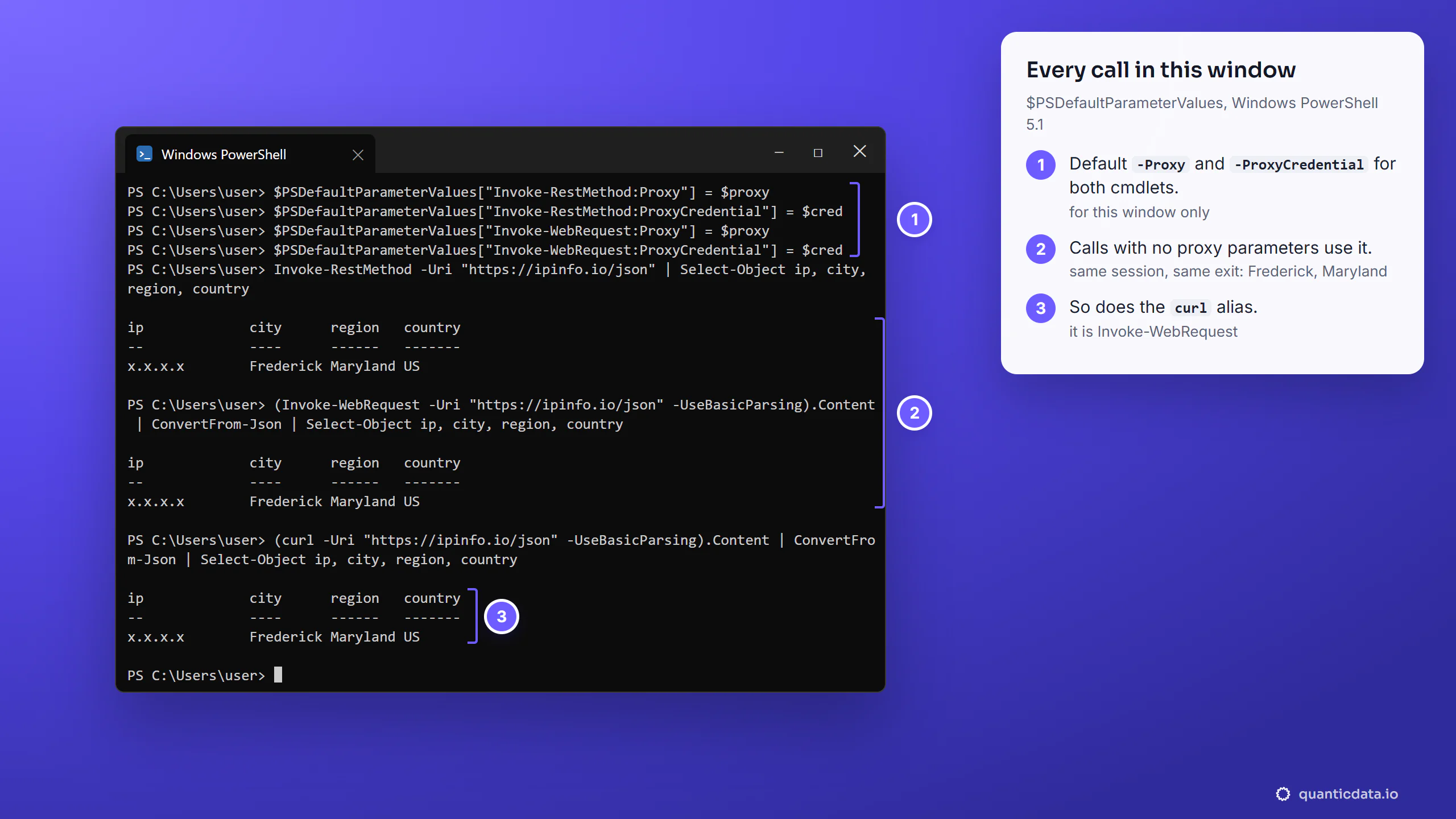
- It lasts for the window. A new PowerShell window starts without it.
- To stop it in the same window, run
$PSDefaultParameterValues.Clear(); the next call goes out on your own connection.
curl in PowerShell: the alias and curl.exe
In Windows PowerShell, curl is not curl: Get-Alias curl shows curl -> Invoke-WebRequest. So curl options fail, and curl -x $proxy https://ipinfo.io/ip stops with "A parameter cannot be found that matches parameter name 'x'." The real curl ships with Windows 11 as curl.exe (curl 8.22.0 on our PC); type the .exe to reach it, and the options of how to use a proxy with curl work as written.
curl.exe -x http://residentialpremium.quanticdata.io:8080 -U "USER-country-de-sid-ps46-ttl-60m:PASS" https://ipinfo.io/json
curl.exe -x socks5h://mobile.quanticdata.io:1080 -U "USER-country-us-type-mobile-sid-ps47-ttl-30m:PASS" https://ipinfo.io/json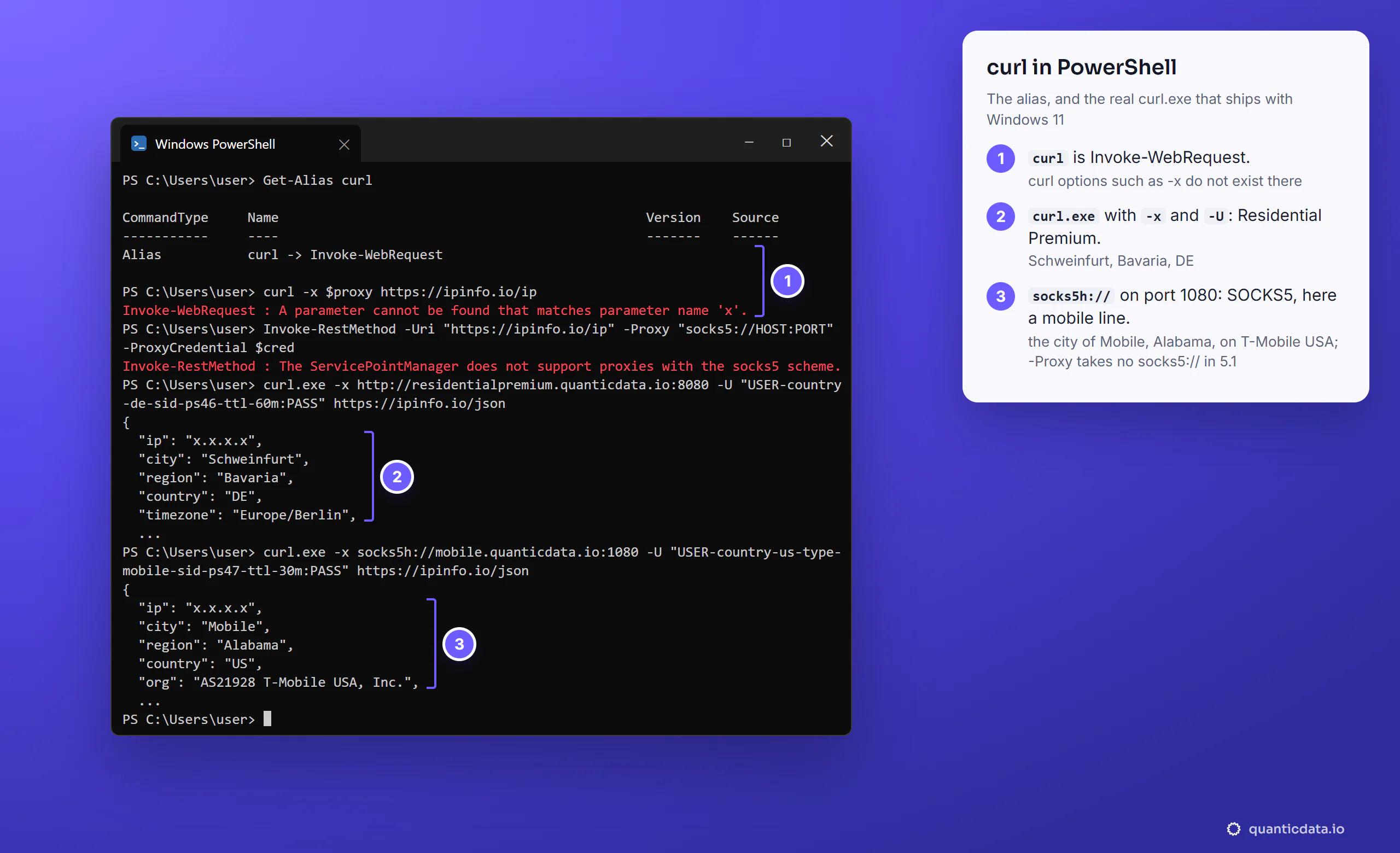
SOCKS5 from PowerShell
The -Proxy parameter of Windows PowerShell 5.1 takes an http:// address. Given socks5://, it stops with "The ServicePointManager does not support proxies with the socks5 scheme." For SOCKS5, call curl.exe from PowerShell, as in the second command above: socks5h:// lets the proxy look up the site's name, and -U carries the username and password. Our mobile line on port 1080 left from the city of Mobile, Alabama, on T-Mobile USA. More on the protocol on the page for SOCKS5 proxies.
Try it with your own line
Try it on a free proxy trial. The proxy free trial gives 100 MB of Residential Basic, the plan used for the Invoke-RestMethod examples above, so you can run them with your own line. The plans are on the pages for QuanticData residential proxies and mobile proxies. For the same jobs in other tools, see wget with a proxy and a proxy in Python Requests.
Before you run it on a schedule
A proxy changes where PowerShell's requests come from, not what you may do on a site. Keep to each site's terms and to the law where you work, and keep the password out of scripts you share: read it at run time instead of writing it in the file.