
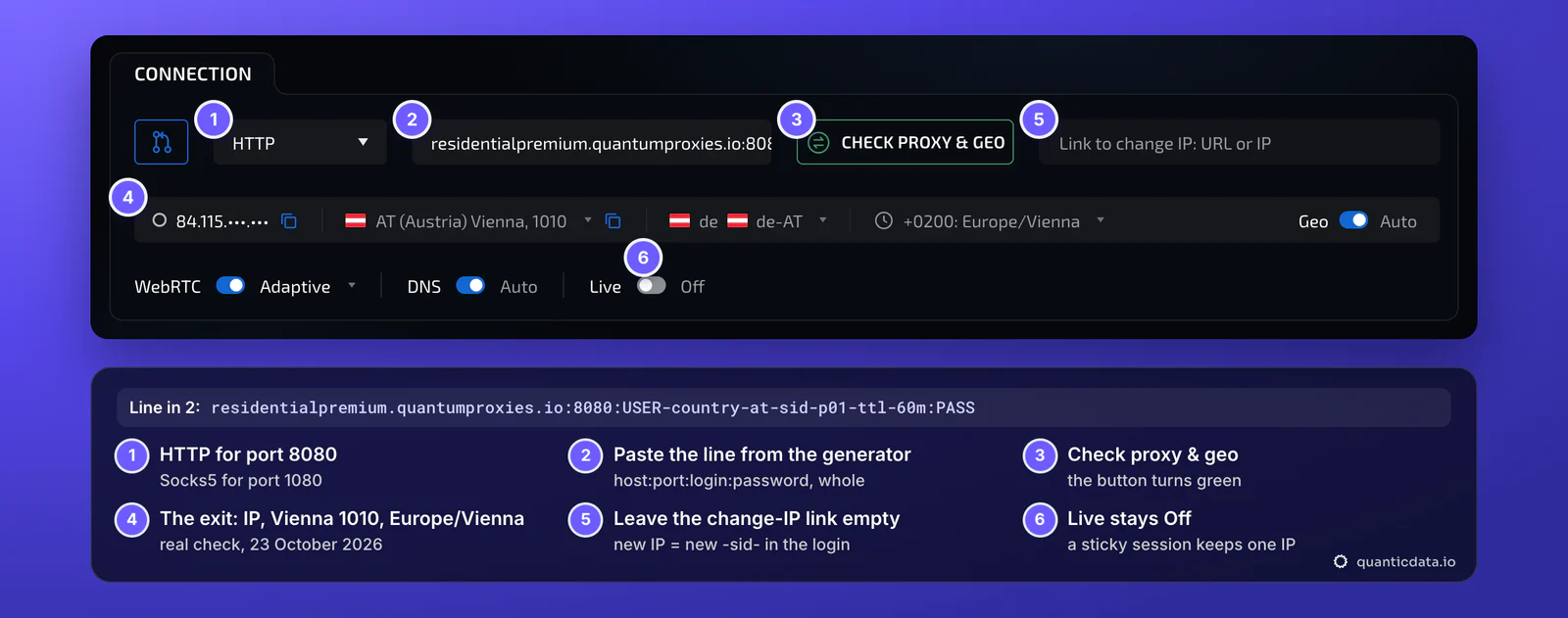
To add a proxy in Linken Sphere, click New Session, open the Connection block, pick HTTP for port 8080 or Socks5 for port 1080, paste the line as host:port:login:password and click Check proxy & geo. When the button turns green, leave the change-IP link empty and click Create. Give every session its own sticky session ID.
Linken Sphere calls each browser profile a session: its own cookies, its own fingerprint and its own connection. The connection is the proxy, and it decides more than the IP address. When the proxy check passes, Linken Sphere reads the exit's country, language and time zone (it uses the MaxMind GeoIP database) and, with Geo on Auto, gives them to the session. A wrong proxy line therefore breaks the whole profile, not only the IP. The field names below are the ones in Linken Sphere's own documentation, the values come from the QuanticData endpoint generator, and the example uses Austria; any country works the same way.
What you need before you start
- Linken Sphere installed, with an account. It is a desktop app for Windows and macOS; the current version installs as Linken Sphere 2.
- A proxy plan. Residential Premium, ISP or mobile: all of them work in Linken Sphere. The table further down says which one fits which session.
- The four values: host, port, username and password. In the QuanticData dashboard they are under My proxies, on the plan's page, in the Endpoint generator (ISP plans list them under Assigned IPs).
The proxy formats Linken Sphere accepts
The proxy goes into one field as one line. Hover over the field and Linken Sphere shows the formats it reads. Its documentation lists seven:
- ip:port:login:pass: the generator's default output format, host:port:user:pass, is exactly this.
- ip:port@login:pass: the layout in the field's placeholder. Note the order: in Linken Sphere the login comes after the @, the opposite of most other tools.
- login:pass@ip:port and login:pass:ip:port: the same values with the login first.
- ip:port@login, ip:port:login and ip:port: for proxies with no password, or with IP whitelist authentication, where no login is sent at all.
The same QuanticData proxy in the two layouts that matter:
# host:port:login:password (the generator's default)
residentialpremium.quantumproxies.io:8080:USER-country-at-sid-p01-ttl-60m:PASS

# host:port@login:password (the order in Linken Sphere's placeholder)
residentialpremium.quantumproxies.io:8080@USER-country-at-sid-p01-ttl-60m:PASS
The login is the whole username string, with everything after the first dash: -country-at picks the exit country, -sid-p01 names the session and -ttl-60m keeps it for 60 minutes. Copy it whole. A login cut at the first dash still authenticates, but the session then leaves from a random country on a new IP at every request, and Linken Sphere's geo settings stop matching it.
Step by step: add a proxy to a new Linken Sphere session
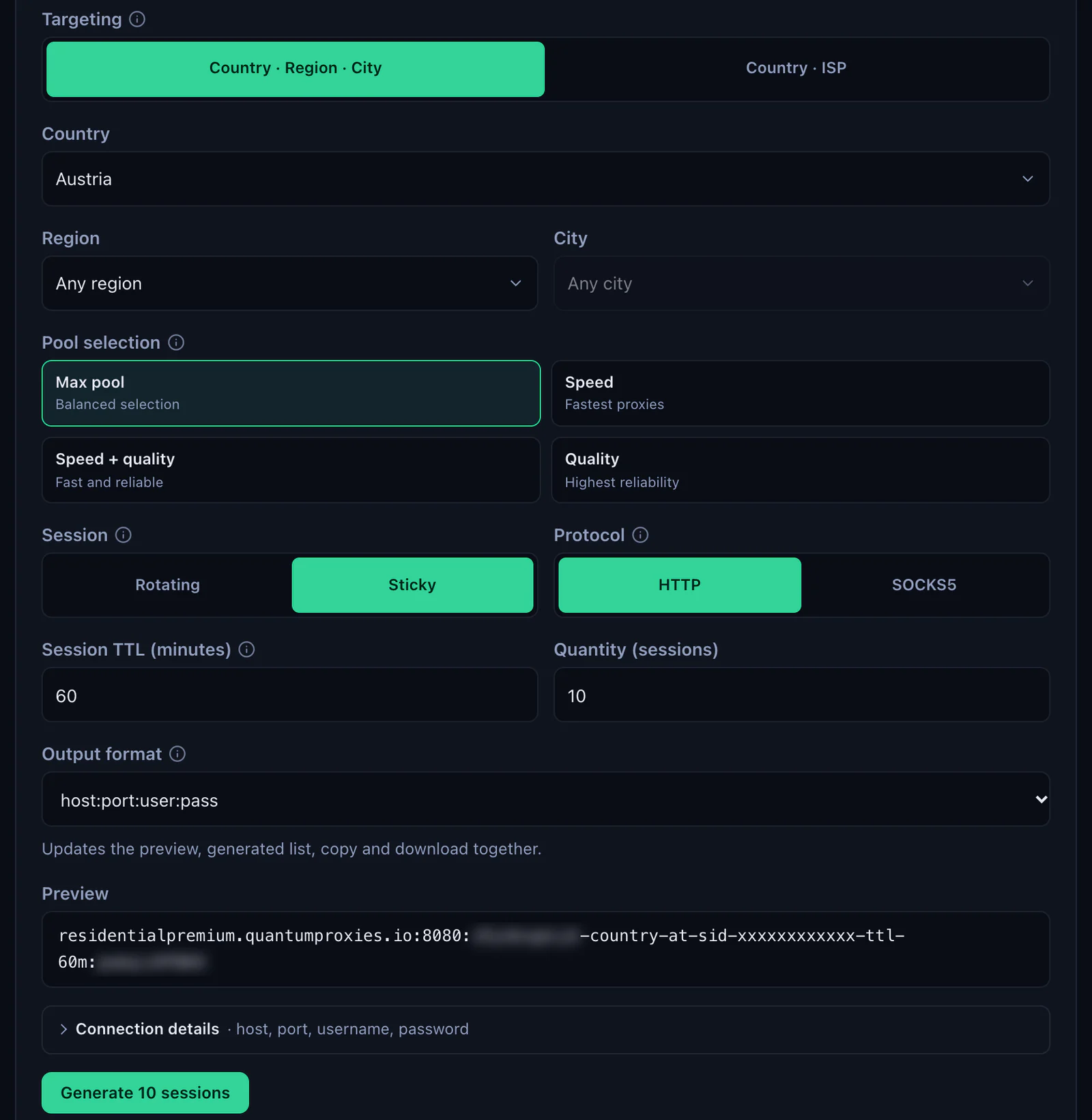
- Generate the line. In the QuanticData dashboard open My proxies, then your plan. In the Endpoint generator choose the Country (and a Region or City if the session needs one), set Session to Sticky, set Session TTL (minutes) to at least the time the session stays open, choose the Protocol and keep the Output format on host:port:user:pass. The Preview shows the line; Connection details shows the same four values one by one.
- Open a new session in Linken Sphere. Click New Session on the main page. The window Creating a new session has five blocks: General, Connection, Data, Fingerprints and Miscellaneous. In General, give the session a name (up to 50 characters).
- Pick the type in the Connection block. The list starts on Not Set. Choose HTTP for port 8080 or Socks5 for port 1080; the other types (SSH, Direct, Tor, Localhost) are for other kinds of connection.
- Paste the line into the field next to the type. One line, no spaces, nothing after the password.
- Click Check proxy & geo. When the check passes, the button turns green and the row under it shows the exit IP, the country and city, the language and the time zone. The country has to match the
-country-in the login. With Geo on Auto, these become the session's settings. - Leave Link to change IP empty and Live off. Both are for proxies that rotate by link or timer. With QuanticData a new IP comes from a new session ID in the login, explained further down.
- Leave WebRTC on Adaptive and DNS on Auto. They are the defaults, and Linken Sphere's documentation advises against changing DNS without a reason.
- Click Create, or Create & run to open the session at once.
An existing session works the same way: click the three dots on its row and choose Edit session, or Set proxy to replace only the connection. In the session manager you can also click a session's IP to swap the line on the spot. Two shortcuts help with many sessions: Ctrl+E (Cmd+E on a Mac) checks the proxy of the selected sessions, Ctrl+G (Cmd+G) sets a proxy.
One sticky session per Linken Sphere session
An antidetect session is meant to look like one person on one connection. A rotating proxy changes IP on every request, which is fine for scraping and wrong for a session that logs in. A sticky session keeps one IP for as long as it lives, and it lives in the username, so the line never has to change once it is saved in the session.
# session 1: Austria, one sticky IP for a working day
residentialpremium.quantumproxies.io:8080:USER-country-at-sid-p01-ttl-480m:PASS

# session 2: same plan, its own session ID (never reuse p01)
residentialpremium.quantumproxies.io:8080:USER-country-at-sid-p02-ttl-480m:PASS

# session 3: Germany, open all day
residentialpremium.quantumproxies.io:8080:USER-country-de-sid-p03-ttl-1440m:PASS- A different session ID in every session. Two sessions on the same line share one IP, which is exactly what an antidetect browser is there to avoid.
- A lifetime longer than the work. The generator accepts up to 1440 minutes, a full day. When the session ends, the next request gets a new IP, and a site can see that as a new login location.
- The country in the login. Without
-country-the exit can be anywhere, and the language and time zone Linken Sphere sets will not match the accounts you run.
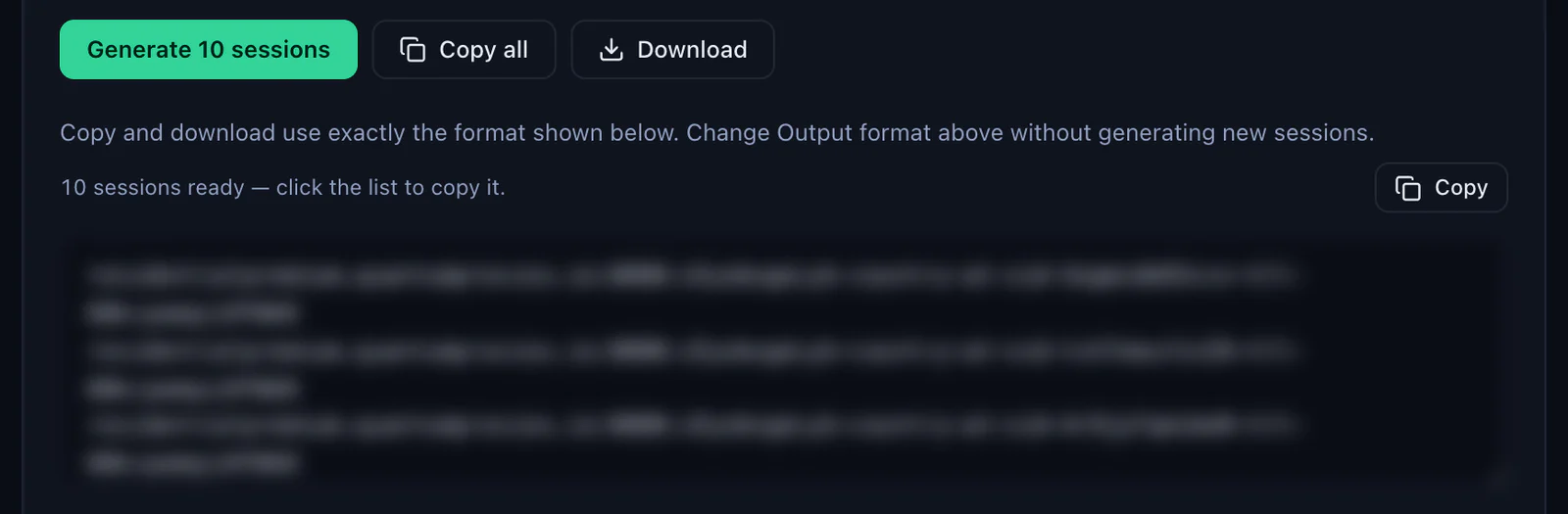
With Session set to Sticky, the generator makes as many lines as the Quantity field says, ten by default, each with its own session ID; Copy all or Download takes them out in the same format, one line per Linken Sphere session.
Residential Premium, ISP and mobile proxies in Linken Sphere
Residential Premium
Residential Premium is the line used in every example above: home IPs in the country you choose, with a region, a city or an ISP in the login if the session needs one, and username and password authentication only. Use HTTP on 8080 or Socks5 on 1080 and one sticky session ID per Linken Sphere session. For Austria specifically, see the Austrian residential proxies.
ISP proxies
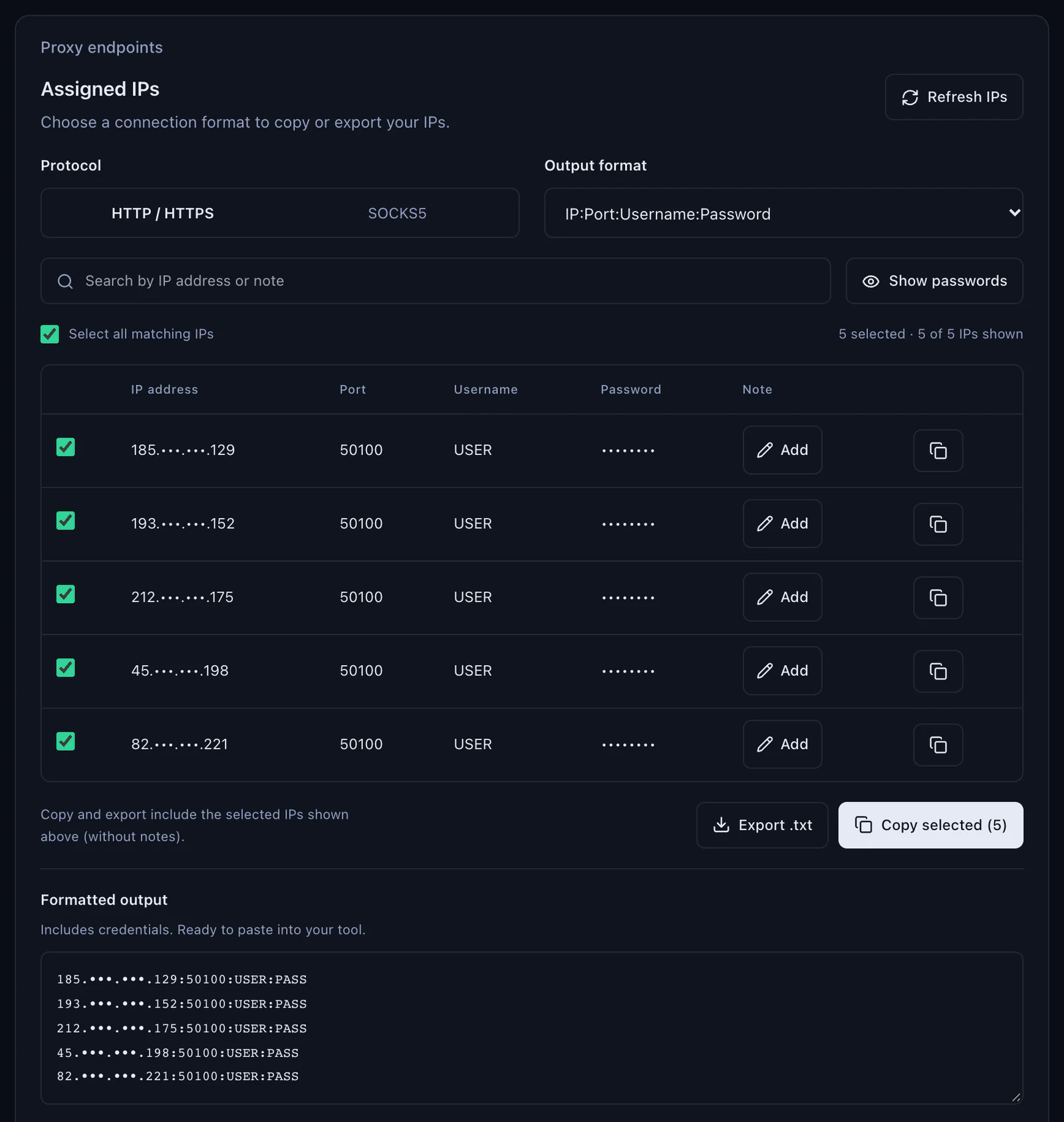
An ISP plan gives fixed IPs instead of a gateway. Open the plan in My proxies: the Assigned IPs panel lists them, with a Protocol switch (HTTP / HTTPS or SOCKS5) and an Output format menu. Keep IP:Port:Username:Password, which Linken Sphere reads as ip:port:login:pass, and use Copy selected or Export .txt.
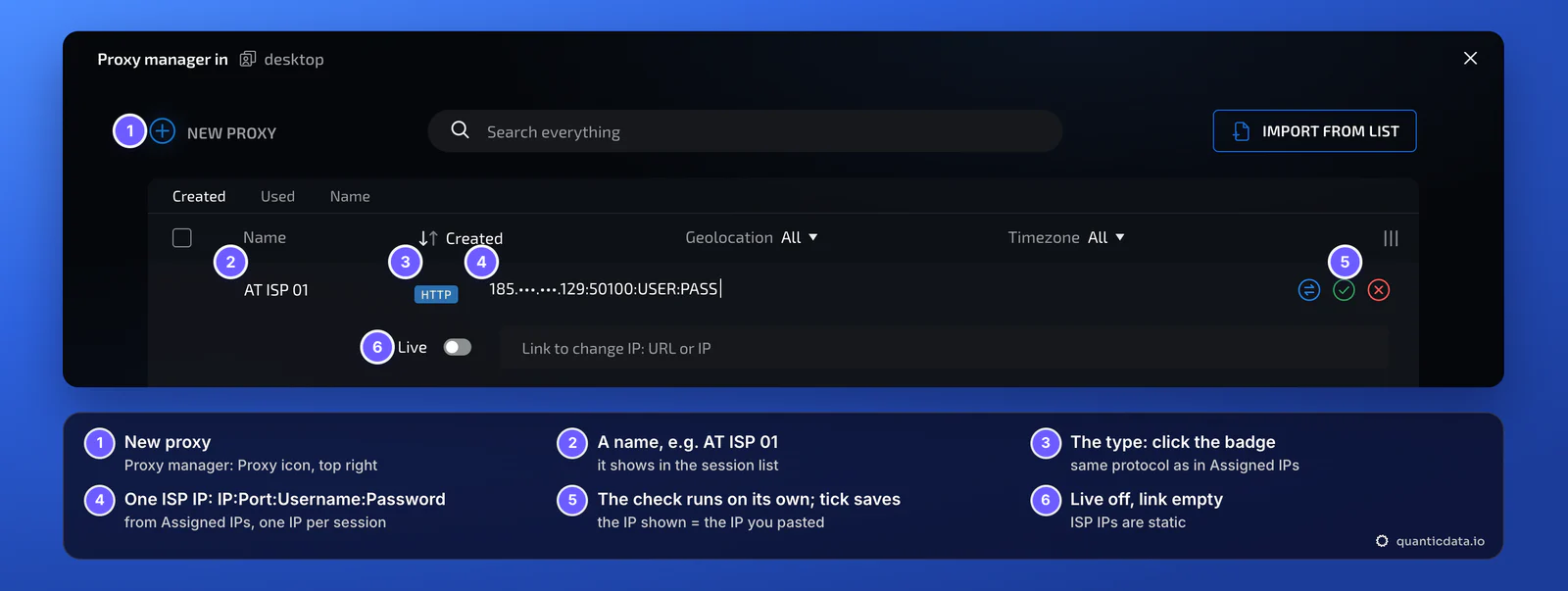
Because an ISP IP is meant to stay with one session for months, it is worth saving in Proxy Manager first: click the Proxy icon at the top right of the main screen, then New proxy, give it a name such as AT ISP 01, pick the type and paste the line. The check starts on its own; the IP it shows must be the IP you pasted. In the session's Connection block, open Proxy Manager, select the proxy and click Set. Leave the change-IP link empty: ISP IPs are static. Plans and locations are on the page for ISP proxies in Austria.
Mobile proxies
Mobile plans work like Residential Premium, on mobile.quantumproxies.io with -type-mobile in the login. Choose the gateway (Global, USA, EU or Asia), the session type and the protocol, HTTP 8080 or SOCKS5 1080, then paste the line in the Connection block exactly as above:
mobile.quantumproxies.io:8080:USER-country-at-type-mobile-sid-p04-ttl-60m:PASSMobile plans also offer IP whitelist authentication: add your computer's public IP in the dashboard, then use the host:port list with no login, which Linken Sphere reads as ip:port. A mobile IP suits sessions built on Linken Sphere's Mobile preset, which emulate a phone; more in mobile proxies for antidetect browsers and on the page for Austrian mobile proxies.
| Proxy type | In Linken Sphere | Good for |
|---|---|---|
| Residential Premium | One sticky line per session; country, region, city or ISP in the login; HTTP 8080 or Socks5 1080; username and password only | Most sessions: home IPs in the country you choose |
| ISP | Fixed IPs from Assigned IPs as IP:Port:Username:Password, saved in Proxy Manager; one IP per session | Long-lived accounts that should keep the same address for months |
| Mobile | One sticky line per session with -type-mobile in the login; Global, USA, EU or Asia gateway; IP whitelist available | Sessions on the Mobile preset and accounts tied to mobile networks |
For a wider view of why each session needs its own address, see residential proxies for antidetect browsers.
Many sessions at once: Proxy Manager, Import from list and presets
- Make the lines. In the generator, set Session to Sticky and the quantity you need, generate, then Copy all or Download.
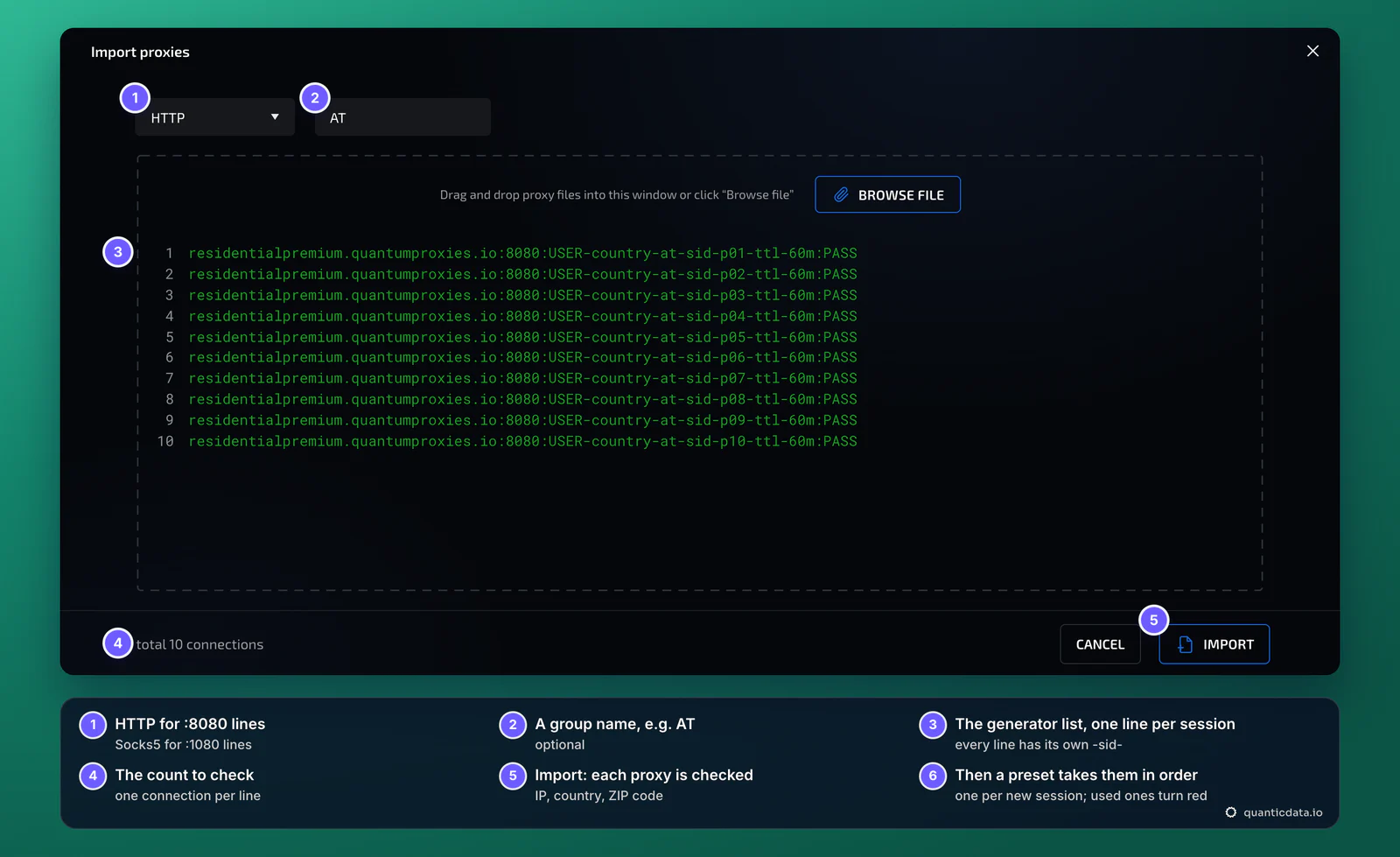
- Import them. Open Proxy Manager (the Proxy icon, or Cmd+P on a Mac) and click Import from list. Choose the type, give the group a common name such as AT, and paste the list or drop a .txt or .csv file. Linken Sphere checks every proxy on import (IP, country, ZIP code) and can remove duplicates and proxies that do not work.
- Put them in a preset. Create a preset (a template for new sessions) and, in its Connection block, open the proxy list, tick the proxies you imported and click Set. Proxies already used by a session are marked in red.
- Create the sessions. In mass session creation choose the preset and the number of sessions: each new session takes its own proxy from Proxy Manager and shows its name.
For sessions that already exist, select them in the session manager and use the actions bar: Proxy check tests all of them, Set proxy assigns proxies from Proxy Manager.
A new IP without touching the session's settings
Linken Sphere's Link to change IP field and Live mode are built for proxies that change IP through a URL or on a timer. With QuanticData Residential Premium and Mobile leave both off: the IP is tied to the session ID in the login, so a new session ID, for example -sid-p02 instead of -sid-p01, is a new IP, and the old line keeps working until its lifetime ends. Click the session's IP in the session manager, paste the new line and check it again. ISP proxies are static addresses by design: one IP per session, for months.
Linken Sphere proxy not working: errors and fixes
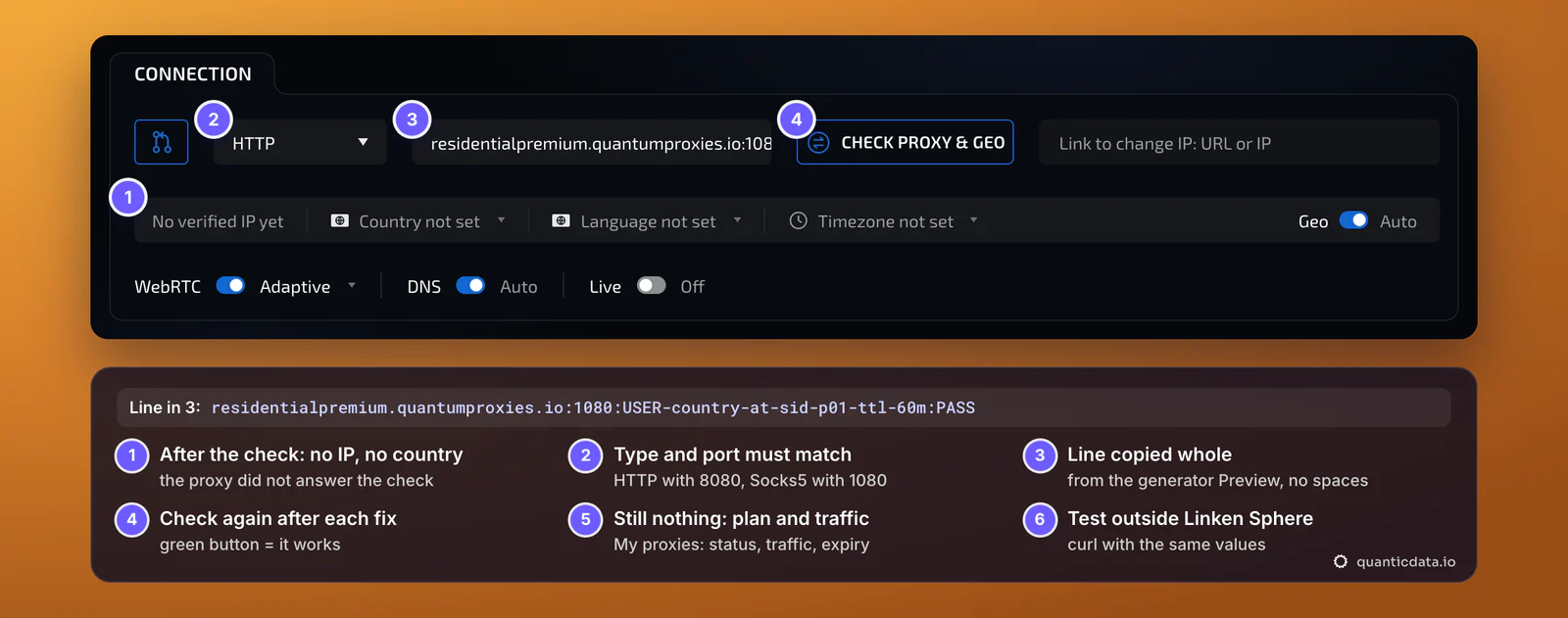
When the check fails, the button does not turn green and no IP, country or time zone appears under the field: the row keeps No verified IP yet. These are the cases behind it, in the order to check.
| What you see | Usual cause | Fix |
|---|---|---|
| Check proxy & geo does not turn green, No verified IP yet | The type does not match the port: HTTP on 1080 or Socks5 on 8080 | HTTP with 8080, Socks5 with 1080 |
| The same, with the right type | The login was cut, a colon is missing, or a space came with the paste | Copy the line again from the generator's Preview and paste it whole |
| The check worked yesterday, fails today | The plan expired or its traffic is used up | Check the plan in My proxies: status, remaining traffic, expiry date |
| Wrong country, language or time zone | No -country- in the login, or Geo switched from Auto to manual settings | Generate the line with a country and keep Geo on Auto |
| The IP changes in the middle of the work | The session lifetime ended, or two sessions share one session ID | A longer -ttl- and a different -sid- in every session |
| Session failed to run, while the proxy check passes | Linken Sphere's FAQ points to the antivirus blocking its browser engine | Add chromium-bin\chrome.exe from the Linken Sphere folder to the antivirus exclusions |
| Most sites load, one platform refuses | That platform does not accept the type of IP or the address it got | A new session ID for a fresh IP, or a mobile or ISP line for that platform |
One test outside the browser settles most cases in a minute. If this returns an address in the right country, the proxy works and the problem is in the session's fields:
curl -x http://residentialpremium.quantumproxies.io:8080 \
  -U "USER-country-at-sid-test-ttl-10m:PASS" https://ipinfo.io/json
If the same command fails on your network but works from another one, a firewall or your provider is blocking the connection to the proxy port.
HTTP or Socks5 in Linken Sphere
Both work with every QuanticData network, as long as the type matches the port. Linken Sphere's documentation notes one difference: an HTTP connection carries web traffic only and does not proxy WebRTC, while Socks5 passes other kinds of traffic too. Its WebRTC setting, Adaptive by default, adjusts to the connection type and replaces the address only where needed, so either choice is safe with the defaults; Linken Sphere's own examples use Socks5 on port 1080. The details of the protocol are on the page for SOCKS5 proxies. If you also run another antidetect browser, the same setup in Dolphin Anty follows the same steps.
Before you run accounts
A proxy changes where a session's traffic comes from, not what the session is allowed to do. Keep to each platform's terms and to the law where you work, and use one session, one sticky IP and one identity per account.