
To add a proxy in ixBrowser, open the profile's Proxy Configuration tab, set Proxy Method to Custom, pick HTTP or SOCKS5 to match the port, fill Proxy Host, Proxy Port, Proxy Account and Proxy Password, run Proxy Detection and create the profile. Give every profile its own sticky session. Below: each step, ISP and mobile lines, batches and every detection error.
ixBrowser keeps every browser profile apart: its own cookies, its own fingerprint and, once you add one, its own proxy. The proxy decides which IP address, and which country, the sites see. ixBrowser asks for the proxy as four separate fields rather than one line, so most setup mistakes are a value in the wrong field or a field cut short. The field names below are the ones in ixBrowser's own Help Center and current app, and the values come from the QuanticData endpoint generator.
What you need before you start
- ixBrowser installed, with an account. It has a free plan; the daily limits on new profiles and launches are in the FAQ below.
- A proxy plan. Residential Premium, ISP or mobile: all of them work in ixBrowser. The sections further down say which one fits which profile.
- The four values: host, port, username and password. In the QuanticData dashboard they are under My proxies, on the plan's page, in the Endpoint generator; Connection details lists them one by one, which is exactly how ixBrowser asks for them.
The four fields ixBrowser asks for
In a profile, ixBrowser takes the proxy field by field. Proxy Host and Proxy Port are required; Proxy Account and Proxy Password carry the login. This is the same QuanticData Residential Premium proxy, split the way ixBrowser wants it:
| ixBrowser field | Value | Note |
|---|---|---|
| Proxy Type | HTTP | SOCKS5 when you use port 1080 |
| Proxy Host | residentialpremium.quantumproxies.io | the host name, no http:// in front |
| Proxy Port | 8080 | 1080 for SOCKS5 |
| Proxy Account | USER-country-be-sid-p01-ttl-60m | the whole username, targeting included |
| Proxy Password | PASS | the plan's password |
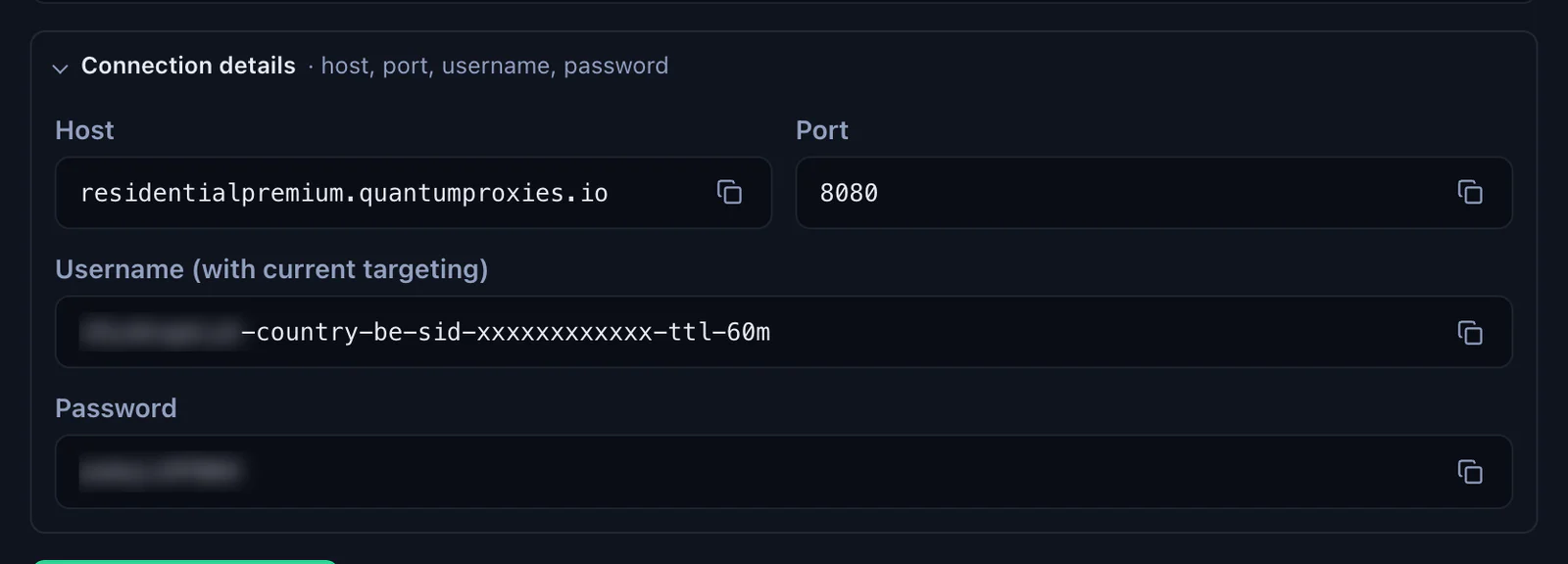
The Proxy Account is the whole username, with everything after the first dash: -country-be picks the exit country, -sid-p01 names the session and -ttl-60m keeps it for 60 minutes. Copy it whole. A username cut at the first dash still logs in, but the profile then leaves from a random country on a new IP at every request.
The one place where ixBrowser reads a whole line is Add in Batches, on the Static Proxy page: there each proxy is one line, host:port:username:password, and the type goes in front, for example socks5://. A line with no type is HTTP.
Step by step: add a proxy to an ixBrowser profile
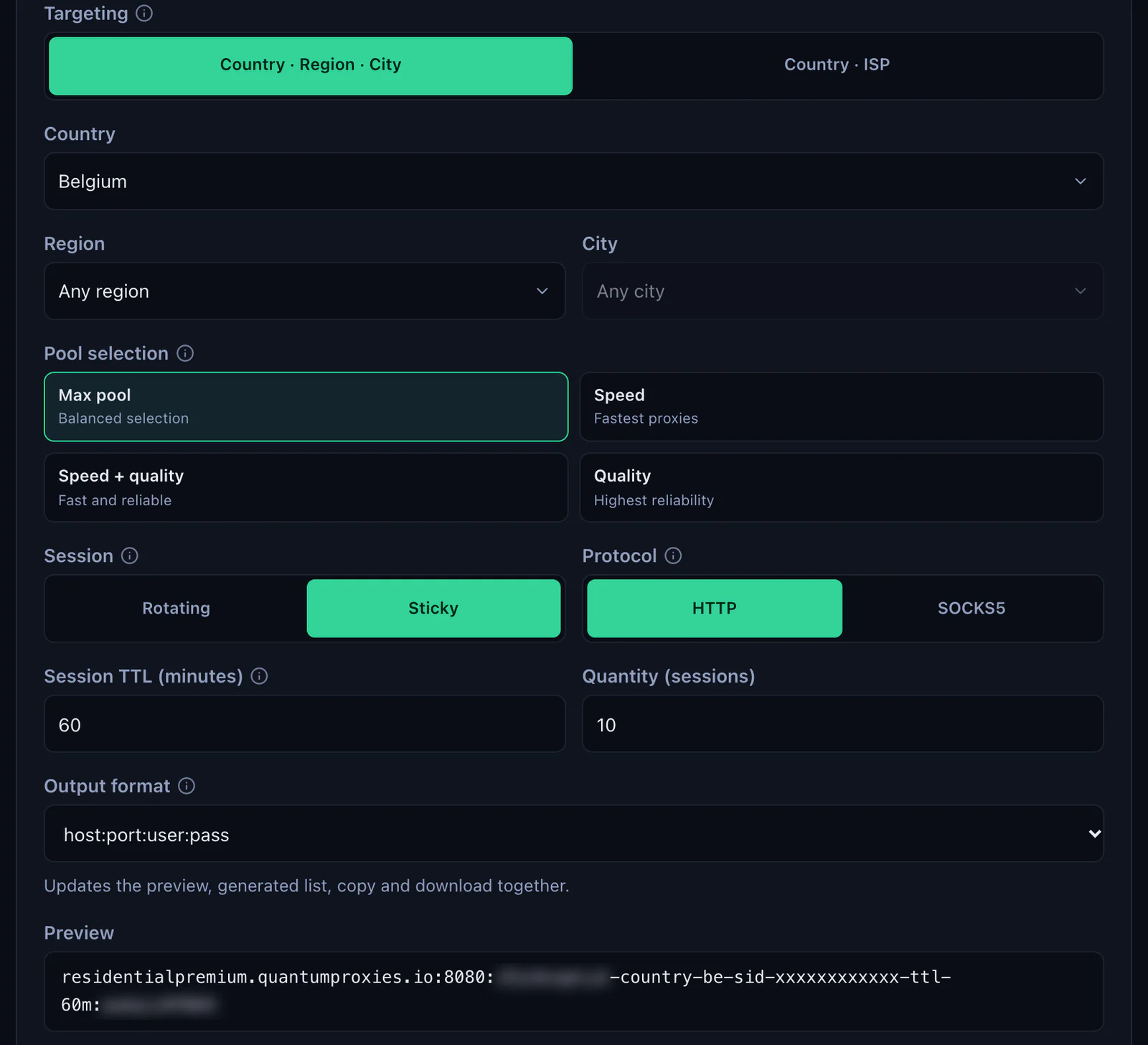
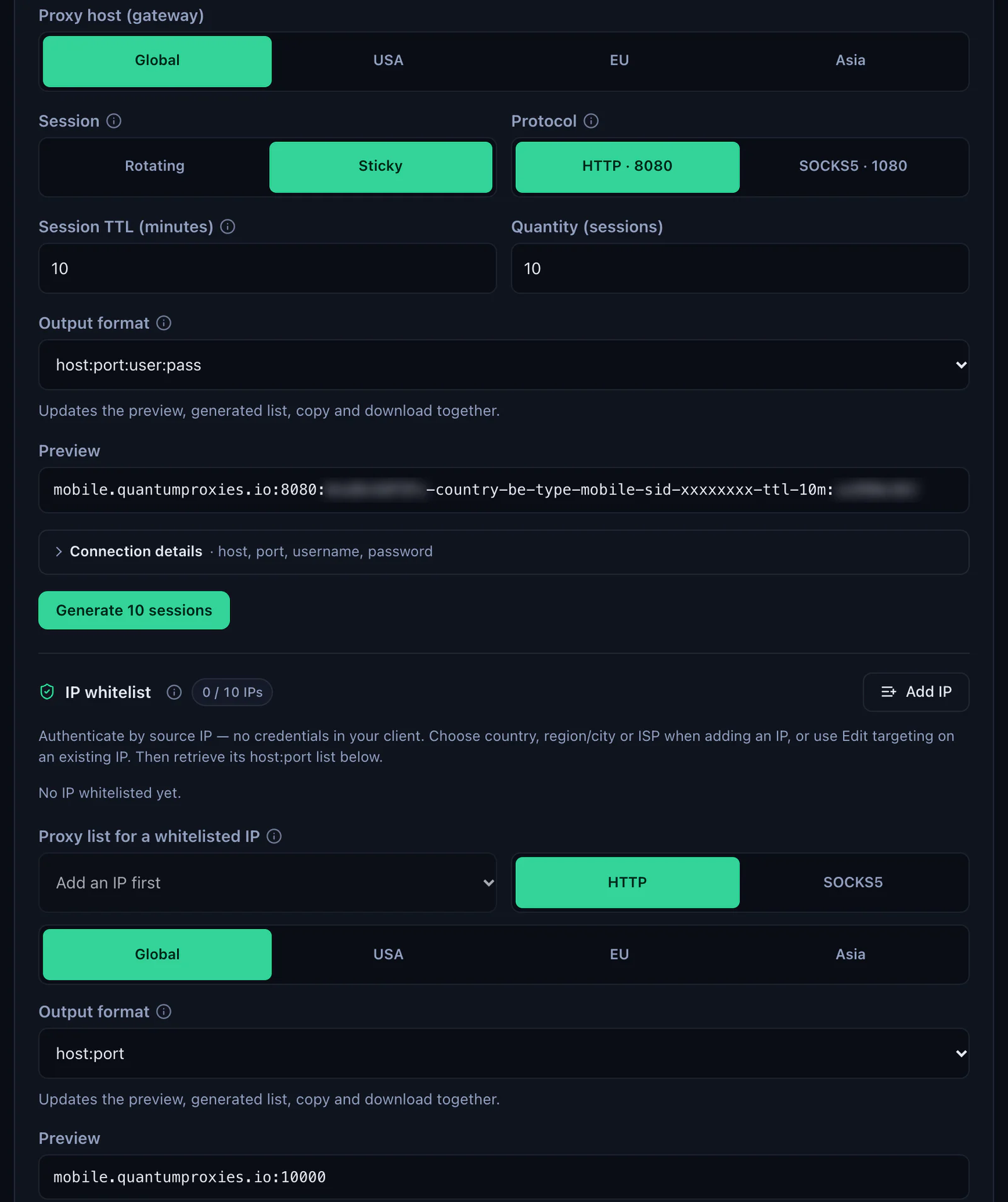
- Generate the values. In the QuanticData dashboard open My proxies, then your plan. In the Endpoint generator choose the Country (and a Region or City if the profile needs one), set Session to Sticky, set Session TTL (minutes) to at least the time the profile stays open and choose the Protocol. Open Connection details: host, port, username and password, each with a copy button.
- Create the profile in ixBrowser. In the Profile List click Create Profile and fill in Platform and Profile Title on the Platform Account Configuration tab.
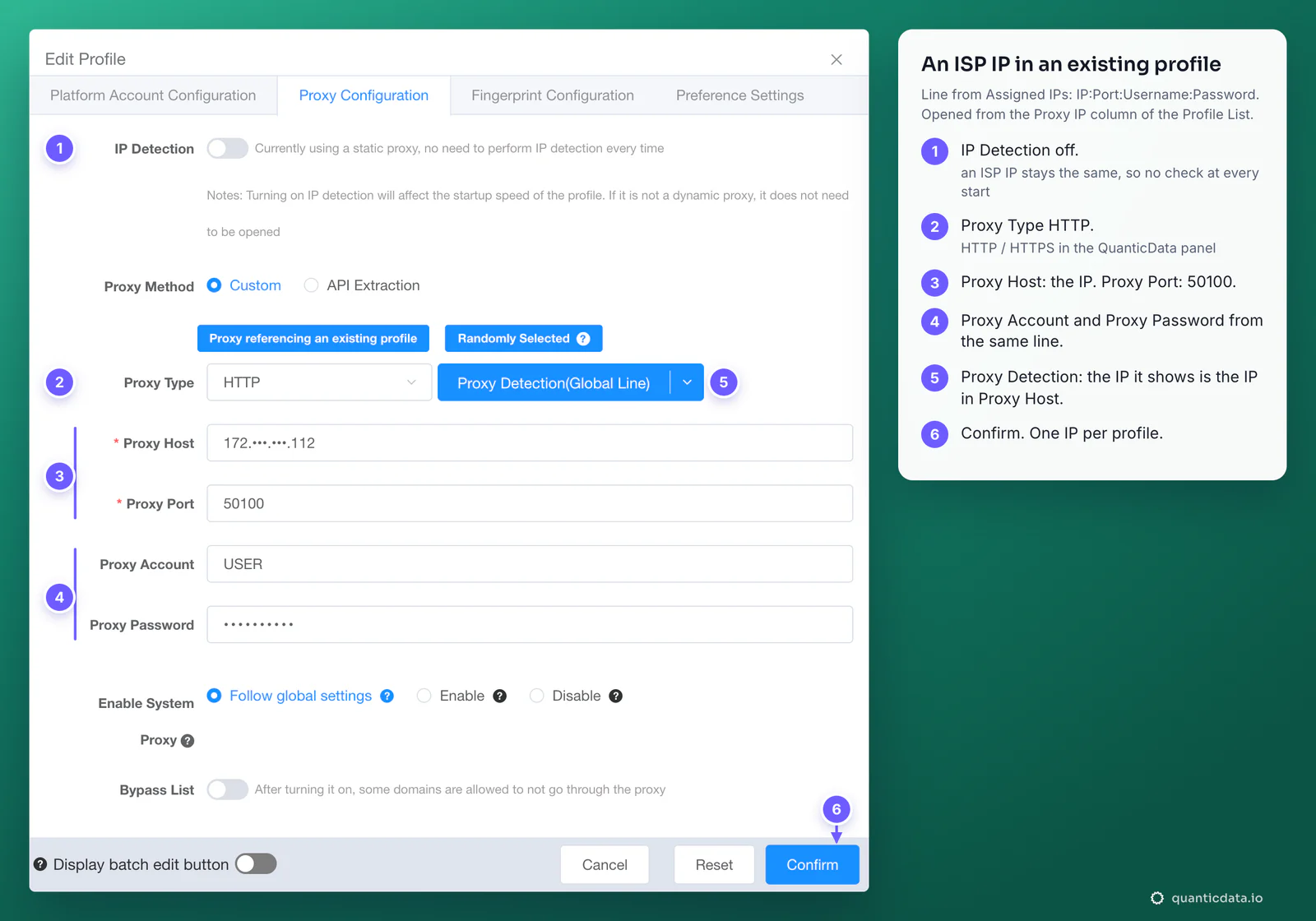
- Open the Proxy Configuration tab and set Proxy Method to Custom, the method for a proxy you bring yourself.
- Pick the Proxy Type that matches the port. HTTP for port 8080, SOCKS5 for port 1080.
- Fill the four fields. Proxy Host and Proxy Port from the generator, the whole username in Proxy Account, the password in Proxy Password. No spaces at either end.
- Click Proxy Detection(Global Line). Under Proxy Type, ixBrowser shows the exit IP and its Country / Region. The country must match the
-country-in the username. ixBrowser's documentation says a proxy entered by hand is saved only after it passes the detection. - Leave Enable System Proxy on Follow global settings and Bypass List off. Bypass List lets some domains skip the proxy, which a profile meant to look like one person in one place does not want.
- Click Create. When you edit an existing profile the button is Confirm. The profile appears in the Profile List, ready to open.
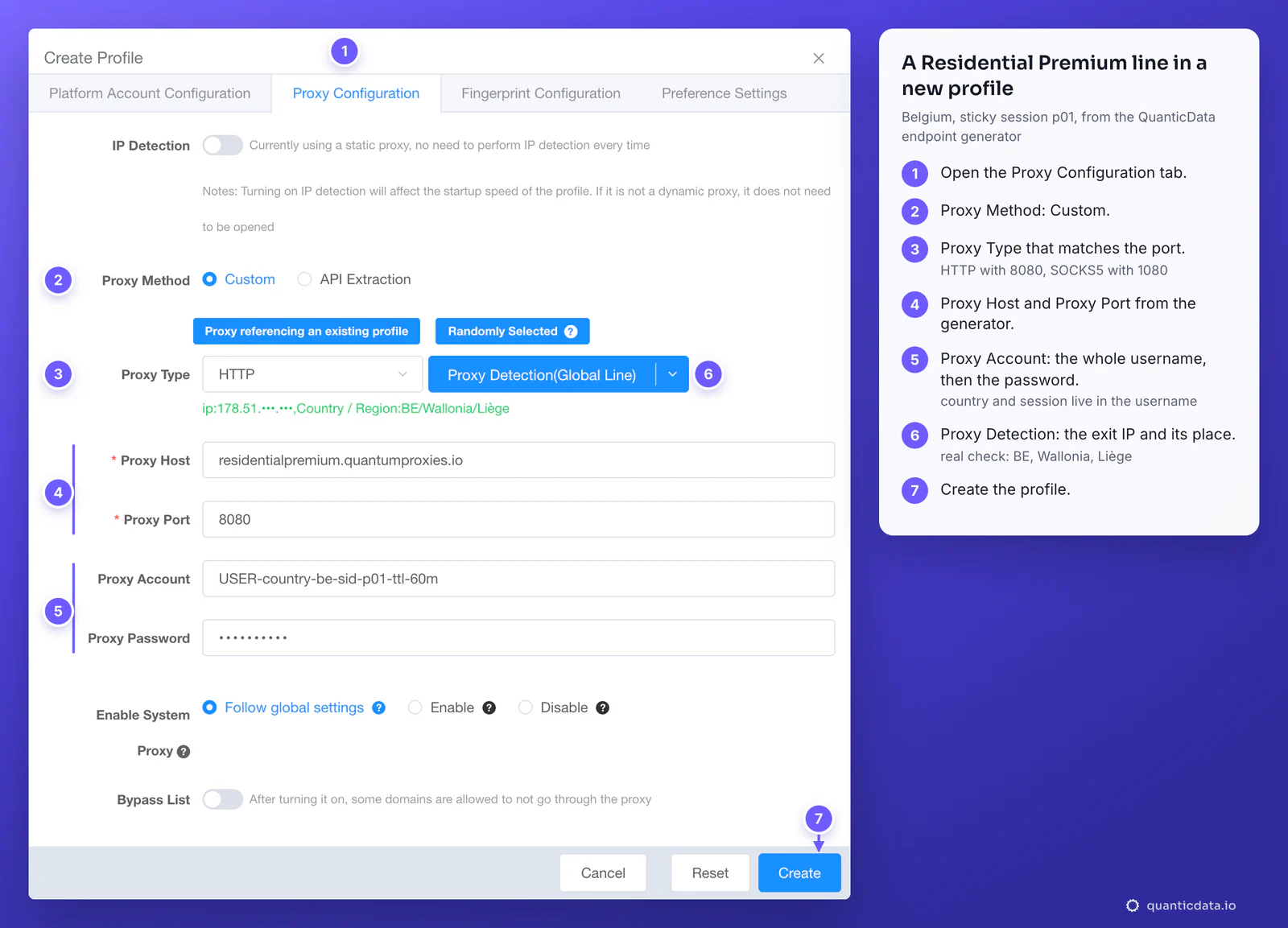
To change the proxy of an existing profile, click its proxy IP in the Profile List: the same Proxy Configuration tab opens in Edit Profile, and Confirm saves it after the detection.
One sticky session per profile
An antidetect profile is meant to look like one person on one connection. A rotating proxy changes IP on every request, which is fine for scraping and wrong for a profile that logs in. A sticky session keeps one IP for as long as the session lives, and the session lives in the username, so the four fields never have to change once the profile is saved.
# profile 1: Belgium, one session for a working day
Proxy Account: USER-country-be-sid-p01-ttl-480m

# profile 2: same plan, its own session (never reuse p01)
Proxy Account: USER-country-be-sid-p02-ttl-480m

# profile 3: Germany, open all day
Proxy Account: USER-country-de-sid-p03-ttl-1440m- A different session ID in every profile. Two profiles on the same username share one IP, which is exactly what an antidetect browser is there to avoid. For the same reason, do not use Proxy referencing an existing profile for sticky lines: it gives the new profile the other profile's proxy.
- A lifetime longer than the work. The generator accepts up to 1440 minutes, a full day. When the session ends, the next request gets a new IP, and a site can see that as a new login location.
- IP Detection on for session lines. When the Proxy Host is a name and the detected IP is a different address, which is always the case with a QuanticData gateway, ixBrowser asks whether to run proxy detection at every start. Its own note says the check is only needed for a proxy whose IP can change: say yes for Residential Premium and mobile lines, whose IP changes when the session ends; leave it off for ISP IPs, and the profile starts faster.
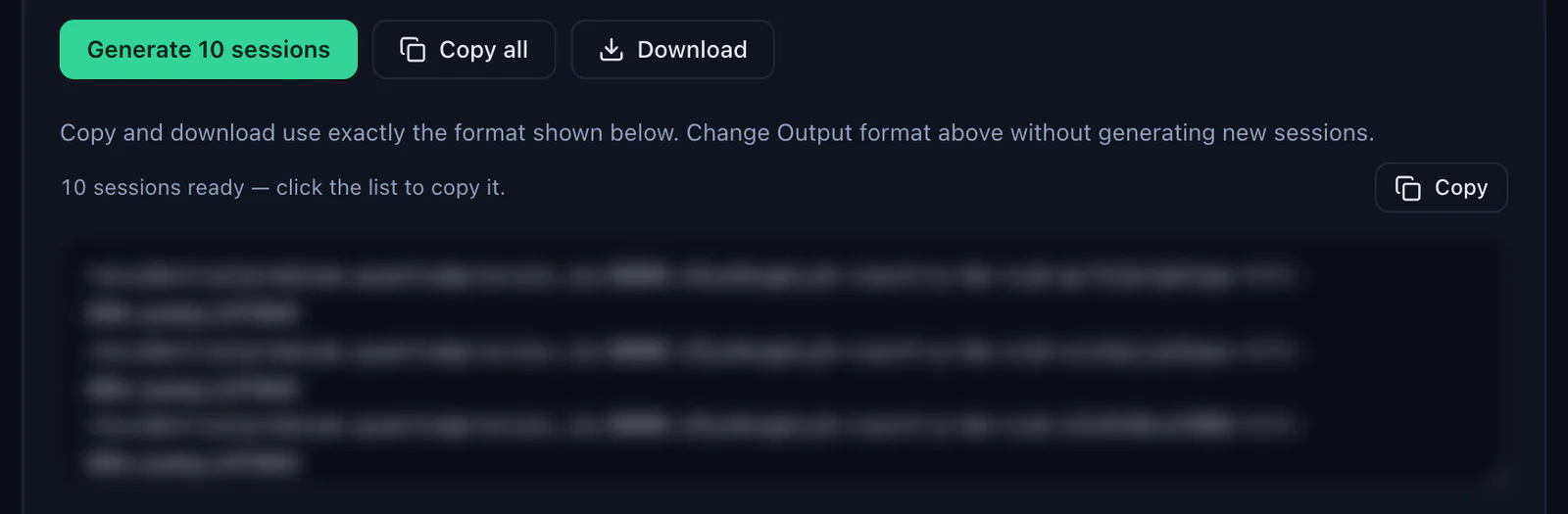
With Session set to Sticky, the generator makes as many lines as the Quantity field says, ten by default, each with its own session ID; Copy all or Download takes them out. One line per profile.
Residential Premium, ISP and mobile proxies in ixBrowser
| Proxy type | In ixBrowser | Good for |
|---|---|---|
| Residential Premium | Custom, HTTP 8080 or SOCKS5 1080, one sticky username per profile with country, region, city or ISP in it; IP Detection on | Most profiles: home IPs in the country you choose |
| ISP | Custom, the IP from Assigned IPs in Proxy Host, its port, username and password; IP Detection off; one IP per profile | Long-lived accounts that should keep the same address for months |
| Mobile | Custom, mobile.quantumproxies.io on HTTP 8080 or SOCKS5 1080, one sticky username with -type-mobile per profile; IP Detection on | Phone-first platforms and accounts tied to mobile networks |
Residential Premium
Residential Premium is the line used in the steps above: the host residentialpremium.quantumproxies.io, port 8080 for HTTP or 1080 for SOCKS5, and a username that carries the country, and optionally the region, city or ISP, plus the session. It authenticates with username and password only, which is what ixBrowser's Proxy Account and Proxy Password fields expect. For why each profile needs its own address, see residential proxies for antidetect browsers; the plans are on the page for QuanticData residential proxies.
ISP proxies
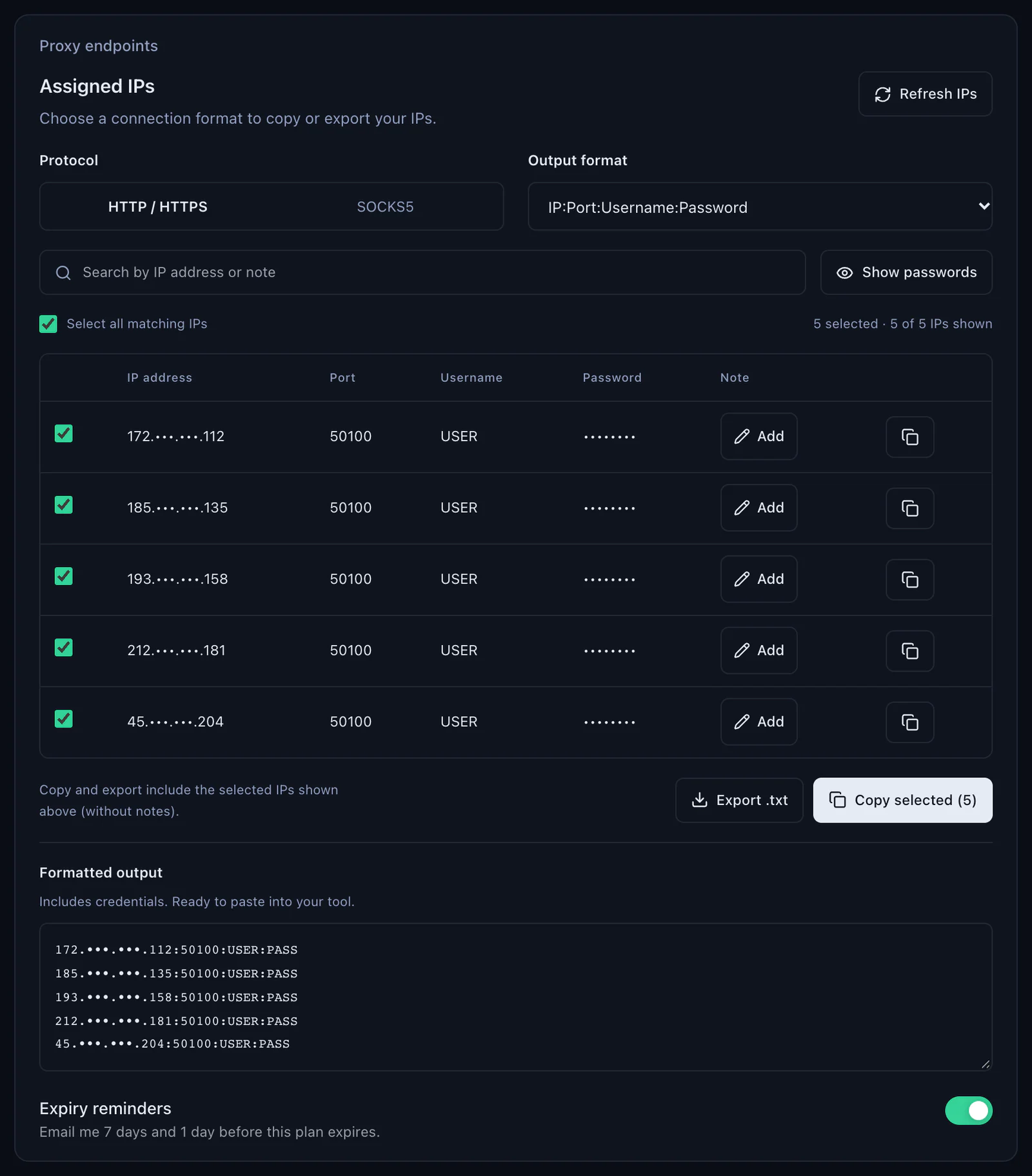
An ISP plan gives fixed IPs, listed in the dashboard under Proxy endpoints, Assigned IPs. Choose the Output format IP:Port:Username:Password and the protocol you will set in ixBrowser, then copy one line per profile. In ixBrowser the IP goes in Proxy Host, the port in Proxy Port, the username and password in their fields; set Proxy Type to HTTP for the HTTP / HTTPS protocol of the panel, or SOCKS5 if you chose SOCKS5 there and its port. ixBrowser's own notes recommend one IP per profile for platforms that watch IP stability, which is the point of an ISP IP. More on the page for ISP proxies.
Mobile proxies
Mobile plans work like Residential Premium on their own host, mobile.quantumproxies.io: HTTP on 8080 or SOCKS5 on 1080, a sticky username with -type-mobile in it, and a gateway to choose, Global, USA, EU or Asia. In ixBrowser the host, port, username and password go in the same four fields, with IP Detection on, since a mobile session can change IP when it ends. Mobile plans also offer IP whitelist authentication: add your IP in the dashboard and the host and port are enough, with Proxy Account and Proxy Password left empty. More on QuanticData mobile proxies and mobile proxies for antidetect browsers.
Adding proxies to many profiles at once
- Make the lines. In the generator, set Session to Sticky and the Quantity you need, generate, then Copy all or Download, in the output format host:port:user:pass.
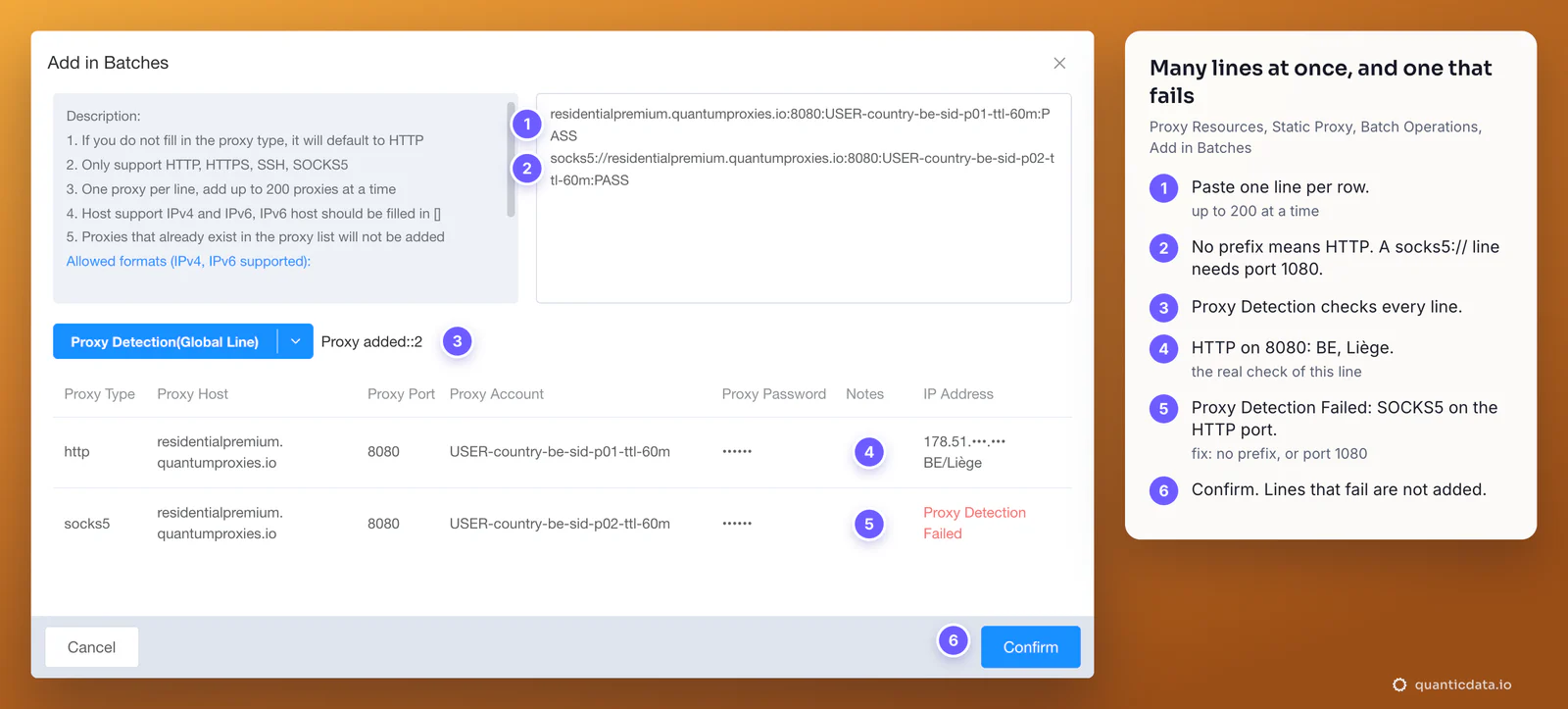
- Store them in ixBrowser. Open Proxy Resources, then Static Proxy, then Batch Operations, Add in Batches. Paste one proxy per line: up to 200 at a time, HTTP when the line has no type,
socks5://in front for the SOCKS5 port. Proxies already in the list are not added again. - Check them. Proxy Detection(Global Line) tests every line and shows the IP and place of each one; a line that fails is marked Proxy Detection Failed and is not added. Then Confirm.
- Give each profile its own line. Select the profiles and open More Batch Operations, Edit Profiles. Tick Proxy Method at the top: every selected profile gets a row of its own, so each one takes its own username. Apply Entire Column copies the first row to all the others, which is right for the Proxy Type and wrong for the username.
Two things to know from ixBrowser's notes on proxies: a saved proxy that you edit changes in every profile bound to it, and Edit Proxy in the batch menu puts one proxy on all the selected profiles. For sticky lines, one saved proxy per profile is the setup that stays clean.
A new IP for a profile
With QuanticData Residential Premium and mobile lines the IP is tied to the session ID in the username. A new session ID, for example -sid-p02 instead of -sid-p01, is a new IP: click the profile's proxy IP in the Profile List, change Proxy Account, run Proxy Detection and Confirm. The old session keeps working until its lifetime ends. ISP proxies are static addresses by design: one IP per profile, for months.
ixBrowser Proxy Detection Failed: errors and fixes
When the check fails, ixBrowser does not save a proxy entered by hand, and in Add in Batches the line shows Proxy Detection Failed in red in the IP Address column. ixBrowser's own notes give the first thing to check: whether the proxy is valid, meaning the parameters are filled in correctly and the proxy is within its validity period. These are the cases behind it, in the order to check.
| What you see | Usual cause | Fix |
|---|---|---|
| Proxy Detection Failed | The type does not match the port: SOCKS5 on 8080 or HTTP on 1080 | HTTP with 8080, SOCKS5 with 1080; in a batch line, no prefix for 8080 and socks5:// for 1080 |
| The same error, with the right type | The username was cut at the first dash, a space came with the paste, or the password belongs to another plan | Copy the four values again from Connection details, one field at a time |
| The check worked yesterday, fails today | The plan expired or its traffic is used up | Check the plan in My proxies: status, remaining traffic, expiry date |
| Wrong country in Country / Region | No -country- in the username, or Worldwide chosen in the generator | Generate the values with a country; leave the profile's time zone and language on the ones ixBrowser takes from the IP |
| The IP changes between launches | The session lifetime ended, or two profiles share one session ID | A longer -ttl-, a different -sid- in every profile, IP Detection on |
| Most sites load, one platform refuses | That platform does not accept the type of IP or the address it got | A new session ID for a fresh IP, or a mobile or ISP line for that platform |
One test outside the browser settles most cases in a minute. If this returns an address in the right country, the proxy works and the problem is in the profile's fields:
curl -x http://residentialpremium.quantumproxies.io:8080 \
  -U "USER-country-be-sid-test-ttl-10m:PASS" https://ipinfo.io/json
If the same command fails on your network but works from another one, a firewall or your provider is blocking the connection to the proxy port. If curl works and only ixBrowser fails, switch the detection line with the arrow next to Proxy Detection, from Global Line to Chinese Line or back, and run it again.
HTTP or SOCKS5 in ixBrowser
Both work for browsing, and every QuanticData network offers both. HTTP on port 8080 is the simpler choice and the one to start with; it carries HTTPS sites as well. SOCKS5 on port 1080 passes any kind of connection, not only web pages, which matters for tools inside the profile that do not speak HTTP; the details are on the page for SOCKS5 proxies. What breaks a profile is never the choice itself, only a type that does not match its port.
Before you run accounts
A proxy changes where a profile's traffic comes from, not what the profile is allowed to do. Keep to each platform's terms and to the law where you work, and use one profile, one session and one identity per account.