
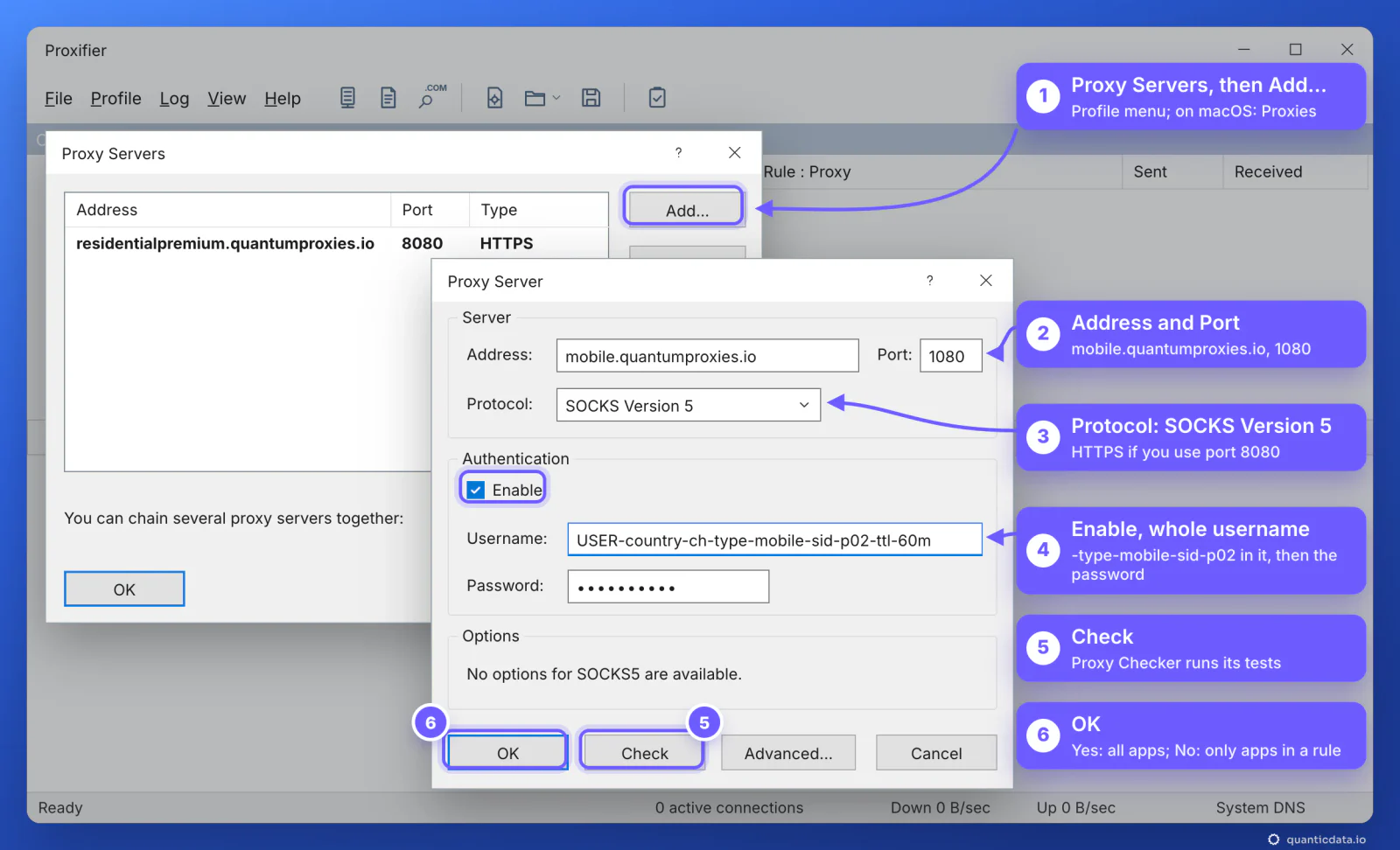
To use a proxy in Proxifier, open Proxy Servers (Proxies on a Mac), click Add, enter the address and port, choose HTTPS for port 8080 or SOCKS Version 5 for port 1080, enable authentication with the whole username and password, then OK and Yes. Below: each field on Windows and macOS, the check, rules for one app and a fix for every error.
Proxifier sends the traffic of programs that have no proxy setting of their own through a SOCKS or HTTPS proxy: a desktop chat app, a game launcher, a command-line tool, a whole computer. It runs on Windows (Standard Edition 4.14, Windows 7 to 11) and macOS (version 3.15, macOS 12 to 26), with a 31-day trial. It is the right tool when an app ignores proxies, and it means you never touch the operating system's own network settings. The field names below are the ones in Proxifier's documentation; the values come from the QuanticData endpoint generator.
What you need before you start
- Proxifier installed and running. On Windows it sits in the system tray; on a Mac it asks once to allow its network extension.
- A proxy plan. Residential Premium, ISP or mobile: all of them work in Proxifier, over HTTPS or SOCKS5.
- The five values: host, port, protocol, username and password. In the QuanticData dashboard they are under My proxies, on the plan's page, in the Endpoint generator.
- No proxy set inside the app itself. Proxifier's documentation warns that an app with its own proxy setting goes through the proxy twice. Set the app to connect directly and let Proxifier do the routing.
The values Proxifier asks for
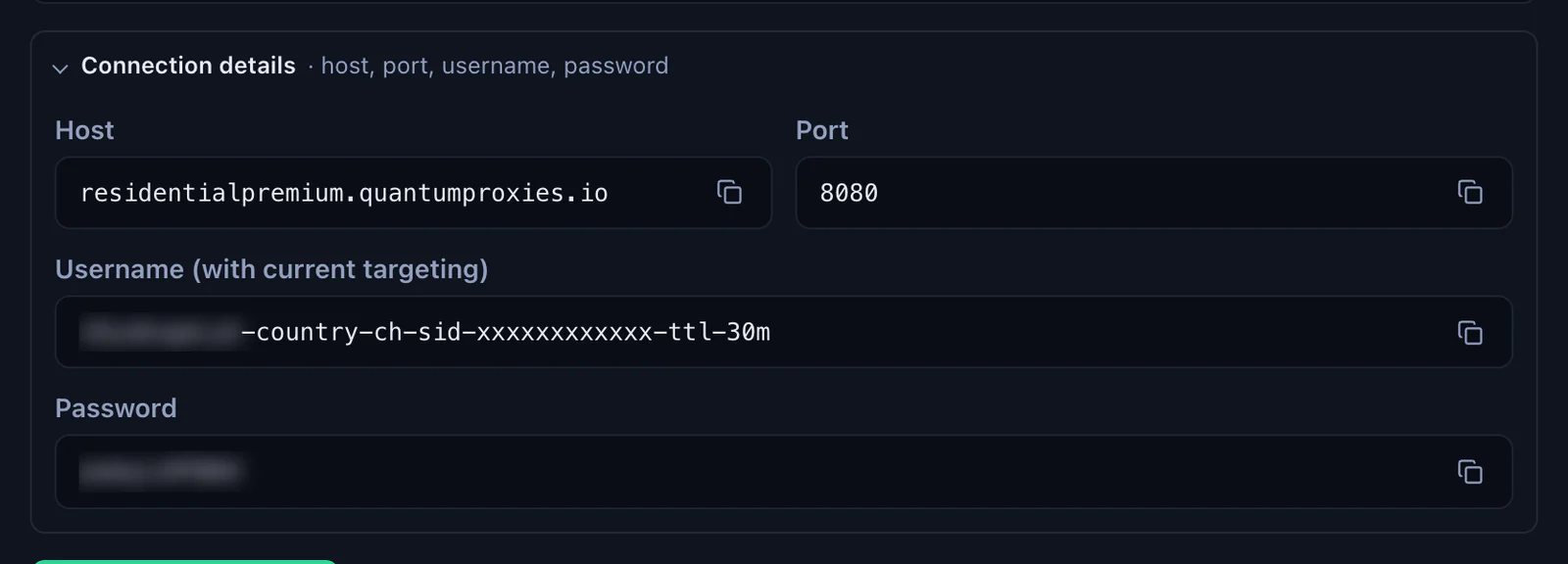
Proxifier does not read a proxy as one line: it has a field for each value. Open Connection details under the generator's Preview and copy them one by one.
| Proxifier field | QuanticData value | Note |
|---|---|---|
| Address | residentialpremium.quantumproxies.io | Host from Connection details; mobile plans use mobile.quantumproxies.io, ISP plans the IP itself |
| Port | 8080 or 1080 | 8080 for HTTP, 1080 for SOCKS5 |
| Protocol | HTTPS or SOCKS Version 5 | HTTPS with 8080, SOCKS Version 5 with 1080 |
| Username | USER-country-ch-sid-p01-ttl-60m | The whole string: country, session and lifetime are inside it |
| Password | Your proxy password | Under Connection details, next to the username |
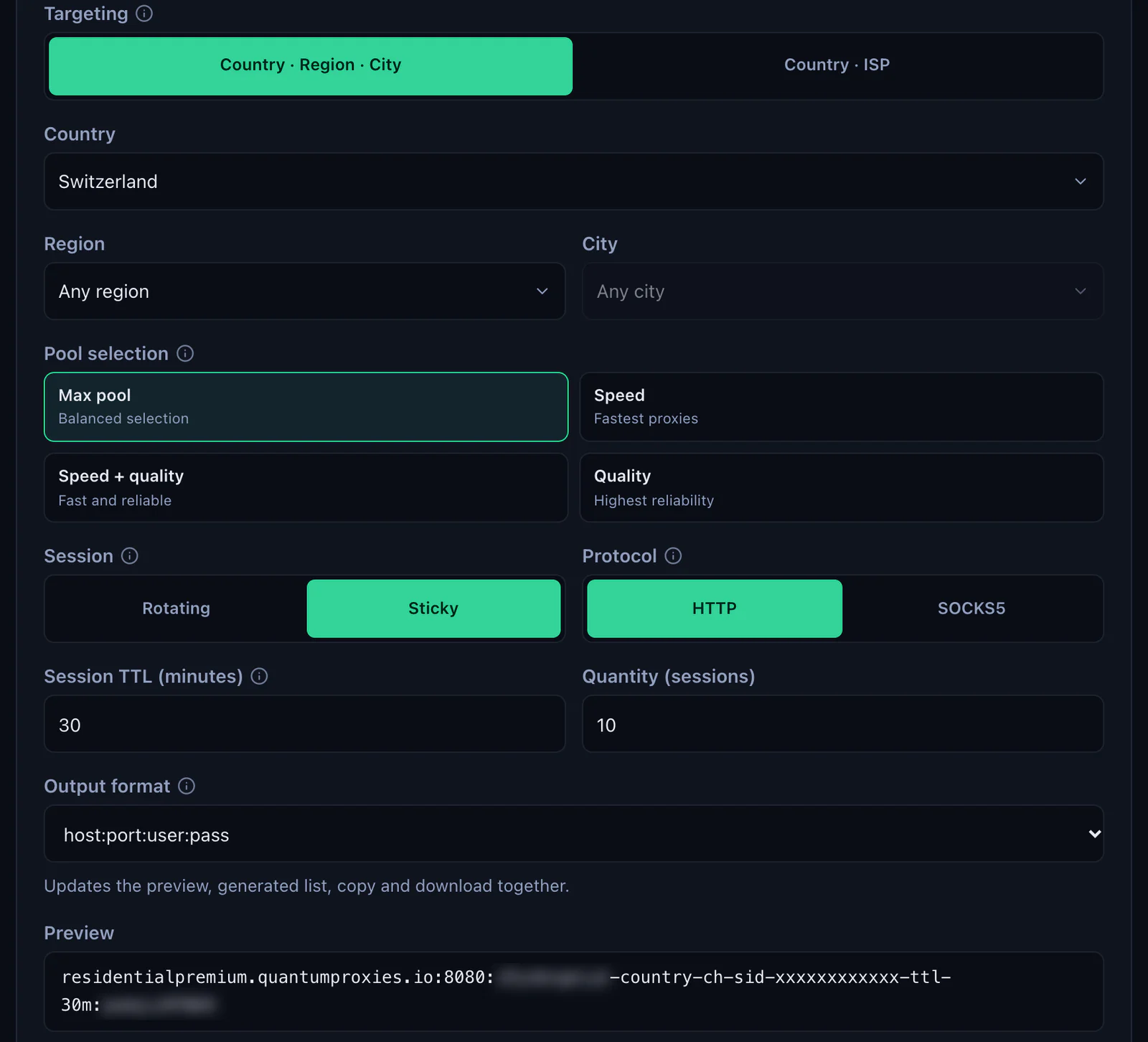
Choose HTTPS in Proxifier even though the generator says HTTP. In Proxifier, HTTPS means an HTTP proxy that opens a tunnel (the CONNECT method) for each connection, which is how port 8080 works. Proxifier's plain HTTP type only carries HTTP connections and has to be switched on under Profile, Advanced, HTTP Proxy Servers; you do not need it.
Step by step: add a proxy in Proxifier
- Generate the values. In the QuanticData dashboard open My proxies, then your plan. In the Endpoint generator choose the Country (Switzerland in this example), set Session to Sticky and Session TTL (minutes) to at least the time the apps stay open, choose the Protocol, then open Connection details.
- Open the proxy list. On Windows: Profile menu, Proxy Servers, or the first toolbar icon. On a Mac: the Proxies button in the toolbar.
- Click Add. The Proxy Server window opens with three groups: Server, Authentication and Options.
- Enter Address and Port. The host from Connection details and 8080 or 1080.
- Choose the Protocol. HTTPS for port 8080, SOCKS Version 5 for port 1080. On Windows it is a drop-down, on a Mac a set of radio buttons.
- Turn on Authentication. Tick Enable, paste the whole username and the password. Leave Use NTLM, Use Kerberos or Negotiation off: they are for company proxies.
- Check it (Windows). The Check button opens Proxy Checker, described in the next section.
- Click OK, then answer the question. Proxifier asks whether to use this proxy by default. Yes sends every app through it; No keeps it in the list for the apps you name in a rule.
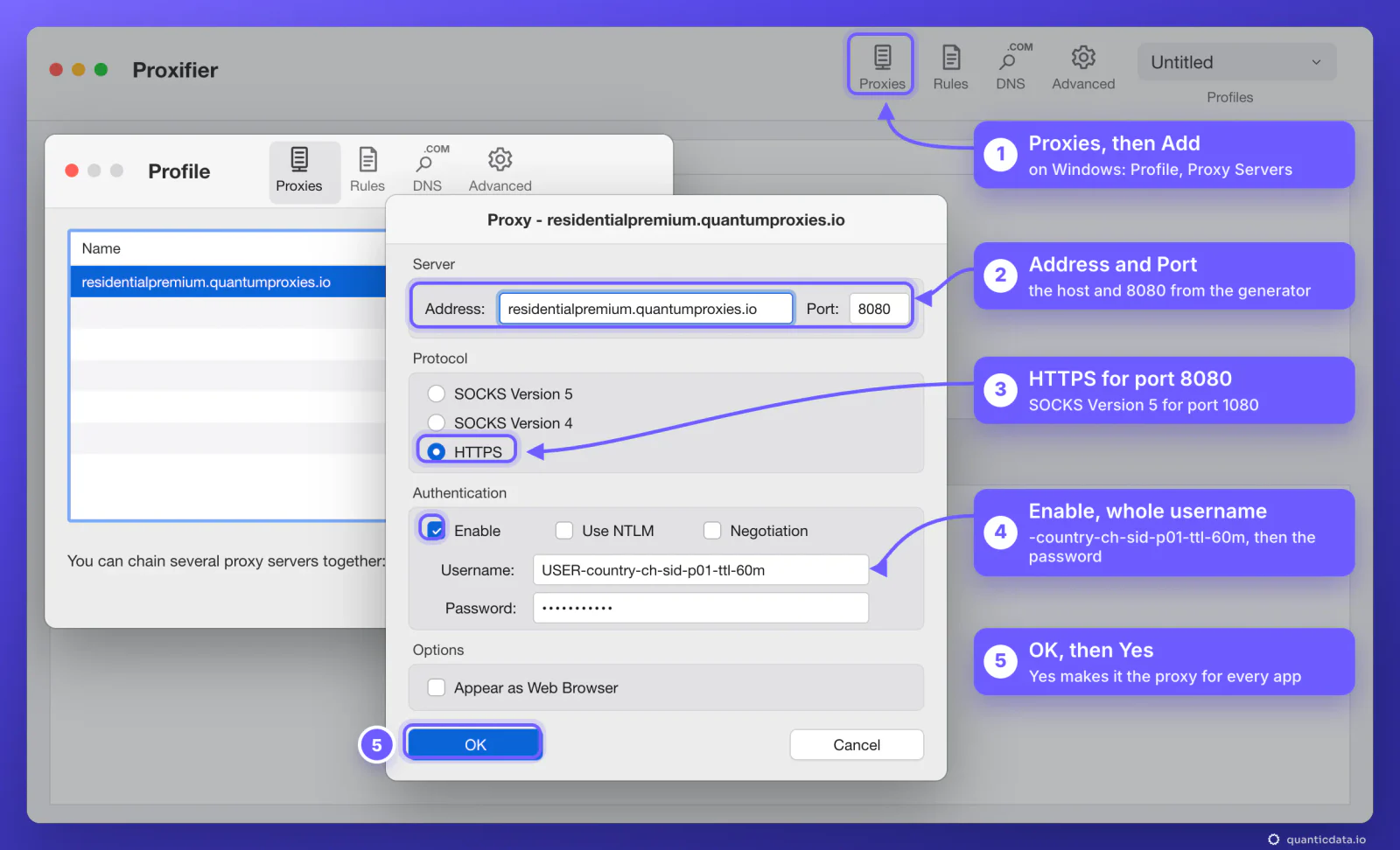
Windows has the same groups in the same order. The differences are the Protocol drop-down, the Check button for Proxy Checker, and the options for HTTPS: Use NTLM, Use Kerberos, Use current user login and Send User-Agent on Windows, Use NTLM, Negotiation and Appear as Web Browser on a Mac. The proxy you made the default shows in bold in the list.
Check that it works: Proxy Checker and the exit country
On Windows, Check runs three tests: Test 1 connects to the proxy server, Test 2 connects through it and logs in, Test 3 measures the latency. "Authentication was successful." under Test 2 means the username and password are right, and a green "Proxy is ready to work with Proxifier!" closes a good run. Proxy Checker is part of the Windows version; on a Mac the check is the next one.
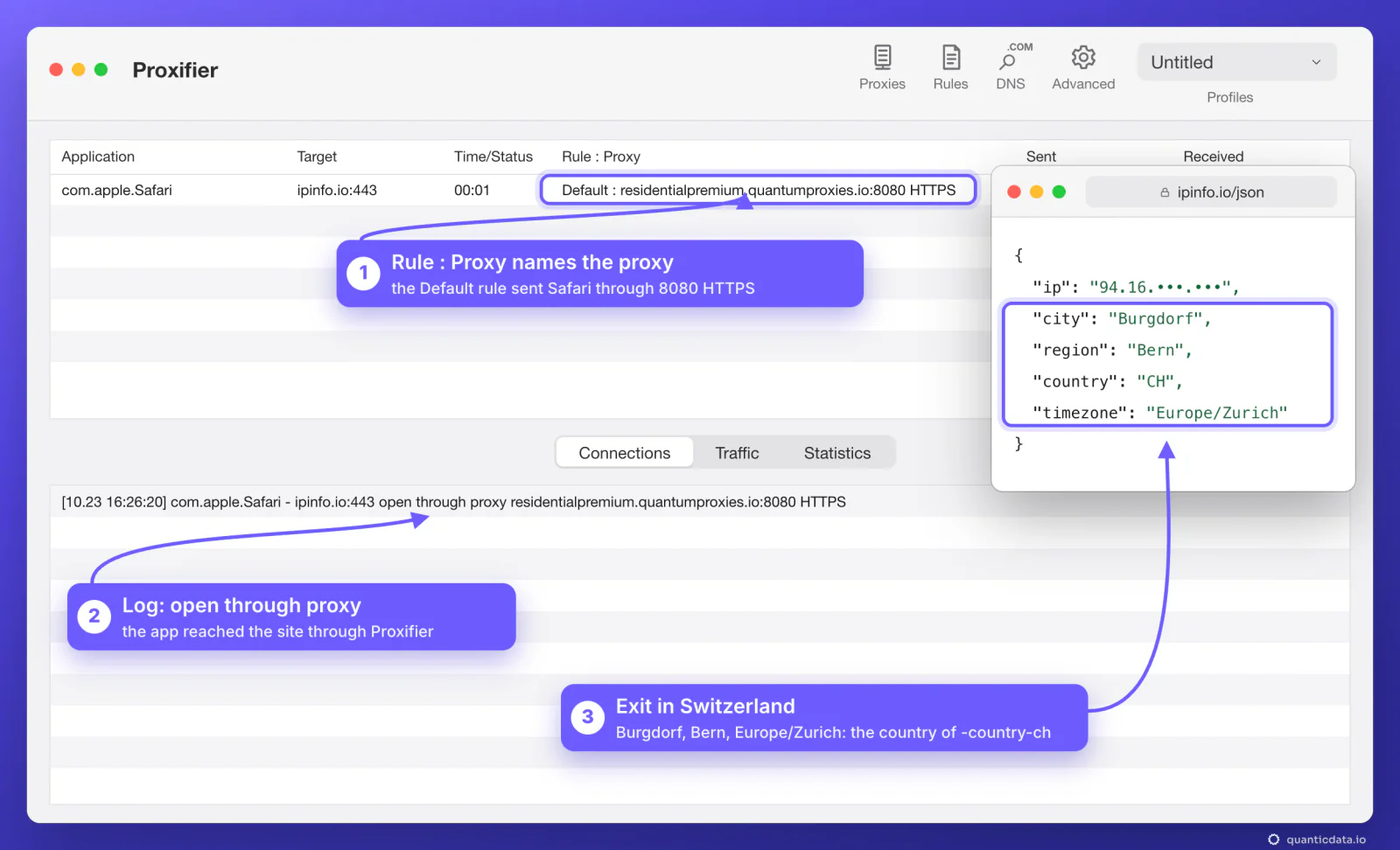
The check that matters is the exit. Open any app that Proxifier now routes and load ipinfo.io/json. In Proxifier's main window the connection appears with its rule and proxy in the Rule : Proxy column, and the log says "open through proxy". The page shows where the traffic leaves: the city, the region and the time zone should be in the country of the -country- in the username.
One app or every app: Proxification Rules
Clicking Yes after OK makes the proxy the action of the Default rule, so every connection on the computer goes through it. To send only some programs, answer No, or change the Default rule's action to Direct, and add a rule:
- Open the rules. Profile menu, Proxification Rules on Windows; the Rules button on a Mac.
- Click Add and give the rule a Name.
- Applications: the program, on Windows by its file name, for example
Telegram.exe; several names are separated by a semicolon, and Browse picks the file. Leave Target hosts and Target ports on Any to catch everything the app does. - Action: Proxy, then the QuanticData server you added. For an app that is not a browser, a SOCKS Version 5 entry on port 1080 is the better fit: SOCKS5 is made for any TCP connection, not only web pages.
- Keep the order. Proxifier reads the rules from top to bottom and uses the first one that matches; the Default rule is always last. Keep the Localhost rule enabled.
# Proxification Rules, top to bottom
Localhost   Any app        localhost; 127.0.0.1; ...   Direct
Telegram    Telegram.exe   Any                         Proxy SOCKS5 residentialpremium.quantumproxies.io:1080
Default     Any app        Any                         Direct
This is the setup for desktop apps such as Telegram or Steam: the app goes through a home IP in the country you chose, everything else on the computer stays on your own connection.
Residential Premium, ISP and mobile proxies in Proxifier
| Plan | In Proxifier | Good for |
|---|---|---|
| Residential Premium | Address residentialpremium.quantumproxies.io, HTTPS 8080 or SOCKS Version 5 1080, sticky username with the country; username and password only | Most apps: a home IP in the country, region or city you choose |
| ISP | Each IP under Assigned IPs is one proxy server: choose HTTP / HTTPS or SOCKS5 there, copy IP:Port:Username:Password and match HTTPS or SOCKS Version 5 to it | Apps that should keep the same address for months |
| Mobile | Address mobile.quantumproxies.io, HTTPS 8080 or SOCKS Version 5 1080, -type-mobile in the username; Global, USA, EU or Asia gateway; IP whitelist available | Mobile-first platforms and accounts tied to mobile networks |
Sticky, not rotating. An app opens many connections, and a rotating line can give each of them a new IP. A sticky session keeps one IP for its whole lifetime, up to 1440 minutes, so set Session to Sticky for anything that logs in.
One session per app. To give two apps two different IPs, add the server twice with a different session ID in each username, for example -sid-p01 and -sid-p02, and point each rule to its own entry. Advanced, Custom Label gives each entry a short name, which Proxifier then shows in the rules and the log.
Mobile with IP whitelist. Add your IP under IP whitelist in the mobile generator, take the host:port list from Proxy list for a whitelisted IP and leave Authentication off in Proxifier.
The plans are on the pages for QuanticData residential proxies, ISP proxies and mobile proxies; for this country, see Swiss residential proxies.
DNS: where the names are looked up
By default, Proxifier's Name Resolution is set to Detect DNS settings automatically: names are looked up by your own DNS server, and the proxy is used for them only when that server cannot be reached. If you want the names looked up from the exit instead, open Profile, Name Resolution and turn on Resolve hostnames through proxy. Proxifier then hands the apps placeholder addresses such as 127.8.x.x, and rules written with IP addresses stop matching, so write rules with names. A single proxy can also send the name instead of the address: Advanced, Use target hostname in proxy request if available.
Proxifier not working: errors and fixes
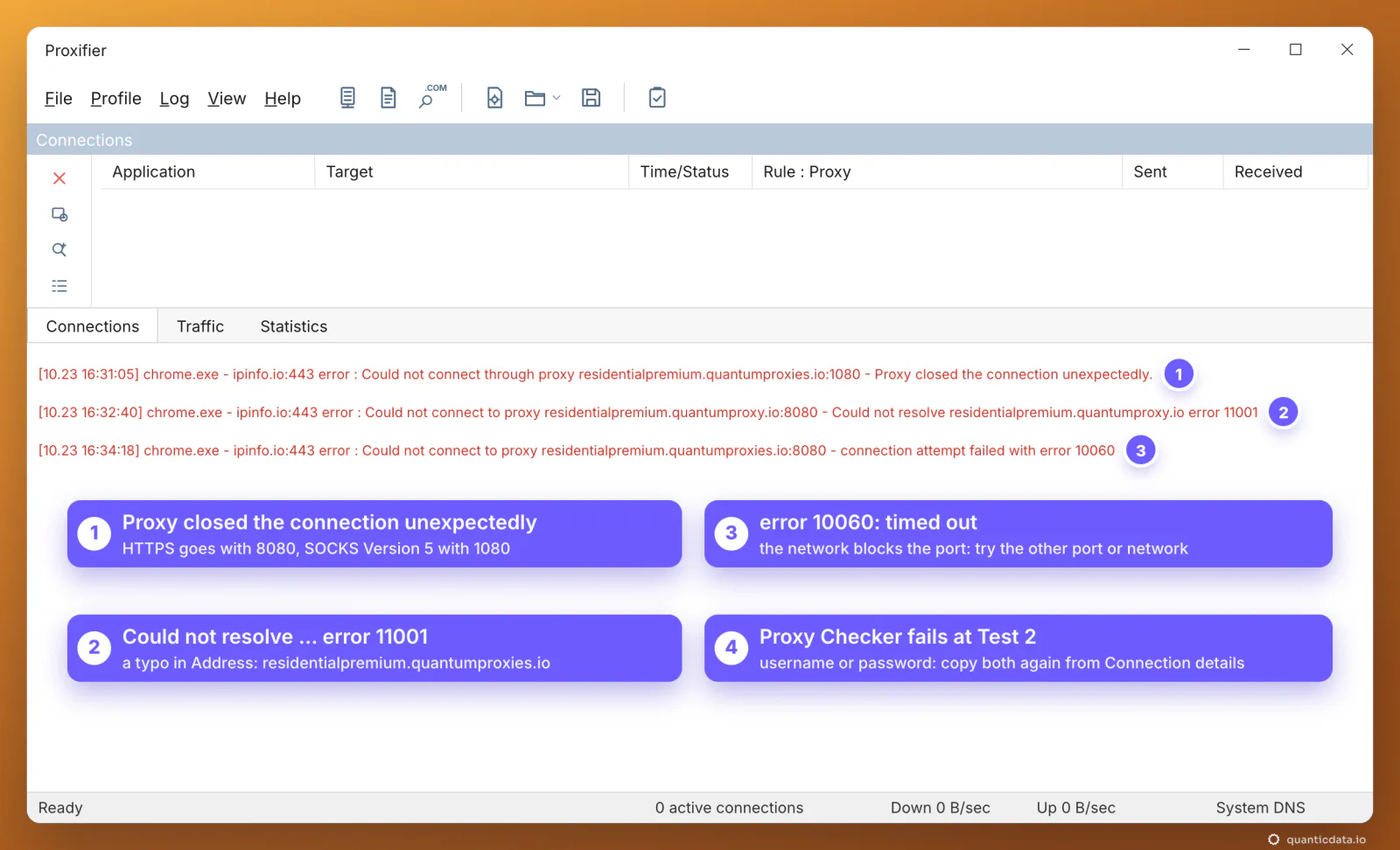
Proxifier writes every failed connection in the log at the bottom of the main window, with the app, the target and the reason, and marks it Failed in the Connections list. These are the messages behind most setups that do not work, in the order to check them.
| What the log says | Usual cause | Fix |
|---|---|---|
| Could not connect through proxy ...:1080 - Proxy closed the connection unexpectedly. | HTTPS chosen for the SOCKS port: our gateway drops it at once | SOCKS Version 5 with 1080, or HTTPS with 8080 |
| A long wait, then a timeout, or error 10060 (60 on a Mac) | SOCKS Version 5 sent to port 8080, which does not answer it, or a firewall that blocks the port | Match the protocol to the port; if it still times out, try the other port or another network |
| Could not resolve ... error 11001 | A typo in Address | Copy the host again from Connection details |
| Connection attempt failed with error 10061 (61 on a Mac) | Connection refused: nothing listens on that port | Use 8080 or 1080 only |
| Proxy Checker fails at Test 2, or every app fails right after Add | Authentication off, or a wrong username or password | Tick Enable and paste the username and password again from Connection details |
| It worked yesterday, it fails today | The plan expired or its traffic is used up | Check the plan in My proxies: status, remaining traffic, expiry date |
| Wrong country | No -country- in the username, Worldwide in the generator, or a username cut at the first dash | Generate the values again with a country and paste the username whole |
We tried both mismatches on our own gateway on 23 October 2026: an HTTPS request sent to port 1080 is reset at once, and a SOCKS5 request sent to port 8080 gets no answer until the client gives up. So "closed unexpectedly" points to HTTPS on 1080, and a long timeout to SOCKS5 on 8080.
One test outside Proxifier settles the rest. If this returns an address in the right country, the proxy works and the problem is in Proxifier's fields or rules:
curl -x http://residentialpremium.quantumproxies.io:8080 \
  -U "USER-country-ch-sid-test-ttl-10m:PASS" https://ipinfo.io/json
HTTPS or SOCKS5 in Proxifier
Every QuanticData plan offers both. HTTPS on port 8080 is the simplest start for browsers and other web traffic. SOCKS Version 5 on port 1080 is the standard SOCKS protocol with username and password login, and it is made for any TCP connection, which suits chat apps, game launchers and tools that use their own ports; more on the page for SOCKS5 proxies. Proxifier tunnels TCP connections, as its documentation puts it, so traffic that uses UDP, such as some voice calls and games, is not carried by the proxy. What breaks a setup is never the choice itself, only a protocol that does not match its port.
Before you route an app
A proxy changes where an app's traffic comes from, not what the app is allowed to do. Keep to each service's terms and to the law where you work.
Sources & further reading
- Proxifier documentation (Windows v4): Proxy Server Settings
- Proxifier documentation (Windows v4): Proxification Rules
- Proxifier documentation (Windows v4): Proxy Checker
- Proxifier documentation (Windows v4): Name Resolution
- Proxifier documentation: Network Error Codes (Windows)
- Proxifier for Mac v3: what is new
- RFC 1928: SOCKS Protocol Version 5
- RFC 1929: Username/Password Authentication for SOCKS V5