
To use FoxyProxy, open its Options, click Add on the Proxies tab, enter Hostname, Port, Username and Password, choose the type and click Save, then pick the proxy in the toolbar menu. On Chrome use HTTP on port 8080: Chrome cannot send a SOCKS5 login. Below: every field, the check, patterns and a fix for each error.
FoxyProxy is a free, open-source proxy switcher for Chrome, Firefox and Edge. It sets the proxy inside the browser, so nothing changes in the computer's network settings, and it can send only the sites you choose through the proxy. The field names below are the ones in FoxyProxy's current version and its own help pages; the values come from the QuanticData endpoint generator.
What you need before you start
- FoxyProxy in your browser. On the Chrome Web Store it is listed as FoxyProxy, on Firefox Add-ons as FoxyProxy Standard. FoxyProxy Basic, the smaller edition, has no patterns.
- A proxy plan. Residential Premium, ISP or Mobile: all of them work in FoxyProxy. The table further down says which one fits which use.
- Four values: host, port, username and password. In the QuanticData dashboard open My proxies, then the plan; in the Endpoint generator, Connection details lists them one by one, exactly the way FoxyProxy asks for them.
- On Firefox, allow FoxyProxy to run in private windows (Add-ons and themes, FoxyProxy, Run in Private Windows). Firefox requires it before an extension can change proxy settings. On Chrome, Allow in Incognito is needed only if you want the proxy in Incognito windows.
Step by step: add a proxy in FoxyProxy
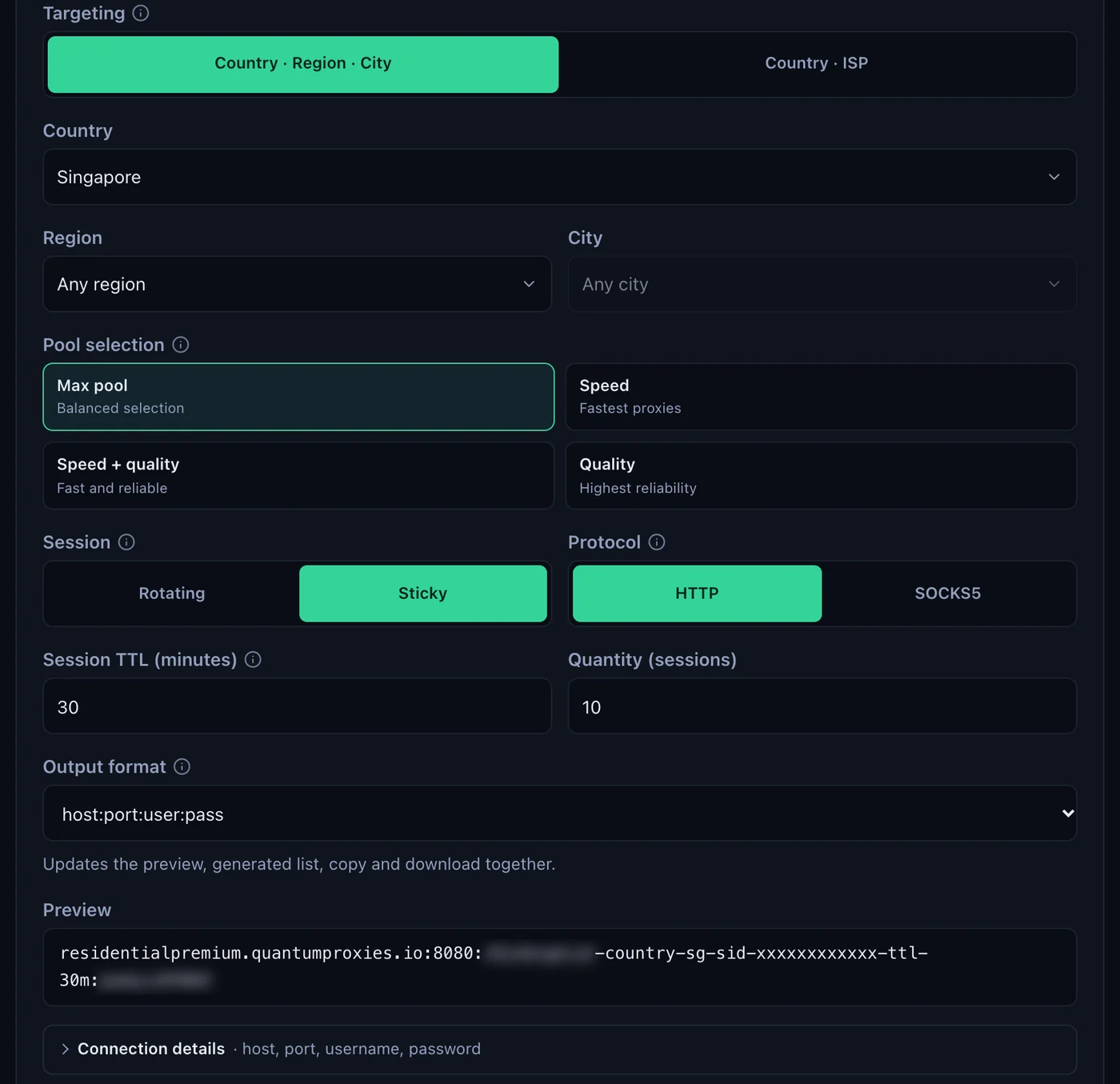
- Generate the proxy. In the Endpoint generator choose the Country, set Session to Sticky, set Session TTL (minutes) to the time you will browse, up to 1440, and choose HTTP. Open Connection details.
- Open FoxyProxy Options. Click the FoxyProxy icon in the toolbar (in Chrome, pin it first from the puzzle menu) and click Options.
- Go to the Proxies tab and click Add. A new proxy entry appears at the end of the list.
- Title: a label such as SG premium 01. It is the name in the toolbar menu and on the toolbar badge.
- Hostname and Port:
residentialpremium.quantumproxies.ioand8080. - Type: HTTP. SOCKS5 with port 1080 works in Firefox only, explained below.
- Username and Password: paste the username whole, for example
USER-country-sg-sid-p01-ttl-60m, then the password. FoxyProxy answers the proxy's login with them, so the browser does not ask. - Country and City are optional. They only set the flag and the place shown in the menu. The exit country comes from
-country-sgin the username, not from this field. - Click Save. FoxyProxy applies nothing until you save.
- Select the proxy. Click the FoxyProxy icon and click SG premium 01. Every connection of the browser now goes through it, and the badge on the icon shows the start of its title.
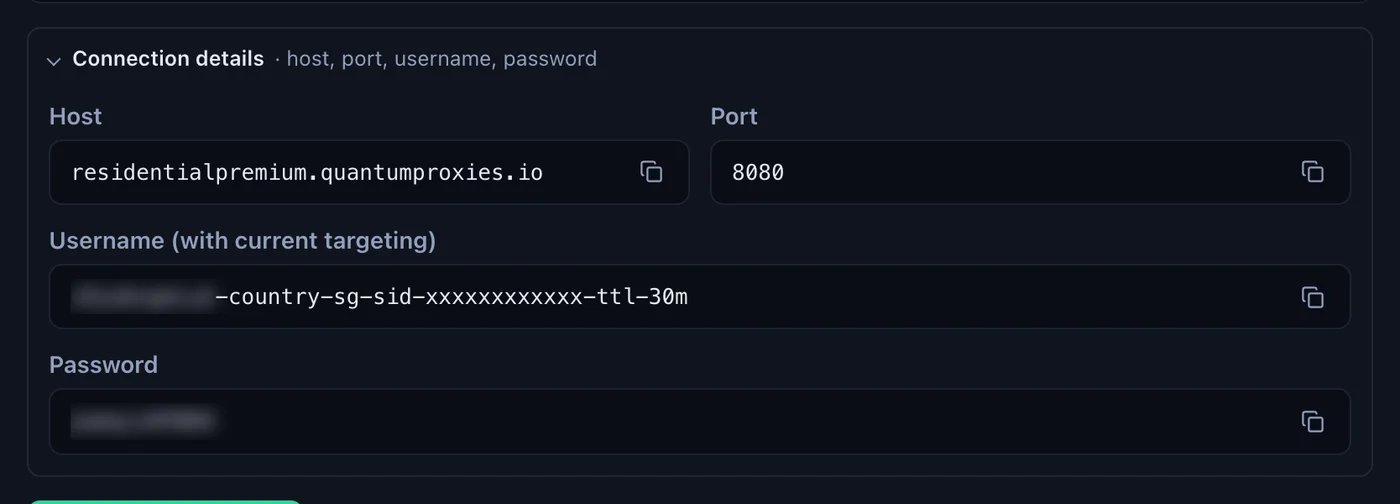
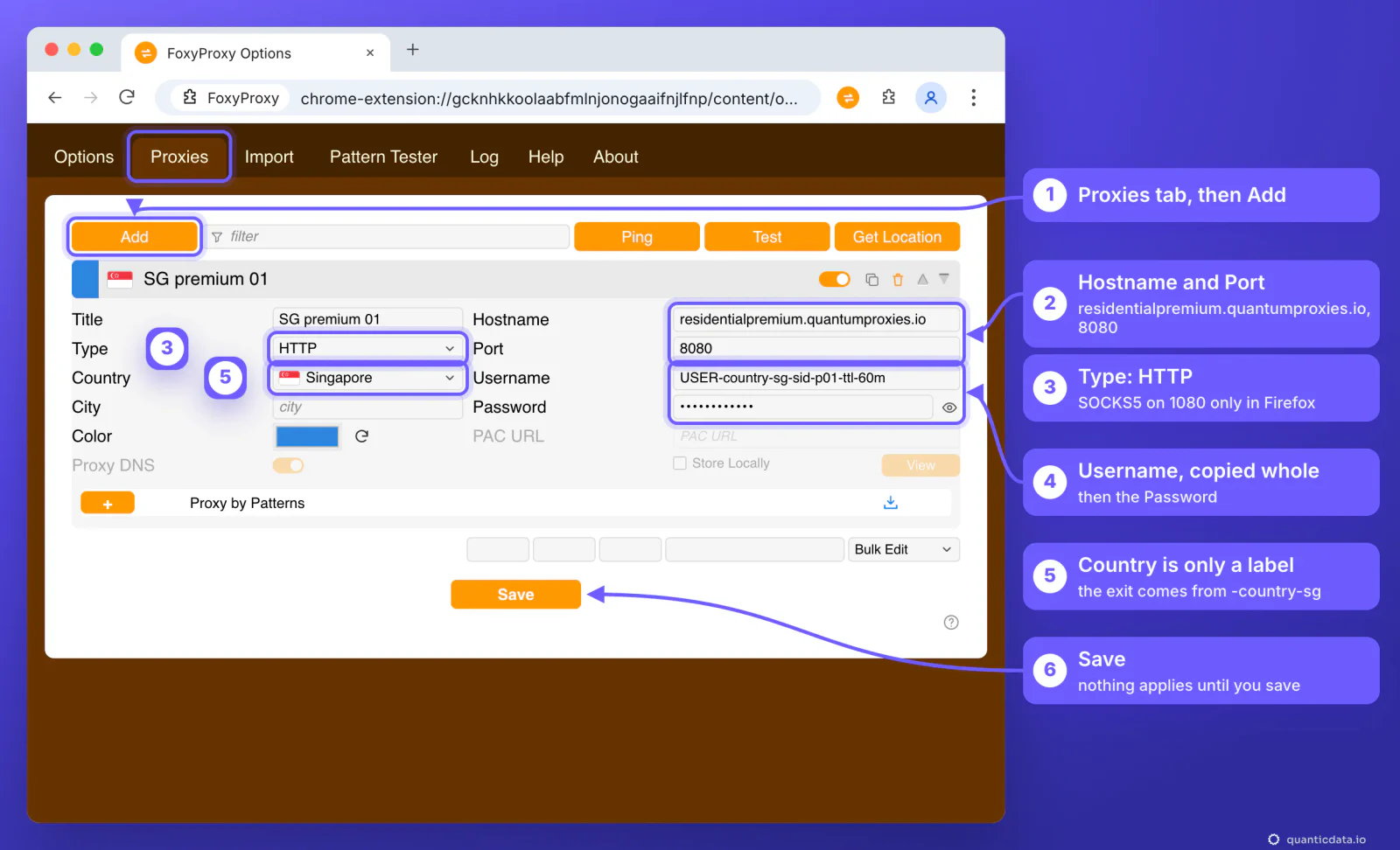
The username carries the targeting: -country-sg picks Singapore, -sid-p01 names the session and -ttl-60m keeps the same IP for 60 minutes. A username cut at the first dash still logs in, but then each connection can leave from any country on a new IP.
Check that the proxy works
With the proxy selected, open ipinfo.io/json in a tab. The city, region and time zone must match the country in the username. On 23 October 2026 a QuanticData Singapore line returned Ang Mo Kio New Town, region Singapore, country SG and the time zone Asia/Singapore.
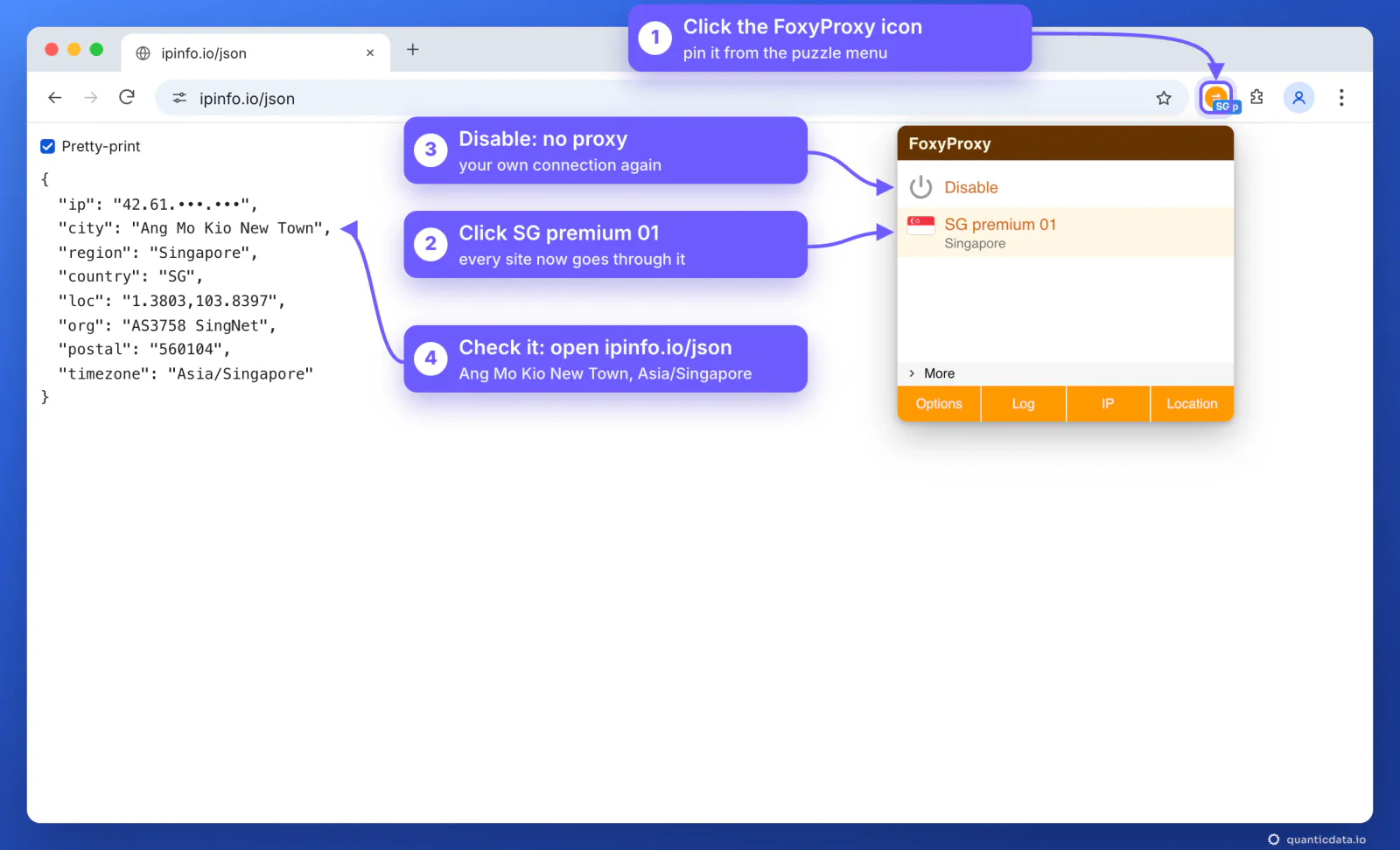
Two more checks are built into FoxyProxy. The IP button at the bottom of the toolbar menu shows the exit IP, city and country in a notification. The Test button on the Proxies tab runs an IP check through a proxy you pick; on Chrome, FoxyProxy's help says to complete the proxy login before starting it, so open one page through the proxy first. Disable, at the top of the menu, switches FoxyProxy off and the browser goes back to your own connection.
Chrome and Firefox: what is different
FoxyProxy uses the same code and the same Options page in both browsers, but the browsers do not give it the same powers:
| In FoxyProxy | Chrome | Firefox |
|---|---|---|
| HTTP proxy with username and password | Yes | Yes |
| SOCKS5 proxy with username and password | No: Username and Password turn grey | Yes |
| Proxy DNS (site names resolved through a SOCKS proxy) | Not available | Yes, on by default |
| Several entries on the same hostname and port | One login per hostname and port | Yes, with a letter after the port (8080a, 8080b) |
| Private windows | Allow in Incognito, only if you need it | Run in Private Windows, required |
| Tab Proxy and Container Proxy | No | Yes |
| Proxy by Patterns | Yes | Yes |
The SOCKS5 row is Chrome's own limit: Chromium's documentation says no authentication methods are supported for SOCKSv5 in Chrome, and our plans require a login on SOCKS5. In Chrome, keep the type on HTTP and the port on 8080. In Firefox, SOCKS5 on port 1080 with the same username and password works, and Proxy DNS sends the site names through the proxy as well. More on the protocol on the page for SOCKS5 proxies.
On Chrome you can also use our own extension, Quantum Proxies Manager, which signs in with your API key and sets plan, country and session for you; the Chrome proxy guide covers it.
One sticky session per entry
FoxyProxy tells proxies apart by hostname and port, and on Chrome it keeps one username and password per hostname and port. Two entries on residentialpremium.quantumproxies.io:8080 with different sessions therefore end up using the same login. Keep one entry per hostname and port, and for a new IP change the session in its username and save:
# the entry SG premium 01: one Singapore IP for an hour
residentialpremium.quantumproxies.io:8080:USER-country-sg-sid-p01-ttl-60m:PASS

# a new IP: same entry, new session ID, then Save
residentialpremium.quantumproxies.io:8080:USER-country-sg-sid-p02-ttl-60m:PASS

# a whole day on one IP
residentialpremium.quantumproxies.io:8080:USER-country-sg-sid-p03-ttl-1440m:PASS
In Firefox you can keep several sessions side by side: FoxyProxy's help allows a letter after the port, such as 8080a and 8080b, to separate entries on the same hostname, and removes the letter when it connects. With Tab Proxy or Container Proxy in the toolbar menu, each tab or container can then use its own session.
Residential Premium, ISP and mobile proxies in FoxyProxy
| Proxy type | In FoxyProxy | Good for |
|---|---|---|
| Residential Premium | Hostname residentialpremium.quantumproxies.io, HTTP 8080 (SOCKS5 1080 in Firefox); country, session and lifetime in the username | Seeing sites as a home user in the country you choose |
| ISP | Fixed IPs under Assigned IPs as IP:Port:Username:Password; one entry per IP | Accounts and sites that should see the same address for months |
| Mobile | Hostname mobile.quantumproxies.io, HTTP 8080 or SOCKS5 1080, -type-mobile in the username; Global, USA, EU or Asia gateway; IP whitelist available | Mobile-first platforms and anything tied to carrier networks |
ISP plans. The Assigned IPs list is already in the layout FoxyProxy's Import Proxy List reads. Open the Import tab, paste the list into Import Proxy List and click Import: each line becomes an entry on the Proxies tab (FoxyProxy sets the type to HTTP, or HTTPS for port 443), each with its own hostname, so the logins never collide. Give each entry a title and click Save. ISP IPs are static: the same address every time.
Mobile plans. Add an entry with Hostname mobile.quantumproxies.io, Port 8080 and a sticky username such as USER-country-sg-type-mobile-sid-p02-ttl-60m; in Firefox, SOCKS5 on port 1080 works too. With IP whitelist you add your own IP in the dashboard and use the host:port list it gives: leave Username and Password empty in FoxyProxy, because the plan recognises your IP. See the plans on the pages for QuanticData residential proxies, ISP proxies and mobile proxies.
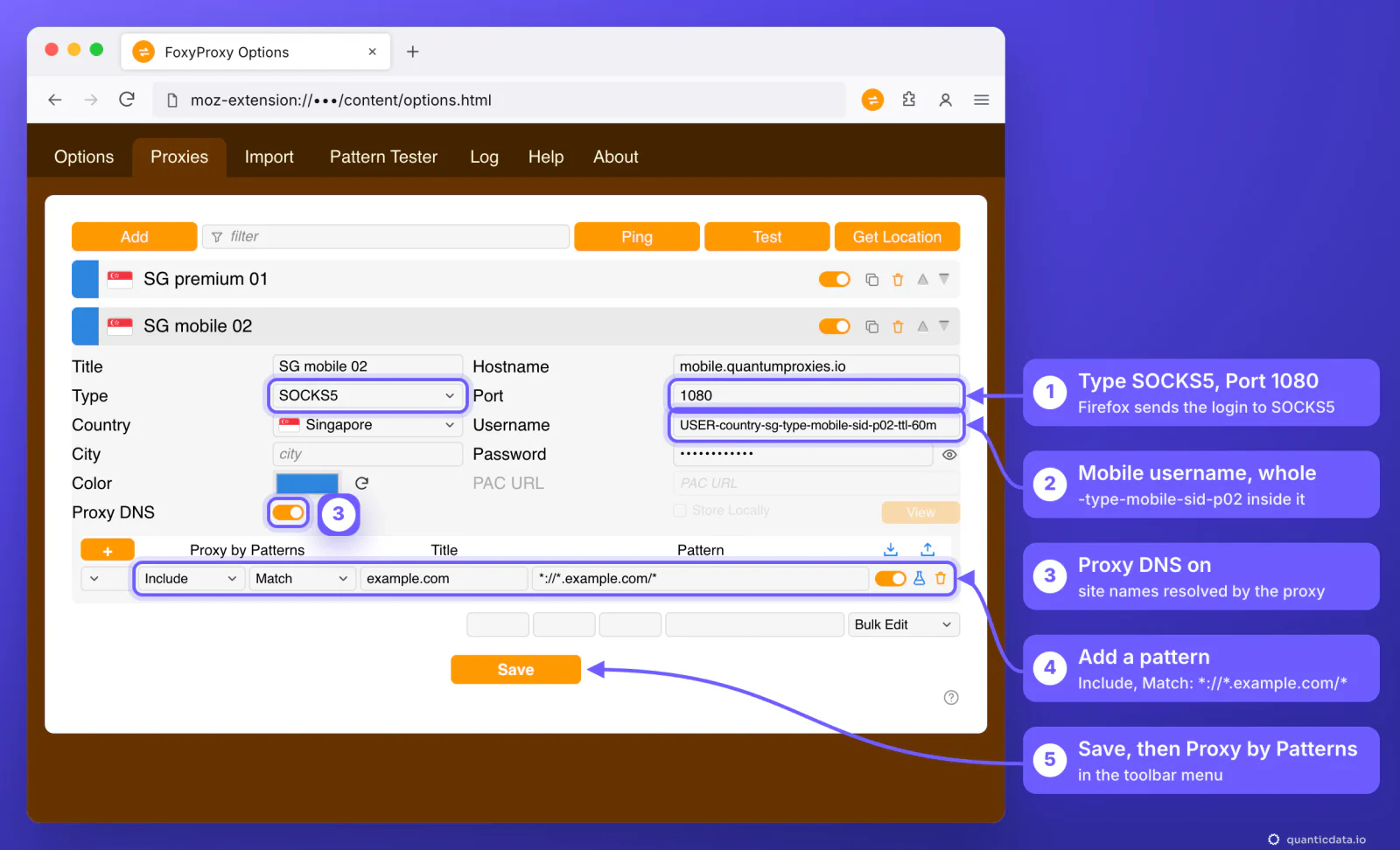
Only some sites through the proxy: Proxy by Patterns
Selecting a proxy in the menu sends everything through it. Proxy by Patterns sends only the addresses that match a pattern and lets the rest go direct:
- In the proxy entry, click the plus button next to Proxy by Patterns. A pattern row appears.
- Leave it on Include, choose the pattern type and write the pattern. A Match pattern such as
*://*.example.com/*covers example.com and every subdomain, on HTTP and HTTPS. Wildcard and Reg Exp are the other types; Quick Add, the first menu of the row, fills ready-made ones such as All, HTTP and HTTPS. - Click Save, then choose Proxy by Patterns in the toolbar menu. The choice appears only once at least one pattern exists.
- Test a web address on the Pattern Tester tab: it says which proxy the address would use.
FoxyProxy checks the active proxies in their order on the Proxies tab and uses the first one whose include pattern matches; an address that matches no pattern goes direct, from your own IP. Global Exclude, on the Options tab, lists hosts that are never proxied.
FoxyProxy not working: errors and fixes
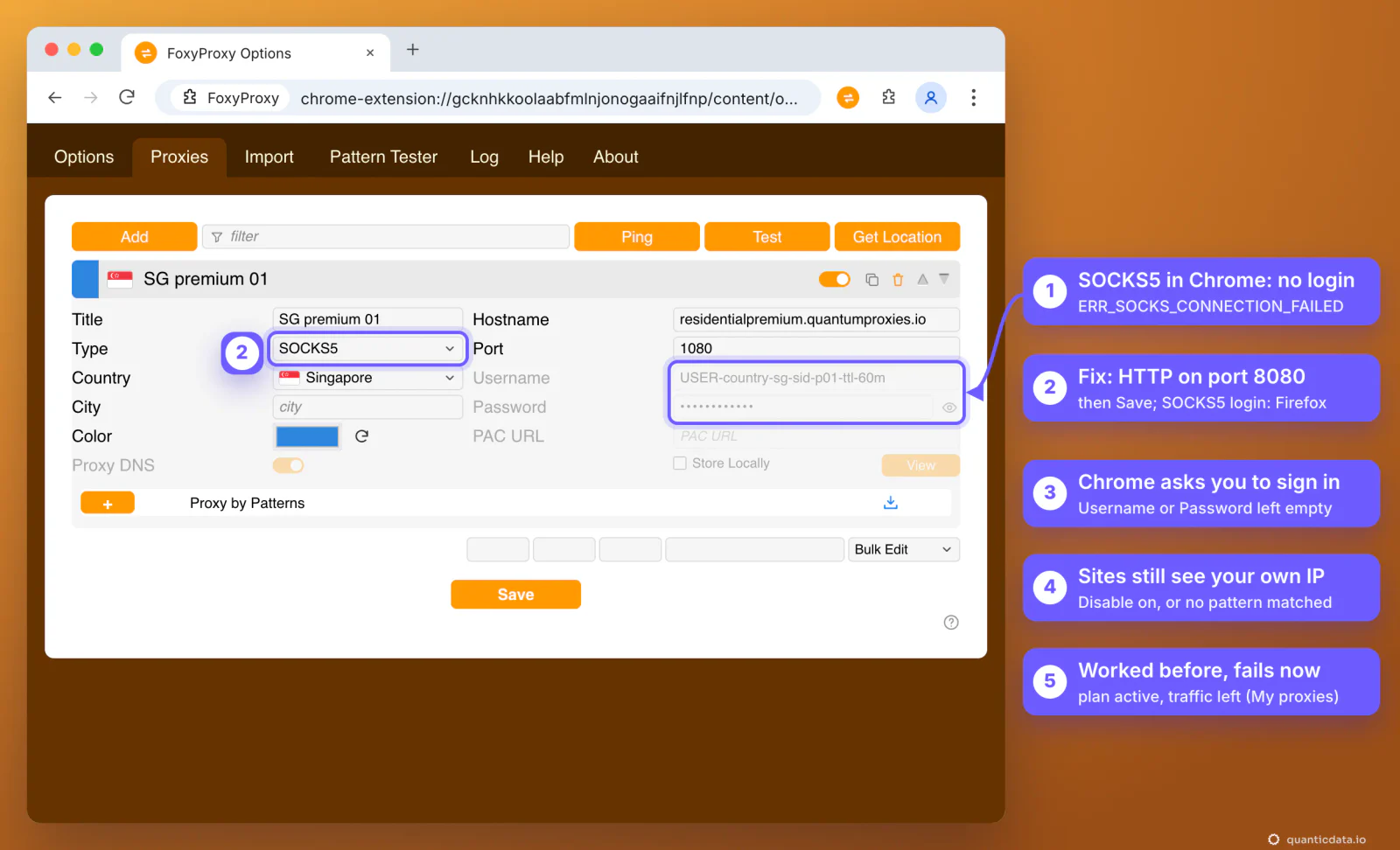
| What you see | Usual cause | Fix |
|---|---|---|
| Chrome: "This site can't be reached" with ERR_SOCKS_CONNECTION_FAILED | The entry is SOCKS5: Chrome cannot send a SOCKS5 login, so Username and Password are greyed out | Type HTTP, port 8080, Save; for SOCKS5 with a login use Firefox |
| Chrome asks for a username and password for the proxy | Username or Password is empty in the entry, so the browser asks instead of FoxyProxy | Paste both from Connection details and click Save |
| ipinfo.io shows your own IP | Disable is selected, or Proxy by Patterns is on and no pattern matches that site | Select the proxy in the toolbar menu, or add an Include pattern for the site |
| Nothing changed after editing | The change was not saved | Click Save on the Proxies tab |
| Grey toolbar icon; its tooltip reads "Settings are controlled by other extensions." | Another proxy or VPN extension controls the browser's proxy | Turn the other extension off, then select the proxy again |
| Firefox: "Firefox requires private browsing permission for proxy settings." | FoxyProxy is not allowed in private windows | Add-ons and themes, FoxyProxy, Run in Private Windows: Allow |
| Two entries leave from the same IP | Same hostname and port on Chrome: one login is used for both | One entry per hostname and port; a new session ID for a new IP |
| Wrong country or time zone | No -country- in the username, or a username cut short | Generate the line with a country and paste the username whole |
| It worked yesterday and fails today | The plan expired or its traffic is used up | Check the plan in My proxies: status, remaining traffic, expiry date |
One test outside the browser tells the proxy apart from the extension. If this returns an address in the right country, the proxy works and the problem is in the FoxyProxy entry:
curl -x http://residentialpremium.quantumproxies.io:8080 \
  -U "USER-country-sg-sid-test-ttl-10m:PASS" https://ipinfo.io/json
If curl fails on your network and works on another one, a firewall or your internet provider is blocking the connection to the proxy port. More in the guide to using a proxy with curl and in the proxy not working checklist.
Before you browse through a proxy
A proxy changes where the browser's traffic comes from, not what you are allowed to do on a site. Keep to each site's terms and to the law where you work.
Sources & further reading
- FoxyProxy Help: proxies, authentication, patterns and Import
- FoxyProxy browser extension: source code and screenshots
- FoxyProxy on the Chrome Web Store
- FoxyProxy Standard on Firefox Add-ons
- Chromium: proxy support in Chrome (SOCKSv5 authentication)
- RFC 1929: Username/Password Authentication for SOCKS V5