To set a proxy in Firefox, open Settings, then Privacy and security, scroll to Connection and software security, click Advanced settings and then Configure proxy. Choose Manual proxy configuration, enter the proxy host as HTTP Proxy with its port, tick Also use this proxy for HTTPS and click OK. Firefox asks for the username and password on the first page.
Firefox has its own proxy settings, separate from the ones in Windows, so the proxy applies to Firefox and the rest of the computer keeps its own connection. We set it up on 20 November 2026 in Firefox 160.0.1, the current release, on Windows 11, with a QuanticData Residential Premium line and a mobile line, and checked where each one left from. The screenshots are ours, from that test, in Firefox's dark look; the username and the exit IPs are masked.
What you need
- Firefox on a computer. The labels below are those of Firefox 160.
- A proxy plan. We tested Residential Premium and mobile; both work in Firefox over HTTP on port 8080.
- Four values: host, port, username and password. Use a sticky line, with a session name in the username.
| Where in Firefox | What goes there |
|---|---|
| HTTP Proxy | The gateway host of your plan |
| Port | 8080, the HTTP port of both gateways |
| Username, in the sign-in box | The whole username, with its -country-, -sid- and -ttl- parts |
| Password, in the sign-in box | Your proxy password |
Residential Premium:  residentialpremium.quanticdata.io  port 8080
Mobile:               mobile.quanticdata.io              port 8080
Username (example):   USER-country-de-sid-ff01-ttl-60m
Step by step: open the proxy settings
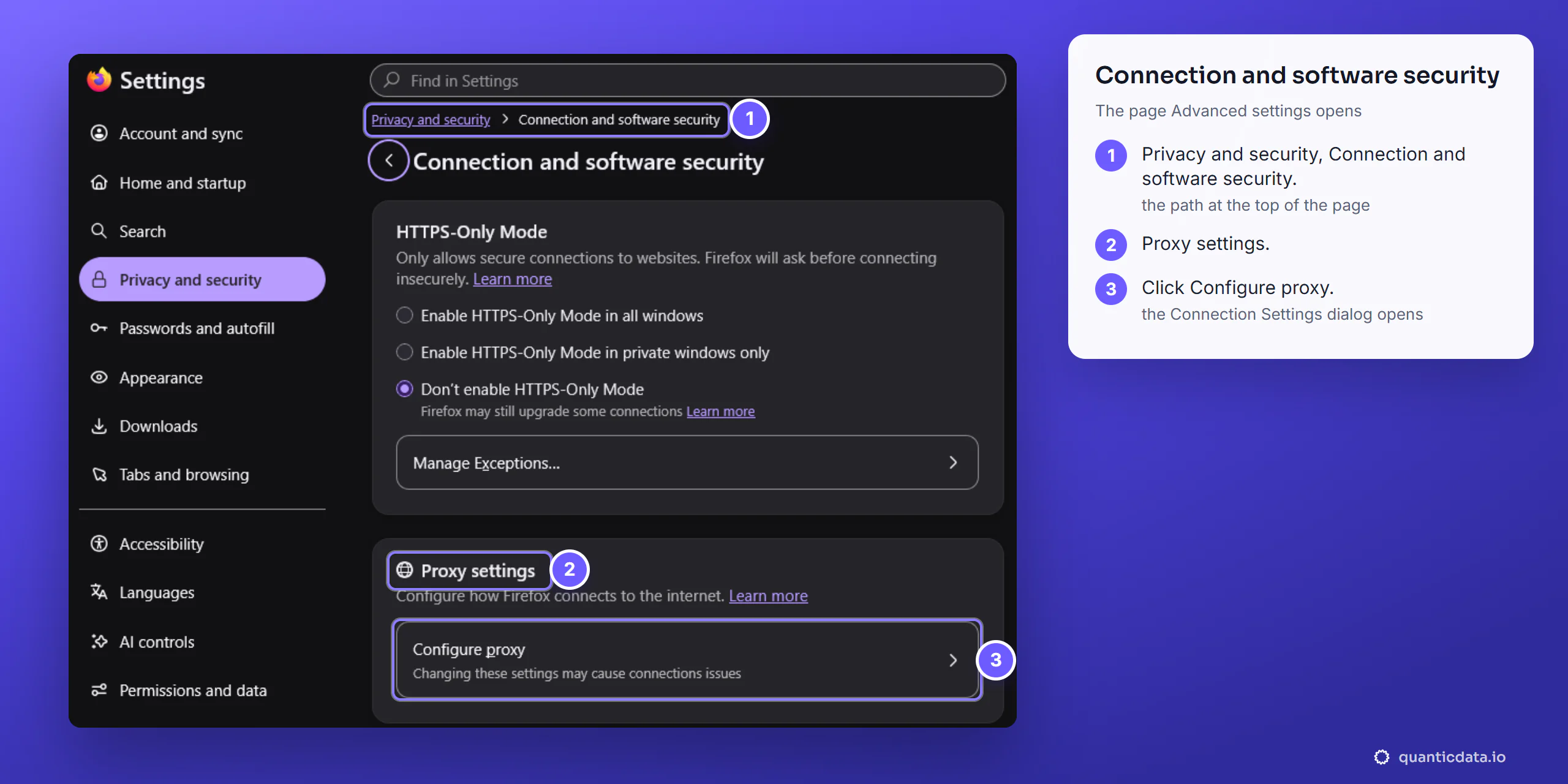
- Open Settings. Open the Firefox menu (the three lines at the right of the toolbar) and click Settings, or type
about:preferencesin the address bar. - Click Privacy and security in the list on the left.
- Scroll to Connection and software security and click its Advanced settings. Another Advanced settings, under DNS over HTTPS, opens something else.
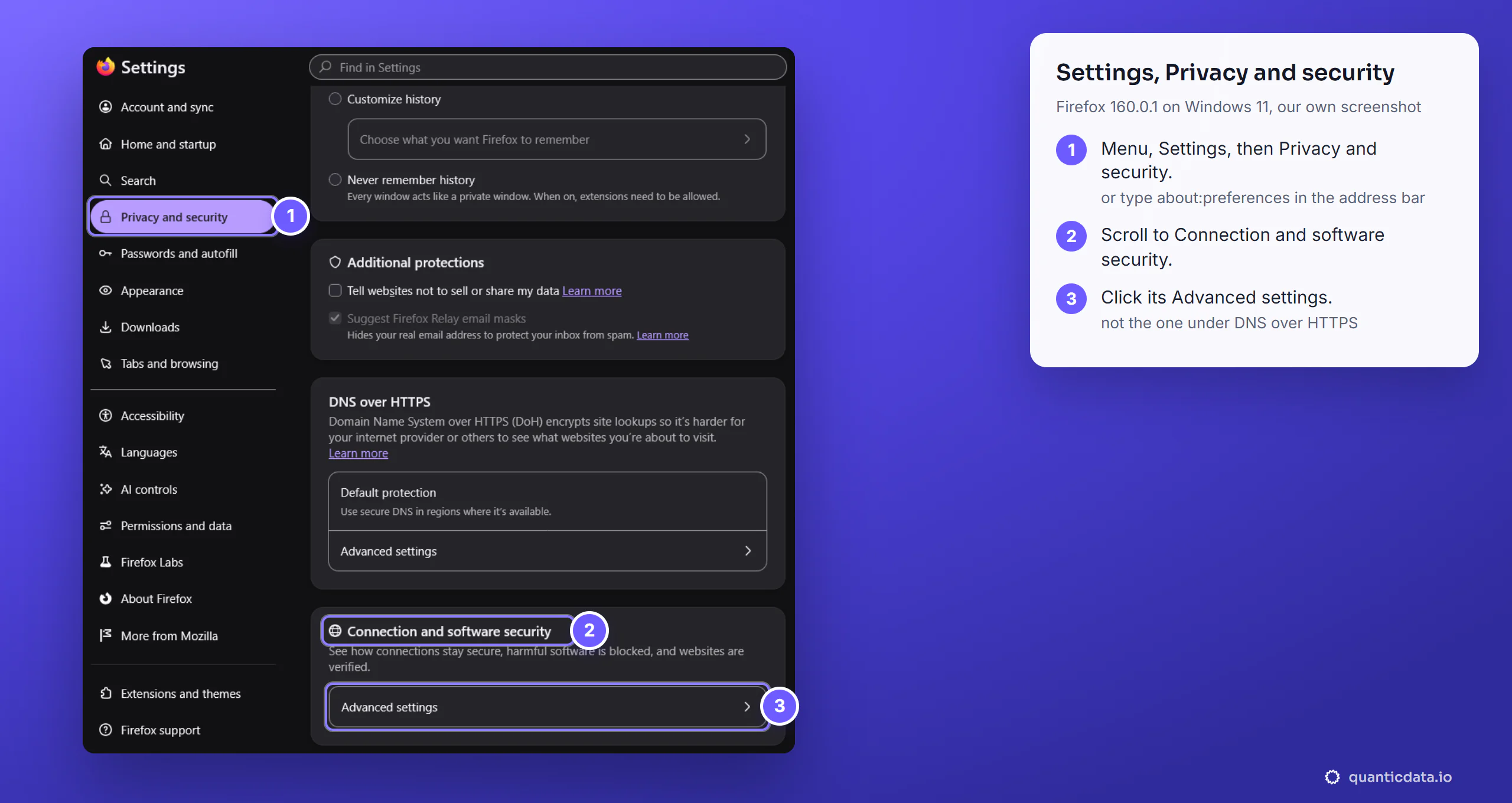
- Find Proxy settings. The Connection and software security page opens; the path at its top reads Privacy and security, Connection and software security. Proxy settings is the second card.
- Click Configure proxy. The Connection Settings dialog opens, on Use system proxy settings in a new profile.
Fill in Connection Settings
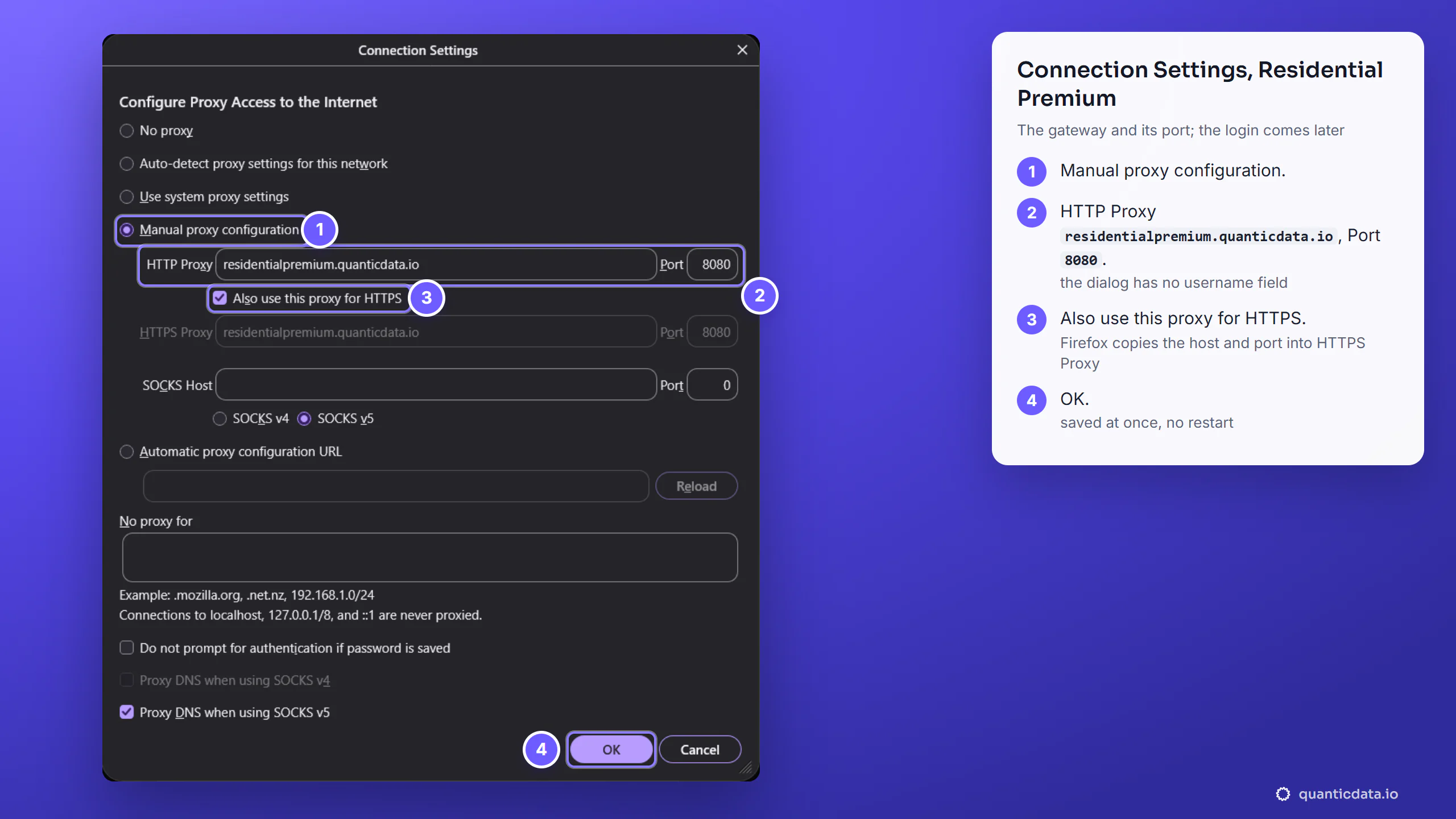
- Choose Manual proxy configuration.
- HTTP Proxy and Port. Enter the Residential Premium host and
8080. The dialog has no field for the username and password: Firefox asks for them later. - Tick Also use this proxy for HTTPS. Firefox copies the host and port into HTTPS Proxy, so https:// sites use the proxy too.
- Click OK. The setting is saved at once; no restart is needed.
Sign in to the proxy and check the exit
- Open a page. We opened
https://ipinfo.io/jsonright after clicking OK. Firefox showed a sign-in box for the proxy, with Username and Password. - Username. Paste the whole username, with its
-country-,-sid-and-ttl-parts. - Password. Then click Sign in.
- Read the exit. Firefox shows the answer of ipinfo.io in its JSON viewer: the address the sites now see and where it is.
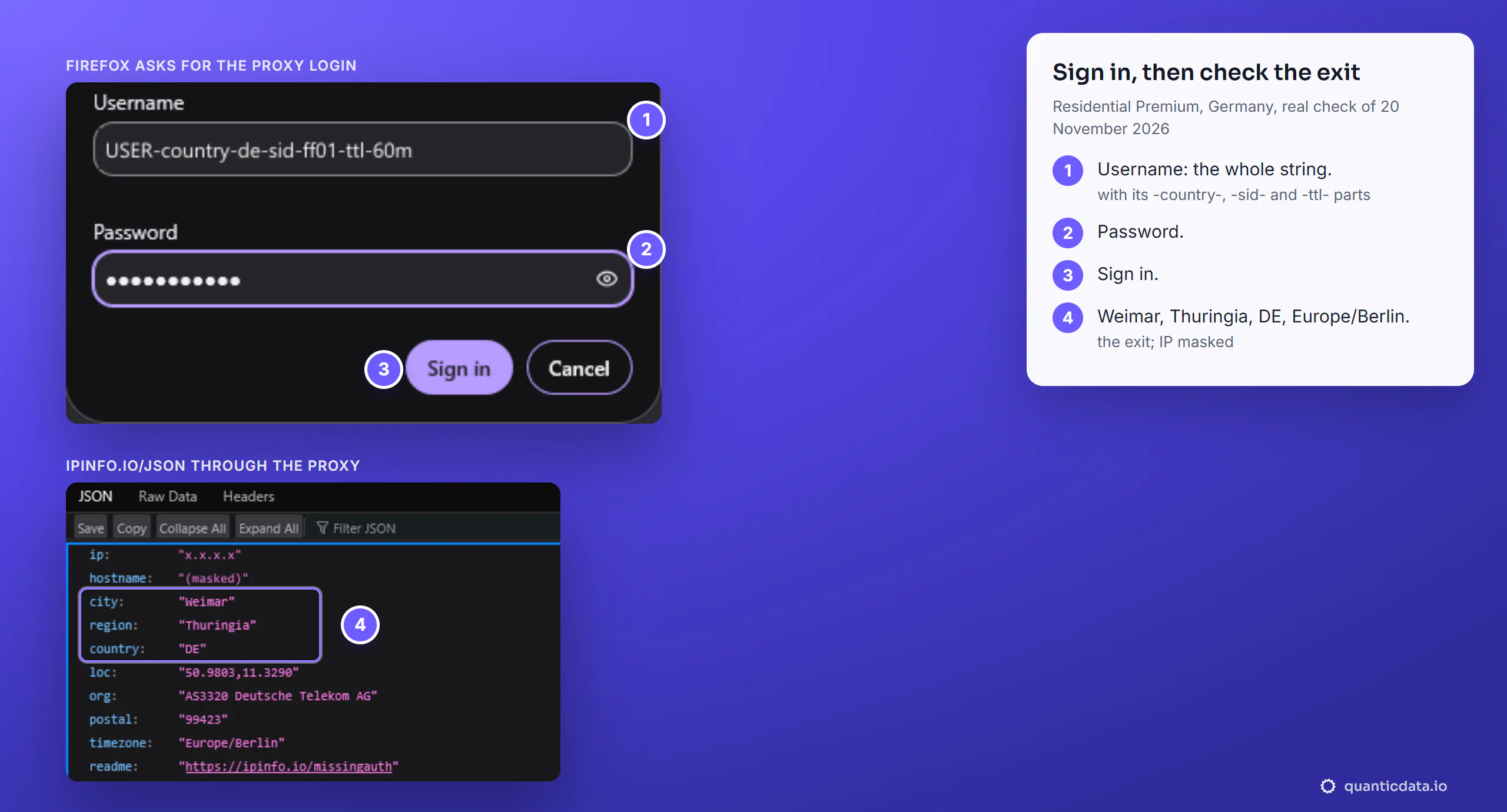
Our Germany line left from Weimar, Thuringia, on a Deutsche Telekom address, time zone Europe/Berlin. The -sid- part names the session and -ttl- sets its time, here 60 minutes; change the session ID for a new session.
A mobile proxy in Firefox
A mobile line goes in the same fields: HTTP Proxy mobile.quanticdata.io, Port 8080, Also use this proxy for HTTPS, OK, then the mobile username and password in the sign-in box. The mobile username carries -type-mobile next to the country.
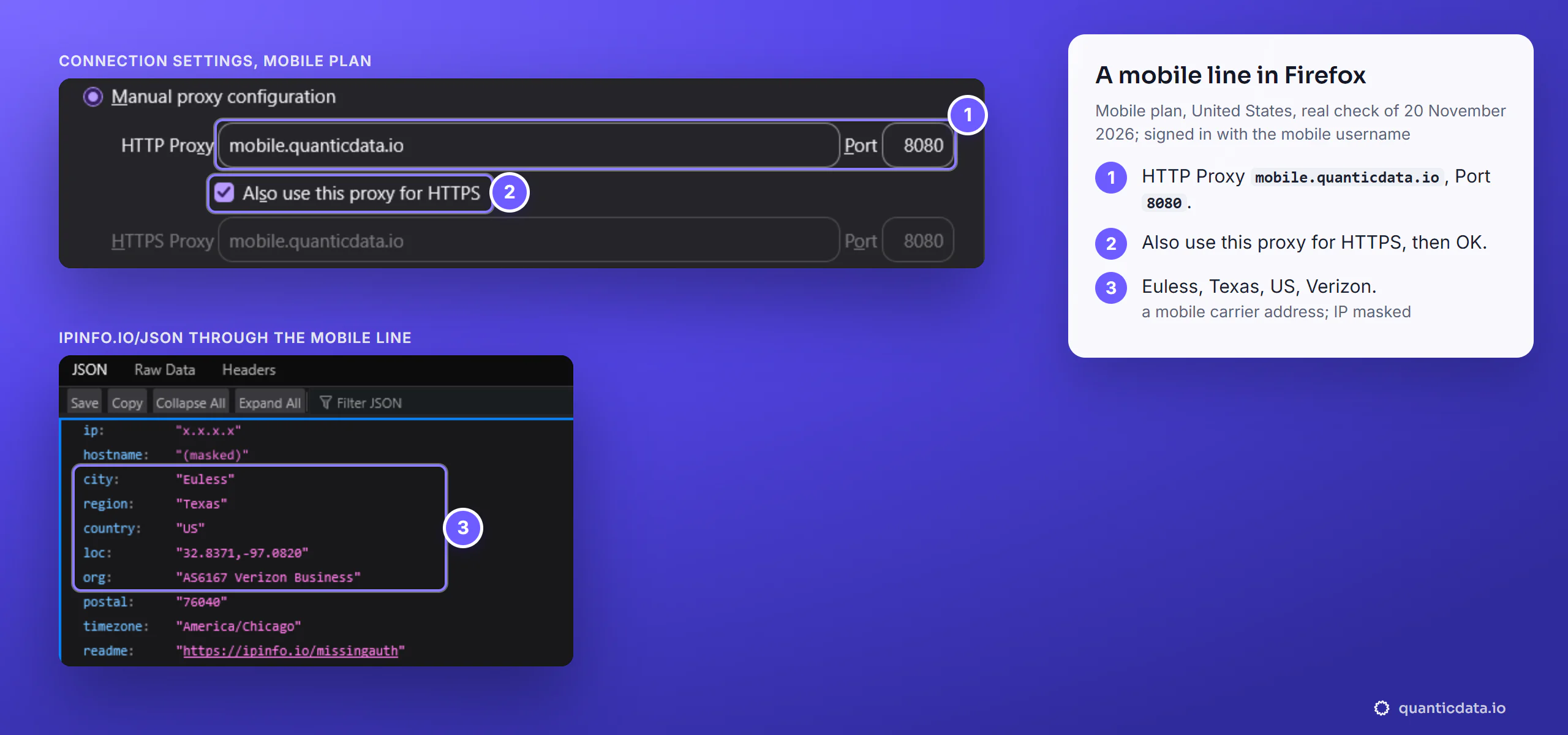
Our United States mobile line left from Euless, Texas, on Verizon: sites see a phone carrier's address, which is what mobile proxies are for.
| Plan | Port | Our check in Firefox 160 |
|---|---|---|
| Residential Premium | 8080 | Weimar, Thuringia, Germany, Deutsche Telekom |
| Mobile | 8080 | Euless, Texas, United States, Verizon |
The other fields of Connection Settings
- No proxy for. Hosts and networks that skip the proxy, separated by commas; the dialog's own example is
.mozilla.org, .net.nz, 192.168.1.0/24. It also states that connections to localhost, 127.0.0.1/8 and ::1 are never proxied. - SOCKS Host, SOCKS v4, SOCKS v5. These fields take a host and a port, with no username or password, so a proxy that needs a login goes in the HTTP Proxy fields, as above.
- Do not prompt for authentication if password is saved. Left off in our test.
- Automatic proxy configuration URL. For a proxy configuration (PAC) file; not needed for a QuanticData line.
Turn the proxy off or switch back
Open Settings, Privacy and security, Advanced settings under Connection and software security, Configure proxy again, and choose No proxy, or Use system proxy settings, which is where a new Firefox profile starts. Click OK. To use another proxy, edit HTTP Proxy and Port the same way, then sign in with that proxy's login when Firefox asks; we switched from the Residential Premium line to the mobile line this way in one session.
Connection Settings hold one proxy for the whole Firefox profile, with no list of sites that should use it. To send only some sites through the proxy, or to switch between several proxies with one click, use an extension such as FoxyProxy; for Google's browser, see a proxy in Chrome.
Try it on a free proxy trial. The proxy free trial gives 100 MB of Residential Basic to test a line before you buy. The plans used in this guide are on the pages for QuanticData residential proxies and mobile proxies.
Before you browse through a proxy
A proxy changes where Firefox's traffic comes from, not what you may do on a site. Keep to each site's terms and to the law where you work.