
To add a proxy in SessionBox One, open Settings, Manage proxies, Add proxy. Fill Name, Type (HTTP for port 8080), Address (the host only), Port, Username and Password, then click Create. Test it from My proxies and give it to a profile under Edit profile, Proxy. Below: every field, auto-assign, Residential Premium, ISP and mobile lines, and a fix for each error.
SessionBox One keeps every profile apart inside your own browser: each profile has its own cookies and logins, and once you give it one, its own proxy. The proxy decides which IP address and which country the sites see. In SessionBox One a proxy is stored once in a list, My proxies, and then picked by the profiles that use it. The field names below are the ones in SessionBox's own tutorial, and the values come from the QuanticData endpoint generator.
What you need before you start
- SessionBox One installed, with an account. SessionBox's pricing page lists a one-week free trial with every feature on the first install. A proxy per profile is on every plan; automatic proxy assignment and matching the profile's time zone to the proxy are listed from the Professional plan up.
- A proxy plan. Residential Premium, ISP or mobile: all of them work in SessionBox One. The table further down says which one fits which profile.
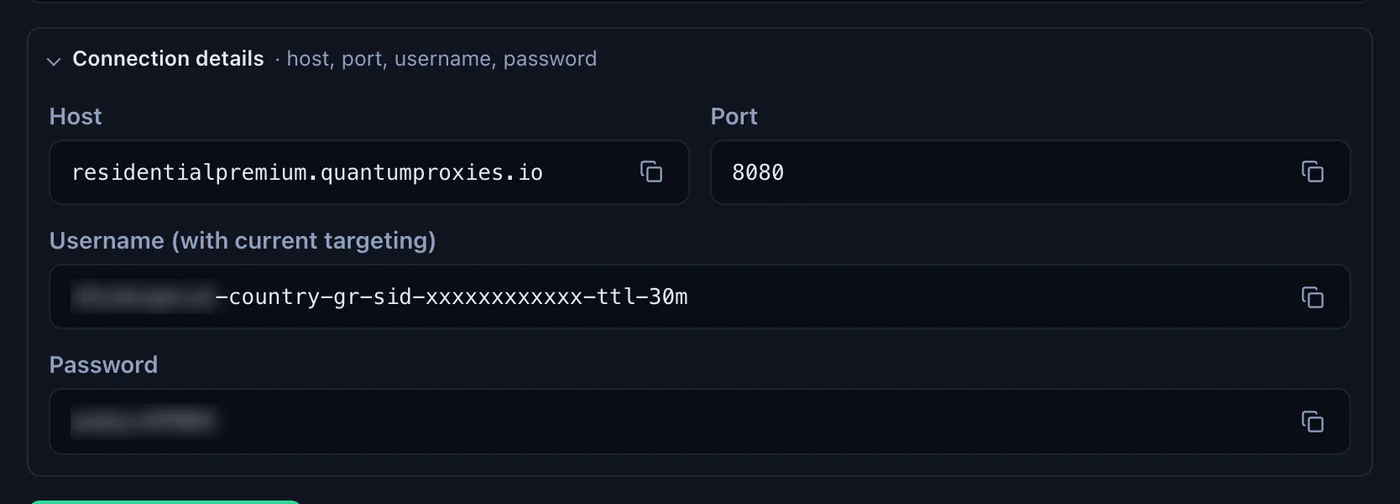
- The four values: host, port, username and password. In the QuanticData dashboard they are under My proxies, on the plan's page, in the Endpoint generator, under Connection details.
Where each value goes in Create proxy
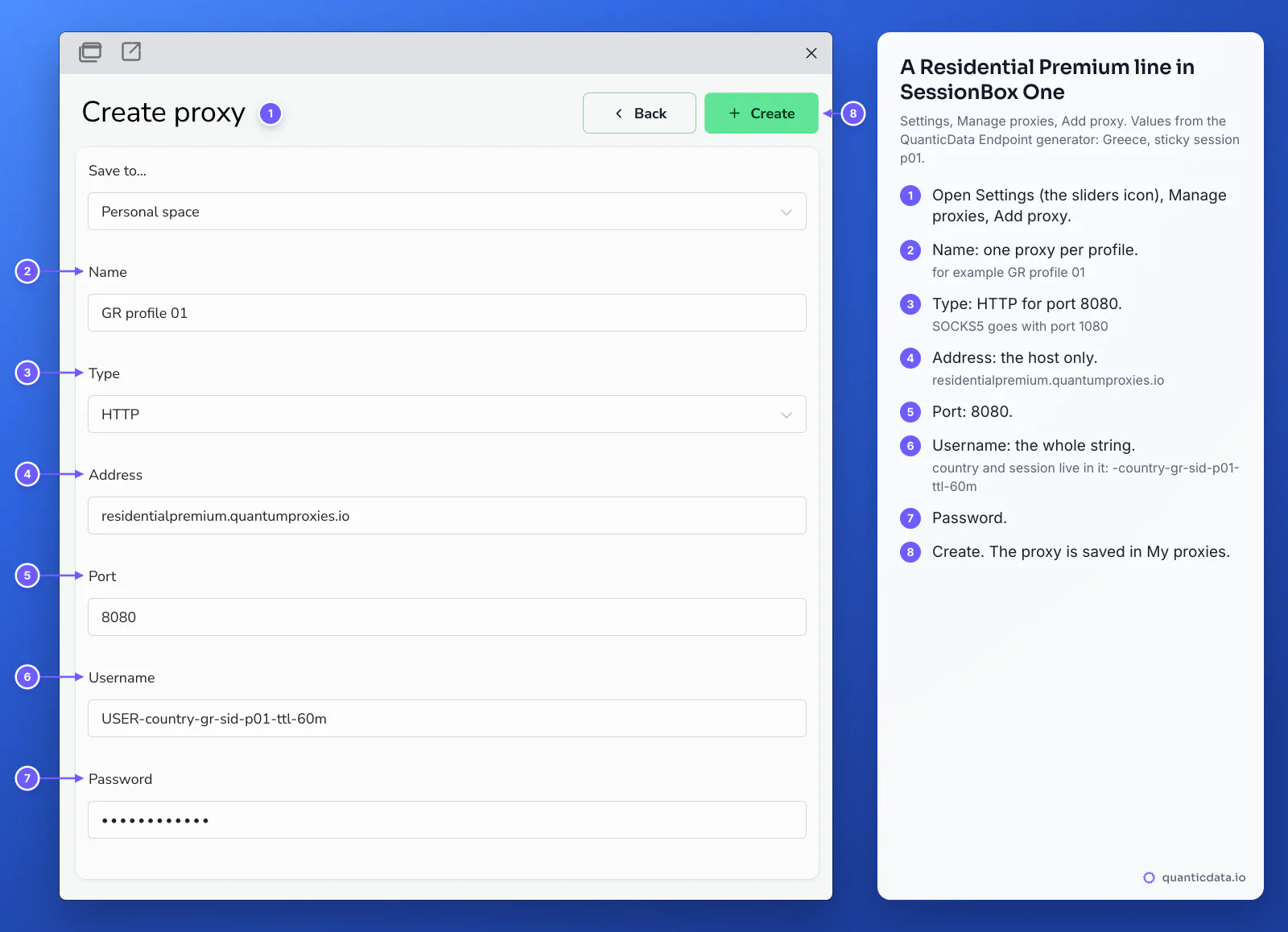
The Create proxy form does not take a proxy as one pasted line: it has a field for each part, in this order.
| Create proxy field | What to enter | Example (Greece, sticky) |
|---|---|---|
| Save to... | Personal space, or a shared space if your team uses one | Personal space |
| Name | A label you will recognise in the profile's Proxy list | GR profile 01 |
| Type | HTTP for port 8080, SOCKS5 for port 1080 | HTTP |
| Address | The host only: no port, no http:// | residentialpremium.quantumproxies.io |
| Port | The number that goes with the type | 8080 |
| Username | The whole username, targeting and session included | USER-country-gr-sid-p01-ttl-60m |
| Password | The plan's password | PASS |
The same proxy as the generator's Preview shows it, and split into the fields:
# the generator's Preview (output format host:port:user:pass)
residentialpremium.quantumproxies.io:8080:USER-country-gr-sid-p01-ttl-60m:PASS

# the same values in Create proxy
Type      HTTP
Address   residentialpremium.quantumproxies.io
Port      8080
Username  USER-country-gr-sid-p01-ttl-60m
Password  PASS
The username is the whole string, with everything after the first dash: -country-gr picks the exit country, -sid-p01 names the session and -ttl-60m keeps it for 60 minutes. Copy it whole. A username cut at the first dash still authenticates, but the profile then leaves from a random country on a new IP at every request.
Step by step: add a proxy in SessionBox One
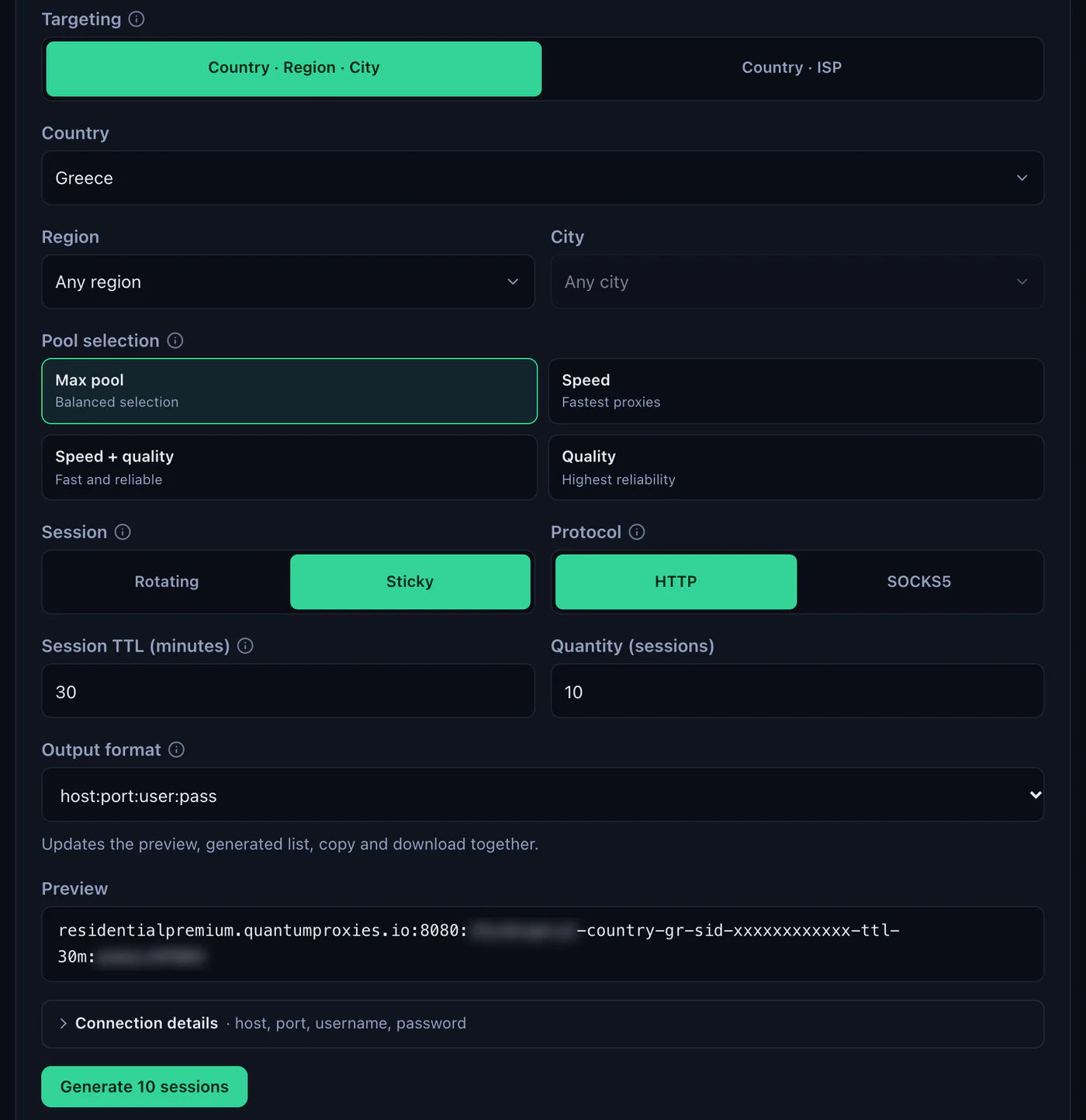
- Generate the values. In the QuanticData dashboard open My proxies, then your plan. In the Endpoint generator choose the Country (and a Region or City if the profile needs one), set Session to Sticky, set Session TTL (minutes) to at least the time the profile stays open, up to 1440, and choose the Protocol. Open Connection details under the Preview.
- Open the proxy list in SessionBox One. In My Profiles click the sliders icon for Settings, scroll to the proxy section and click Manage proxies. My proxies opens.
- Click Add proxy. The Create proxy form opens.
- Name it and pick the Type. One name per profile, for example GR profile 01. Type HTTP for port 8080; the list also has HTTPS, SOCKS5 and SOCKS4.
- Fill Address and Port. Address is
residentialpremium.quantumproxies.ioon its own, Port is 8080. - Fill Username and Password. Paste the username whole, then the password.
- Click Create. It turns green once Name, Type, Address and Port are filled. The proxy now sits in My proxies.
Test the proxy in My proxies
Every saved proxy is a row in My proxies with a status dot, its name and its host. Open the row's menu (the three dots) and click Test proxy: the dot turns green when the test passes. Edit opens the same form again, Delete removes the proxy.
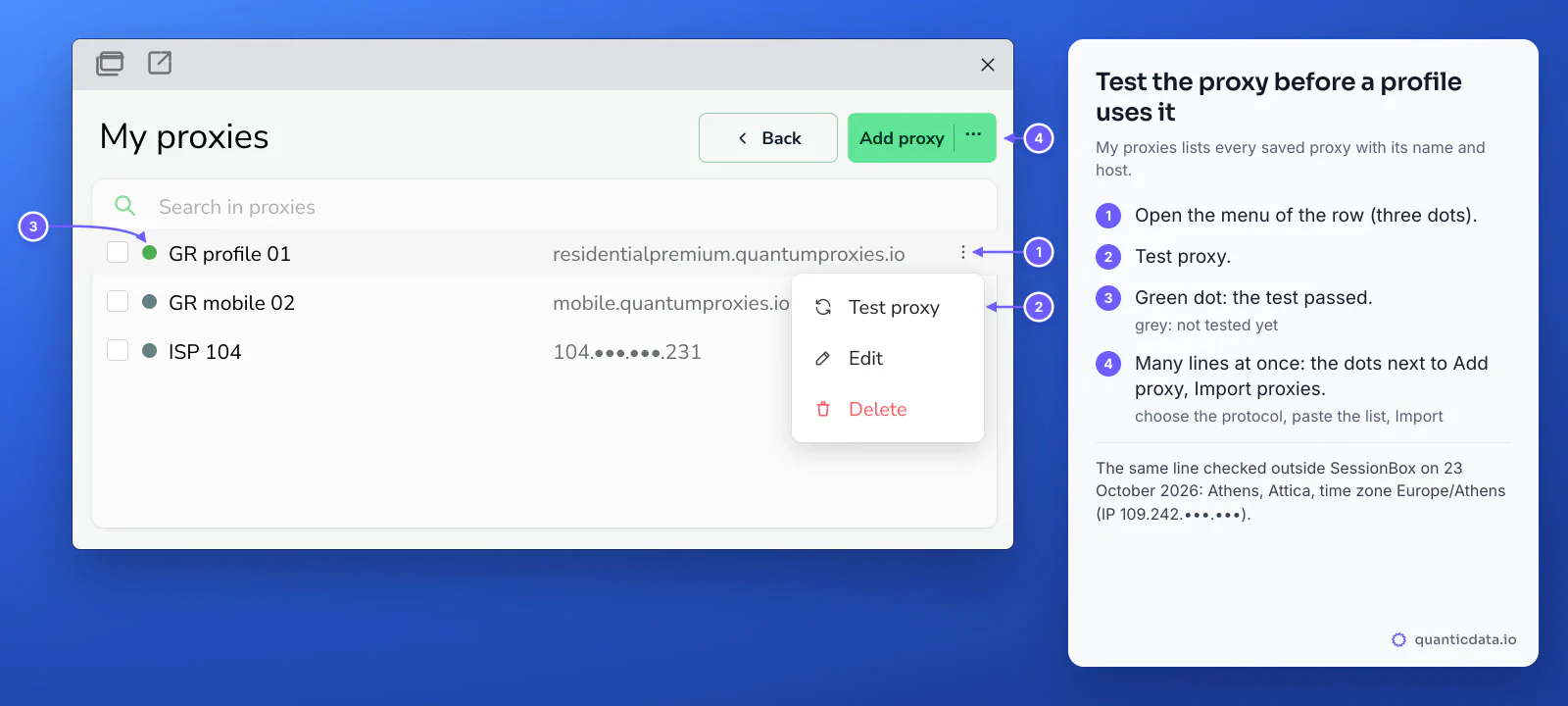
We ran the same Greece line outside SessionBox on 23 October 2026: it answered from Athens, Attica, with the time zone Europe/Athens. That is what a profile using it shows to the sites it opens.
Give the proxy to a profile
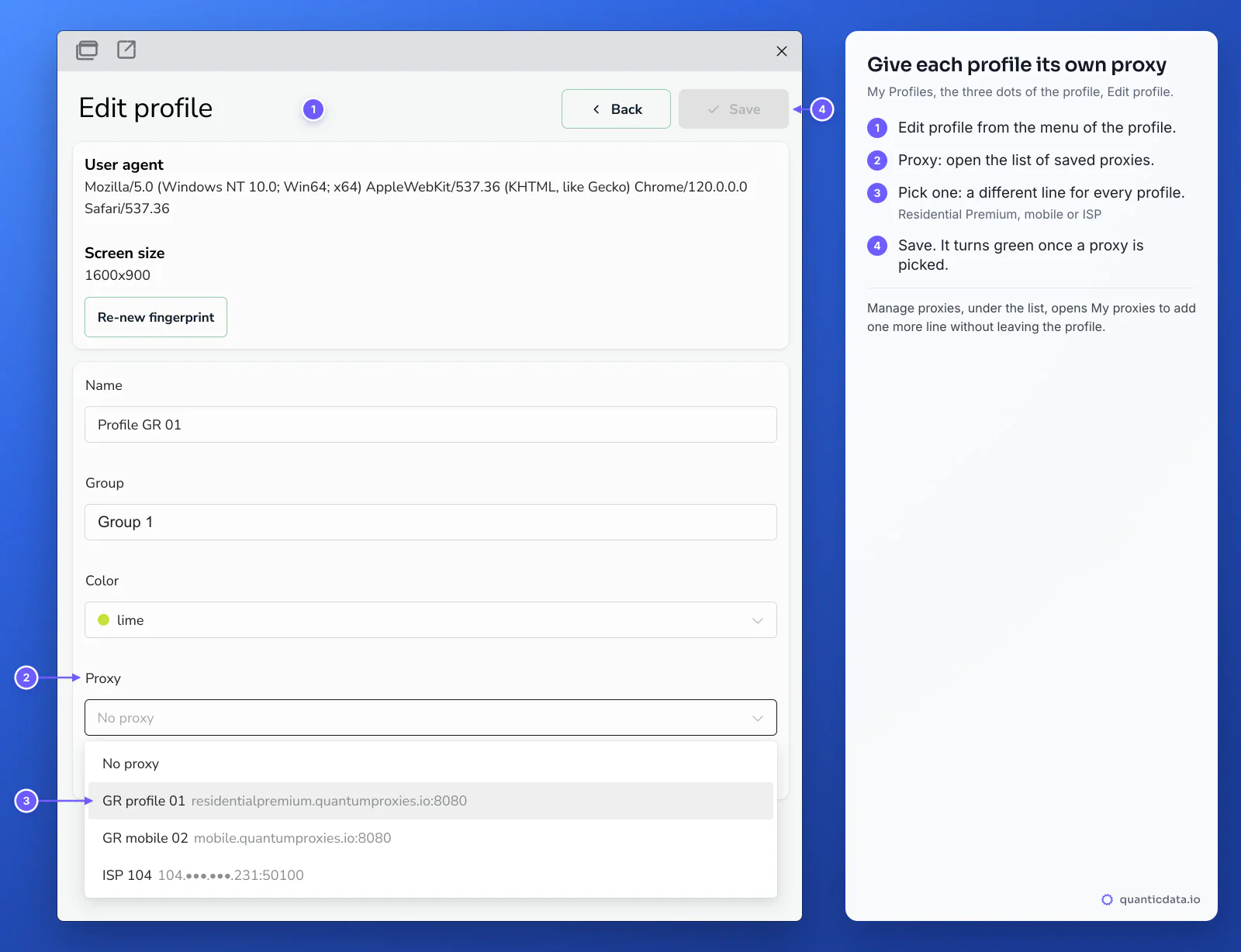
- Open the profile's settings. In My Profiles click the three dots of the profile and choose Edit profile.
- Open Proxy. The list shows No proxy and every saved proxy as its name and host:port.
- Pick one. A different line for every profile.
- Click Save. It turns green once a proxy is picked.
Manage proxies, under the Proxy field, opens My proxies without leaving the profile. A new profile can get its proxy the same way when you create it, or from auto-assign, explained below.
One sticky session per profile
A SessionBox profile is meant to look like one person on one connection. A rotating proxy changes IP on every request, which is fine for scraping and wrong for a profile that logs in. A sticky session keeps one IP for as long as the session lives, and the session lives in the username, so the saved proxy never has to change.
# profile 1: Greece, one session for a working day
Address residentialpremium.quantumproxies.io  Port 8080  Username USER-country-gr-sid-p01-ttl-480m

# profile 2: same plan, its own session (never reuse p01)
Address residentialpremium.quantumproxies.io  Port 8080  Username USER-country-gr-sid-p02-ttl-480m

# profile 3: open all day
Address residentialpremium.quantumproxies.io Port 8080 Username USER-country-gr-sid-p03-ttl-1440m- A different session ID in every saved proxy. Two profiles on the same proxy share one IP, which is what SessionBox is there to avoid.
- A lifetime longer than the work. The generator accepts up to 1440 minutes, a full day. When the session ends, the next request gets a new IP.
- The country in the username. Without
-country-the exit can be anywhere, and the profile's time zone will not match.
With Session set to Sticky, the generator makes as many lines as the Quantity field says, ten by default, each with its own session ID; Copy all or Download takes them out. For many profiles at once, Import proxies, under the dots next to Add proxy in My proxies, takes a pasted list with one protocol for the whole list.
Auto-assign: how SessionBox picks a proxy for a new profile
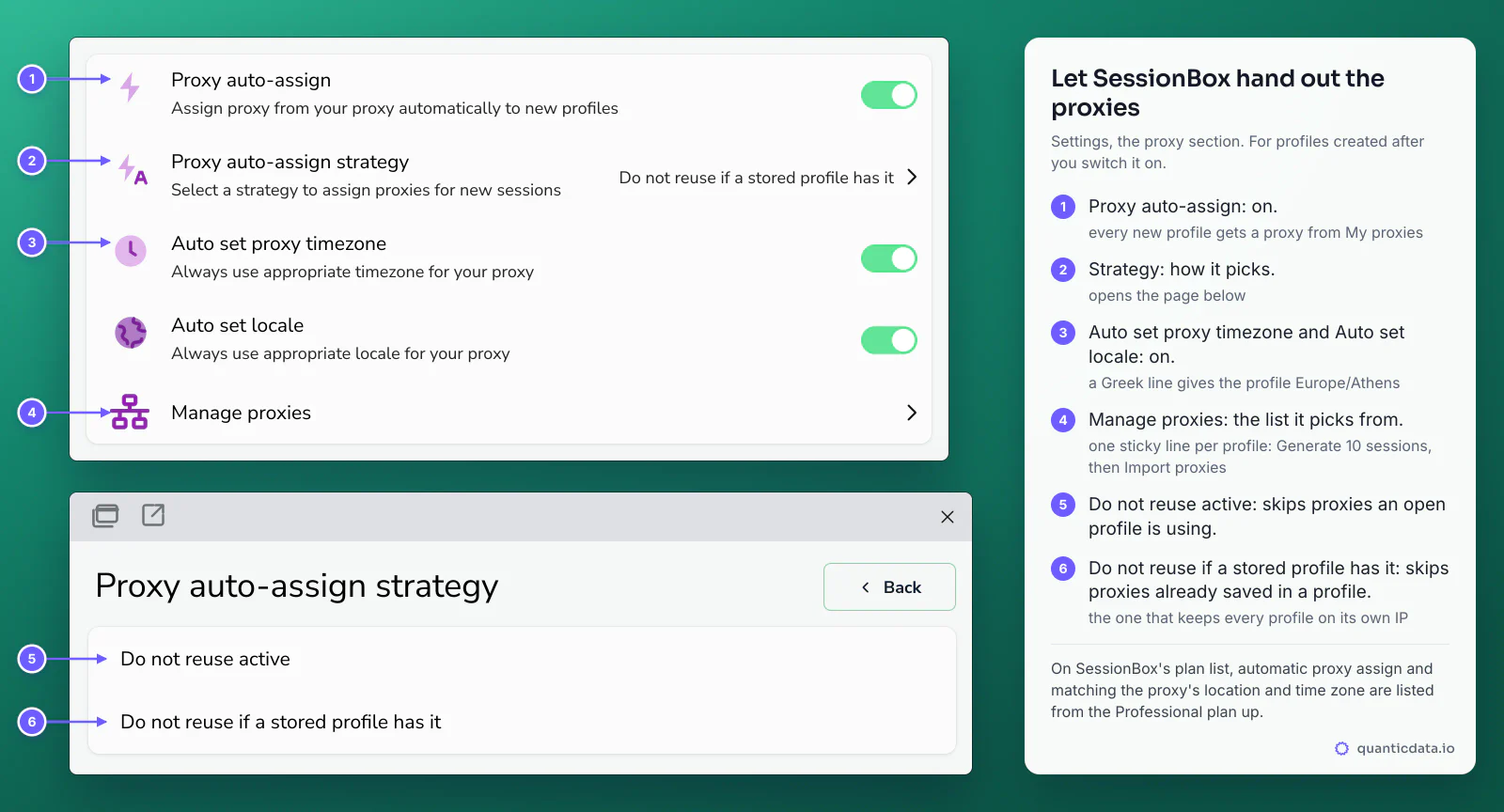
The proxy section of Settings can hand out proxies by itself. This is where a profile most often ends up on the wrong proxy, so here is what each switch does.
- Proxy auto-assign gives every new profile a proxy from My proxies. Profiles that already exist keep theirs.
- Proxy auto-assign strategy has two choices. Do not reuse active skips a proxy that an open profile is using; a closed profile's proxy can be handed out again. Do not reuse if a stored profile has it skips any proxy already saved in a profile, open or not.
- Auto set proxy timezone and Auto set locale make the profile take the time zone and language of the proxy's location: a Greek line gives Europe/Athens.
- Manage proxies is the list it picks from.
For accounts that log in, use Do not reuse if a stored profile has it and fill My proxies with one sticky line per profile: ten profiles, ten lines, ten session IDs. With fewer proxies than profiles, the strategy decides which profiles end up sharing an IP.
Residential Premium, ISP and mobile proxies in SessionBox
| Proxy type | In SessionBox One | Good for |
|---|---|---|
| Residential Premium | One saved proxy per profile, a sticky username with the country; Address residentialpremium.quantumproxies.io, HTTP 8080 or SOCKS5 1080 | Most profiles: home IPs in the country you choose, for example Greece residential proxies |
| ISP | Fixed IPs from Assigned IPs: the IP in Address, its port, username and password; one IP per profile | Long-lived accounts that should keep the same address for months |
| Mobile | Address mobile.quantumproxies.io, HTTP 8080 or SOCKS5 1080, a sticky username with -type-mobile; IP whitelist available | Phone-first platforms and accounts tied to mobile networks, for example Greece mobile proxies |
ISP proxies
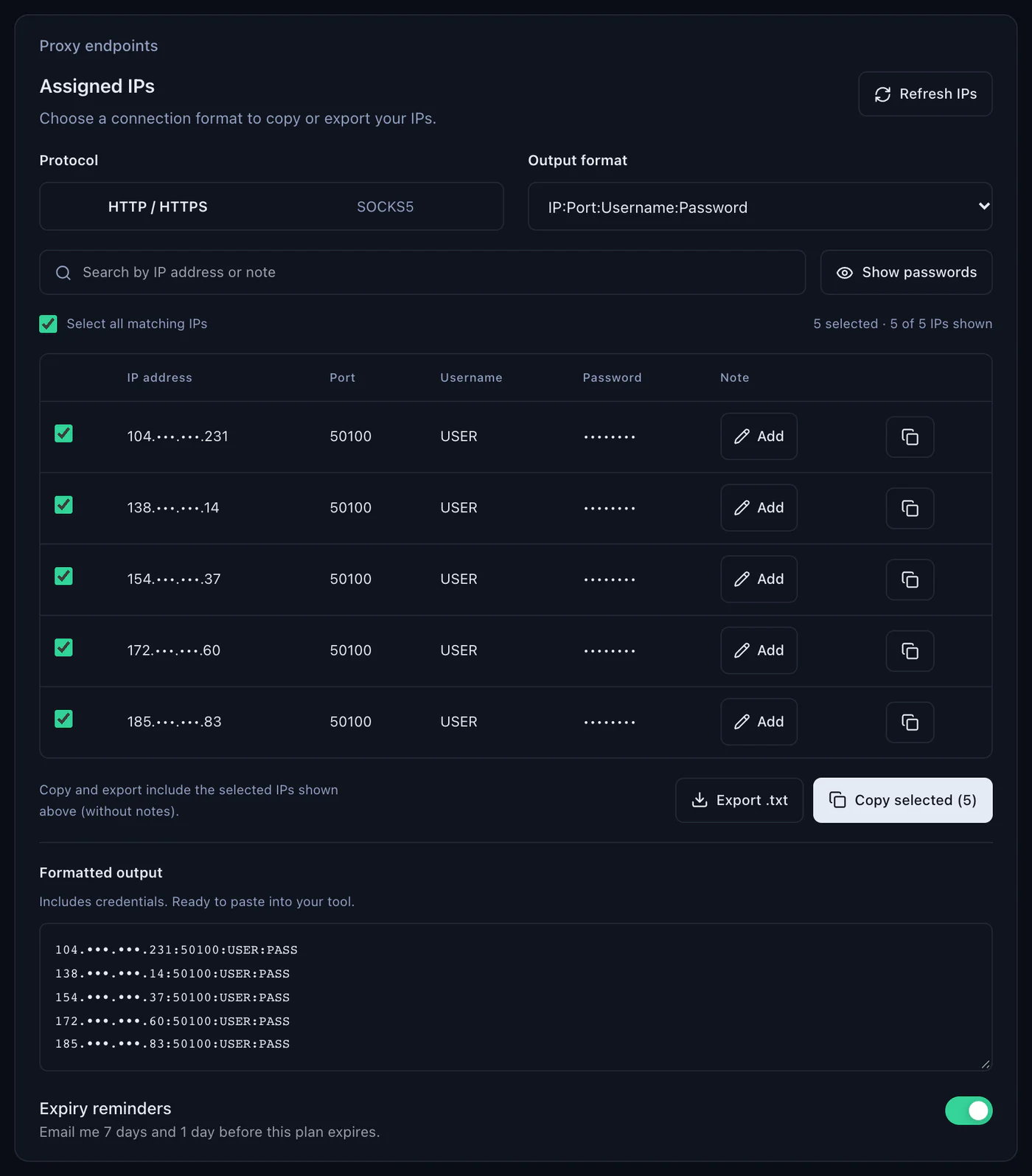
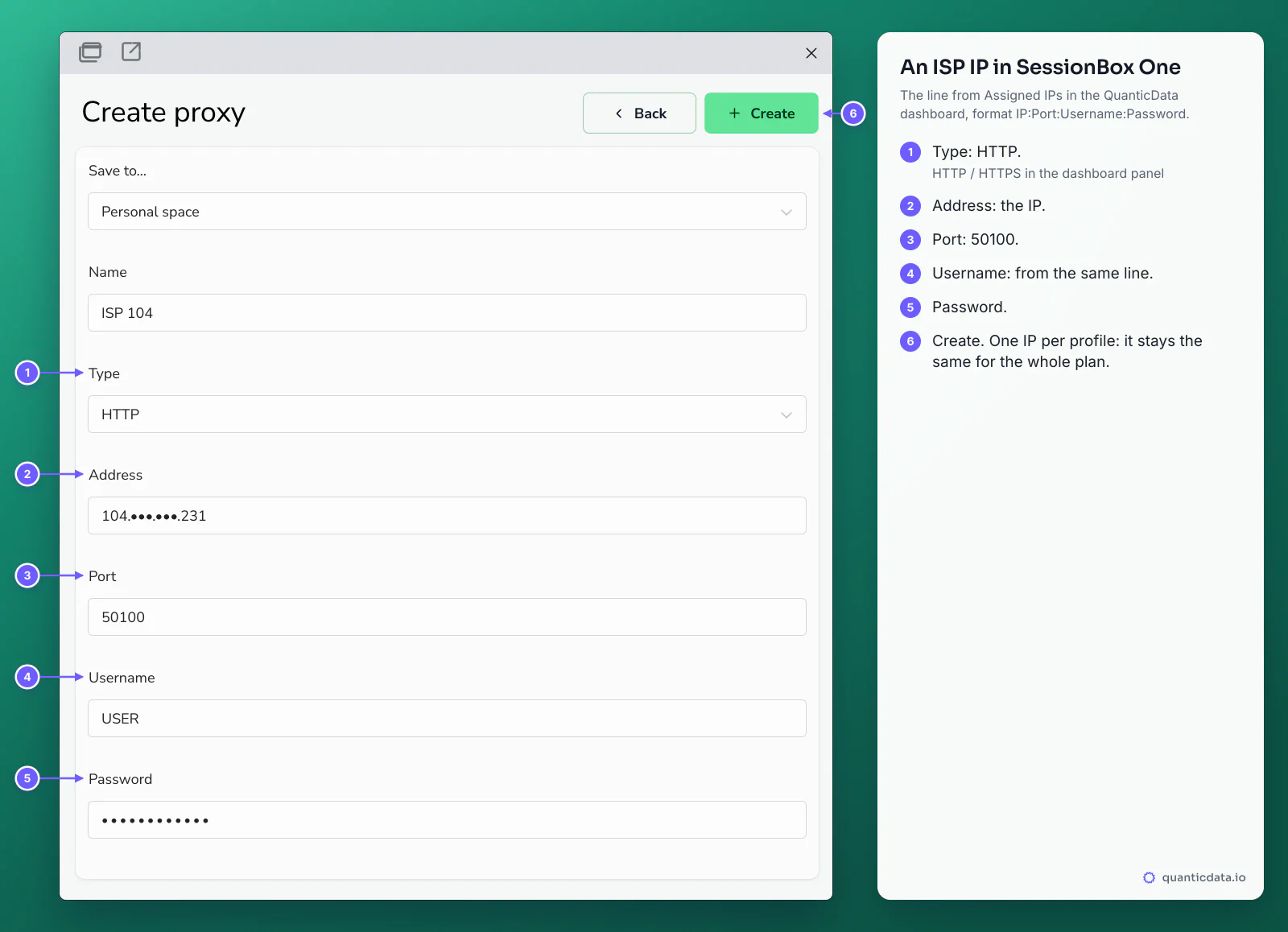
An ISP plan lists its fixed IPs under Assigned IPs in the dashboard. With the output format IP:Port:Username:Password each line splits straight into the form: Type HTTP (the panel's HTTP / HTTPS), the IP in Address, the port next to it (50100 in the example), then Username and Password. Give each profile one IP: it stays the same for the whole plan, so the profile keeps its address.
Mobile proxies
A mobile line goes in exactly like a Residential Premium one: Address mobile.quantumproxies.io, Port 8080 for HTTP or 1080 for SOCKS5, and a sticky username such as USER-country-gr-type-mobile-sid-p02-ttl-60m. In the generator, choose the gateway (Global, USA, EU or Asia) before you copy. Mobile plans also offer IP whitelist authentication: add the IP of the computer running SessionBox, take the host and port from the proxy list for that IP, and leave Username and Password empty, since only Name, Type, Address and Port are required.
For a wider view of why each profile needs its own address, see residential proxies for antidetect browsers. The plans themselves are on the pages for QuanticData residential proxies, ISP proxies and QuanticData mobile proxies.
A new IP for a profile
With Residential Premium and mobile the IP is tied to the session ID in the username. In My proxies open the row's menu, choose Edit and change -sid-p01 to -sid-p02, or create a new proxy and pick it in the profile: either way the profile gets a new IP, and the old session keeps working until its lifetime ends. ISP proxies are static addresses by design: one IP per profile, for months.
SessionBox proxy not working: errors and fixes
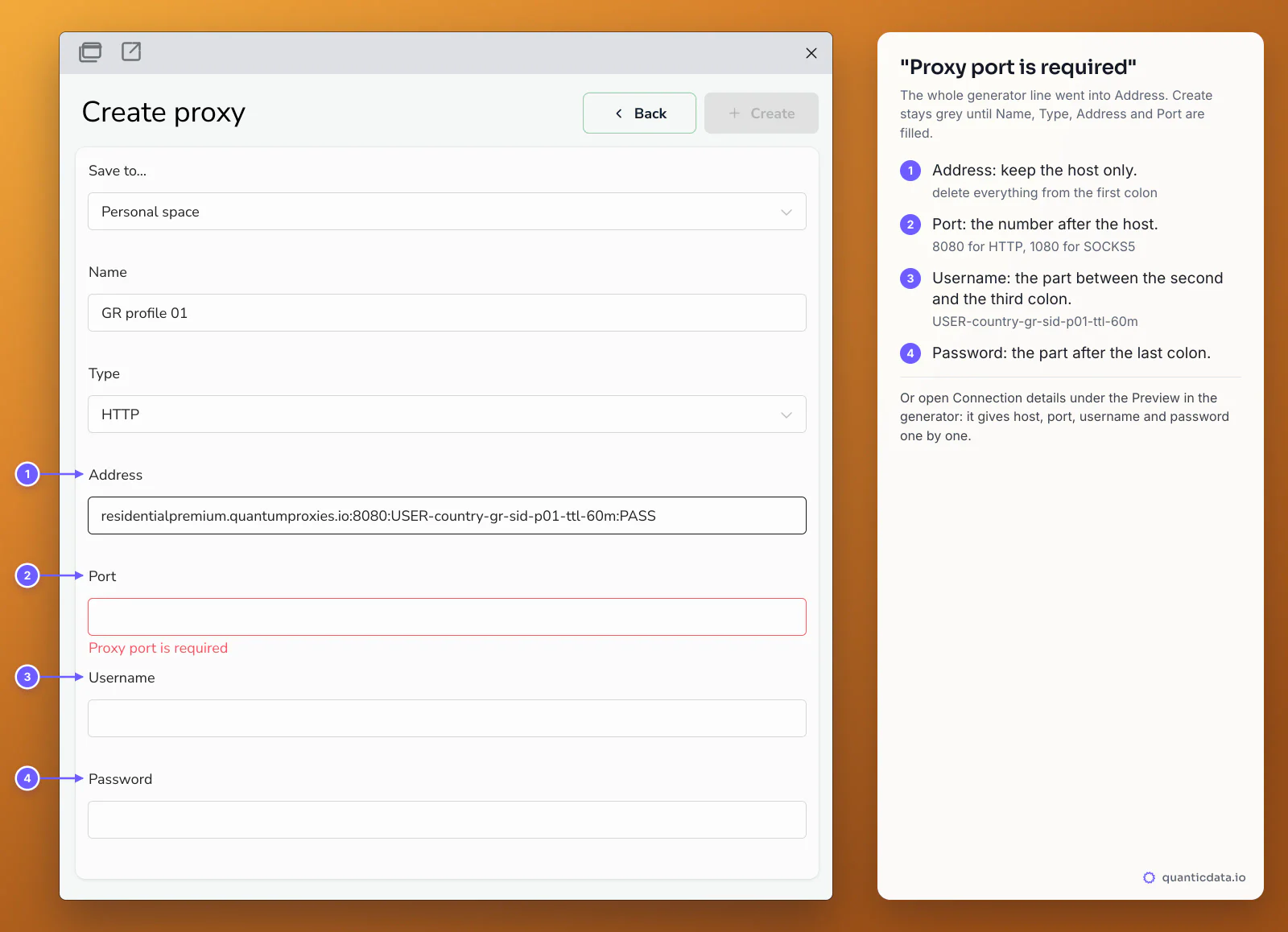
The form itself catches the first mistakes: Create stays grey and a red message names the field. The most common one comes from pasting the generator's whole line into Address.
| What you see | Usual cause | Fix |
|---|---|---|
| Proxy port is required, Create stays grey | The whole line went into Address, or Port is empty | Address: the host only. Port: 8080 for HTTP, 1080 for SOCKS5 |
| Proxy address is required, or Proxy name is required | That field is empty | Fill it: Name, Type, Address and Port are required |
| Test proxy does not turn the dot green | The type does not match the port, or the username was cut | HTTP with 8080, SOCKS5 with 1080; copy the username again from Connection details |
| The test worked yesterday, fails today | The plan expired or its traffic is used up | Check the plan in My proxies on the dashboard: status, remaining traffic, expiry date |
| Wrong country or time zone in the profile | No -country- in the username, or Auto set proxy timezone is off | Generate the line with a country; switch Auto set proxy timezone and Auto set locale on |
| Two profiles show the same IP | They use the same saved proxy, or the same session ID | One saved proxy per profile, each with its own -sid-; strategy Do not reuse if a stored profile has it |
| The IP changes in the middle of a session | The session lifetime ended | A longer -ttl-, up to 1440 minutes |
One test outside the browser settles most cases in a minute. If this returns an address in the right country, the proxy works and the problem is in the saved proxy's fields:
curl -x http://residentialpremium.quantumproxies.io:8080 \
  -U "USER-country-gr-sid-test-ttl-10m:PASS" https://ipinfo.io/json
If the same command fails on your network but works from another one, a firewall or your provider is blocking the connection to the proxy port.
HTTP or SOCKS5 in SessionBox
The Type list has HTTP, HTTPS, SOCKS5 and SOCKS4, and every QuanticData network offers HTTP on port 8080 and SOCKS5 on port 1080. Start with HTTP on 8080: it is the simpler choice and the one the examples above use. If you choose SOCKS5, set Port to 1080 and run Test proxy before the profile logs in anywhere; the details of the protocol are on the page for SOCKS5 proxies. What breaks a saved proxy is never the choice itself, only a type that does not match its port. Using several antidetect tools? See the same setup in Dolphin Anty.
Before you run accounts
A proxy changes where a profile's traffic comes from, not what the profile is allowed to do. Keep to each platform's terms and to the law where you work, and use one profile, one proxy and one identity per account.