
To add a proxy in DICloak, open the profile's Proxy settings, choose Custom Proxy, paste the line as host:port:user:pass in Quick input and click Analyze. Set Proxy type to HTTP for port 8080 or SOCKS5 for port 1080, click Checking proxy, then Confirm. Give each profile its own sticky session. Below: every step, ISP and mobile lines, groups and fixes.
DICloak keeps every browser profile apart: its own cookies, its own fingerprint and, once you add one, its own proxy. The proxy decides which IP address and which country the sites see, and by default the profile takes its time zone, language and geolocation from that IP. Four values make a proxy, and most "proxy not working" messages come from one of them typed wrong. The field names below are the ones in DICloak's own help center, and the values come from the QuanticData endpoint generator.
What you need before you start
- DICloak installed, with an account. It runs on Windows, macOS and Linux computers. There is a Free plan; the batch tools for proxies described below are on the Base, Plus and Share+ plans.
- A proxy plan. Residential Premium, ISP or mobile: all of them work in DICloak. The table further down says which one fits which profile.
- The four values: host, port, username and password. In the QuanticData dashboard they are under My proxies, on the plan's page: the Endpoint generator for Residential Premium and mobile, Assigned IPs for ISP.
The proxy formats DICloak reads
DICloak has two places that read a whole line. Quick input, in a profile and in Create Proxy, takes Host:Port:Username:Password, or Host:Port when no login is sent, and the Analyze button splits it into the fields. Batch create, on the Proxies screen, takes one proxy per line, up to 500 entries, in any of these layouts:
- host:port:user:pass, what the generator gives with the output format host:port:user:pass.
- user:pass@host:port, the same proxy written the way most other tools expect it.
- host:port, only with IP whitelist authentication, where the plan recognises your IP.
- A type prefix,
http://orsocks5://, sets the type inside the line, and{a remark}at the end becomes the proxy's Remark.
The same QuanticData proxy in each layout:
# host:port:user:pass (Quick input and Batch create)
residentialpremium.quantumproxies.io:8080:USER-country-pt-sid-p01-ttl-60m:PASS

# user:pass@host:port (Batch create)
USER-country-pt-sid-p01-ttl-60m:PASS@residentialpremium.quantumproxies.io:8080

# type prefix and remark, SOCKS5 on its own port (Batch create)
socks5://USER-country-pt-sid-p01-ttl-60m:PASS@residentialpremium.quantumproxies.io:1080{PT profile 01}
The login is the whole username, with everything after the first dash: -country-pt picks the exit country, -sid-p01 names the session and -ttl-60m keeps it for 60 minutes. After Analyze, check that Proxy account holds all of it. A login cut at the first dash still authenticates, but the profile then leaves from a random country on a new IP at every request.
Step by step: a Residential Premium proxy in a DICloak profile
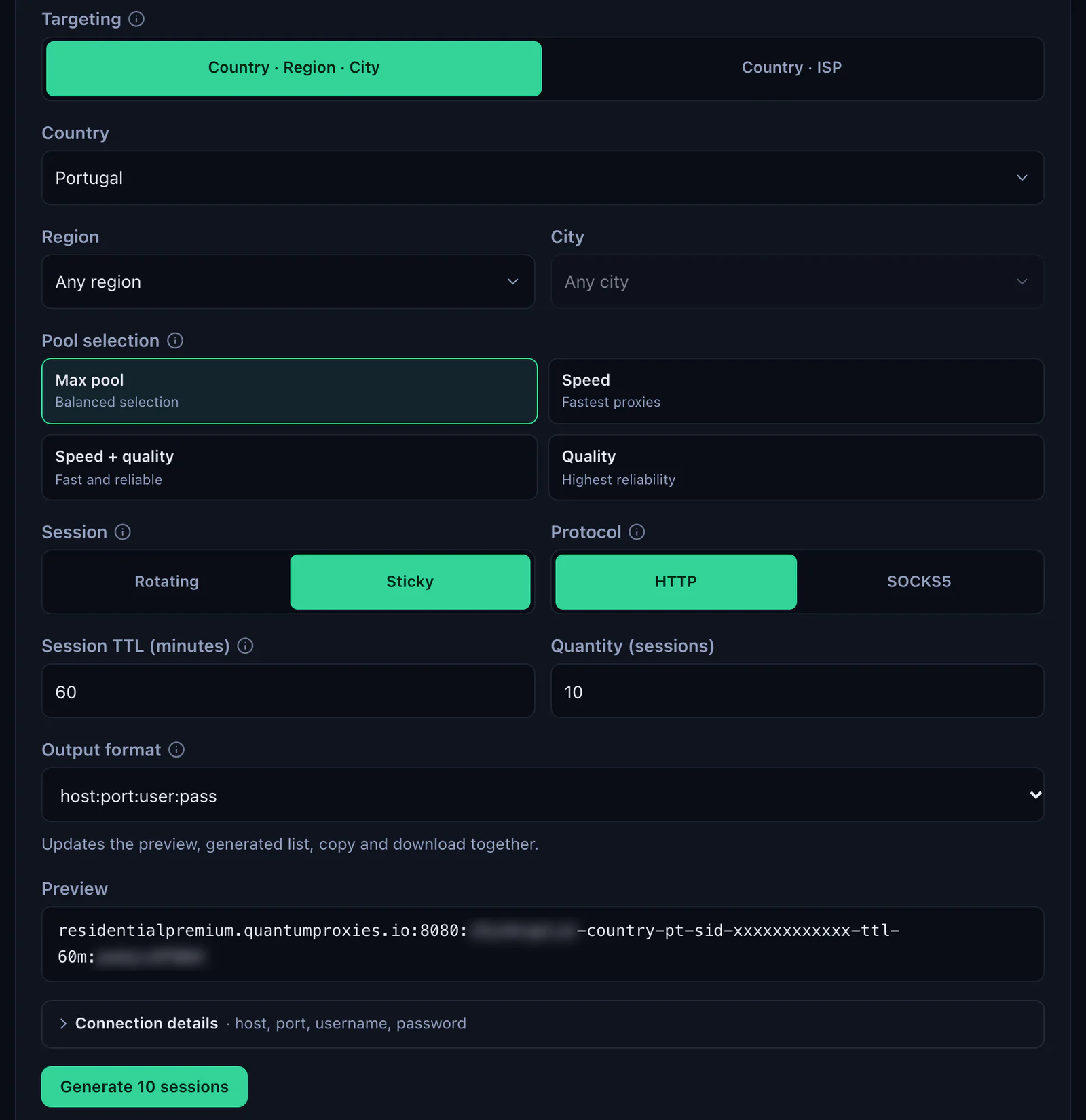
- Generate the line. In the QuanticData dashboard open My proxies, then your plan. In the Endpoint generator choose the Country (and a Region or City if the profile needs one), set Session to Sticky, set Session TTL (minutes) to at least the time the profile stays open, choose the Protocol and keep the Output format on host:port:user:pass. The Preview shows the line; Connection details shows the same four values one by one.
- Open the profile in DICloak. On the Profiles screen click Create profile, or edit an existing profile. Proxy settings is in the General section.
- Choose Custom Proxy. The other choices are No proxy, Saved Proxies (proxies stored on the Proxies screen) and API extraction.
- Paste the line in Quick input and click Analyze. DICloak fills Host:Port, Proxy account and Proxy password from the line.
- Set Proxy type to match the port. HTTP for port 8080, SOCKS5 for port 1080. Leave IP protocol on IPv4.
- Click Checking proxy. DICloak shows Connection test succeeded with the exit IP, Country/Region, State/Province and City. The country has to match the
-country-in the login. IP lookup channel picks the geolocation database for the check, IP-API or IP2Location. - Click Confirm. The profile's time zone, language and geolocation follow the proxy's IP unless you changed them in Fingerprint.
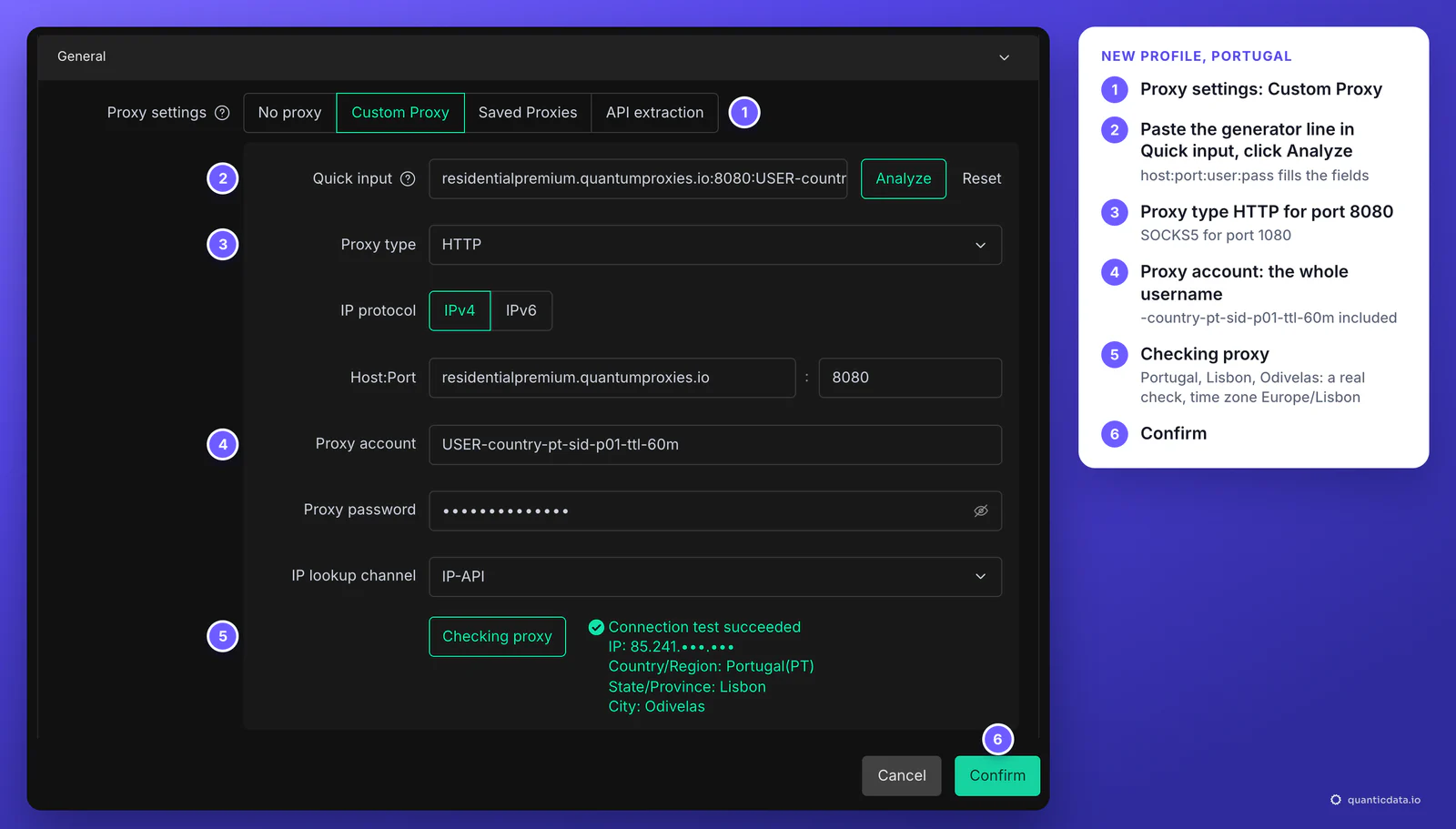
To change the proxy of an existing profile, click the pencil in the Proxy column of the profiles list: the window has the same Proxy settings.
One sticky session per profile
An antidetect profile is meant to look like one person on one connection. A rotating proxy changes IP on every request, which suits scraping and breaks a profile that logs in. A sticky session keeps one IP for as long as the session lives, and the session lives in the username, so the line never changes once it is saved in the profile.
# profile 1: Portugal, one session for a working day
residentialpremium.quantumproxies.io:8080:USER-country-pt-sid-p01-ttl-480m:PASS

# profile 2: same plan, its own session (never reuse p01)
residentialpremium.quantumproxies.io:8080:USER-country-pt-sid-p02-ttl-480m:PASS

# profile 3: Portugal, open all day
residentialpremium.quantumproxies.io:8080:USER-country-pt-sid-p03-ttl-1440m:PASS- A different session ID in every profile. Two profiles on the same line share one IP, which is what an antidetect browser is there to avoid. DICloak allows the same proxy in several profiles and its own help center advises a different one for each.
- A lifetime longer than the work. The generator accepts up to 1440 minutes, a full day. When the session ends, the next request gets a new IP, and a site can read that as a new login location.
- The country in the login. Without
-country-the exit can be anywhere, and the profile's time zone follows it.
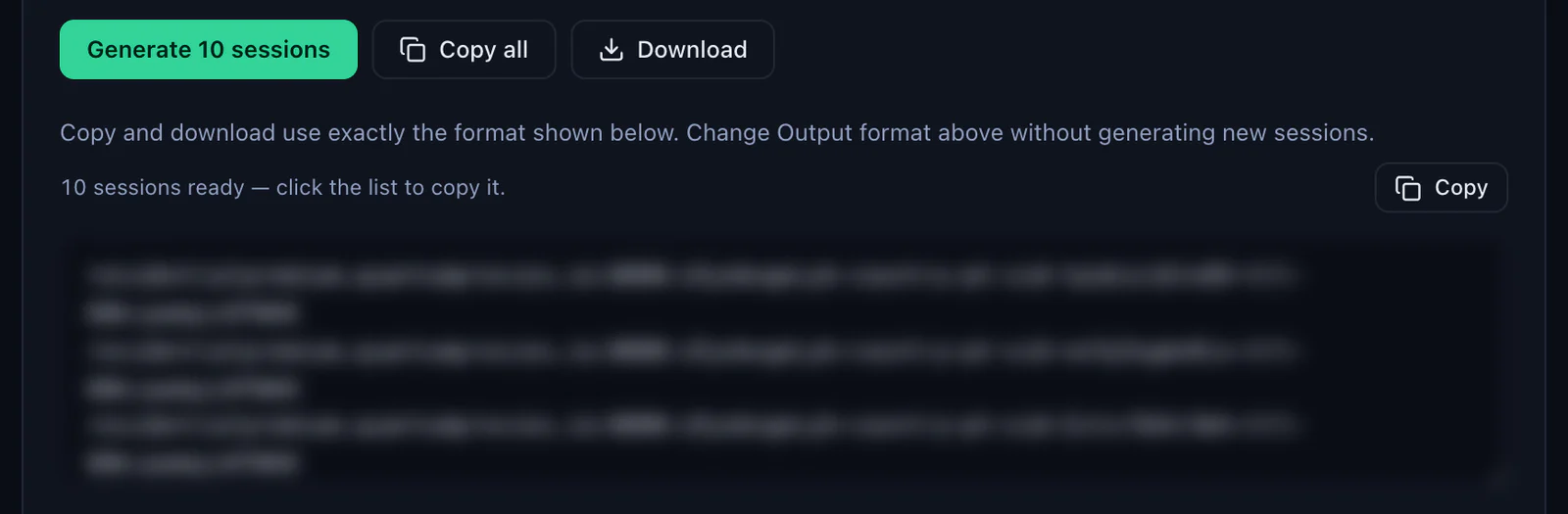
With Session set to Sticky, the generator makes as many lines as the Quantity field says, ten by default, each with its own session ID, and Copy all or Download takes them out in the same format. One line per profile.
ISP proxies in DICloak: one fixed IP per profile
An ISP plan gives fixed addresses instead of a gateway. They are listed in the dashboard under Proxy endpoints, Assigned IPs, and each one stays the same for months, which suits accounts that should always log in from the same place.
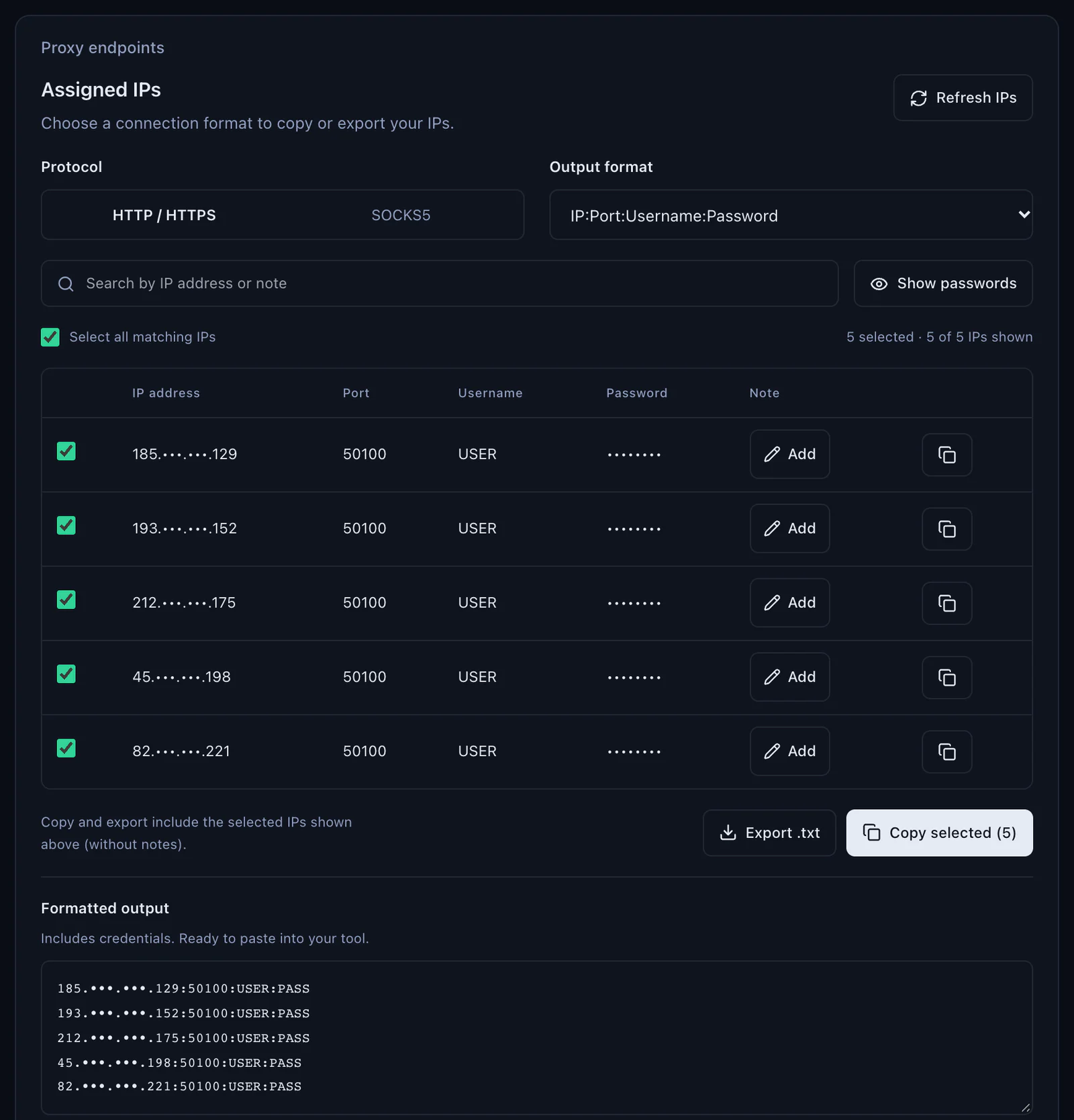
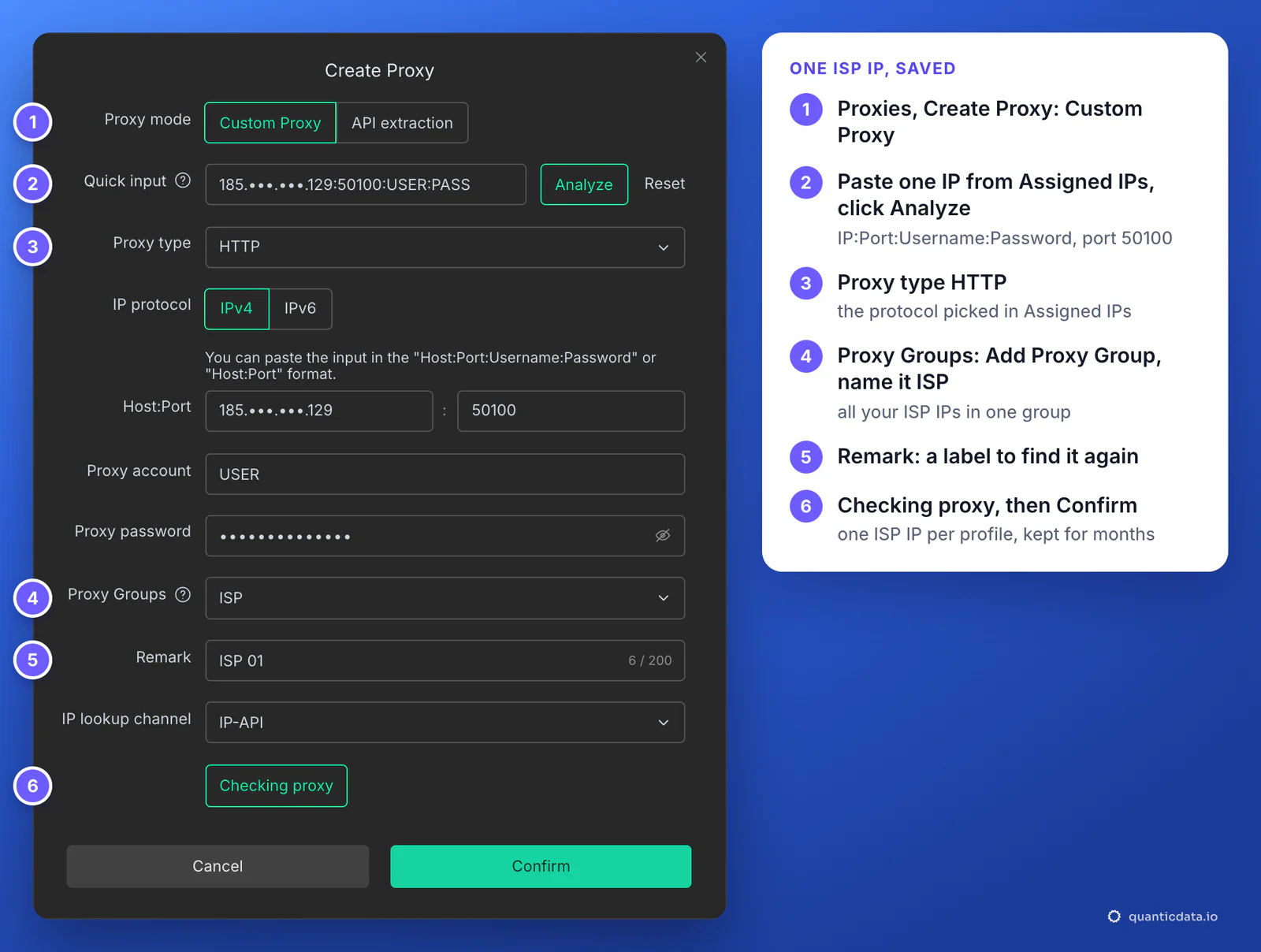
- Copy the IPs. In the ISP plan's page choose the Protocol and keep the Output format on IP:Port:Username:Password. Copy selected or Export .txt takes the lines out, one IP per line, with the port shown next to each IP (50100 in the example).
- Store each IP in DICloak. Proxies, Create Proxy, Custom Proxy. Paste one line in Quick input and click Analyze. Set Proxy type to the protocol you chose in Assigned IPs.
- Put them in one group. In Proxy Groups click Add Proxy Group and name it, for example ISP. Remark is a label you can search by, such as ISP 01.
- Check and save. Checking proxy, then Confirm. The proxy appears in the Proxies list with its Exit IP.
- Give each profile its IP. In the profile choose Saved Proxies and pick it, or assign the whole group at once with Random, explained below. One ISP IP per profile.
Mobile proxies in DICloak
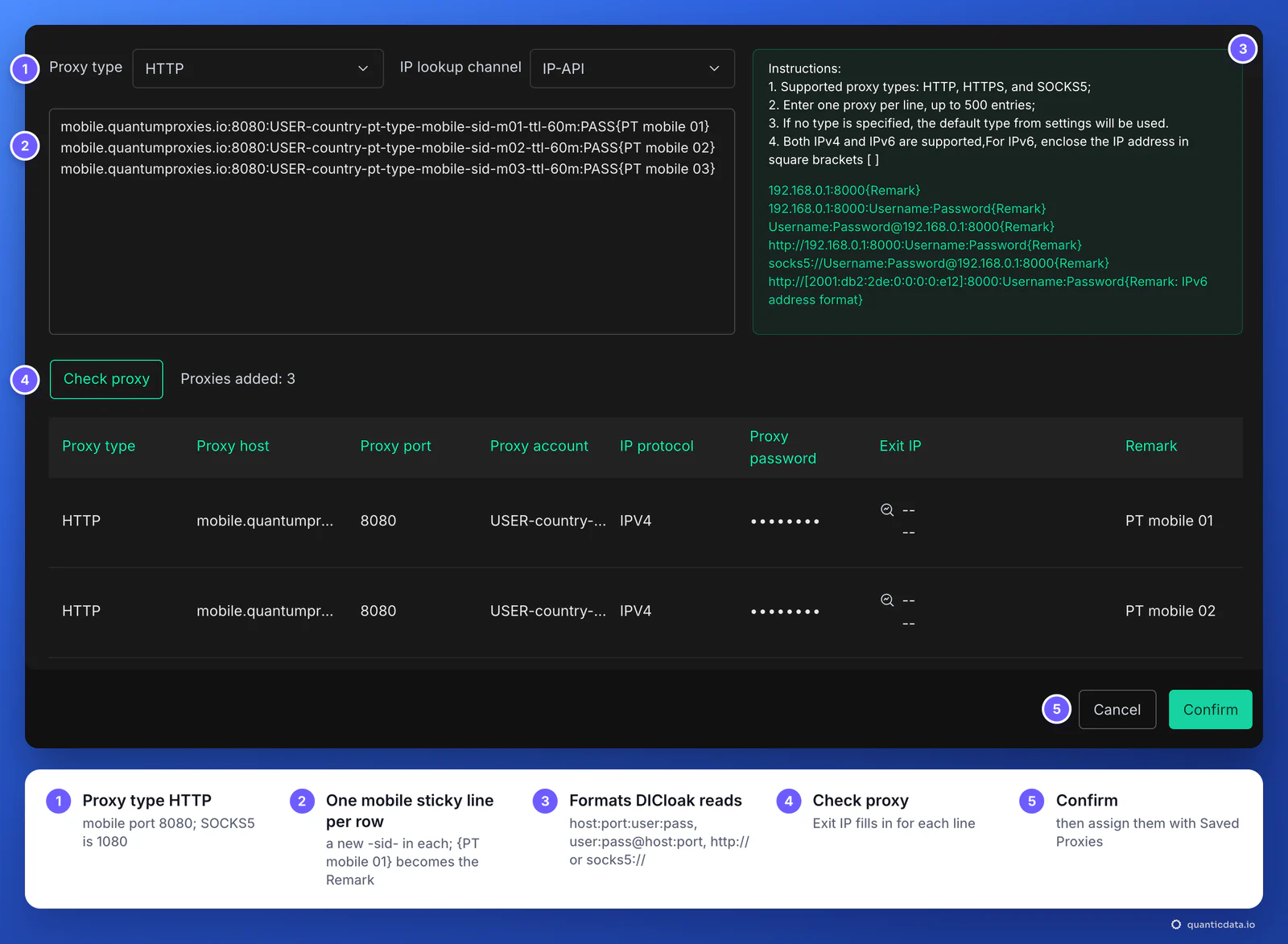
A mobile line goes in exactly like a Residential Premium one: Custom Proxy, Quick input, Analyze, HTTP on port 8080 or SOCKS5 on port 1080. In the mobile plan's generator choose the gateway (Global, USA, EU or Asia), the country, Session Sticky and the protocol; the username carries -type-mobile:
mobile.quantumproxies.io:8080:USER-country-pt-type-mobile-sid-p02-ttl-60m:PASSSeveral lines at once go through Batch create on the Proxies screen: set Proxy type, paste one line per row, each with its own session ID and, if you like, a remark in braces, click Check proxy, then Confirm. Mobile plans also offer IP whitelist authentication: add your IP in the dashboard, take the host:port list and leave Proxy account and Proxy password empty in DICloak.
Profiles that present an Android or iOS fingerprint, which DICloak offers under Operating System, read best on a mobile IP: see mobile proxies for antidetect browsers.
Many profiles at once: proxy groups and Random
DICloak can hand saved proxies to many profiles in one action, and its selection rules decide who gets what. This is where one sticky session per profile is easy to keep, or easy to lose.
- Save the proxies. On the Proxies screen use Batch create (or Create Proxy one by one) with lines from the generator, one per profile.
- Group them. Select them in the Proxies list and use Set Proxy Group, for example Portugal sticky. Proxies without a group sit in Default Group.
- Select the profiles. On the Profiles screen tick them, then More Actions, Edit Profile, Edit Proxy.
- Choose Saved Proxies, then Random, then the group. Confirm.
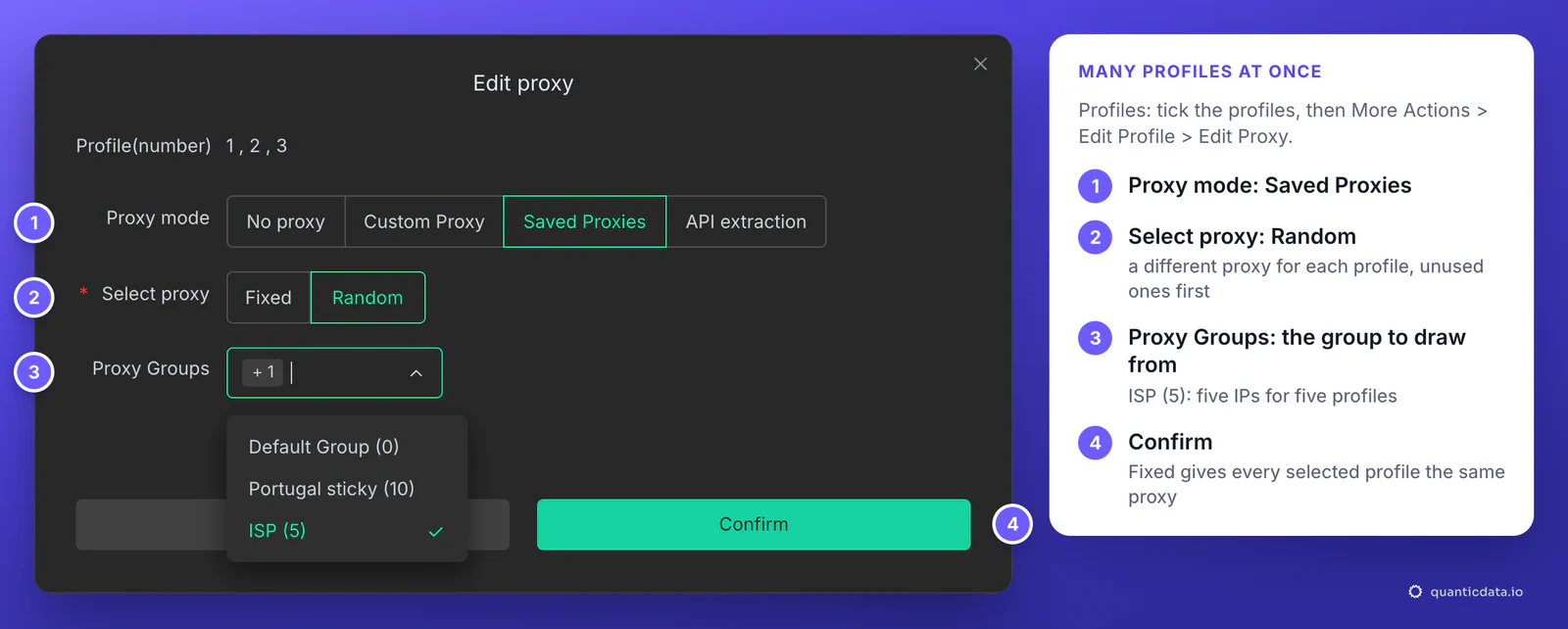
- Random gives each selected profile a different proxy from the group, unused proxies first. When every proxy in the group is already in use, it hands out used ones, so keep at least as many proxies in the group as profiles. In DICloak's own example a group shown as (2) holds two unused proxies, and a third profile ends up sharing one of them.
- Fixed gives every selected profile the same proxy. Right for one profile, wrong for accounts that must not be linked.
- No group selected means Random draws from all saved proxies, ISP and mobile mixed. Pick the group.
Which proxy type for which profile
| Proxy type | In DICloak | Good for |
|---|---|---|
| Residential Premium | One sticky line per profile; country, region, city or ISP in the login; username and password only | Most profiles: home IPs in the country you choose |
| ISP | Fixed IPs from Assigned IPs as IP:Port:Username:Password, saved in a group; one IP per profile | Long-lived accounts that should keep the same address for months |
| Mobile | One sticky line per profile with -type-mobile in the login; Global, USA, EU or Asia gateway; HTTP 8080 or SOCKS5 1080; IP whitelist available | Phone-first platforms and profiles with an Android or iOS fingerprint |
For why each profile needs its own address, see residential proxies for antidetect browsers. The plans themselves are on the pages for QuanticData residential proxies, ISP proxies and QuanticData mobile proxies.
DICloak proxy not working: errors and fixes
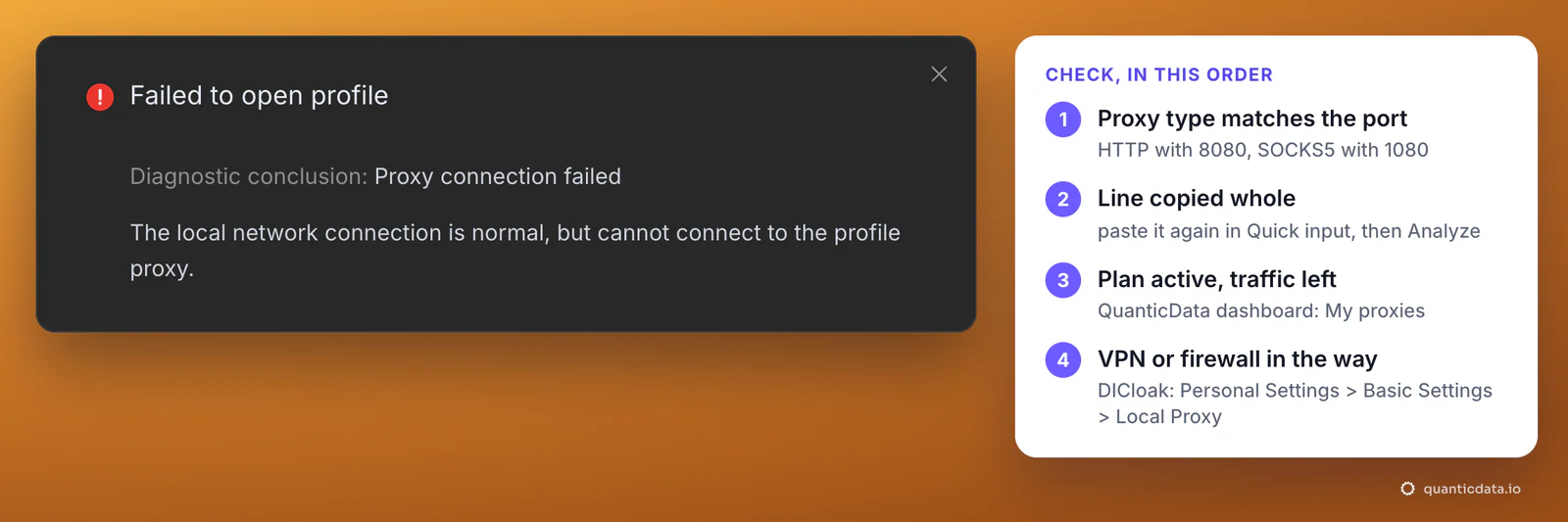
When the proxy fails, Checking proxy does not return Connection test succeeded, and opening the profile stops with "Failed to open profile" and a diagnostic conclusion. For a proxy, DICloak's help center gives this one: Proxy connection failed, the local network connection is normal, but cannot connect to the profile proxy. These are the cases behind it, in the order to check.
| What you see | Usual cause | Fix |
|---|---|---|
| Failed to open profile, Proxy connection failed | Proxy type does not match the port: HTTP on 1080 or SOCKS5 on 8080 | HTTP with 8080, SOCKS5 with 1080 |
| The same, with the right type | The login was cut, a field was typed by hand, or a space came with the paste | Copy the line again from the generator, paste it in Quick input and click Analyze |
| Checking proxy worked yesterday, fails today | The plan expired or its traffic is used up | Check the plan in My proxies: status, remaining traffic, expiry date |
| Fails with a VPN on, works without | The VPN or a firewall blocks the connection to the proxy port | DICloak's help center: turn on Local Proxy in Personal Settings, Basic Settings, or change the VPN node; allow ports 8080 and 1080 in the firewall |
| Wrong country or time zone | No -country- in the login, or Worldwide chosen in the generator | Generate the line with a country; leave the profile's time zone on IP-based matching |
| The IP changes in the middle of a session | The session lifetime ended, or two profiles share one session ID | A longer -ttl-, a different -sid- in every profile, Random from a group with enough unused proxies |
| City differs between two checks | IP-API and IP2Location are separate geolocation databases | Trust the country; switch IP lookup channel to compare |
One test outside the browser settles most cases in a minute. If this returns an address in the right country, the proxy works and the problem is in the profile's fields:
curl -x http://residentialpremium.quantumproxies.io:8080 \
  -U "USER-country-pt-sid-test-ttl-10m:PASS" https://ipinfo.io/json
If the same command fails on your network but works from another one, a VPN, a firewall or your provider is blocking the connection to the proxy port, the first thing DICloak's own checklist looks at.
HTTP or SOCKS5 in DICloak
Both work for browsing, and every QuanticData network offers both. HTTP on port 8080 is the simpler choice and the one to start with; it still carries HTTPS sites, encrypted end to end. SOCKS5 on port 1080 passes any kind of connection, not only web pages, which matters for tools inside the profile that do not speak HTTP; the details are on the page for SOCKS5 proxies. What breaks a profile is never the choice itself, only a Proxy type that does not match its port.
Before you run accounts
A proxy changes where a profile's traffic comes from, not what the profile is allowed to do. Keep to each platform's terms and to the law where you work, and use one profile, one session and one identity per account.
Sources & further reading
- DICloak Help Center: How Can I Create a Proxy?
- DICloak Help Center: Create profile, Proxy Configuration
- DICloak Help Center: Bulk Operations for Proxy List
- DICloak Help Center: How to Set Up Proxy Groups and Randomly Assign Them to Profiles
- DICloak Help Center: Why can't I open the browser profile?
- RFC 1928: SOCKS Protocol Version 5