
To use a proxy in ZeroOmega (Proxy SwitchyOmega 3), open its Options, click New profile, create a Proxy Profile, set Protocol HTTP, Server and Port, add the username and password under the lock, click Apply changes and pick the profile in the popup. In Chrome use HTTP on port 8080: a SOCKS5 login only works in Firefox.
ZeroOmega is the open-source continuation of Proxy SwitchyOmega, rebuilt for Manifest V3. The original SwitchyOmega is a Manifest V2 extension, and Chrome 139 and later no longer run Manifest V2 extensions, so on a current Chrome the extension to install is ZeroOmega. The Chrome Web Store lists it as Proxy SwitchyOmega 3 (ZeroOmega), with 900,000 users and version 3.5.2 updated on September 10, 2026; it is also on Edge Add-ons and on Firefox Add-ons. It sets the proxy inside the browser, so the computer's network settings stay as they are, and it can send only the sites you choose through the proxy. The field names below come from ZeroOmega's own source code; the values come from the QuanticData endpoint generator. ZeroOmega is an independent project, not affiliated with QuanticData: for help with the proxy itself, ask us, not the ZeroOmega project.
What you need before you start
- ZeroOmega in your browser. Chrome Web Store: Proxy SwitchyOmega 3 (ZeroOmega). Firefox Add-ons: ZeroOmega--Proxy SwitchyOmega V3. It is free and its source code is public under the GPL v3 licence.
- A proxy plan. Residential Premium, ISP or Mobile: all of them work in ZeroOmega. The table further down says which one fits which use.
- Four values: host, port, username and password. In the QuanticData dashboard open My proxies, then the plan; in the Endpoint generator, Connection details lists them one by one, exactly the way ZeroOmega asks for them.
- On Firefox, ZeroOmega opens a Permissions required page until it has site permissions and access to private windows: Firefox requires both before an extension can change proxy settings. Click grant site permissions and allow it to run in private windows.
Step by step: add a proxy in ZeroOmega
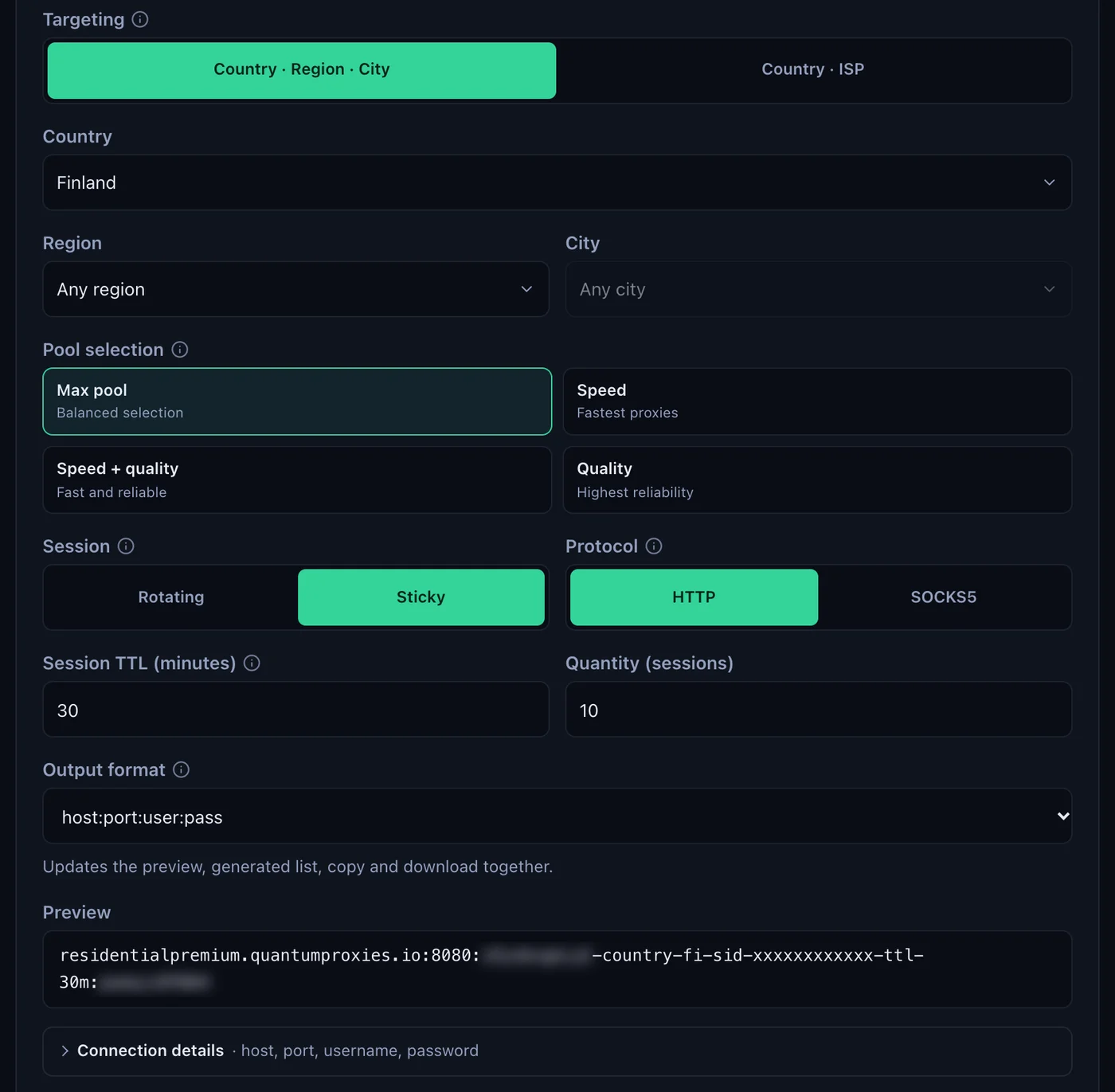
- Generate the proxy. In the Endpoint generator choose the Country, set Session to Sticky, set Session TTL (minutes) to the time you will browse, up to 1440, and choose HTTP. Open Connection details.
- Open ZeroOmega's Options. Click the ZeroOmega icon in the toolbar (in Chrome, pin it first from the puzzle menu) and click Options at the bottom of the menu.
- Create a profile. In the left menu, under Profiles, click New profile. Type a Profile name such as FI premium 01, keep Proxy Profile selected and click Create.
- Fill the Proxy servers row. In the (default) row set Protocol to HTTP, Server to
residentialpremium.quantumproxies.ioand Port to8080. The (default) row covers every site; Show Advanced opens separate rows for http://, https:// and ftp:// that you can leave on (use default). - Add the login. Click the lock button at the end of the row. In Proxy Authentication paste the Username whole, for example
USER-country-fi-sid-p01-ttl-60m, then the Password, and click Save changes. The lock turns green. - Click Apply changes. It is under Actions in the left menu and turns green while there are unsaved edits. ZeroOmega keeps nothing until you apply; Discard changes throws the edits away.
- Select the profile. Click the ZeroOmega icon and click FI premium 01. The icon takes the profile's colour and every site now goes through the proxy. Alt+Shift+O opens the same menu from the keyboard.
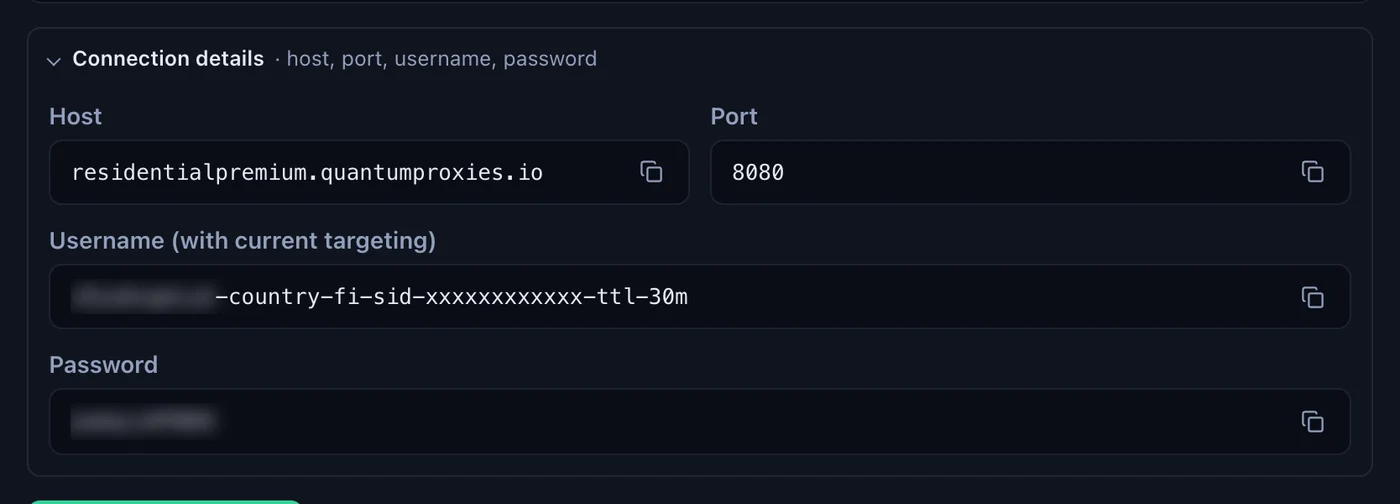
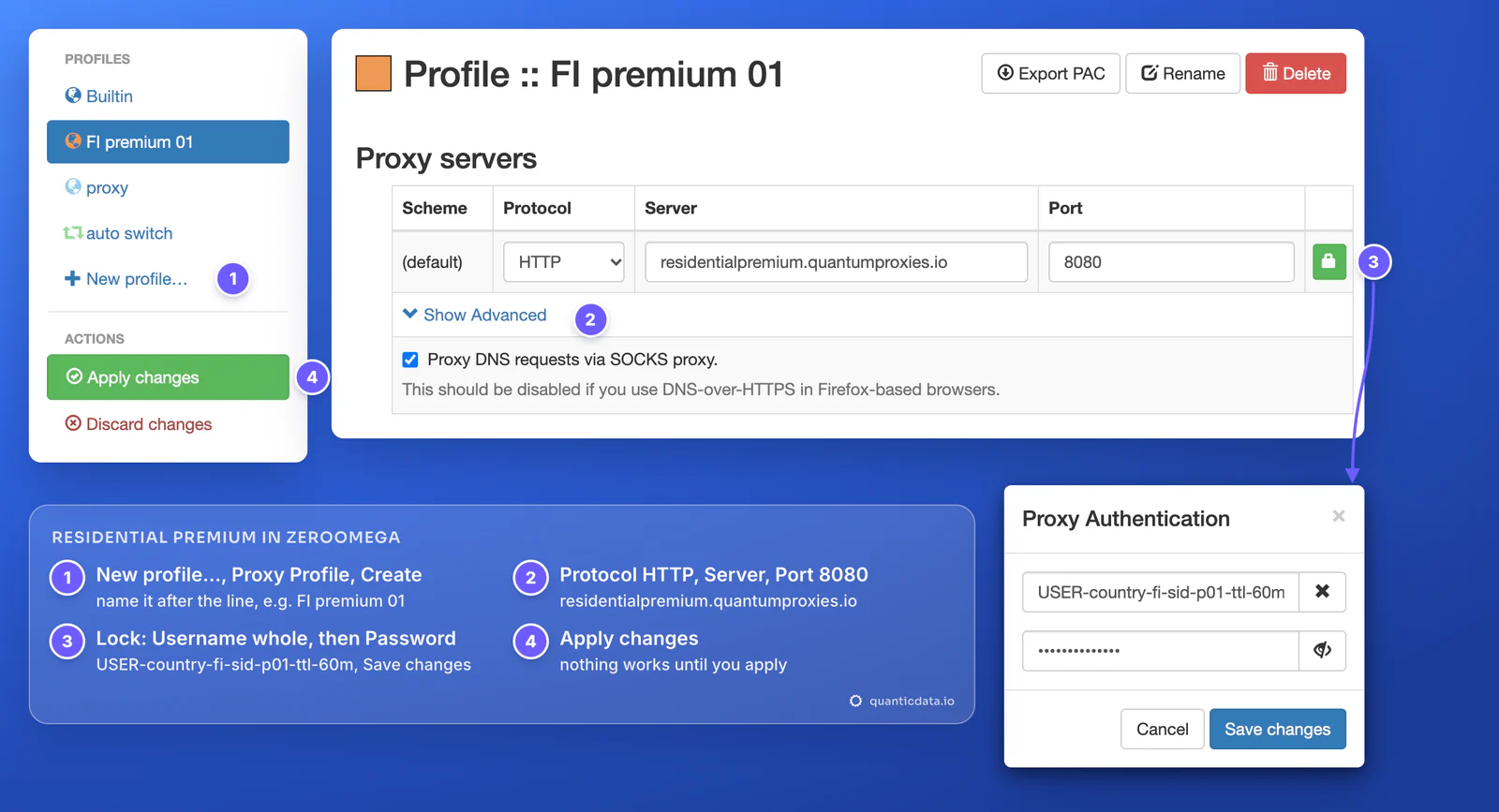
The username carries the targeting: -country-fi picks Finland, -sid-p01 names the session and -ttl-60m keeps the same IP for 60 minutes. A username cut at the first dash still logs in, but then each connection can leave from any country on a new IP. The Bypass List under the table lists hosts that never use the proxy, one per line; by default it holds 127.0.0.1, [::1] and localhost.
Check that the proxy works
With the profile selected, open ipinfo.io/json in a tab. The city, region and time zone must match the country in the username. On 23 October 2026 a QuanticData Finland line returned Helsinki, region Uusimaa, country FI and the time zone Europe/Helsinki. [Direct], at the top of the menu, turns the proxy off and the browser goes back to your own connection.
![The ZeroOmega popup in Chrome with the profile FI premium 01 selected under [Direct] and [System Proxy], and ipinfo.io/json in a tab showing city Helsinki, region Uusimaa, country FI and time zone Europe/Helsinki: a real check of a QuanticData Residential Premium Finland line on 23 October 2026, IP masked](zeroomega-popup-finland-check.webp)
HTTP or SOCKS5 in Chrome, Edge and Firefox
ZeroOmega offers the same Protocol list everywhere (DIRECT, HTTP, HTTPS, SOCKS4, SOCKS5), but the browsers do not give it the same powers:
| In ZeroOmega | Chrome and Edge | Firefox |
|---|---|---|
| HTTP proxy with username and password | Yes | Yes |
| SOCKS5 proxy with username and password | No: the lock dialog shows a warning and no login is sent | Yes |
| SOCKS5 with IP whitelist (no login) | Yes | Yes |
| Site names resolved by a SOCKS5 proxy | Always on the proxy side, no option needed | With Proxy DNS requests via SOCKS proxy (on by default); ZeroOmega says to turn it off with DNS-over-HTTPS |
| PAC Profile | Yes | No: ZeroOmega notes PAC Profiles do not work in Firefox |
| Permissions to grant first | None | Site permissions and private windows |
The SOCKS5 row is the browser's own limit, not ZeroOmega's: Chromium's documentation says no authentication methods are supported for SOCKSv5 in Chrome, and ZeroOmega only offers the SOCKS5 login where the browser has the API for it, which is Firefox. Our plans require a login on SOCKS5, so in Chrome and Edge keep Protocol on HTTP and Port on 8080. In Firefox, SOCKS5 on port 1080 with the same username and password works, and Proxy DNS requests via SOCKS proxy sends the site names through the proxy as well. HTTPS in the Protocol list means an encrypted connection to the proxy itself; QuanticData's ports are HTTP 8080 and SOCKS5 1080, so pick HTTP. Sites you open over HTTPS stay encrypted end to end through an HTTP proxy. More on the protocol on the page for SOCKS5 proxies.
On Chrome you can also use our own extension, Quantum Proxies Manager, which signs in with your API key and sets plan, country and session for you; the Chrome proxy guide covers it.
One sticky session per profile
A sticky session keeps one IP for as long as it lives, and the session lives in the username, so the line in a profile never has to change while you work. For a new IP, open the profile, click the lock, change the session ID and save, then click Apply changes:
# the profile FI premium 01: one Finland IP for an hour
residentialpremium.quantumproxies.io:8080:USER-country-fi-sid-p01-ttl-60m:PASS

# a new IP: same profile, new session ID under the lock, then Apply changes
residentialpremium.quantumproxies.io:8080:USER-country-fi-sid-p02-ttl-60m:PASS

# a whole day on one IP
residentialpremium.quantumproxies.io:8080:USER-country-fi-sid-p03-ttl-1440m:PASS
Two things about logins are worth knowing. ZeroOmega answers the proxy's login request by host and port: inside one auto switch profile, two Residential Premium profiles on residentialpremium.quantumproxies.io:8080 would both use the first username it finds, so keep one Premium profile per auto switch and use ISP or mobile profiles, which have their own hosts, for the other rules. And the browser keeps a proxy login for the session: ZeroOmega's maintainer notes that a changed password sometimes takes effect only after a browser restart, so if the exit IP stays the same after you change the session, close every browser window and open it again.
Residential Premium, ISP and mobile proxies in ZeroOmega
| Proxy type | In ZeroOmega | Good for |
|---|---|---|
| Residential Premium | Server residentialpremium.quantumproxies.io, HTTP 8080 (SOCKS5 1080 in Firefox); country, session and lifetime in the username, under the lock | Seeing sites as a home user in the country you choose |
| ISP | Fixed IPs under Assigned IPs as IP:Port:Username:Password; one Proxy Profile per IP | Accounts and sites that should see the same address for months |
| Mobile | Server mobile.quantumproxies.io, HTTP 8080 or SOCKS5 1080, -type-mobile in the username; Global, USA, EU or Asia gateway; IP whitelist available | Mobile-first platforms and anything tied to carrier networks |
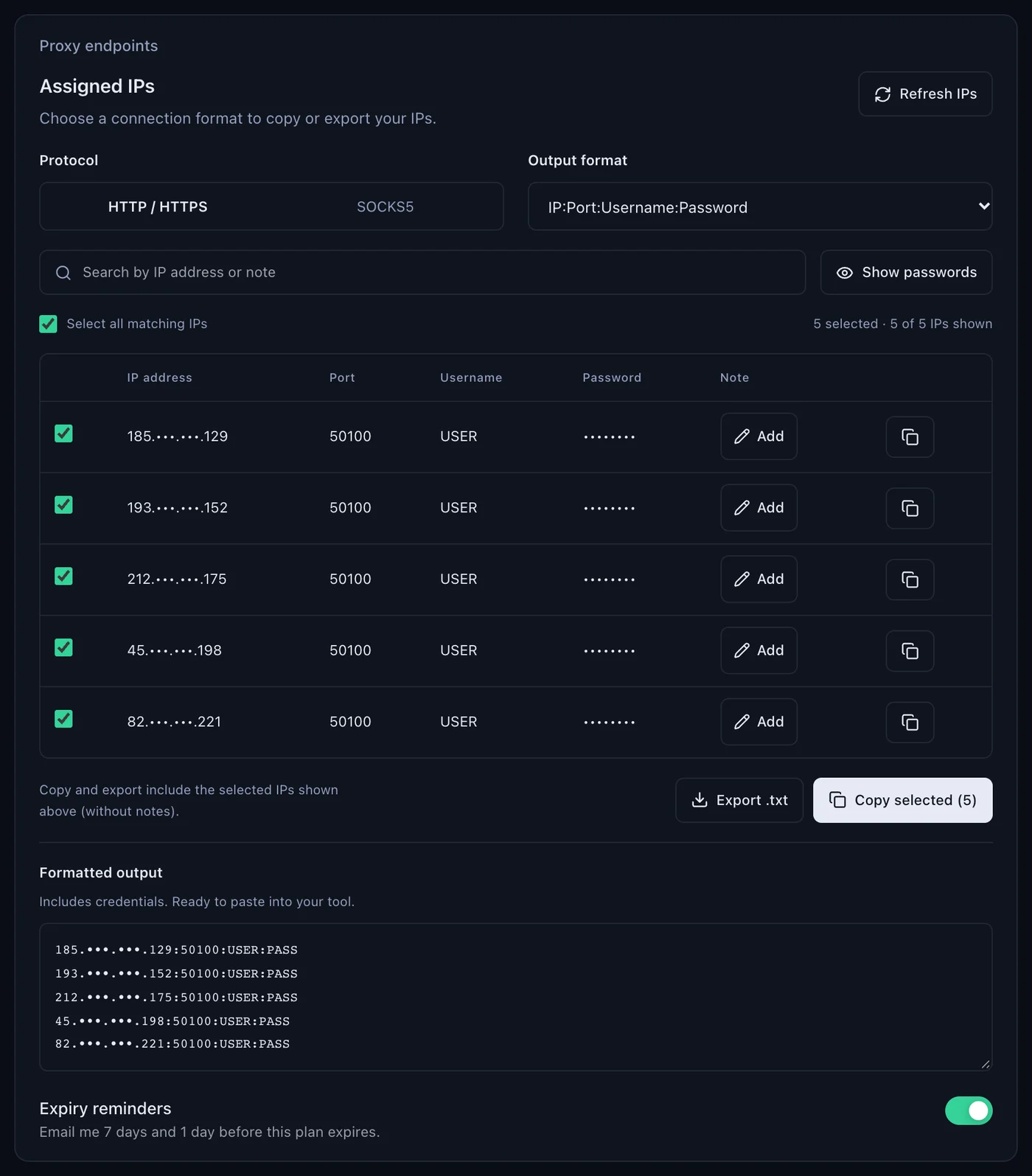
ISP plans. The plan's page lists your fixed IPs under Assigned IPs, with the output format IP:Port:Username:Password. Give every IP its own Proxy Profile: Protocol HTTP, Server = the IP, Port = the port next to it (50100 in the example below), and under the lock the Username and Password of that line. Name the profile after the IP so you can tell them apart in the popup. Each ISP IP has its own host, so their logins never collide, and the address stays the same every time.
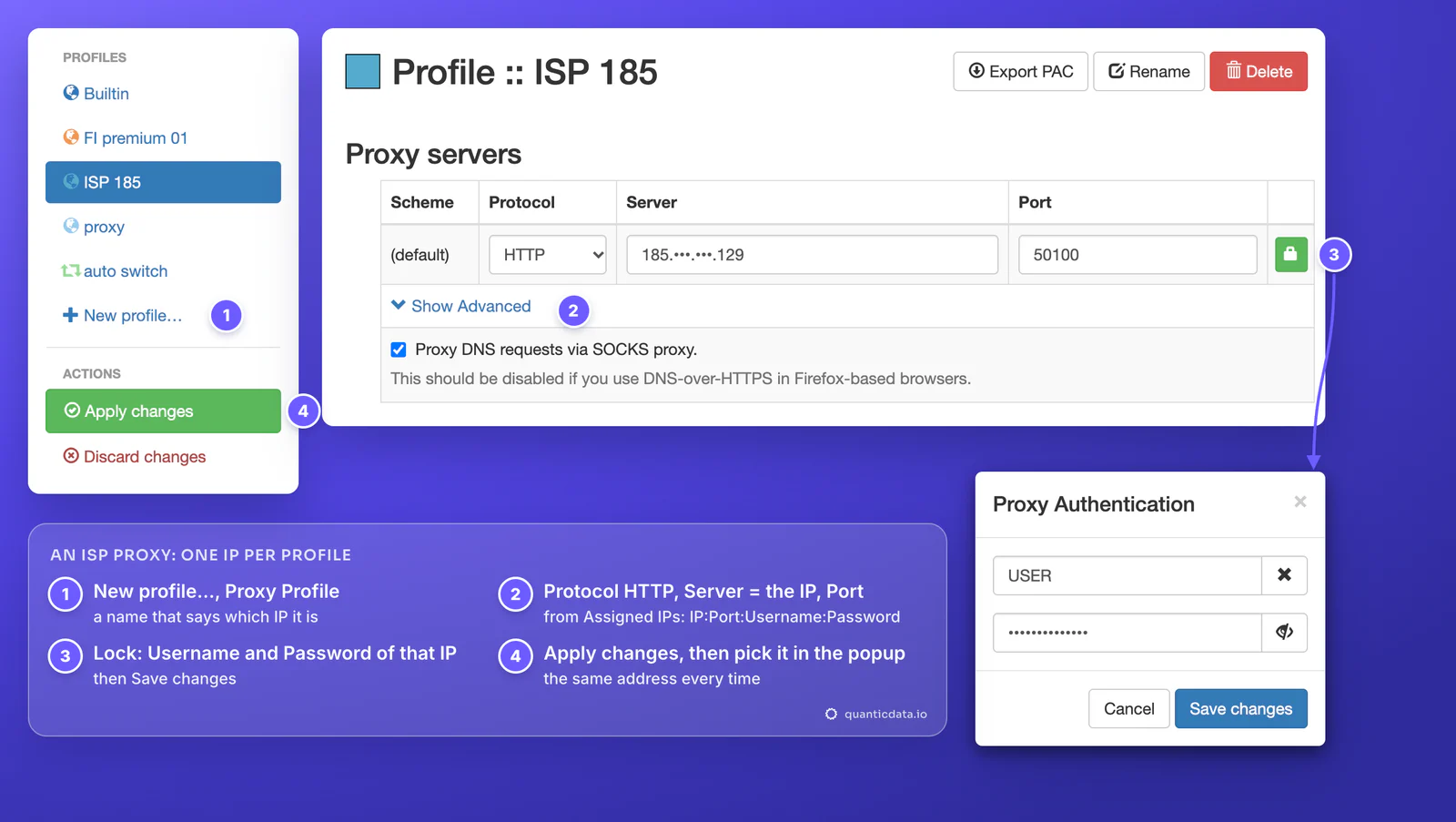
Mobile plans. Create a Proxy Profile with Server mobile.quantumproxies.io, Port 8080 and, under the lock, a sticky username such as USER-country-fi-type-mobile-sid-p02-ttl-60m; in Firefox, SOCKS5 on port 1080 works too. With IP whitelist you add your own IP in the dashboard and use the host:port list it gives: leave the lock empty (No Authentication), because the plan recognises your IP. With no login to send, a whitelisted SOCKS5 line works in Chrome as well. See the plans on the pages for QuanticData residential proxies, ISP proxies and mobile proxies.
Only some sites through the proxy: auto switch
Selecting a Proxy Profile in the popup sends every site through it. A Switch Profile chooses per site instead, and ZeroOmega creates one at install, called auto switch:
![ZeroOmega auto switch profile, Switch rules table: Host wildcard *.example.com to the profile FI premium 01, Host wildcard *.example.org to ISP 185, the Add condition button and the Default row set to [Direct], with notes that rules are read top to bottom and that auto switch must be selected in the popup](zeroomega-auto-switch-rules.webp)
- Open auto switch under Profiles in the left menu, or create a new one with New profile and Switch Profile.
- Write one rule per site. In Switch rules set Condition Type to Host wildcard, Condition Details to the site and Profile to the proxy profile, for example
*.example.comto FI premium 01. In a Host wildcard,*.example.commatches example.com and every subdomain;**.example.commatches the subdomains only. - Add condition adds the next rule. ZeroOmega reads the rules from top to bottom and uses the first that matches; drag the Sort handle to change the order.
- Set Default. The Default row decides every site that matches no rule: [Direct] sends the rest over your own connection.
- Click Apply changes, then select auto switch in the popup. A Switch Profile does nothing until it is the selected profile. The toolbar icon then shows the profile used for the current tab, and hovering it shows the details.
Rules can also be typed as text with Edit source code, and Add a rule list imports a list of conditions published online.
ZeroOmega (SwitchyOmega) not working: errors and fixes
| What you see | Usual cause | Fix |
|---|---|---|
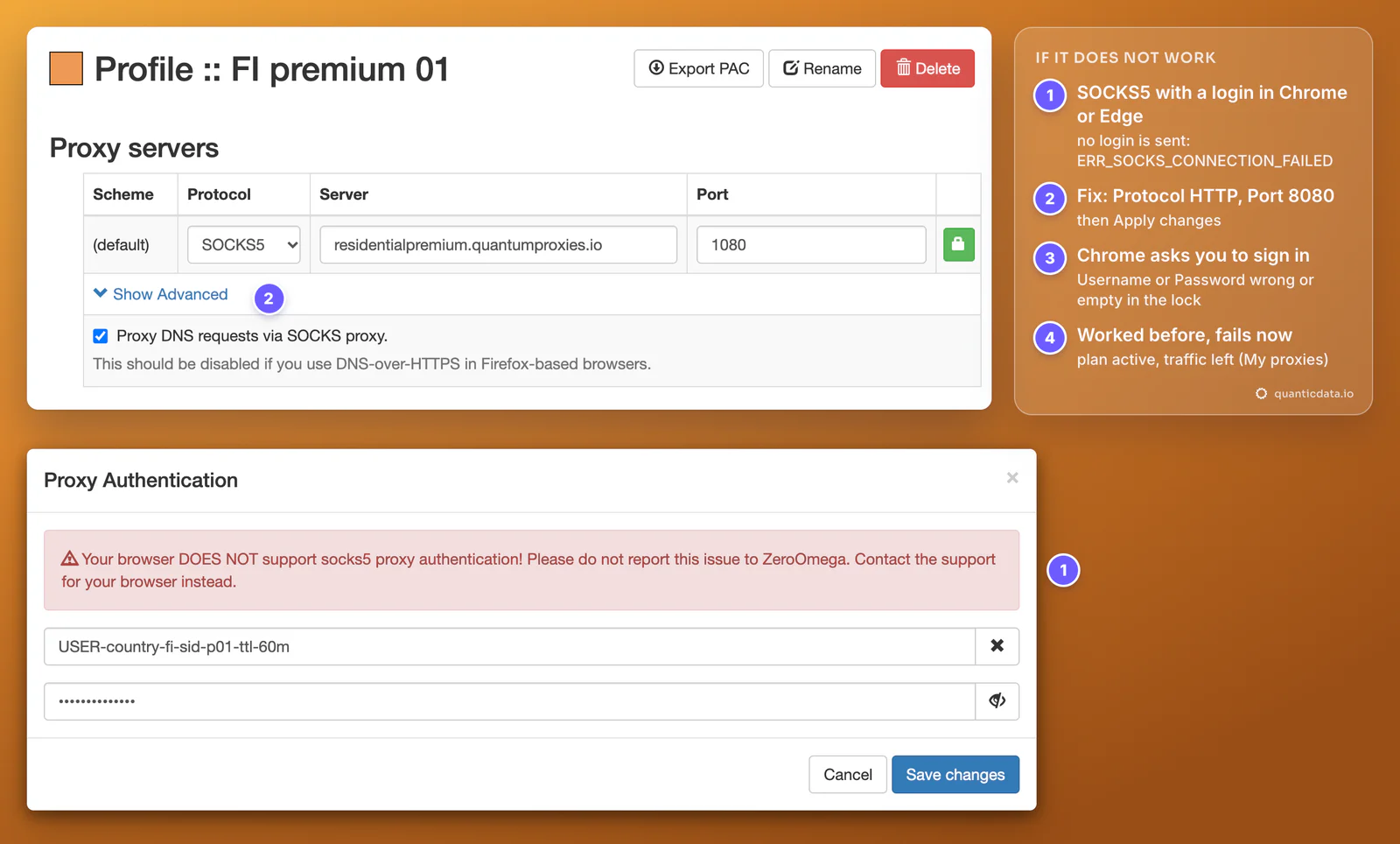
| The lock dialog says "Your browser DOES NOT support socks5 proxy authentication!"; pages fail with ERR_SOCKS_CONNECTION_FAILED | Protocol SOCKS5 in Chrome or Edge, which cannot send a SOCKS5 login | Protocol HTTP, Port 8080, Apply changes; for SOCKS5 with a login use Firefox |
| The browser asks you to sign in to the proxy | Username or Password missing or wrong under the lock | Fix them under the lock, Save changes, Apply changes; ZeroOmega does not keep what you type in the browser's own box |
| The popup says "The proxy settings are controlled by other app(s) or extension(s)." | Another proxy or VPN extension holds the browser's proxy settings | Turn the other extension off (Manage extensions), then select the profile again |
| The popup says "The proxy settings are overruled by policies." | A company policy sets the proxy on this browser | Ask your administrator; ZeroOmega cannot override a policy |
| Nothing changed after editing | The edits were not applied | Click Apply changes in the left menu |
| ipinfo.io shows your own IP | [Direct] or [System Proxy] is selected, or auto switch is on and no rule matches the site | Select the proxy profile, or add a rule for the site above the others |
| The popup shows "failed resources" | Some requests failed; ZeroOmega reports it but is not the cause | Test the proxy with curl (below), then check the plan |
| Wrong country or time zone | No -country- in the username, or a username cut short | Generate the line with a country and paste the username whole |
| Firefox shows Permissions required | Site permissions or private windows access not granted | Click grant site permissions and allow private windows |
| It worked yesterday and fails today | The plan expired or its traffic is used up | Check the plan in My proxies: status, remaining traffic, expiry date |
One test outside the browser tells the proxy apart from the extension. If this returns an address in the right country, the proxy works and the problem is in the ZeroOmega profile:
curl -x http://residentialpremium.quantumproxies.io:8080 \
  -U "USER-country-fi-sid-test-ttl-10m:PASS" https://ipinfo.io/json
If curl fails on your network and works on another one, a firewall or your internet provider is blocking the connection to the proxy port. More in the guide to using a proxy with curl and in the proxy not working checklist.
Before you browse through a proxy
A proxy changes where the browser's traffic comes from, not what you are allowed to do on a site. Keep to each site's terms and to the law where you work.
Sources & further reading
- ZeroOmega: source code, README and releases
- Proxy SwitchyOmega 3 (ZeroOmega) on the Chrome Web Store
- ZeroOmega on Firefox Add-ons
- ZeroOmega issue #5: proxy login prompts and browser restarts (maintainer replies)
- Chrome for Developers: Manifest V2 support timeline
- Chromium: proxy support in Chrome (SOCKSv5 authentication)
- RFC 1929: Username/Password Authentication for SOCKS V5