How to add a proxy to Multilogin: video guide
A 1:38 screen recording with captions: paste a sticky QuanticData line into a new Multilogin profile, read the passed proxy check, check, edit or copy a proxy from the profiles list, give an ISP IP to an existing profile and work through a failed proxy check.
The same steps in writing, with every field and error: Multilogin proxy setup guide, written step by step.
Chapters
Transcript
The captions of the video, line by line. Click a time to jump there.
- 0:00Open My proxies, then click your plan.
- 0:03In the Endpoint generator, choose the Country.
- 0:08Set Session to Sticky, with a TTL as long as the profile stays open.
- 0:12Protocol: HTTP uses port 8080, SOCKS5 uses port 1080.
- 0:15Keep Output format on host:port:user:pass and copy the line from Preview.
- 0:21Generate makes as many lines as Quantity says, ten by default.
- 0:24One sticky line per profile: each has its own session ID.
- 0:28In Multilogin: Create browser profile.
- 0:31Open the Proxy tab.
- 0:33Proxy: Custom.
- 0:35Protocol that matches the port: HTTP 8080, SOCKS5 1080.
- 0:38Proxy details: paste the whole line.
- 0:40Proxy check passed: See details shows the exit.
- 0:43Then Create, at the bottom of the page, and Start.
- 0:46Check or change a proxy from the profiles list.
- 0:49Right-click the profile, then Proxies.
- 0:51Check proxy: the status, the IP and the location.
- 0:54Edit proxy: paste a new line.
- 0:56Copy proxy: host:port:username:password.
- 0:59One session per profile: the -sid- in Notes keeps them apart.
- 1:03ISP plans: an ISP IP in an existing profile.
- 1:05Edit the profile, Proxy tab.
- 1:07Proxy: Custom.
- 1:09Protocol HTTP, for the HTTP / HTTPS lines.
- 1:12Proxy details: the line as it is.
- 1:14Proxy check passed: the IP is the one you pasted.
- 1:17Update. One IP per profile, kept for months.
- 1:20Proxy check failed: what to check.
- 1:22The protocol matches the port: here SOCKS5 on 8080.
- 1:25The line copied whole, with no spaces.
- 1:27Proxy connection failed at start: the same checks.
- 1:30Then: the plan active with traffic left. Still failing? Test the line with curl.
Where to go next
A sticky IP for every profile
Residential Premium, ISP and mobile proxies with country targeting and sticky sessions, over HTTP or SOCKS5, copied from the Endpoint generator into the app you use.
More video guides
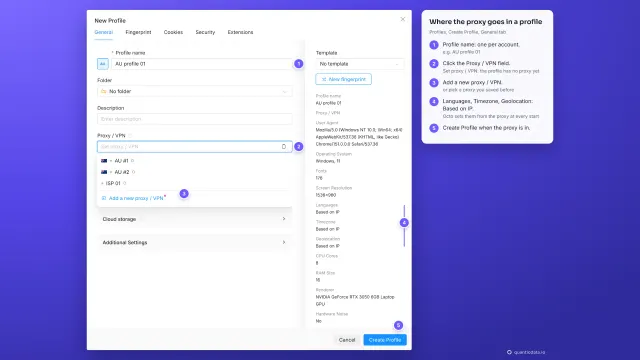 1:35How to add a proxy to Octo BrowserWatch the video
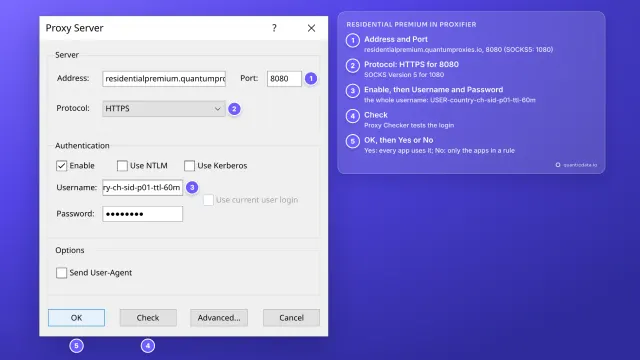 1:35How to add a proxy to ProxifierWatch the video
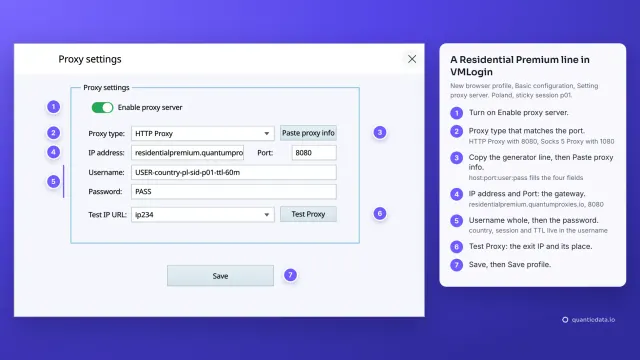 1:38How to add a proxy to VMLoginWatch the video
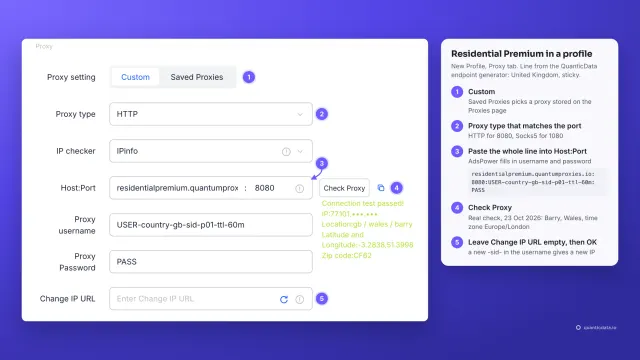 1:34How to add a proxy to AdsPowerWatch the video
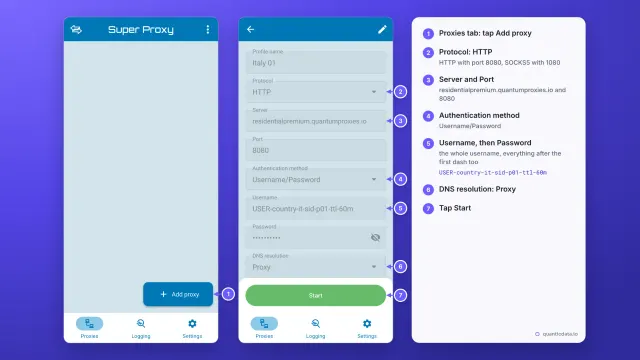 1:33How to set up a proxy on AndroidWatch the video
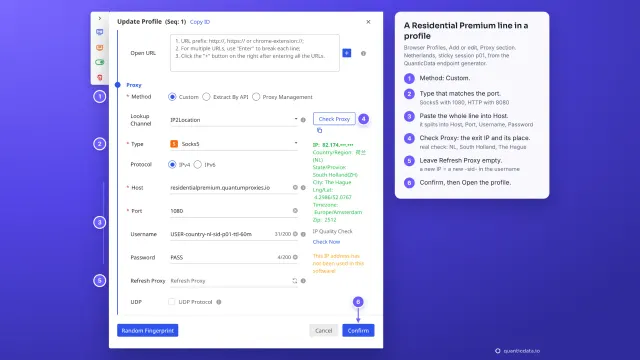 1:35How to add a proxy to BitBrowserWatch the video