How to add a proxy to GoLogin: video guide
A 1:39 screen recording with captions: add a sticky QuanticData line to a GoLogin profile, use the quick Add proxy box, check a proxy from All profiles, import many lines with a name each, mark SOCKS5 lines with socks5:// and give an ISP IP to a profile.
The same steps in writing, with every field and error: GoLogin proxy setup guide, written step by step.
Chapters
Transcript
The captions of the video, line by line. Click a time to jump there.
- 0:00Open My proxies, then click your plan.
- 0:03In the Endpoint generator, choose the Country.
- 0:08Set Session to Sticky, with a TTL as long as the profile stays open.
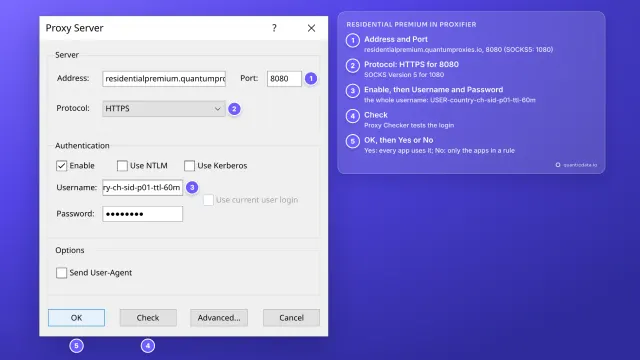
- 0:12Protocol: HTTP uses port 8080, SOCKS5 uses port 1080.
- 0:16Open Connection details: GoLogin's profile form asks for the values one by one.
- 0:22Copy the username whole: after the first dash come the targeting and the session.
- 0:27Generate makes as many lines as Quantity says, ten by default.
- 0:31One sticky line per profile: each has its own session ID.
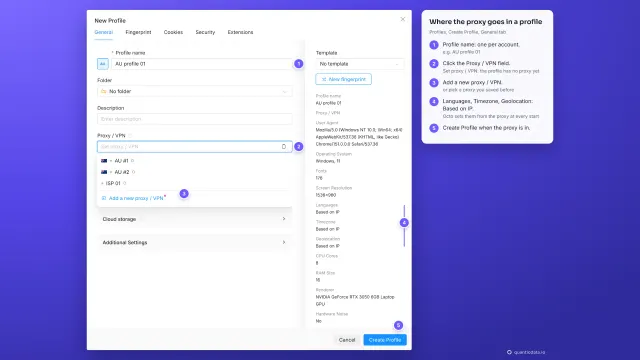
- 0:36In GoLogin: the profile, Proxy tab.
- 0:38Choose Your proxy.
- 0:40Proxy Type matches the port: HTTP 8080.
- 0:42Host and port from the generator.
- 0:44Login: the whole username. Then the password.
- 0:46Leave Change IP URL empty.
- 0:47Check Proxy, then Save.
- 0:50The quick way: the Add proxy box.
- 0:52Click + in Proxy & Location, then the computer icon.
- 0:54The type that matches the port.
- 0:56Host and port.
- 0:58Login: the whole username. Password.
- 1:00Leave Change IP empty, then Connect.
- 1:02Check a proxy from All profiles.
- 1:04Click the arrows next to the proxy name.
- 1:06The place must match -country-de.
- 1:08The exit IP, masked here.
- 1:10Many lines at once: Proxies, Import Proxies.
- 1:13One line per profile, each with its own session.
- 1:15A name after the last colon labels the proxy.
- 1:17SOCKS5: socks5:// at the start, port 1080.
- 1:19No prefix means HTTP: this line on 1080 fails.
- 1:21Import proxies, then assign them.
- 1:23ISP plans: one fixed IP per profile.
- 1:25Type HTTP.
- 1:27Host: the IP. Port: 50100.
- 1:29Login and Password from the same line.
- 1:31Change IP stays empty: the IP is static.
- 1:33Connect.
Where to go next
A sticky IP for every profile
Residential Premium, ISP and mobile proxies with country targeting and sticky sessions, over HTTP or SOCKS5, copied from the Endpoint generator into the app you use.
More video guides
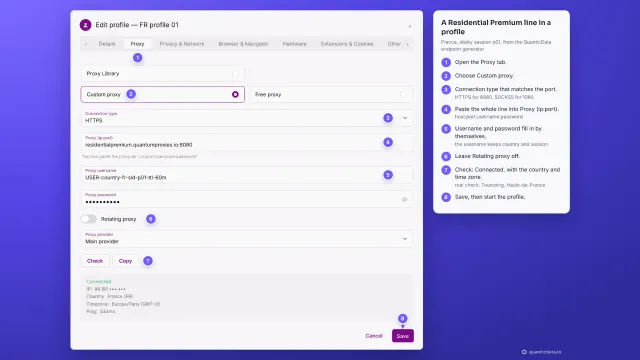 1:33How to add a proxy to IncognitonWatch the video
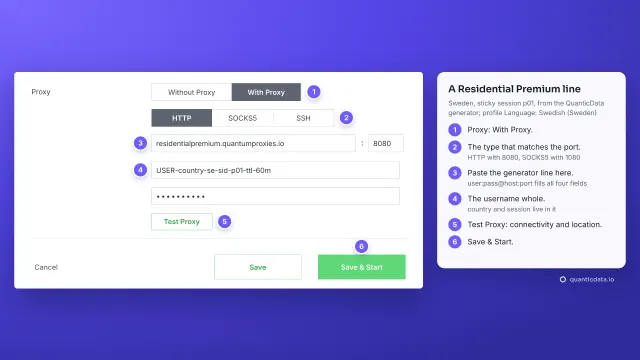 1:35How to add a proxy to KameleoWatch the video
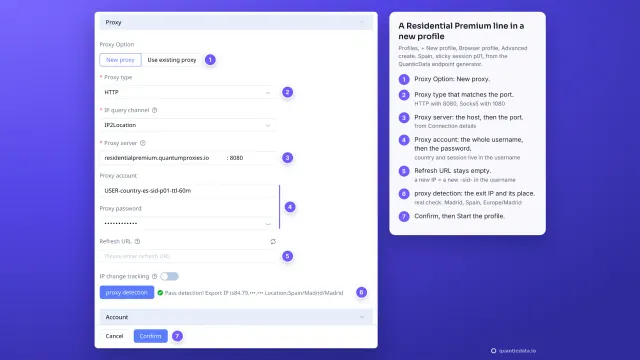 1:39How to add a proxy to MoreLoginWatch the video
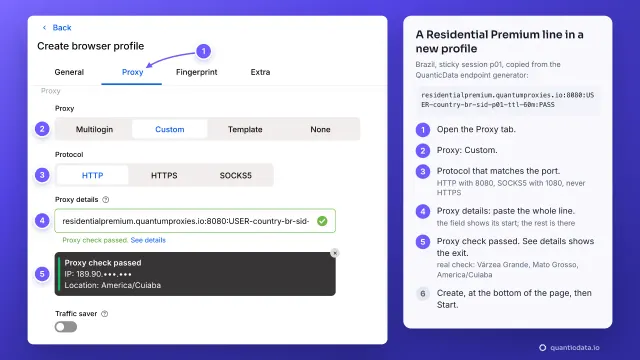 1:38How to add a proxy to MultiloginWatch the video
 1:35How to add a proxy to Octo BrowserWatch the video
 1:35How to add a proxy to ProxifierWatch the video