Mobile Proxies for Jarvee
A Windows desktop suite for scheduling and managing many social accounts, with a proxy field per account. QuanticData mobile proxies give each Jarvee session a real 4G/5G carrier IP shared with real phones, rotating or sticky for up to 24 hours, with the country and carrier chosen in the username — from $5 for 1 GB, no subscription.
Real carrier IPs · Rotating or sticky · HTTP, HTTPS and SOCKS5

What is Jarvee, and why put a proxy in front of it?
Jarvee is a long-running Windows application for managing many social-media accounts from one machine: scheduling posts, tracking growth and running actions on Instagram, Facebook, X, Pinterest, LinkedIn and others. Its design assumes one proxy per account, and its documentation says so. The reason is simple: a hundred accounts logging in from one office IP is the clearest possible signal to any platform, while a hundred accounts each on its own consistent address in its own country is how a hundred separate people look. Jarvee is also a tool that can be used to break platform rules, and proxies do not change that; the platforms' terms and limits apply to whatever the software does.
What people use mobile proxies for in Jarvee
Four workflows we see in Jarvee. None of them needs a proxy to break the platforms' rules; all of them need a network location and a reputation the platform treats as ordinary.
Per-account proxy assignment
Give each managed account its own sticky session in the country it was created in, so it always appears from the same place.
Agency scheduling
Publish scheduled content for client accounts from a network identity that matches each client.
Analytics and reporting
Pull follower and engagement data for managed accounts without triggering location challenges.
Multi-country operations
Manage accounts for clients in several countries from one desk, each on an exit in its own market.
Why mobile proxies for Jarvee
The platforms Jarvee talks to are phone-first, and a carrier IP behind CGNAT — shared with thousands of real users — is the least remarkable origin for an account login. A sticky mobile session per account, in the account's country, is the configuration most Jarvee users settle on for the accounts that matter most. Carrier selection in the username keeps each account on a plausible operator.
What a proxy does not do. A proxy gives each account a consistent network location; it does not make automated actions acceptable under the platforms' terms, and accounts that behave like bots are restricted regardless of network. Use the software within each platform's limits. Household IPs for the same job are on the residential proxies for Jarvee page.
Best mobile proxies for Jarvee
Jarvee, when it is still used, expects one proxy per account with a long sticky lifetime, entered in the account settings. The exit country matches the country of each account. With QuanticData the exits asked for most are the United States, the United Kingdom and Germany, with carriers such as T-Mobile and AT&T Wireless selectable in the username for the United States.
Automation actions are small, but the media the tool loads to embed and scrape adds up over a day. On the mobile network that means a session ID with a lifetime of up to 24 hours per Jarvee account, or no session at all to rotate through carrier IPs, from $5 for 1 GB with no subscription. The searches and the workflows around Jarvee both point to mobile: accounts live on phones, and a carrier IP is what they expect.
Which session to use for Jarvee: sticky or rotating
Sticky (one IP per account). One sticky session per account, never shared; TTL as long as the account's daily schedule; exit country fixed to the account's own. Country, session and targeting go in the username; credentials are in your dashboard after purchase.
# PROXY_HOST = host:port shown in your dashboard
# rotating: a new carrier IP on every request
curl -x "$PROXY_HOST" -U "USER-country-us-type-mobile:PASS" https://ipinfo.io/json

# sticky: one carrier IP for 30 minutes (up to 1440m), one session ID per account
curl -x "$PROXY_HOST" -U "USER-country-us-type-mobile-sid-jarvee-ttl-30m:PASS" https://ipinfo.io/json

# one carrier (code from the country page)
curl -x "$PROXY_HOST" -U "USER-country-us-isp-CARRIER-type-mobile:PASS" https://ipinfo.io/json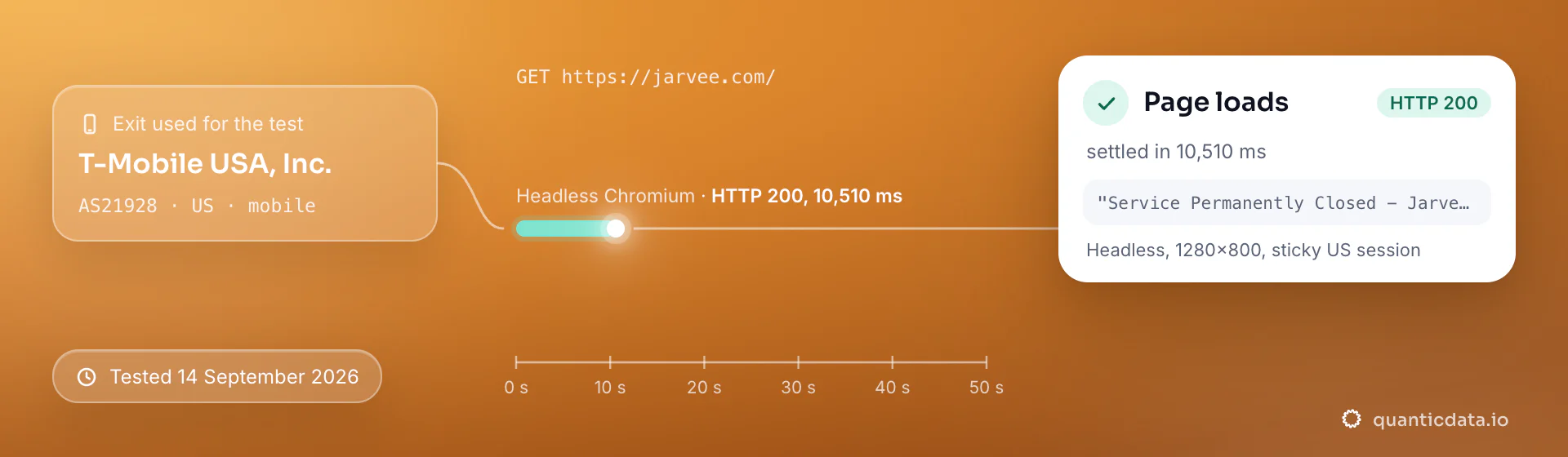
Best countries and carriers for Jarvee mobile proxies
The exits most often asked for with Jarvee, and why. Carriers are named only where the mobile catalog lists them; every country page shows the full list.
Mobile Proxies pricing for Jarvee
Per GB, valid 90 days, carrier and city targeting included, no port fees. Pay from balance, card, PayPal or crypto.
The same pool at every tier — a small test costs exactly $5 for 1 GB. Full ladder and terms on the pricing page.
How to start with Jarvee in minutes
- Create a free QuanticData account and open Plans → Mobile; pick a bundle — $5 for 1 GB is enough to test Jarvee on your real workflow.
- Copy host, port, username and password from the dashboard. Put the country in the username (
-country-us), a carrier if you need one (-isp-…), then-type-mobile, and a session ID with a lifetime when the Jarvee flow must keep one IP. - Enter host, port and the per-account username (with its session ID and TTL) in Jarvee's proxy field for each account; use the HTTP proxy type, verify with the built-in checker, and keep the assignment fixed.
- Run a small sample first and watch how Jarvee responds; a mobile IP is not a promise of access, acceptance or a particular success rate, and the platforms' terms and the law apply to what you do through it.
Set it up for Jarvee
QuanticData mobile proxies are standard HTTP and SOCKS5 endpoints: a host, a port, a username and a password, shown in your dashboard the moment a plan is active. The username carries the country and the carrier, and the session; host, port and password never change. For Jarvee use one sticky session per account: a session ID that no other account shares, and a lifetime that covers the login (up to 1440 minutes on mobile). Whatever the client, the four values are these:
host      PROXY_HOST                     # from your dashboard
port      PORT                           # the HTTP port, or the SOCKS5 port for a SOCKS5 node
username  USER-country-us-type-mobile-sid-jarvee-ttl-120m
password  PASS
Where to enter the four values
- iPhone and iPad → Shadowrocket. Add a server of type HTTP or Socks5 with the four values, select it, connect: every app on the phone, Jarvee included, leaves through the exit. Step-by-step guide.
- Android, or the whole network → OpenClash or Clash. An http or socks5 node with the same four values, on an OpenWrt router (every device behind it) or in Clash on the phone, which runs as a VPN so apps that ignore the system proxy still go through. Step-by-step guide.
- Desktop → Proxifier, or the browser's own proxy setting. Proxifier takes an HTTPS or SOCKS5 server with authentication and a rule for the Jarvee application; for web-only work the browser's proxy setting with the same four values is enough.
- Several accounts → one profile per session in an antidetect browser. Each profile gets its own username with its own session ID, so each account keeps its own IP; never share a session between two profiles. Step-by-step guide.
Test from the client with https://ipinfo.io/json: the org should be a carrier and the country the one in the username. A proxy changes where the traffic leaves from, nothing else; the platforms' terms apply to what you do through it.
FAQ
Mobile Proxies for Jarvee: does it work, which session, how to set it up, proxy clients, free options, mobile or residential.
Something else? Ask usDo mobile proxies work with Jarvee?
QuanticData mobile proxies work with Jarvee the way any proxy does: they change the network your traffic leaves from, to real 4G/5G carrier IPs. A proxy gives each account a consistent network location; it does not make automated actions acceptable under the platforms' terms, and accounts that behave like bots are restricted regardless of network. Use the software within each platform's limits.
Which proxy session should I use for Jarvee: sticky or rotating?
QuanticData recommends a sticky session for Jarvee. One sticky session per account, never shared; TTL as long as the account's daily schedule; exit country fixed to the account's own. Sessions are set in the username (a session ID and a lifetime, up to 1,440 minutes (24 hours)), so no proxy list is needed.
Which proxy type does Jarvee need?
QuanticData exits work with Jarvee's standard HTTP proxy field: host, port, username and password per account. Put the session ID and TTL in the username so each account keeps one address, choose the account's real country, and never assign one session to two accounts. The platforms' rules on automation still apply.
How do I set up a mobile proxy for Jarvee?
QuanticData gives you host, port, username and password the moment a plan is active: create a free account, open Plans → Mobile, pick a bundle ($5 for 1 GB to start) and copy the credentials from the dashboard. Enter host, port and the per-account username (with its session ID and TTL) in Jarvee's proxy field for each account; use the HTTP proxy type, verify with the built-in checker, and keep the assignment fixed. For Jarvee, the countries asked for most are the United States, the United Kingdom and Germany, with carriers such as T-Mobile and AT&T Wireless selectable in the username for the United States.
Can I use Proxifier with QuanticData for Jarvee?
QuanticData mobile proxies are standard HTTP and SOCKS5 endpoints with a host, a port, a username and a password, so any client that accepts a proxy node works, Proxifier included: enter those four values as a proxy server of type HTTPS or SOCKS5 in Proxifier on the desktop, with a rule for the application, and Jarvee traffic from the applications matched by the rule leaves through the exit set in the username. For Jarvee give each account its own sticky session — a session ID and a lifetime in the username — so the traffic keeps one IP for the whole login. Host and port are in your dashboard; the HTTP and the SOCKS5 port are different, so pick the one that matches the node type.
Is there a free mobile proxy for Jarvee?
QuanticData does not give away mobile proxies for Jarvee: the smallest mobile bundle is $5 for 1 GB, and the free option is the residential trial — 100 MB on Residential Basic for 5 days, no card — enough to test your setup against Jarvee from a home IP before paying for carrier IPs. Public "free proxy" lists are shared addresses that thousands of accounts have already used, which is why a login from one is treated as suspect from the first request; they also change daily, so nothing built on them keeps working for long.
Mobile or residential proxies for Jarvee?
QuanticData's answer for Jarvee is mobile, the network this page is about: Jarvee is used mostly from phones, and a carrier IP shared with real handsets behind CGNAT, held on a sticky session for up to 24 hours, is what its accounts expect. Residential is the cheaper choice for reading public Jarvee data at volume, from $1.00/GB; the residential page for Jarvee covers that side.
Get mobile proxies for Jarvee in minutes
Free account, pick a bundle, credentials in your dashboard. Mobile starts at $5 for 1 GB.
Buy mobile bandwidth Create a free account