Mobile Proxies for Clash Verge
Clash Verge Rev, the desktop Clash client for Windows, macOS and Linux built on the Mihomo core, which sends a computer's traffic through HTTP and SOCKS5 proxy nodes by rule. QuanticData mobile proxies give your desktop apps through Clash Verge a real 4G/5G carrier IP shared with real phones, rotating or sticky for up to 24 hours, with the country and carrier chosen in the username — from $5 for 1 GB, no subscription.
Real carrier IPs · Rotating or sticky · HTTP, HTTPS and SOCKS5
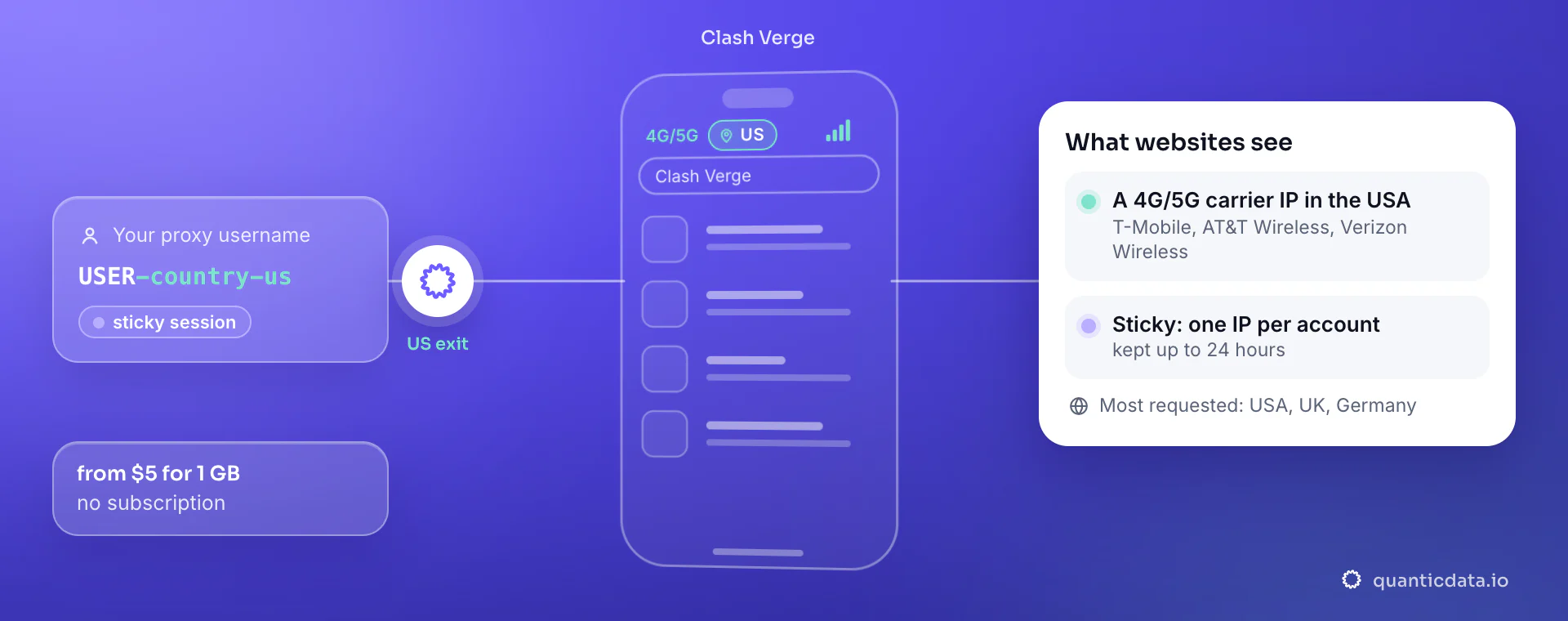
What is Clash Verge, and why add a proxy node to it?
Clash Verge Rev is a desktop app for Windows, macOS and Linux that runs the Mihomo (Clash Meta) core: it listens on a local port (7897 by default), and rules decide which traffic leaves through which node. It can set itself as the system proxy, which covers browsers and most apps, or install a virtual network adapter in TUN mode, which also catches programs that ignore the system proxy, such as games and command-line tools. What people ask us is whether a QuanticData proxy can be one of those nodes: it can, because the proxy is a standard HTTP and SOCKS5 endpoint with a host, a port, a username and a password, and those are the four fields of an http or socks5 node. Social-media and ad teams use it to keep a workstation on one exit in the account's country, QA teams to test a site or an app as users abroad, developers to send scripts through the same exit as the browser. This page is the setup guide, step by step.
What people use mobile proxies for with Clash Verge
Four workflows we see with Clash Verge. None of them needs a proxy to break the platforms' rules; all of them need a network location and a reputation the platform treats as ordinary.
One exit for the whole computer
System proxy mode covers the browser and the apps that read the system setting; TUN mode adds a virtual adapter so games, terminals and other apps that ignore it leave through the node too.
Per-app and per-domain routing
Rules send one browser profile, one app or a list of domains through the node and everything else DIRECT, so updates and video calls do not spend proxy bandwidth.
Several identities side by side
One node per session ID, each with its own sticky exit; switch between them on the Proxies page or bind each to a rule.
Terminal and scripts on the same exit
Copy the environment variables from the tray menu and curl, Python or Node in that shell use the node the browser uses.
Why mobile proxies for Clash Verge
A desktop is usually behind a mobile proxy because the accounts on it are used from phones too, and a platform that sees the same account on a carrier IP and on an office line sees two different users. A mobile exit gives the computer a 4G/5G carrier IP shared with thousands of real handsets behind carrier-grade NAT, held on a sticky session for up to 24 hours: put the username with the country, a session ID and the lifetime in the node once and Clash Verge keeps that IP until the session ends.
What a proxy does not do. A proxy node changes the network the computer's traffic leaves from; it does not change the browser's fingerprint, language or time zone, the accounts you are logged into, or the rules you write in Clash Verge: a domain or an app sent DIRECT never touches the node. The platforms' terms apply to what you do through it. Household IPs for the same job are on the residential proxies for Clash Verge page.
Best mobile proxies for Clash Verge
Everything Clash Verge sends to a node shares its exit, so the node carries one sticky session with a long lifetime; a second identity is a second node with its own session ID. The exit country is the country the accounts or the checks on that computer are meant to appear from. With QuanticData the exits asked for most are the United States, the United Kingdom and Germany, with carriers such as T-Mobile and AT&T Wireless selectable in the username for the United States.
Everything routed to the node counts: light for dashboards and messaging, heavy for video and app updates, so rules that send updates and calls DIRECT save bandwidth. On the mobile network that means a session ID with a lifetime of up to 24 hours per Clash Verge account, or no session at all to rotate through carrier IPs, from $5 for 1 GB with no subscription. For Clash Verge the split is by job: accounts on the mobile network, data collection on residential — this page covers mobile, and the residential page covers the other half.
Which session to use for Clash Verge: sticky or rotating
Sticky (one IP per account). Everything Clash Verge sends to a node shares its exit, so the node should hold one IP for as long as you work: a session ID and a lifetime of up to 24 hours in its username. A second identity is a second node with its own session ID; leave the session out only for a collection script that wants a new IP per connection. Country, session and targeting go in the username; credentials are in your dashboard after purchase.
# PROXY_HOST = host:port shown in your dashboard
# rotating: a new carrier IP on every request
curl -x "$PROXY_HOST" -U "USER-country-us:PASS" https://ipinfo.io/json

# sticky: one carrier IP for 30 minutes (up to 1440m), one session ID per account
curl -x "$PROXY_HOST" -U "USER-country-us-sid-clashv-ttl-30m:PASS" https://ipinfo.io/json

# one carrier (code from the country page)
curl -x "$PROXY_HOST" -U "USER-country-us-isp-CARRIER:PASS" https://ipinfo.io/json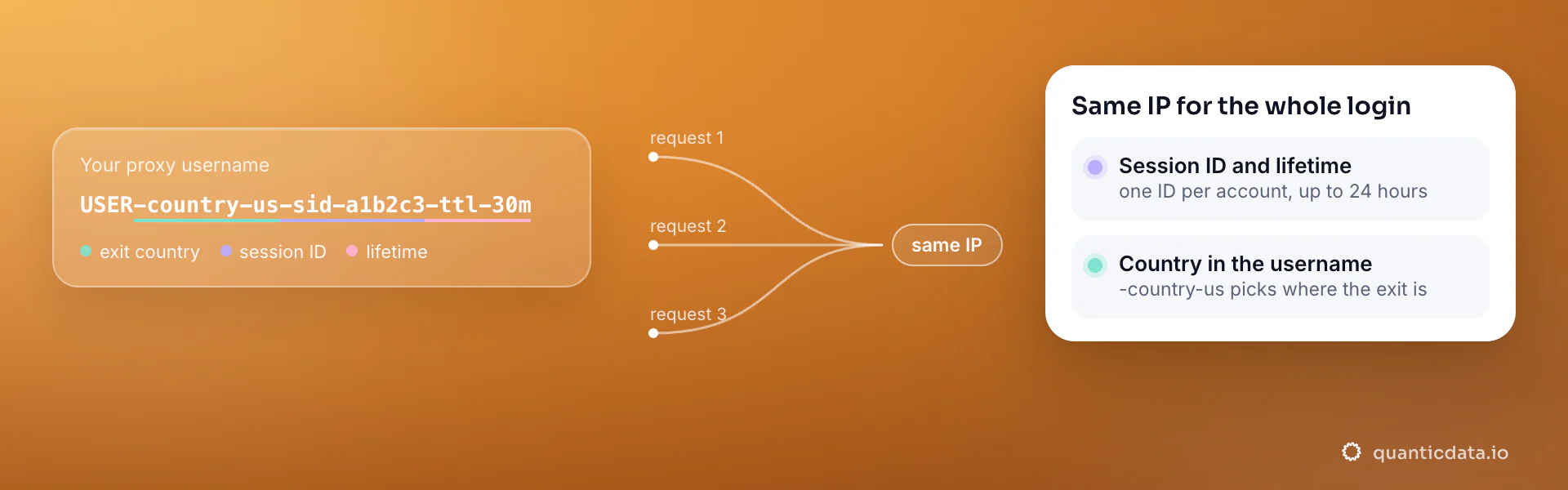
Best countries and carriers for Clash Verge mobile proxies
The exits most often asked for with Clash Verge, and why. Carriers are named only where the mobile catalog lists them; every country page shows the full list.
United States
The exit most often asked for on a desktop: US accounts and US search and ad checks.
T-Mobile, AT&T Wireless, Verizon Wireless · -country-us
United Kingdom
UK accounts and English-language QA from a second market.
Three, BT, O2 · -country-gb
Germany
The most requested EU exit for QA and for accounts run from abroad.
O2, Deutsche Telekom, Vodafone · -country-de
Mobile Proxies pricing for Clash Verge
Per GB, valid 90 days, carrier and city targeting included, no port fees. Pay from balance, card, PayPal or crypto.
The same pool at every tier — a small test costs exactly $5 for 1 GB. Full ladder and terms on the pricing page.
How to start with Clash Verge in minutes
- Create a free QuanticData account and open Plans → Mobile; pick a bundle — $5 for 1 GB is enough to test Clash Verge on your real workflow.
- Copy host, port, username and password from the dashboard. Put the country in the username (
-country-us), a carrier if you need one (-isp-…), and a session ID with a lifetime when the Clash Verge flow must keep one IP. - In Clash Verge Rev right-click your profile, choose Edit Nodes and add the QuanticData proxy as http://USER:PASS@HOST:PORT (or socks5:// with the SOCKS5 port), select it on the Proxies page, turn on System Proxy or TUN mode, and check the exit in a browser; the same node can go into a local YAML profile.
- Run a small sample first and watch how Clash Verge responds; a mobile IP is not a promise of access, acceptance or a particular success rate, and the platforms' terms and the law apply to what you do through it.
Set it up for Clash Verge
QuanticData mobile proxies are standard HTTP and SOCKS5 endpoints: a host, a port, a username and a password, shown in your dashboard the moment a plan is active. The username carries the country and the carrier, and the session; host, port and password never change. Clash Verge Rev on Windows, macOS or Linux. The node is a standard http or socks5 node with the four values from your dashboard; you can add it from the app or as YAML.
host      PROXY_HOST                     # from your dashboard
port      PORT                           # the HTTP port, or the SOCKS5 port for a SOCKS5 node
username  USER-country-us-sid-clashv-ttl-120m
password PASS- Get the four values. Open your QuanticData dashboard, pick the plan and use the endpoint generator: it prints the host, the HTTP port and the SOCKS5 port, your username with the country (and, for one IP for the whole session, a session ID and a lifetime), and your password.
- Add the node with Edit Nodes. On the Profiles page right-click your profile and choose Edit Nodes (Clash Verge Rev 2.4.5 or newer). Add the proxy as a URI, with HOST and PORT from your dashboard: http://USER:PASS@HOST:PORT with the HTTP port, or socks5://USER:PASS@HOST:PORT with the SOCKS5 port. Nodes added here are kept when the profile updates. If the password contains characters such as @ or :, URL-encode them.
- Or a local profile in YAML. To keep the whole configuration in one file, create a local profile and paste this, replacing PROXY_HOST, PORT, USER and PASS. Keep the quotes around the username, it contains hyphens. Leave the ports to the app: Clash Verge manages mixed-port itself and ignores it in profiles and extensions.
proxies: - name: "QuanticData US sticky" type: http # or socks5, with the SOCKS5 port server: PROXY_HOST # host from your dashboard port: PORT # port of that protocol, from your dashboard username: "USER-country-us-sid-a1b2c3-ttl-120m" password: "PASS" proxy-groups: - name: "Proxy" type: select proxies: ["QuanticData US sticky", "DIRECT"] rules: - MATCH,Proxy - Pick the node and the mode. On the Proxies page select the node in the Proxy group. Rule mode routes by the profile's rules, Global sends everything through the selected node, Direct sends nothing through it. For a first test, use Global with the QuanticData node selected.
- System proxy or TUN mode. System Proxy sets the operating system's proxy to Clash Verge's port, which covers browsers and the apps that read that setting. TUN mode installs a virtual network adapter and catches apps that ignore it, such as games and terminals; install the service mode to run TUN without starting the app as administrator, and allow the verge-mihomo core through the system firewall.
- Sticky or rotating. The username decides. With -sid-<id>-ttl-<minutes> everything sent to the node keeps one IP for that many minutes (up to 1440 on mobile and Residential Premium, 120 on Residential Basic); without a session ID every new connection leaves from a different exit, which breaks logins and suits collection only. One identity per node: a second node with a second session ID, and a rule such as PROCESS-NAME or a domain rule decides what goes where.
- Terminal and scripts. Right-click the tray icon and choose Copy Environment Variables, paste them in the shell, and curl, Python or Node in that shell use the node. Or point a tool at the local port directly: curl -x http://127.0.0.1:7897 https://ipinfo.io/json.
- Test the exit. Open https://ipinfo.io/json in the browser: the org should be a carrier (mobile) or a home ISP (residential) and the country the one in the username, not your own. Run the delay test on the node on the Proxies page; a number means the node answers.
- Typical errors. Timeout on the delay test: the port belongs to the other protocol (HTTP port on a socks5 node or the reverse) or the host is misspelled. Authentication failed or HTTP 407: a typo in the username, special characters in the password not URL-encoded, a password changed after regenerating the endpoint, or a plan with no bandwidth left. Some sites do not load at all: another program holds port 7897. Sites see your real country: the mode is Direct, a rule sends that domain DIRECT, or the app ignores the system proxy and needs TUN mode. Sessions drop every N minutes: the ttl expired, raise it.
FAQ
Mobile Proxies for Clash Verge: does it work, which session, how to set it up, proxy clients, what to check when it stops working, mobile or residential.
Something else? Ask usDo mobile proxies work with Clash Verge?
QuanticData mobile proxies work with Clash Verge the way any proxy does: they change the network your traffic leaves from, to real 4G/5G carrier IPs. A proxy node changes the network the computer's traffic leaves from; it does not change the browser's fingerprint, language or time zone, the accounts you are logged into, or the rules you write in Clash Verge: a domain or an app sent DIRECT never touches the node. The platforms' terms apply to what you do through it.
Which proxy session should I use for Clash Verge: sticky or rotating?
QuanticData recommends a sticky session for Clash Verge. Everything Clash Verge sends to a node shares its exit, so the node should hold one IP for as long as you work: a session ID and a lifetime of up to 24 hours in its username. A second identity is a second node with its own session ID; leave the session out only for a collection script that wants a new IP per connection. Sessions are set in the username (a session ID and a lifetime, up to 1,440 minutes (24 hours)), so no proxy list is needed.
How do I add a proxy in Clash Verge?
QuanticData proxies go into Clash Verge Rev as an http or socks5 node. In version 2.4.5 or newer, right-click the profile, choose Edit Nodes and add http://USER:PASS@HOST:PORT for the HTTP port or socks5://USER:PASS@HOST:PORT for the SOCKS5 port, with the four values from your dashboard; nodes added there survive profile updates. Select the node on the Proxies page and turn on System Proxy, or TUN mode for apps that ignore it.
How do I set up a mobile proxy for Clash Verge?
QuanticData gives you host, port, username and password the moment a plan is active: create a free account, open Plans → Mobile, pick a bundle ($5 for 1 GB to start) and copy the credentials from the dashboard. In Clash Verge Rev right-click your profile, choose Edit Nodes and add the QuanticData proxy as http://USER:PASS@HOST:PORT (or socks5:// with the SOCKS5 port), select it on the Proxies page, turn on System Proxy or TUN mode, and check the exit in a browser; the same node can go into a local YAML profile. For Clash Verge, the countries asked for most are the United States, the United Kingdom and Germany, with carriers such as T-Mobile and AT&T Wireless selectable in the username for the United States.
Can I use OpenClash with QuanticData for Clash Verge?
QuanticData mobile proxies are standard HTTP and SOCKS5 endpoints with a host, a port, a username and a password, so any client that accepts a proxy node works, OpenClash included: enter those four values as an http or socks5 node in OpenClash on the router, or in Clash on Android and desktop, and Clash Verge traffic from every device the rules send to that node leaves through the exit set in the username. For Clash Verge give each account its own sticky session — a session ID and a lifetime in the username — so the traffic keeps one IP for the whole login. Host and port are in your dashboard; the HTTP and the SOCKS5 port are different, so pick the one that matches the node type.
Clash Verge proxy not working: what to check
QuanticData support sees the same four causes when Clash Verge stops working behind a proxy. First, the sticky session expired: its lifetime ended, the next request left from a new IP and Clash Verge asked to log in again — set a longer lifetime or a new session ID per login. Second, the wrong country: the exit does not match the account's or the storefront's country. Third, the app ignores the system proxy, which many mobile apps do; route the whole device through a proxy client, or use a desktop or antidetect profile. Fourth, authentication: a typo in the username string, or IP whitelist auth after your own public IP changed. If Clash Verge itself says it detects a proxy, that is the platform's policy, not a setting to work around.
Mobile or residential proxies for Clash Verge?
QuanticData's answer for Clash Verge depends on the job: accounts and logins go on the mobile network (a carrier IP, sticky for up to 24 hours, from $5 for 1 GB), data collection goes on residential (from $1.00/GB, rotating through 200+ countries). This page covers mobile; the residential page for Clash Verge covers the same workflows on the other network.
Get mobile proxies for Clash Verge in minutes
Free account, pick a bundle, credentials in your dashboard. Mobile starts at $5 for 1 GB.
Buy mobile bandwidth Create a free account