
To use a proxy in ZennoPoster, add a Browser settings action to the project, choose Set proxy and paste the proxy as a URL: http://login:password@host:port, or socks5:// for SOCKS5. To give every thread its own IP, load a list of sticky lines from a file and let each thread take one. Below: each step, ISP and mobile lines, and a fix for each error.
ZennoPoster runs projects built in ProjectMaker, often in many threads at once, each with its own browser instance. The proxy decides which IP address and which country the sites see for that instance. ZennoPoster reads a proxy written like a URL, with the login before the host, and that is where most setups go wrong: host:port:user:pass, the layout many dashboards give first, is not a format it accepts. The action and field names below are the ones in ZennoLab's documentation, and the values come from the QuanticData endpoint generator.
What you need before you start
- ZennoPoster 7 with ProjectMaker, version 7.7.15.0 or later. That release added proxies with a host name; earlier versions took an IP address only, and every QuanticData gateway is a host name.
- A proxy plan. Residential Premium, ISP or mobile: all of them work in ZennoPoster. The table further down says which one fits which project.
- The line in URL format. In the QuanticData dashboard it is under My proxies, on the plan's page, in the Endpoint generator, with Output format set to http://user:pass@host:port.
The proxy format ZennoPoster reads
ZennoLab's documentation lists one layout, with or without a login:
- protocol://login:password@host:port for a proxy with a username and password.
- protocol://host:port for a proxy that recognises your IP, with no login.
- protocol is
http,socks4orsocks5. It can be left out (login:password@host:port), and ZennoPoster then uses http.
The same QuanticData proxy, written for ZennoPoster:
# HTTP, Residential Premium, sticky session in Türkiye
http://USER-country-tr-sid-zp01-ttl-60m:PASS@residentialpremium.quantumproxies.io:8080

# SOCKS5, the same session on its own port
socks5://USER-country-tr-sid-zp01-ttl-60m:PASS@residentialpremium.quantumproxies.io:1080

# no login: a mobile plan with your IP on the whitelist
http://mobile.quantumproxies.io:10000
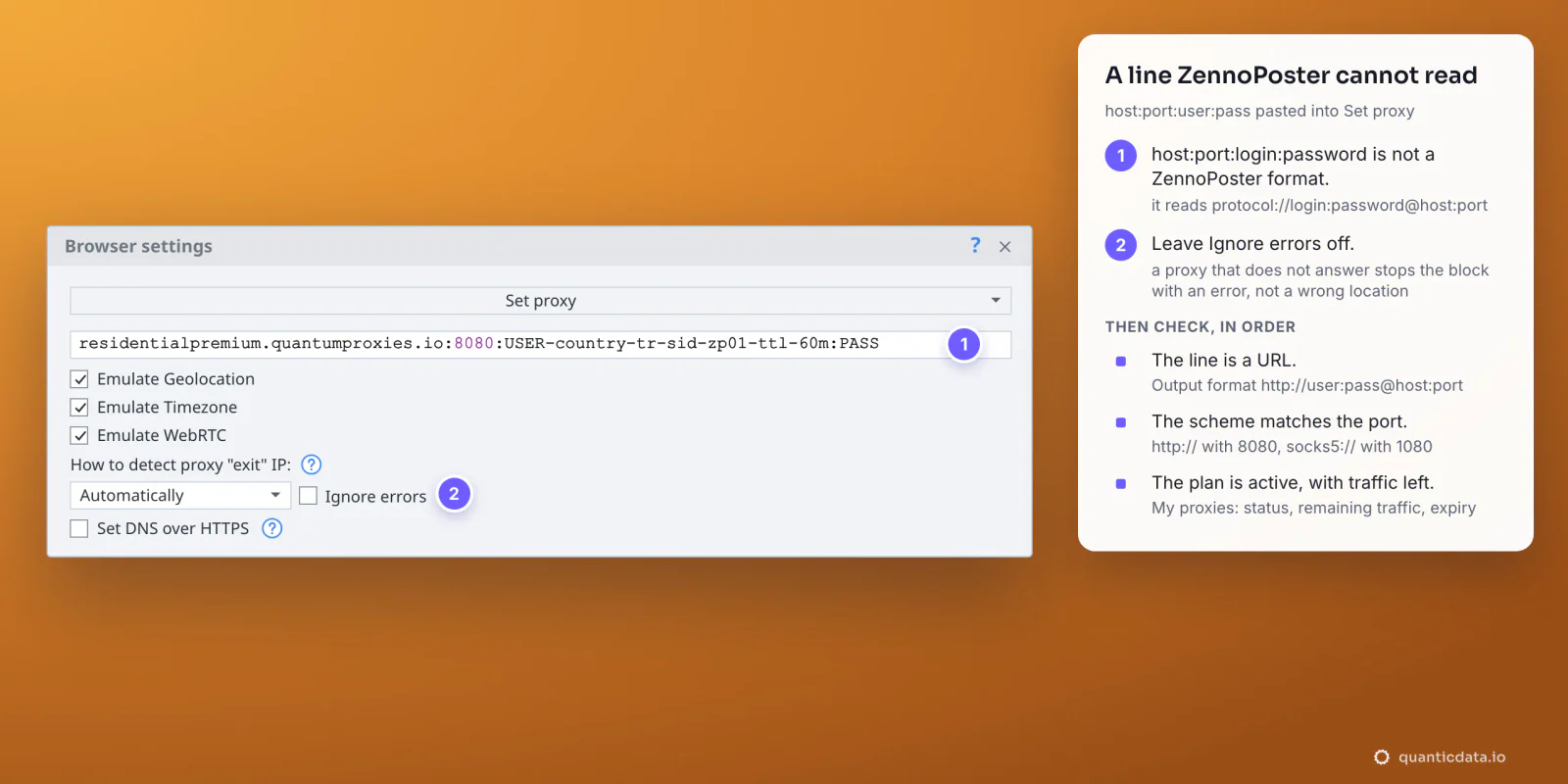
The login is everything between // and the colon before the password: -country-tr picks the exit country, -sid-zp01 names the session and -ttl-60m keeps it for 60 minutes. The generator writes the whole line when Output format is http://user:pass@host:port; with the Protocol on SOCKS5 the same option reads socks5://user:pass@host:port and the port changes to 1080. Pasting host:port:user:pass instead is the most common mistake: ZennoPoster does not read that layout.
Step by step: set a proxy in a ZennoPoster project
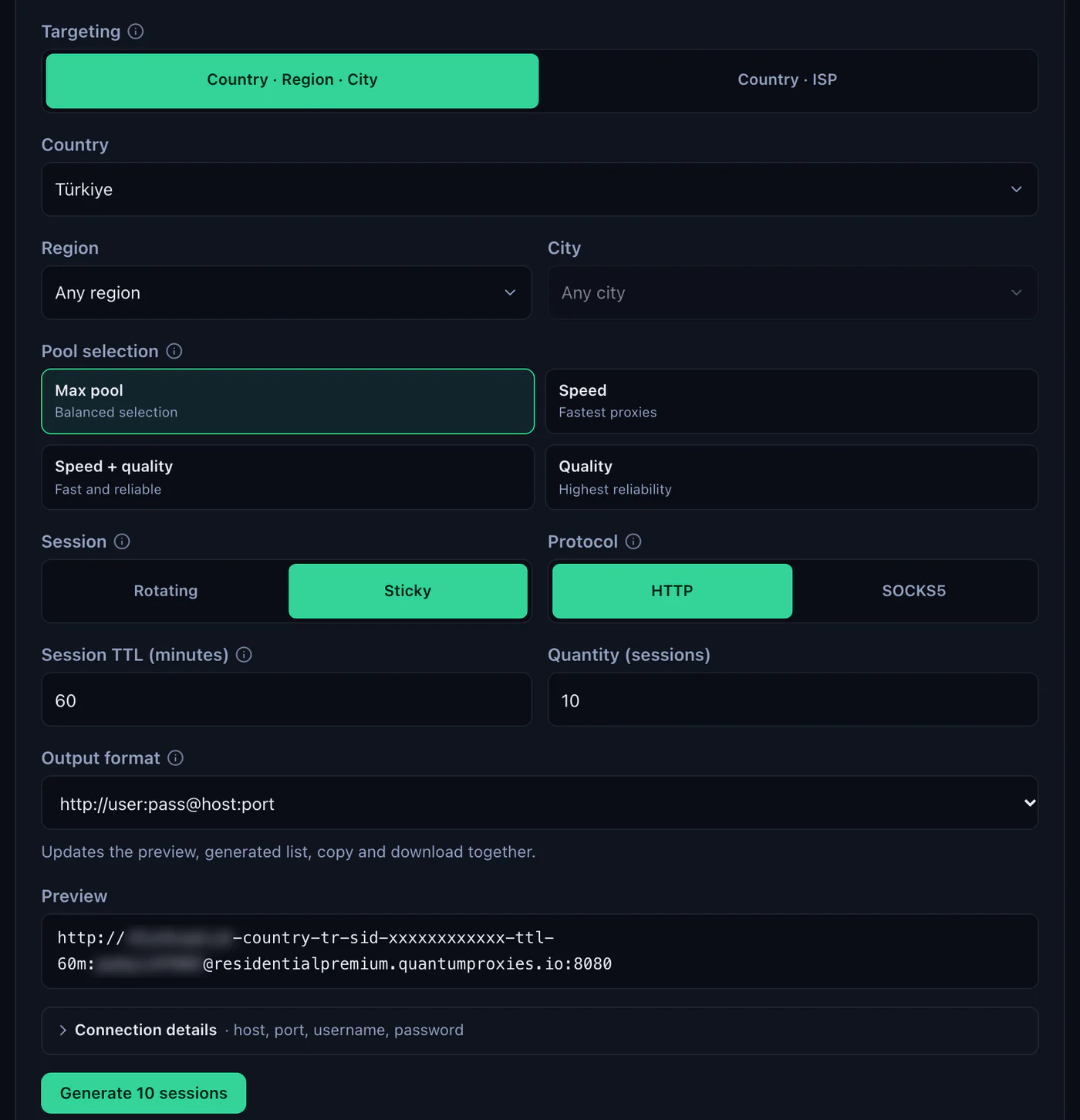
- Generate the line. In the QuanticData dashboard open My proxies, then your plan. In the Endpoint generator choose the Country (and a Region or City if the project needs one), set Session to Sticky, set Session TTL (minutes) to at least the length of one run, choose the Protocol and set Output format to http://user:pass@host:port. Copy the line from Preview.
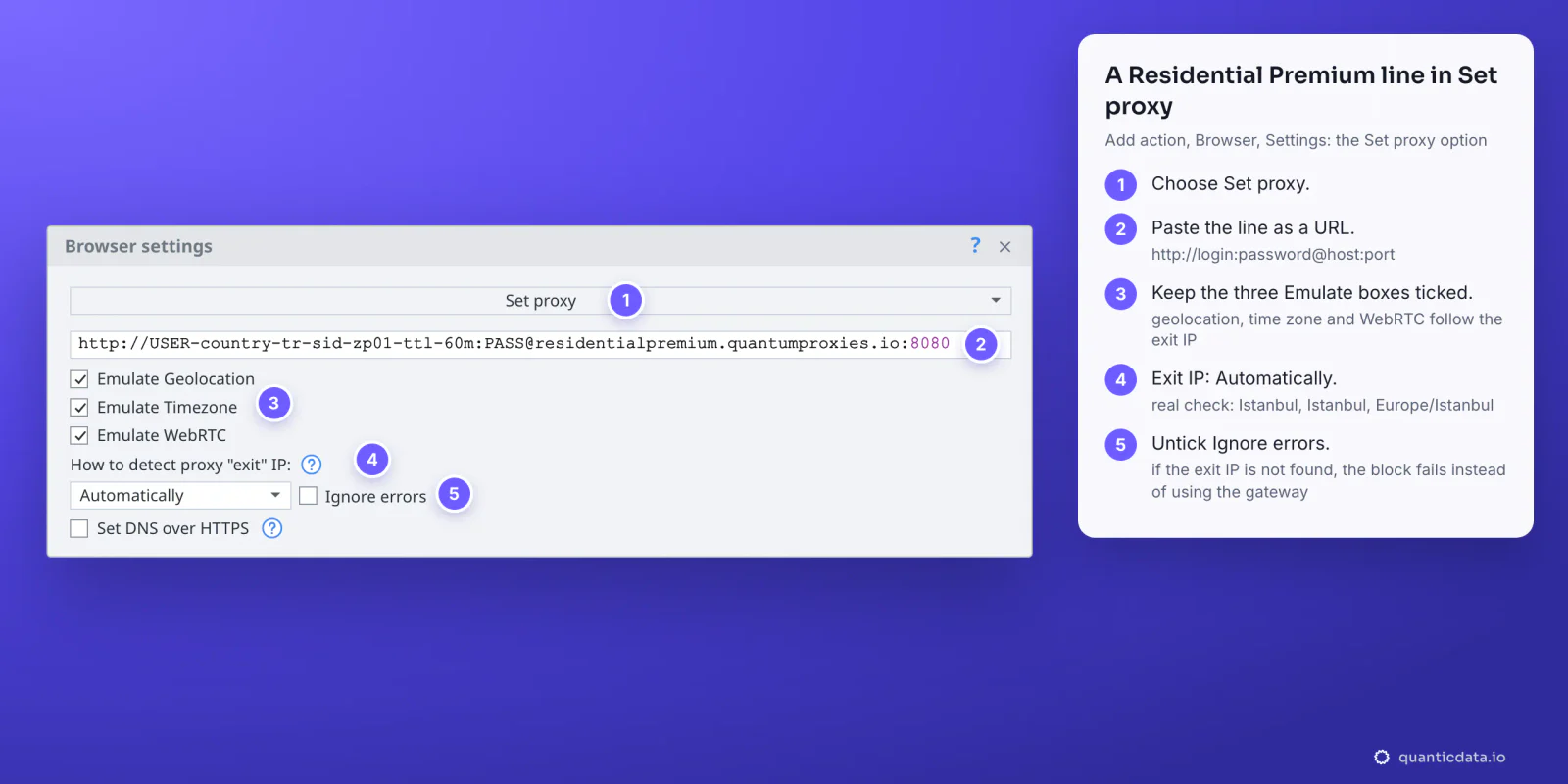
- Add the action. In ProjectMaker, right-click the canvas and choose Add action, Browser, Settings. Connect it so that it runs before the first page the project opens.
- Choose Set proxy in the action's drop-down list.
- Paste the line into the field under it. The field also takes a variable, which is how every thread gets its own proxy (next section but one).
- Keep the three Emulate boxes ticked. With Emulate Geolocation, Emulate Timezone and Emulate WebRTC on, ZennoPoster sets the browser's location, time zone and WebRTC address to match the proxy's exit IP.
- Leave How to detect proxy "exit" IP on Automatically. ZennoPoster then finds the exit IP through ZennoLab's servers. Manually specified is for when you already know it.
- Untick Ignore errors. With it ticked and the exit IP not found, ZennoPoster emulates the location of the address you connect to, which for a gateway is the gateway itself, not the IP the sites see. With it unticked, the action fails and you know why.
- Run the project and check the exit, as in the next section.
While you record a project by hand, the browser window of ProjectMaker can also take a proxy: its status bar shows the current one and, from version 7.3.2.0, sets it with a click, and the Profile window has a Proxy section that takes the same format. In a project that runs on its own, the Set proxy action is the one that counts.
Check where the project exits
After Set proxy, add a Go to page action to https://ipinfo.io/json, or type the address in the browser of ProjectMaker. The page shows the exit IP, its city, region, country and time zone; the country has to match the -country- in the login. Our check of a QuanticData Türkiye line on 23 October 2026 came back from Istanbul, region Istanbul, time zone Europe/Istanbul.
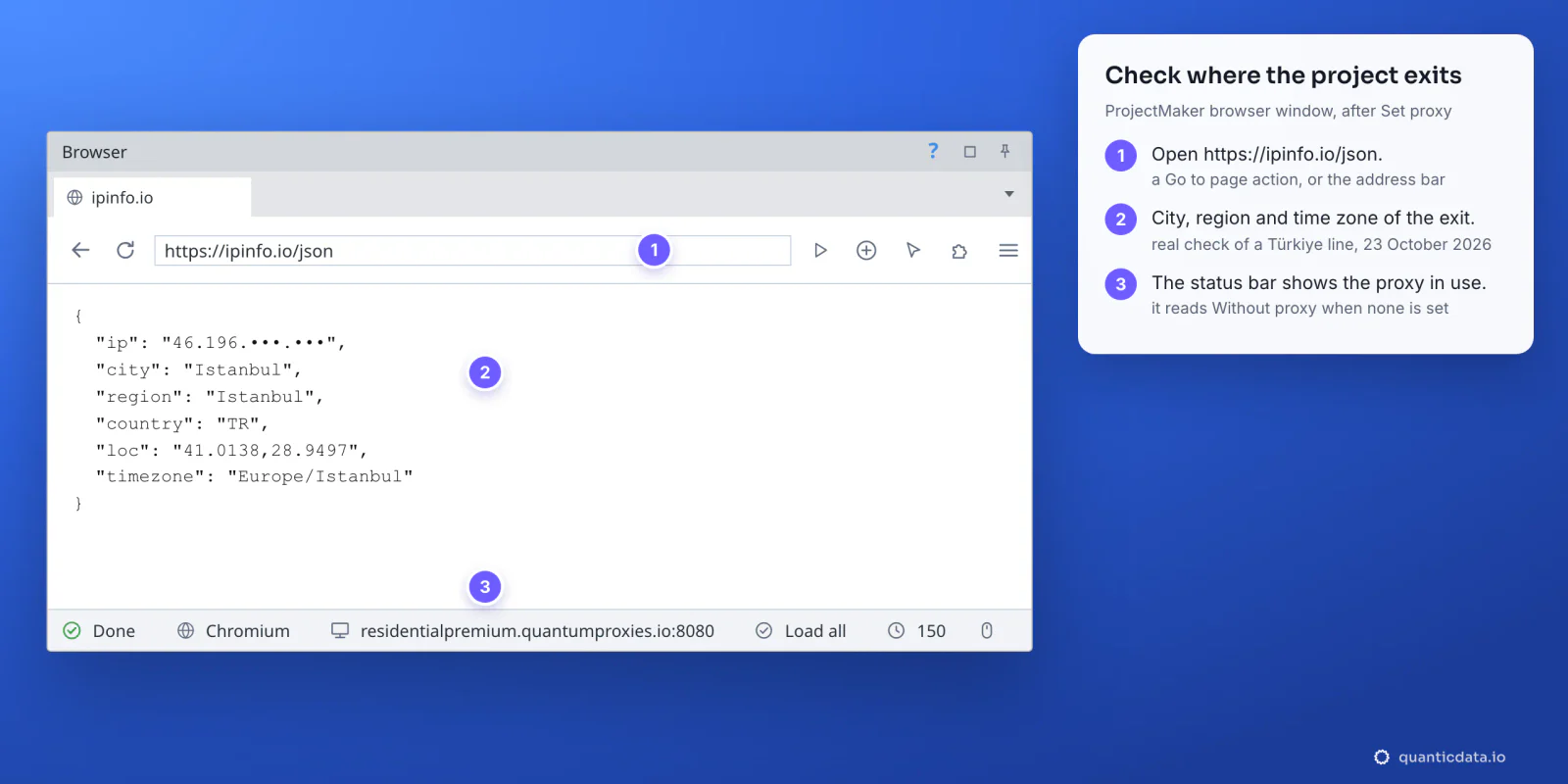
The status bar at the bottom of the browser window shows the proxy in use; it reads Without proxy when there is none. In a project that runs without anyone watching, a GET request does the same check: on its Proxy tab choose Active project proxy, send it to https://ipinfo.io/json and write the answer to the log.
One test outside ZennoPoster tells you whether the proxy itself works. If this returns an address in the right country, the problem is in the project, not in the proxy:
curl -x http://residentialpremium.quantumproxies.io:8080 \
  -U "USER-country-tr-sid-test-ttl-10m:PASS" https://ipinfo.io/json
A different proxy for every thread
ZennoPoster runs a project in as many threads as its Max threads setting allows. A line written straight into Set proxy is the same in every thread, so every thread leaves from the same sticky IP. To give each thread its own, put the lines in a list and let each thread take one. Every line from the generator carries its own session ID, so every line is a different IP.
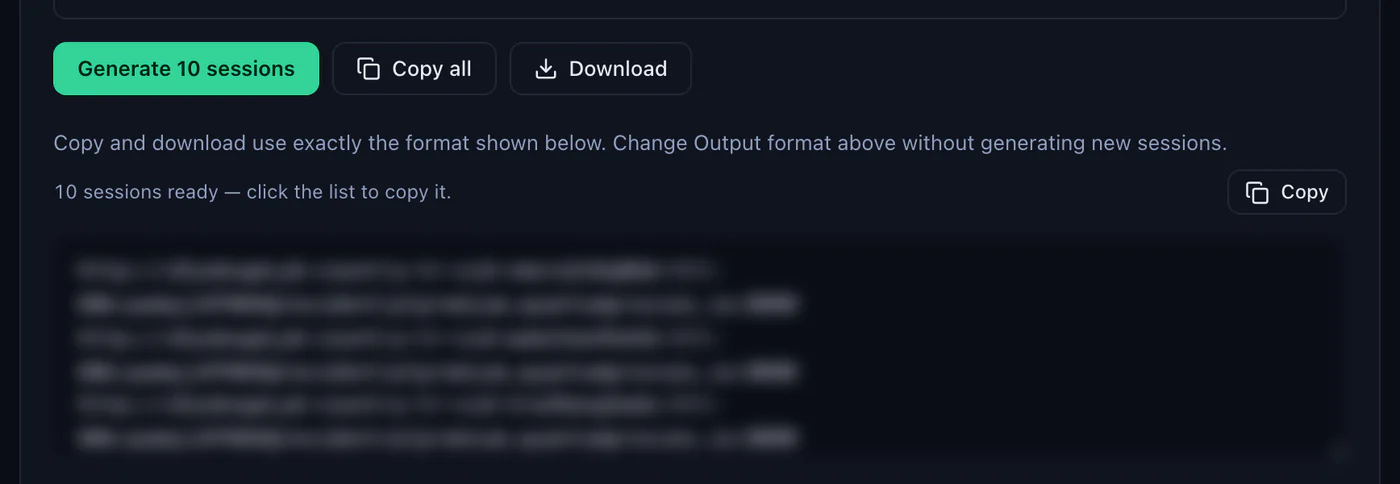
- Make the lines. In the generator keep Session on Sticky and the URL output format, set Quantity (sessions) to the number of lines you need, click Generate, then Download (or Copy all and save the text as a .txt file).
- Add a list to the project. Right-click the canvas, Add action, Lists, List; the list appears in the static blocks panel at the bottom. The example calls it proxies.
- Load it from the file. Open the list, tick Load from file and choose the .txt in File path.
- Tick Save list changes to a file. This box is what makes the method work. ZennoLab's documentation is explicit: without it every thread works on its own copy of the list, so every thread would take the same first line; with it, all threads share one copy and every change goes back to the file.
- Take one line per thread. At the start of the project add Add action, Lists, List processing, and set it to the list proxies, Get line, First. Tick Delete line after taking and, under Put to variable, write proxy. Each thread removes the line it takes, so the next thread gets the next one.
- Use the variable in Set proxy. In the Set proxy field write
{-Variable.proxy-}instead of a line. - Set the threads in ZennoPoster. In the project's Settings tab, set Max threads, and keep its Proxy setting on Don't use: the project sets its own proxy, so ZennoPoster should not hand the thread one from its ProxyChecker as well.
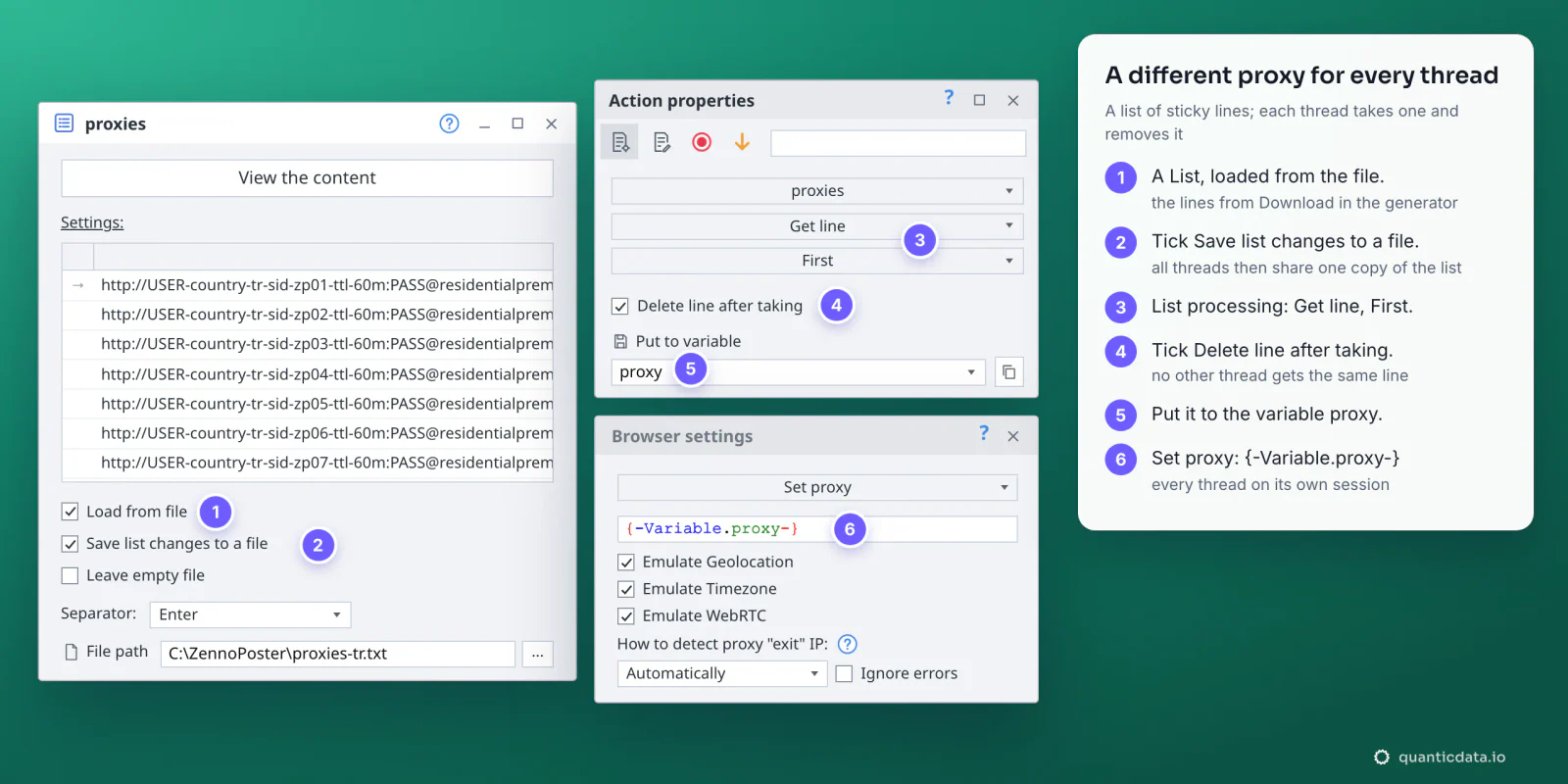
With Delete line after taking on, each line is used once. When a project runs more times than there are lines, either generate more (the generator makes as many as the Quantity field says) or put the line back when the run ends: List processing, Add a line, the variable proxy, at the end. A line that comes back keeps its session ID; once its TTL has passed, the same line gives a new IP. Get line with Random and no deletion is not a substitute: two threads can draw the same line.
For accounts, keep the line with the account rather than drawing it from a pool: a table with the login in one column and its proxy line in the next gives each account the same session every time it runs.
Which proxy type for which project
| Proxy type | In ZennoPoster | Good for |
|---|---|---|
| Residential Premium | One sticky line per thread or account, as http:// on 8080 or socks5:// on 1080; country, region, city or ISP in the login; username and password only | Most projects: home IPs in the country you choose, one per thread |
| ISP | Fixed IPs listed under Assigned IPs; Output format Proxy URL gives http://USER:PASS@IP:50100, SOCKS5 on 50101 | Accounts that should keep the same address for months |
| Mobile | One sticky line per thread with -type-mobile in the login; Global, USA, EU or Asia gateway; HTTP 8080 or SOCKS5 1080; IP whitelist with no login | Phone-first platforms and accounts tied to mobile networks |
Residential Premium proxies in ZennoPoster
A rotating line changes IP on every request, which suits plain scraping and breaks anything with a login: the site sees the same session jump between addresses. A sticky session keeps one IP for as long as it lives, and it lives in the username, so the line never changes once it is in the list.
# thread or account 1: Türkiye, one session for a working day
http://USER-country-tr-sid-zp01-ttl-480m:[email protected]:8080

# thread or account 2: same plan, its own session (never reuse zp01)
http://USER-country-tr-sid-zp02-ttl-480m:[email protected]:8080

# thread or account 3: Germany, open all day
http://USER-country-de-sid-zp03-ttl-1440m:[email protected]:8080- A different session ID for every thread. Two threads on the same line share one IP, which is what the list above exists to prevent.
- A lifetime longer than the run. The generator accepts up to 1440 minutes, a full day. When the session ends, the next request gets a new IP.
- The country in the login. Without
-country-the exit can be anywhere, and the emulated time zone follows wherever it lands.
More on the network itself: QuanticData residential proxies, and proxies in Türkiye for the country used in this guide.
ISP proxies in ZennoPoster
An ISP plan gives fixed IPs, listed in the dashboard under Proxy endpoints, Assigned IPs. Set Output format to Proxy URL and every IP comes out as a line ZennoPoster reads as it is: http://USER:PASS@IP:50100. For SOCKS5, switch Protocol above it: the port becomes 50101, and the line has to start with socks5://. Copy one line into Set proxy, or use Export .txt to make the file for the list method above: one IP per thread or per account, the same IP for months. Since the exit IP is the IP in the line, the emulation follows it directly.
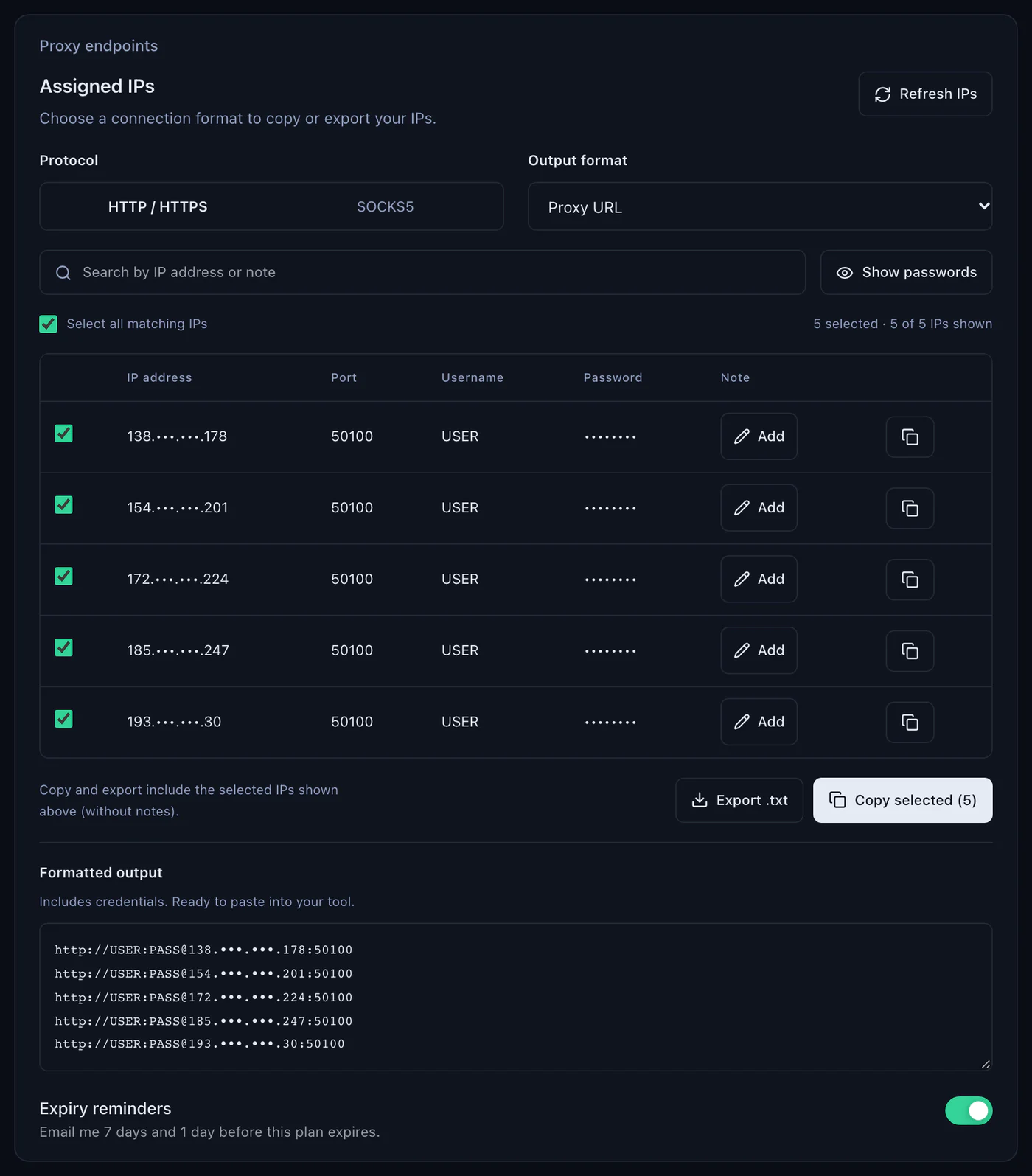
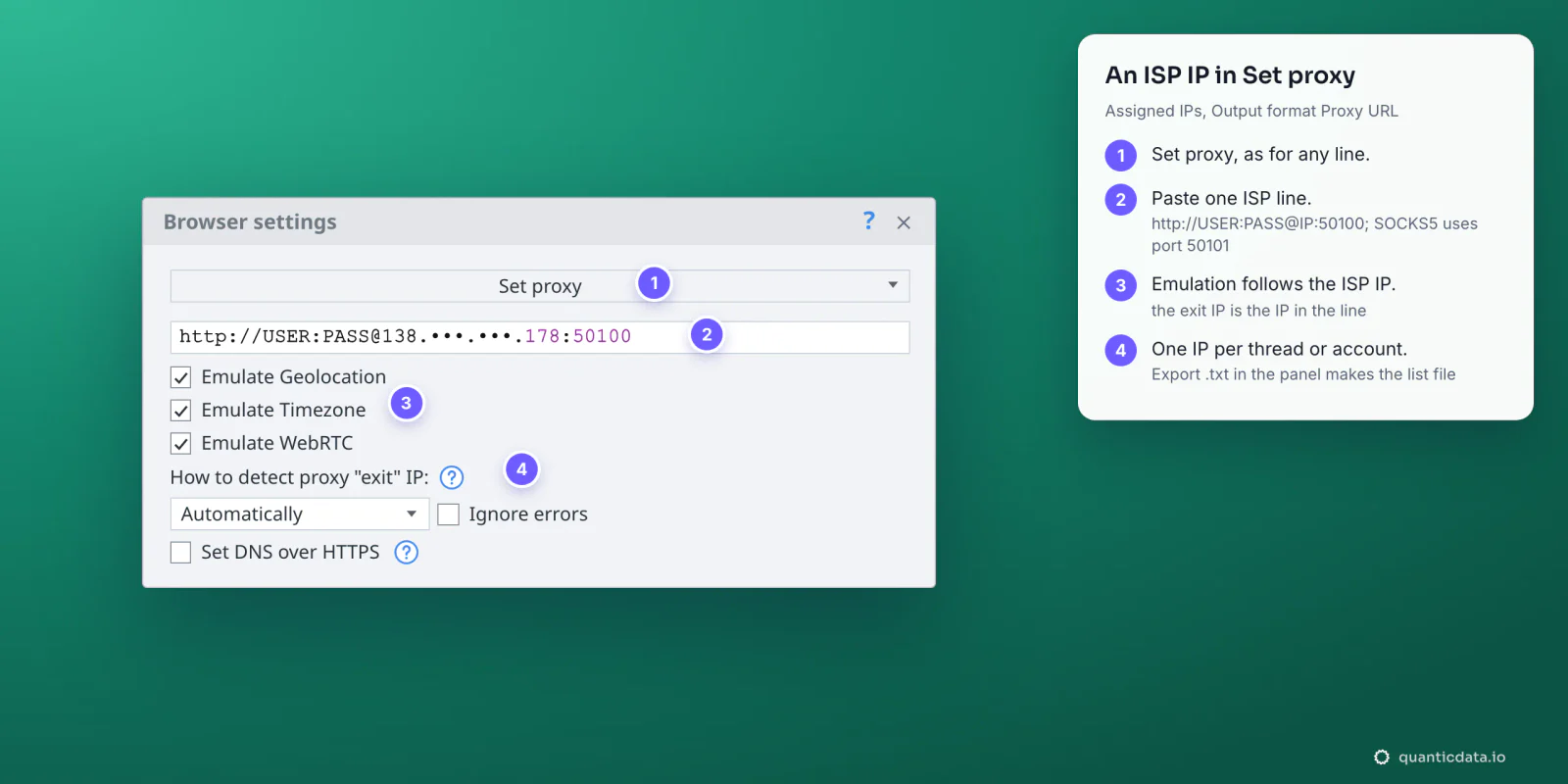
The plans are on the page for ISP proxies.
Mobile proxies in ZennoPoster
A mobile line works like a Residential Premium one, with -type-mobile in the login and its own host. In the Mobile plan's generator choose the country, the gateway (Global, USA, EU or Asia), Sticky, HTTP 8080 or SOCKS5 1080 and the URL output format:
http://USER-country-tr-type-mobile-sid-m01-ttl-60m:PASS@mobile.quantumproxies.io:8080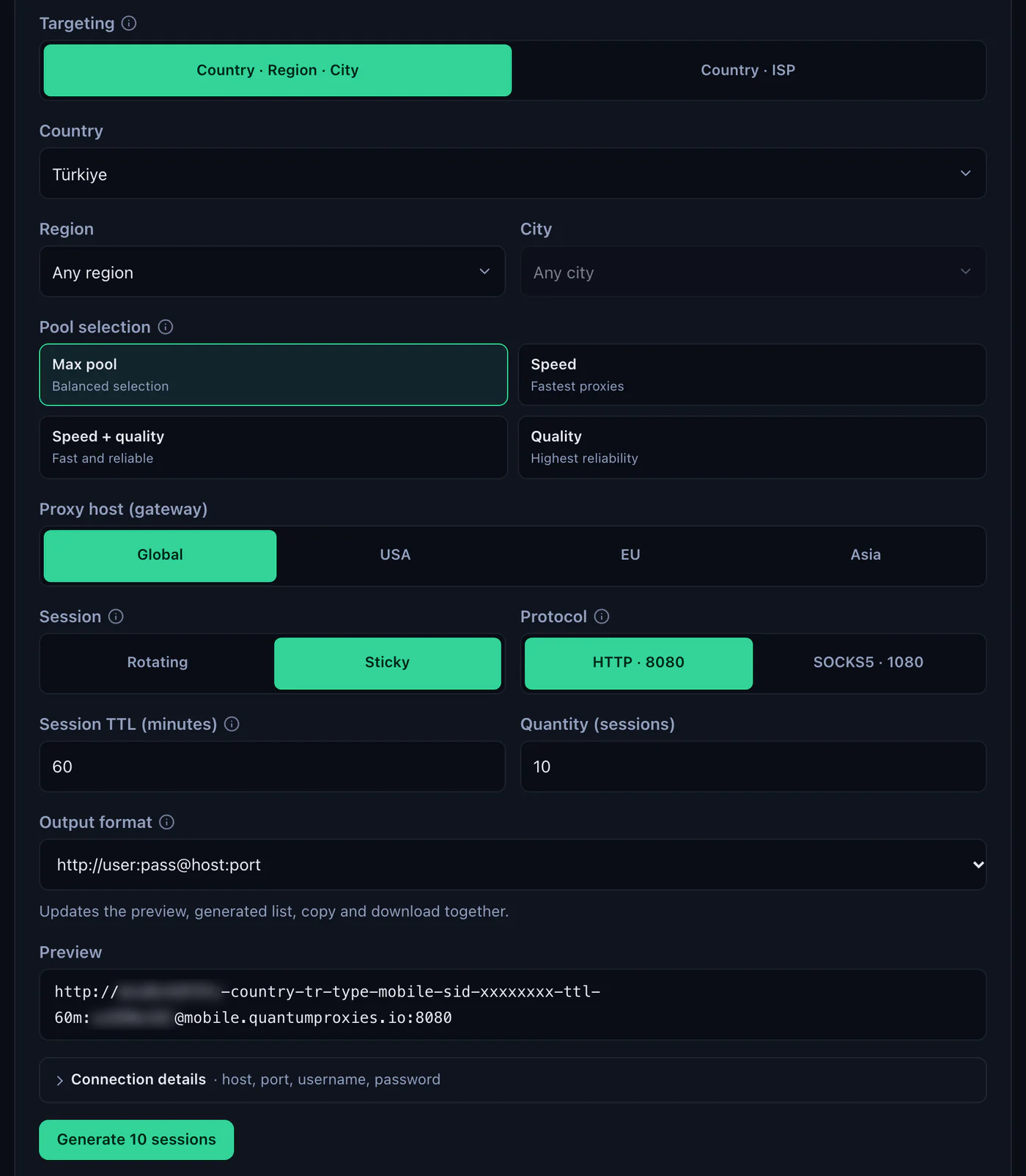
Mobile plans also offer IP whitelist authentication. Add the IP of the computer that runs ZennoPoster under IP whitelist, then take the host:port list under Proxy list for a whitelisted IP and write each line with its scheme and no login, for example http://mobile.quantumproxies.io:10000. The list method works the same way. More on the network: QuanticData mobile proxies and mobile proxies in Türkiye.
Proxies in HTTP requests and the ProxyChecker
The GET and POST request actions do not use the browser, and they have their own Proxy tab: Without proxy, Active project proxy, a format string in the protocol://login:pass@ip:port layout, or Other for the fields one by one. Choose Active project proxy and the request goes out through the proxy that Set proxy gave the thread. ZennoPoster 7.9.1.0 and later also count the traffic of every proxy, browser and HTTP requests together, and a project can read the figures through the ZennoPoster.ProxyTrafficInfo object of the API.
The ProxyChecker built into ZennoPoster is a tool for loading proxy lists, re-checking them and handing them out by rules, through the Get proxy action or the project's Proxy setting. A proxy taken with Get proxy still has to be applied with Set proxy. With a gateway that keeps its sessions in the username, a list file as above is the shorter route.
ZennoPoster proxy not working: errors and fixes
When a proxy fails, the Set proxy action ends with an error and the log window shows the failed action in red; double-clicking the entry takes you to it on the canvas. These are the cases behind it, in the order to check.
| What you see | Usual cause | Fix |
|---|---|---|
| Set proxy fails, or the status bar does not show the proxy | The line is host:port:user:pass, or the login comes after the host | Generate it with Output format http://user:pass@host:port (socks5://user:pass@host:port for SOCKS5) |
| Set proxy fails on the exit IP | The proxy does not answer: http:// on 1080 or socks5:// on 8080, or the plan expired or ran out of traffic | http:// with 8080, socks5:// with 1080; check status, remaining traffic and expiry in My proxies |
| The host name is not accepted | ZennoPoster older than 7.7.15.0, which took proxies with an IP address only | Update ZennoPoster |
| Wrong country or time zone | No -country- in the login, or Ignore errors ticked and the exit IP not found | Generate the line with a country; untick Ignore errors |
| Every thread has the same IP | The line is written in Set proxy, or the list is not shared between threads | A list loaded from the file with Save list changes to a file and Delete line after taking |
| The IP changes in the middle of a run | The session lifetime ended | A longer -ttl-, up to 1440 minutes |
If the curl test above works on your computer and the project still fails, the problem is in the project's fields; if curl fails too, check the plan first, then whether a firewall blocks the proxy port.
HTTP or SOCKS5 in ZennoPoster
ZennoPoster takes both, and every QuanticData network offers both. HTTP on port 8080 is the simpler choice and the one to start with. SOCKS5 on port 1080 passes any kind of connection, not only web pages; write the line with socks5:// in front, since without a scheme ZennoPoster assumes http. More on the protocol on the page for SOCKS5 proxies. What breaks a project is never the choice itself, only a scheme that does not match its port.
Before you run accounts
A proxy changes where a thread's traffic comes from, not what the project is allowed to do. Keep to each platform's terms and to the law where you work, and use one thread, one session and one identity per account.
Sources & further reading
- ZennoLab documentation: Browser Settings, Set Proxy and the proxy formats
- ZennoLab documentation: List (Load from file, Save list changes to a file, threads)
- ZennoLab documentation: List Operations (Get line)
- ZennoLab documentation: GET request and its Proxy tab
- ZennoLab documentation: project Settings in ZennoPoster (threads and proxy)
- ZennoLab documentation: ZennoPoster 7.7.15.0 change log
- RFC 1928: SOCKS Protocol Version 5