
To use proxies in ScrapeBox, put them one per line as IP:Port:User:Pass, with the gateway host in place of the IP, load them in the Proxy Manager or in Select Harvester and Proxies, run Test Proxies, tick Use Proxies and start harvesting. Below: each step with QuanticData Residential Premium, ISP and mobile lines, what every test column means, and a fix for each error.
ScrapeBox is a desktop SEO tool for Windows (a Mac version also exists; the screens below are the Windows one). Its harvester sends search queries over many connections at once, and it was built around lists of proxies: each connection takes a proxy from the list, and the Proxy Manager tests the list before a run. A residential gateway fits that model when every line carries its own session, so ScrapeBox sees a list of separate proxies and each one leaves from its own IP. The labels below are the ones in ScrapeBox's own screenshots and changelog; the values come from the QuanticData endpoint generator.
What you need before you start
- ScrapeBox installed and activated. The proxy tools described here, the Proxy Manager and the proxy settings of the harvester, are part of ScrapeBox itself, not add-ons.
- A proxy plan. Residential Premium, ISP or mobile: all three work in ScrapeBox. The table further down says which one fits which job.
- The lines. In the QuanticData dashboard: My proxies, then the plan. Residential Premium and mobile lines come from the Endpoint generator; ISP lines from Proxy endpoints, Assigned IPs.
The proxy format ScrapeBox reads
ScrapeBox takes one proxy per line, IP:Port:User:Pass, and splits each line into the IP, Port, User and Pass columns of its list. A host name goes where the IP goes. Lines without a username and password, IP:Port, are for IP whitelist authentication, where the plan recognises your IP and no login is sent.
# Residential Premium: the gateway host, port 8080, one sticky session per line
residentialpremium.quantumproxies.io:8080:USER-country-ca-sid-scrapebox01-ttl-60m:PASS
residentialpremium.quantumproxies.io:8080:USER-country-ca-sid-scrapebox02-ttl-60m:PASS

# ISP: one fixed IP per line, port 50100
154.•••.•••.195:50100:USER:PASS

# Mobile: -type-mobile in the username
mobile.quantumproxies.io:8080:USER-country-ca-type-mobile-sid-scrapebox11-ttl-60m:PASS
The generator's output format host:port:user:pass is exactly this layout, so its lines go into ScrapeBox unchanged. The username is everything between the second and the third colon: -country-ca picks the exit country, -sid-scrapebox01 names the session and -ttl-60m keeps its IP for 60 minutes. Copy it whole. A username cut at the first dash still logs in, but the requests then leave from a random country.
Step by step: Residential Premium proxies in ScrapeBox
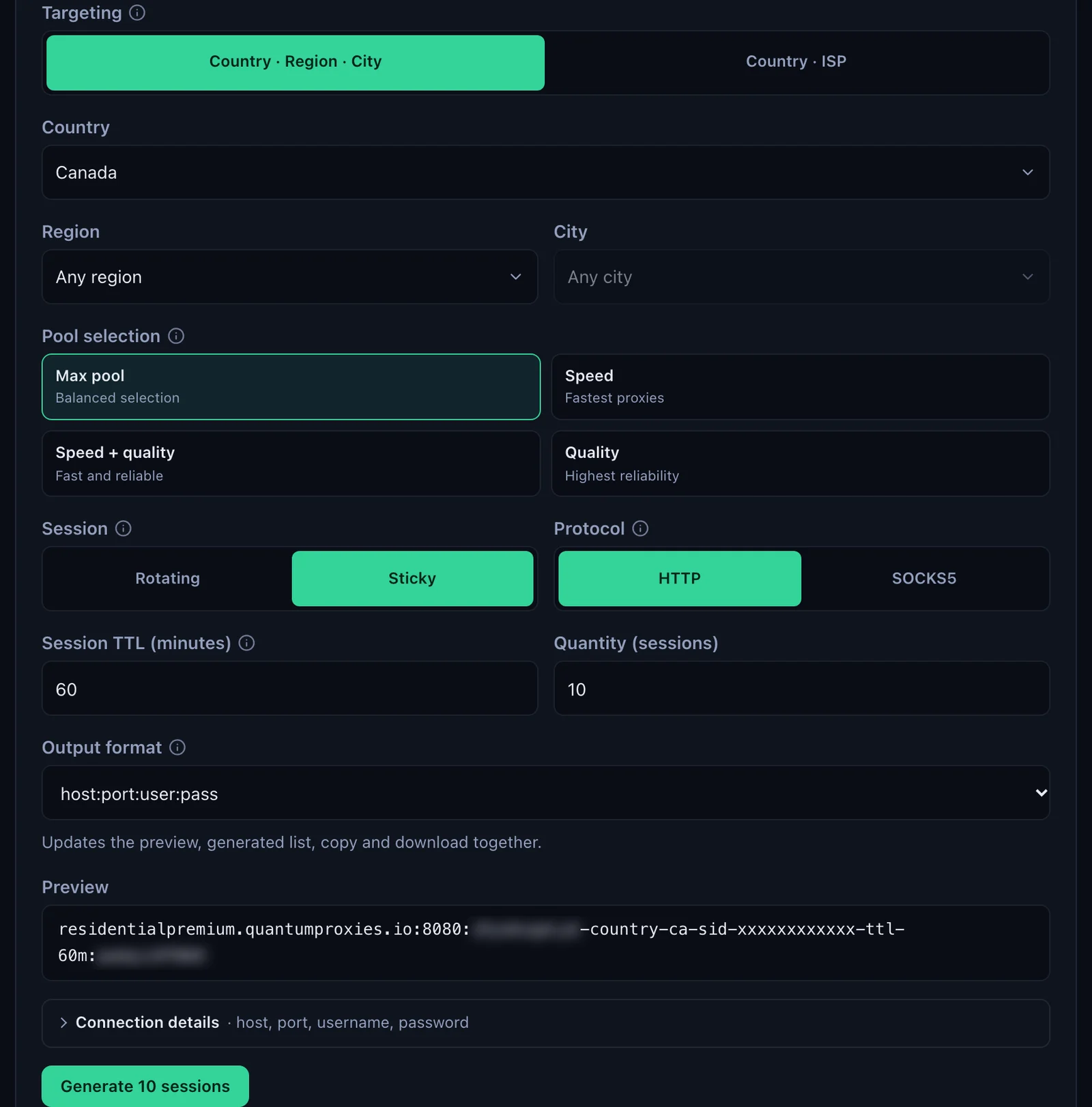
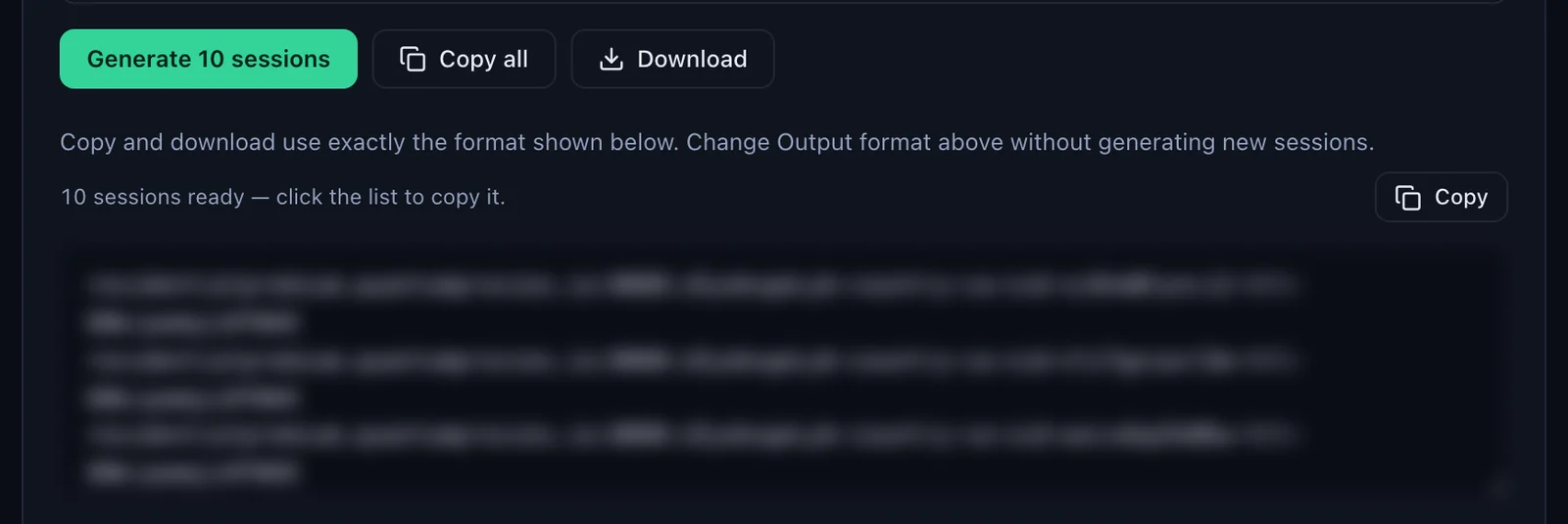
- Generate the lines. In the QuanticData dashboard open My proxies, then your plan. In the Endpoint generator choose the Country, set Session to Sticky, set Session TTL (minutes), keep Protocol on HTTP and Output format on host:port:user:pass, and set Quantity (sessions) to at least the number of connections the harvester will use. Click Generate, then Copy all, or Download for a .txt file.
- Open the Proxy Manager. In the ScrapeBox main window, in the Select Harvester and Proxies group, click Manage.
- Load the lines. Load Proxies, then Load from ClipBoard after Copy all, or load the .txt file. Starting with one line is quicker: if it passes the test, load the rest.
- Test them. Click Test Proxies. For each line the grid fills Socks, Anonymous Test Result, Google Test Result, Speed and Status. The next section says what each one means.
- Send them to the main window. Save Proxies saves the tested list back to ScrapeBox, or to a file.
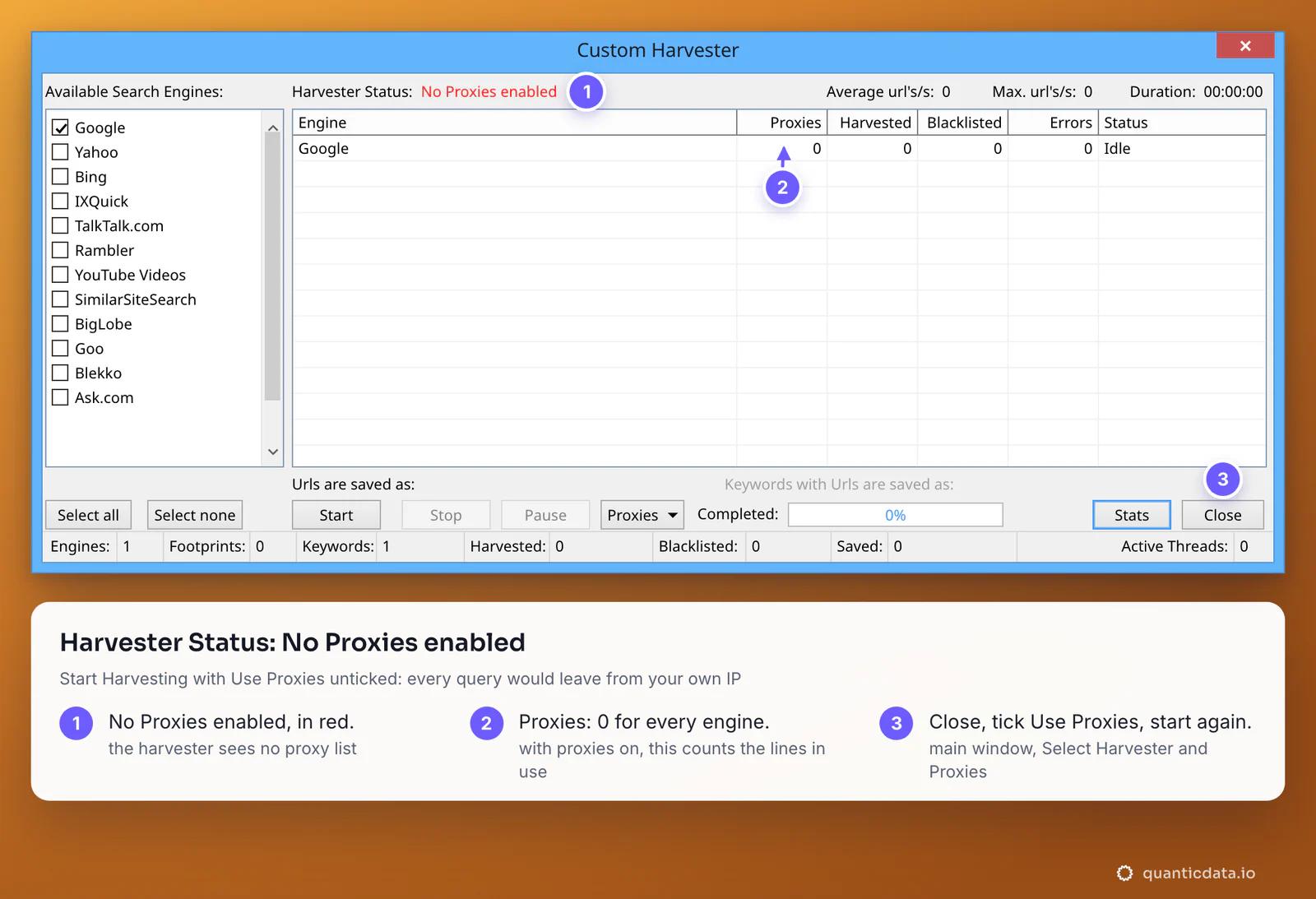
- Tick Use Proxies. The label shows how many lines are loaded, for example (10 proxies). The harvester uses the list only while this box is ticked.
- Start Harvesting. With Use Custom Harvester selected, every query of the run goes through the list.
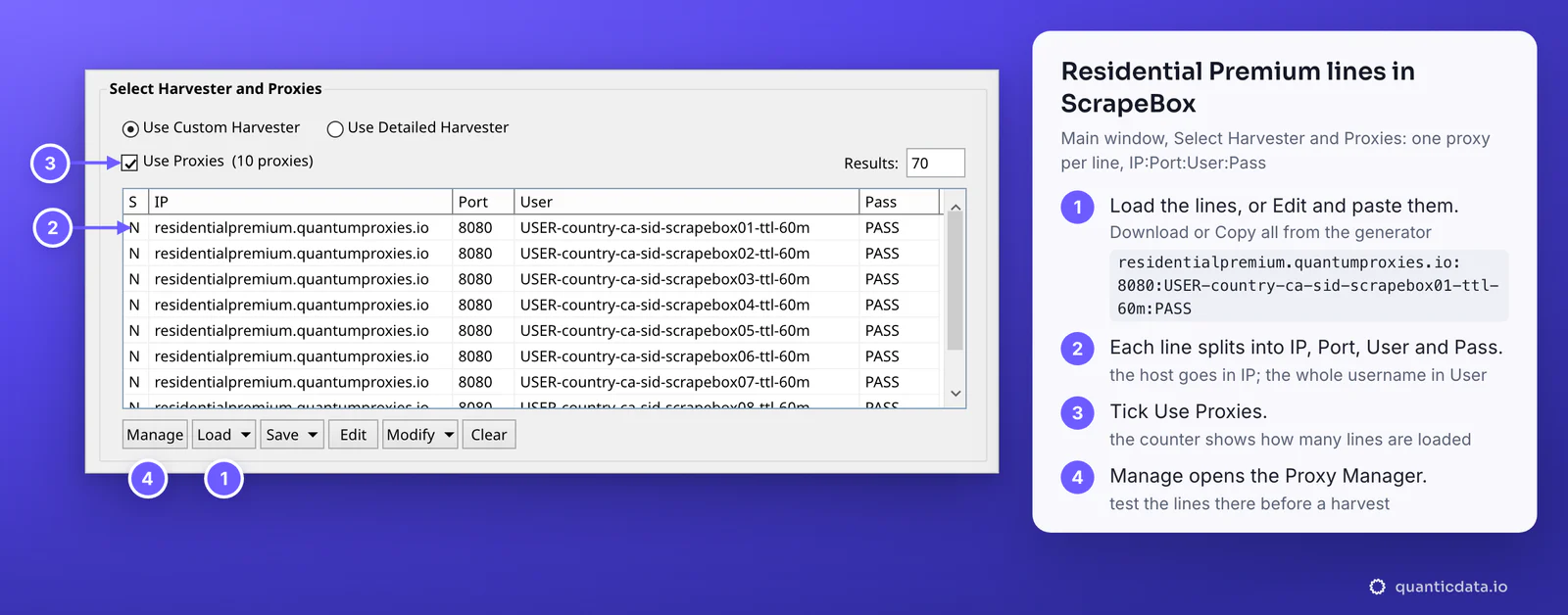
The list in the main window has its own buttons too: Load reads the lines from a file, and Edit opens the list so you can paste them. Either way they end up in the same grid, and Manage opens the Proxy Manager with them.
Reading the Proxy Manager test
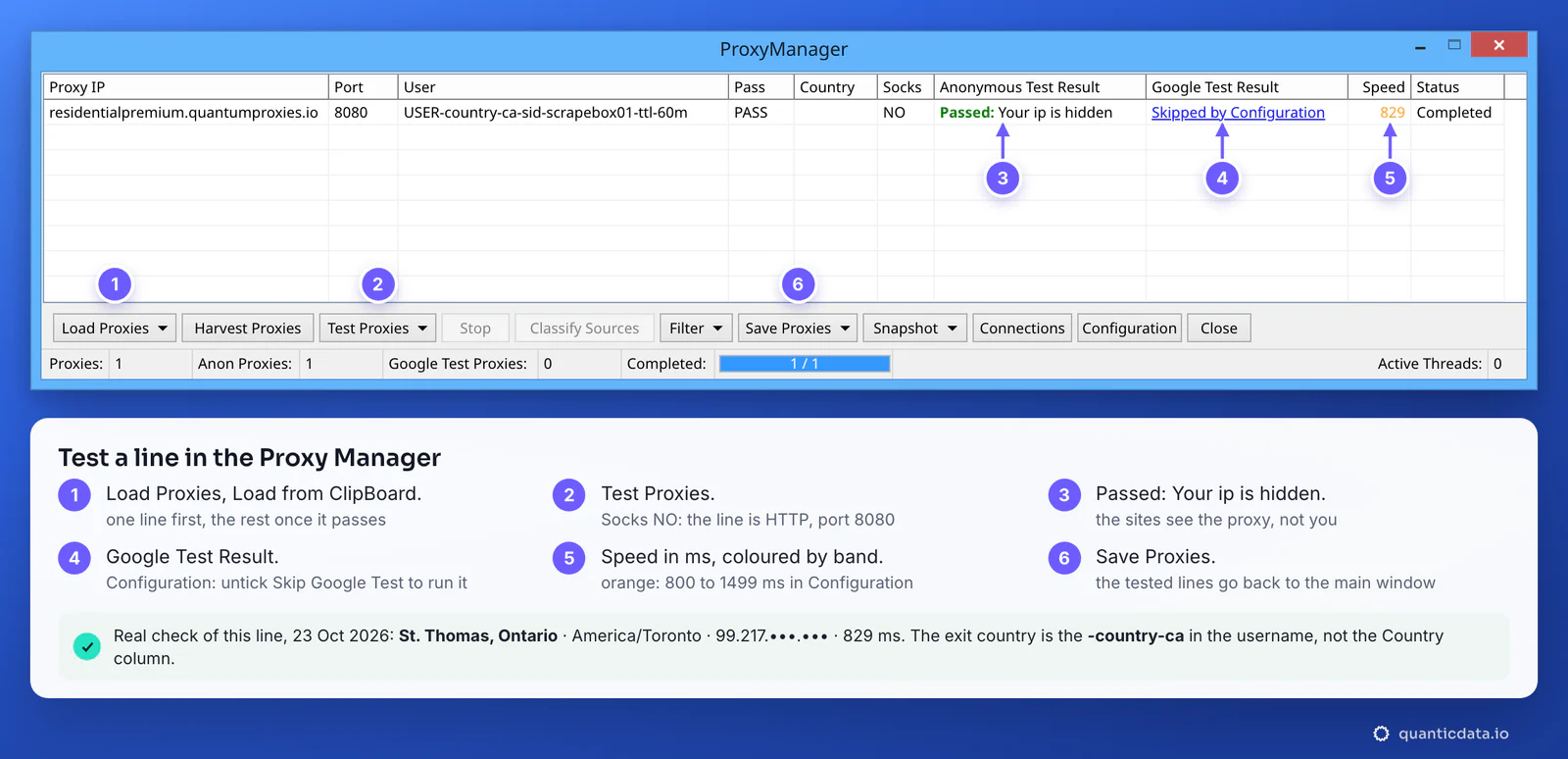
- Socks. NO for an HTTP line. The Proxy Manager tells HTTP from SOCKS proxies during the test, which matters for SOCKS5 lines on port 1080.
- Anonymous Test Result. Passed: Your ip is hidden means the test page saw the proxy's address and not yours. We checked the line in the screen on 23 October 2026: it left from St. Thomas, Ontario (America/Toronto), with no header carrying the original IP.
- Google Test Result. ScrapeBox runs a Google search through each proxy and checks that results come back. It says Skipped by Configuration when Skip Google Test is ticked: open Configuration and untick it. After the test, Filter can keep only the Google passed proxies.
- Speed. The answer time in milliseconds, coloured by the Slow, Medium and Fast bands set in Configuration. Our line answered in 829 ms.
- Country. ScrapeBox fills it from the address in the list, so for a gateway line it does not show where the requests leave from. The exit country is the
-country-in the username; the test command further down shows it.
Configuration also has a Custom Test: a URL to test against and a string to find on the page. Pointing it at the site you are about to harvest checks the lines against that site instead of a generic test page.
How the harvester uses the list
Each connection of the harvester sends its queries through a proxy from the list. With QuanticData lines that means a few practical rules:
- At least as many sticky lines as connections. Two connections on the same line share one IP. The number of connections is set under Settings, Connections, Timeout and Other Settings, Connections tab.
- A session lifetime that fits the run. When a line's lifetime ends, its next request gets a new IP. A short Session TTL spreads a long harvest over more IPs; the generator accepts up to 1440 minutes.
- Keep Remove failed proxies unticked. Every line goes to the same gateway, and a single slow answer would remove a good line for the rest of the harvest. Harvester Proxy Retries tries a failing proxy again instead.
- One rotating line also works. With Session set to Rotating (no
-sid-in the username) every request leaves from a new IP. ScrapeBox then sees one proxy, which makes the point above even more important.
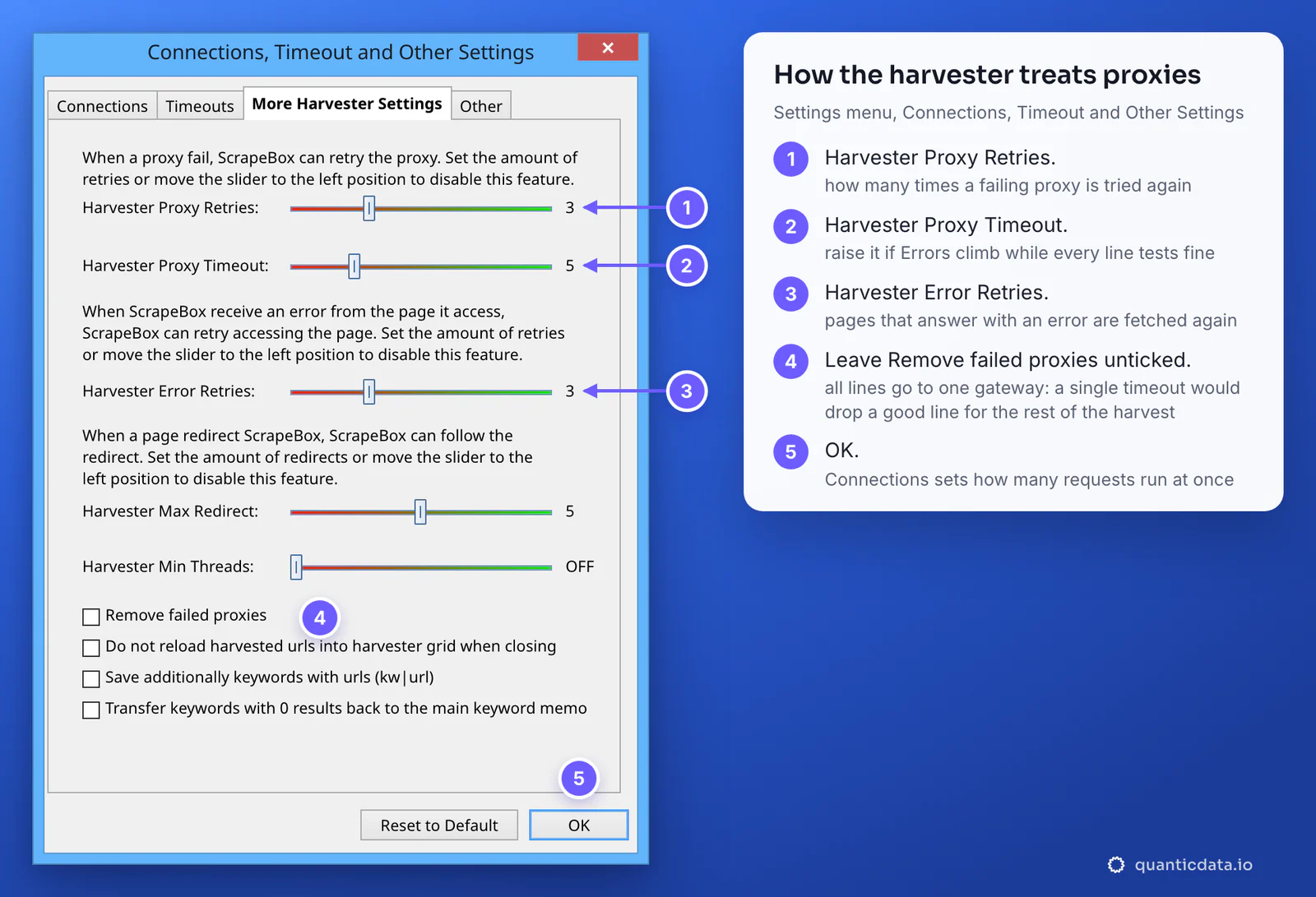
The search engine scraper can also refresh its proxies while it harvests, from a file you keep updated, which is handy for long runs with lists you regenerate. For Google in particular, see residential proxies for Google; the plans themselves are on the pages for QuanticData residential proxies and Canada proxies.
Which proxy type for which job
| Proxy type | In ScrapeBox | Good for |
|---|---|---|
| Residential Premium | A list of sticky lines on residentialpremium.quantumproxies.io, port 8080 (HTTP) or 1080 (SOCKS5); country, region, city or ISP in the username; username and password only | Harvesting search engines by country, keyword research, most ScrapeBox tasks |
| ISP | Fixed IPs from Assigned IPs as IP:Port:Username:Password, port 50100 (HTTP) or 50101 (SOCKS5) | Jobs that should come from the same addresses every time, such as checks repeated on a schedule |
| Mobile | Sticky lines with -type-mobile in the username; Global, USA, EU or Asia gateway; HTTP 8080 or SOCKS5 1080; IP whitelist available | Results as phone users get them, and sites that treat mobile networks differently |
ISP proxies in ScrapeBox
An ISP plan is the classic ScrapeBox list: one fixed IP per line. In the dashboard, Proxy endpoints, Assigned IPs lists the IPs; choose the Protocol (HTTP / HTTPS uses port 50100, SOCKS5 port 50101), keep Output format on IP:Port:Username:Password, then Export .txt or Copy selected. In ScrapeBox, load the file or paste the lines, test them and tick Use Proxies. Each IP is tested on its own and the anonymous test shows that same IP, because it does not change.
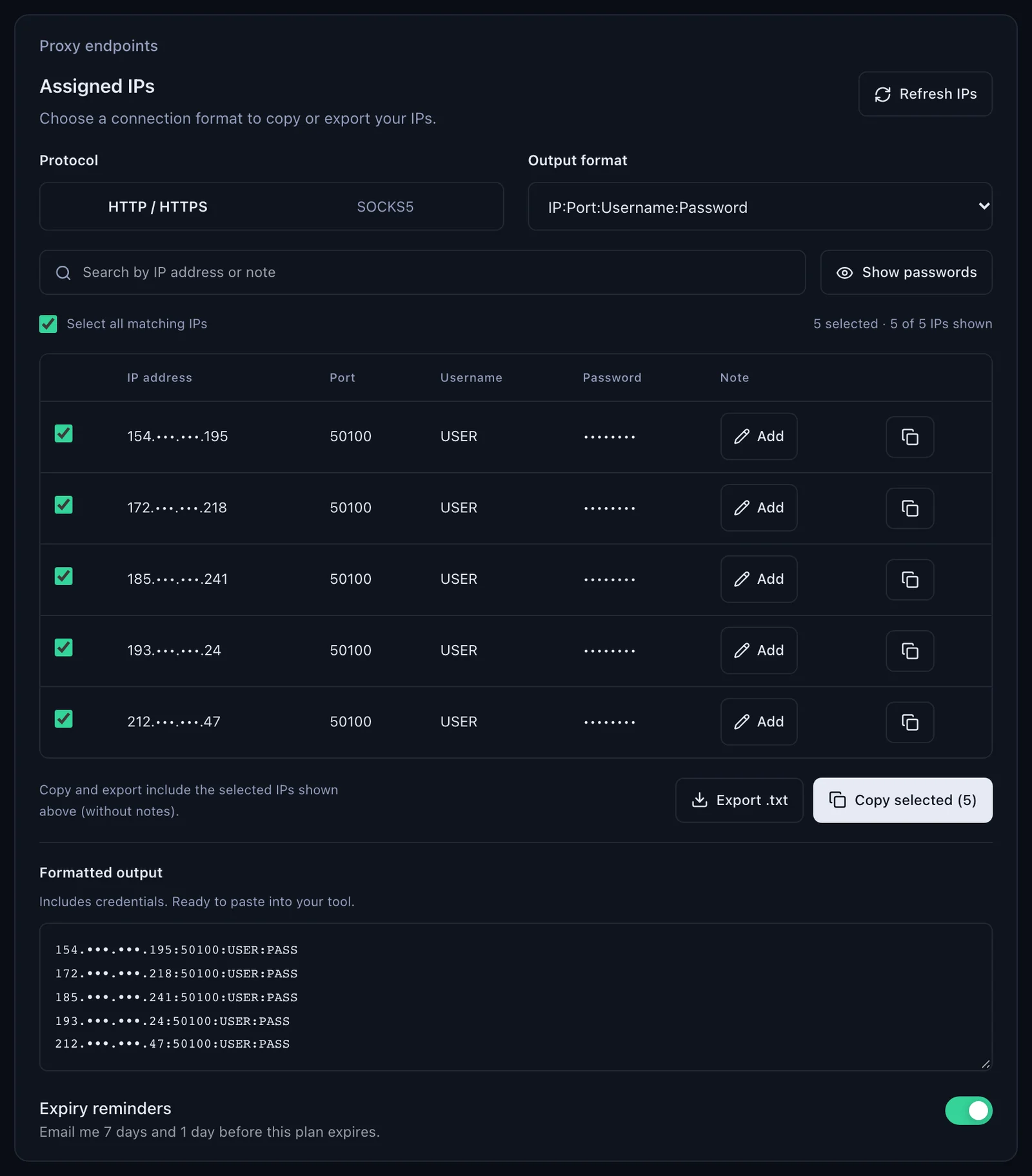
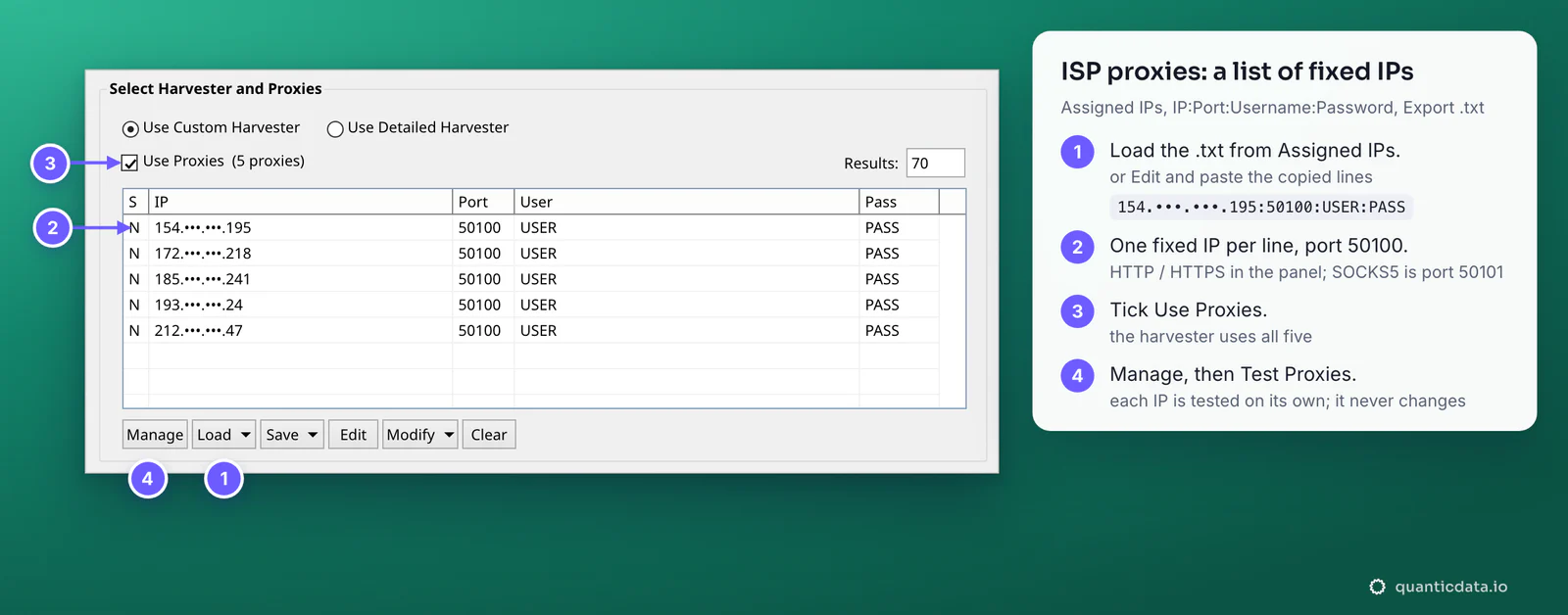
More on the plan itself on the page for ISP proxies.
Mobile proxies in ScrapeBox
Mobile lines work like Residential Premium ones, with -type-mobile in the username. In the Mobile Endpoint generator choose the gateway under Proxy host (Global, USA, EU or Asia), the Country, Session Sticky and the protocol, HTTP · 8080 or SOCKS5 · 1080, then generate as many sessions as connections and load them the same way. Mobile plans also offer an IP whitelist: add the IP of the computer that runs ScrapeBox, then Get proxy list gives host:port lines with no username or password, which ScrapeBox reads as IP:Port.
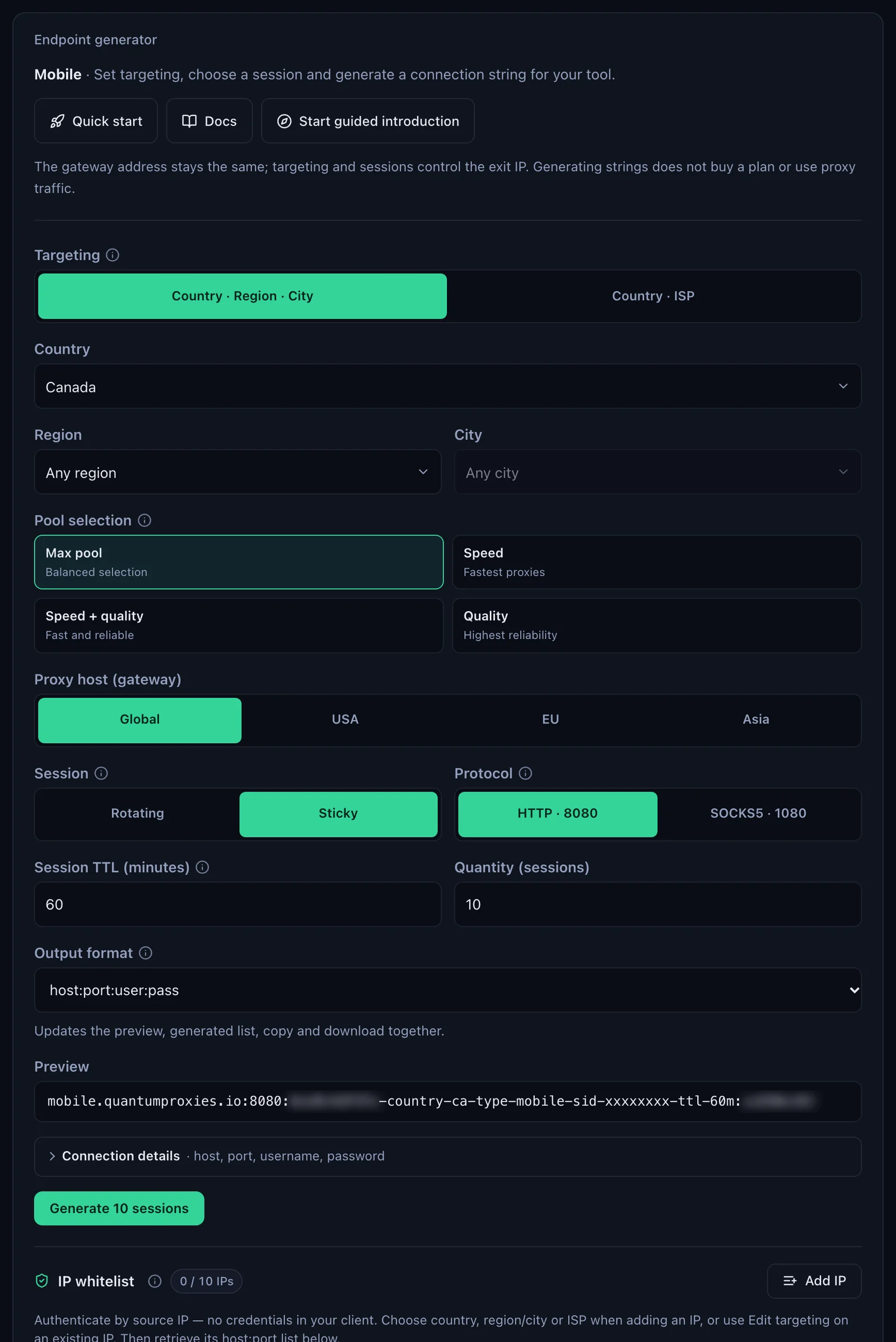
More on the plans on the page for mobile proxies.
HTTP or SOCKS5 in ScrapeBox
HTTP on port 8080 is the simple choice and the one to start with. ScrapeBox v2 also has full SOCKS5 support: use port 1080 for Residential Premium and mobile lines, 50101 for ISP lines from the SOCKS5 list. The Proxy Manager detects the type during the test and shows it in the Socks column; the S column of the main list marks SOCKS proxies too. What breaks a run is never the choice itself, only a type that does not match its port. The details are on the page for SOCKS5 proxies.
ScrapeBox proxies not working: errors and fixes
| What you see | Usual cause | Fix |
|---|---|---|
| Harvester Status: No Proxies enabled | Use Proxies is unticked, or the list in the main window is empty | Close the harvester, load the lines, tick Use Proxies and start again |
| Every line fails the Proxy Manager test with a timeout | The type does not match the port (SOCKS5 lines on 8080, HTTP lines on 1080), or a firewall blocks the port | HTTP with 8080, SOCKS5 with 1080 (ISP: 50100 and 50101); run the test command below |
| Lines that passed yesterday fail today | The plan expired or its traffic is used up | Check the plan in My proxies: status, remaining traffic, expiry date |
| Results from the wrong country | The username was cut, or the lines were generated with Worldwide | Generate the lines with a country and copy them whole |
| The Country column shows another country, or nothing | It describes the gateway address in the list, not the exit | Nothing to fix: the exit country is the -country- in the username |
| Google Test Result fails on every line while the anonymous test passes | The Google test depends on the format of Google's pages, which changes | Update ScrapeBox (its changelog lists fixes to the Google test), or use Custom Test against the page you will harvest |
| Errors or Blacklisted climb in the harvester | Too many queries per IP, or a timeout too short for the line | More sticky lines and fewer connections per line; raise Harvester Proxy Timeout; see 429 Too Many Requests |
| The IP changes in the middle of a run | The session lifetime ended | A longer -ttl- in the lines, up to 1440 minutes |
One test outside ScrapeBox settles most cases in a minute. If this returns an address in the right country, the proxy works and the problem is in ScrapeBox's settings:
curl -x http://residentialpremium.quantumproxies.io:8080 \
  -U "USER-country-ca-sid-test-ttl-10m:PASS" https://ipinfo.io/json
If the same command fails on your network but works from another one, a firewall or your provider is blocking the connection to the proxy port.
Before you harvest
A proxy changes where ScrapeBox's requests come from, not what you are allowed to do with them. Keep to each site's terms and to the law where you work; for the basics, see is web scraping legal in the US. If what you need is Google's results rather than ScrapeBox itself, the QuanticData SERP API returns them as structured data without a proxy list to manage.
Sources & further reading
- ScrapeBox: Proxy Harvester (proxy manager and tester)
- ScrapeBox: Search Engine Scraper (the harvester and its proxy options)
- ScrapeBox v2 changelog (Load from ClipBoard, SOCKS5 support, Google test fixes)
- ScrapeBox screenshots (main window, Proxy Manager, harvester settings)
- RFC 1928: SOCKS Protocol Version 5