
Microsoft Edge has no proxy settings of its own: it follows the computer's, which move every app at once. To put only Edge behind a proxy, add Quantum Proxies Manager, our free extension, from the Chrome Web Store, sign in with your QuanticData API key, pick a plan and a country, turn it on and allow it in InPrivate.
By default Edge takes its proxy from the system network settings, and the proxy entry in Edge's own settings only opens them. That route has two drawbacks: every program on the computer changes with it, and Edge does not use a username and password typed there, so it stops at a sign-in box. An extension fixes both. Edge accepts a proxy set by an extension for the browser alone, and the extension can answer the proxy's sign-in. Quantum Proxies Manager is the extension we publish under our QuantumProxies.io brand; it runs in Edge because Edge accepts extensions made for Chrome, and it signs in with the API key of your QuanticData account. Labels below are those of version 1.2.0 and of Edge's Extensions page.
What you need
- Microsoft Edge on a computer (Windows, macOS or Linux), in the Edge profile that should use the proxy.
- A QuanticData proxy plan: Residential Premium, ISP or Mobile. Each one has its own section below.
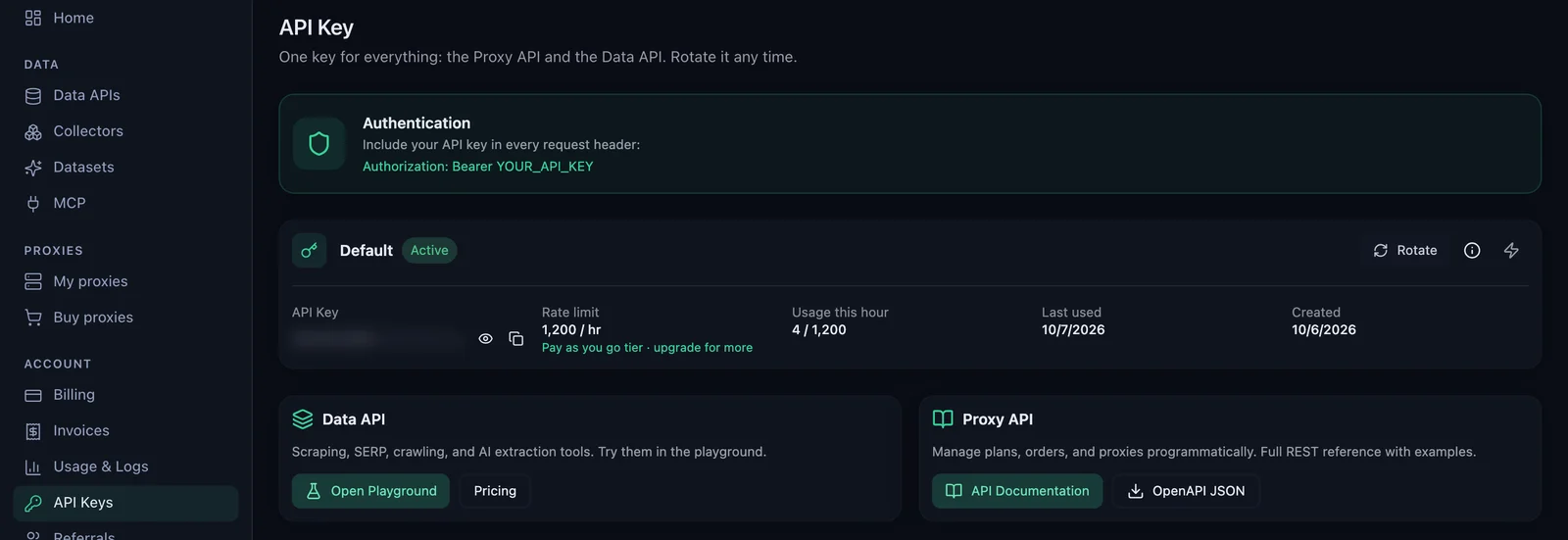
- Your API key: in the QuanticData dashboard, API Keys, then the copy button next to the key. It begins with
qd_live_, followed by 64 characters. - The extension: Quantum Proxies Manager on the Chrome Web Store. Adding it costs nothing; traffic and IPs come from your plan.
Add Quantum Proxies Manager to Edge
Microsoft's own help says extensions designed for Google Chrome can also be used in Microsoft Edge, and describes the steps. With our extension:
- Open the listing in Edge. Go to Quantum Proxies Manager on the Chrome Web Store.
- Select Get. Edge may also show a Get extension button in a banner at the top of the page; either works.
- Allow other stores, if asked. The first time, Edge can ask to Allow extensions from other stores: select Allow. The same switch sits at the bottom left of Edge's Extensions page.
- Add extension. Edge lists what the extension can do: read and change your data on all websites, display notifications and change your privacy-related settings. The first one lets it set the proxy for every site and answer its sign-in; the last one is the WebRTC protection that stops pages from seeing your real address. Select Add extension.
- Show it in the toolbar. Select Extensions, the puzzle icon to the right of the address bar, and choose to show Quantum Proxies Manager in the toolbar.
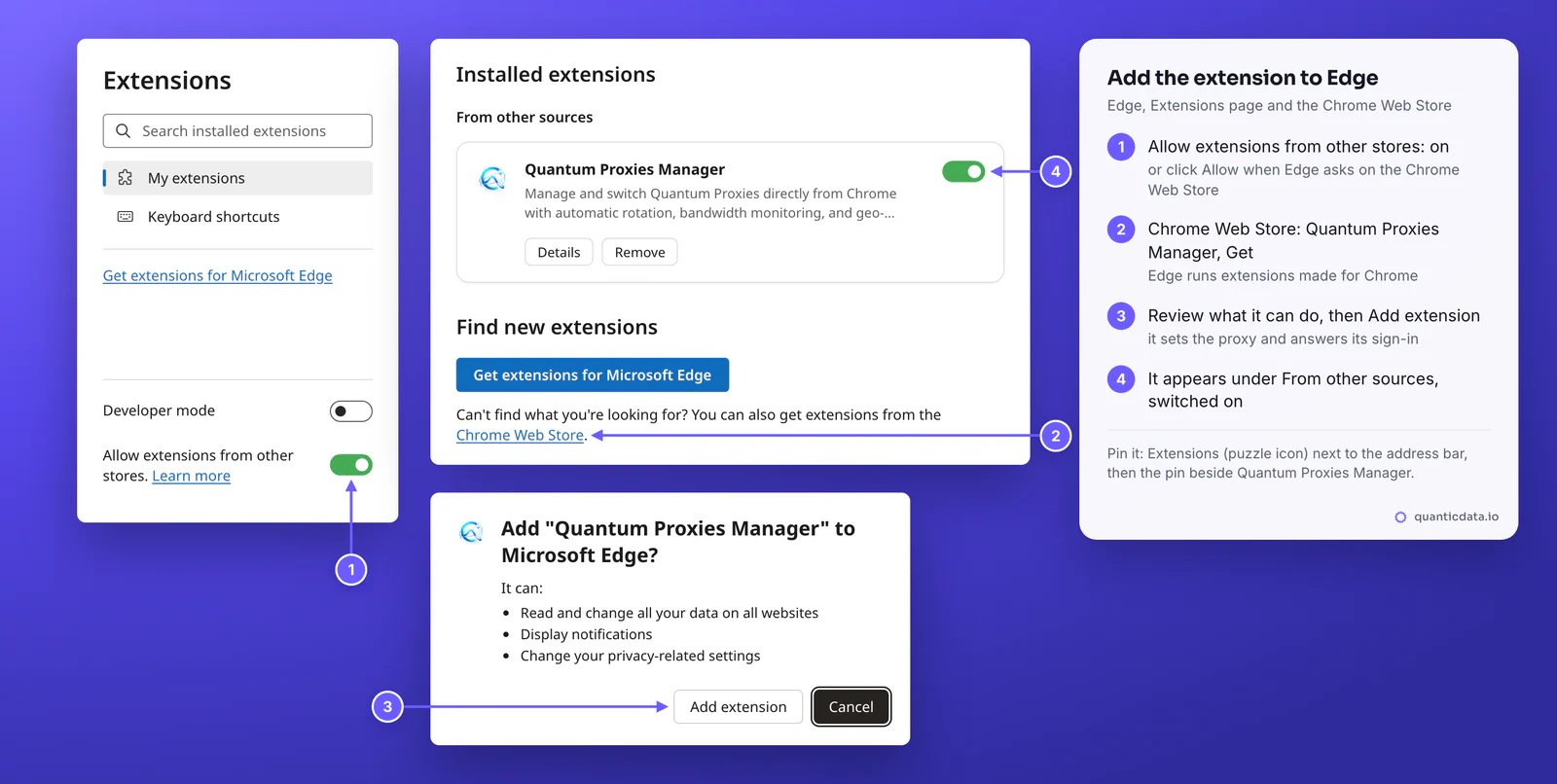
Edge then lists it under From other sources on the Extensions page, with its own on and off switch.
Sign in and connect
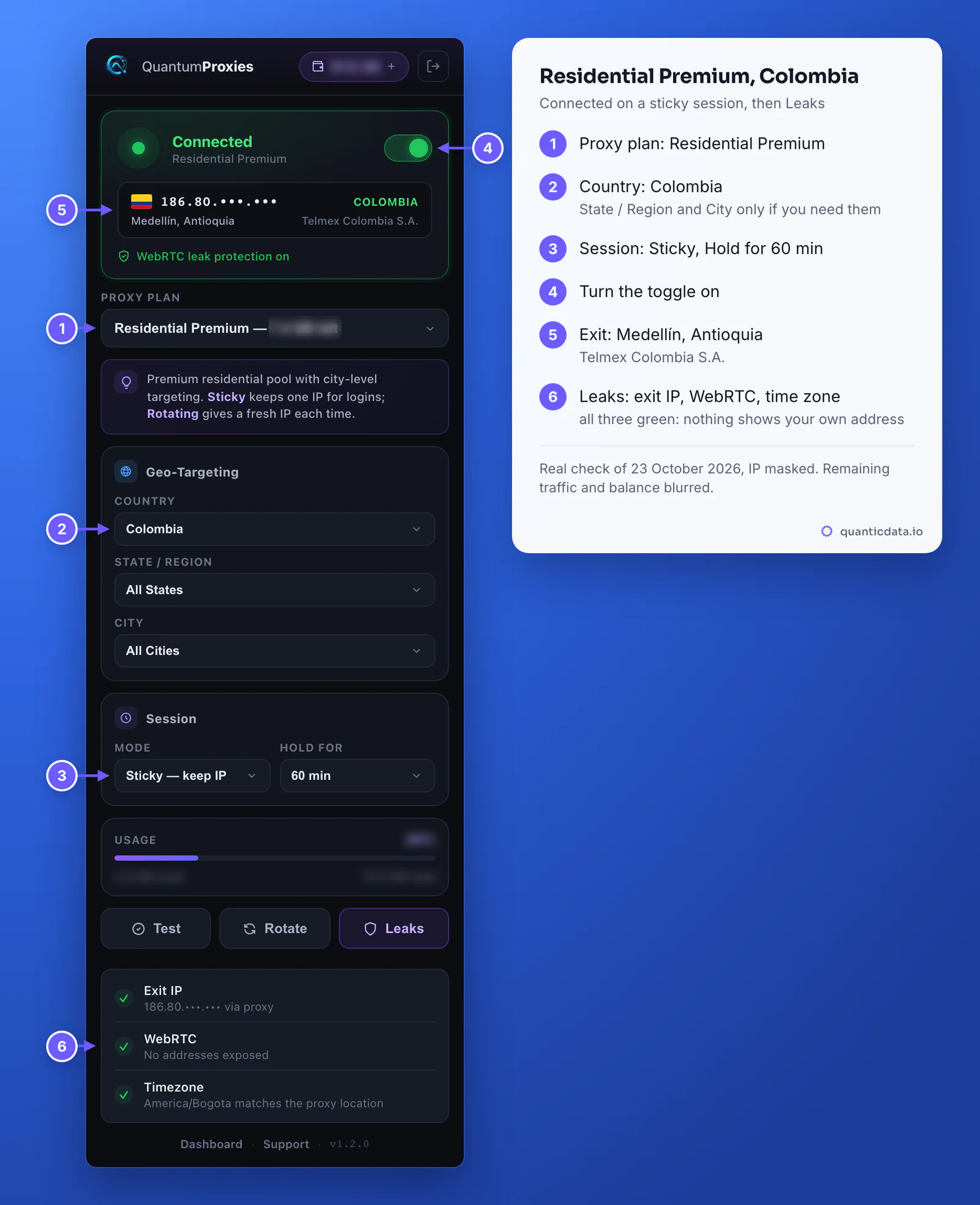
- Sign in. Click the extension's icon, paste the API key and click Connect. Already signed in to the QuantumProxies.io dashboard in this Edge profile? A Continue as button with your email does it in one click.
- Proxy plan. Pick the plan from the list of your active plans.
- Country. Under Geo-Targeting choose the Country. Leave State / Region and City on All unless a site needs a precise place.
- Session. For logins set Mode to Sticky and Hold for to 1, 5, 10, 30 or 60 min. Rotating changes the IP on every connection.
- Toggle on. The card turns to Connected and shows the exit IP, its city and region, and the network.
- Leaks. One click checks three things: the exit IP comes through the proxy, WebRTC exposes no other address, and the computer's time zone matches the proxy's location.
InPrivate, site access and Edge profiles
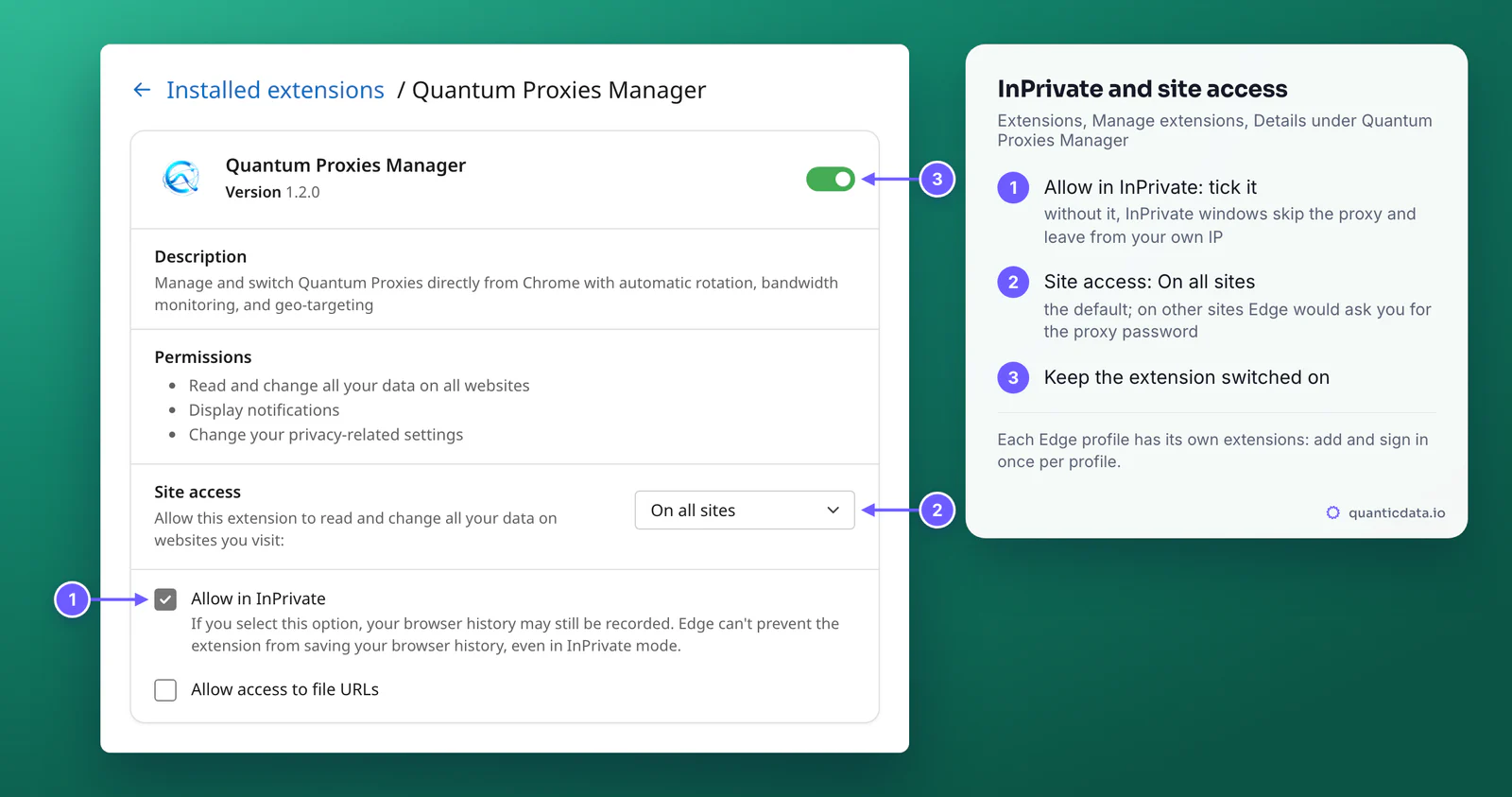
Once connected, the proxy covers the normal windows of the Edge profile the extension is installed in. Three Edge settings decide the rest. The first two are on the extension's Details page: Extensions, Manage extensions, then Details under Quantum Proxies Manager.
- Allow in InPrivate. Edge keeps extensions out of InPrivate windows until you tick this box, and until then the extension's proxy does not reach them either: an InPrivate window leaves from your own IP. Tick it, and InPrivate windows use the same proxy, with the sign-in answered.
- Site access: On all sites. This is the default, keep it. The proxy covers every site anyway, but the extension can answer the proxy's sign-in only where it has access: with On specific sites or On click, Edge shows its own sign-in box for the proxy on all the other sites.
- Edge profiles. Each profile has its own extensions. Add Quantum Proxies Manager to a second profile, sign in there and pick another country: two windows, two countries, side by side.
- Local addresses.
localhost,127.0.0.1and names without a dot always go direct. - Everything outside Edge keeps your own connection, because the computer's settings are never touched.
| Where | Through the proxy? |
|---|---|
| Normal windows of the profile | Yes, while the toggle is on |
| InPrivate windows | Only with Allow in InPrivate ticked |
| Another Edge profile | Only with the extension added and signed in there |
| localhost and names without a dot | No, always direct |
| Other apps on the computer | No |
Residential Premium in Edge
Residential Premium gives home IPs in the country you choose, down to State / Region and City. A sticky session keeps one IP for the Hold for time; Rotate gets a new one on the same plan and settings whenever you need it. Before a login, run Leaks: sites compare the time zone of the browser with the location of the IP, and the Timezone row tells you when they differ. More on QuanticData residential proxies.
ISP proxies in Edge
An ISP plan is a set of fixed addresses. The dashboard lists them on the plan's page under Assigned IPs, one IP:Port:Username:Password line per address, on port 50100 for HTTP.
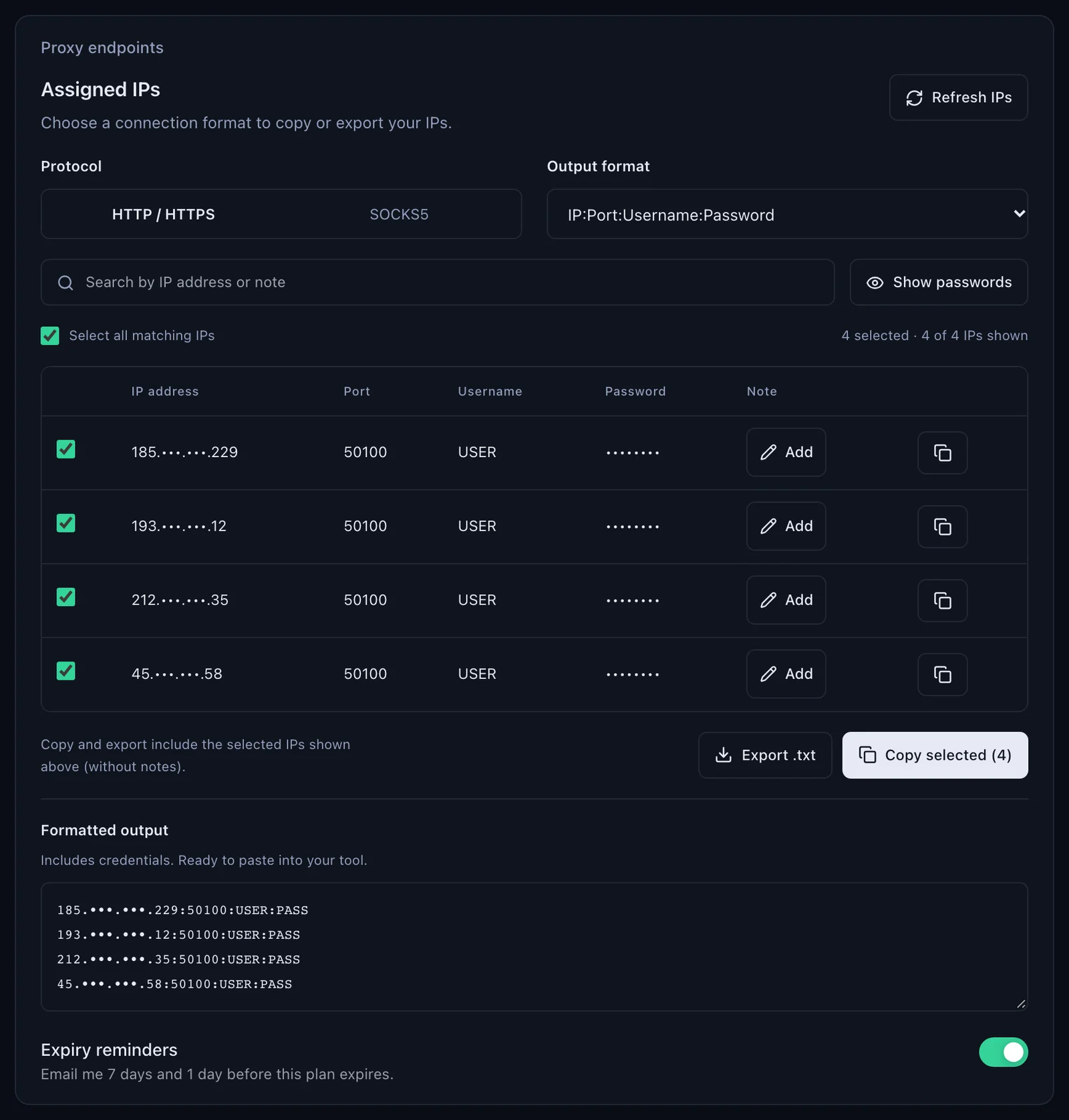
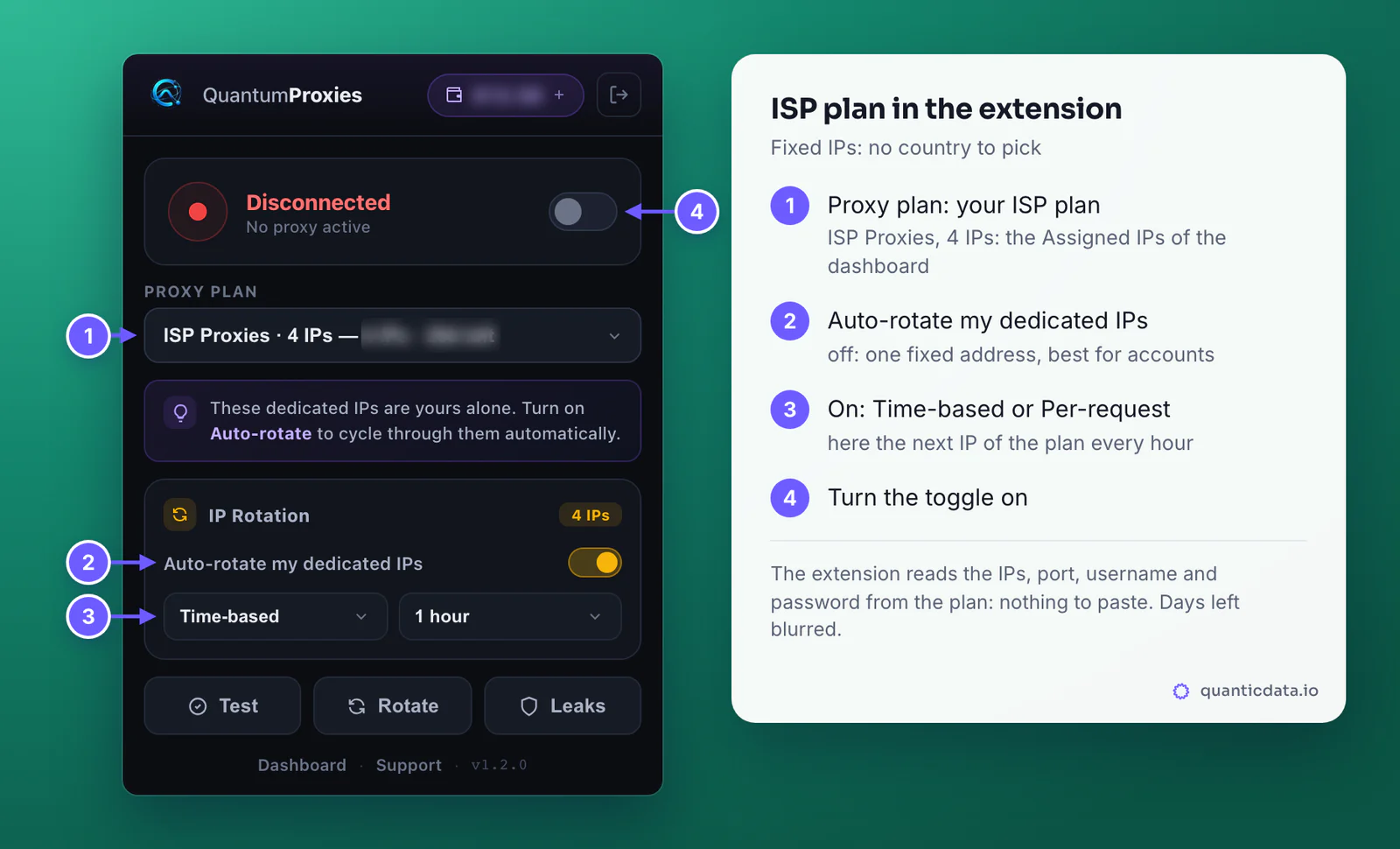
In the extension there is nothing to paste: choose the ISP plan under Proxy plan and turn the toggle on. There is no country to pick, since the addresses are fixed, and the extension connects to the plan's first IP. With more than one IP an IP Rotation card appears. Leave Auto-rotate my dedicated IPs off to keep one address, which is what accounts need from ISP proxies. Turn it on to move through the plan's IPs, Time-based (every 10s up to 24 hours) or Per-request.
Mobile proxies in Edge
A mobile plan adds Carrier / ISP under the country, so the exit can sit on a chosen mobile network. Use Sticky to keep one device IP for an account session. Mobile IPs are shared by many real phones on the same carrier, which is why platforms strict with other IP types tend to accept them; see mobile proxies.
| Plan | In the extension | Use it for |
|---|---|---|
| Residential Premium | Country, State / Region, City; Sticky up to 60 min or Rotating | Browsing and logins from a chosen place |
| ISP | Fixed IPs, no targeting; optional auto-rotate across them | Accounts that keep one address for months |
| Mobile | Country and Carrier / ISP; Sticky or Rotating | Phone-first platforms |
| Datacenter | Location of the gateway | Speed where the IP type does not matter |
Check that Edge uses the proxy
The extension's card shows the exit as soon as it connects, and Leaks confirms it. For a second opinion open ipinfo.io/json in a tab, in a normal window and, if you use them, in an InPrivate one. Our check for this guide, a Residential Premium sticky session in Colombia on 23 October 2026:
| Field | Result |
|---|---|
| City | Medellín |
| Region | Antioquia |
| Country | CO |
| Time zone | America/Bogota |
| Network | AS10620 Telmex Colombia S.A. |
The extension connects over HTTP on purpose. Edge signs in to HTTP proxies with the usual methods, while Microsoft's documentation states that no authentication methods are supported for SOCKSv5 in Edge. Our plans keep SOCKS5 for programs that can log in to it; see SOCKS5 proxies.
Errors and fixes
| What you see | Cause | Fix |
|---|---|---|
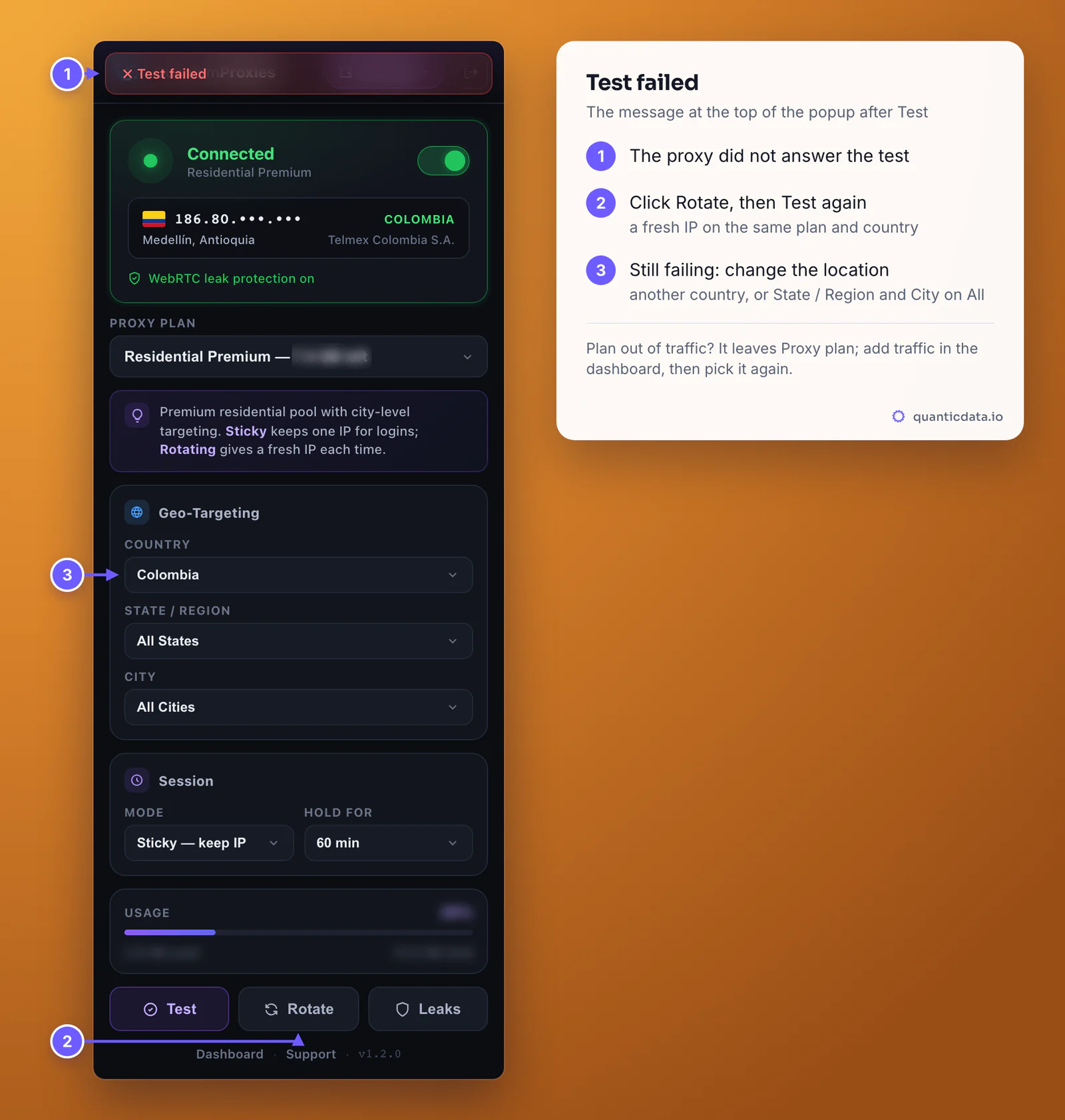
| Test failed | The proxy did not answer the extension's test | Click Rotate, then Test again; if it repeats, pick another country or set State / Region and City to All |
| Edge asks for a username and password for the proxy | The extension cannot answer: Site access is limited, or the extension is off or signed out | Details: Site access On all sites; check the switch on the Extensions page and sign in again |
| An InPrivate window shows your own IP | The extension is not allowed in InPrivate | Details: tick Allow in InPrivate |
| No Get button, or Edge will not add the extension | On a computer managed by an organization, a policy can block extensions from other stores | Ask the administrator to allow Quantum Proxies Manager |
| Connected, but the IP stays the same | Another proxy extension, or a proxy policy, controls Edge's proxy | Turn off other proxy extensions in Manage extensions; on a managed computer, ask the administrator |
| Invalid API key format, Invalid API key, API key is disabled | Key pasted in part, rotated or switched off | Copy the current key from API Keys, all of it, and enable it if needed |
| No active proxies, or You are out of bandwidth | No active plan, or its traffic is used up | Open My proxies in the dashboard: status, expiry date, remaining traffic |
To find out whether the plan or the browser is at fault, test the plan outside Edge. Generate a sticky line in the dashboard's Endpoint generator and run it with curl: an address in the right country means the plan works and the cause is in Edge. More on using a proxy with curl and on a 407 Proxy Authentication Required answer.
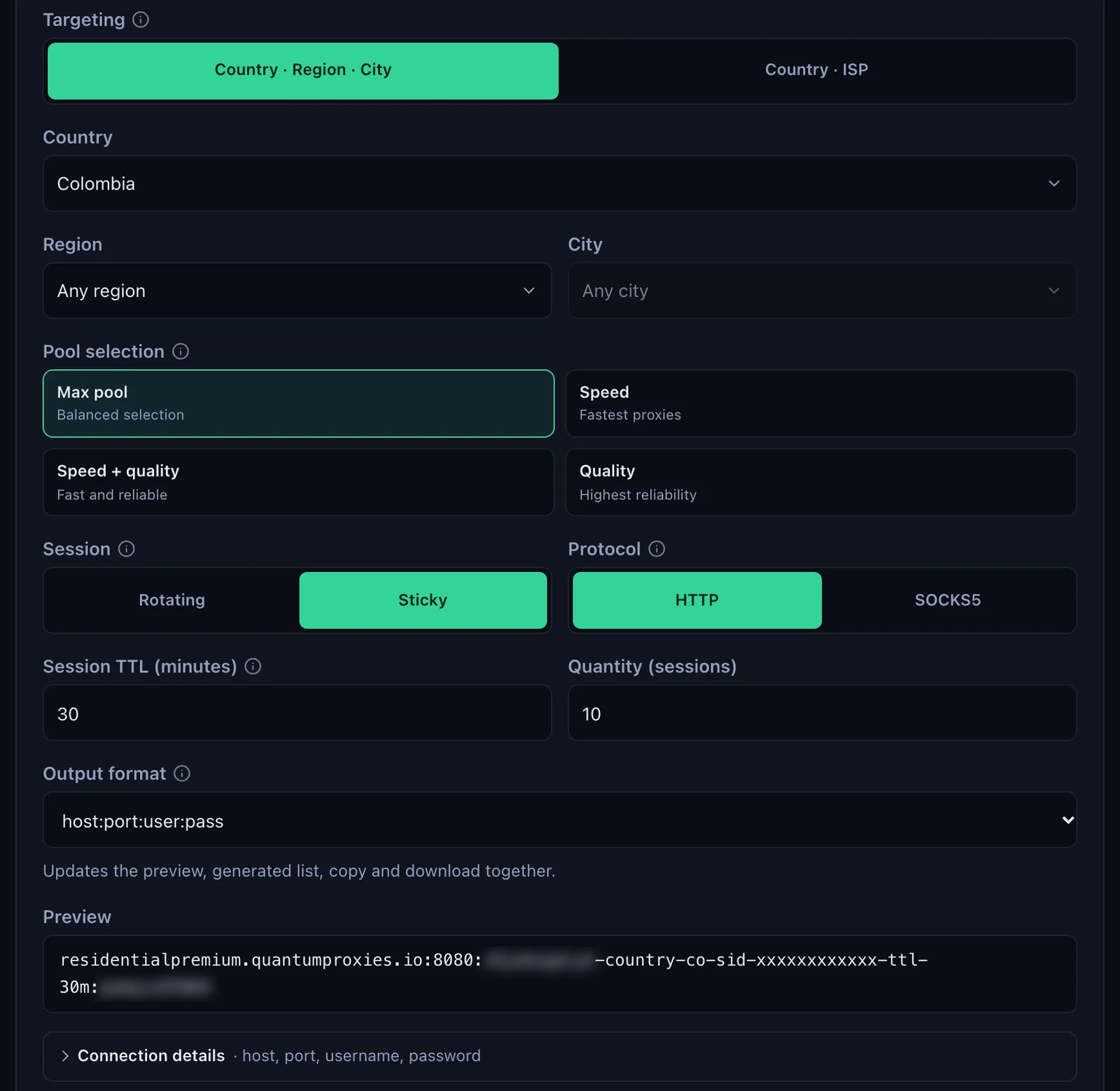
curl -x http://residentialpremium.quantumproxies.io:8080 \
  -U "USER-country-co-sid-edge01-ttl-60m:PASS" https://ipinfo.io/json
A line from the generator can hold its IP for up to 1440 minutes, for programs other than the extension. If curl fails as well, go through the proxy not working checklist. Using Chrome too? The same extension works there, step by step in our Chrome guide.
Before you run accounts
A proxy changes the address Edge connects from, not what a site allows. Follow each platform's terms and the law where you work, and keep one Edge profile and one sticky session per account.