
To use a proxy in WebHarvy, open Home, Settings, Proxy Settings. Tick Enable network connection via Proxy Server, pick Type HTTP, enter the address and the port, tick Requires Authentication and fill the username and password, click + and Apply. For several proxies, import a list and tick Rotate proxies.
WebHarvy is a point-and-click scraper for Windows: you click the data on a page in its built-in browser and its miner collects the same fields from every page. A proxy decides which IP address and which country the target site sees, which matters when a site limits one address or shows different results by country. The proxy is set once, for the whole application, and since version 6.1 both the miner and the configuration browser use it. The field names below are the ones in WebHarvy's own user guide (the current version is 8.2.0.256, of 1 October 2026); the values come from the QuanticData dashboard.
What the Proxy Settings tab takes
- Enable network connection via Proxy Server. The switch for everything below. Untick it to stop using proxies without deleting them.
- Type. HTTP, HTTPS, Socks4, Socks4A or Socks5. It sits next to the switch, above Add proxy, and has to match the proxy's port.
- Add proxy. Address and Port in two boxes, then Requires Authentication with a Username and a Password. The + button adds the proxy to the Proxy List.
- Proxy List. One proxy or many. The list shows each one as address:port; a double-click brings back its details to edit them.
- Import. The first button beside the list reads a CSV or text file with one proxy per line as proxy-address:port:username:password (commas or semicolons also separate entries).
- Rotate proxies every N minutes. With it ticked, WebHarvy moves through the list at that interval, starting from a random entry. Without it, only the first proxy in the list is used.
The same values for each QuanticData network:
| QuanticData proxy | Address | Port and Type | Username and password |
|---|---|---|---|
| Residential Premium | residentialpremium.quantumproxies.io | 8080, HTTP | Required; the username carries the country, region or city and the session |
| ISP | The IP from Assigned IPs | 50100, HTTP (SOCKS5 50101) | Required, one fixed IP per line |
| Mobile | mobile.quantumproxies.io | 8080, HTTP (SOCKS5 1080) | Required, with -type-mobile in the username; or none with the IP whitelist |
Step by step: a Residential Premium proxy in WebHarvy
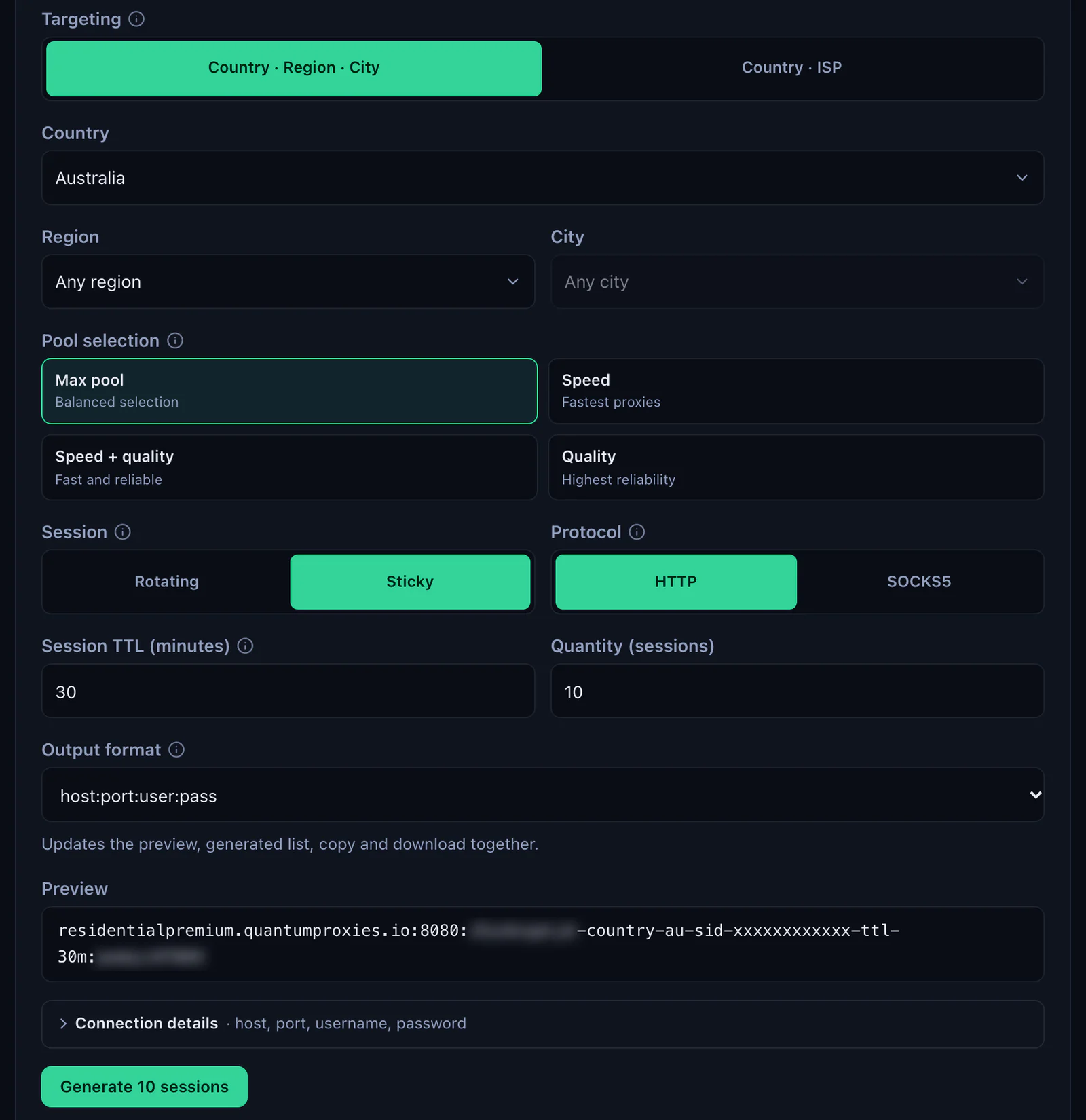
- Generate the values. In the QuanticData dashboard open My proxies, then your plan. In the Endpoint generator choose the Country (and a Region or City if you need one), set Session to Sticky, set Session TTL (minutes) to at least the length of the mining run, up to 1440, and choose HTTP.
- Open Connection details. WebHarvy asks for the four values one by one, and Connection details shows exactly those: host, port, username and password, each with a copy button.
- Open WebHarvy's Proxy Settings. On the Home tab of the ribbon click Settings, then the Proxy Settings tab.
- Tick Enable network connection via Proxy Server and set Type to HTTP.
- Fill Add proxy. Address residentialpremium.quantumproxies.io, Port 8080. The host goes alone in Address; the port has its own box.
- Tick Requires Authentication. Paste the username whole, for example
USER-country-au-sid-webharvy01-ttl-60m, and the password. - Click +. The proxy joins the Proxy List as residentialpremium.quantumproxies.io:8080.
- Click Apply.
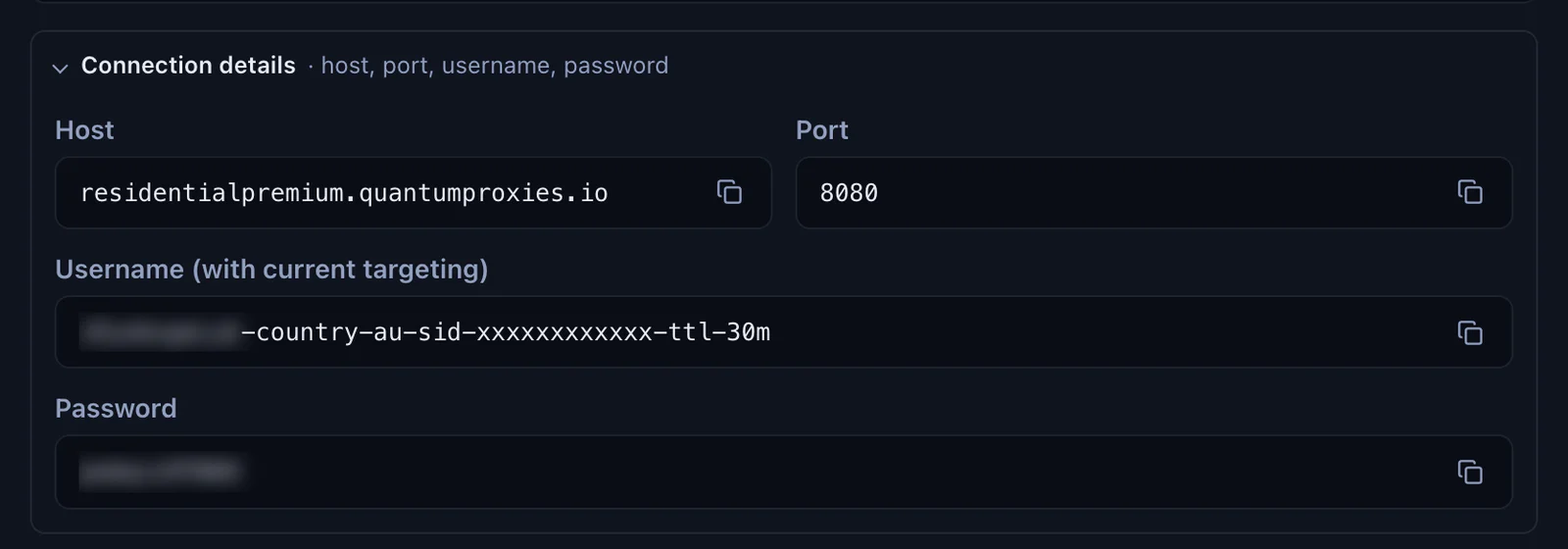
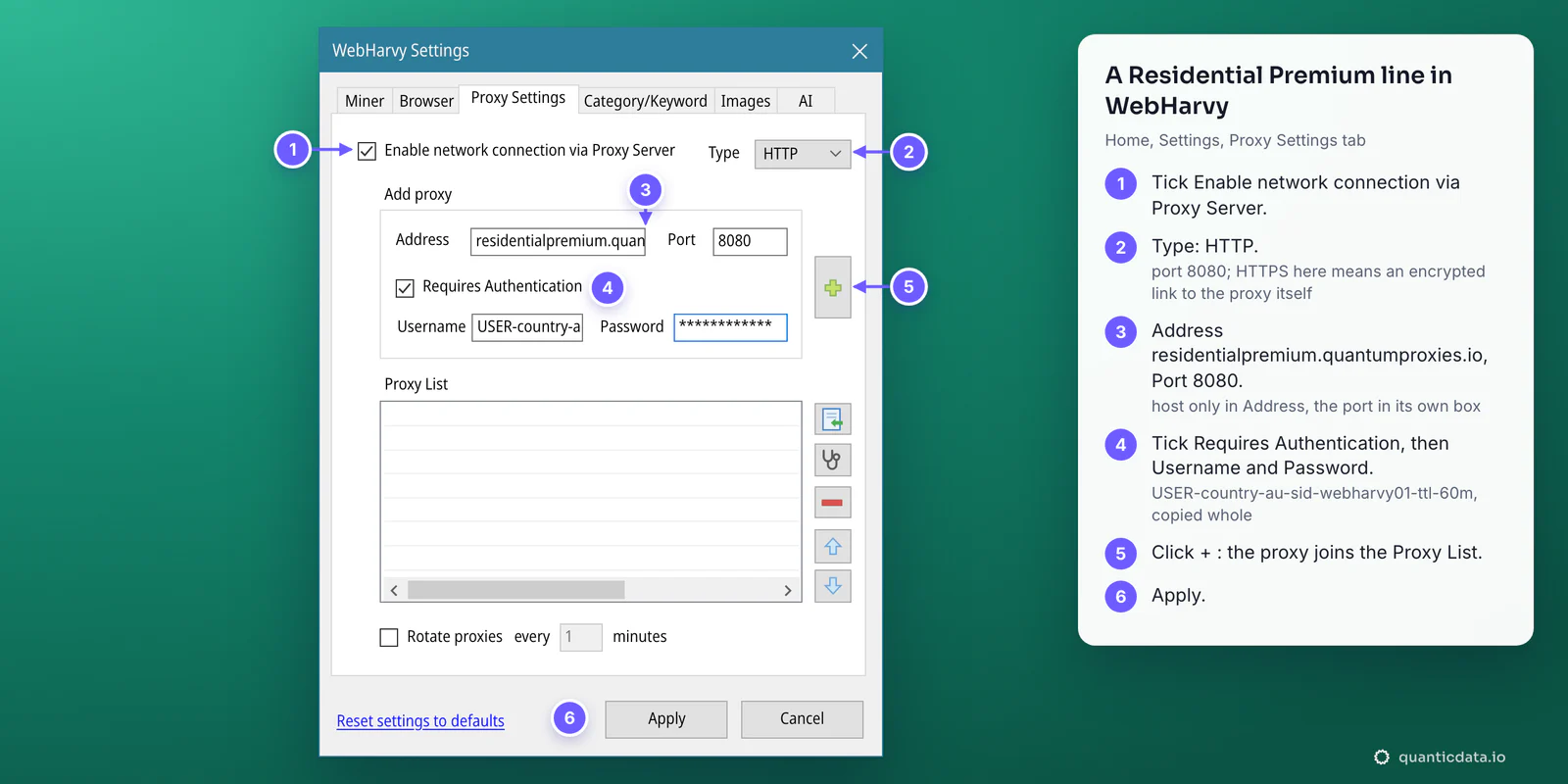
The username is the whole string. -country-au picks the exit country, -sid-webharvy01 names the session and -ttl-60m keeps it for 60 minutes. A username cut at the first dash still signs in, but the miner then leaves from a random country.
Check where WebHarvy exits
Older guides say WebHarvy's configuration browser ignores the proxy. That was true before version 6.1: since then, WebHarvy's release notes say, the configuration browser uses the proxies set in Settings too, so the check takes one page load.
- After Apply, type
https://ipinfo.io/jsonin WebHarvy's Url bar and press Enter. - Read city, region and timezone. They must match the
-country-in the username. - The status bar at the bottom of the window shows the proxy state next to the timeouts.
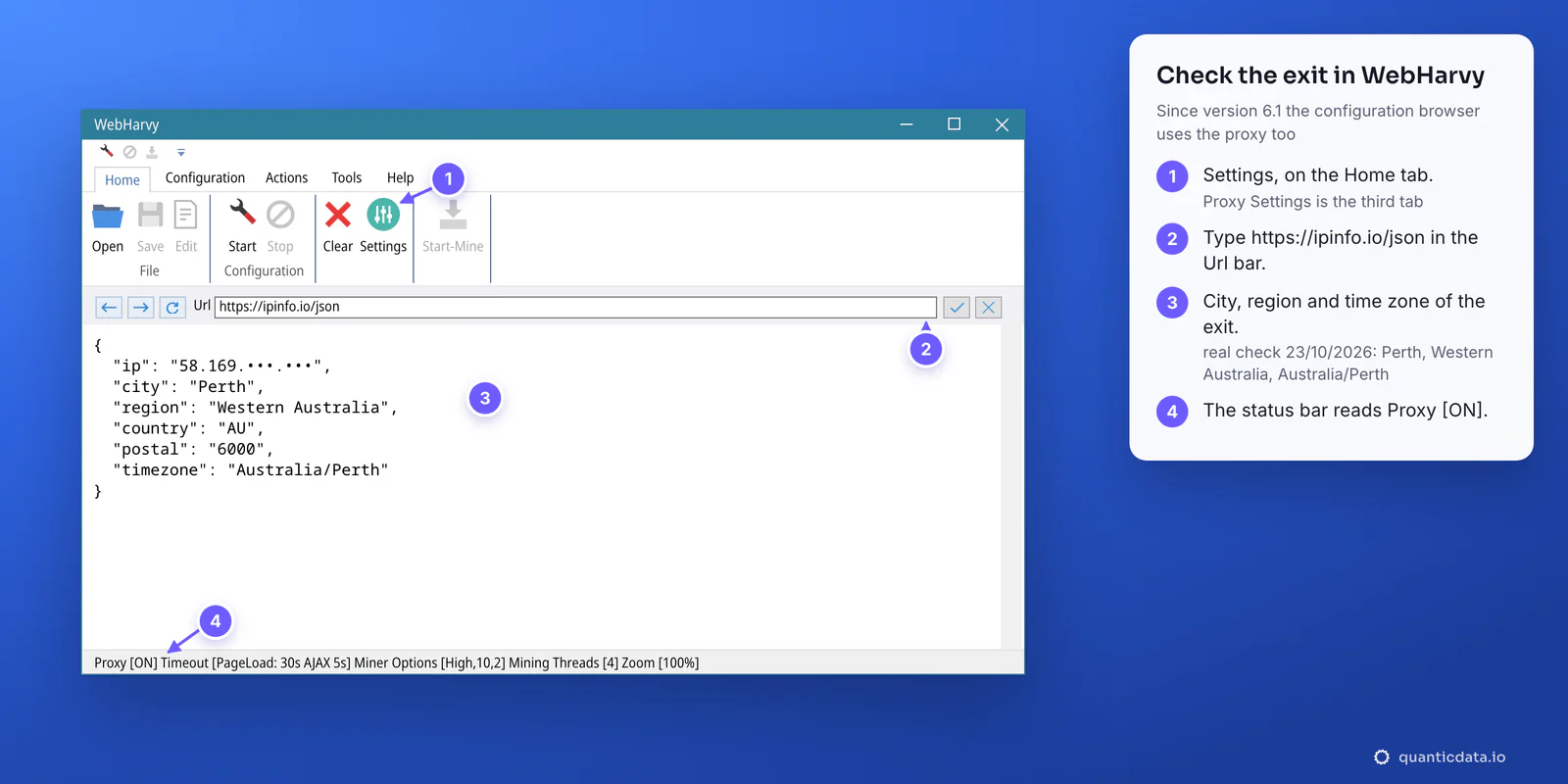
If the page still shows your own address, WebHarvy's troubleshooting guide has a fix for proxy details that are not used: Settings, Browser tab, Delete Cache / Browsing History, then restart WebHarvy and load the page again.
HTTP, HTTPS or SOCKS5 in the Type list
- HTTP is the one to pick for every QuanticData line with a login: port 8080 on Residential Premium and mobile, 50100 on ISP. HTTPS websites still load through it, because the browser opens a tunnel to them through the proxy.
- HTTPS in this list means an encrypted connection to the proxy itself. QuanticData's proxy ports take a plain connection: a TLS handshake to port 8080 fails (tested on 23 October 2026), so HTTPS here gives a page that does not load.
- Socks5 is in the list, but WebHarvy's browser is Chromium (version 151 in the October 2026 build), and Chromium's own documentation says it supports no authentication method for SOCKS5. Keep Socks5 for a mobile IP whitelist on port 1080, where no login is sent; with a username and password, use HTTP. More on the protocol on the page for SOCKS5 proxies.
Sticky or rotating: one IP per run or a new IP per request
With Residential Premium the IP is decided by the username, not by WebHarvy. Two choices in the generator cover most jobs:
| Session in the generator | Username | What WebHarvy gets |
|---|---|---|
| Sticky | USER-country-au-sid-webharvy01-ttl-60m | One IP for the whole session, up to 1440 minutes: every page, image and click of the run comes from the same address |
| Rotating | USER-country-au | A new IP on every request: a page and its images can come from different addresses |
Sticky is the safer default for a browser-based scraper: sites that check that a visitor keeps one address see a normal visit. For a new IP, change the session name, for example -sid-webharvy02, by double-clicking the proxy in the list. Rotating suits simple listing pages and searches where each page stands alone; for more on the trade-off, see rotating proxies.
WebHarvy's own guide adds one setting for mining through proxies: Disable cookies while mining, in the Browser tab, so sites cannot link the visits through stored cookies. Leave it off for sites that need a login, as the same guide says.
ISP proxies: a list with Rotate proxies
An ISP plan gives fixed IPs, each with its own line, which is exactly what WebHarvy's Proxy List and Rotate proxies are made for.
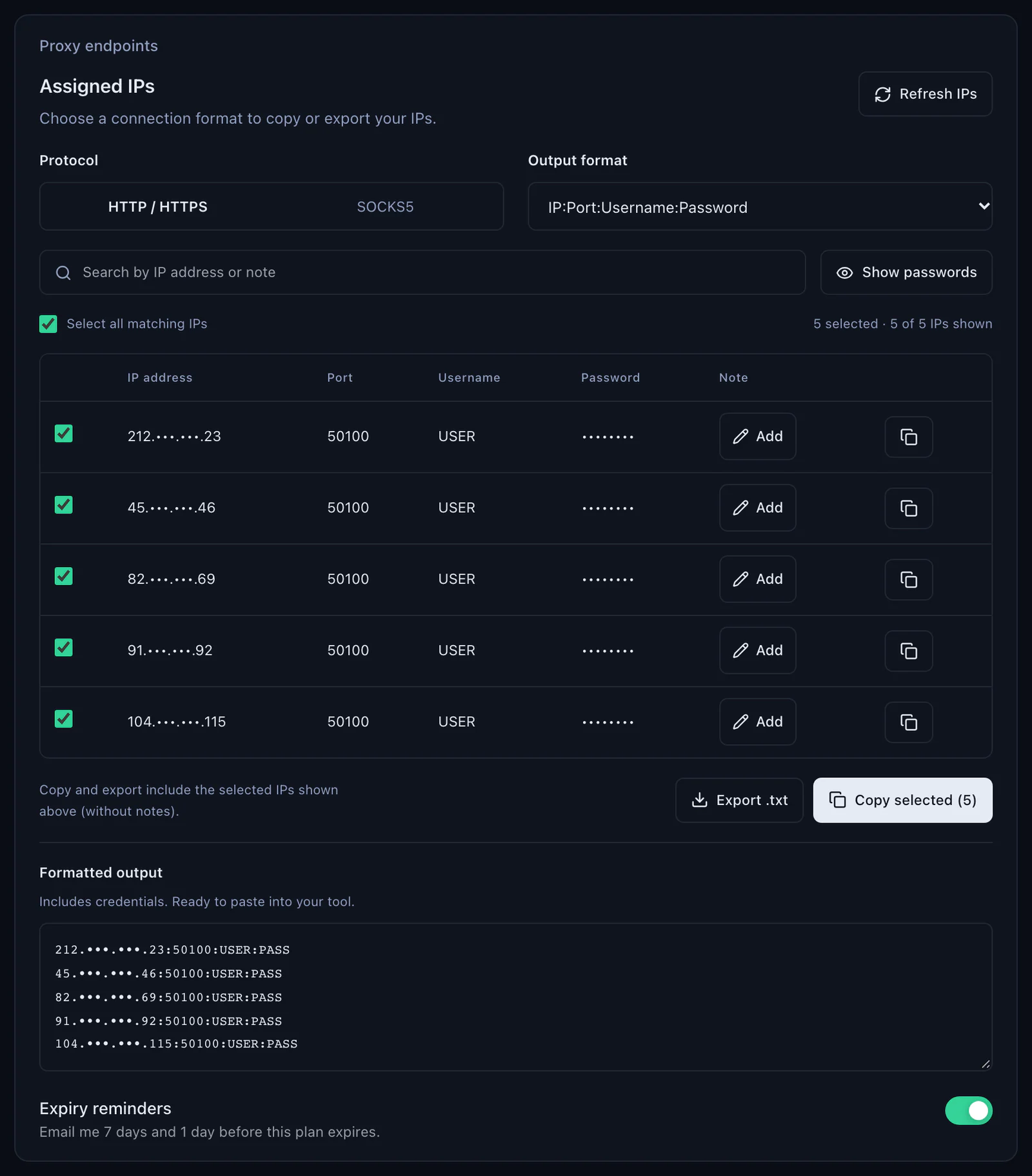
- Export the IPs. In the dashboard open the ISP plan, Proxy endpoints, Assigned IPs. Keep Protocol on HTTP / HTTPS and Output format on IP:Port:Username:Password, select the IPs and click Export .txt. That layout is the one WebHarvy imports.
- Import the file. In Proxy Settings click the Import button, the first one beside the Proxy List, and choose the file. Each IP appears as IP:50100; the username and password come in with it.
- Tick Rotate proxies and set the minutes. WebHarvy starts from a random IP in the list and moves to the next one at that interval.
- Or leave rotation off to work from one IP: WebHarvy then uses the first proxy in the list, and the arrow buttons move a proxy up or down.
- Type HTTP, then Apply. For SOCKS5 the ISP port is 50101, but the login limit above applies.
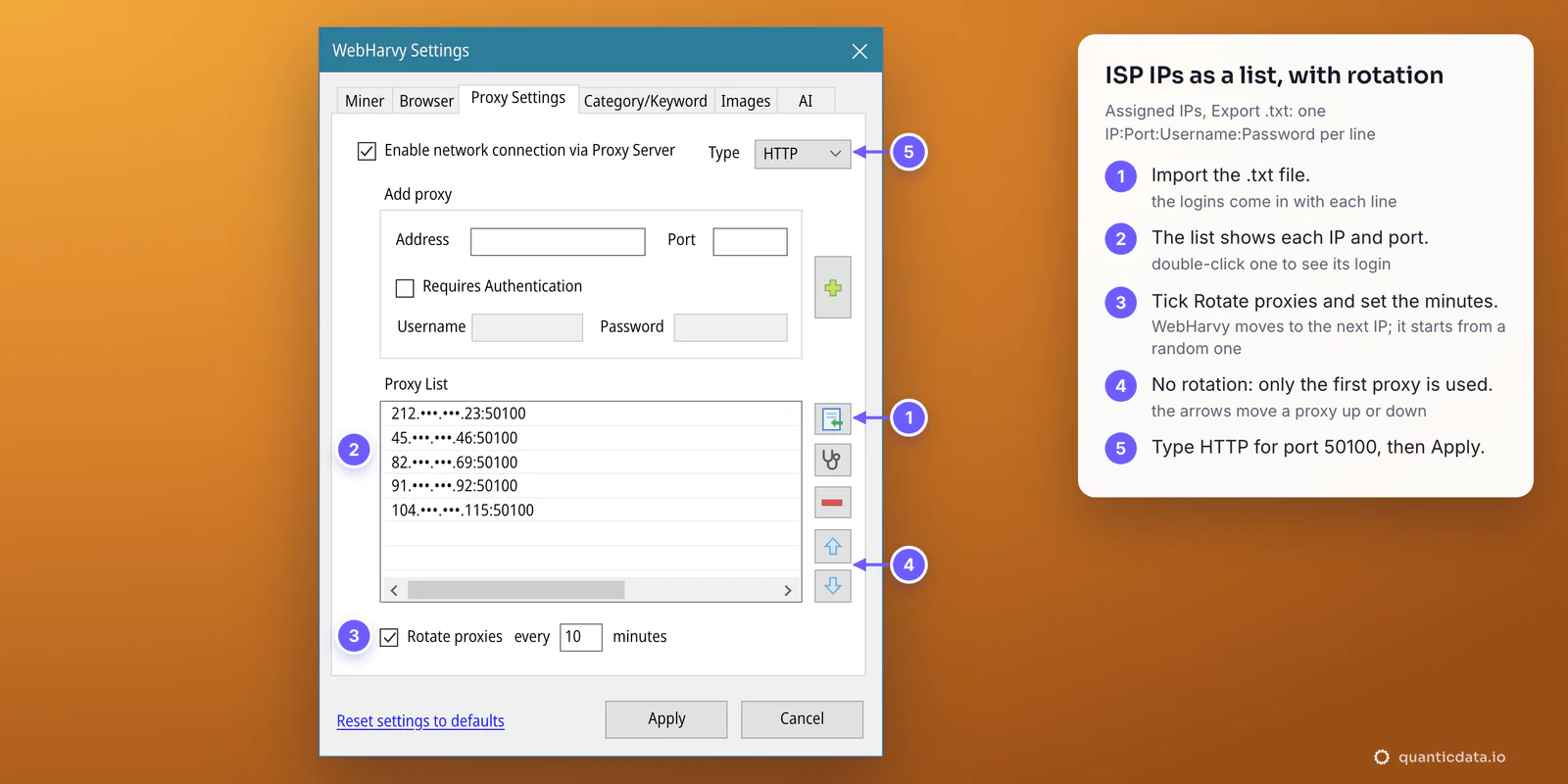
Every ISP IP stays the same for the life of the plan, so a list of them gives a known set of addresses: useful when a target allows a fixed number of visits per address, or when results have to come from the same IPs every day. The plans are on the page for ISP proxies.
Mobile proxies in WebHarvy
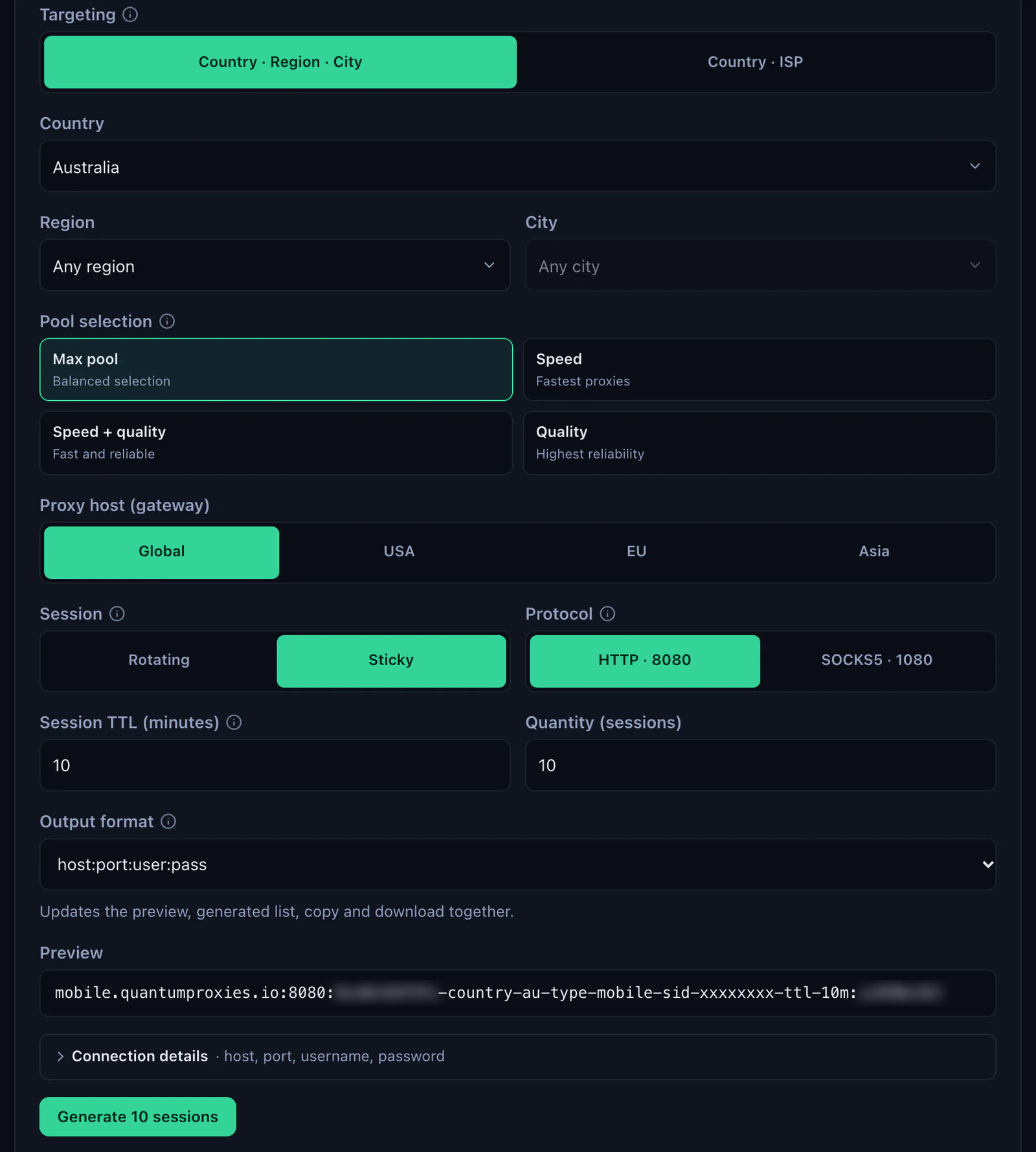
A mobile line goes in like a Residential Premium one, with mobile.quantumproxies.io as the address, port 8080 with Type HTTP, and a username with -type-mobile in it. In the generator choose the gateway (Global, USA, EU or Asia), the country, Sticky and HTTP, then copy the values from Connection details.
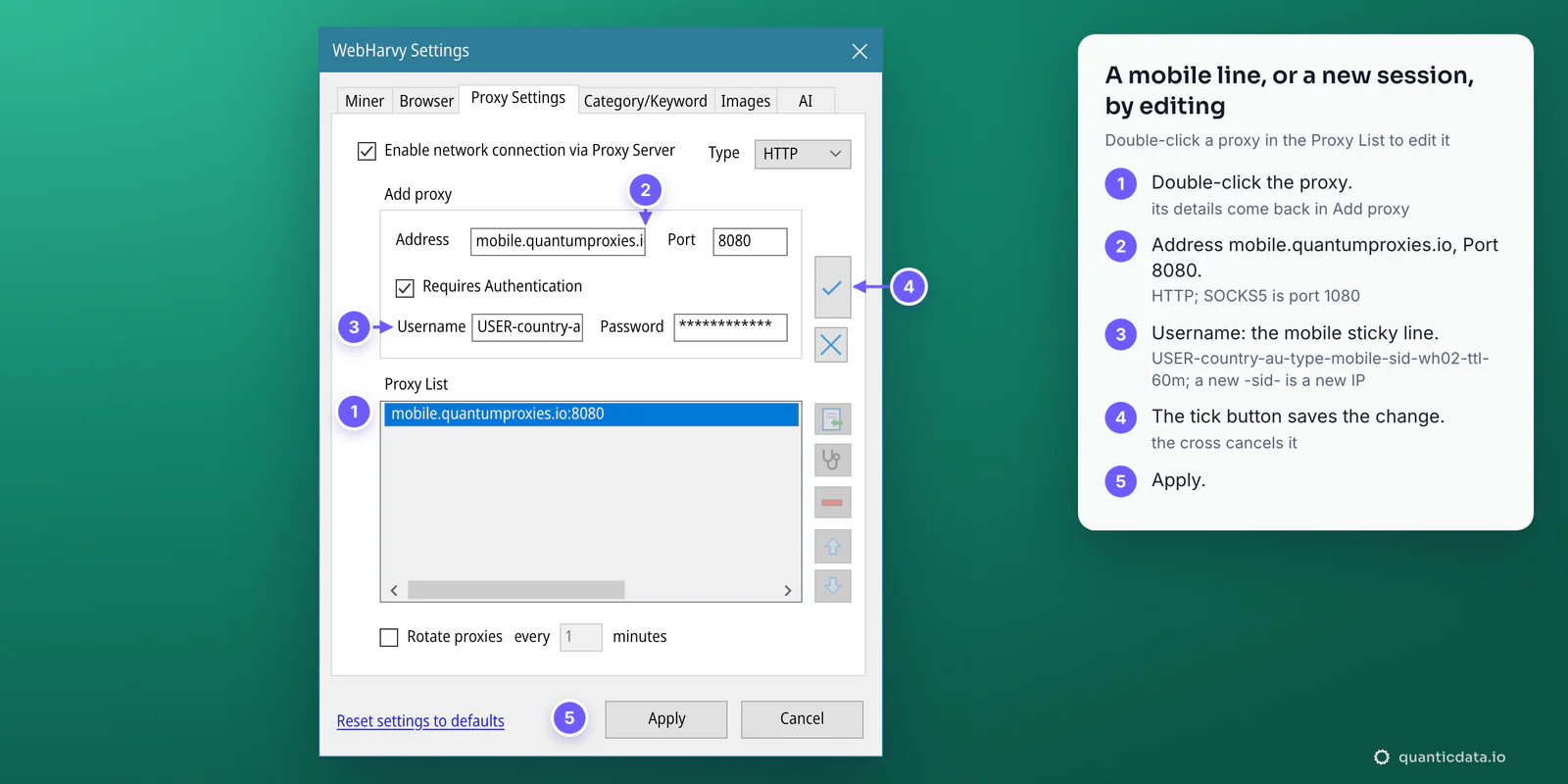
To switch an existing proxy to a mobile line, or to give it a new session, edit it in place:
- Double-click the proxy in the Proxy List. Its details come back in Add proxy.
- Change Address and Port: mobile.quantumproxies.io, 8080.
- Paste the mobile username, for example
USER-country-au-type-mobile-sid-wh02-ttl-60m, and the password. A new-sid-is a new IP. - Click the tick button to save the change (the cross cancels it), then Apply.
Mobile plans also offer the IP whitelist: add your computer's IP in the dashboard, take the host:port list for it, and leave Requires Authentication unticked in WebHarvy. That is the one setup where Socks5 on port 1080 also works, since no login is sent. For coverage by country see mobile proxies in Australia and QuanticData mobile proxies.
WebHarvy proxy not working: Error Code -375 and other fixes
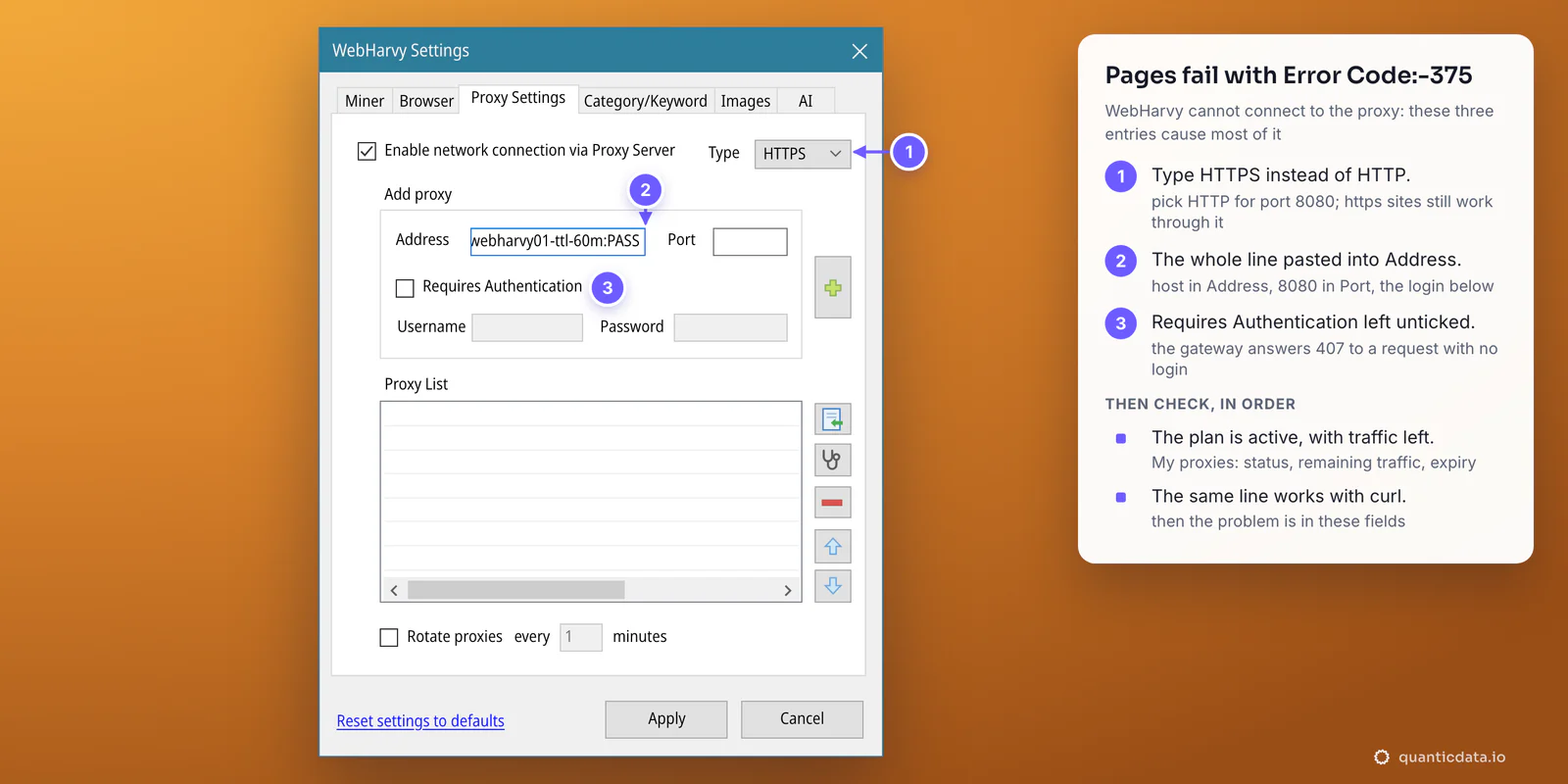
When WebHarvy cannot connect to the proxy, pages fail with "Error Code:-375". WebHarvy's troubleshooting guide puts it down to the proxy server address, port, type, username or password, or to an IP that is not whitelisted. Three entries in Proxy Settings cause most of it.
| What you see | Usual cause | Fix |
|---|---|---|
| Error Code:-375 on every page | Type HTTPS or Socks5 for a line with a login | Type HTTP, port 8080 (50100 for ISP) |
| The same error, Type HTTP | The whole line pasted into Address, or the port missing | The host alone in Address, the port in Port, the username and password below |
| The same error, all fields right | Requires Authentication unticked, or the username cut | Tick it and paste the username whole; with no login our gateway answers 407 Proxy Authentication Required |
| It worked yesterday, fails today | The plan expired or its traffic is used up | Check the plan in My proxies: status, remaining traffic, expiry date |
| Your own IP on ipinfo.io | Enable unticked, Apply not clicked, or a stale browser cache | Tick Enable, Apply; then Browser tab, Delete Cache / Browsing History and restart |
| Wrong country | No -country- in the username | Generate the values with a country |
| Some pages come back empty or half loaded | The site needs longer than WebHarvy waits for it | Raise Page Load Timeout (30 seconds by default) and Script Load Wait Time (5 seconds) in the Miner tab |
One test outside WebHarvy settles most cases in a minute. If this returns an address in the right country, the proxy works and the problem is in the fields:
curl -x http://residentialpremium.quantumproxies.io:8080 \
  -U "USER-country-au-sid-test-ttl-10m:PASS" https://ipinfo.io/json
WebHarvy's guide also gives a last resort for a stuck setup: untick Enable, click Apply and restart WebHarvy, then tick it again.
Before you scrape
A proxy changes where the miner's requests come from, not what a site allows. Keep to each site's terms and to the law where you work, and keep the pace reasonable: WebHarvy's Miner tab can add pauses between pages. For Australian targets the coverage is on the page for Australian proxies; all plans are on the page for QuanticData residential proxies.
Sources & further reading
- WebHarvy user guide: Scraping via Proxy Servers
- WebHarvy user guide: WebHarvy Settings
- WebHarvy troubleshooting guide: Error Code -375 and proxy details not used
- WebHarvy version history
- WebHarvy 6.1 release notes: proxies used internally and by the configuration browser
- Chromium: Proxy support in Chrome (SOCKSv5 authentication)
- RFC 9110: HTTP Semantics, 407 Proxy Authentication Required