
To add a proxy in Lauth, open the profile's Connection and proxy settings, turn on Browse using proxy, choose HTTP or SOCKS5 to match the port, fill IP Address/Host and Port, turn on Proxy requires authentication, enter the user name and password, click Test proxy and Save editions. Below: each step, Residential Premium, ISP and mobile lines, and a fix for each error.
Lauth is a Brazilian antidetect browser: every profile keeps its own cookies, its own device data and, once you add one, its own proxy. The proxy decides which IP address and which country the sites see. The field names below are the ones in Lauth's own help centre and in the current app, with the Portuguese labels next to them, and the values come from the QuanticData endpoint generator. The screens are redrawn with our values; the Test proxy result shown is a real check of a Brazilian line made on 24 October 2026.
What you need before you start
- Lauth installed, with an account. It runs on Windows and macOS. New accounts get a 7-day free trial; the plans differ by the number of profiles, from 10 to 1,000.
- A proxy plan. Residential Premium, ISP or mobile: all of them work in Lauth. The table further down says which one fits which profile.
- The four values: host, port, username and password. In the QuanticData dashboard they are under My proxies, on the plan's page, in the Endpoint generator (for ISP plans, under Assigned IPs).
Where the proxy goes in Lauth
Lauth has one place for the proxy of a profile, the Connection and proxy section, and two ways to reach it:
- A new profile: Add new, then New profile. The steps are profile information, the network connection (Connection and proxy), device data and parameters, and cookies to import.
- An existing profile: the three dots next to the profile, or a right click on it, then Edit profile preferences and Connection and proxy in the side menu.
Lauth asks for the proxy as separate fields, not as one line. Its help centre reads a proxy written as protocol://address:port:name:password and enters each part, in that order, in its own field. With the QuanticData line it looks like this:
# the line from the generator, host:port:user:pass
residentialpremium.quantumproxies.io:8080:USER-country-br-sid-p01-ttl-60m:PASS

# the same line in Lauth's fields
Proxy protocol    HTTP
IP Address/Host   residentialpremium.quantumproxies.io
Port              8080
User name         USER-country-br-sid-p01-ttl-60m
Access password   PASS
The user name is the whole username string, with everything after the first dash: -country-br picks the exit country, -sid-p01 names the session and -ttl-60m keeps it for 60 minutes. Copy it whole. A user name cut at the first dash still logs in, but the profile then leaves from a random country on a new IP at every request.
Step by step: add a proxy to a Lauth profile
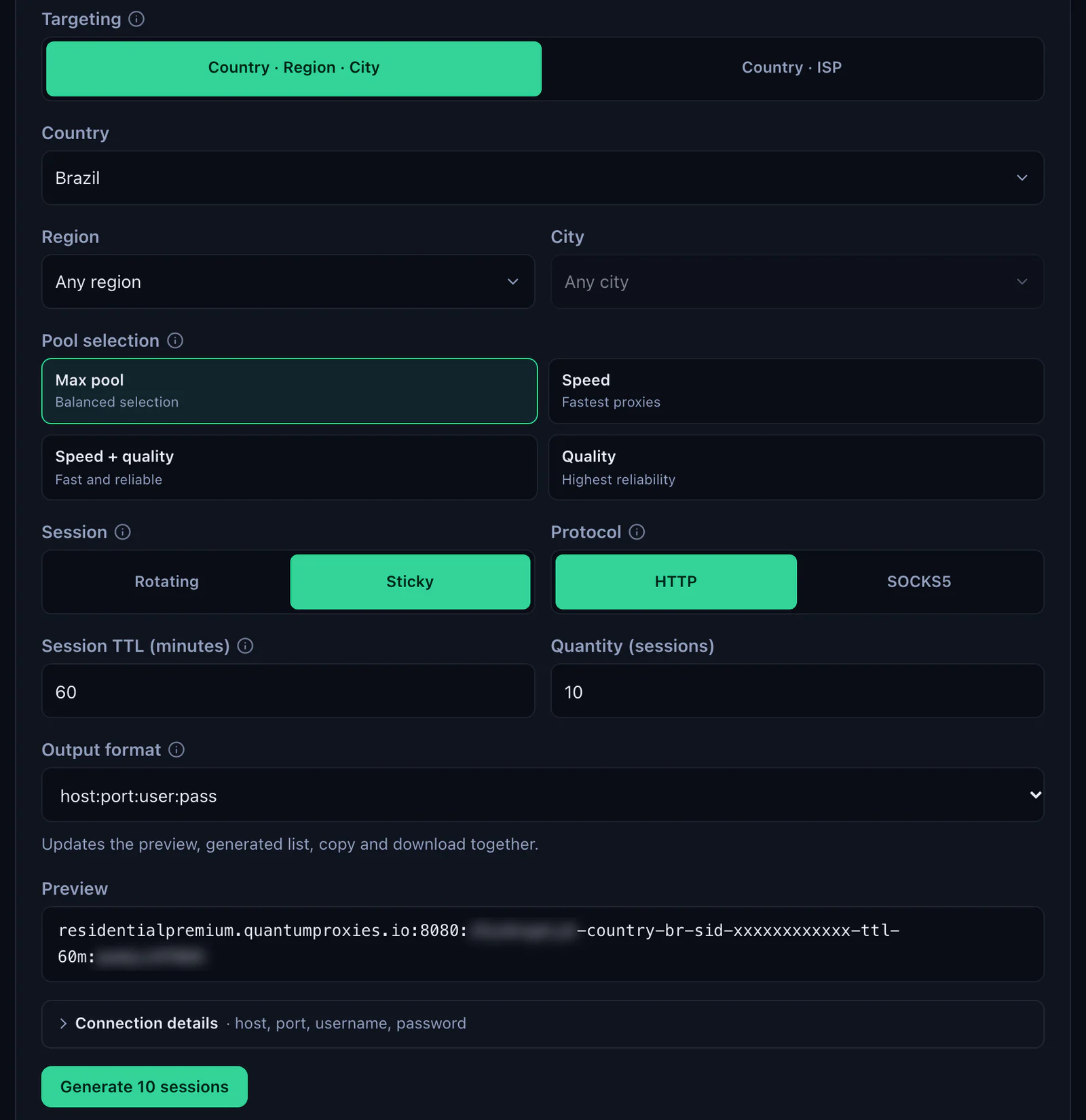
- Generate the line. In the QuanticData dashboard open My proxies, then your plan. In the Endpoint generator choose the Country (and a Region or City if the profile needs one), set Session to Sticky, set Session TTL (minutes) to at least the time the profile stays open and choose the Protocol.
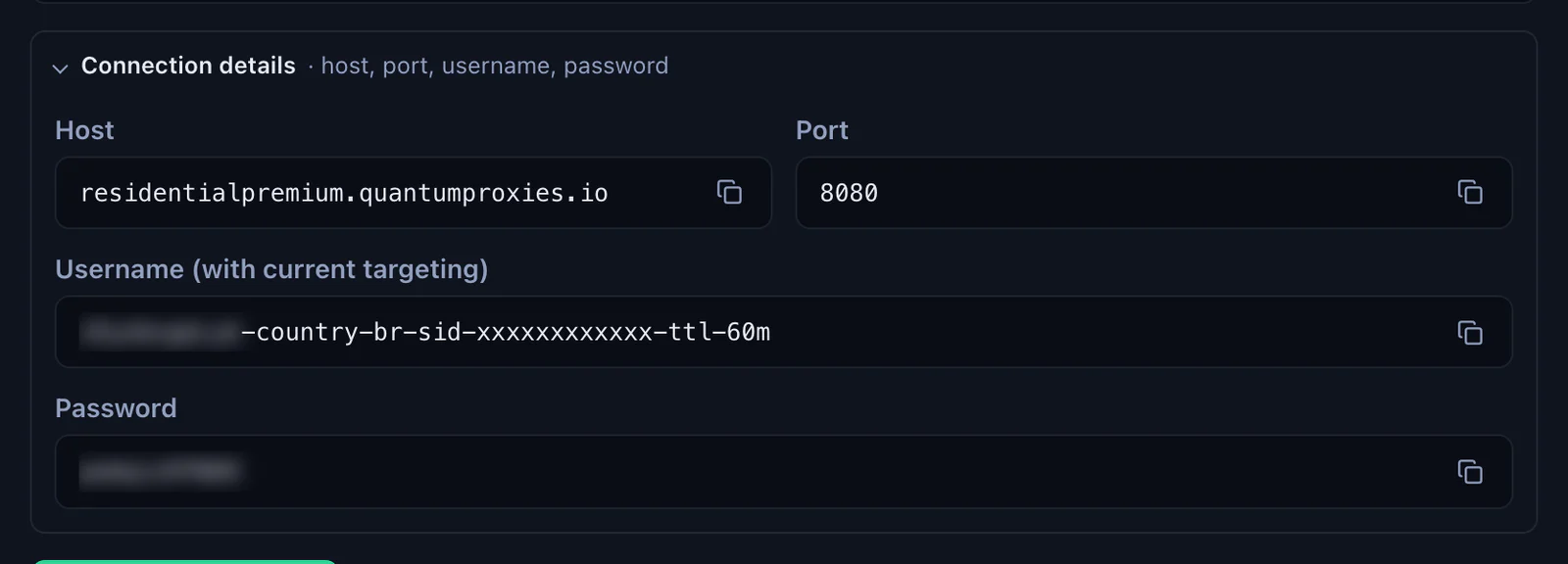
- Open Connection details. Under the Preview it lists the same proxy as four values, Host, Port, Username and Password, each with its own copy button: exactly what Lauth's fields want.
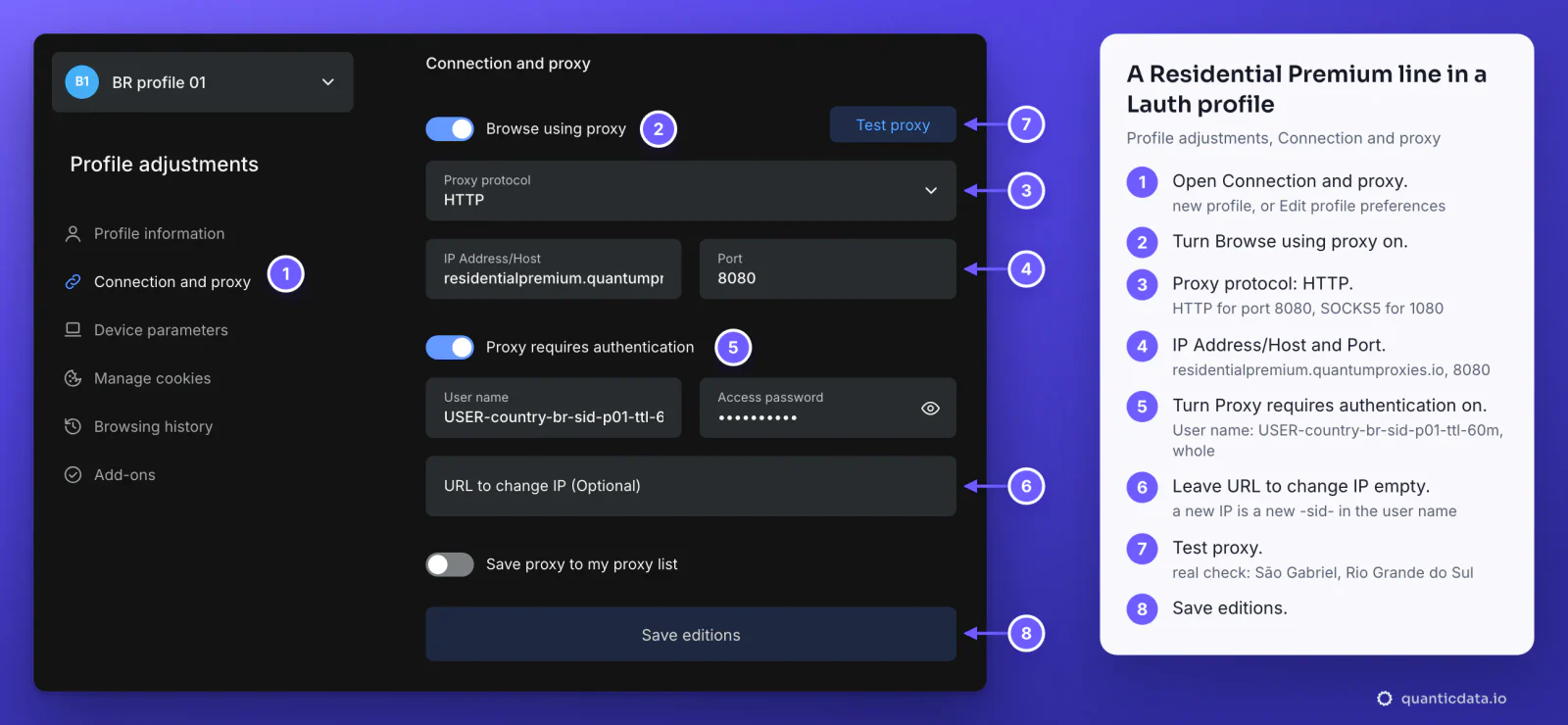
- Open the profile in Lauth. A new one (Add new, New profile) or an existing one (three dots, Edit profile preferences), then Connection and proxy.
- Turn on Browse using proxy. The proxy fields below it come alive.
- Choose the Proxy protocol. The list has HTTPS, HTTP, SOCKS4 and SOCKS5: HTTP for port 8080, SOCKS5 for port 1080.
- Fill IP Address/Host and Port. The host without
http://or spaces, the port as a number. - Turn on Proxy requires authentication and paste the User name and the Access password. They are the proxy's credentials, not the login of any site.
- Leave URL to change IP (Optional) empty. With QuanticData a new IP comes from a new session ID in the user name, explained further down.
- Click Test proxy, then Save editions. The profile's time zone and language should follow the proxy's country.
If your Lauth is in Portuguese
Lauth comes from Brazil and many installs run in Portuguese. The fields are the same, in the same order:
| English | Portuguese |
|---|---|
| Connection and proxy | Conexão e proxy |
| Browse using proxy | Navegar utilizando proxy |
| Proxy protocol | Protocolo do proxy |
| IP Address/Host, Port | Endereço IP/Host, Porta |
| Proxy requires authentication | O proxy requer autenticação |
| User name, Access password | Nome de usuário, Senha de acesso |
| URL to change IP (Optional) | URL para troca de IP (Opcional) |
| Save proxy to my proxy list | Salvar proxy na minha lista de proxys |
| Test proxy | Testar proxy |
| Edit profile preferences | Editar preferências do perfil |
Test proxy: what the Proxy data window says
Test proxy opens the Proxy data window. It shows the IP the profile now uses, where that IP is, whether the connection to the proxy and the connection to the internet work, and whether an IP change URL is set. The country has to match the -country- in the user name.
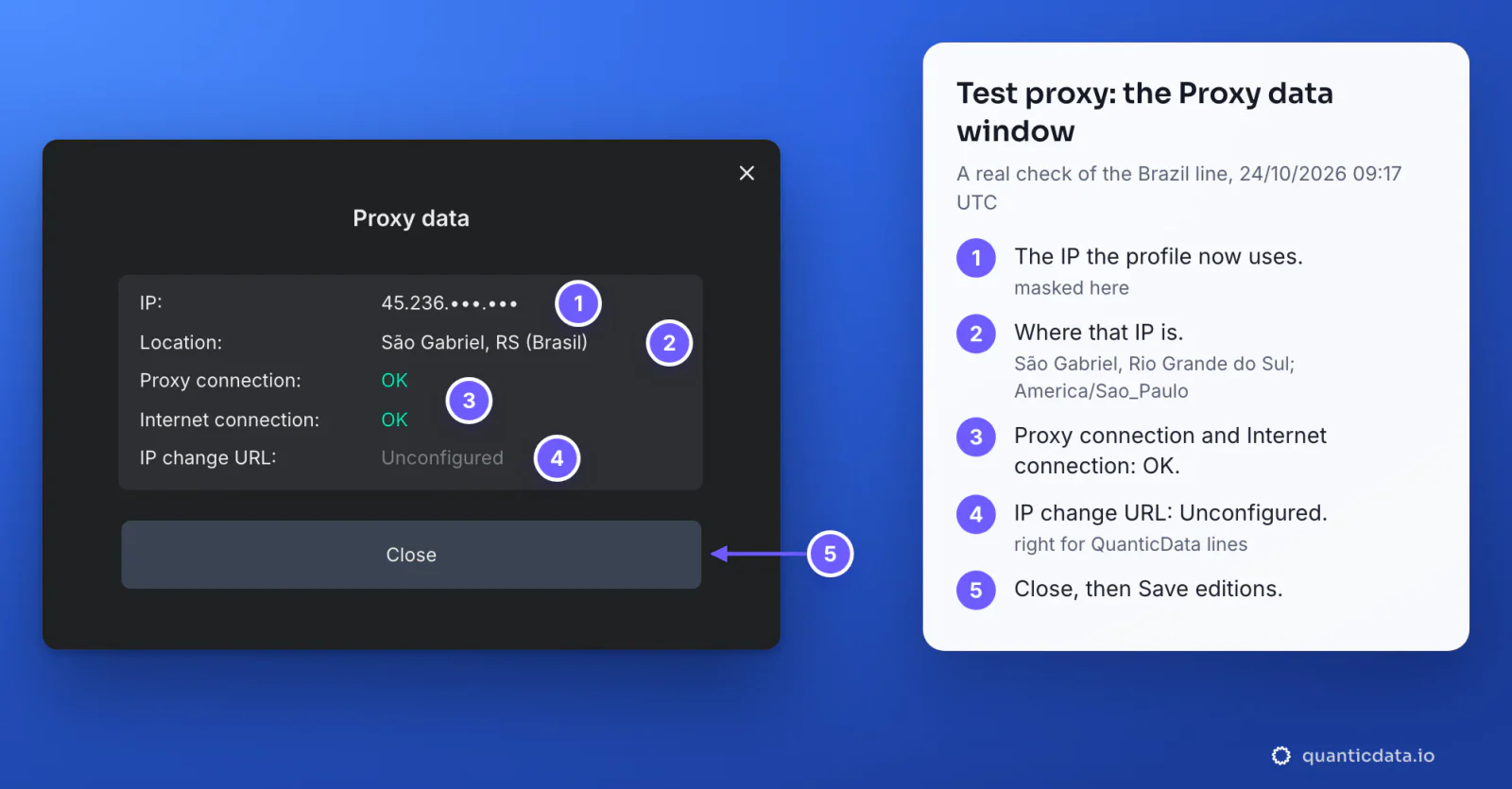
IP change URL reads Unconfigured, and that is right for a QuanticData line. The same check is also on the link icon of the profile card in the profiles list, without opening the settings.
One sticky session per profile
An antidetect profile is meant to look like one person on one connection. A rotating proxy changes IP on every request, which is fine for scraping and wrong for a profile that logs in. A sticky session keeps one IP for as long as the session lives, and the session lives in the user name, so the fields never have to change once the profile is saved.
# profile 1: Brazil, one session for a working day
User name  USER-country-br-sid-p01-ttl-480m

# profile 2: same plan, its own session (never reuse p01)
User name  USER-country-br-sid-p02-ttl-480m

# profile 3: Brazil, open all day
User name  USER-country-br-sid-p03-ttl-1440m
Host, port and password stay the same in every profile; only the user name changes. Three rules cover almost every case:
- A different session ID in every profile. Two profiles on the same user name share one IP, which is exactly what an antidetect browser is there to avoid.
- A lifetime longer than the work. The generator accepts up to 1440 minutes, a full day. When the session ends, the next request gets a new IP, and a site can see that as a new login location.
- The country in the user name. Without
-country-the exit can be anywhere, and the profile's time zone will not match.
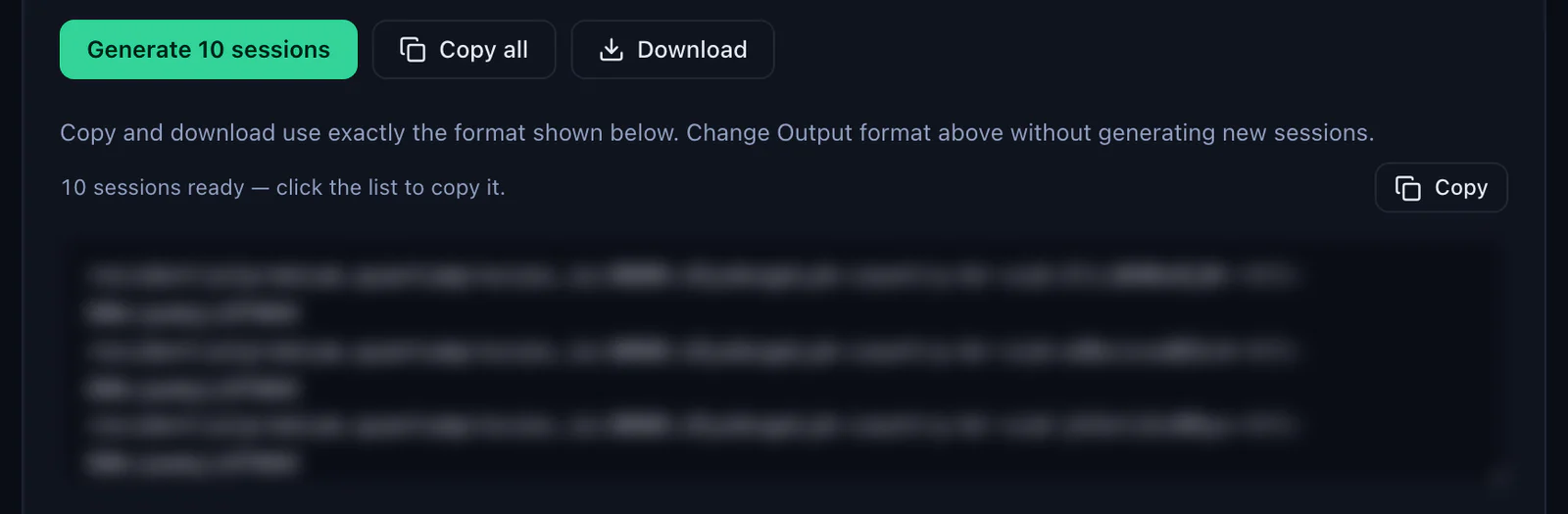
With Session set to Sticky, the generator makes as many lines as the Quantity field says, ten by default, each with its own session ID, and Copy all or Download takes them out together. One line per profile.
Which proxy type for which profile
| Proxy type | In Lauth | Good for |
|---|---|---|
| Residential Premium | HTTP 8080 or SOCKS5 1080; one sticky user name per profile; country, region, city or ISP in the user name; username and password only | Most profiles: home IPs in the country you choose |
| ISP | Fixed IPs from Assigned IPs; the IP in IP Address/Host, port 50100 (HTTP) or 50101 (SOCKS5); one IP per profile | Long-lived accounts that should keep the same address for months |
| Mobile | mobile.quantumproxies.io (Global gateway), HTTP 8080 or SOCKS5 1080; -type-mobile and a session in the user name; IP whitelist available | Phone-first platforms and accounts tied to mobile networks |
For a wider view of why each profile needs its own address, see residential proxies for antidetect browsers. The plans themselves are on the pages for QuanticData residential proxies, ISP proxies and QuanticData mobile proxies.
ISP proxies in Lauth
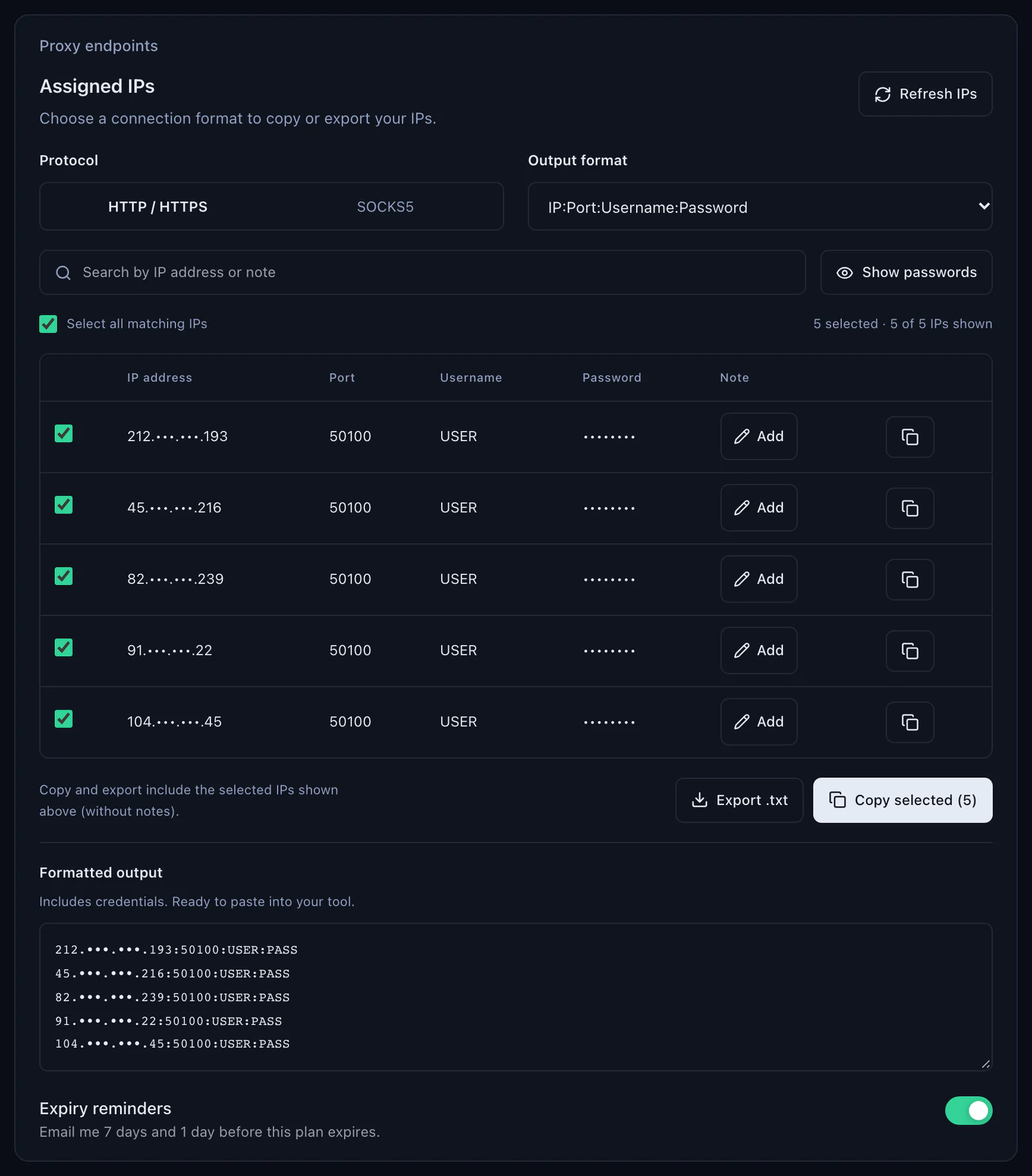
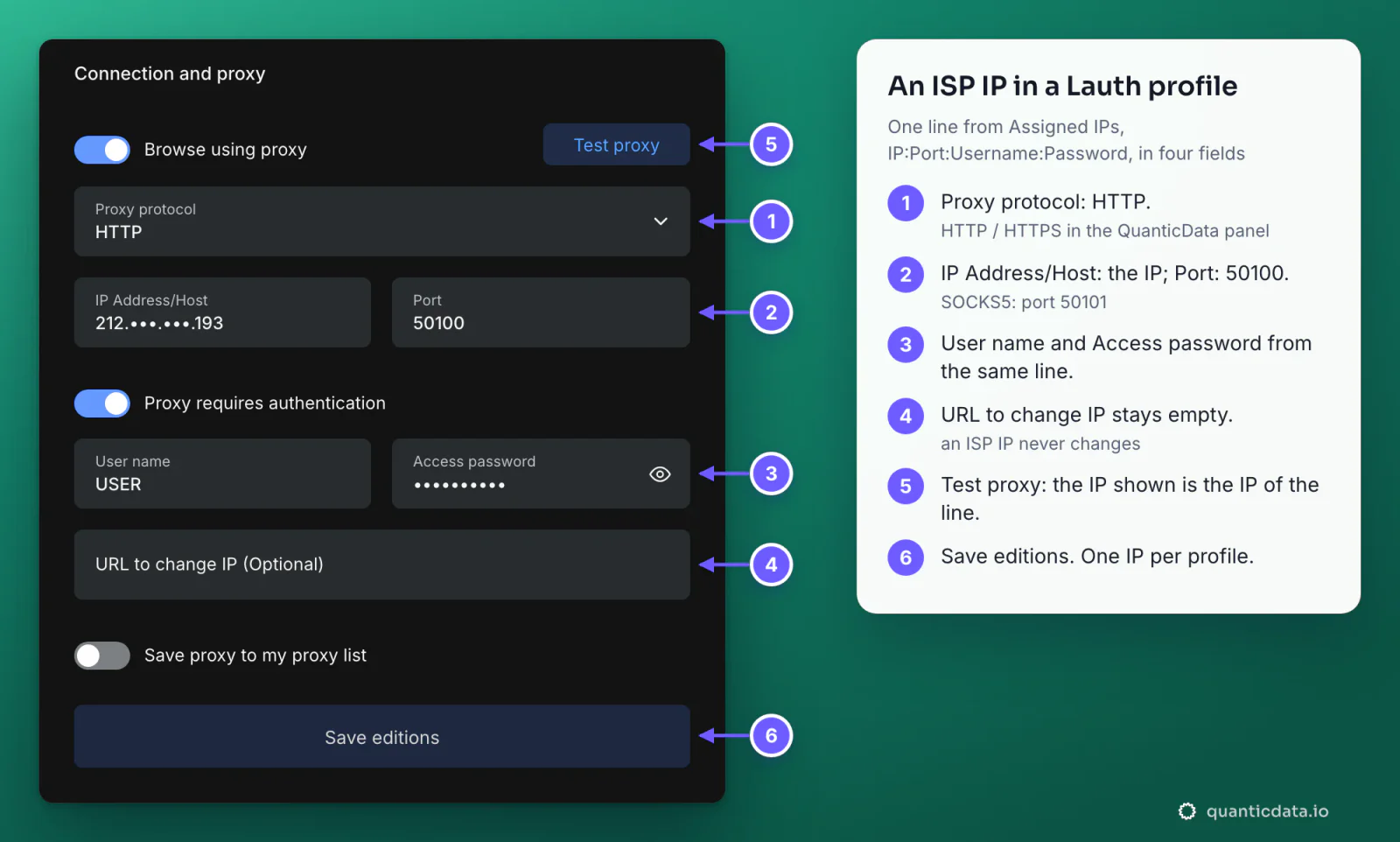
In the dashboard, Proxy endpoints, Assigned IPs lists one fixed IP per line as IP:Port:Username:Password. Give each profile one line: the IP goes in IP Address/Host, the port in Port, and the username and password in the authentication fields. Choose HTTP when the panel's Protocol is HTTP / HTTPS (port 50100) and SOCKS5 when it is SOCKS5 (port 50101). Test proxy then shows the IP of the line itself, and URL to change IP stays empty: that IP does not change. For Brazilian addresses, see ISP proxies in Brazil.
Mobile proxies in Lauth
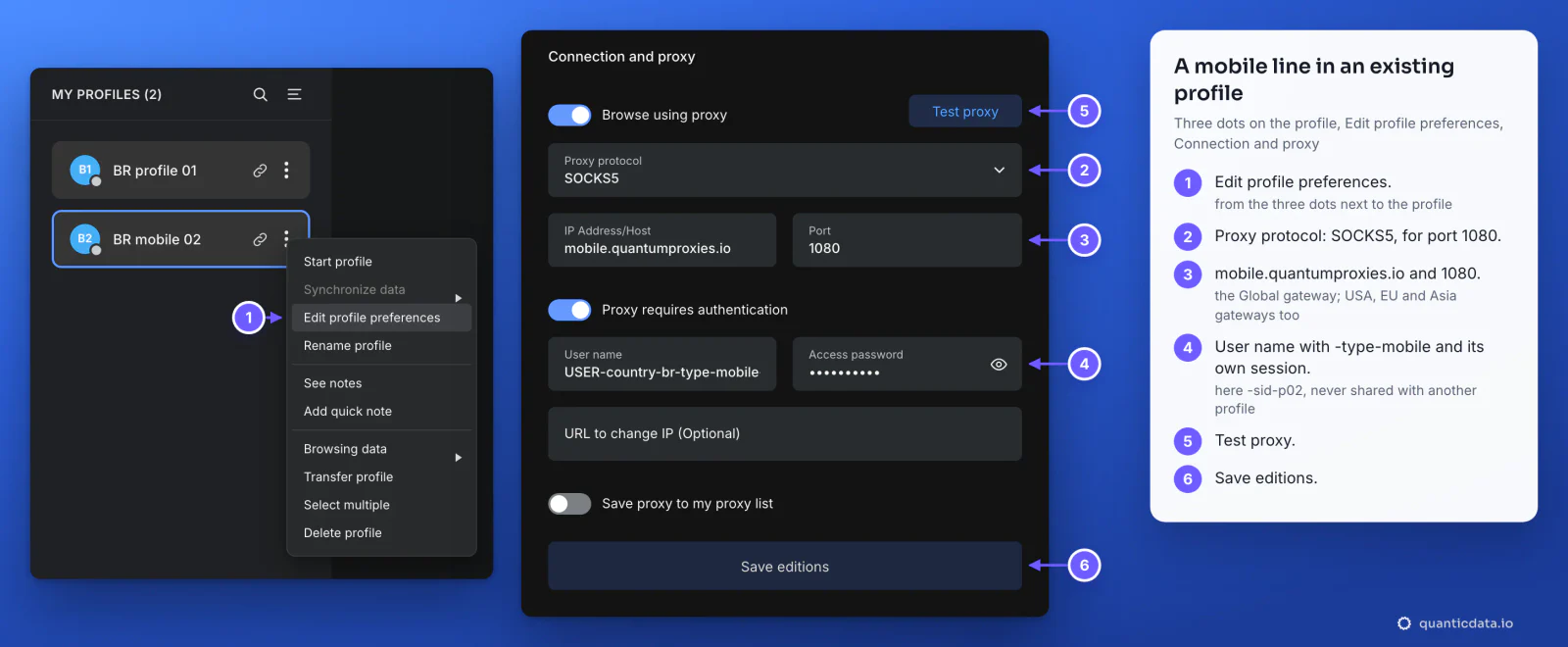
A mobile line goes in like a Residential Premium one, with -type-mobile in the user name. In the Mobile generator choose the gateway (Global, USA, EU or Asia) and the protocol, HTTP 8080 or SOCKS5 1080, then copy the four values. With SOCKS5, choose SOCKS5 in Proxy protocol too. The example below changes the proxy of an existing profile.
Mobile plans also offer IP whitelist authentication: add your computer's IP in the dashboard and use the host:port list it gives. In Lauth, leave Proxy requires authentication off for those lines, since the plan recognises your IP and no login is sent. Lauth's help centre lists the same two options, authentication by your real IP or by name and password. More on the plans for this market: mobile proxies in Brazil.
Saved proxies and many profiles
Save proxy to my proxy list keeps a proxy for later. Other profiles can then pick it from Use saved proxy, at the top of their Connection and proxy section, and the whole list can be edited or deleted under Proxy and connection in Lauth's general settings. Two cautions for antidetect work:
- Save one entry per session, not one per plan. A saved Residential Premium entry carries one session ID; picked by five profiles, it puts five profiles on one IP. Store
-sid-p01,-sid-p02and so on as separate entries. - Prepare the lines first. Lauth's help centre describes proxies added one at a time, so generate the lines with Copy all or Download, then fill one profile, or one list entry, per line.
A new IP without touching the profile's other settings
URL to change IP is meant for proxies that change their IP through a link, such as some 4G setups. With QuanticData Residential Premium and Mobile leave it empty: the IP is tied to the session ID in the user name, so a new session ID, for example -sid-p02 instead of -sid-p01, is a new IP, and the old one keeps working until its lifetime ends. Change only the User name field and save. ISP proxies are static addresses by design: one IP per profile, for months.
Lauth proxy not working: errors and fixes
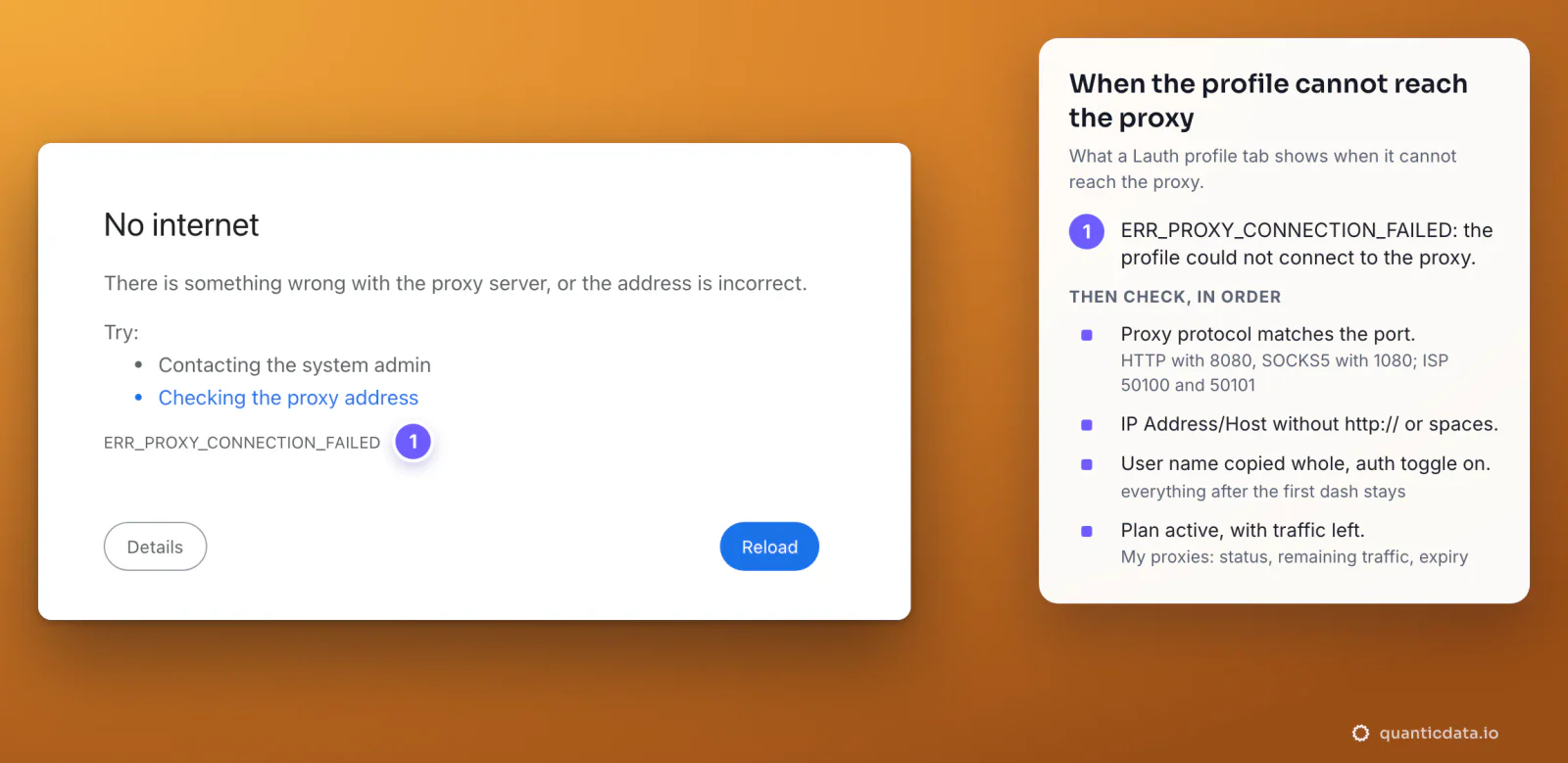
When the proxy cannot be reached, Test proxy does not come back with OK, and a page opened in the profile shows the browser's own error, ERR_PROXY_CONNECTION_FAILED. Lauth's help centre says to review the settings when one of the checks shows an error. These are the cases behind it, in the order to check.
| What you see | Usual cause | Fix |
|---|---|---|
| Test proxy fails, pages show ERR_PROXY_CONNECTION_FAILED | The protocol does not match the port: SOCKS5 on 8080 or HTTP on 1080 | HTTP with 8080, SOCKS5 with 1080; for ISP, 50100 and 50101 |
| The same error, with the right protocol | A typo in IP Address/Host, http:// in front of it, or a space | Copy Host again from Connection details and paste it alone |
| The test fails although host and port are right | Proxy requires authentication is off, or the user name was cut | Turn the switch on and paste Username and Password again, whole |
| It worked yesterday, fails today | The plan expired or its traffic is used up | Check the plan in My proxies: status, remaining traffic, expiry date |
| Wrong country in Location | No -country- in the user name, or Worldwide chosen in the generator | Generate the line with a country and paste the new user name |
| The IP changes in the middle of a session | The session lifetime ended, or two profiles share one session ID | A longer -ttl- and a different -sid- in every profile |
One test outside the browser settles most cases in a minute. If this returns an address in the right country, the proxy works and the problem is in the profile's fields:
curl -x http://residentialpremium.quantumproxies.io:8080 \
  -U "USER-country-br-sid-test-ttl-10m:PASS" https://ipinfo.io/json
If the same command fails on your network but works from another one, a firewall or your provider is blocking the connection to the proxy port.
HTTP or SOCKS5 in Lauth
Both work for browsing, and every QuanticData network offers both. HTTP on port 8080 is the simpler choice and the one to start with. SOCKS5 on port 1080 passes any kind of connection, not only web pages, which matters for tools inside the profile that do not speak HTTP; the details are on the page for SOCKS5 proxies. What breaks a profile is never the choice itself, only a protocol that does not match its port.
Before you run accounts
A proxy changes where a profile's traffic comes from, not what the profile is allowed to do. Keep to each platform's terms and to the law where you work, and use one profile, one session and one identity per account.