
Octoparse takes your own proxies in Task Settings, Anti-blocking: tick Access websites via proxies, choose Use my own proxies, click Configure and paste one proxy per line. It accepts HTTP proxies as IP:port only, with no username or password, and only for local runs. Mobile proxies with an IP whitelist go straight in; Residential Premium and ISP lines go through Proxifier.
Octoparse is a no-code scraper: you point it at a page, it builds the workflow and runs it on your computer or in its cloud. A proxy changes the IP address and the country the target site sees, which matters when a site blocks your own IP or shows different content by country. The catch is the proxy box itself, and it is the reason behind most "Octoparse proxy not working" questions. The field names below are the ones in Octoparse's own help center (the article Set up IP Proxies, updated 30 July 2026) and documentation (Proxies and IP rotation); the values come from the QuanticData dashboard.
What Octoparse accepts in its own proxy box
- HTTP proxies only. Octoparse's documentation lists HTTP and nothing else for your own proxies.
- IP address and port, one per line. The box asks for the IP address and the port separated by a colon, for example an address followed by
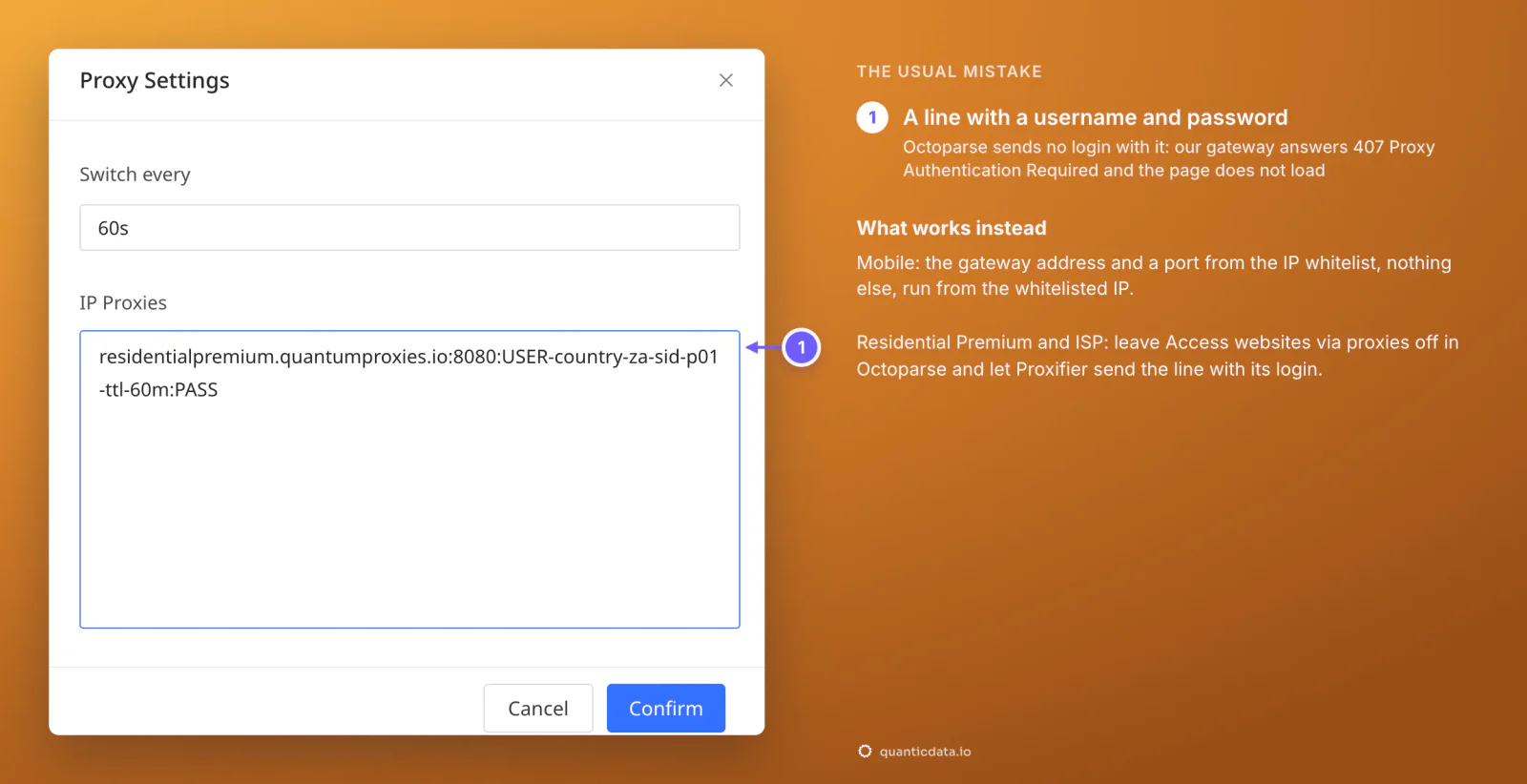
:10000, and nothing after the port. - No username or password. Octoparse says it plainly: it does not support proxies that require a username and password. There is no field for them, and a line with a login in it does not work.
- Local runs only. Your own proxies work when the task runs on your device. A Cloud run can only use Octoparse's built-in proxies.
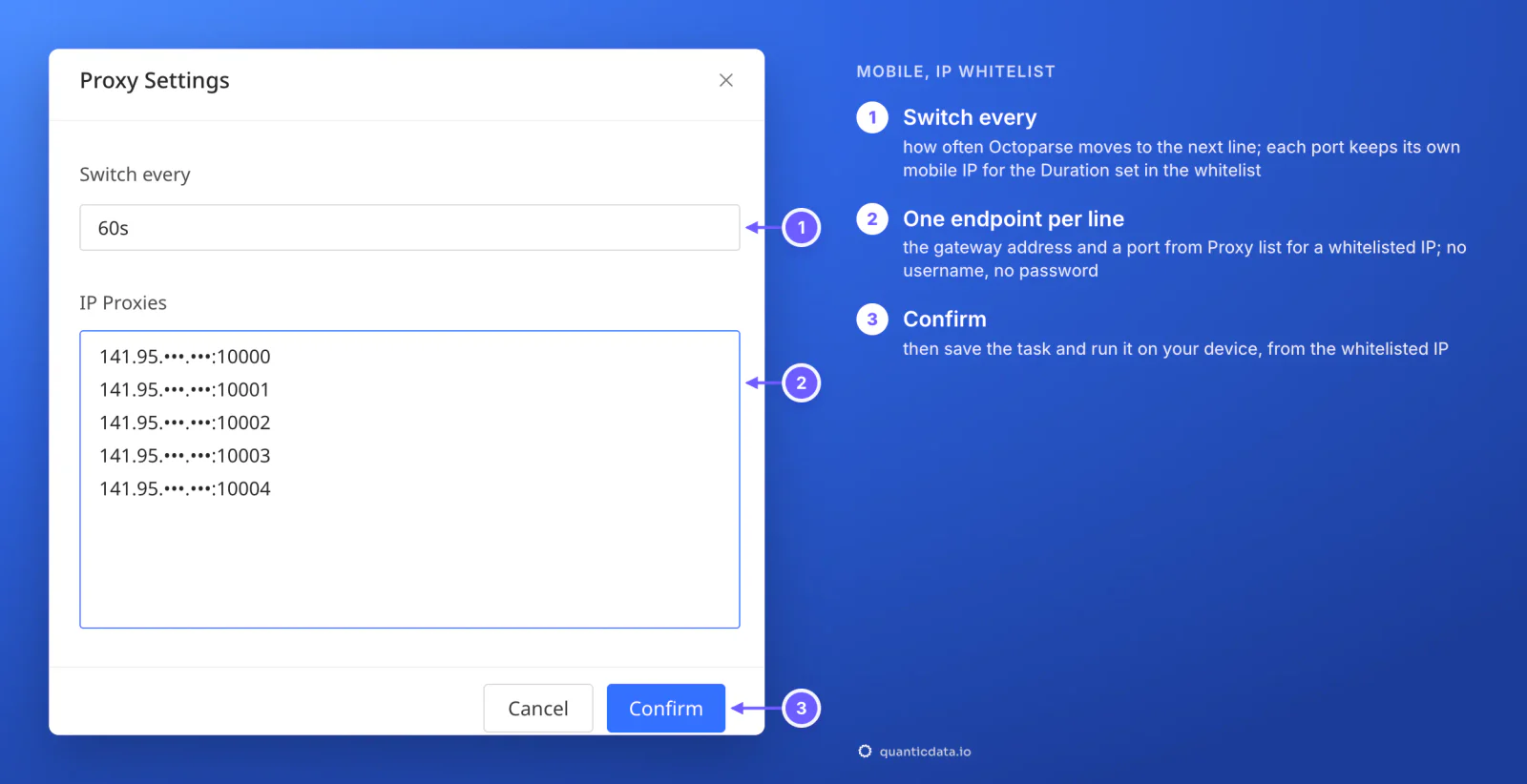
- Rotation between the lines. Switch every sets how often Octoparse moves to the next proxy in your list while the task runs; switching pauses when the task is paused.
So the route depends on how the proxy signs in:
| QuanticData proxy | How it signs in | Route into Octoparse |
|---|---|---|
| Residential Premium | Username and password, with country, region, city or ISP and the session in the username | Proxifier sends Octoparse's traffic with the login; Octoparse's own proxy box stays off |
| ISP | Fixed IPs listed as IP:Port:Username:Password | Proxifier, one IP per rule; Octoparse's box stays off |
| Mobile | Username and password, or IP whitelist: your computer's IP is allowed and gets its own address and port endpoints | Straight into Use my own proxies, one endpoint per line, with Switch every for rotation |
Step by step: Octoparse task settings
This is the part where most people get stuck, because the proxy setting belongs to each task, not to the app.
- Open the task and, in the editor's top bar, click Task Settings.
- In the left menu choose Anti-blocking.
- Tick Access websites via proxies.
- Choose Use my own proxies and click Configure. The Proxy Settings dialog opens with two fields, Switch every and IP Proxies; what goes in them is in the mobile section below.
- Save the task, then Run and choose to run it on your device. Your own proxies are not used in the Cloud.
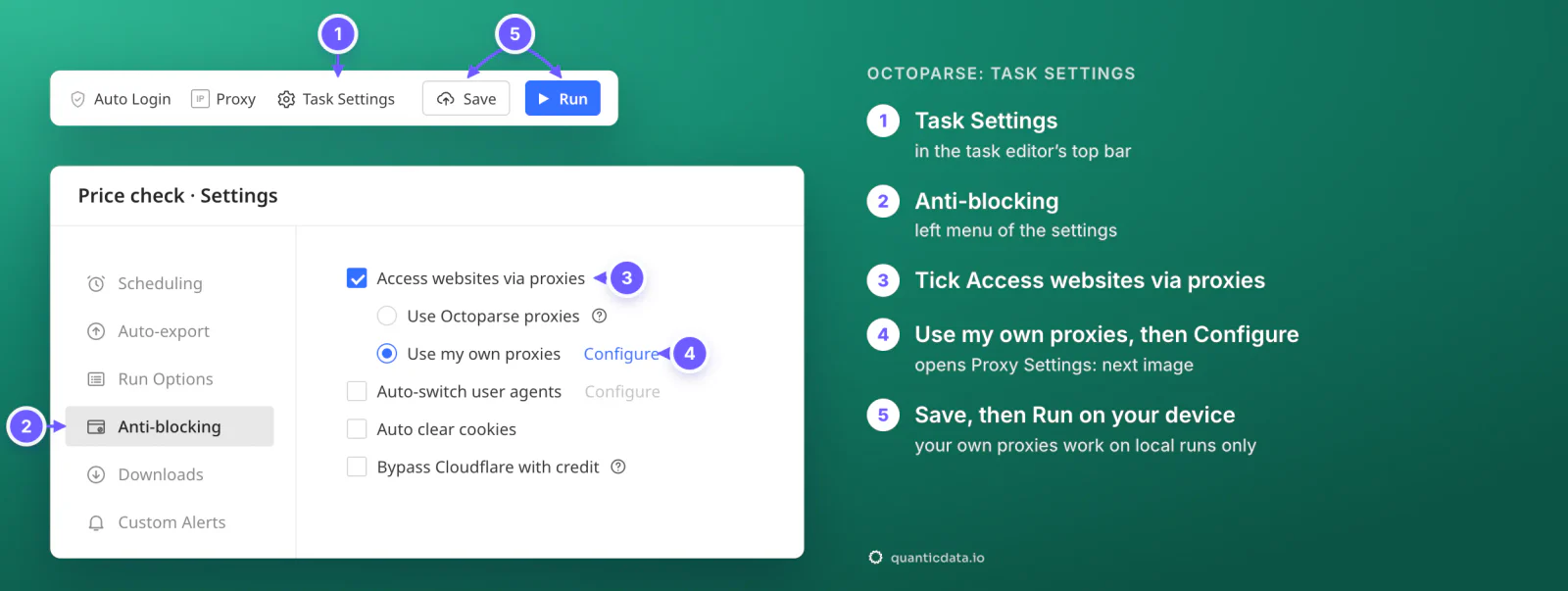
The editor has a second way in: the Proxy button in the same top bar opens Access websites via proxies for the page you are building, with Use my own proxies and Configure, plus Use the same proxies for task runs to carry the choice over to the runs. Use it when a site will not even load in the editor from your own IP.
Residential Premium in Octoparse, through Proxifier
Residential Premium signs in with a username and password, and the username carries the targeting and the session. Octoparse cannot send that login, so the line goes into Proxifier, a desktop program for Windows and macOS that sends a chosen app's traffic through a proxy with its username and password. In Octoparse, leave Access websites via proxies unticked: Proxifier does the work, and two proxies in a row would only get in each other's way.
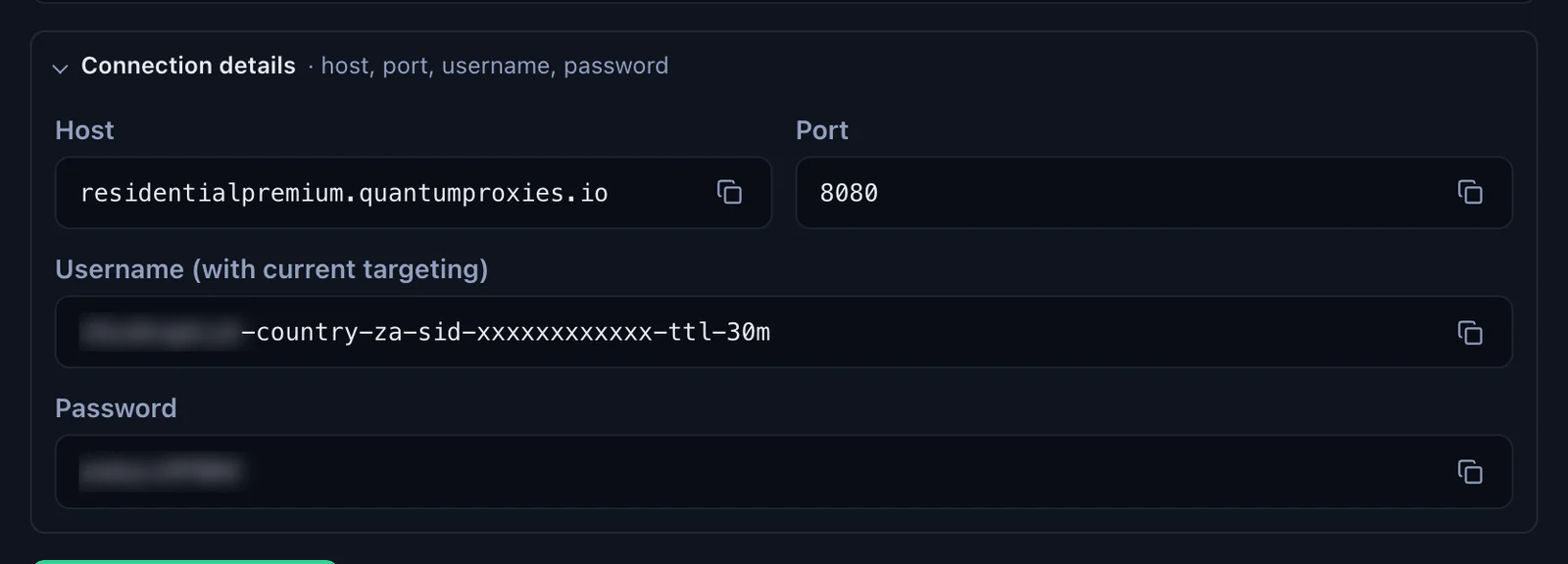
- Generate the line. In the QuanticData dashboard open My proxies, then your Residential Premium plan. In the Endpoint generator choose the Country (South Africa in this example), set Session to Sticky and Session TTL (minutes) to at least the length of the run, up to 1440, and the Protocol to HTTP. Open Connection details for the four values.
- Add the proxy in Proxifier. Proxy Servers (Proxies on a Mac), Add: Address
residentialpremium.quantumproxies.io, Port8080, Protocol HTTPS (or SOCKS Version 5 with port 1080), Authentication enabled, Username and Password from Connection details. Copy the username whole:-country-zapicks the country,-sid-p01names the session,-ttl-60mkeeps it for 60 minutes. - Add a rule. Proxification Rules, Add: a Name, Applications left on Any or set to Octoparse, Target hosts set to the sites your task opens (for example
ipinfo.io; *.example.com), Action set to the proxy you just added. - Check it in Octoparse. Start a task with the URL
https://ipinfo.io/json. The page Octoparse opens shows the exit's city, region and time zone; the country must match the-country-in the username.
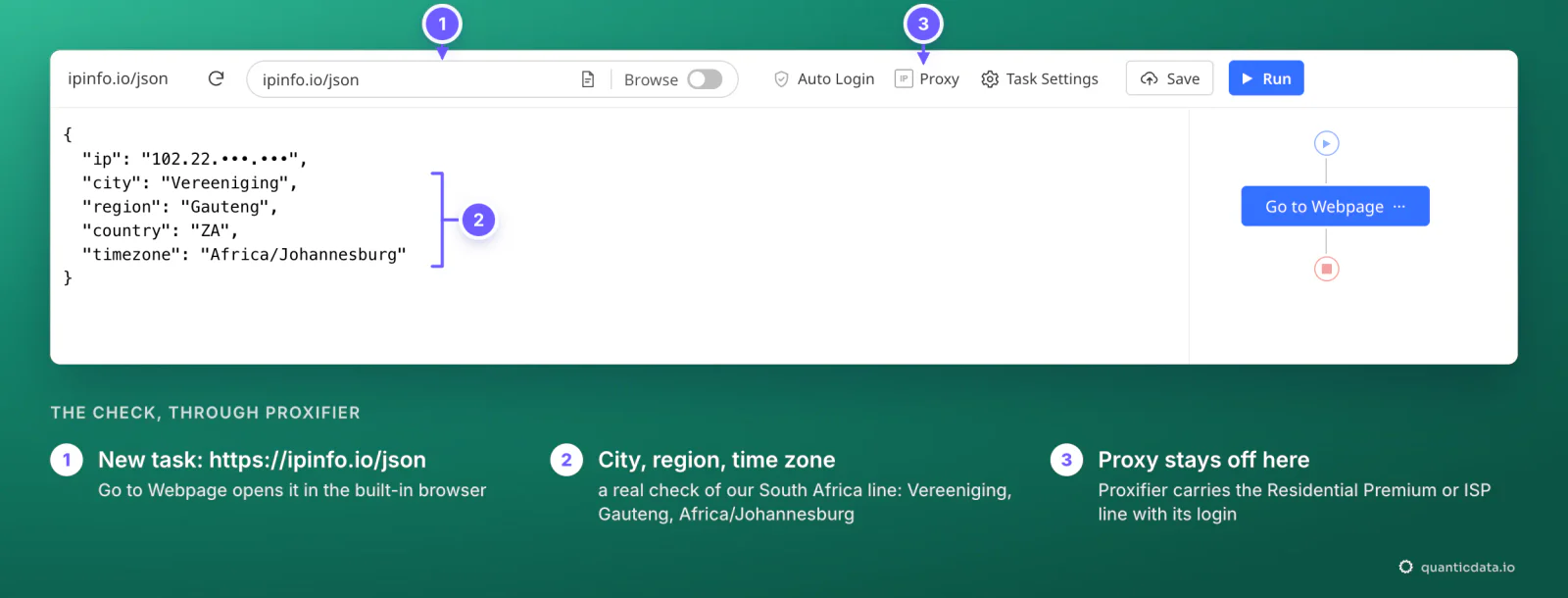
A sticky session keeps one IP for as long as it lives, which is what a task with a login or a shopping cart needs. For anonymous pages where every request may come from a different address, set Session to Rotating in the generator instead. For a fresh IP on a sticky line, change the session ID in the username, -sid-p02 instead of -sid-p01.
ISP proxies in Octoparse
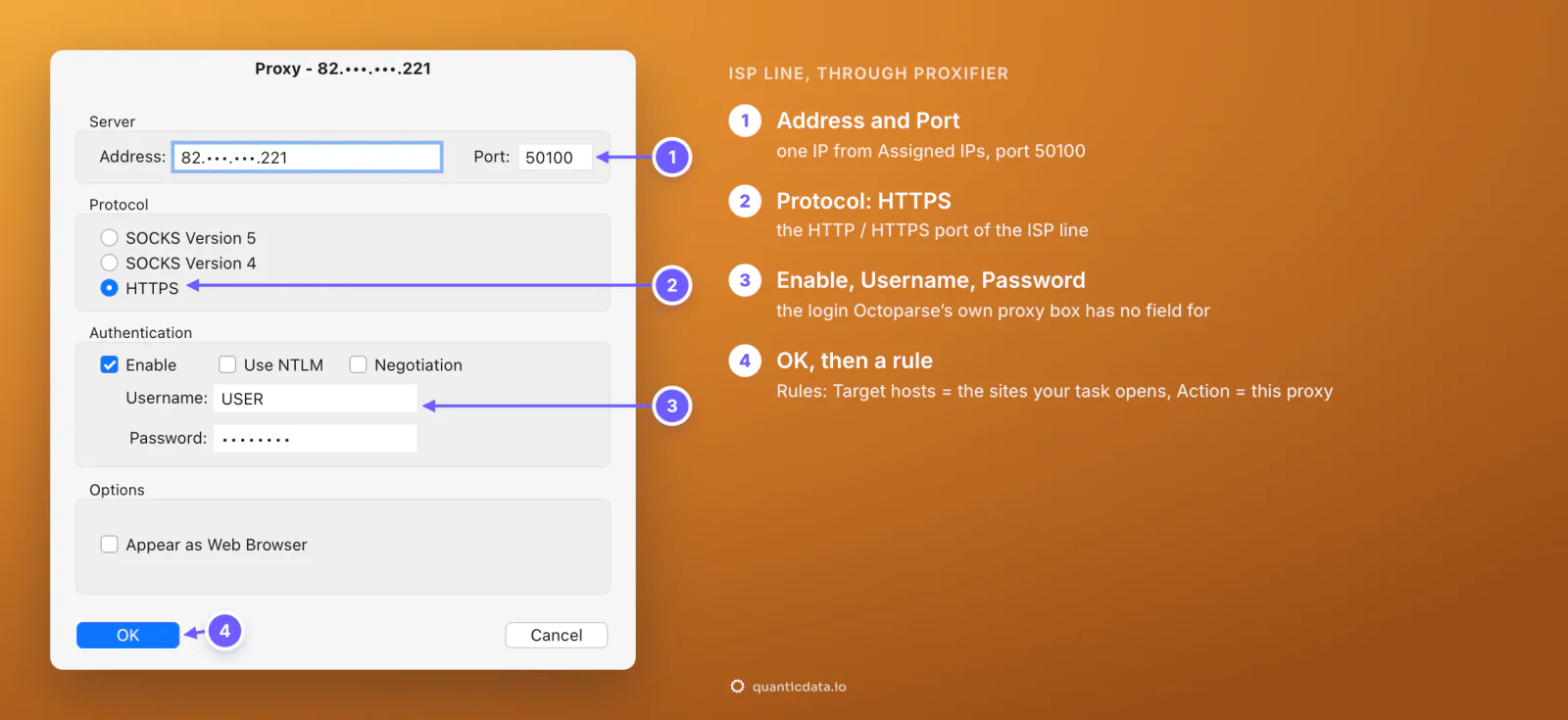
ISP proxies are fixed addresses that stay the same for months, which suits a task that logs in to the same account every day. They also sign in with a username and password, so they take the same route as Residential Premium.
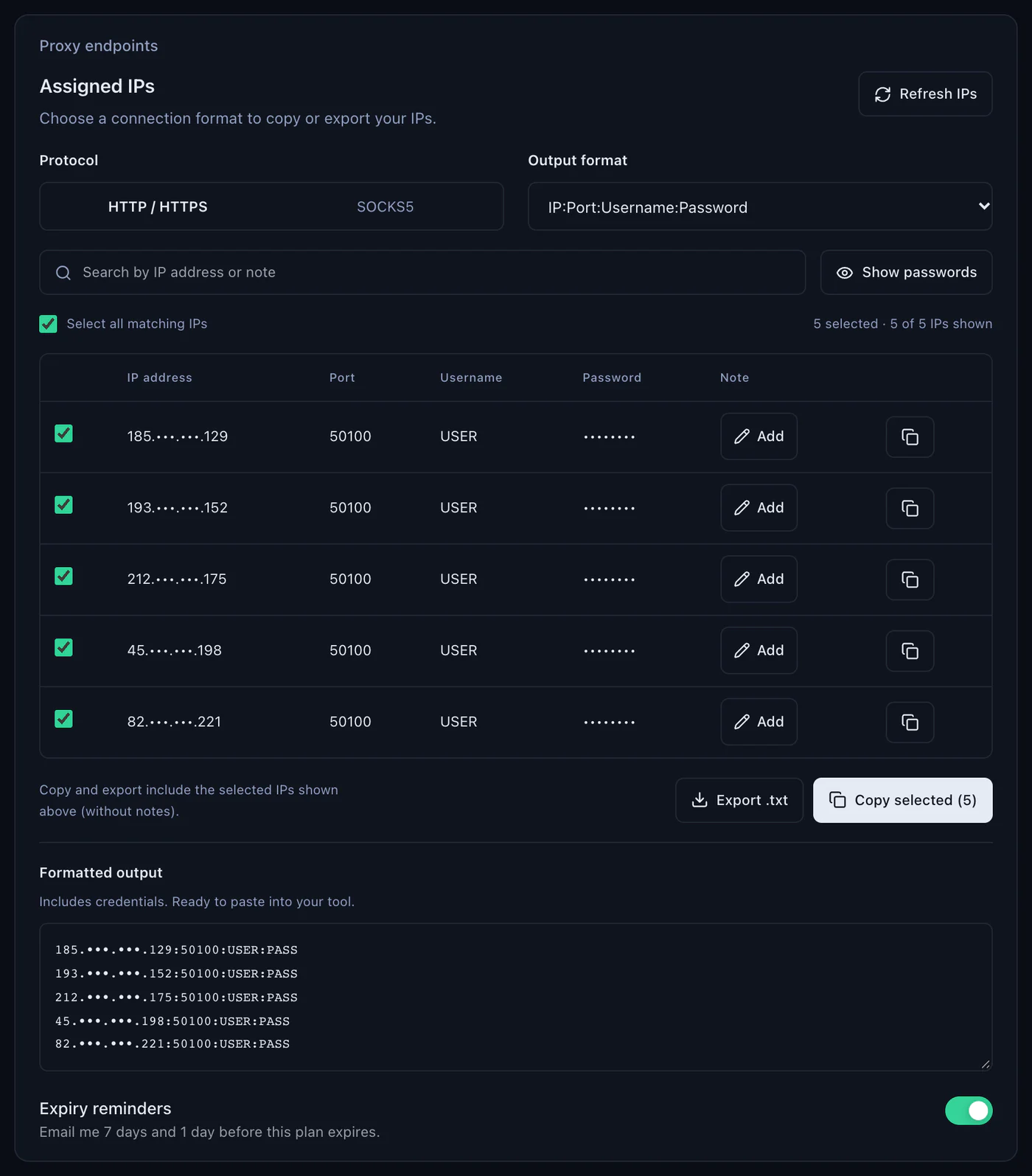
- Copy one IP. On your ISP plan's page, Assigned IPs lists each address with its port, username and password; with the output format IP:Port:Username:Password one line holds all four.
- Add it in Proxifier. Address: the IP, Port:
50100as listed, Protocol HTTPS, Authentication enabled with the username and password. - Give it a rule with the target sites of that task, Action set to that proxy, and leave Access websites via proxies off in Octoparse. One ISP IP per task keeps the task's address the same from run to run.
Mobile proxies in Octoparse, with the IP whitelist
Mobile plans can sign in by IP instead of by password: you add your computer's public IP to the plan's whitelist and get a list of address and port endpoints that need no login. That is exactly what Octoparse's own box takes, and it is the one route where Switch every rotates between real mobile IPs without any extra program.
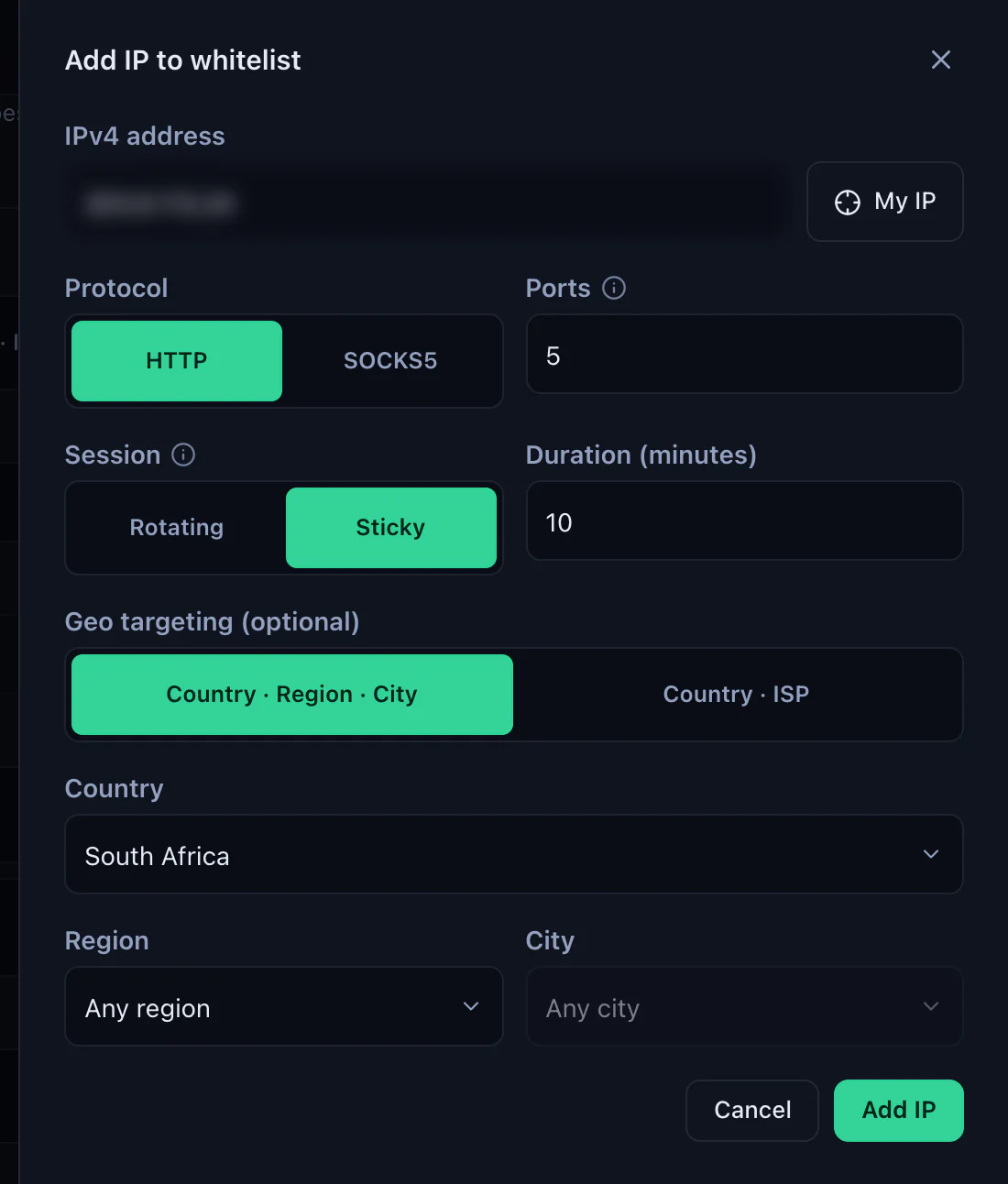
- Whitelist your IP. On your mobile plan's page, under IP whitelist, click Add IP. Fill IPv4 address (My IP fills in the address you are on), Protocol HTTP, Ports (how many endpoints, from 1 to 1000; each port is its own connection slot), Session Sticky with a Duration (minutes), and the Country under Geo targeting. Add IP.
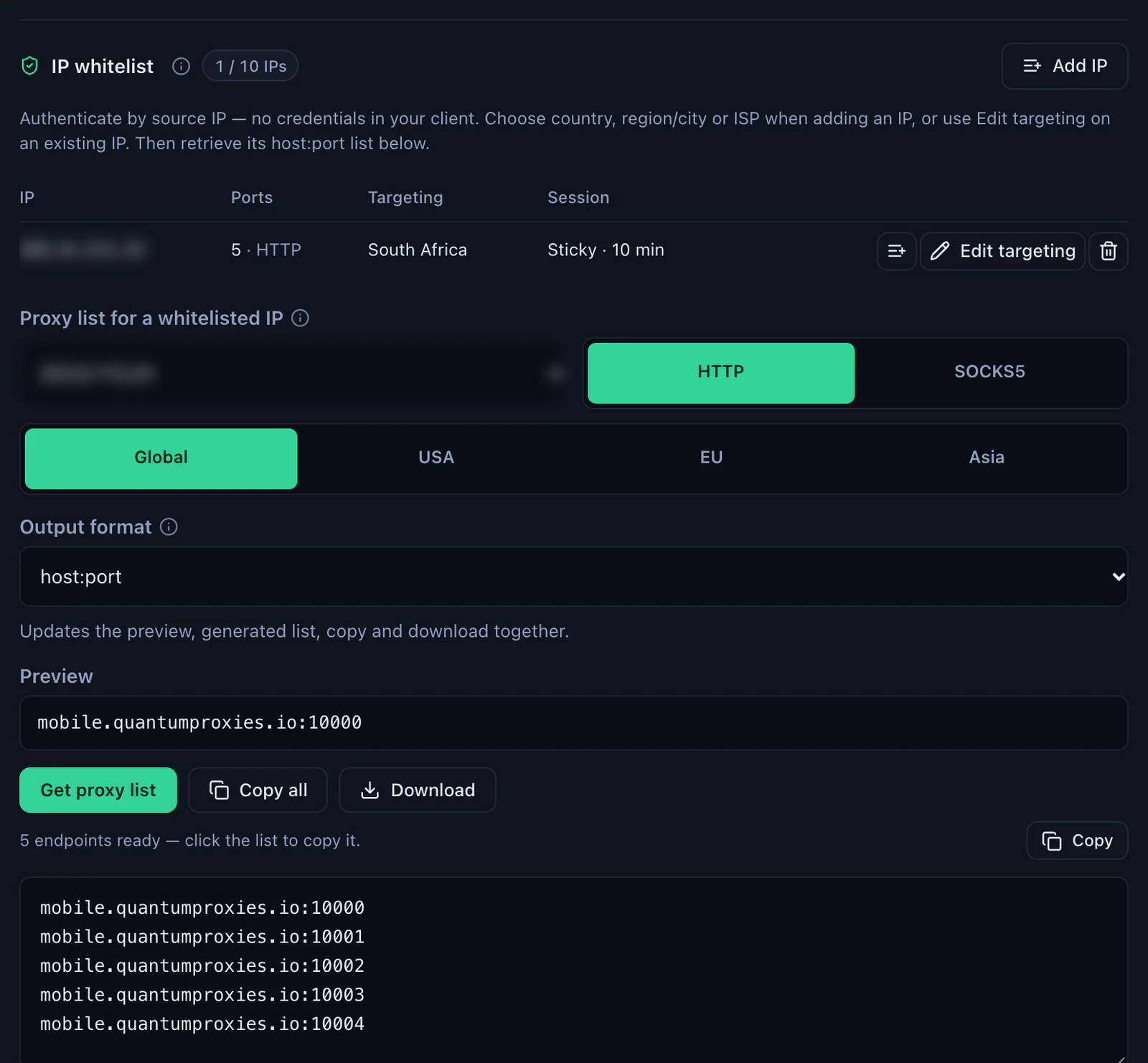
- Get the list. Under Proxy list for a whitelisted IP choose that IP, HTTP, a gateway (Global, USA, EU or Asia) and the output format host:port, then Get proxy list. Each line is
mobile.quantumproxies.ioand a port. - Turn the host into an address. Octoparse asks for an IP address in front of each port. Run
nslookup mobile.quantumproxies.ioin Command Prompt or Terminal and use one of the addresses it lists, with the ports from your list. If a task stops connecting weeks later, look the address up again. - Paste the lines. In Octoparse, Task Settings, Anti-blocking, Use my own proxies, Configure: one address:port per line in IP Proxies, nothing after the port. Set Switch every and Confirm.
- Run it on your device, from the network you whitelisted. A laptop on another Wi-Fi has another public IP, and the endpoints are tied to the IP you whitelisted.
A mobile line with a username and password, such as USER-country-za-type-mobile-sid-p01-ttl-60m on mobile.quantumproxies.io port 8080, works too, but like the other login lines it goes through Proxifier. For mobile proxies by country see mobile proxies in South Africa.
IP rotation in Octoparse: Switch every and sessions
Two clocks decide when the IP changes, and they should agree:
- Switch every is Octoparse's: how often it moves from one line of IP Proxies to the next.
- Duration (whitelist) or Session TTL (username) is ours: how long one endpoint keeps the same exit IP.
With five sticky ports and Switch every at 60 seconds, the task walks through five mobile IPs, one a minute, and each IP stays put while it is in use. Keep the Duration longer than Switch every, or the IP changes in the middle of a step. Octoparse's own documentation adds the other half: an IP change can break a logged-in session, so a task that signs in should stay on one line, either a single endpoint in IP Proxies or one sticky line in Proxifier, and rotate only on pages that need no login.
Octoparse proxy not working: errors and fixes
| What you see | Usual cause | Fix |
|---|---|---|
| Pages do not load after you add the proxy | A line with a username and password in IP Proxies: Octoparse sends no login and our gateway answers 407 Proxy Authentication Required | Mobile: address:port endpoints from the IP whitelist. Residential Premium and ISP: Proxifier, with Octoparse's box off |
| Whitelisted endpoints worked yesterday, fail today | Your public IP changed: new router, another network, a VPN switched on | Add the new IP with My IP, or edit the whitelist entry, and run from that network |
| Octoparse does not take the line, or the run ignores it | Something besides an IP address and a port: a scheme such as http://, a login, a space | IP address, colon, port, nothing else, as in Octoparse's own example; get the gateway's address with nslookup |
| Works on your device, not in the Cloud | Your own proxies are for local runs only | Run on your device; Cloud runs only use Octoparse's built-in proxies |
| Wrong country | No country on the whitelist entry, or no -country- in the username | Edit targeting on the whitelist entry, or generate the line with a country |
| Logged out in the middle of a run | Switch every moved the task to another IP, or the session ended | One line for tasks that sign in, a longer Duration or TTL |
| Proxifier shows the connection closed or refused | The protocol does not match the port | HTTPS with port 8080, SOCKS Version 5 with port 1080; ISP lines with the port listed |
One test outside Octoparse settles most cases in a minute. For a whitelisted mobile endpoint, run it from the whitelisted computer; for a login line, add the username and password:
# mobile endpoint from the IP whitelist, no login
curl -x http://mobile.quantumproxies.io:PORT https://ipinfo.io/json

# Residential Premium line with its login
curl -x http://residentialpremium.quantumproxies.io:8080 \
  -U "USER-country-za-sid-test-ttl-10m:PASS" https://ipinfo.io/json
If it returns an address in the right country, the proxy works and the problem is in Octoparse's settings or in the Proxifier rule.
Octoparse VPN or proxy
A VPN on your computer also changes the IP a local run comes from, but for every app at once, from one location at a time, with nothing for Switch every to rotate between. Proxies are set per task: one task can run through South African mobile IPs while another stays on your own connection. For pages by country, see South African proxies; when you would rather get the page back without running a scraper at all, a web scraping API does the fetching for you.
Before you scrape
A proxy changes where a task's requests come from, not what the task is allowed to collect. Keep to each site's terms and to the law where you work, keep the request rate reasonable, and collect only the data you need. The plans themselves are on the pages for QuanticData residential proxies, ISP proxies and QuanticData mobile proxies.