
To use your own proxies in ParseHub, have ParseHub support enable custom proxies on your paid account, open the project's Settings, tick Rotate IP Addresses and paste one proxy per line in the Custom Proxies box as host:port:username:password. Save the project and click Run: the proxies apply to runs on ParseHub's servers, not to Test Run.
ParseHub runs a project in two places. A Test Run happens on your computer, with your own IP address. A Run happens on ParseHub's servers, which by default use addresses in North America, mostly in the United States and some in Canada, according to ParseHub's help center. Custom proxies change only the second: where the server run comes from, which country a site sees and how many IPs the work is spread across. The field names below are the ones in ParseHub's own help center; the values come from the QuanticData endpoint generator.
What you need before you start
- A paid ParseHub plan. ParseHub lists IP Rotation on its Standard and Professional plans, and custom proxies are part of IP Rotation. The free plan (200 pages per run, 5 public projects) has neither.
- Custom proxies switched on for your account. ParseHub enables the feature on request: write to ParseHub support, whose address is in its help article on custom proxies. Give them the host and port of your lines so they can confirm them on their side.
- Proxies with a username and a password. ParseHub asks for both. An IP whitelist does not help here: the connection to the proxy comes from ParseHub's servers, not from your computer.
- A QuanticData plan. Residential Premium, ISP or mobile. The lines are in the dashboard under My proxies, on the plan's page.
The proxy format ParseHub accepts
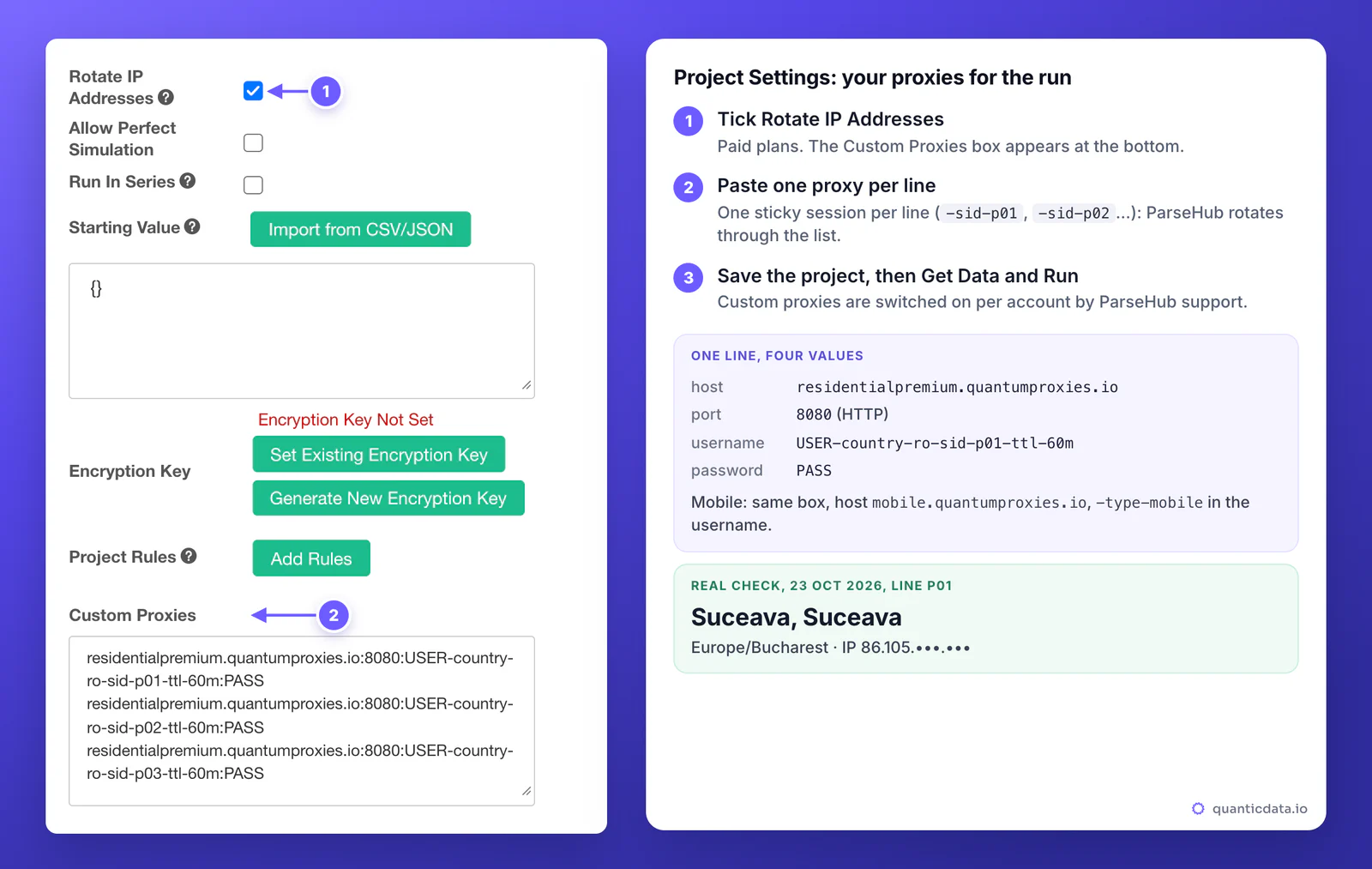
ParseHub reads one proxy per line in the Custom Proxies box, as four values separated by colons: address, port, username, password. Its help writes the first field as an IP address. ISP proxies are IP addresses and match it exactly; for Residential Premium and mobile the gateway host goes in the same place. There is no protocol field, and ParseHub's help speaks of HTTP proxies, so use the HTTP port.
# Residential Premium, Romania, one sticky session
residentialpremium.quantumproxies.io:8080:USER-country-ro-sid-p01-ttl-60m:PASS

# ISP, one fixed IP as Assigned IPs lists it
185.•••.•••.129:50100:USER:PASS

# Mobile, Romania, one sticky session
mobile.quantumproxies.io:8080:USER-country-ro-type-mobile-sid-m01-ttl-60m:PASS
USER and PASS stand for your own credentials. The username is the whole string, with everything after the first dash: -country-ro picks the exit country, -sid-p01 names the session and -ttl-60m keeps it for 60 minutes. Copy it whole: a username cut at the first dash still logs in, but the run then leaves from a random country.
Step by step: add custom proxies to a ParseHub project
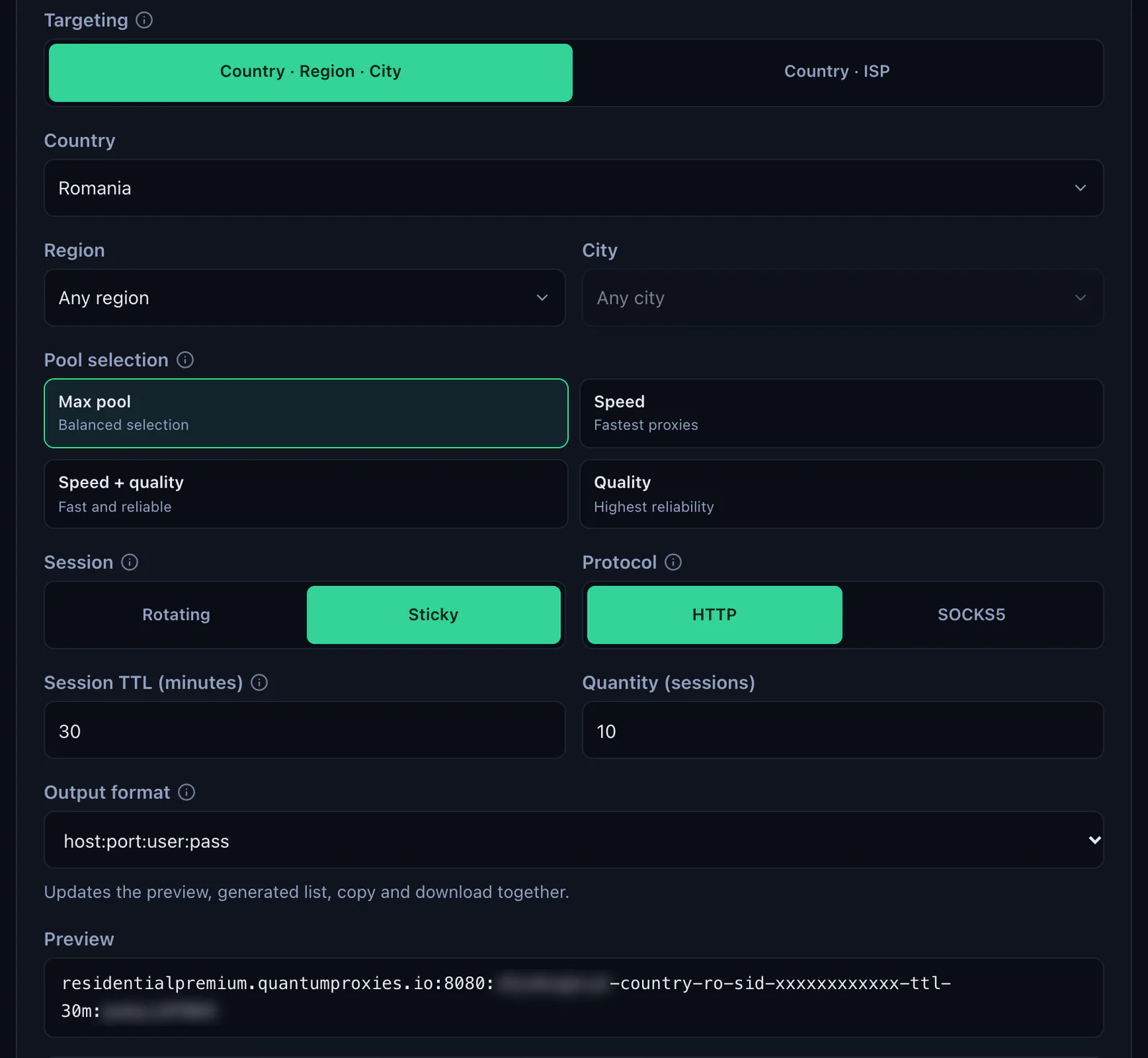
- Generate the lines. In the QuanticData dashboard open My proxies, then your plan. In the Endpoint generator choose the Country (Romania in this guide), set Session to Sticky, set Session TTL (minutes) to at least the length of a run, choose HTTP, keep Output format on host:port:user:pass and set Quantity to the number of lines you want. Click Generate, then Copy all.
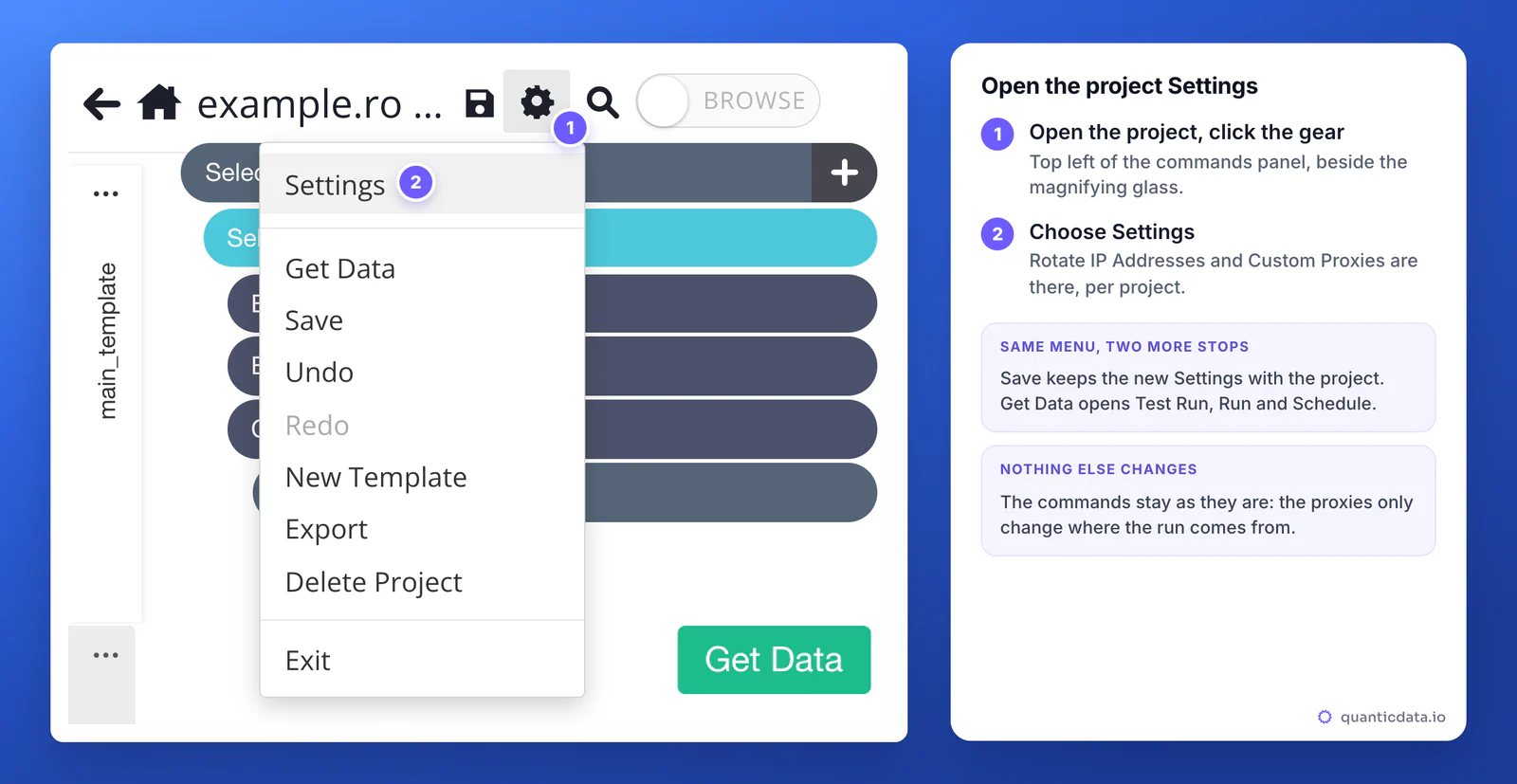
- Open the project in the ParseHub desktop app and click the gear icon beside the magnifying glass, at the top left of the commands panel. Choose Settings.
- Tick Rotate IP Addresses. On an account with custom proxies enabled, the Custom Proxies box appears at the bottom of the Settings.
- Paste the lines into Custom Proxies, one proxy per line, nothing after the password.
- Save the project with the save icon or Save in the gear menu.
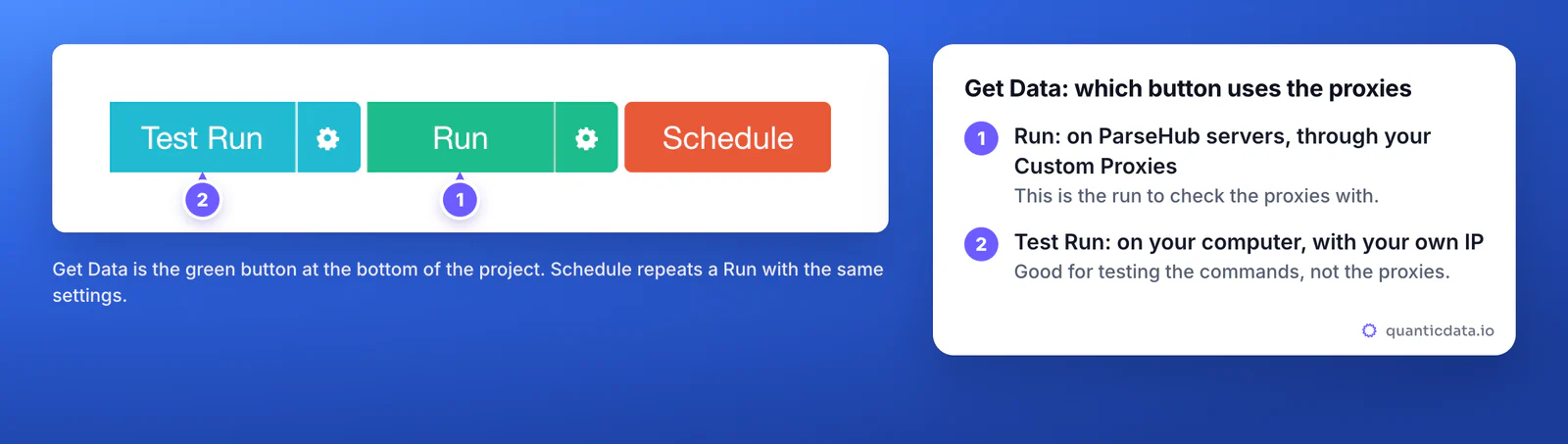
- Click Get Data, then Run. Not Test Run: a Test Run stays on your computer and your IP.
Which run uses which IP
Most "my proxy is ignored" reports come from this table. It follows ParseHub's help articles on where projects run and where its proxies are located.
| How you start it | Where it runs | IP the site sees |
|---|---|---|
| Test Run | Your computer | Your own IP |
| Run, Rotate IP Addresses off | ParseHub servers | ParseHub's IPs in North America |
| Run, Rotate IP Addresses on, Custom Proxies empty | ParseHub servers | ParseHub's rotating IPs, many countries, at random |
| Run, Rotate IP Addresses on, your lines in Custom Proxies | ParseHub servers | The IPs of your lines, in the country you chose |
With IP rotation on, ParseHub also rotates the browser user agent of the run. Schedule repeats a Run, so scheduled runs use the same Settings.
Residential Premium in ParseHub
Residential Premium gives home IPs in the country, region or city you put in the username. For ParseHub the useful pattern is a short list of sticky sessions: each line keeps one IP for its lifetime, and ParseHub rotates through the lines.
# three sticky sessions in Romania, one hour each
residentialpremium.quantumproxies.io:8080:USER-country-ro-sid-p01-ttl-60m:PASS
residentialpremium.quantumproxies.io:8080:USER-country-ro-sid-p02-ttl-60m:PASS
residentialpremium.quantumproxies.io:8080:USER-country-ro-sid-p03-ttl-60m:PASS- A different session ID on every line. Two lines with the same
-sid-are the same IP. - A lifetime longer than the run. The generator accepts up to 1440 minutes, a full day. When a session ends, the next request gets a new IP.
- The country in the username. Prices, currency and language often follow the visitor's country, which is why ParseHub's own help suggests custom proxies for location-dependent pages.
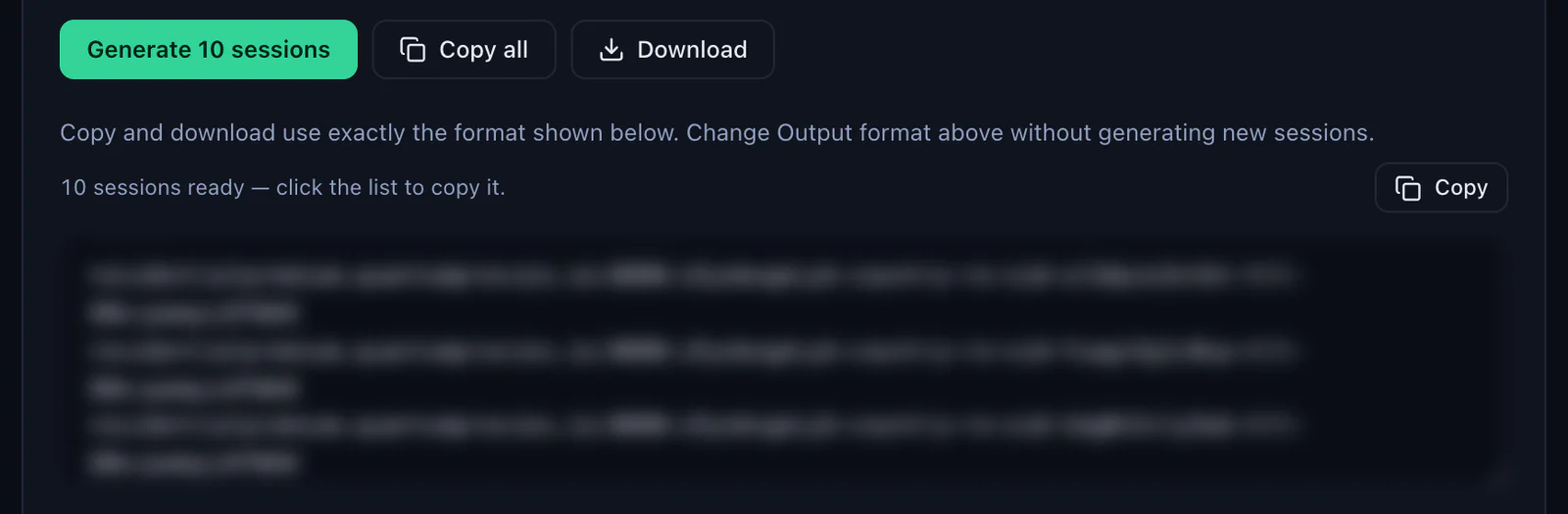
The generator makes as many sticky lines as the Quantity field says, ten by default, each with its own session ID; Copy all and Download take them out in the same format. Without a session ID a line is rotating and changes IP at every request, the right choice only when every page can be fetched on its own; more on that on the page about rotating proxies. For a new IP on a sticky line, change the session ID, for example -sid-p04 instead of -sid-p01.
ISP proxies in ParseHub
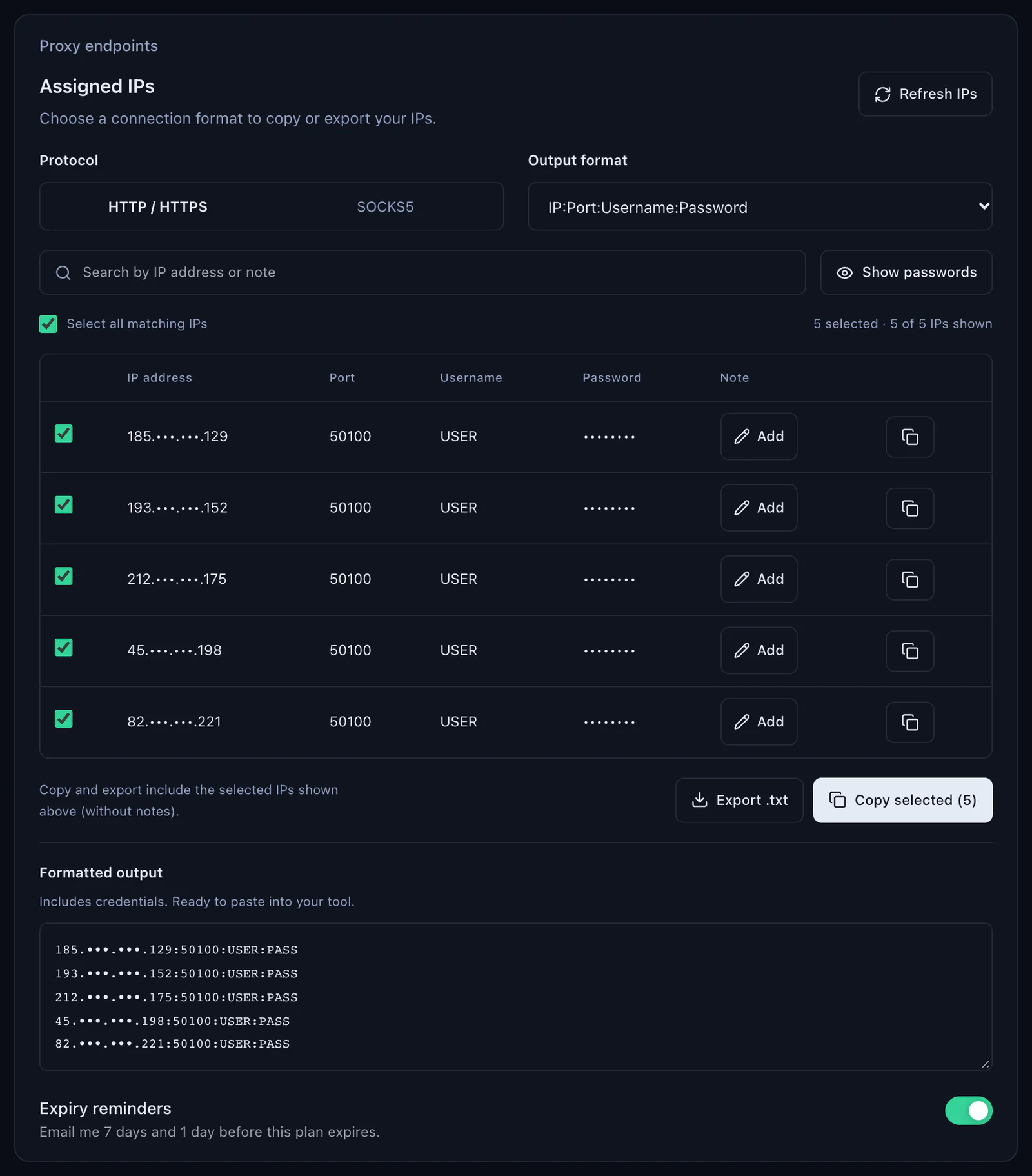
ISP proxies are fixed IP addresses that stay the same for the life of the plan. They fit ParseHub's format exactly, because the dashboard lists them as IP:Port:Username:Password.
- In My proxies open the ISP plan and go to Assigned IPs.
- Keep the Protocol on HTTP / HTTPS and the Output format on IP:Port:Username:Password.
- Select the IPs for the project and click Copy selected, or Export .txt.
- Paste the lines in Custom Proxies with Rotate IP Addresses ticked, save, then Run.
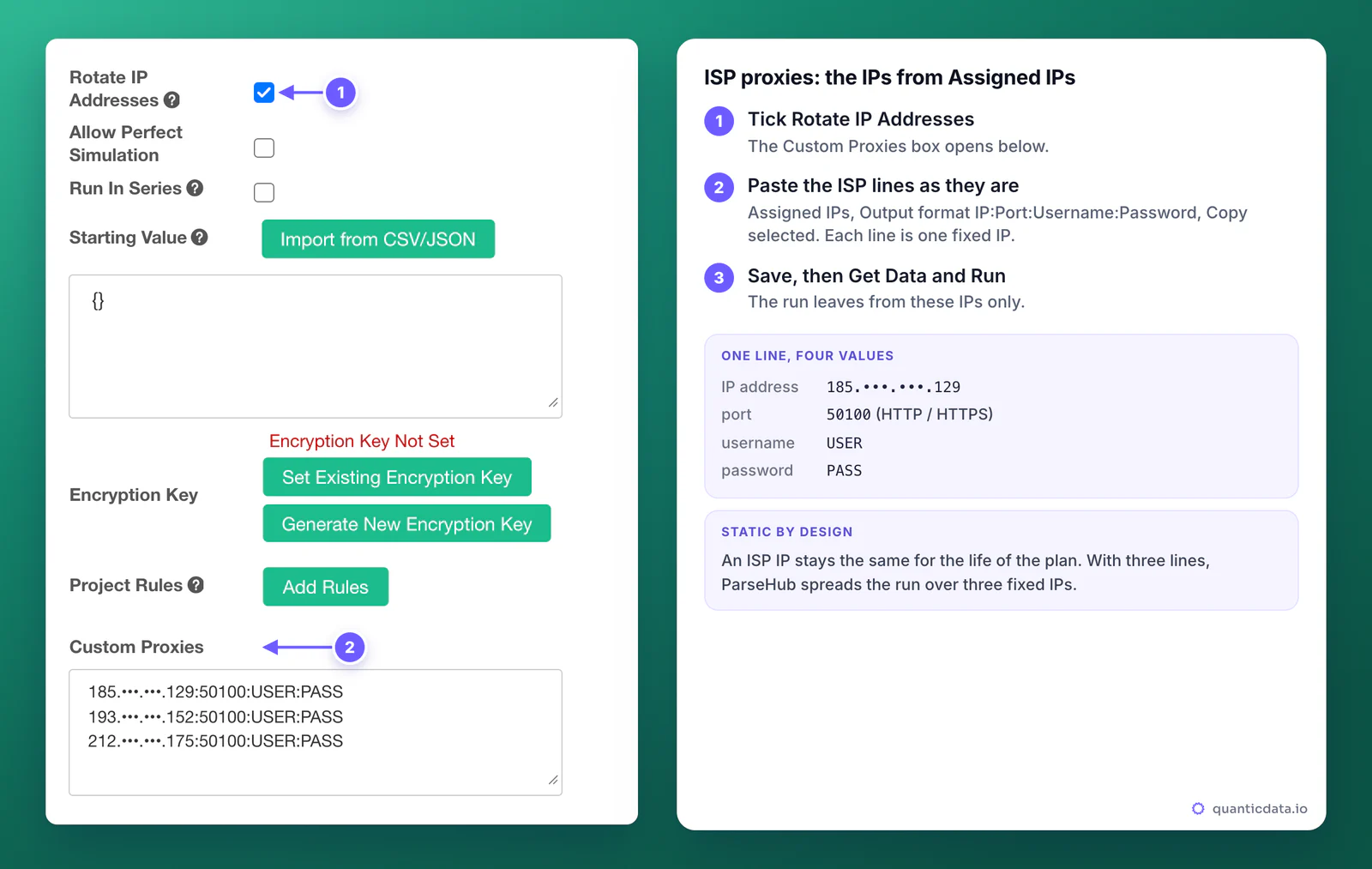
With three ISP lines, a run is spread over three fixed IPs. That suits sites that should see the same few addresses every day, such as an account your project logs in to. More on the product on the page for ISP proxies.
Mobile proxies in ParseHub
Mobile lines go in the same box, the same way. In the mobile plan's Endpoint generator choose the country, the gateway (Global, USA, EU or Asia), Session Sticky and Protocol HTTP · 8080; the username carries -type-mobile:
mobile.quantumproxies.io:8080:USER-country-ro-type-mobile-sid-m01-ttl-60m:PASS
mobile.quantumproxies.io:8080:USER-country-ro-type-mobile-sid-m02-ttl-60m:PASS
Mobile plans also offer IP whitelist authentication, but ParseHub needs the username and password lines, so use those. Mobile IPs suit sites that serve phones first or treat mobile networks more gently; see mobile proxies.
Which proxy type for which ParseHub project
| Proxy type | Line in Custom Proxies | Good for |
|---|---|---|
| Residential Premium | Host residentialpremium.quantumproxies.io, port 8080, one sticky session per line, country, region or city in the username | Most projects: home IPs in the country whose prices or language you need |
| ISP | IP:Port:Username:Password from Assigned IPs, one fixed IP per line | Logged-in projects and daily runs that should keep the same addresses |
| Mobile | Host mobile.quantumproxies.io, port 8080, -type-mobile and a sticky session in the username | Phone-first sites and pages that block other IP types |
For a country page with coverage and cities, see Romanian residential proxies; the plans are on the pages for QuanticData residential proxies, ISP proxies and mobile proxies.
ParseHub proxy not working: errors and fixes
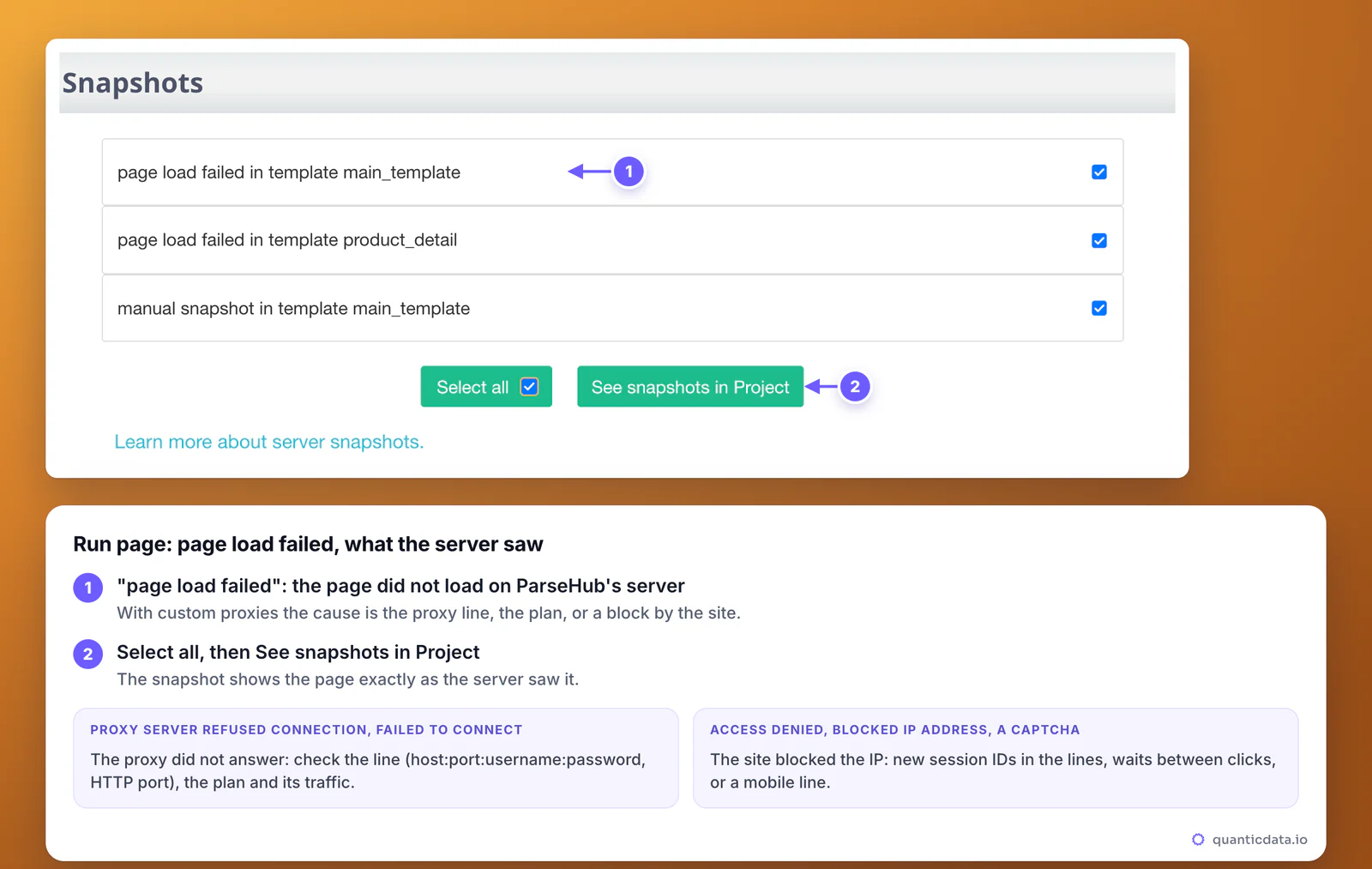
ParseHub shows what went wrong on the Run page. Add a Server Snapshot command where the project loads a page, or look at the snapshots ParseHub takes when a page fails: Select all, then See snapshots in Project shows each page as the server saw it.
| What you see | Usual cause | Fix |
|---|---|---|
| No Custom Proxies box in Settings | Rotate IP Addresses not ticked, the feature not enabled on the account, or a free plan | Tick the box; ask ParseHub support to enable custom proxies on a paid plan |
| page load failed, snapshot says Proxy Server Refused Connection or Failed to Connect | The line is wrong: SOCKS5 port, a cut username, a missing colon, a space | Copy the line again from the generator, HTTP port 8080 (ISP: the port in Assigned IPs) |
| The same error on runs that worked before | The plan expired or its traffic is used up | Check the plan in My proxies: status, remaining traffic, expiry date |
| Snapshot shows Access Denied, Blocked IP Address or a captcha | The site blocked that IP or the pace of the run | New session IDs in the lines, waits between click, hover and scroll commands, or a mobile line |
| Data in the wrong currency or language | No -country- in the username, or you are looking at a Test Run | Generate the lines with a country; judge the result on a Run |
| Test Run fine, Run empty | The servers see a different page from your computer | Server Snapshot on the first page; ParseHub suggests IP rotation when the site blocks its servers |
One test outside ParseHub settles whether the line itself works. If this returns an address in the right country, the proxy is fine and the problem is in the project or the account:
curl -x http://residentialpremium.quantumproxies.io:8080 \
  -U "USER-country-ro-sid-test-ttl-10m:PASS" https://ipinfo.io/json
On 23 October 2026 this request through a QuanticData Romania sticky line answered from Suceava, Suceava, with the time zone Europe/Bucharest. More on the command in the guide to using a proxy with curl, and a general proxy not working checklist.
When to turn IP rotation on
ParseHub's help advises against leaving Rotate IP Addresses on without a reason, because rotation can slow a run. Custom proxies need the box ticked, so the reasons to use them are concrete: the site blocks ParseHub's own servers, the content depends on the country, or the run must come from addresses you control. A proxy changes where a run comes from, not what the project may collect: keep to each site's terms and to the law where you work.
Sources & further reading
- ParseHub help: Adding Custom Proxies to ParseHub (for all Paid Plans)
- ParseHub help: Using IP Rotation (for all Paid plans)
- ParseHub help: Where do my projects run?
- ParseHub help: Where are ParseHub's proxies located?
- ParseHub help: Server Snapshot
- ParseHub pricing