Mobile Proxies for Upwork
Mobile proxies for Upwork are 4G/5G carrier IPs, shared with real phones, that let you keep your Upwork account on a carrier IP in its verified country. A sticky session holds one carrier IP per account for up to 24 hours. Plans start at $5 for 1 GB and fall to $2.30/GB, with no subscription.
On 14 September 2026 we loaded upwork.com in a real-browser test through a QuanticData mobile exit on T-Mobile USA, Inc. (AS21928) in the United States: HTTP 200, page settled in 10,209 ms.
Real carrier IPs · Rotating or sticky · HTTP, HTTPS and SOCKS5

What is Upwork, and why put a proxy in front of it?
Upwork is the largest freelance marketplace, and location is part of its trust model: a freelancer's profile shows a country, clients filter by it, and the platform verifies identity and watches for accounts that log in from somewhere other than where they say they are. The legitimate proxy use cases are narrow and common: agencies that manage a team's accounts and need each to keep a consistent network identity in its own country; freelancers who travel and want a stable connection from their verified location; companies that research public job postings and rates by category and country; and product teams that test integrations from other regions. Upwork treats datacenter traffic as suspect and mismatches as a red flag, so each account needs one stable home or carrier address in its real country.
What people use mobile proxies for on Upwork
Four workflows we see on Upwork. None of them needs a proxy to break Upwork's rules; all of them need a network location and a reputation the platform treats as ordinary.
Agency account consistency
Keep each team member's account on a sticky session in their own verified country.
Stable connection while travelling
Maintain a consistent network identity from your verified location when you work from elsewhere.
Public job and rate research
Collect public job postings and rate ranges by category and country through rotating exits at a moderate rate.
Integration QA
Test Upwork API integrations and client flows as users in another region.
Why mobile proxies for Upwork
Upwork's app is a large share of freelancer activity, and an account on a carrier IP in its verified country, shared with thousands of real users and held on a sticky session, looks exactly like its owner on their phone. Mobile is the right network for accounts whose standing matters.
What a proxy does not do. A proxy gives an account a consistent network location; it does not change Upwork's terms, which require accurate location and identity, or its verification checks. QuanticData proxies are not for misrepresenting where a freelancer or client is. Household IPs for the same job are on the residential proxies for Upwork page.
Sources: Upwork Legal Center and RFC 6598 (IETF), the shared address space used behind carrier-grade NAT.
Best mobile proxies for Upwork
One sticky exit for the length of the login, in the country declared on the profile; job listing research rotates. Upwork checks the exit against the profile's country, so the exit is that country. With QuanticData the exits asked for most are the United States, the United Kingdom and the Philippines, with carriers such as T-Mobile and AT&T Wireless selectable in the username for the United States.
Pages are moderate; a logged-in session over a working day uses more than a data run. On the mobile network that means a session ID with a lifetime of up to 24 hours per Upwork account, or no session at all to rotate through carrier IPs, from $5 for 1 GB with no subscription. For Upwork the residential network covers most jobs at a lower price per GB; mobile earns its price when an account or the app itself expects a phone.
Which session to use for Upwork: sticky or rotating
Sticky (one IP per account). One sticky session per account, in the account's verified country, for the whole working day. Country, session and targeting go in the username; credentials are in your dashboard after purchase.
# PROXY_HOST = host:port shown in your dashboard
# rotating: a new carrier IP on every request
curl -x "$PROXY_HOST" -U "USER-country-us-type-mobile:PASS" https://ipinfo.io/json

# sticky: one carrier IP for 30 minutes (up to 1440m), one session ID per account
curl -x "$PROXY_HOST" -U "USER-country-us-type-mobile-sid-upwork-ttl-30m:PASS" https://ipinfo.io/json

# one carrier (code from the country page)
curl -x "$PROXY_HOST" -U "USER-country-us-isp-CARRIER-type-mobile:PASS" https://ipinfo.io/json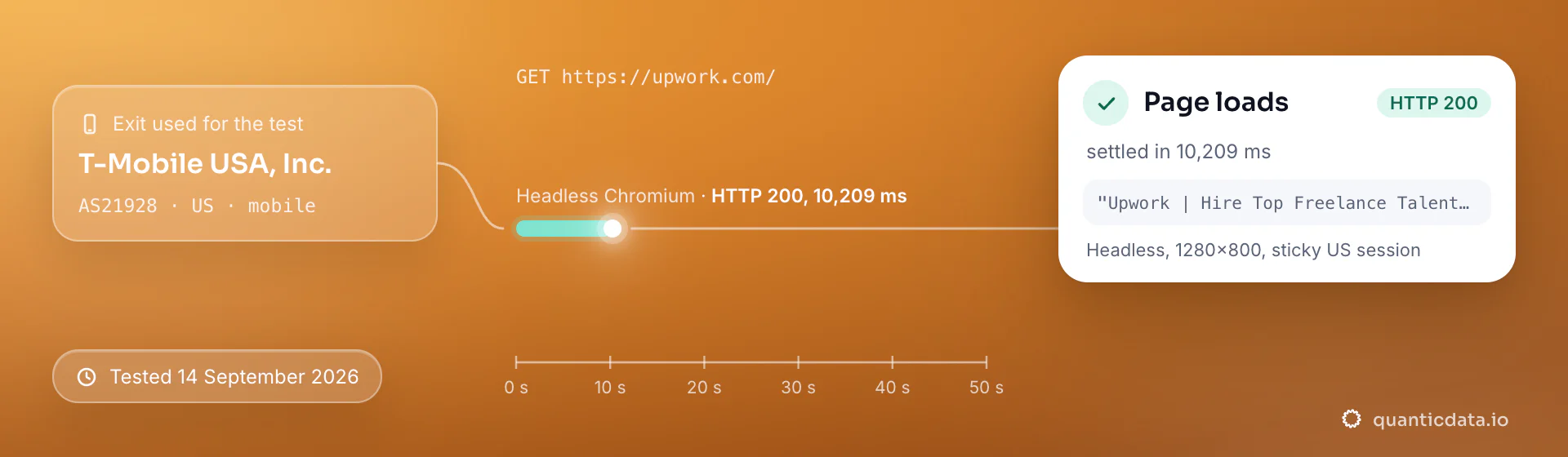
Best countries and carriers for Upwork mobile proxies
The exits most often asked for with Upwork, and why. Carriers are named only where the mobile catalog lists them; every country page shows the full list.
United States
Most clients and the largest freelancer base.
T-Mobile, AT&T Wireless, Verizon Wireless · -country-us
United Kingdom
A large client and agency market.
Three, BT, O2 · -country-gb
Philippines
One of the largest freelancer communities.
Smart Communications, Globe Telecom, Globe Business Gfiber Broadband Plan · -country-ph
Mobile Proxies pricing for Upwork
Per GB, valid 90 days, carrier and city targeting included, no port fees. Pay from balance, card, PayPal or crypto.
The same pool at every tier — a small test costs exactly $5 for 1 GB. Full ladder and terms on the pricing page.
How to start with Upwork in minutes
- Create a free QuanticData account and open Plans → Mobile; pick a bundle — $5 for 1 GB is enough to test Upwork on your real workflow.
- Copy host, port, username and password from the dashboard. Put the country in the username (
-country-us), a carrier if you need one (-isp-…), then-type-mobile, and a session ID with a lifetime when the Upwork flow must keep one IP. - One browser profile per account with the proxy set and a fixed session ID; on the phone, set the proxy on the device. Keep the exit country equal to the account's verified country.
- Run a small sample first and watch how Upwork responds; a mobile IP is not a promise of access, acceptance or a particular success rate, and Upwork's terms and the law apply to what you do through it.
Set it up for Upwork
QuanticData mobile proxies are standard HTTP and SOCKS5 endpoints: a host, a port, a username and a password, shown in your dashboard the moment a plan is active. The username carries the country and the carrier, and the session; host, port and password never change. For Upwork use one sticky session per account: a session ID that no other account shares, and a lifetime that covers the login (up to 1440 minutes on mobile). Whatever the client, the four values are these:
host      PROXY_HOST                     # from your dashboard
port      PORT                           # the HTTP port, or the SOCKS5 port for a SOCKS5 node
username  USER-country-us-type-mobile-sid-upwork-ttl-120m
password  PASS
Where to enter the four values
- iPhone and iPad → Shadowrocket. Add a server of type HTTP or Socks5 with the four values, select it, connect: every app on the phone, Upwork included, leaves through the exit. Step-by-step guide.
- Android, or the whole network → OpenClash or Clash. An http or socks5 node with the same four values, on an OpenWrt router (every device behind it) or in Clash on the phone, which runs as a VPN so apps that ignore the system proxy still go through. Step-by-step guide.
- Desktop → Proxifier, or the browser's own proxy setting. Proxifier takes an HTTPS or SOCKS5 server with authentication and a rule for the Upwork application; for web-only work the browser's proxy setting with the same four values is enough.
- Several accounts → one profile per session in an antidetect browser. Each profile gets its own username with its own session ID, so each account keeps its own IP; never share a session between two profiles. Step-by-step guide.
Test from the client with https://ipinfo.io/json: the org should be a carrier and the country the one in the username. A proxy changes where the traffic leaves from, nothing else; Upwork's terms apply to what you do through it.
FAQ
Mobile Proxies for Upwork: does it work, which session, how to set it up, proxy clients, free options, mobile or residential.
Something else? Ask usDo mobile proxies work with Upwork?
QuanticData mobile proxies work with Upwork the way any proxy does: they change the network your traffic leaves from, to real 4G/5G carrier IPs. A proxy gives an account a consistent network location; it does not change Upwork's terms, which require accurate location and identity, or its verification checks. QuanticData proxies are not for misrepresenting where a freelancer or client is.
Which proxy session should I use for Upwork: sticky or rotating?
QuanticData recommends a sticky session for Upwork. One sticky session per account, in the account's verified country, for the whole working day. Sessions are set in the username (a session ID and a lifetime, up to 1,440 minutes (24 hours)), so no proxy list is needed.
Is it allowed to use a proxy with Upwork?
QuanticData cannot answer for Upwork, whose terms require accurate location and identity and whose systems watch for mismatches. Customers who use proxies with Upwork do so to keep a consistent network identity in their real, verified country — while travelling or from a shared office — not to appear somewhere they are not.
How do I set up a mobile proxy for Upwork?
QuanticData gives you host, port, username and password the moment a plan is active: create a free account, open Plans → Mobile, pick a bundle ($5 for 1 GB to start) and copy the credentials from the dashboard. One browser profile per account with the proxy set and a fixed session ID; on the phone, set the proxy on the device. Keep the exit country equal to the account's verified country. For Upwork, the countries asked for most are the United States, the United Kingdom and the Philippines, with carriers such as T-Mobile and AT&T Wireless selectable in the username for the United States.
Can I use Proxifier with QuanticData for Upwork?
QuanticData mobile proxies are standard HTTP and SOCKS5 endpoints with a host, a port, a username and a password, so any client that accepts a proxy node works, Proxifier included: enter those four values as a proxy server of type HTTPS or SOCKS5 in Proxifier on the desktop, with a rule for the application, and Upwork traffic from the applications matched by the rule leaves through the exit set in the username. For Upwork give each account its own sticky session — a session ID and a lifetime in the username — so the traffic keeps one IP for the whole login. Host and port are in your dashboard; the HTTP and the SOCKS5 port are different, so pick the one that matches the node type.
Is there a free mobile proxy for Upwork?
QuanticData does not give away mobile proxies for Upwork: the smallest mobile bundle is $5 for 1 GB, and the free option is the residential trial — 100 MB on Residential Basic for 5 days, no card — enough to test your setup against Upwork from a home IP before paying for carrier IPs. Public "free proxy" lists are shared by many people at once, slow and gone within days; they also change daily, so nothing built on them keeps working for long.
Mobile or residential proxies for Upwork?
QuanticData's answer for Upwork is residential for most jobs: the job is one stable login from the country on the profile, and home-ISP addresses in 228 countries with state and city targeting cost from $1.00/GB. Mobile is worth its higher price only when an Upwork account or app expects a phone, which is what this page is about.
Get mobile proxies for Upwork in minutes
Free account, pick a bundle, credentials in your dashboard. Mobile starts at $5 for 1 GB.
Buy mobile bandwidth Create a free account