
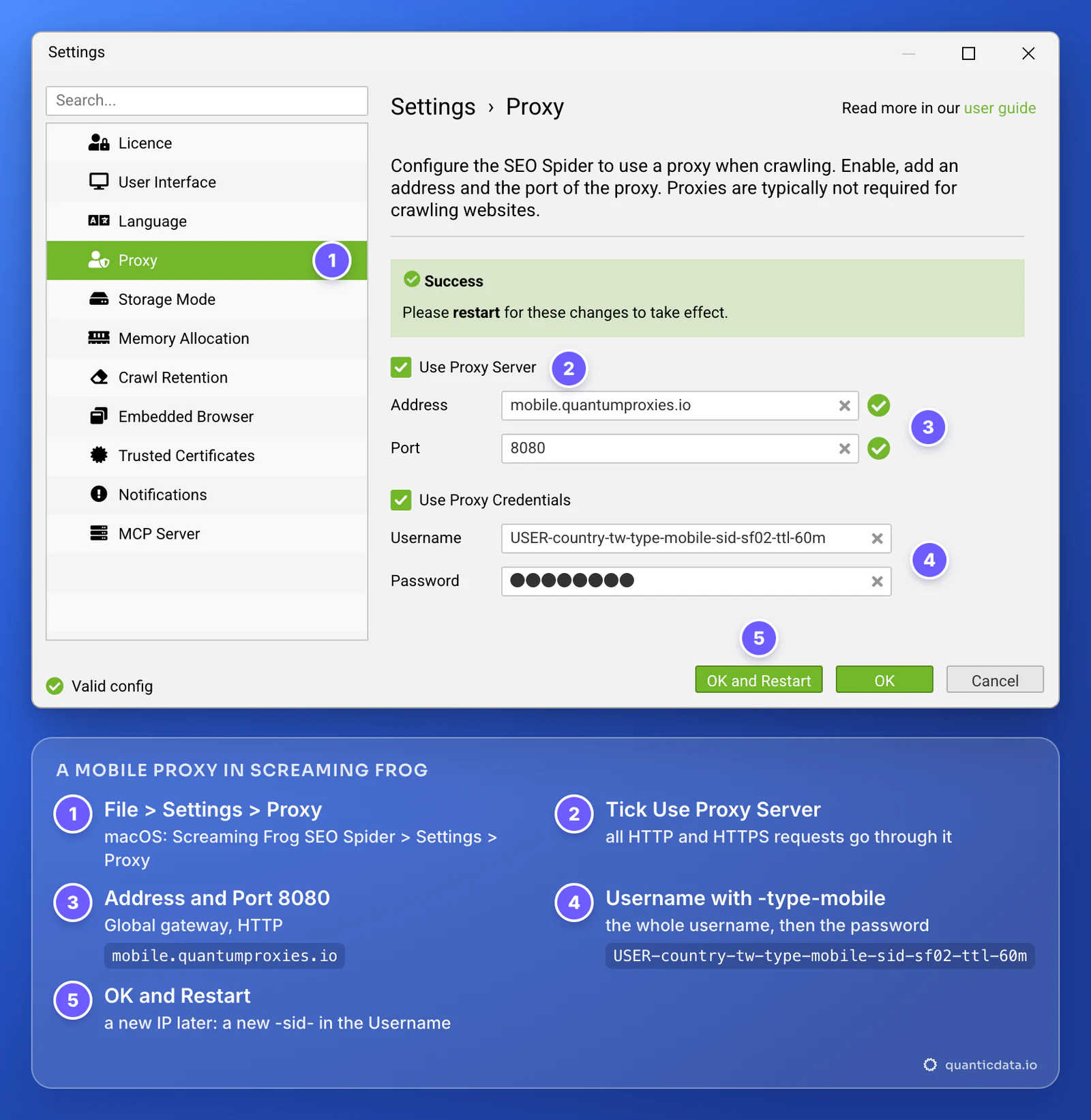
To use a proxy in Screaming Frog, open File > Settings > Proxy (Screaming Frog SEO Spider > Settings > Proxy on a Mac), tick Use Proxy Server, enter the address and port 8080, tick Use Proxy Credentials with the whole username and the password, then click OK and Restart. Every request of the next crawl leaves from that proxy, in the country you chose.
Screaming Frog SEO Spider crawls from your own connection unless you give it a proxy. With one, the sites you crawl see the proxy's IP address and its country, which decides the redirects, the language versions and the local content the crawler collects. The settings take a few seconds, but three details catch most people: there is room for one proxy only, there is no SOCKS option, and nothing changes until the app restarts. The field names below are the ones in Screaming Frog's own user guide; the values come from the QuanticData endpoint generator.
What you need before you start
- Screaming Frog SEO Spider on Windows, macOS or Linux. The free version crawls up to 500 URLs per crawl; a licence removes that limit and unlocks the full configuration.
- A proxy plan: Residential Premium, ISP or mobile. All of them go in the same box; the table further down says which one fits which crawl.
- Four values: host, port, username and password. In the QuanticData dashboard they are under My proxies, on the plan's page, in the Endpoint generator: Connection details shows them one by one, which is exactly how Screaming Frog asks for them.
Where the proxy settings are
Since version 19.0 Screaming Frog keeps its system settings in their own window:
- Windows and Linux: File > Settings > Proxy.
- macOS: Screaming Frog SEO Spider > Settings > Proxy.
- Versions before 19.0: Configuration > System > Proxy. Some of Screaming Frog's older tutorials still give this path.
The Proxy page holds six fields: Use Proxy Server, Address, Port, Use Proxy Credentials, Username and Password. Screaming Frog's user guide adds three rules that shape everything else in this guide:
- Only one proxy server. There is no list and no rotation on Screaming Frog's side. Any change of IP has to come from the proxy itself, which with QuanticData is set in the username.
- A restart is required. After you save, a Success banner says "Please restart for these changes to take effect." OK and Restart does both.
- No exceptions. Either all HTTP and HTTPS traffic of the crawler goes through the proxy, or none of it does.
The page has no protocol choice and no SOCKS option: it takes an address and a port and speaks to them as an HTTP proxy. Use the HTTP port, 8080 on Residential Premium and mobile. Port 1080 is the SOCKS5 port; in our test on 23 October 2026 an HTTP proxy request sent to it was reset at once.
Step by step: Residential Premium in Screaming Frog
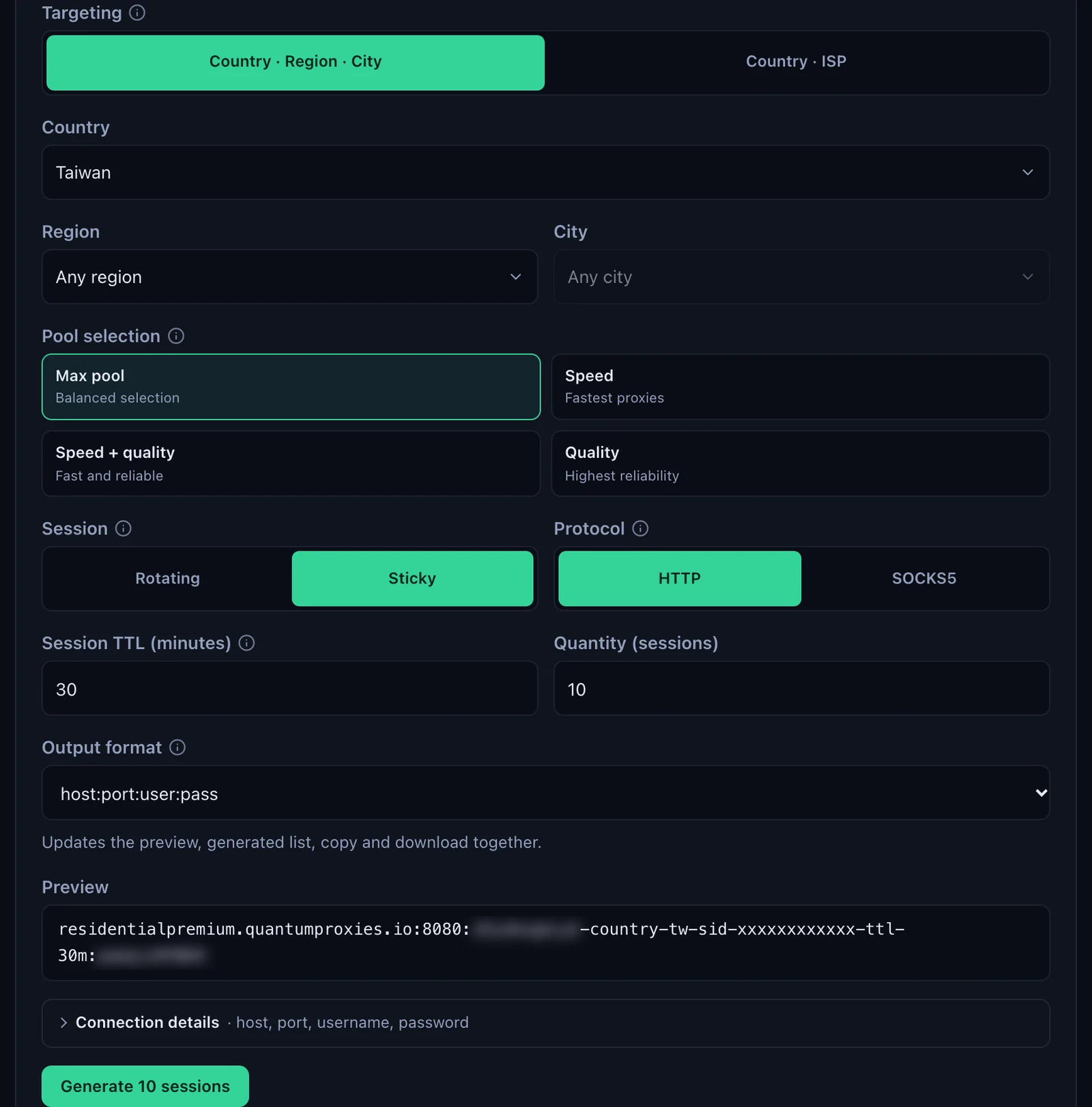
- Generate the line. In the QuanticData dashboard open My proxies, then your plan. In the Endpoint generator choose the Country the crawl should come from (Taiwan in this example, with a Region or City if you need one), set Session to Sticky with a Session TTL (minutes) longer than the crawl, and keep Protocol on HTTP.
- Open Connection details. It lists Host, Port, Username and Password with a copy button each. Screaming Frog wants them in separate fields, not as one line.
- Open the Proxy settings. File > Settings > Proxy, or Screaming Frog SEO Spider > Settings > Proxy on a Mac.
- Tick Use Proxy Server. Address and Port become active.
- Address and Port. Address:
residentialpremium.quantumproxies.io. Port:8080. A green tick appears next to each field. - Tick Use Proxy Credentials. Paste the username whole, for example
USER-country-tw-sid-sf01-ttl-60m, then the password. - Click OK and Restart. Screaming Frog closes and opens again; the next crawl goes through the proxy.
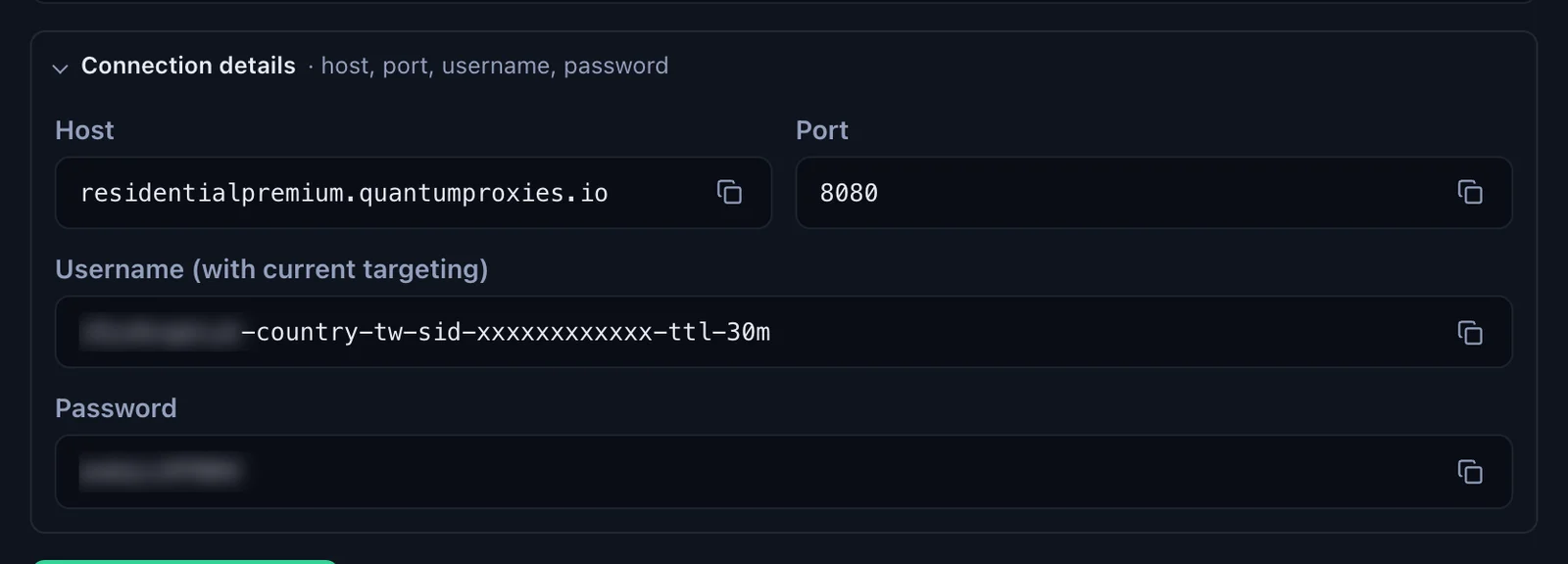
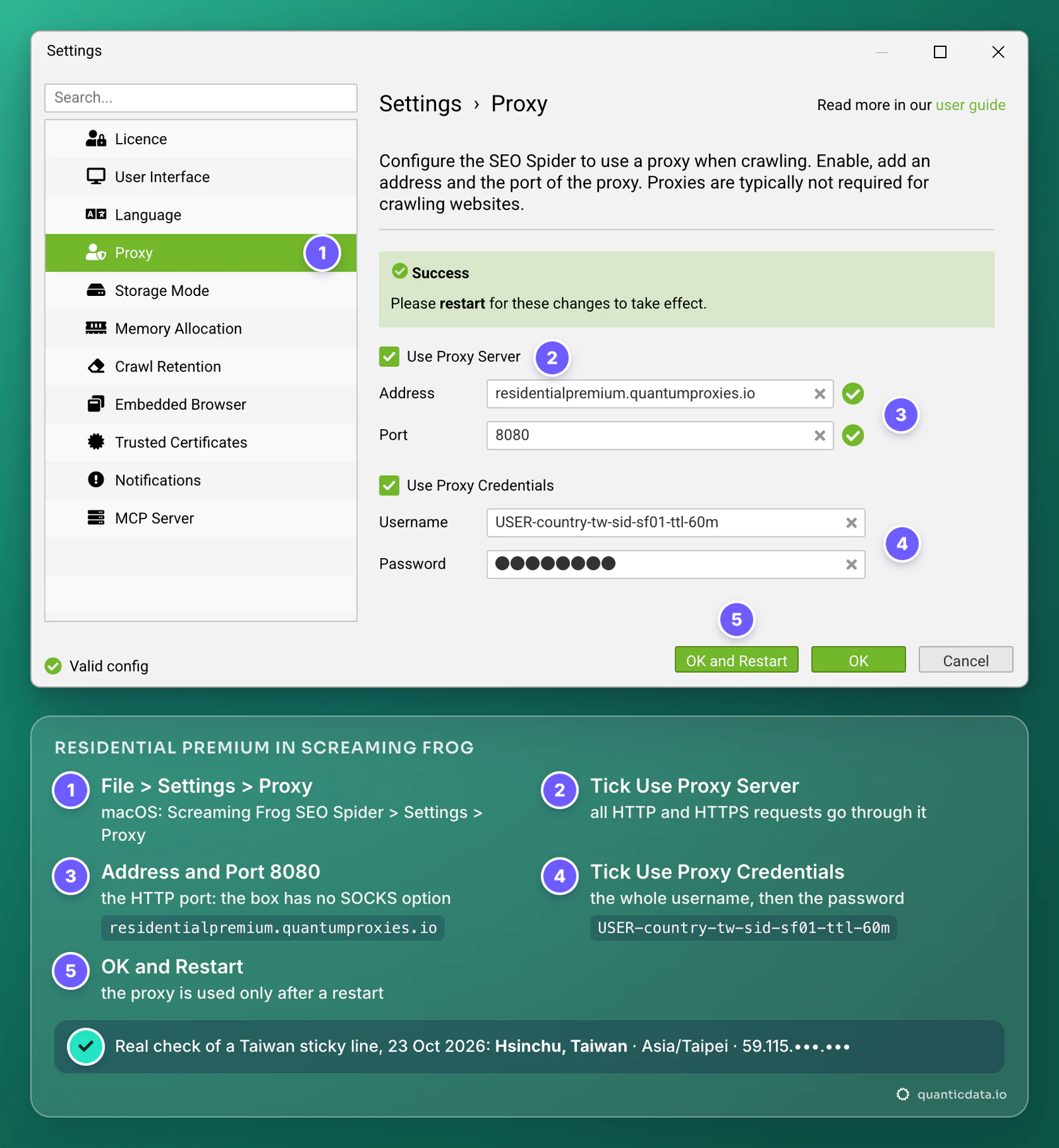
The username carries the targeting: -country-tw picks the exit country, -sid-sf01 names the session and -ttl-60m keeps it for 60 minutes. Copy it whole. A username cut at the first dash still logs in, but the crawl then leaves from a random country.
Check where the crawl comes from
Screaming Frog has no proxy checker of its own, so test the same four values from a terminal before a long crawl. If this answers with an address in the right country, the proxy works and anything that goes wrong afterwards is in Screaming Frog's fields:
curl -x http://residentialpremium.quantumproxies.io:8080 \
  -U "USER-country-tw-sid-sf01-ttl-60m:PASS" https://ipinfo.io/json
Our own run of this test with a Taiwan sticky line on 23 October 2026 answered from Hsinchu, region Taiwan, time zone Asia/Taipei, on a Taiwanese home network (AS3462). That is the location every site in the crawl sees.
One proxy per crawl: sticky or rotating
Because Screaming Frog holds a single proxy, the username decides how the IP behaves for the whole crawl:
| Username | What the crawled site sees | Use it for |
|---|---|---|
USER-country-tw-sid-sf01-ttl-60m | One IP in Taiwan for up to 60 minutes; up to 1440 minutes with -ttl-1440m | Most crawls: consistent results, cookies and sessions that stay tied to one address |
USER-country-tw | A new IP in Taiwan for each request | Spot checks of single URLs in list mode, where no session has to survive |
USER-country-de-sid-sf02-ttl-60m | One IP in Germany | The same site as German visitors see it: change the line, restart, crawl again |
- The country of the exit is what the crawler sees. Geo-redirects, language versions picked by IP, local prices and consent banners all follow the proxy, not your office. To compare two markets, run two crawls with two lines.
- A lifetime longer than the crawl. When a sticky session ends, the next request leaves from a new IP. For a crawl of several hours set the TTL accordingly, up to 1440 minutes.
- A new IP on Residential Premium or mobile is a new session ID:
-sid-sf02instead of-sid-sf01, then OK and Restart.
For a full crawl of your own site from another country, the result is worth comparing with how to perform an SEO audit: the same checks, from the visitor's location. For audits without a desktop crawler, the SEO Audit API fetches pages from the country you pass.
ISP proxies in Screaming Frog
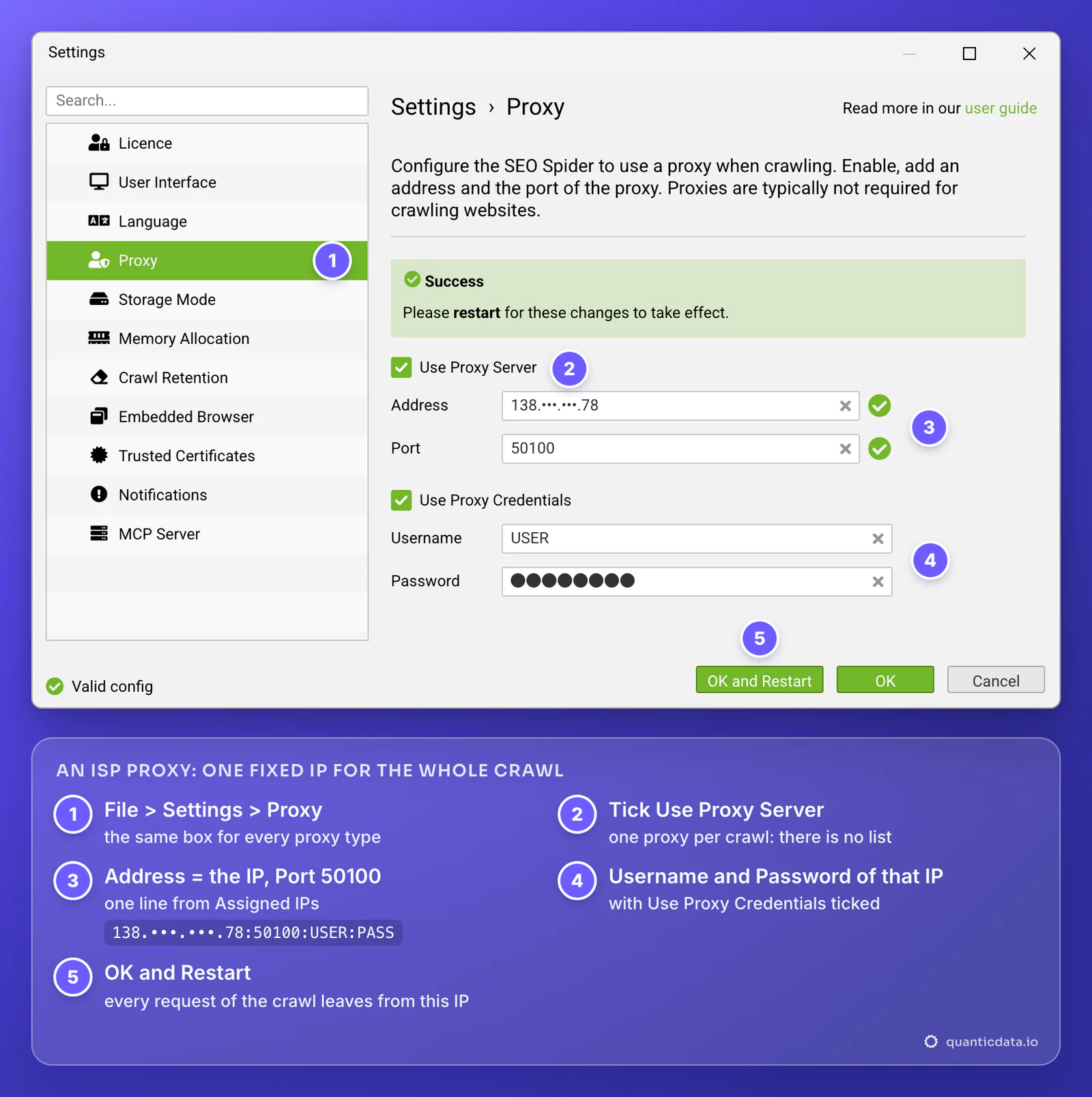
An ISP proxy is one fixed IP address that stays the same for months. In Screaming Frog it is the cleanest answer to "Screaming Frog IP whitelist": when a client's staging site or firewall only lets known addresses in, give them the ISP IP to allow and crawl through it.
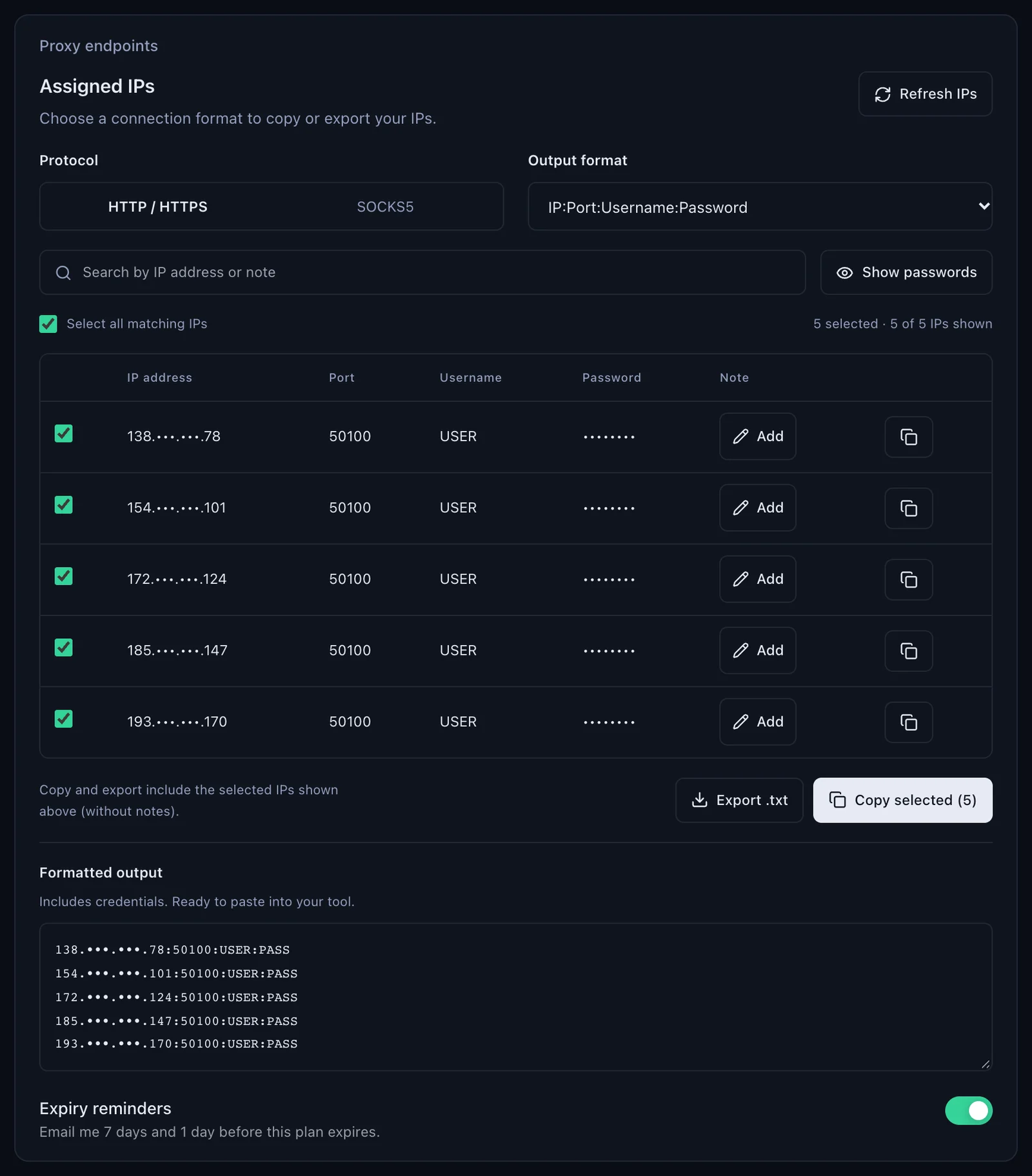
- Copy one line from Assigned IPs, with Protocol on HTTP / HTTPS and the format IP:Port:Username:Password.
- Address is the IP, Port is the port of that line, 50100 in the example.
- Use Proxy Credentials with the Username and Password of the same line, then OK and Restart.
Mobile proxies in Screaming Frog
Mobile lines go in the same fields. The address is mobile.quantumproxies.io on the Global gateway (USA, EU and Asia gateways are in the generator too), the port is 8080, and the username carries -type-mobile, for example USER-country-tw-type-mobile-sid-sf02-ttl-60m. Use them when you need the site as a phone on a carrier network gets it.
Mobile plans also offer IP whitelist authentication: add your own IP in the generator, take the host and port it gives you, and leave Use Proxy Credentials unticked. Residential Premium and ISP lines always log in with username and password.
Which proxy for which crawl
| Proxy type | In Screaming Frog | Good for |
|---|---|---|
| Residential Premium | residentialpremium.quantumproxies.io, port 8080, the whole username with country, region, city or ISP | Crawling a site as visitors in a given country see it; sticky for full crawls |
| ISP | The IP and port of one Assigned IPs line, its username and password | One fixed address a site owner can allowlist; repeat crawls from the same IP |
| Mobile | mobile.quantumproxies.io, port 8080, -type-mobile in the username, or IP whitelist without credentials | Mobile versions served by carrier network or country |
The plans are on the pages for QuanticData residential proxies, ISP proxies, mobile proxies and Taiwan residential proxies.
Screaming Frog proxy not working: errors and fixes
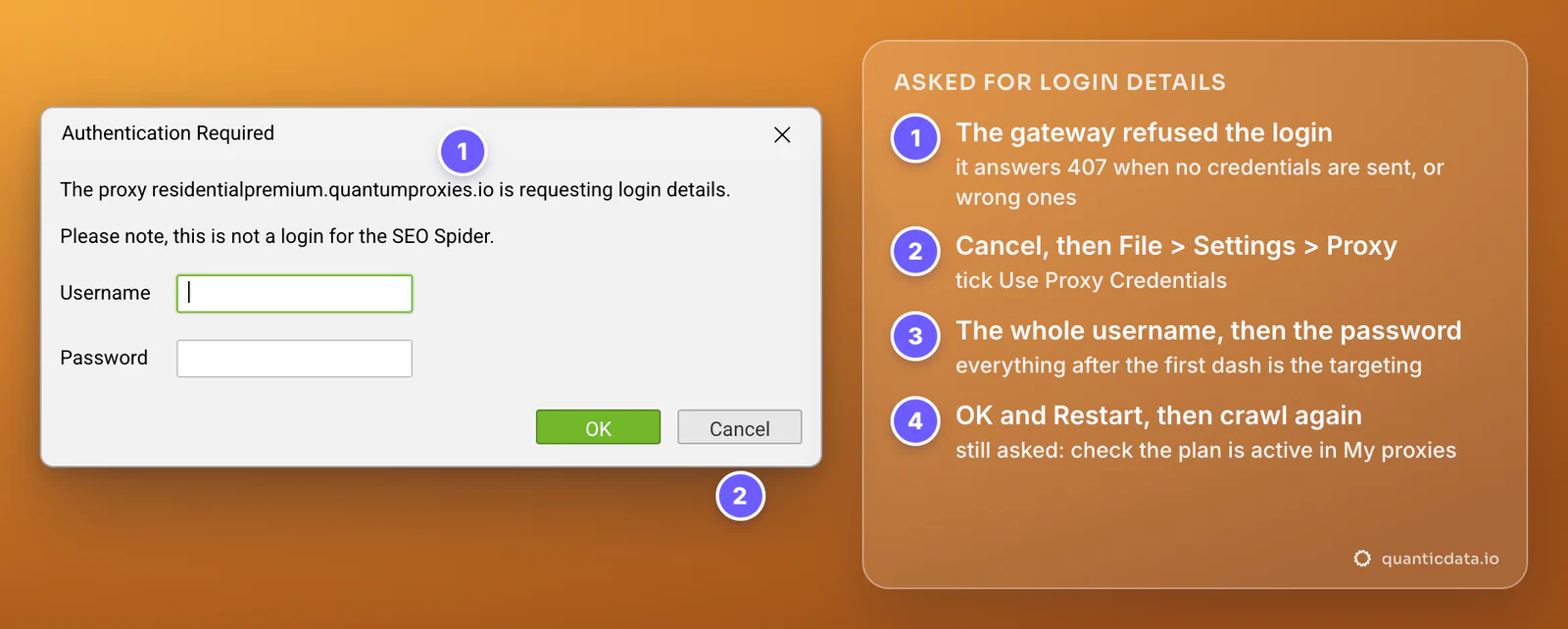
The most common sign of a wrong proxy is a window called Authentication Required at the start of the crawl: "The proxy residentialpremium.quantumproxies.io is requesting login details." The gateway refused the login, which on QuanticData means a 407 Proxy Authentication Required answer: Use Proxy Credentials is not ticked, or the username or password is not the one in the dashboard. The same window saying "The website ... is requesting login details" is something else: a password-protected site asking for its own login, not the proxy.
The other errors show up in the Status Code and Status columns of the crawl. Screaming Frog's own FAQ points to the proxy settings for the first three.
| What you see | Usual cause | Fix |
|---|---|---|
| Authentication Required: the proxy is requesting login details | No credentials sent, or wrong ones: the gateway answers 407 | Tick Use Proxy Credentials, paste the whole username and the password, OK and Restart |
| 0, Connection Refused or Connection Error on every URL | Wrong port (1080 is the SOCKS5 port), a typo in Address, or a security program blocking the app | Port 8080 for Residential Premium and mobile, the port of the line for ISP; copy the address again |
| 0, Connection Timeout | The proxy port is blocked on your network, or the site answers slowly (the default timeout is 20 seconds) | Run the curl test: if it fails too, open the port with your IT team; if it works, raise Response Timeout under Configuration > Spider > Advanced |
| The crawl still comes from your own IP | The settings were saved without a restart | OK and Restart, or close and reopen Screaming Frog |
| Pages in the wrong language or country | No -country- in the username, or Worldwide in the generator | Generate the line with a country and paste the username again |
| Worked yesterday, fails today | The plan expired or its traffic is used up | Check status, remaining traffic and expiry in My proxies |
| Many 429 or 403 answers from one site | The site limits how fast or from where it is crawled | Lower Configuration > Speed and agree the crawl with the site owner; see 429 Too Many Requests |
To stop using the proxy, untick Use Proxy Server and restart. A proxy left on by mistake is the first thing Screaming Frog's FAQ asks you to check when a crawl that should work returns Connection Refused.
Before you crawl
A proxy changes where the crawler comes from, not what it is allowed to do. Crawl sites you own or are allowed to audit, keep to robots.txt and a reasonable speed, and see is web crawling legal for the rules that apply where you work.
Sources & further reading
- Screaming Frog SEO Spider user guide: Configuration, Proxy
- Screaming Frog SEO Spider FAQ: Connection Refused, Connection Error, Connection Timeout
- Screaming Frog: HTTP Status Codes, Why Won't My Website Crawl?
- Screaming Frog SEO Spider version 19.0: settings under File > Settings
- RFC 9110 HTTP Semantics: 407 Proxy Authentication Required