
To add a proxy in VMLogin, open the profile, click Setting proxy server and turn on Enable proxy server. Pick HTTP Proxy for port 8080 or Socks 5 Proxy for 1080, copy the line and click Paste proxy info, then Test Proxy and Save. Below: every field, sticky sessions, ISP and mobile lines, bulk import and error fixes.
VMLogin gives every browser profile its own fingerprint, its own cookies and, once you set one, its own proxy. It does not sell proxies: its help center says to bring them from a proxy provider and to give each profile a unique IP, with one account per website in each profile. The field names below are the ones in VMLogin's help center and in the current Windows client; the values come from the QuanticData endpoint generator.
What you need before you start
- VMLogin installed, with an account. VMLogin's site offers a Windows version. Its free trial lasts 3 days and saves 5 browser profiles; paid plans add more.
- A proxy plan. Residential Premium, ISP or mobile: all of them work in VMLogin. The table further down says which one fits which profile.
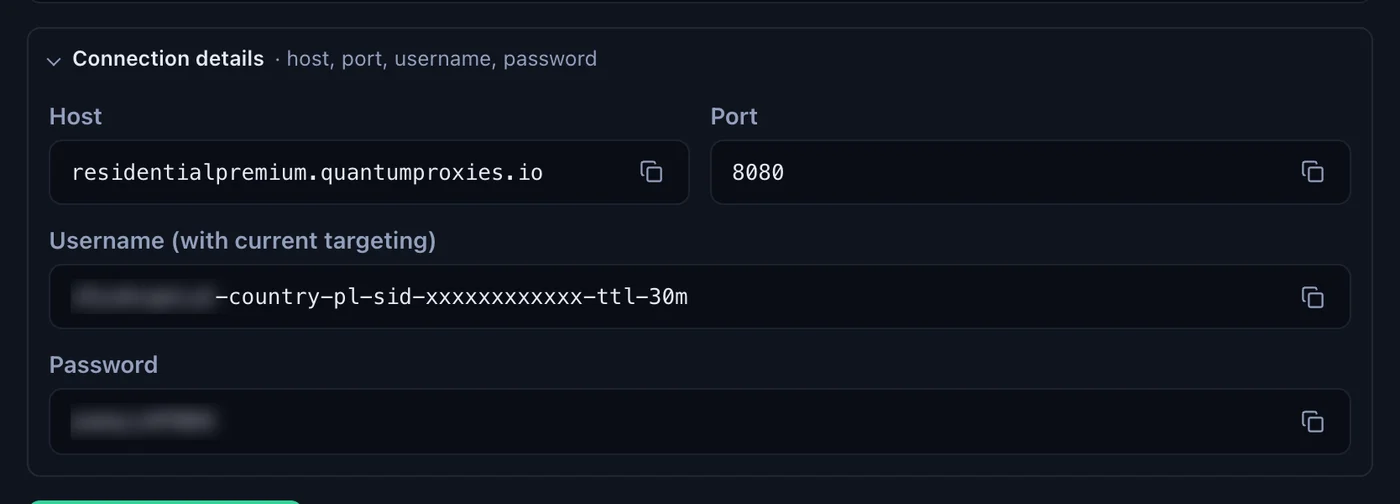
- The four values VMLogin asks for: host, port, username and password. In the QuanticData dashboard they are under My proxies, on the plan's page, in the Endpoint generator.
The VMLogin proxy fields, one by one
The proxy of a profile lives in the Proxy settings window, opened by the Setting proxy server button in Basic configuration. These are its fields and what goes in each:
| Field in VMLogin | What it does | With QuanticData |
|---|---|---|
| Enable proxy server | Switches the proxy on for this profile; off, the profile uses your own connection | On |
| Proxy type | The protocol of the proxy port | HTTP Proxy for port 8080, Socks 5 Proxy for port 1080 |
| Paste proxy info | Fills the four fields below from a line you copied | The line from the generator's Preview |
| IP address | The proxy host; a host name works as well as an IP | residentialpremium.quantumproxies.io |
| Port | The port of the type you chose | 8080 or 1080 |
| Username | The login, with the targeting inside it | USER-country-pl-sid-p01-ttl-60m |
| Password | The password of the plan | PASS stands for yours |
| Test IP URL | The service that answers Test Proxy: ip234 (default), vmlogin or ip-api.com | ip234 |
| Test Proxy | Connects through the proxy and shows where it exits | country PL for a -country-pl line |
Paste proxy info reads two layouts, according to VMLogin's help center: IP:Port:Username:Password and Username:Password@IP:Port. Both are output formats of the QuanticData generator:
# IP:Port:Username:Password (generator format host:port:user:pass)
residentialpremium.quantumproxies.io:8080:USER-country-pl-sid-p01-ttl-60m:PASS

# Username:Password@IP:Port (generator format user:pass@host:port)
USER-country-pl-sid-p01-ttl-60m:PASS@residentialpremium.quantumproxies.io:8080
The type is not part of the pasted line, so set Proxy type first. The username is the whole string with everything after the first dash: -country-pl picks the exit country, -sid-p01 names the session and -ttl-60m keeps it for 60 minutes. A username cut at the first dash still authenticates, but the profile then leaves from a random country on a new IP at every request.
Step by step: add a proxy to a VMLogin profile
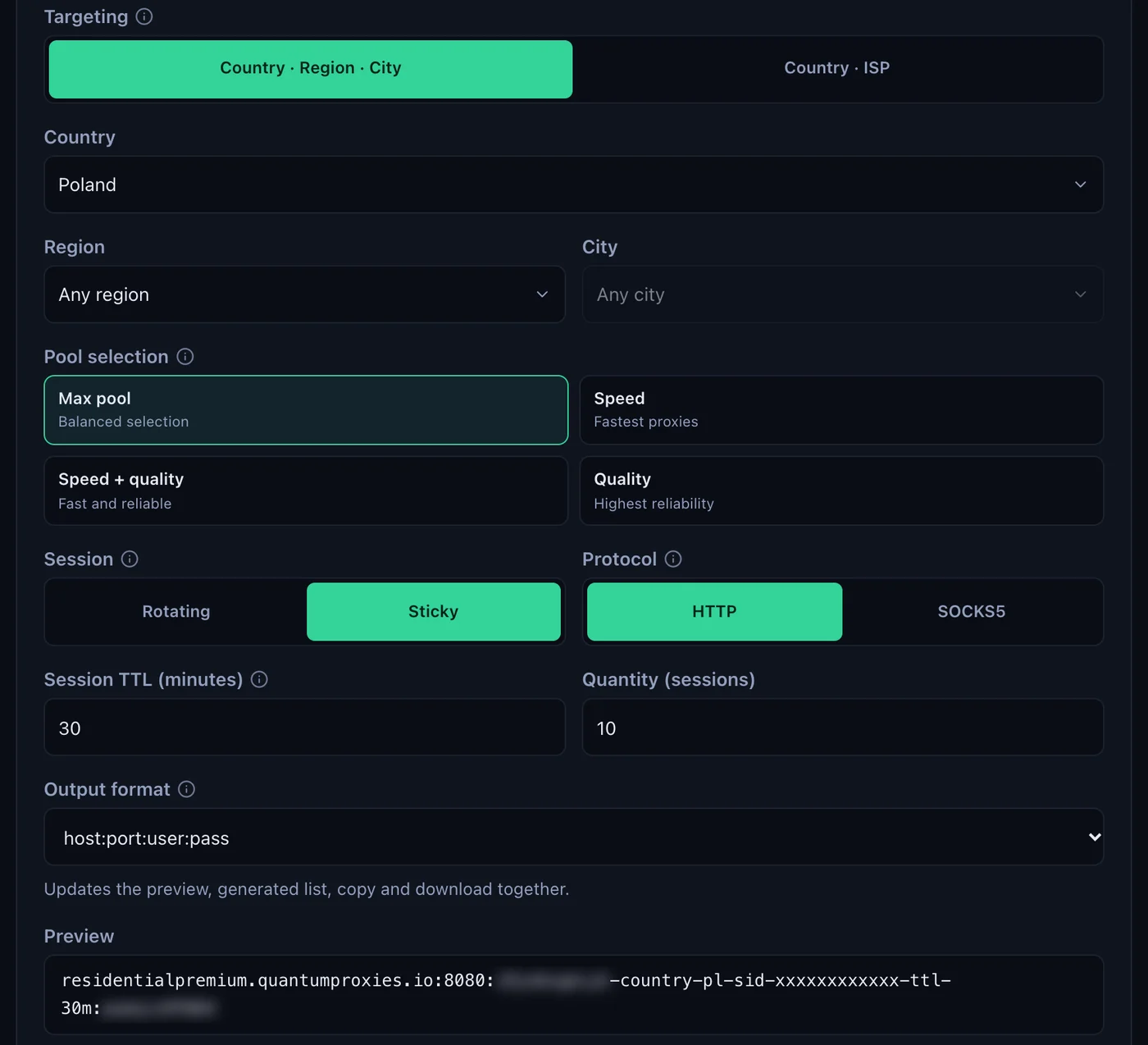
- Generate the line. In the QuanticData dashboard open My proxies, then your plan. In the Endpoint generator choose the Country (Poland in this example, and a Region or City if the profile needs one), set Session to Sticky, set Session TTL (minutes) to at least the time the profile stays open, choose the Protocol and keep the Output format on host:port:user:pass. Copy the line from Preview.
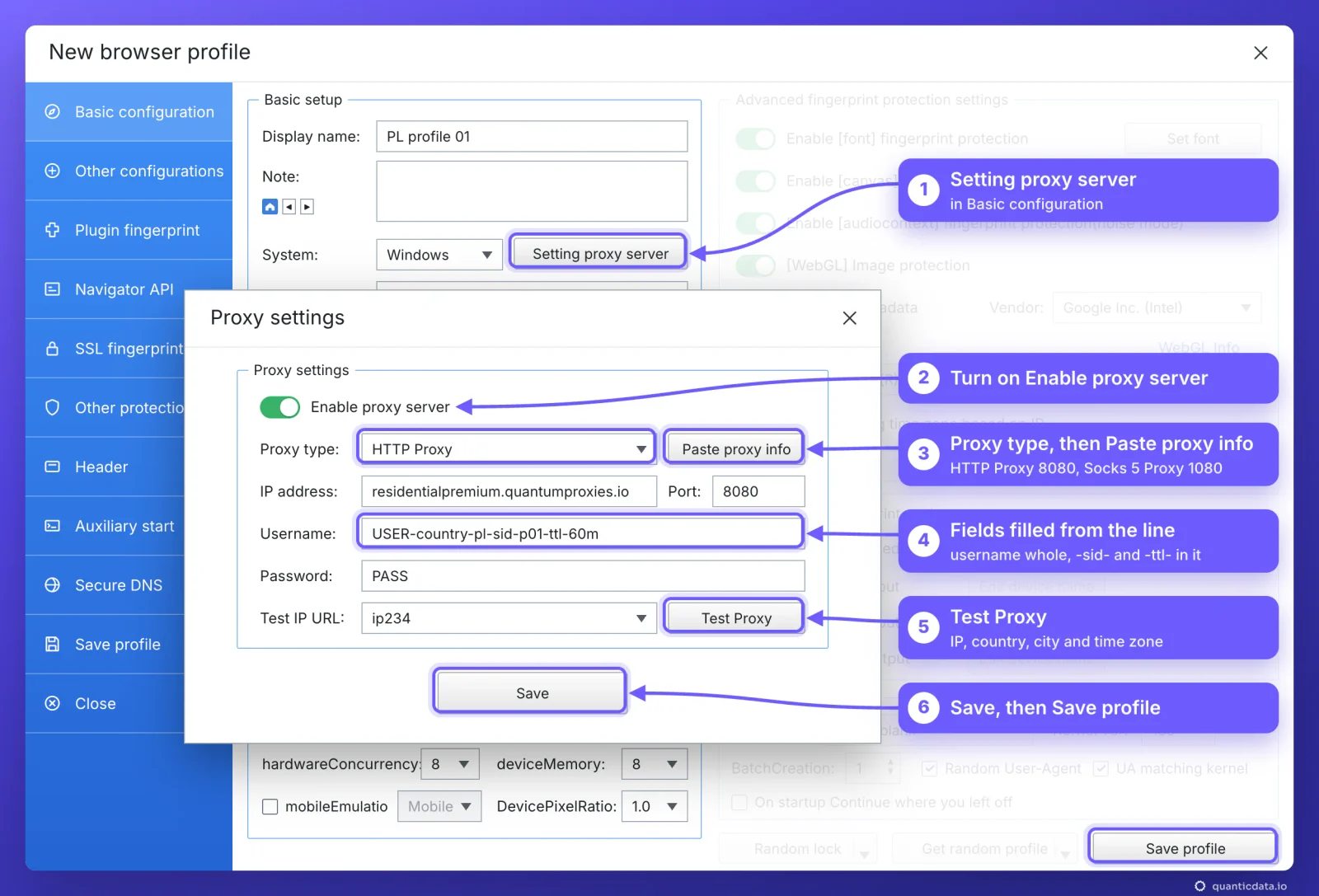
- Open the profile in VMLogin. Click New browser profile on the home page and give it a Display name, for example PL profile 01. For a profile you already have, see the section on changing the proxy below.
- Click Setting proxy server in Basic configuration. The Proxy settings window opens.
- Turn on Enable proxy server.
- Choose the Proxy type that matches the port: HTTP Proxy for 8080, Socks 5 Proxy for 1080.
- Click Paste proxy info. VMLogin fills IP address, Port, Username and Password from the line you copied. You can also type the four values from Connection details into the fields one by one.
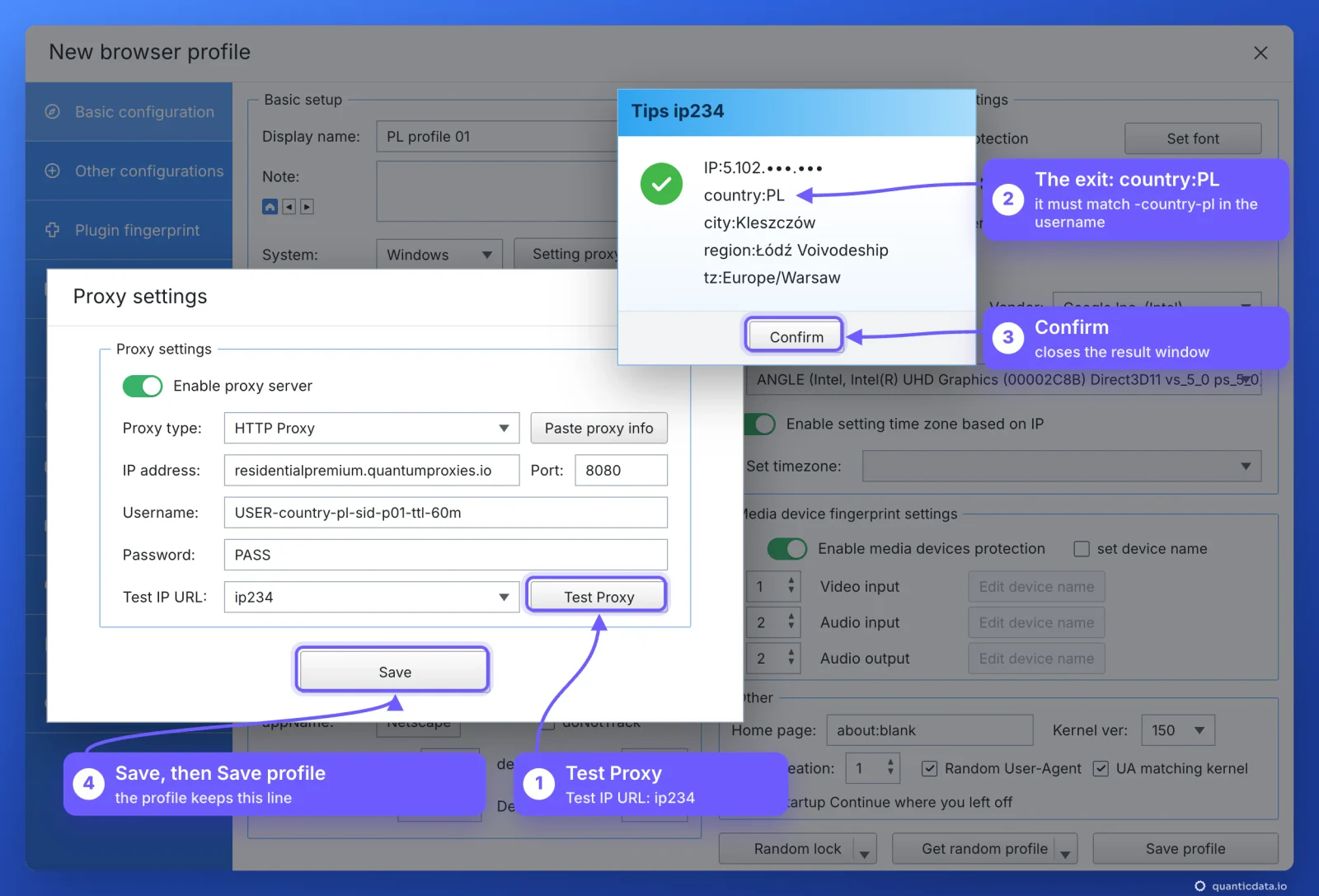
- Click Test Proxy and check the country in the result, then click Confirm.
- Click Save, then Save profile. To use it, right-click the profile in the Browser profile list and choose Launch browser.
Read the Test Proxy result
Test Proxy opens a Tips window named after the service in Test IP URL. It lists the exit IP, the country, the city, the region, the time zone (tz), latitude, longitude and zip code. One line decides whether the setup is right: the country must be the one in the username. Our Poland line answered with country PL on 23 October 2026, from Kleszczów in Łódź Voivodeship, time zone Europe/Warsaw.
- Test IP URL. ip234 is the default; vmlogin uses VMLogin's own IP database and also detects IPv6; ip-api.com is the third choice. ip234 and ip-api.com are third-party services that accept about 45 requests per minute from one IP, so a long run of tests can fail while the proxy works: wait a minute or switch the service.
- Time zone from the proxy. With Enable setting time zone based on IP turned on, under Advanced fingerprint protection settings in the profile, VMLogin checks the exit IP at every start and sets the time zone to match it. Lang based on IP, next to Accept-Language, does the same for the language.
- WebRTC on the proxy's IP. Leave WebRTC on [replacement mode] return to the specified IP and Public IP on Auto detect IP. VMLogin's help center describes replacement mode as the one that shows the proxy's IP instead of yours.
One sticky session per profile
An antidetect profile is meant to look like one person on one connection. A rotating proxy changes IP on every request, which suits scraping and breaks a profile that logs in. A sticky session keeps one IP for as long as the session lives, and the session lives in the username, so the saved fields never have to change.
# PL profile 01: Poland, one session for a working day
residentialpremium.quantumproxies.io:8080:USER-country-pl-sid-p01-ttl-480m:PASS

# PL profile 02: same plan, its own session (never reuse p01)
residentialpremium.quantumproxies.io:8080:USER-country-pl-sid-p02-ttl-480m:PASS

# PL profile 03: open all day
residentialpremium.quantumproxies.io:8080:USER-country-pl-sid-p03-ttl-1440m:PASS- A different session ID in every profile. Two profiles on the same line share one IP, which is what VMLogin's own one-IP-per-profile rule is there to avoid.
- A lifetime longer than the work. The generator accepts up to 1440 minutes, a full day. When the session ends, the next request gets a new IP, and a site can see that as a new login location.
- The country in the username. Without
-country-the exit can be anywhere, and the time zone VMLogin takes from the IP changes with it.
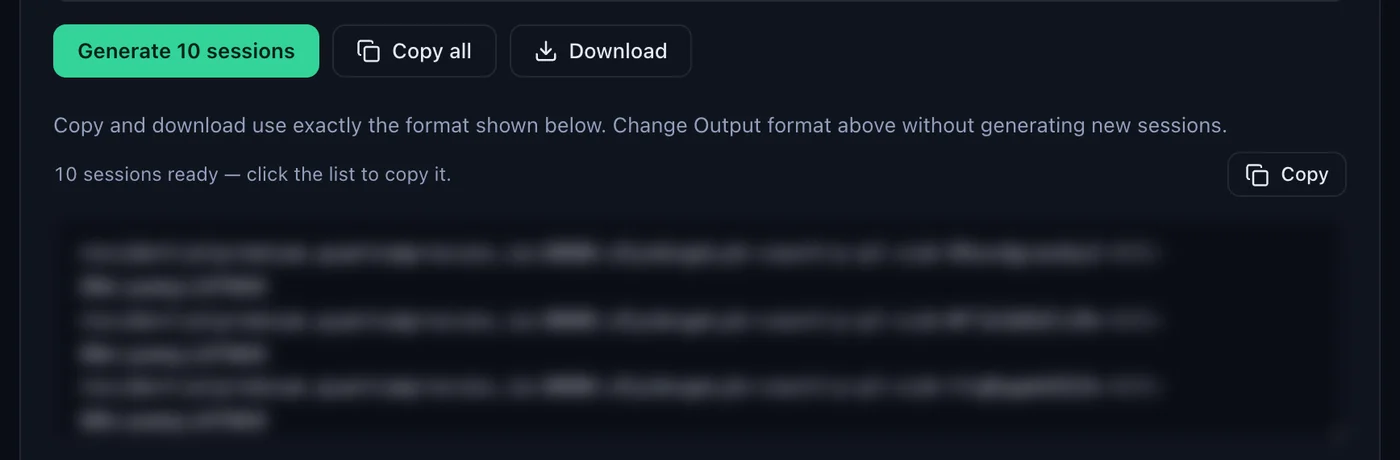
With Session set to Sticky, the generator makes as many lines as the Quantity field says, ten by default, each with its own session ID; Copy all and Download take them out in the same format. One line per profile.
Which QuanticData proxy for which VMLogin profile
| Proxy type | In VMLogin | Good for |
|---|---|---|
| Residential Premium | HTTP Proxy on 8080 or Socks 5 Proxy on 1080; one sticky line per profile; username and password | Most profiles: home IPs in the country, region or city you choose |
| ISP | One fixed IP per profile from Assigned IPs, pasted as IP:Port:Username:Password | Long-lived accounts that should keep the same address for months |
| Mobile | One sticky line per profile with -type-mobile in the username; HTTP 8080 or SOCKS5 1080; IP whitelist possible | Phone-first platforms and accounts tied to mobile networks |
Residential Premium in VMLogin
Everything above uses Residential Premium: host residentialpremium.quantumproxies.io, HTTP on 8080 or SOCKS5 on 1080, authentication by username and password, with country and region or city, or country and ISP, set in the username. Use Paste proxy info with the Preview line, then check the country with Test Proxy. More on the network on the page for QuanticData residential proxies, and on why each profile needs its own address in residential proxies for antidetect browsers.
ISP proxies in VMLogin
An ISP plan lists its fixed addresses under Assigned IPs. Choose the Protocol there, HTTP / HTTPS or SOCKS5, and the Output format IP:Port:Username:Password, which is the first layout Paste proxy info reads. In VMLogin set the matching Proxy type (HTTP Proxy or Socks 5 Proxy), copy one line and paste it into one profile. The address does not change, so there is no session to manage: one IP, one profile, for as long as the plan runs. The plans are on the page for ISP proxies.
Mobile proxies in VMLogin
A mobile line goes in like a Residential Premium one, on its own host and with -type-mobile in the username:
mobile.quantumproxies.io:8080:USER-country-pl-type-mobile-sid-p01-ttl-60m:PASSIn the mobile generator choose the gateway (Global, USA, EU or Asia), Sticky, and HTTP on 8080 or SOCKS5 on 1080. Mobile plans also offer IP whitelist authentication: add the public IP of the computer that runs VMLogin, retrieve the host:port list and leave Username and Password empty in VMLogin, which its help center allows when the proxy needs no login. See mobile proxies and mobile proxies for antidetect browsers.
Change the proxy of an existing profile
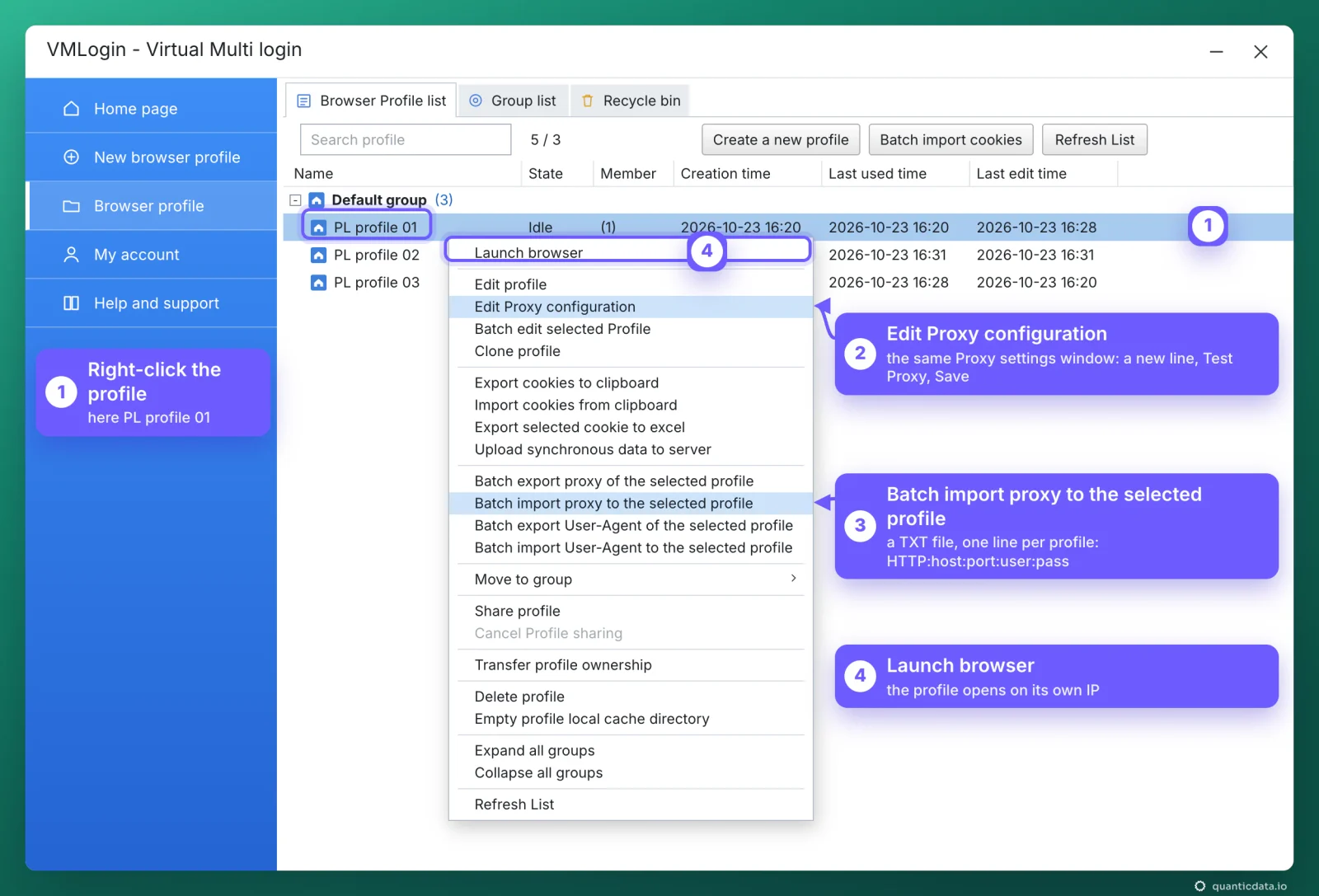
In the Browser profile list, right-click the profile and choose Edit Proxy configuration. The same Proxy settings window opens: paste the new line, run Test Proxy and click Save. This is also how a profile gets a new IP on Residential Premium or mobile: generate a line with a new session ID, -sid-p02 instead of -sid-p01, and paste it. ISP addresses are static by design.
On a team account, a sub-account cannot change the proxy of a profile the admin shared with it unless the admin grants the edit permission from the account's website back end.
Proxies for many profiles at once: Batch import proxy
VMLogin imports proxies into selected profiles from a text file with one proxy per line, written as type:IP:port:username:password. Its help center shows HTTP, HTTPS and SOCKS5 as the type at the start of the line.
- Make the lines. In the generator set Session to Sticky and the Quantity to the number of profiles, generate, then Copy all or Download in the host:port:user:pass format.
- Add the type. Put
HTTP:at the start of every line for port 8080, orSOCKS5:for port 1080; a find and replace in any text editor does it. Save the file as .txt. - Select the profiles. In the Browser profile list select them as you select rows in Excel, with Ctrl or Shift.
- Import. Right-click, choose Batch import proxy to the selected profile and pick the file. One line per profile.
HTTP:residentialpremium.quantumproxies.io:8080:USER-country-pl-sid-p01-ttl-480m:PASS
HTTP:residentialpremium.quantumproxies.io:8080:USER-country-pl-sid-p02-ttl-480m:PASS
SOCKS5:residentialpremium.quantumproxies.io:1080:USER-country-pl-sid-p03-ttl-480m:PASS
Before replacing the proxies of many profiles, Batch export proxy of the selected profile saves the current ones to a TXT file. VMLogin also has an Excel route: Export selected cookie to excel gives a template with proxy and cookie columns, and Batch import cookies at the top of the list imports the cookies and, if you answer Yes, the proxies with them.
VMLogin proxy not working: errors and fixes
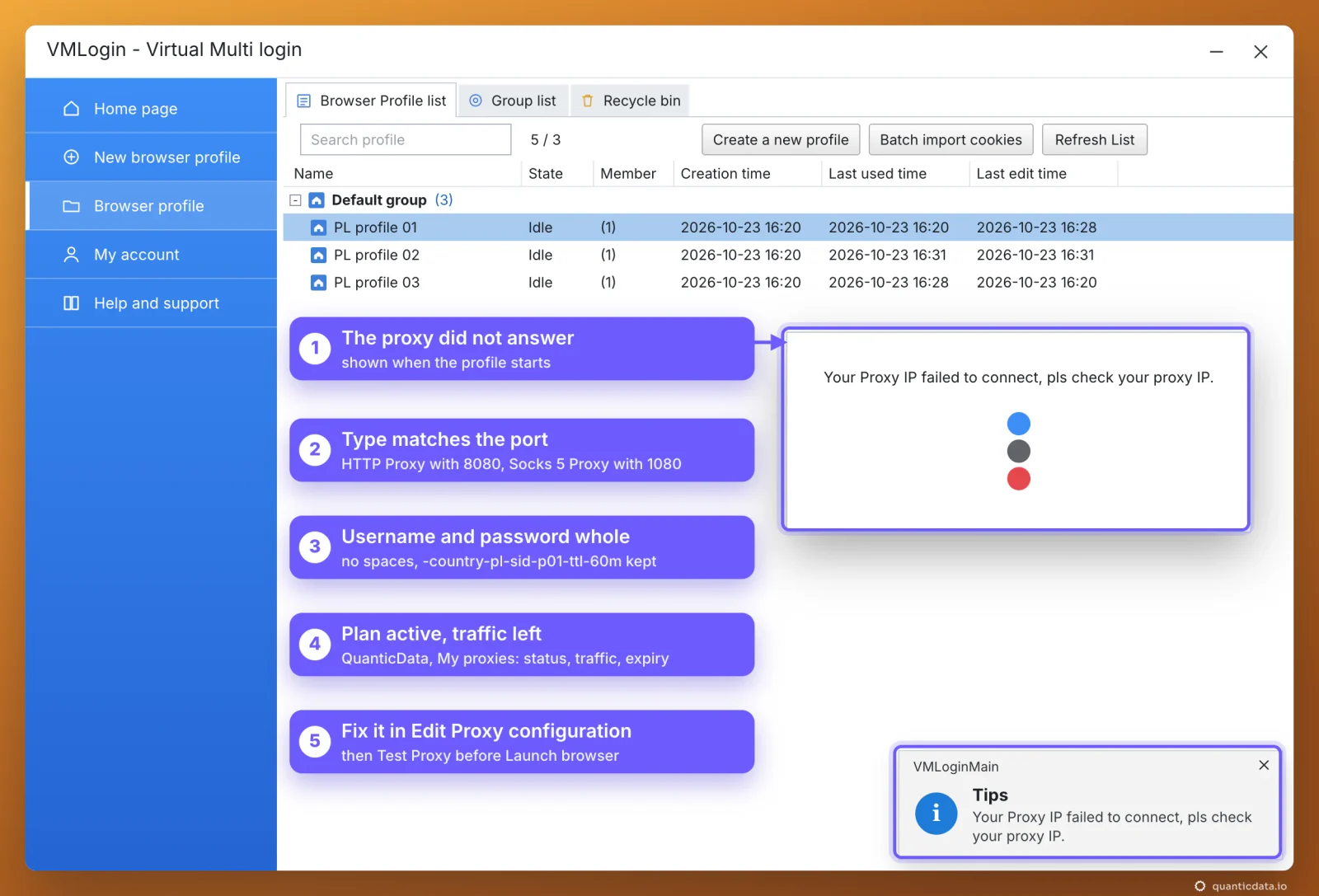
VMLogin reports a failed proxy in two places. In the Proxy settings window, a failed Test Proxy answers "Failed to test the proxy server." When a profile starts, the launch window and a Tips notification read "Your Proxy IP failed to connect, pls check your proxy IP." Its help center lists the causes: no balance or traffic left, a wrong type or wrong credentials, an unstable or dead IP, an IP whitelist that does not include your computer, a limit on connected devices, and a network that cannot reach the proxy. With QuanticData these are the cases behind them, in the order to check.
| What you see | Usual cause | Fix |
|---|---|---|
| Failed to test the proxy server, or Your Proxy IP failed to connect | The type does not match the port: HTTP Proxy on 1080 or Socks 5 Proxy on 8080 | HTTP Proxy with 8080, Socks 5 Proxy with 1080 |
| The same message, with the right type | The username was cut, a space came with the paste, or the password is wrong | Copy the line again from the generator's Preview and use Paste proxy info |
| The test worked yesterday, fails today | The plan expired or its traffic is used up | Check the plan in My proxies: status, remaining traffic, expiry date |
| A whitelisted mobile proxy fails with empty Username and Password | Your computer's public IP is not on the plan's IP whitelist, or it changed | Add the current IP under IP whitelist, or use username and password |
| Test Proxy passes, pages show This site can't be reached, a time-out or Bad gateway | The network you are on blocks the connection to the proxy port, or some sites are blocked on it | Run the curl test below, then try the profile from another network |
| Several tests in a row fail, then work again | The rate limit of ip234 or ip-api.com, about 45 requests per minute from one IP | Wait a minute, or set Test IP URL to vmlogin |
| Wrong country or time zone | No -country- in the username, or Worldwide in the generator | Generate the line with a country; turn on Enable setting time zone based on IP |
| The IP changes in the middle of a session | The session lifetime ended, or two profiles share one session ID | A longer -ttl- and a different -sid- in every profile |
| A sub-account cannot change the proxy | The admin shared the profile without edit permission | The admin grants the permission from the account's website back end |
One test outside the browser settles most cases in a minute. If this returns an address in the right country, the proxy works and the problem is in the profile's fields:
curl -x http://residentialpremium.quantumproxies.io:8080 \
  -U "USER-country-pl-sid-test-ttl-10m:PASS" https://ipinfo.io/json
If the same command fails on your network but works from another one, a firewall or your internet provider is blocking the connection to the proxy port.
HTTP or SOCKS5 in VMLogin
VMLogin accepts HTTP, HTTPS, SOCKS4, SOCKS5 and IPv6 proxies. Every QuanticData network offers two of them: HTTP on port 8080, the simpler choice and the one to start with, and SOCKS5 on port 1080, which passes any kind of connection, not only web pages; the details are on the page for SOCKS5 proxies. For port 8080 choose HTTP Proxy: HTTPS websites load through it as well, encrypted from the browser to the site. What breaks a profile is never the choice itself, only a type that does not match its port. The steps are the same as the same setup in Dolphin Anty, with different labels.
Before you run accounts
A proxy changes where a profile's traffic comes from, not what the profile is allowed to do. Keep to each platform's terms and to the law where you work, and follow VMLogin's own rule: one profile, one IP and one account per website.
Sources & further reading
- VMLogin Help Center: Setting Proxy Server
- VMLogin Help Center: Single Browser Proxy IP Settings
- VMLogin Help Center: Supported Proxy IP Paste Format
- VMLogin Help Center: Batch Import of Multiple Browser Proxy IP
- VMLogin Help Center: Proxy Test URL Customization Instructions
- VMLogin Help Center: Reasons for Proxy Network Test Failure when Launching the Browser
- VMLogin Help Center: WebRTC Introduction
- VMLogin Help Center: Advanced Settings (time zone based on IP)
- RFC 1928: SOCKS Protocol Version 5