
To add a proxy in Changedetection.io, open Settings, CAPTCHA & Proxies, and fill a row of Extra Proxies: a Name and a Proxy URL that starts with http://, such as http://USER:PASS@host:8080. Save, then pick that name in each watch under Edit, Request, Proxy. Below: each step, Residential Premium, ISP and mobile lines, the Chrome fetcher and every error.
Changedetection.io checks web pages on a schedule and tells you when they change: a price, a stock status, a job list, a legal page. Many sites answer a monitoring server differently from a visitor, or not at all, and some show other content to other countries. A proxy gives each watch the address and the country it needs. The field names below are the ones in Changedetection.io's own templates (release 0.60.9 of 12 October 2026), and the values come from the QuanticData endpoint generator.
What you need before you start
- Changedetection.io running, self-hosted with Docker or pip, or the hosted service. On the hosted service the same list of proxies appears in each watch as Location.
- A proxy plan. Residential Premium, ISP or mobile: all of them work. The table further down says which one fits which watch.
- The line in URL format. In the QuanticData dashboard open My proxies, then the plan; in the Endpoint generator set Output format to URL, which gives http://user:pass@host:port.
The proxy format Changedetection.io accepts
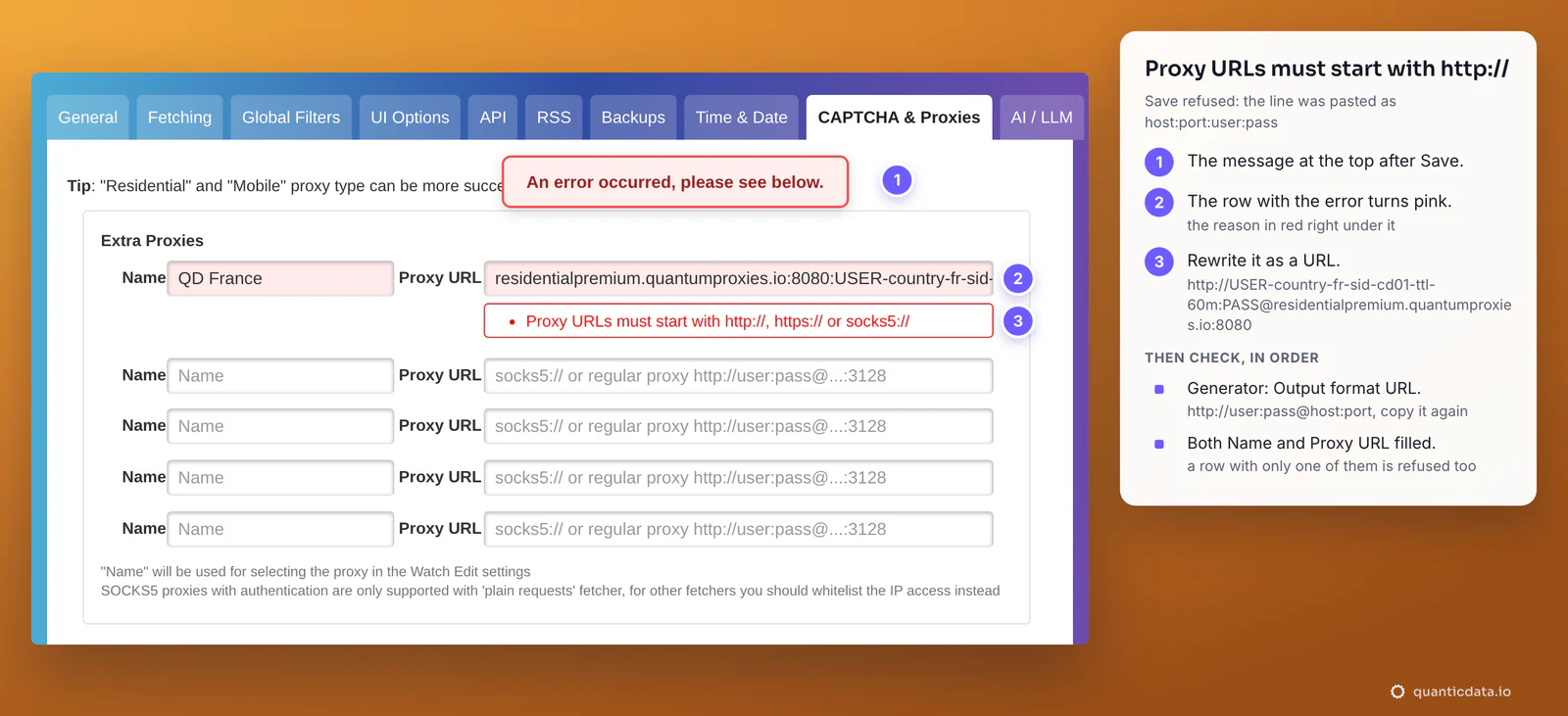
Changedetection.io takes one thing per proxy: a URL with the scheme in front. Its form refuses anything else with "Proxy URLs must start with http://, https:// or socks5://". The username and password go inside the URL, before the @.
| Line | In Changedetection.io |
|---|---|
http://USER:PASS@host:8080 | Accepted, works with every fetcher: the one to use |
socks5://USER:PASS@host:1080 | Accepted; a SOCKS5 proxy with a login works only with the Basic fetcher |
host:8080:USER:PASS | Refused on Save: rewrite it as a URL |
USER:PASS@host:8080 | Refused on Save: add http:// in front |
The same QuanticData Residential Premium proxy, sticky in France for 60 minutes, as Changedetection.io wants it:
http://USER-country-fr-sid-cd01-ttl-60m:PASS@residentialpremium.quantumproxies.io:8080The login is the whole username, with everything after the first dash: -country-fr picks the exit country, -sid-cd01 names the session and -ttl-60m keeps the same IP for 60 minutes. If a password ever contains #, /, ? or @, write those characters percent-encoded (%23, %2F, %3F, %40): Changedetection.io decodes them before it sends the login.
Step by step: add the proxy in Settings
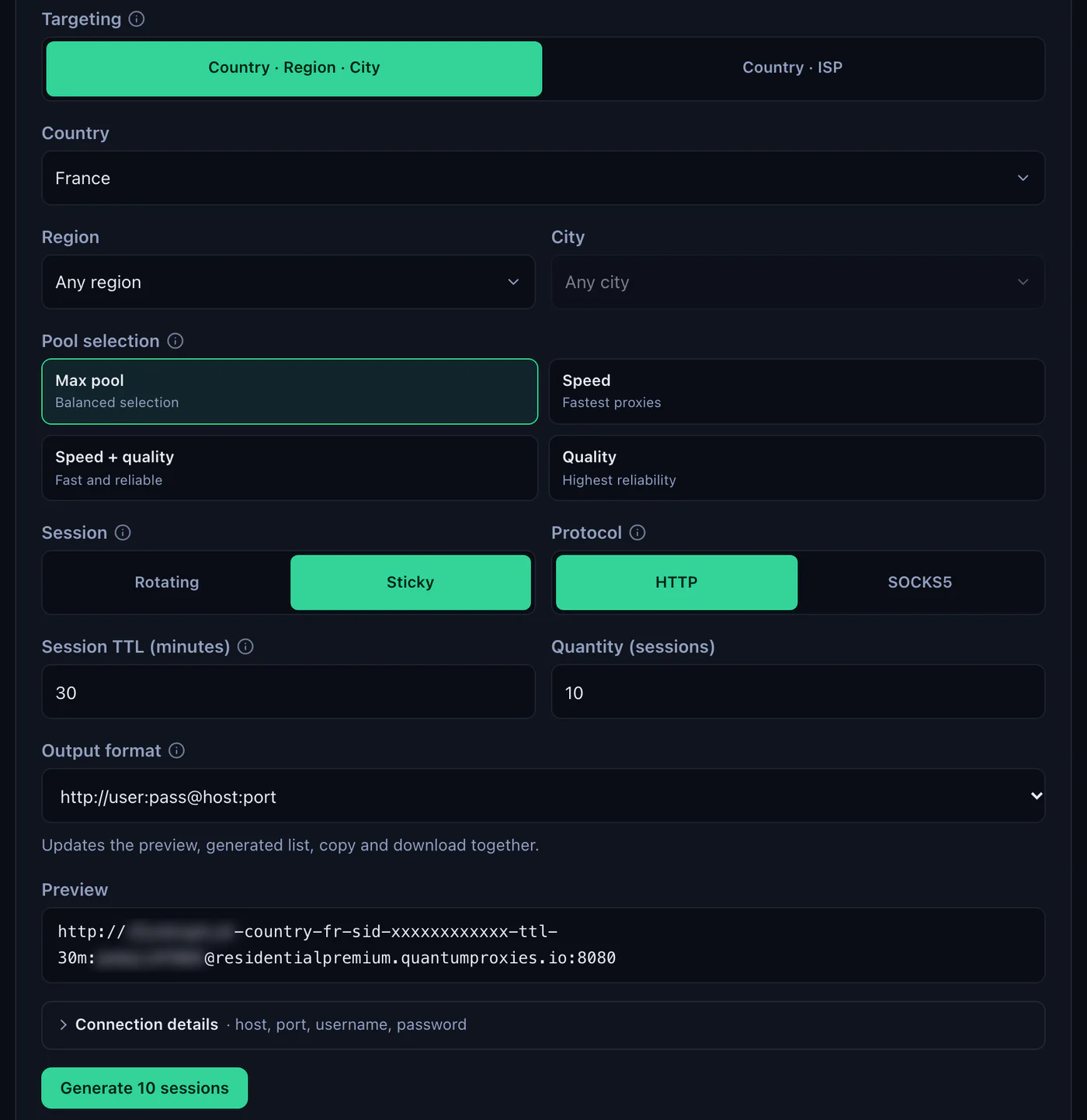
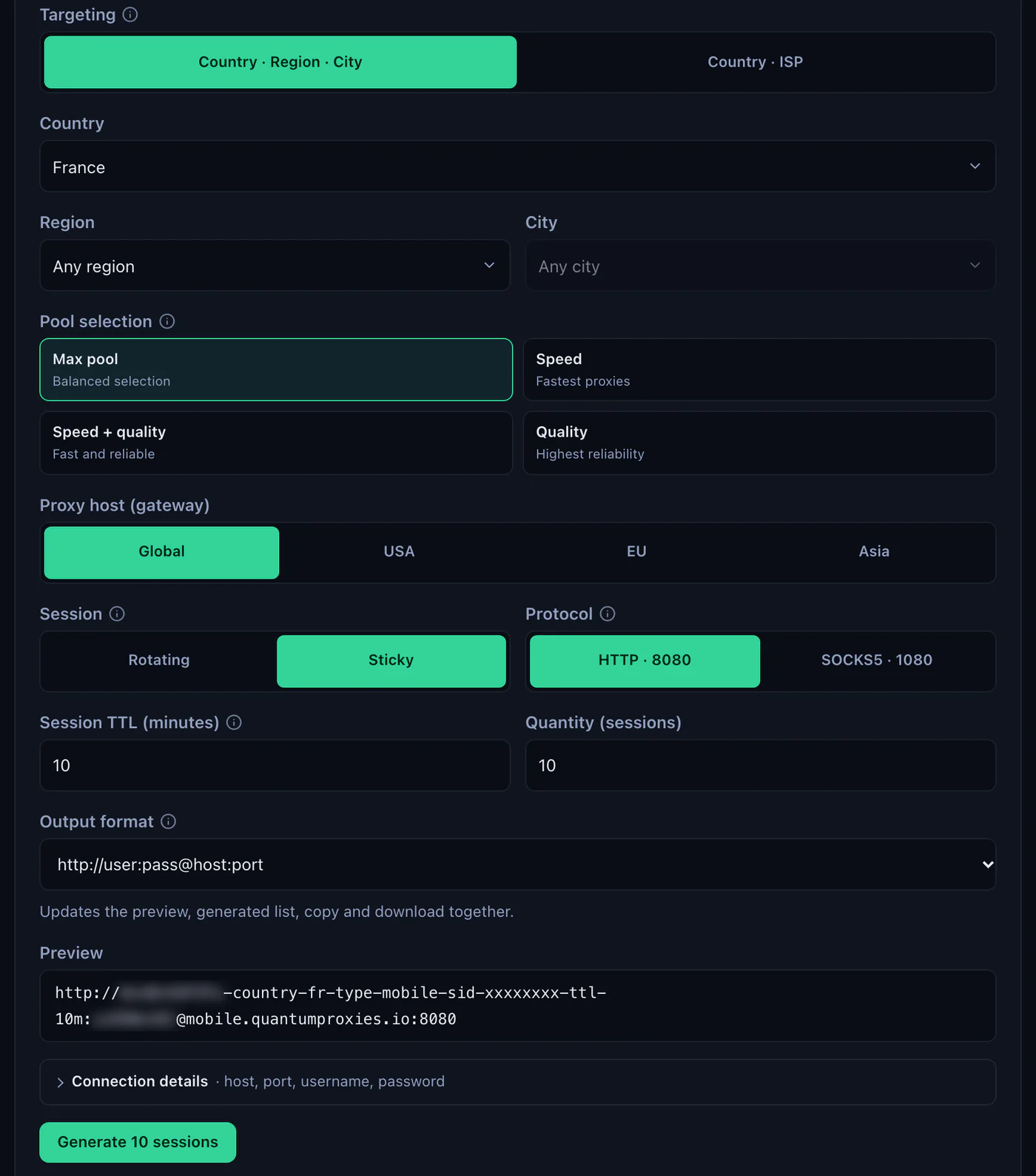
- Generate the line. In the QuanticData dashboard open My proxies, then your plan. In the Endpoint generator choose the Country (and a Region or City if the watch needs one), set Session to Sticky, choose HTTP and set Output format to URL. The Preview shows the line to copy.
- Open the settings. In Changedetection.io click Settings in the top menu, then the CAPTCHA & Proxies tab.
- Fill a row of Extra Proxies. There are five rows. In Name write a label you will recognise, for example QD France: it is what you pick in each watch. In Proxy URL paste the line. A row needs both: a Name without a URL, or a URL without a Name, is refused.
- Add one row per exit. A second country, a mobile line or an ISP IP each get their own row, with their own Name.
- Scroll down and click Save. "Settings updated." confirms it.
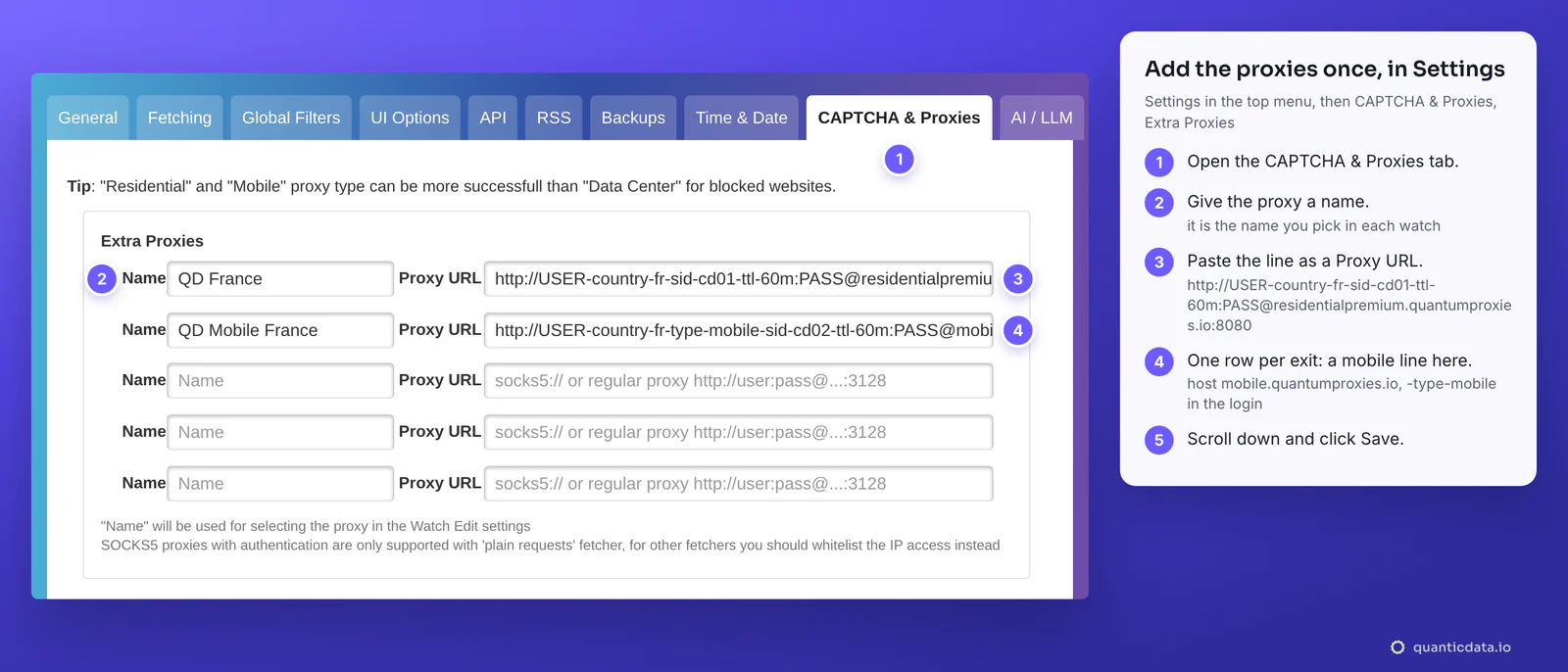
Once there is at least one proxy, Settings, General shows a Default proxy choice, "Choose a default proxy for all watches". It is the proxy every watch uses unless the watch picks another one.
Choose the proxy in each watch
This is the part that makes Changedetection.io useful with more than one proxy: every watch can leave from its own exit. A price page in France, a stock page in Germany, a page that only opens from a mobile network, each in its own watch.
- In the watch list, click Edit on the watch, then the Request tab.
- Under Fetch Method, keep Basic fast Plaintext/HTTP Client for plain pages, or choose the Chrome browser (Playwright Chromium/Javascript) for pages that build their content with JavaScript. Both send the request through the proxy chosen below.
- Under Proxy, pick the Name you gave in Settings. The list starts with Default, then your proxies, then No proxy.
- Click Check/Scan all to test this watch's page through every proxy in the list. Next to each one it shows OK or X, the reason (for example 403 - Access denied, or the status code) and the time in seconds.
- Click Save. The next check of the watch leaves from that proxy.
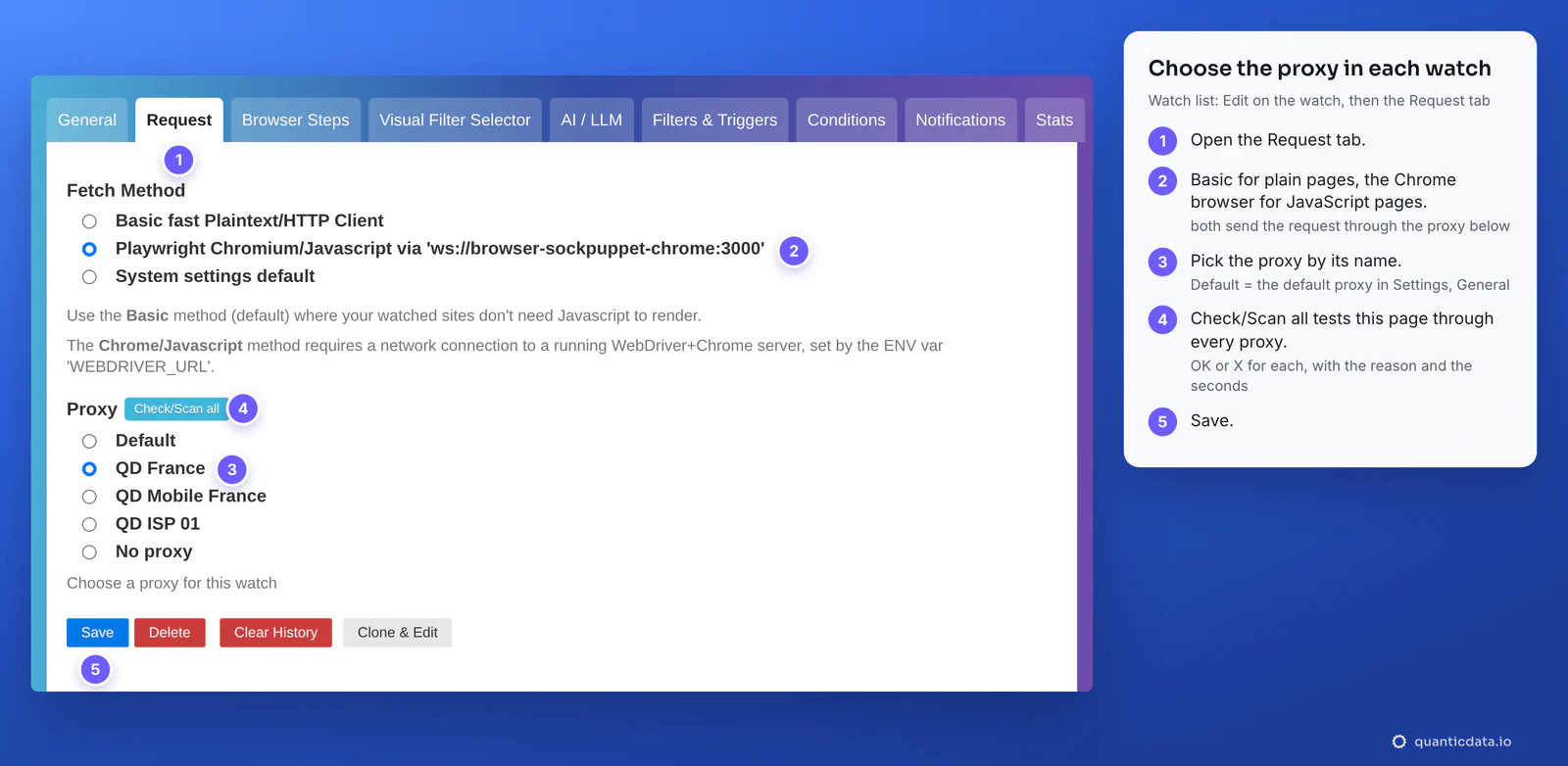
When a watch is left on Default, Changedetection.io uses the Default proxy from Settings, General; if none is set there, it takes the first proxy in the list. That is why a watch can go through a proxy you did not pick: set the Default proxy on purpose, or choose No proxy in the watches that must not use one.
Check where a watch comes from
The quickest proof is a watch on a page that prints the visitor's IP. Add a watch on https://ipinfo.io/json, choose the proxy in its Request tab, recheck it and open Preview: the Text tab shows the address and the place the request came from. Changedetection.io stores JSON sorted by key, so city, country, ip, region and timezone appear in that order.
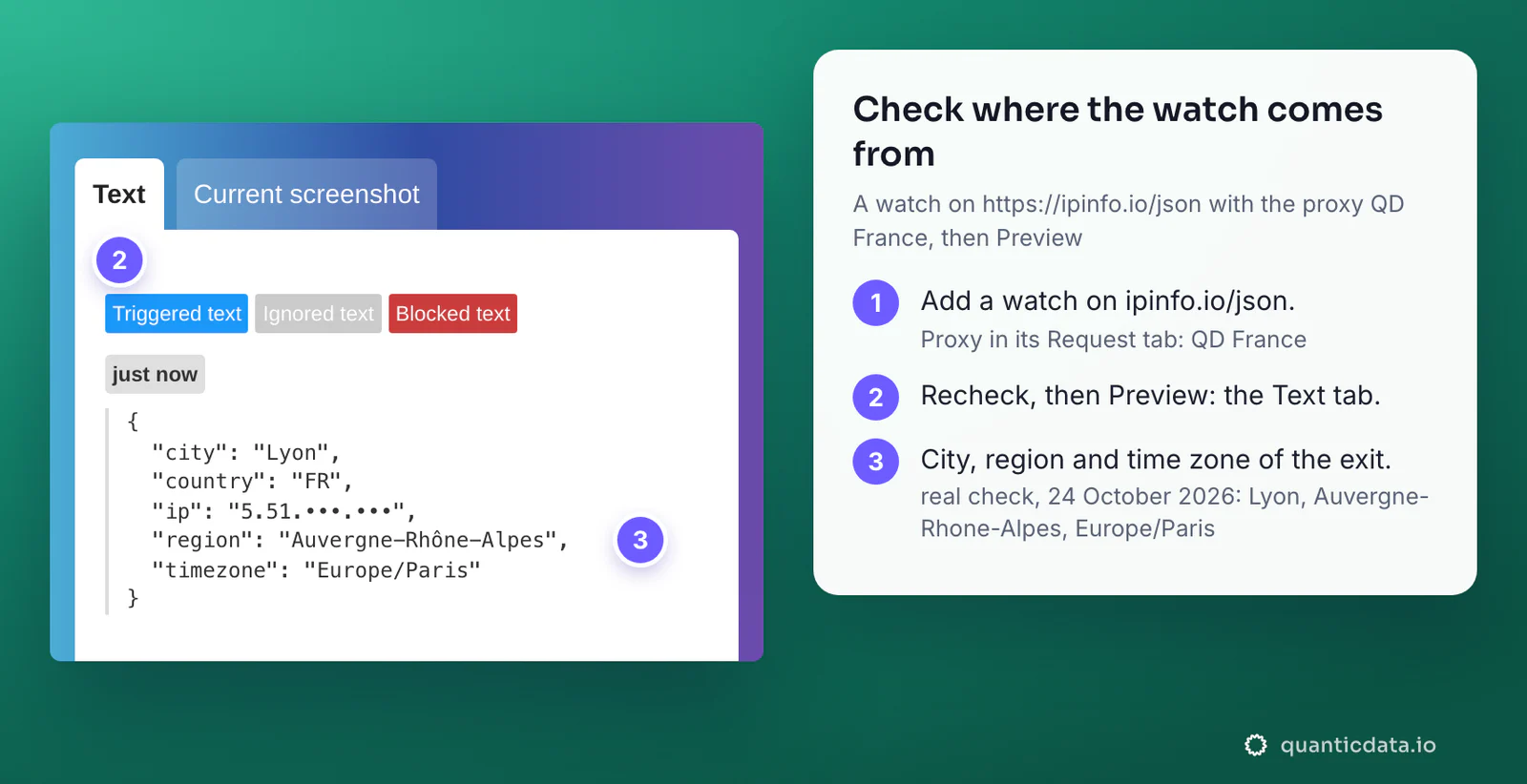
The same France line went out from Lyon, Auvergne-Rhone-Alpes, in the Europe/Paris time zone, on 24 October 2026 at 09:17 UTC. The city is not fixed: with -country-fr only, each new session can land anywhere in France. A Region or City chosen in the generator narrows it.
Residential Premium, ISP and mobile proxies in Changedetection.io
| Proxy type | Proxy URL in Extra Proxies | Good for |
|---|---|---|
| Residential Premium | http://USER-country-fr-sid-cd01-ttl-60m:[email protected]:8080 | Most watches: home IPs in the country of the page, region, city or ISP in the login |
| ISP | http://USER:PASS@IP:50100, from Assigned IPs | Watches that should come from the same address for months |
| Mobile | http://USER-country-fr-type-mobile-sid-cd02-ttl-60m:PASS@mobile.quantumproxies.io:8080 | Pages that answer phones differently, or refuse other networks |
Residential Premium
The line from the steps above. Give each group of watches its own row with its own session ID: -sid-cd01 for one, -sid-cd02 for the next. With Session on Sticky the generator makes as many lines as the Quantity field says, ten by default, each with its own session, and Copy all takes them out in the same URL format. More countries are a matter of more rows: -country-de, -country-us and so on. See QuanticData residential proxies and French proxies for the plans and the locations.
ISP proxies
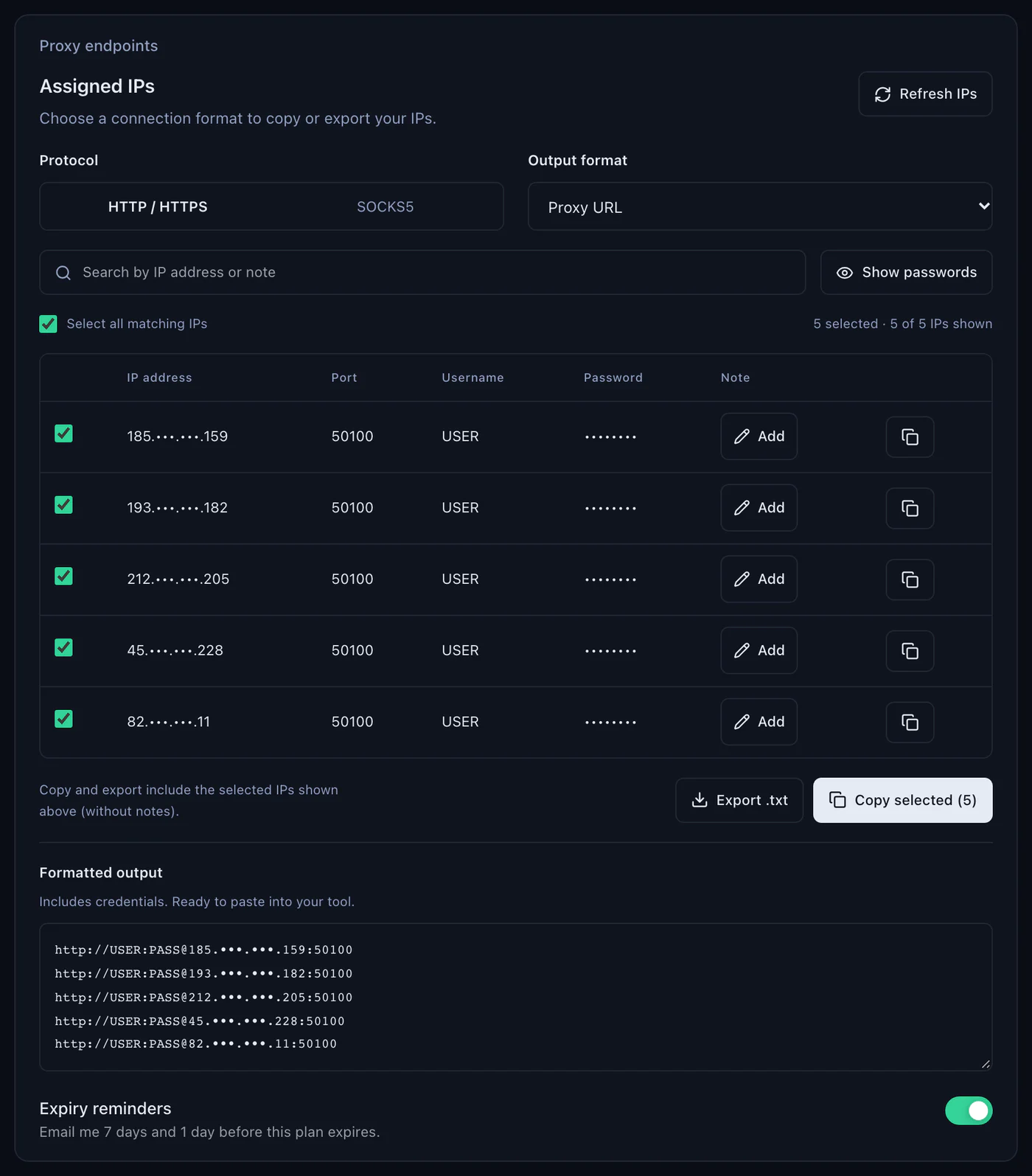
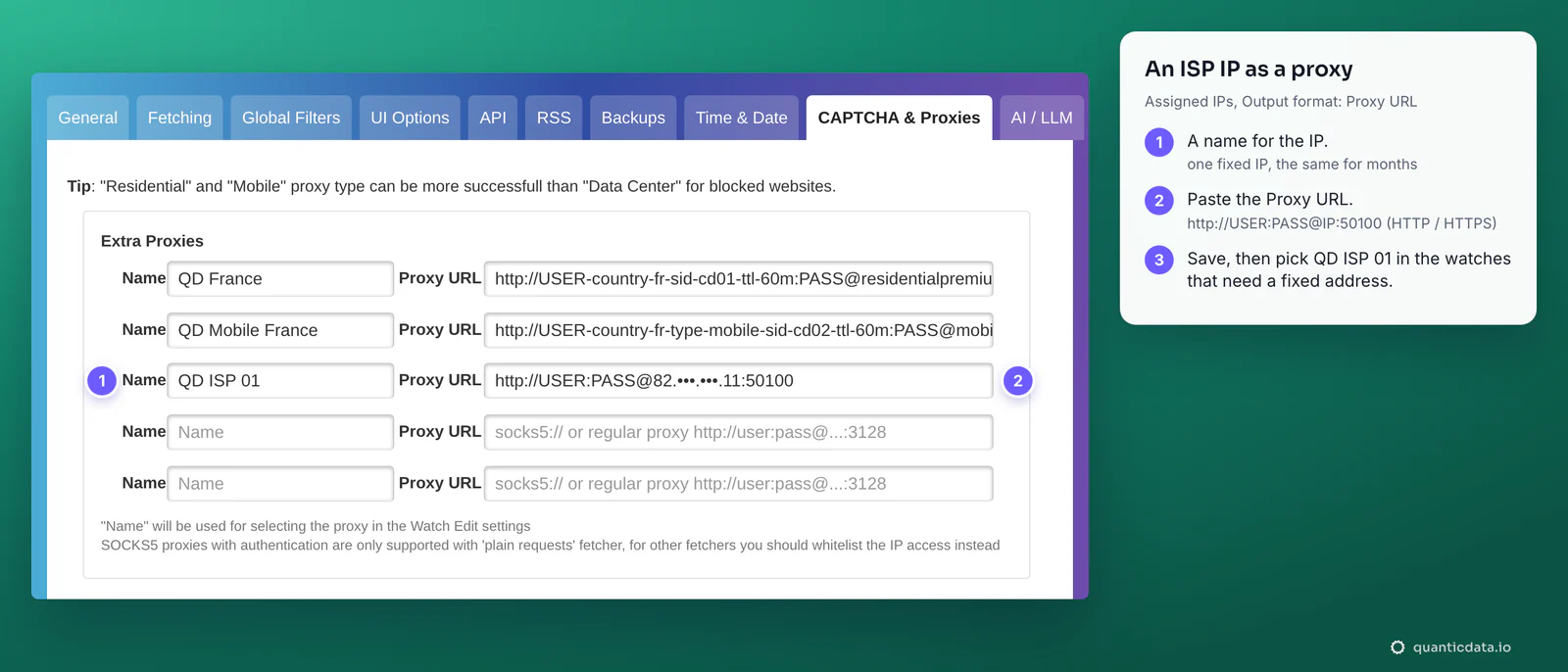
An ISP plan gives fixed IPs. In the dashboard, Proxy endpoints, Assigned IPs lists them; set Output format to Proxy URL and each line is already in the form Changedetection.io wants, http://USER:PASS@IP:50100 with Protocol on HTTP / HTTPS. Paste one IP per row, with a Name like QD ISP 01, and pick it in the watches that need a stable address. The IP does not change, so there is no session to manage. The plans are on the page for ISP proxies.
Mobile proxies
Mobile lines work like Residential Premium, on mobile.quantumproxies.io, HTTP 8080 or SOCKS5 1080, with -type-mobile in the login. In the generator choose the gateway (Global, USA, EU or Asia), Session Sticky and Output format URL, then paste the line as its own row. Mobile plans also offer IP whitelist authentication: add the public IP of the server that runs Changedetection.io, and the list for that IP gives host:port lines with no login. That is the way to use SOCKS5 with the Chrome fetcher, which cannot send a SOCKS5 login. More on QuanticData mobile proxies and mobile proxies in France.
The Chrome fetcher, Playwright and the proxy
Pages that need JavaScript are fetched by a real Chrome. In the Docker setup that is the Playwright fetcher, enabled with PLAYWRIGHT_DRIVER_URL; its label in Fetch Method shows the address, for example ws://browser-sockpuppet-chrome:3000. Three things to know:
- The watch's proxy wins. A proxy chosen in the Request tab, or the Default proxy, is passed to the browser, and Changedetection.io takes the username and password out of the URL for it. Nothing else to set.
- HTTP, not SOCKS5, when there is a login. SOCKS5 with a username and password works only with the Basic fetcher. For the Chrome fetcher use the HTTP line on port 8080, or a mobile line with IP whitelist.
- A default for the browser only. Without any proxy in the list, the Playwright fetcher reads four environment variables:
playwright_proxy_server,playwright_proxy_username,playwright_proxy_passwordandplaywright_proxy_bypass.
# docker-compose.yml, service changedetection: a default proxy for the Chrome fetcher
    environment:
      - PLAYWRIGHT_DRIVER_URL=ws://browser-sockpuppet-chrome:3000
      - playwright_proxy_server=http://residentialpremium.quantumproxies.io:8080
      - playwright_proxy_username=USER-country-fr-sid-cd01-ttl-60m
      - playwright_proxy_password=PASS
The older WebDriver (Selenium) fetcher passes the proxy to Chrome as a --proxy-server start option, and Chrome does not take a username and password from it. With that fetcher, use the mobile IP whitelist, or switch to the Playwright browser.
proxies.json and environment variables
Settings is the simplest place for proxies, but not the only one. A file called proxies.json in the datastore directory adds proxies to the same list, next to the ones from Extra Proxies; with Docker, mount it as ./proxies.json:/datastore/proxies.json. Each entry has a label, the name you see in the watch, and a url:
{
  "qd-france": {
    "label": "QD France",
    "url": "http://USER-country-fr-sid-cd01-ttl-60m:PASS@residentialpremium.quantumproxies.io:8080"
  },
  "qd-mobile-fr": {
    "label": "QD Mobile France",
    "url": "http://USER-country-fr-type-mobile-sid-cd02-ttl-60m:PASS@mobile.quantumproxies.io:8080",
    "reuse_time_minimum": 300
  },
  "direct": {
    "label": "No proxy - Direct"
  }
}
An entry without a url is a choice with no proxy. reuse_time_minimum is the least number of seconds between two checks through that proxy: a watch that comes due sooner waits until that time has passed. For plain requests with no proxy in any list, Changedetection.io also reads HTTP_PROXY and HTTPS_PROXY; the project's wiki adds NO_PROXY for the addresses to leave out.
One sticky session, or a new IP each check
A sticky line keeps one IP for as long as its -ttl- says, up to 1440 minutes in the generator. That is what a watch with Browser Steps, a login or a cookie banner needs: every request of one check has to come from the same address. When the session ends, the next request gets a new IP on its own, and the line in Settings never has to change.
For plain public pages a new IP at every check is fine, and sometimes better. Set Session to Rotating in the generator: the login then has no -sid-, and every connection gets a fresh address. To move a sticky watch to a new IP right away, change the session ID in its row, -sid-cd03 instead of -sid-cd01, and save.
Changedetection.io proxy not working: errors and fixes
Errors show up in three places: under Extra Proxies when you save, in red under the watch in the watch list after a check, and next to each proxy after Check/Scan all. These are the messages and what they mean, in the order to check.
| What you see | Usual cause | Fix |
|---|---|---|
| Proxy URLs must start with http://, https:// or socks5:// | The line was pasted as host:port:user:pass or user:pass@host:port | Generate it again with Output format URL, or add http:// and move the login before the @ |
| Both a name, and a Proxy URL is required. | A row has only one of the two fields | Fill both, or empty both |
| Error - 407 (Proxy authentication required) received, did you need a username and password for the proxy? | The login is missing, cut at the first dash, or the password is wrong | Copy the whole URL again from the Preview; see fixing 407 Proxy Authentication Required |
| Proxy connection failed? at the start of the error | A socks5:// proxy could not be reached: most often socks5:// on port 8080 | socks5:// with 1080, or http:// with 8080 |
| An Exception with ProxyError or Unable to connect to proxy | http:// on port 1080, a typo in the host, or a firewall blocking the port | http:// with 8080, copied from the generator; then the curl test below |
| A SOCKS5 proxy works with Basic, fails with Chrome | SOCKS5 with a login is supported only by the Basic fetcher | Use the HTTP line on 8080, or a mobile line with IP whitelist |
| Error - 403 (Access denied) received - Try other proxies/location | The site refused the request from that address | Run Check/Scan all and pick a proxy that shows OK; try a new session ID, the Chrome fetcher or a mobile line |
| The watch goes through a proxy you did not choose | The watch is on Default, and Default falls back to the first proxy in the list | Set the Default proxy in Settings, General, or pick No proxy in the watch |
| It worked before, every proxy row fails now | The plan expired or its traffic is used up | Check the plan in My proxies: status, remaining traffic, expiry date |
The 403 is the error people search for most, and the proxy is not always the cause: some sites refuse any automated client, whatever the address. More on that in why sites answer 403 Forbidden. To rule out the proxy, one test from the same server settles it in a minute; if it prints an address in the right country, the proxy works and the problem is in the watch:
curl -x http://residentialpremium.quantumproxies.io:8080 \
  -U "USER-country-fr-sid-test-ttl-10m:PASS" https://ipinfo.io/json
If the same command fails from the server but works from another network, a firewall in front of the server is blocking the proxy port. The full set of options is in the guide to using a proxy with curl, and SOCKS5 itself on the page for SOCKS5 proxies.
Before you monitor
A proxy changes where a watch's requests come from, not what the watch is allowed to collect. Keep to each site's terms and to the law where you work, keep the check interval reasonable for the page, and watch only the data you need.
Sources & further reading
- Changedetection.io on GitHub: source, templates and docker-compose.yml
- Changedetection.io wiki: Proxy configuration
- Changedetection.io tutorial: the proxy scanner (Check/Scan all) and 403 Access denied
- Playwright for Python: the proxy option of browser contexts
- RFC 9110: HTTP Semantics, 407 Proxy Authentication Required