
To add a proxy in AdsPower, open the profile's Proxy tab, choose Custom, pick the proxy type that matches the port and paste the whole line, host:port:username:password, into Host:Port: AdsPower fills in the username and password. Click Check Proxy, then OK. Give every profile its own sticky session. Below: each step, bulk import and a fix for each error.
AdsPower keeps every browser profile apart: its own cookies, its own fingerprint and, once you add one, its own proxy. AdsPower is the browser, not a proxy network; its documentation says it provides no proxies of its own, so the proxy is what you bring. It decides which IP address, country and time zone the sites see. Four values make it work, and getting one of them wrong is behind almost every "Connection test failed" and "Proxy failure". The field names below are the ones in AdsPower's own Help Center; the values come from the QuanticData endpoint generator.
What you need before you start
- AdsPower installed, with an account. The free plan has 2 browser profiles, enough to try every step below; a few tools, such as updating proxies from a file, are paid features.
- A proxy plan. Residential Premium, ISP or Mobile: all three work in AdsPower. The sections further down say which one fits which profile.
- The four values: host, port, username and password. In the QuanticData dashboard they are under My proxies, on the plan's page, in the Endpoint generator.
The proxy formats AdsPower accepts
In a profile, AdsPower has separate fields for Host:Port, Proxy username and Proxy Password, but you do not have to fill them one by one. Its Help Center says to paste the proxy into Host:Port as IP:port:username:password, and the other fields fill in automatically. A hostname works in place of the IP. The Proxies page, which stores proxies for later, reads one proxy per line in these layouts:
- host:port:username:password: the default, and what the QuanticData generator gives with the output format host:port:user:pass.
- host:port: only with IP whitelist authentication, where the plan recognises your IP and no login is sent.
- A type prefix,
http://orsocks5://, sets the type inside the line; without it, the line takes the Proxy type chosen on the page. - {Remark} at the end of the line becomes the proxy's remark, which is how you find it later.
The same QuanticData proxy in each layout:
# paste into Host:Port in a profile
residentialpremium.quantumproxies.io:8080:USER-country-gb-sid-p01-ttl-60m:PASS

# one line on the Proxies page, with a remark
residentialpremium.quantumproxies.io:8080:USER-country-gb-sid-p01-ttl-60m:PASS{UK 01}

# type prefix, SOCKS5 on its own port
socks5://residentialpremium.quantumproxies.io:1080:USER-country-gb-sid-p01-ttl-60m:PASS{UK 01}
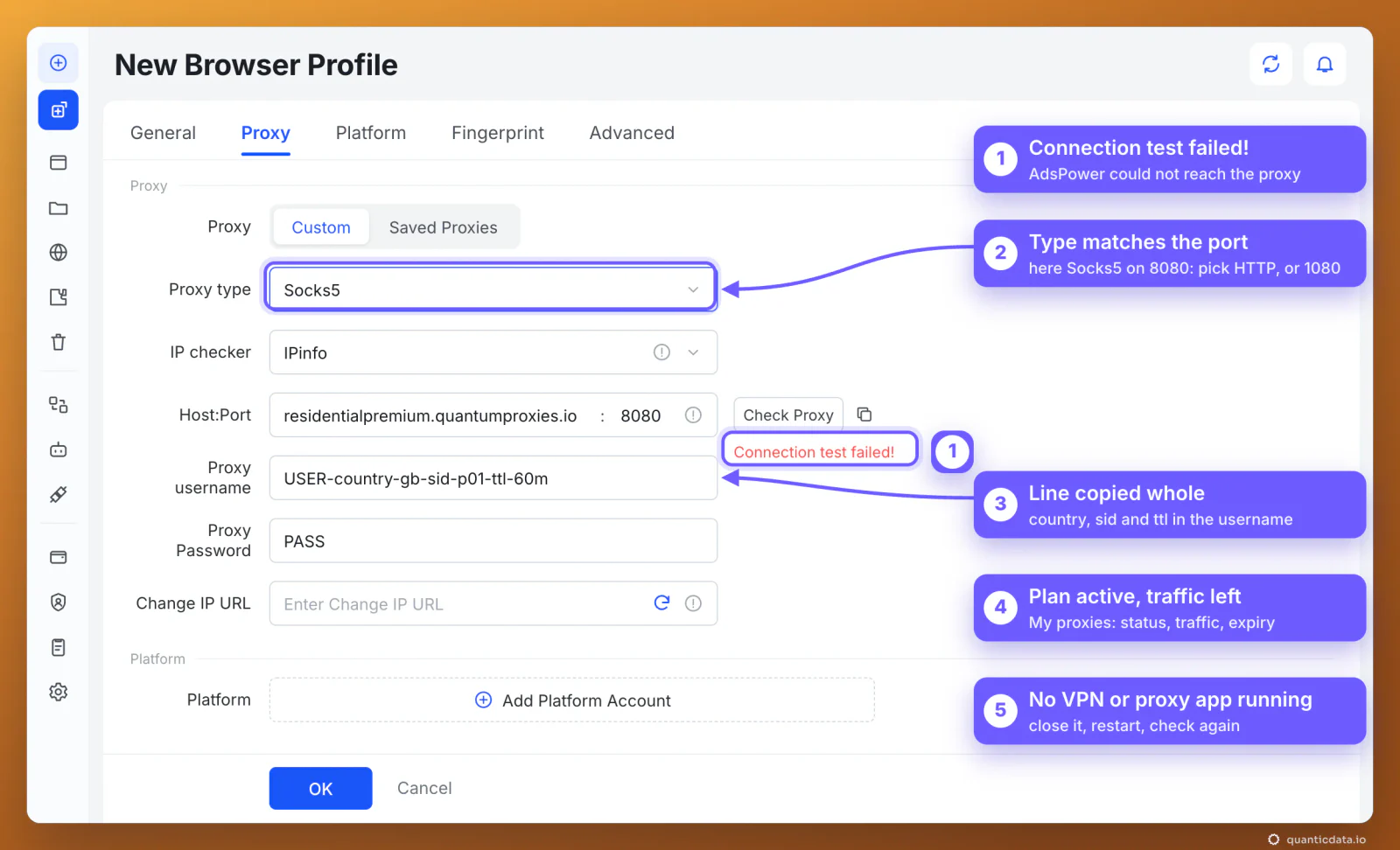
The username is the whole string with everything after the first dash: -country-gb picks the exit country, -sid-p01 names the session and -ttl-60m keeps it for 60 minutes. Copy it whole. A username cut at the first dash still logs in, but the profile then leaves from a random country on a new IP at every request.
Step by step: add a proxy to an AdsPower profile
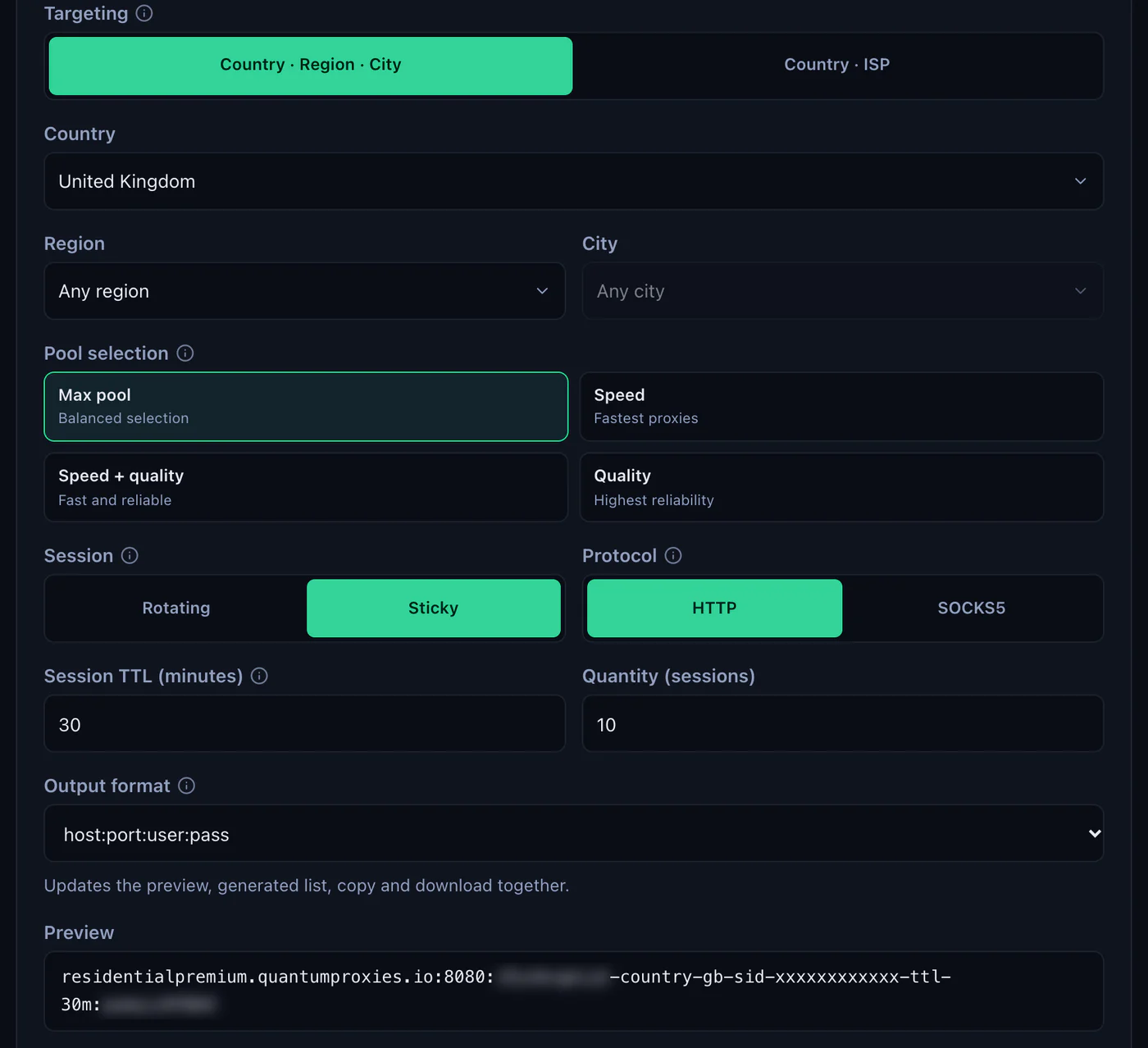
- Generate the line. In the QuanticData dashboard open My proxies, then your plan. In the Endpoint generator choose the Country (and a Region or City if the profile needs one), set Session to Sticky, set Session TTL (minutes) to at least the time the profile stays open, choose the Protocol and keep the Output format on host:port:user:pass. The Preview shows the line; Connection details shows the same four values one by one.
- Open a new profile in AdsPower. Click New Profile in the upper left corner, or edit an existing profile, and go to the Proxy tab.
- Choose Custom. Saved Proxies is the other choice: proxies already stored on the Proxies page.
- Pick the Proxy type that matches the port. The list has HTTP, HTTPS, Socks5 and SSH: HTTP for port 8080, Socks5 for port 1080.
- Paste the whole line into Host:Port. AdsPower splits it: the host and port stay in Host:Port, the username goes to Proxy username and the password to Proxy Password. One line, no spaces, nothing after the password.
- Click Check Proxy. "Connection test passed!" means AdsPower reached the proxy; under it, AdsPower shows the exit IP and its location from the IP checker selected above. The country has to match the
-country-in the username. - Leave Change IP URL empty. On QuanticData plans a new IP comes from a new session ID in the username, not from a link.
- Click OK, then Open. The profile appears on the Profiles page; Open starts its browser. In the Fingerprint tab, Timezone, Location and Language are Based on IP by default, so they follow the proxy's country.
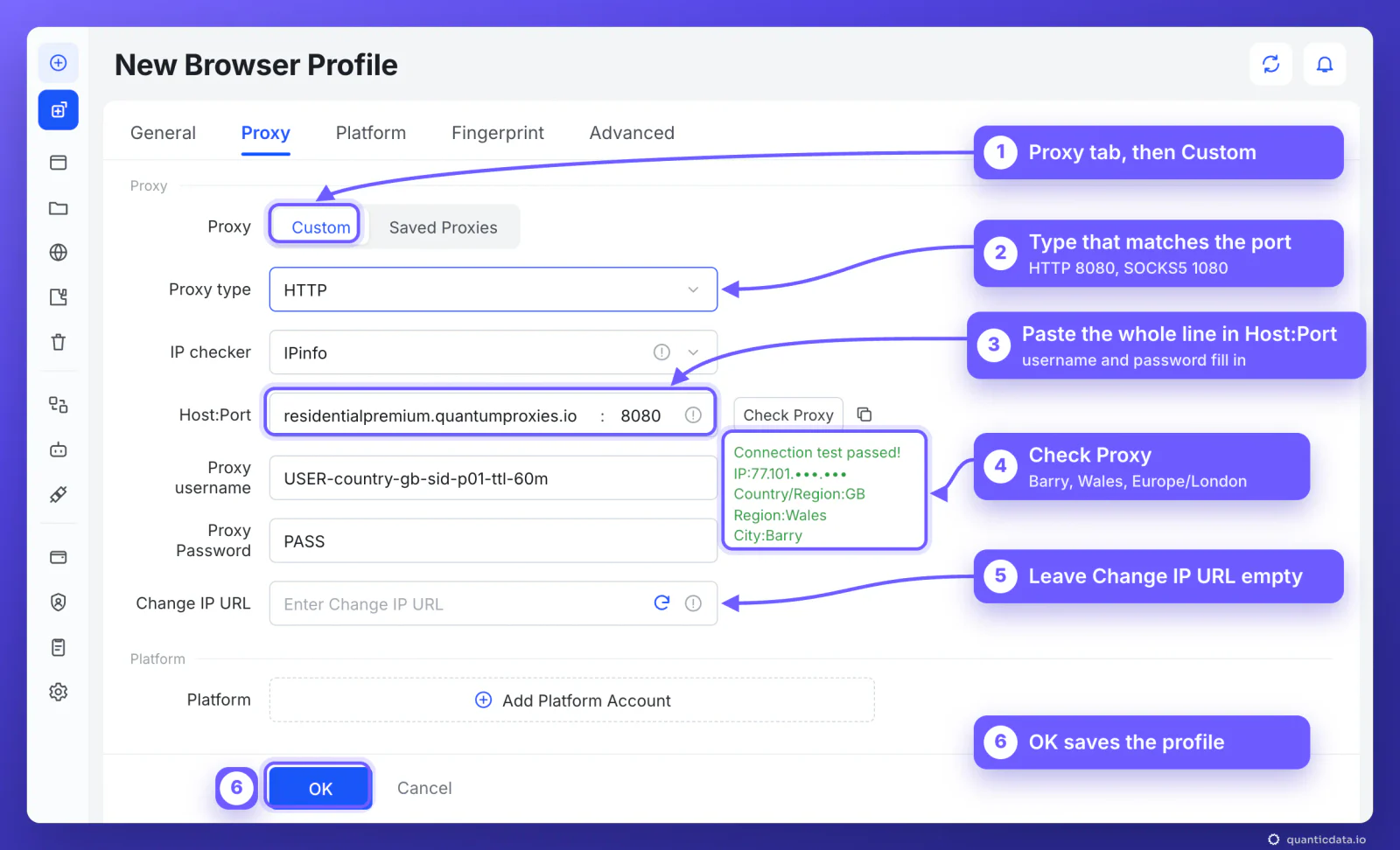
That check is worth reading closely. The line asked only for -country-gb, and the exit came out in Barry, Wales, on the Europe/London time zone. With country targeting alone, the city can be anywhere in the country. If the profile has to look like London, choose the Region and City in the generator before you copy the line: they go into the username like the country does.
One sticky session per profile
An antidetect profile is meant to look like one person on one connection. A rotating proxy changes IP on every request, which is fine for scraping and wrong for a profile that logs in. A sticky session keeps one IP for as long as the session lives, and the session lives in the username, so the line never has to change once it is saved in the profile.
# profile 1: United Kingdom, one session for a working day
residentialpremium.quantumproxies.io:8080:USER-country-gb-sid-p01-ttl-480m:PASS

# profile 2: same plan, its own session (never reuse p01)
residentialpremium.quantumproxies.io:8080:USER-country-gb-sid-p02-ttl-480m:PASS

# profile 3: United Kingdom, open all day
residentialpremium.quantumproxies.io:8080:USER-country-gb-sid-p03-ttl-1440m:PASS
Three rules cover almost every case:
- A different session ID in every profile. Two profiles on the same line share one IP, which is exactly what an antidetect browser is there to avoid.
- A lifetime longer than the work. The generator accepts up to 1440 minutes, a full day. When the session ends, the next request gets a new IP, and a site can see that as a new login location.
- The country in the username. Without
-country-the exit can be anywhere, and the time zone AdsPower takes from the IP will not be the one you planned.
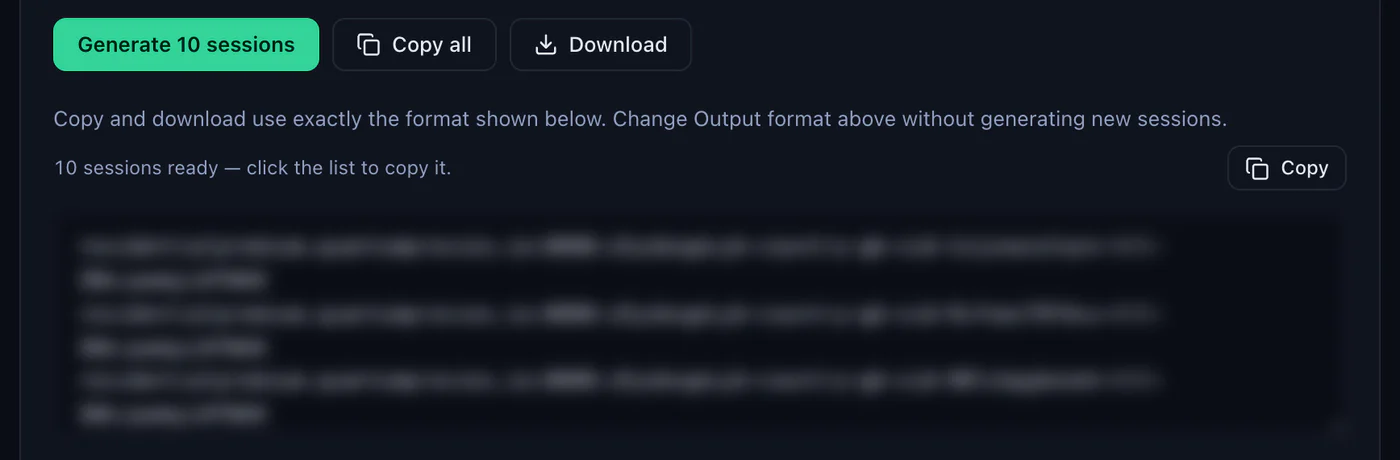
With Session set to Sticky, the generator makes as many lines as the Quantity field says, ten by default, each with its own session ID, and Copy all or Download takes them out in the same format. One line per profile.
Residential Premium, ISP and Mobile proxies in AdsPower
All three go into the same Proxy tab with the same steps. What changes is the line you paste and how long the address stays the same.
| Proxy type | What goes into AdsPower | Good for |
|---|---|---|
| Residential Premium | One sticky line per profile; country, region, city or ISP in the username; HTTP 8080 or SOCKS5 1080 | Most profiles: home IPs in the country you choose, kept for up to 1440 minutes |
| ISP | One fixed IP per profile from Assigned IPs, as IP:Port:Username:Password | Long-lived accounts that should keep the same address for months |
| Mobile | One sticky line per profile; Global, USA, EU or Asia gateway; HTTP 8080 or SOCKS5 1080; IP whitelist available | Phone-first platforms and accounts tied to mobile networks |
| Datacenter | The same one-line format | Testing and low-risk profiles where speed matters more than the type of IP |
Residential Premium
The line from the steps above. Username and password authentication only, so every Residential Premium proxy in AdsPower uses Custom with all four values. To give a profile a new IP, change the session ID in its username, for example from -sid-p01 to -sid-p01b, and click Check Proxy again. The plans are on the page for QuanticData residential proxies.
ISP
An ISP plan gives fixed addresses, listed in the dashboard under Assigned IPs. Choose the format IP:Port:Username:Password and paste one line into Host:Port: it is exactly the layout AdsPower's Help Center describes, so the four fields fill in at once. One IP per profile, never shared. ISP addresses do not rotate: that is the point of them, and the Change IP URL field stays empty. More on the page for ISP proxies.
Mobile
A mobile line has its own host, mobile.quantumproxies.io, with HTTP on 8080 and SOCKS5 on 1080, and a gateway to choose in the generator: Global, USA, EU or Asia. With Session set to Sticky the username carries the session the same way:
mobile.quantumproxies.io:8080:USER-country-gb-type-mobile-sid-p01-ttl-60m:PASSMobile plans also offer IP whitelist authentication: add your computer's public IP in the generator, take the host:port list it gives for that IP, and leave Proxy username and Proxy Password empty in AdsPower. AdsPower's documentation reserves Change IP URL for mobile proxies; with QuanticData leave it empty here too: a new session ID in the username gives a new IP. Carrier targeting and the countries are on the page for mobile proxies for AdsPower.
Adding proxies to many profiles at once
- Make the lines. In the generator, set Session to Sticky and the quantity you need, generate, then Copy all or Download.
- Store them in AdsPower. Open Proxies in the sidebar and click Add Proxy. Paste the lines into the box, one per line, up to 500 at a time, and add a remark in braces at the end of each line if you want to find them by name. Pick the Proxy type for lines without a prefix, click Check proxy, then OK.
- Assign them. In a profile, Saved Proxies lets you select one; the blue loop button picks a random saved proxy, and the settings on the Proxies page decide whether it picks among all proxies or only unused ones. For existing profiles, select them on the Profiles page, open the "..." menu and choose Edit proxy: Saved Proxies with Random assigns them in one go.
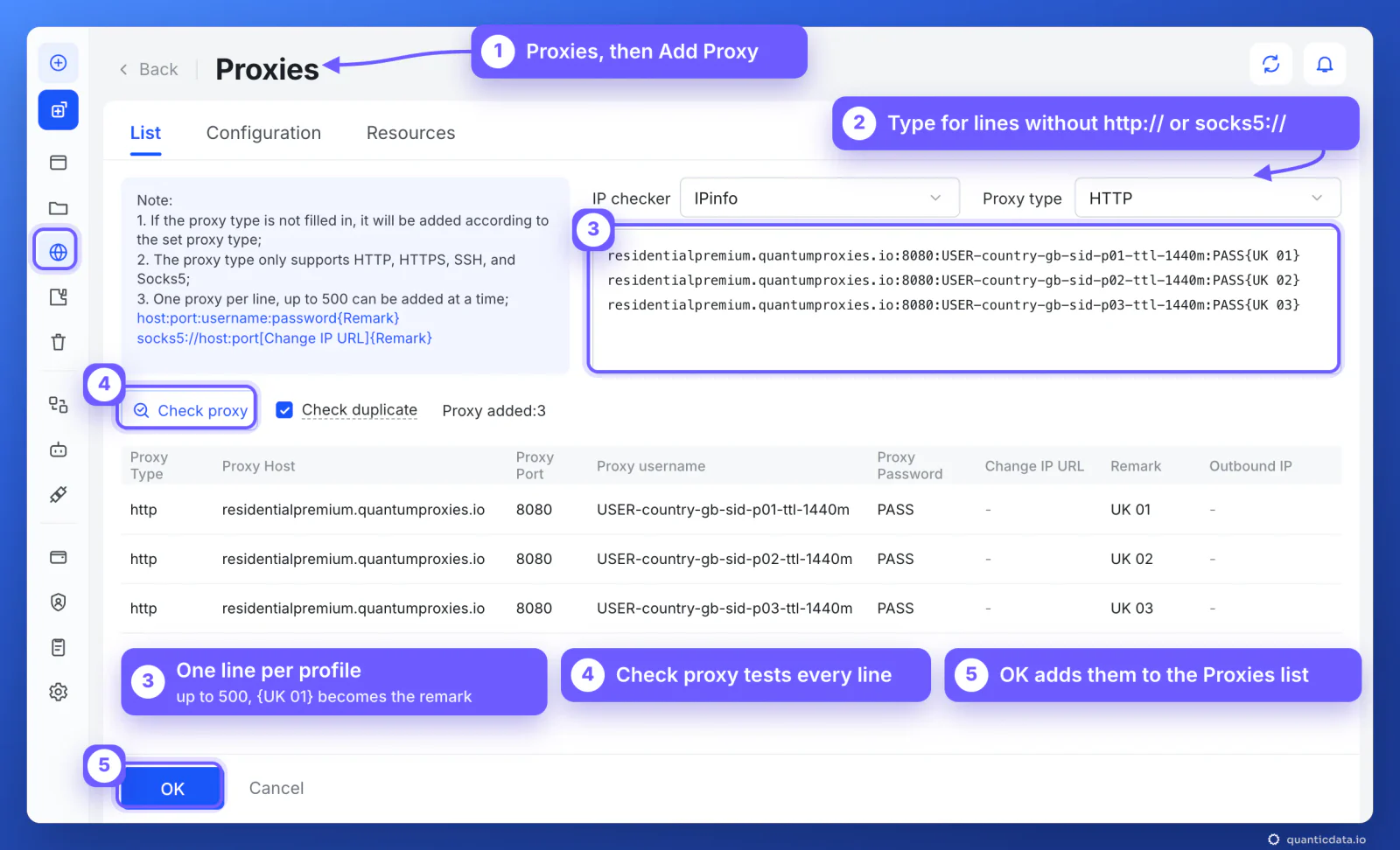
On the Proxies list, the Outbound IP column shows the result of each check: green for a passed test, red for a failed one, gray for a proxy not checked yet. Creating many profiles at once works too: the "+" button next to New Profile opens Bulk Create, where Mass import reads a template with a proxytype key (http, https, socks5 or ssh) and a proxy key in Host:Port:Username:Password, one profile per entry.
How to change the proxy of an AdsPower profile
- One profile, quickly: on the Profiles page, hover the proxy of the profile and click the pencil. Paste the new line and check it.
- One profile, all settings: open the "..." menu at the end of the row, choose Edit and go to the Proxy tab.
- Many profiles: select them, open the "..." menu at the top and choose Edit proxy. The same window can check them all.
To move a profile to a new IP without touching anything else, keep the host, port and password and change only the session ID in the username.
AdsPower proxy not working: errors and fixes
AdsPower reports a broken proxy in two places. In the profile settings, Check Proxy answers "Connection test failed!" in red. When you open a profile whose proxy does not connect, AdsPower shows a page titled Proxy failure. AdsPower's troubleshooting page for it has three steps: check the proxy details and that the proxy is still valid, close any VPN or other proxy program on the computer and restart it, then test the proxy from another network. These are the cases behind them, in the order to check.
| What you see | Usual cause | Fix |
|---|---|---|
| Connection test failed! | The type does not match the port: HTTP on 1080 or Socks5 on 8080 | HTTP with 8080, Socks5 with 1080 |
| The same message, with the right type | The username was cut, a colon is missing, or a space came with the paste | Copy the line again from the generator's Preview and paste it whole into Host:Port |
| Proxy failure when the profile opens | The plan expired or its traffic is used up, or the proxy cannot be reached from your network | Check the plan in My proxies: status, remaining traffic, expiry date; then Check Proxy again |
| The test passes, the profile still fails | A VPN or another proxy program on the computer is in the way | Close it, restart the computer, open the profile again |
| Your own IP shows inside the profile | A VPN or proxy extension installed in the profile | Remove the extension, as AdsPower's Help Center describes |
| Wrong country or time zone | No -country- in the username, or Worldwide chosen in the generator | Generate the line with a country; keep Timezone on Based on IP |
| The IP changes in the middle of a session | The session lifetime ended, or two profiles share one session ID | A longer -ttl- and a different -sid- in every profile |
One test outside AdsPower settles most cases in a minute. If this returns an address in the right country, the proxy works and the problem is in the profile's fields or on the computer:
curl -x http://residentialpremium.quantumproxies.io:8080 \
  -U "USER-country-gb-sid-test-ttl-10m:PASS" https://ipinfo.io/json
If the same command fails on your network but works from another one, a firewall or your internet provider is blocking the connection to the proxy port, which is the third step in AdsPower's list.
HTTP or SOCKS5 in AdsPower
Both work for browsing, and Residential Premium and Mobile offer both on the same username and password. HTTP on port 8080 is the simpler choice and the one to start with. SOCKS5 on port 1080 passes any kind of connection, not only web pages, which matters for tools inside the profile that do not speak HTTP; the details are on the page for SOCKS5 proxies. In AdsPower the choice is the Proxy type list, or a socks5:// prefix on the Proxies page. What breaks a profile is never the choice itself, only a type that does not match its port.
Before you run accounts
A proxy changes where a profile's traffic comes from, not what the profile is allowed to do. Keep to each platform's terms and to the law where you work, and use one profile, one session and one identity per account. For a wider view of why each profile needs its own address, see residential proxies for antidetect browsers; for phone-first platforms, see the mobile proxies plans.
Sources & further reading
- AdsPower Help Center: create a profile
- AdsPower Help Center: proxy types and Check Proxy
- AdsPower Help Center: proxies, add and check
- AdsPower Help Center: Proxy failure
- AdsPower Help Center: edit profile and edit proxy in bulk
- AdsPower Help Center: browser fingerprint (time zone, location, language)
- AdsPower pricing
- RFC 1928: SOCKS Protocol Version 5